Free AI Transcription Now: Use Mr. Transcription (10 Mins Daily)
4 Easy Ways to Transcribe in Google Docs for Free
Oct. 9, 2026
Did you know that Google Docs, which you use every day, has a “voice typing” (transcription) feature?
- You want to transcribe for free.
- You use Google Docs for work all the time.
- Besides real-time voice transcription, you also want to try converting recordings to text and extracting text from images and PDFs.
If any of this sounds like you, honestly, it would be a waste not to use it!

I want to know everything you can do with transcription in Google Docs!
For everyone who wants exactly that, this article explains the transcription tools available in Google Docs.
If you research transcription in Google Docs, you will often find instructions for only one of two things: “real-time voice typing” or “converting audio data to text”, so this article covers all of the transcription-related features.
After reading this article, without installing any new app, you will be able to do many things easily with Google Docs alone, such as writing text by voice and transcribing meeting minutes.
I will also introduce a recommended way to transcribe audio files, which Google Docs is not good at, by uploading audio files such as MP3.
Please read through to the end.
Free: A Recommended AI Transcription Service That Is Easier to Use Than Google Docs
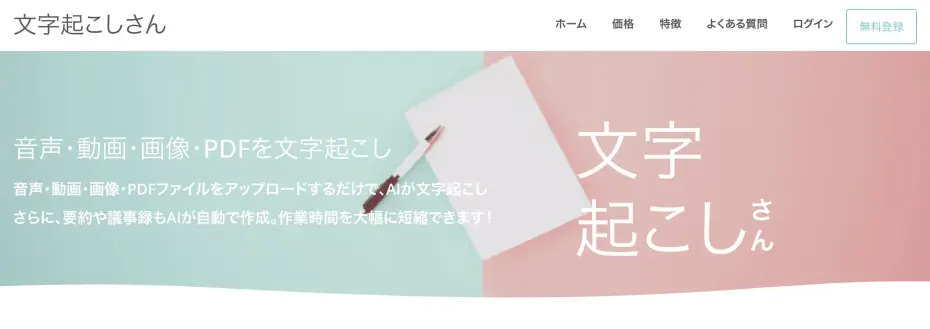
If you are looking for a way to transcribe audio files, “Mr. Transcription” is also a great choice!
“Mr. Transcription” is a free, easy-to-use AI transcription service.
To transcribe audio files such as MP3 in Google Docs, you need a complicated setup that records the sound playing inside your PC.
With “Mr. Transcription”, there is no tedious setup at all!
Just upload the file and your audio file is transcribed with ease!
No registration or login required — you can transcribe for free, so why not try it here?
Free: 4 Easy Ways to Transcribe in Google Docs

So how can you transcribe easily in Google Docs? Here are four methods.
Real-Time Voice Typing
The easiest way to transcribe in Google Docs is “real-time voice typing”.
With real-time voice typing, your speech is automatically converted to text just by speaking into the microphone.
Even within Google Docs, the steps and the interface (how it looks) differ slightly depending on the OS, so each OS is explained separately.
Steps on a Computer (Windows and Mac)
First, here is how to use real-time voice typing when you use Google Docs in a browser on a Windows PC or Mac.
1.Tools → Voice typing (Ctrl+Shift+S / ⌘+Shift+S)
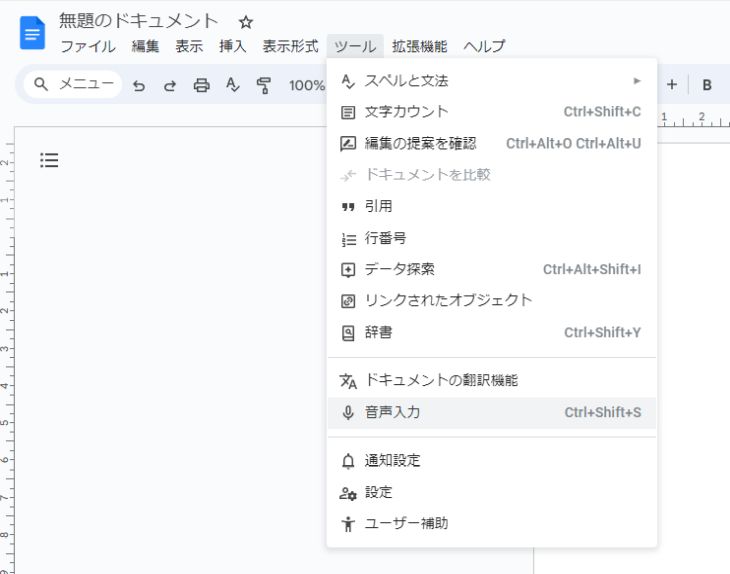
2.Click the microphone to start transcribing (the microphone turns red)
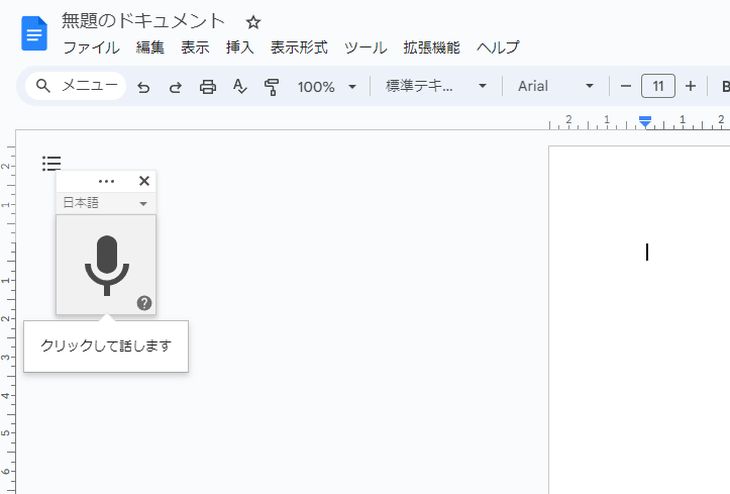
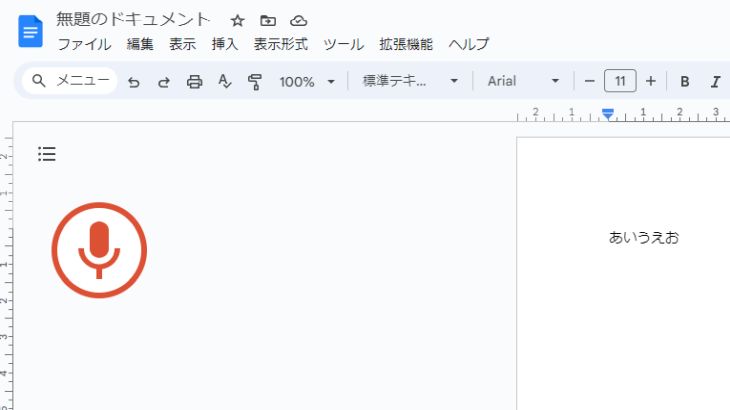
3.Click the microphone again to stop
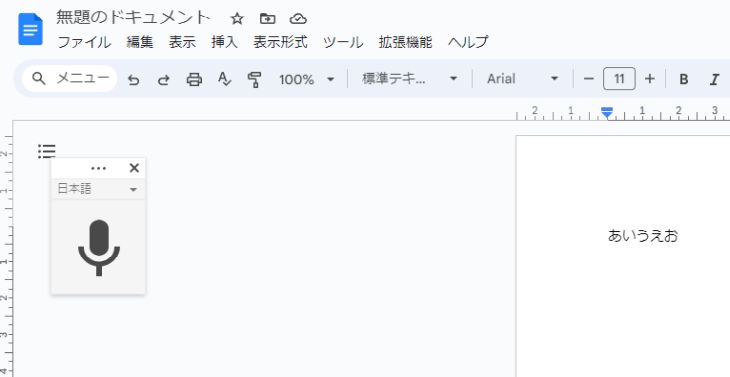
This lets you use voice typing on your computer from a browser such as Google Chrome.
Steps on iPhone
Next, here is how to use voice typing on an iPhone.
On an iPhone, you type by voice using the iPhone’s built-in dictation rather than the voice typing in Google Docs.
1.Tap the microphone button at the bottom of the on-screen keyboard
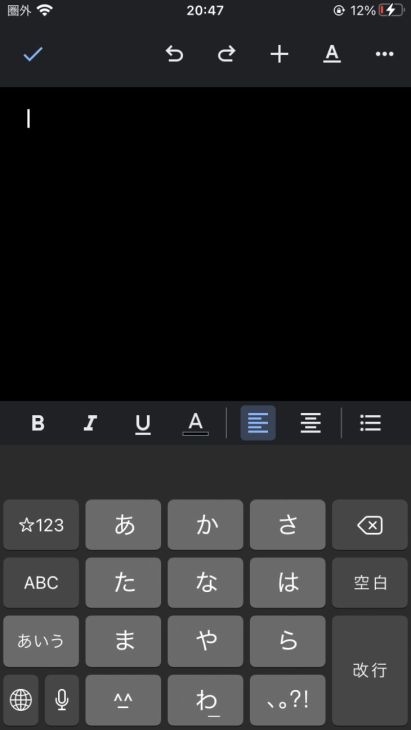
2.A waveform appears (transcription starts)
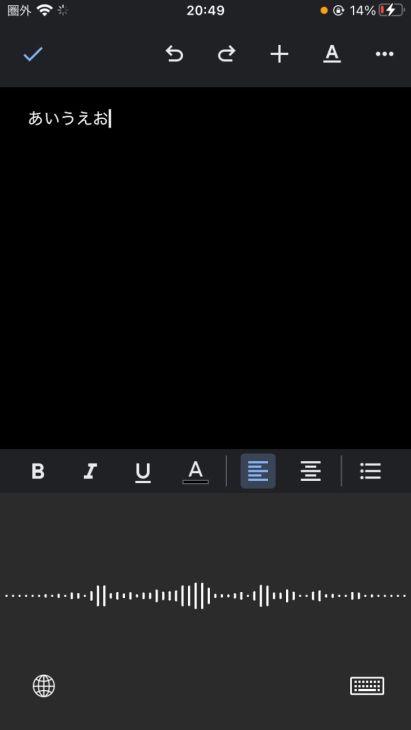
3.Tap the waveform to stop
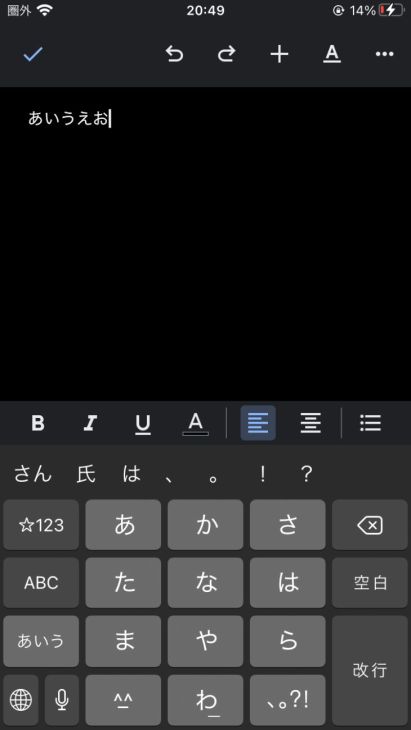
This is how you can transcribe in Google Docs on an iPhone as well.
Steps on Android
Finally, here is the process for transcribing with Google Docs on an Android smartphone.
※Android 12 is used as the example here.
1.Tap the microphone button on the on-screen keyboard
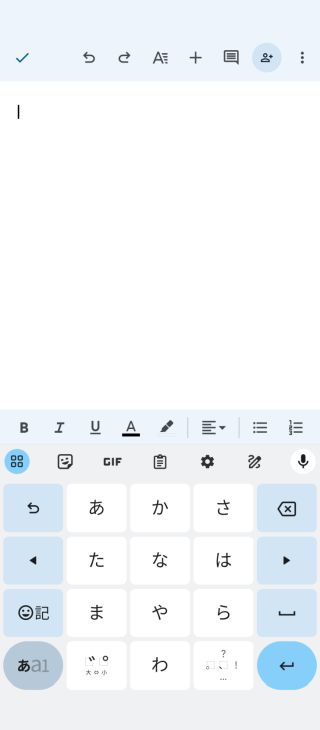
2.The microphone button changes color and transcription starts
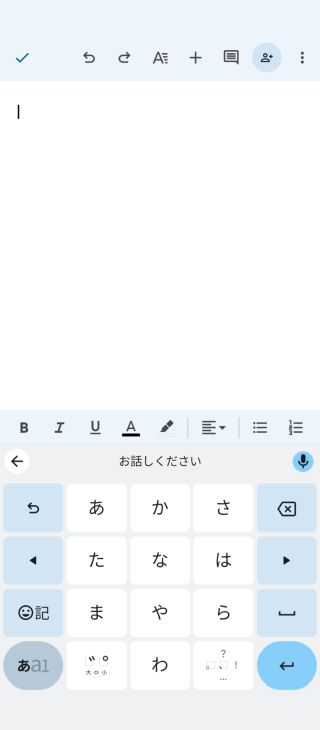
3.Tap the microphone button again to stop
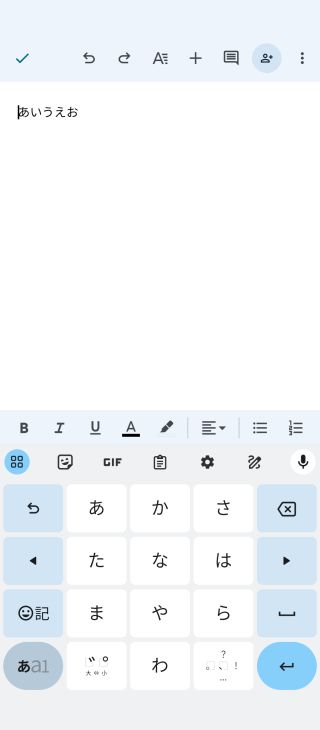
You have now transcribed in Google Docs.
Bonus: How to Enter Punctuation and Symbols
You can enter not only text but also commonly used symbols by voice.
- Period (。): say “まる” (maru)
- Comma (、): say “とうてん” (touten)
- Corner brackets (「」): say “かぎかっこ” (kagikakko) / “かぎかっことじ” (kagikakko toji)
There are many other keywords you can use, so please give them a try.
Type with your voice – Google Docs Editors Help
Dictate text on iPhone – Apple Support (Japan)
Type with your voice – Android – Gboard Help
How to Transcribe Audio and Video with a PC and Google Docs
The steps above were for voice typing what you say in real time.
In fact, on a Windows PC or Mac, with a little extra effort you can also transcribe recorded audio in Google Docs.
The Transcription Process in Google Docs
Transcription using the features of Google Docs works as follows.
- Set up the stereo mixer function in advance
- Play the audio or video data
- Click the microphone button in Google Docs (transcription starts)
The “stereo mixer” is a function that lets the PC pick up not only the sound from the microphone input but also the sound played back inside the device.
The required setup differs greatly between Windows and Mac, so they are explained separately here.
Stereo Mixer Setup on Windows
On Windows, you can have Google Docs pick up the played-back audio by configuring the following settings.
1.Settings: System → Sound → under Input, click “Manage sound devices”
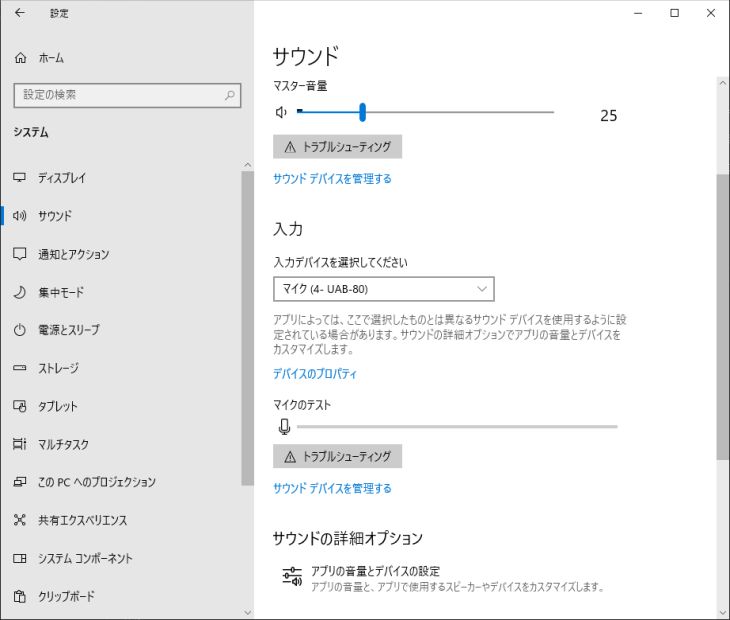
2.Input device: select “Stereo Mix”
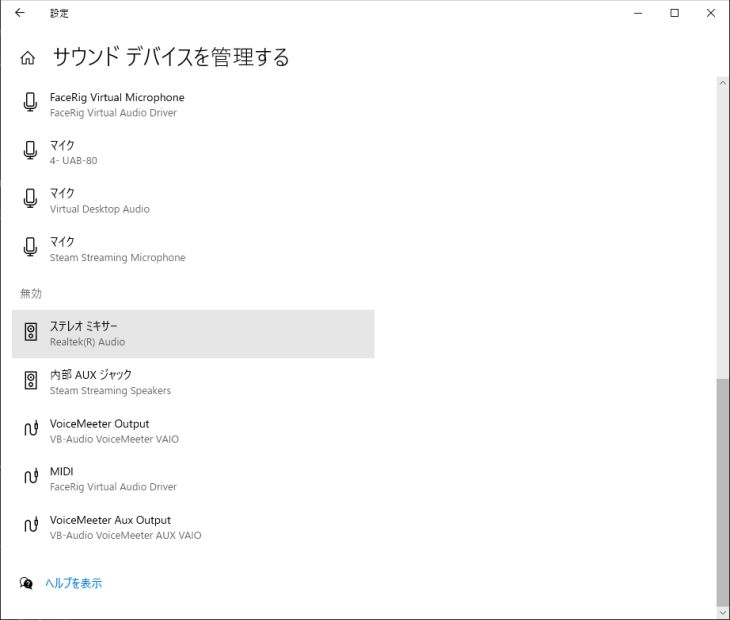
3.Click “Enable”
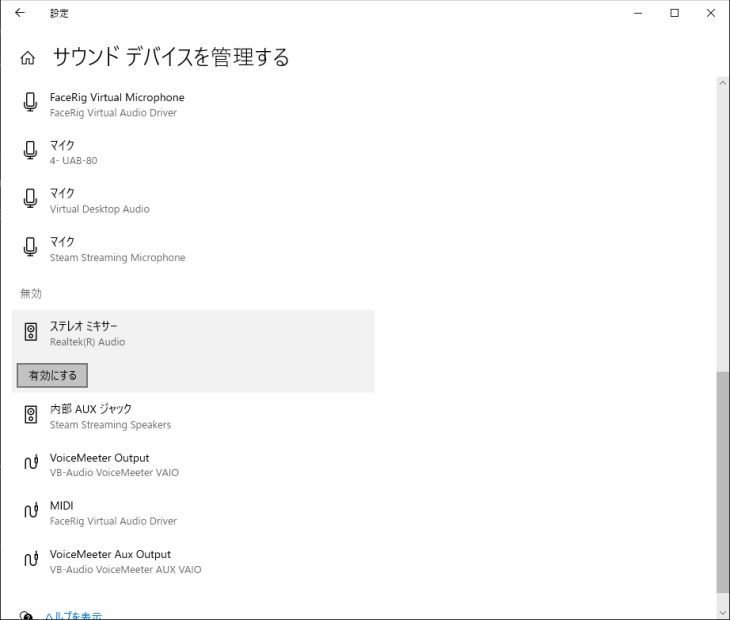
4.Go back to the previous screen and select Stereo Mix as the input
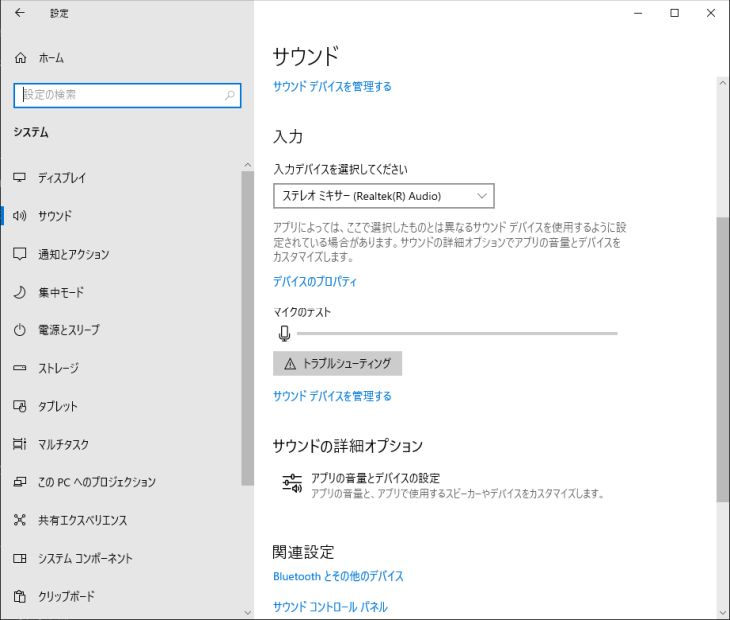
※If Stereo Mix does not appear, downloading and installing the “Realtek audio driver” from your PC manufacturer’s website often solves the problem.
Reference: “VB-Audio VoiceMeeter Banana” Is Also Recommended for Advanced Settings
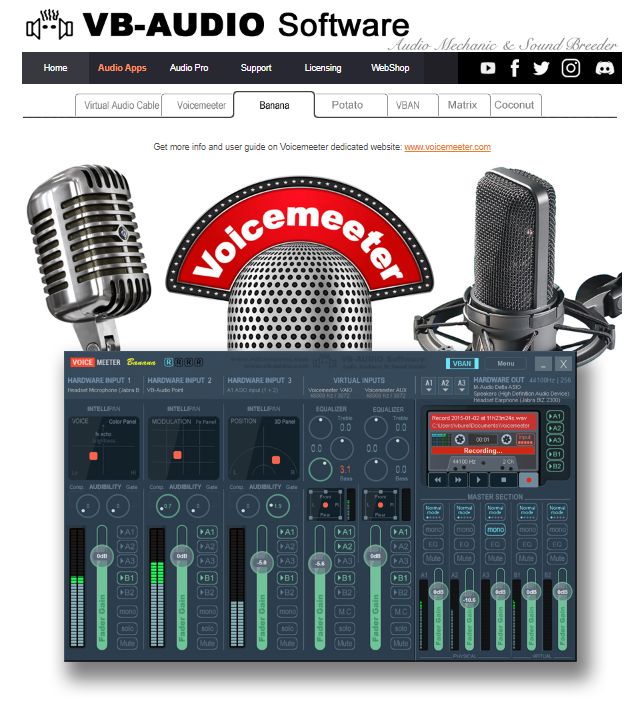
It is not an easy piece of software to master right away, but if you want even finer settings, using the software “VB-Audio VoiceMeeter Banana” lets you perform advanced operations such as recognizing, recording and processing the sound playing inside the PC.
VB-Audio VoiceMeeter Banana is donationware (software that asks for donations) and can also be used for free.
It can do the same things as the “virtual audio device” software for Mac introduced below, so if you are interested, it is worth looking into.
Stereo Mixer Setup on Mac
Macs do not come with a sound mixer function as standard, so you need to prepare the following two things yourself:
- A virtual audio device
- An audio mixing app
You need to set up both of these yourself.
Don’t worry, though: there are free apps for both.
How to Set Up the Stereo Mixer Function on Mac
On a Mac, you can set up the stereo mixer function as follows.
1.Install Soundflower or Blackhole ※
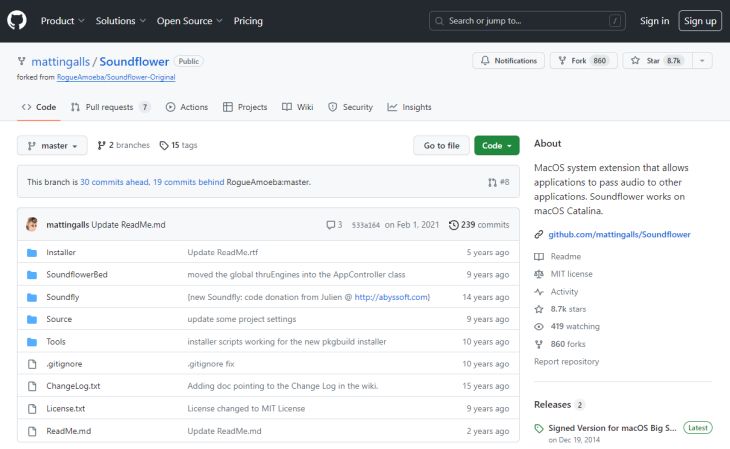
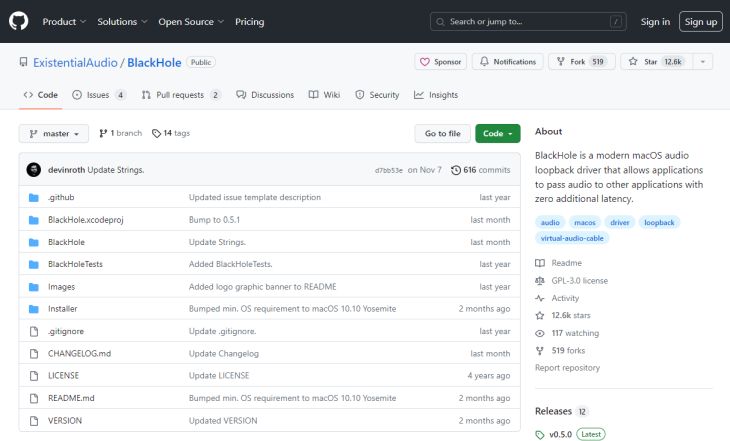
First, install a virtual audio device app.
Both Soundflower and Blackhole are downloaded from GitHub and installed.
※Soundflower does not work well on M1 Macs, so it is recommended to use Blackhole, a similar “virtual audio device” app.
2.Install LadioCast (an audio mixing app)
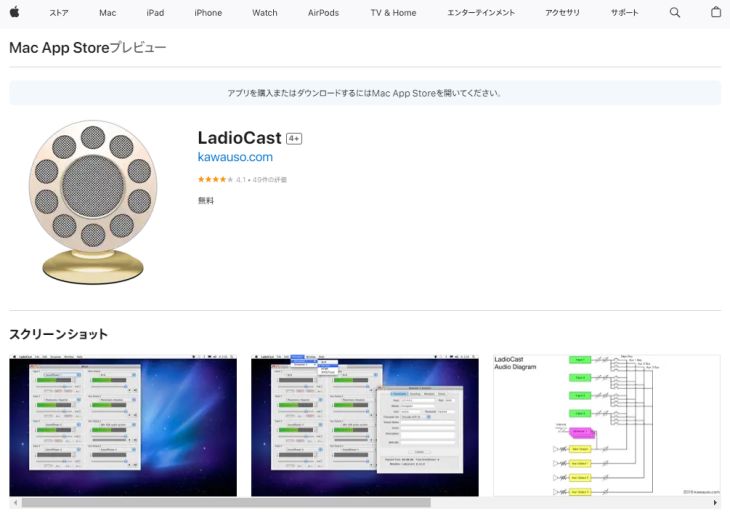
Next, install LadioCast, an audio mixing app.
It can be installed from the Mac App Store.
3.Configure the settings in System Preferences
※Here the explanation assumes you are using Soundflower.
First, configure the input and output.
- Output: Soundflower (64ch)
- Input: Soundflower (64ch)
Next, configure LadioCast.
- Input: Soundflower (64ch) → enable “Main” and “Aux 1”
- Output Main: Soundflower (2ch)
- Output Aux 1: Built-in output
You can now transcribe in Google Docs on a Mac as well.
However, as you can see from the steps introduced, a complicated setup is required.
If you want to transcribe smoothly and easily, an AI transcription service such as “Mr. Transcription”, introduced below, is also recommended.
On a Smartphone, the Played-Back Audio File Is Picked Up by the Microphone
On a smartphone there is no suitable stereo mixer app, so the only option is to have the built-in microphone pick up the audio file played through the smartphone’s speaker.
- Play the recorded audio
- Transcribe in Google Docs
However, on a smartphone there is no suitable stereo mixer app, so the only option is to have the built-in microphone pick up the audio file played through the speaker, and this method will not work well unless the audio data and playback environment are in very good condition.
In such cases, we recommend using a dedicated transcription service.
Recommended Dedicated Transcription Service: “Mr. Transcription”
Easily and smoothly transcribe audio files — if that is what you want, we recommend “Mr. Transcription”!
“Mr. Transcription” is an AI transcription service that converts speech to text with higher accuracy than Google Docs.
In the transcription results, each utterance has its own play button.
When you play the audio, the displayed text switches to match the part being played, so you can listen again right away to passages that were hard to make out.
Click here to open it in your browser and transcribe right away.
And “Mr. Transcription” is free!
When you want to transcribe an audio file, why not try “Mr. Transcription” for free?
How to Transcribe with Google Docs in Different Situations

Next, here is how to transcribe in specific situations, such as meeting minutes and extracting text from images and PDFs.
Meeting Minutes (Zoom, Microsoft Teams, etc.)
If all the participants are gathered in the same place, the methods introduced so far let you transcribe everyone’s voice at the same time.
However, in a web meeting, even if only the person taking the minutes turns on voice typing, only that person’s own voice can be converted to text.
With the stereo mixer function you can transcribe the audio from both the microphone and the speakers at the same time, but there is an easier method, which is introduced here.
Transcribing Meeting Minutes in Google Docs
You can transcribe meeting minutes in Google Docs by following these steps.
- Share the same document using the sharing feature of Google Docs
- Each participant launches the web meeting tool and Google Docs on their own device
- Everyone starts voice typing (transcription) at the same time
However, this is not the way the feature was originally intended to be used, so watch out for problems.
In case the transcription does not work well, and to make later editing easier, use Zoom’s recording feature or prepare a separate recorder (a smartphone), and keep the audio data just to be safe.
This article explains in detail how to transcribe ZOOM meetings.
Please take a look.

How to Transcribe ZOOM Meetings and Make Minutes Easily: Recommended Techniques for More Efficient Online Meetings
Learn how to transcribe the content of ZOOM web meetings, both with ZOOM’s built-in features and by combining them with recommended transcription tools.
Extracting Text from Images and PDFs
- Upload the image or PDF file to Google Drive
- Right-click the file
- Open with → Google Docs
This lets you transcribe text from images and PDFs in Google Docs.
The automatically transcribed text is displayed together with the original image or PDF data.
Four file types are supported: jpg, png, gif and pdf (up to 2 MB).
Convert PDF and photo files to text – Computer – Google Drive Help
A more convenient way to transcribe image and PDF files is introduced in this article, so please take a look!
7 Recommended OCR Apps to Transcribe Images, PDFs and Photos into Text (Free Options Included) [2026 Edition]
A comparison of 7 recommended apps that turn images, PDFs and photos into text with OCR, by free usage, accuracy and handwriting support. Also explains how to extract text from smartphone photos, scanned documents and screenshots.
You can try image transcription for free with the image transcription tool and PDF transcription with the PDF transcription tool.
What to Do When Transcription Does Not Work in Google Docs
If nothing is transcribed even when you speak into the microphone, the following three causes are possible.
- On a PC, microphone permission is not granted to the browser
- On a smartphone, voice input is not enabled
Each can be resolved as follows.
How to Allow Microphone Permission in the Browser on a PC
In a browser on Windows or Mac (Google Chrome), you can allow microphone permission as follows.
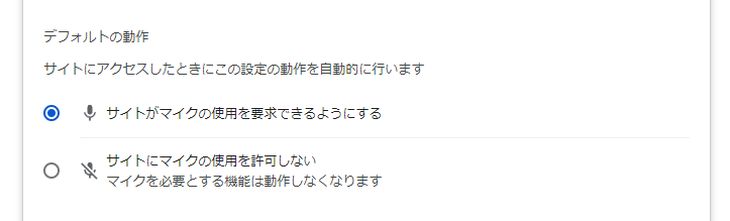
1.In the Google Chrome settings, select Privacy and security
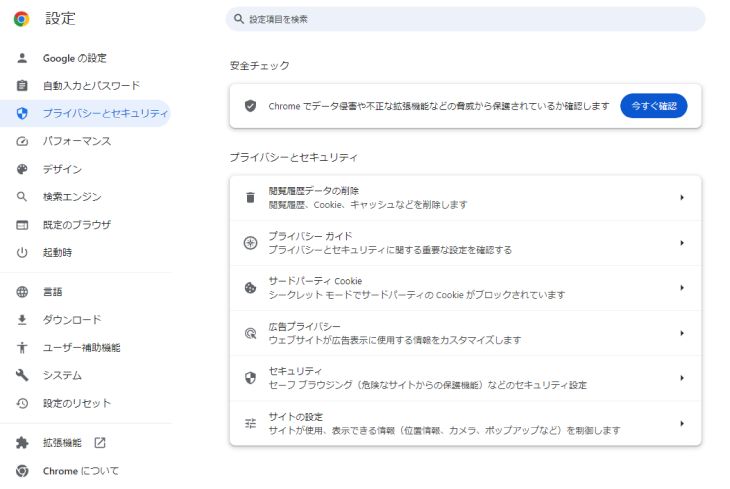
2.From “Site settings”, select the permission (Microphone)
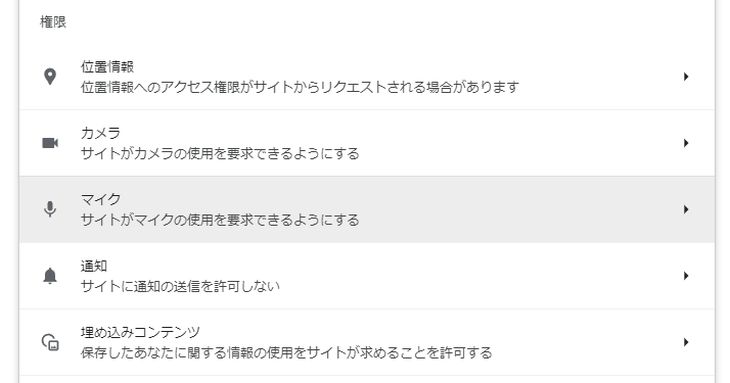
3.Turn on “Sites can ask to use your microphone”
How to Enable Voice Input on a Smartphone
On iPhone and Android, you can enable voice input as follows.
iPhone
On an iPhone, you can allow microphone permission as follows.
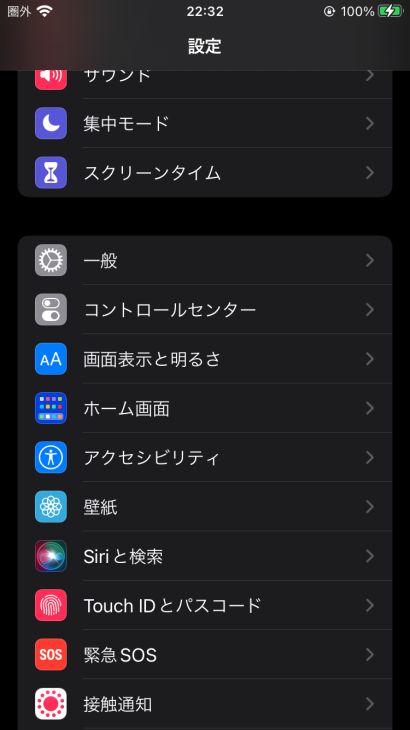
1.Open “General” in the Settings app
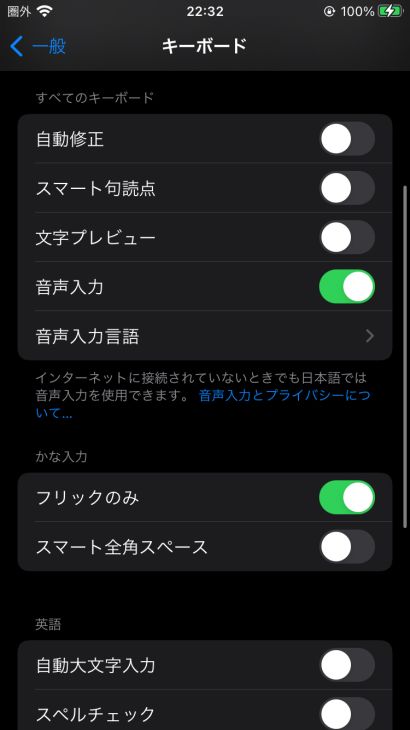
2.Under “Keyboard”, turn on “Enable Dictation”
Android
※Android 12 is used as the example here.
1.Open the Settings app
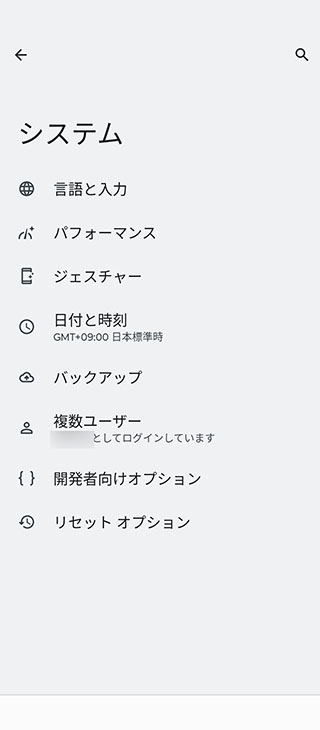
2.Open “Languages & input”
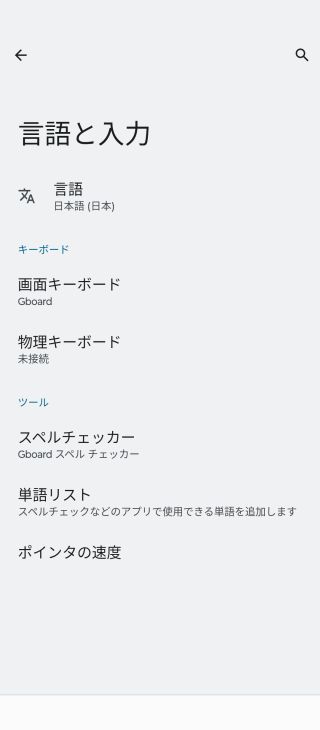
3.From “On-screen keyboard”, select “Gboard”
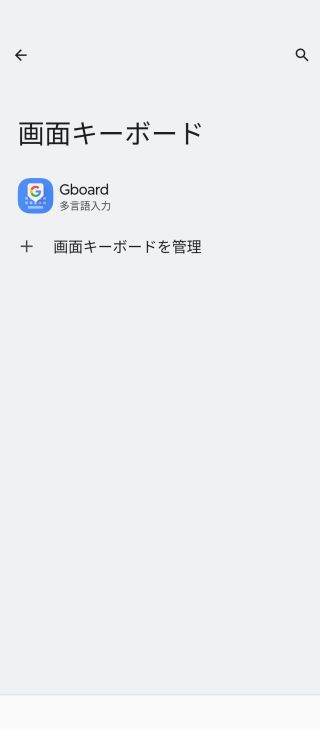
4.In the Gboard settings, select “Voice typing”
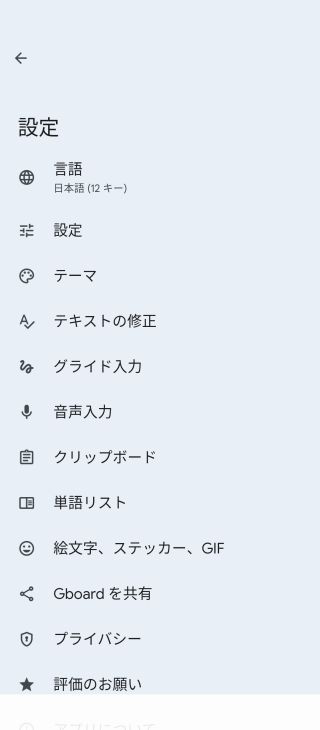
5.Turn on voice typing

When Nothing Is Transcribed While Playing Audio Data
If nothing is transcribed while you play audio data, the following causes are possible.
- Stereo Mix is not turned on.
- The browser is not active.
The most common one is the second: “The browser is not active.”
Google Docs automatically stops transcribing when another window is active, so be careful.
When you transcribe,
play the audio data → click the button to start transcribing
Doing it in this order makes failure less likely, so it is worth remembering.
When Transcription Accuracy Is Low
If Google Docs is picking up the audio but the transcription accuracy is low, the following causes are possible.
- The volume is low
- There is noise
- The speech is fast
For real-time voice typing, move your mouth close to the microphone, take care to speak slowly and clearly, and use a high-quality external microphone if possible.
When transcribing recorded data, accuracy improves if you use an editing app such as Audacity to remove noise and adjust the volume and speed.
If transcription still does not work well or stops partway even after these measures, the recommended services introduced in this article let you transcribe smoothly.
Disadvantages of Transcribing in Google Docs

As explained so far, with a little ingenuity Google Docs can be used to transcribe audio.
But since it was not originally built for transcription, it also has disadvantages.
Here are the disadvantages of transcribing in Google Docs.
1. Complicated setup
As explained so far, transcribing audio files such as MP3 in Google Docs requires a very complicated setup.
If you are not familiar with PCs, the setup alone can take hours….
If you want to get started with transcription smoothly, a specialized service such as “Mr. Transcription” is more convenient.
2. Google Docs Must Be Kept Open
When you transcribe in Google Docs, you need to keep Google Docs open the whole time you are working.
If any sound other than the audio file being transcribed plays on the PC, that sound is transcribed too, so you cannot use other software.
3. It Stops After a Certain Time
The voice recognition feature of Google Docs stops automatically after about 5 to 10 minutes.
To transcribe a long audio file, you have to turn the feature back on every time it stops, which is very inconvenient.
4. It Cannot Be Used from a Smartphone
The smartphone version of Google Docs does not allow the kind of settings explained in this article, so you cannot transcribe audio files.
With a specialized service such as “Mr. Transcription”, it works in any environment, whether PC, smartphone or tablet!
4 Recommended Transcription Services Besides Google Docs
Finally, here are services that let you transcribe smoothly even in situations where Google Docs struggles!
We recommend AI transcription services.
Even audio and video files that Google Docs struggles with can be transcribed easily and smoothly.
1.Mr. Transcription
This is the one we recommend for anyone looking for a transcription service other than Google Docs.
“Mr. Transcription” is a transcription service that uses the latest AI, and you can transcribe audio, video, image and PDF files easily just by uploading them.
Transcribing already recorded audio in Google Docs requires the complicated steps introduced in this article, but with “Mr. Transcription”, none of that effort is needed.
With high-performance, latest AI, even long audio files can be transcribed in only about 1 minute.
And “Mr. Transcription” is free!
You can transcribe files up to 3 minutes without registering or logging in, so why not try “Mr. Transcription” first?
2.Speechy Lite
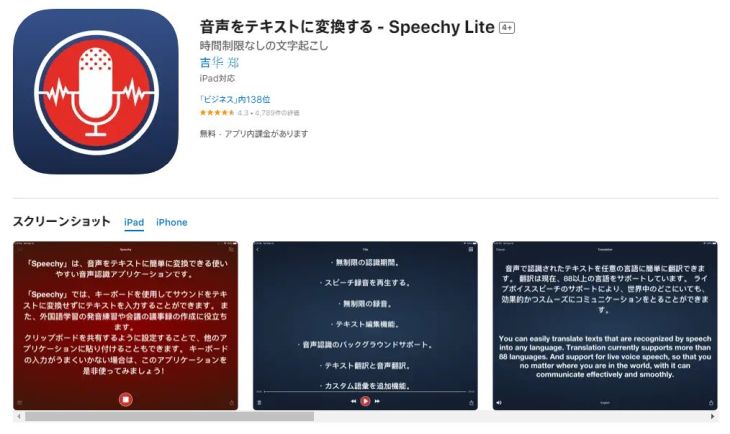
Speechy Lite is an ideal app for transcribing easily on an iPhone.
Transcribed text and recordings can be easily shared with other apps.
3.Speechnotes
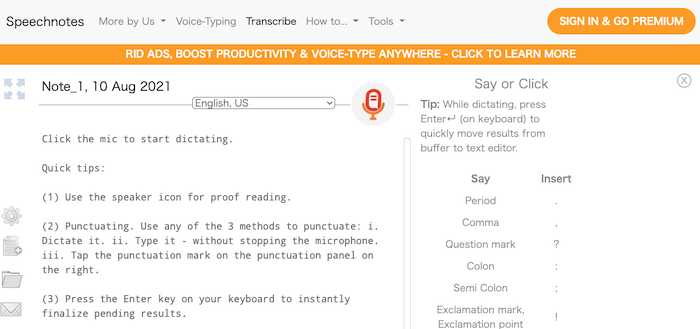
Speechy Lite, introduced above, is only available for iPhone, so this app is recommended for Android users.
Symbols can be entered with keyboard shortcuts as well as voice commands.
4.Otter
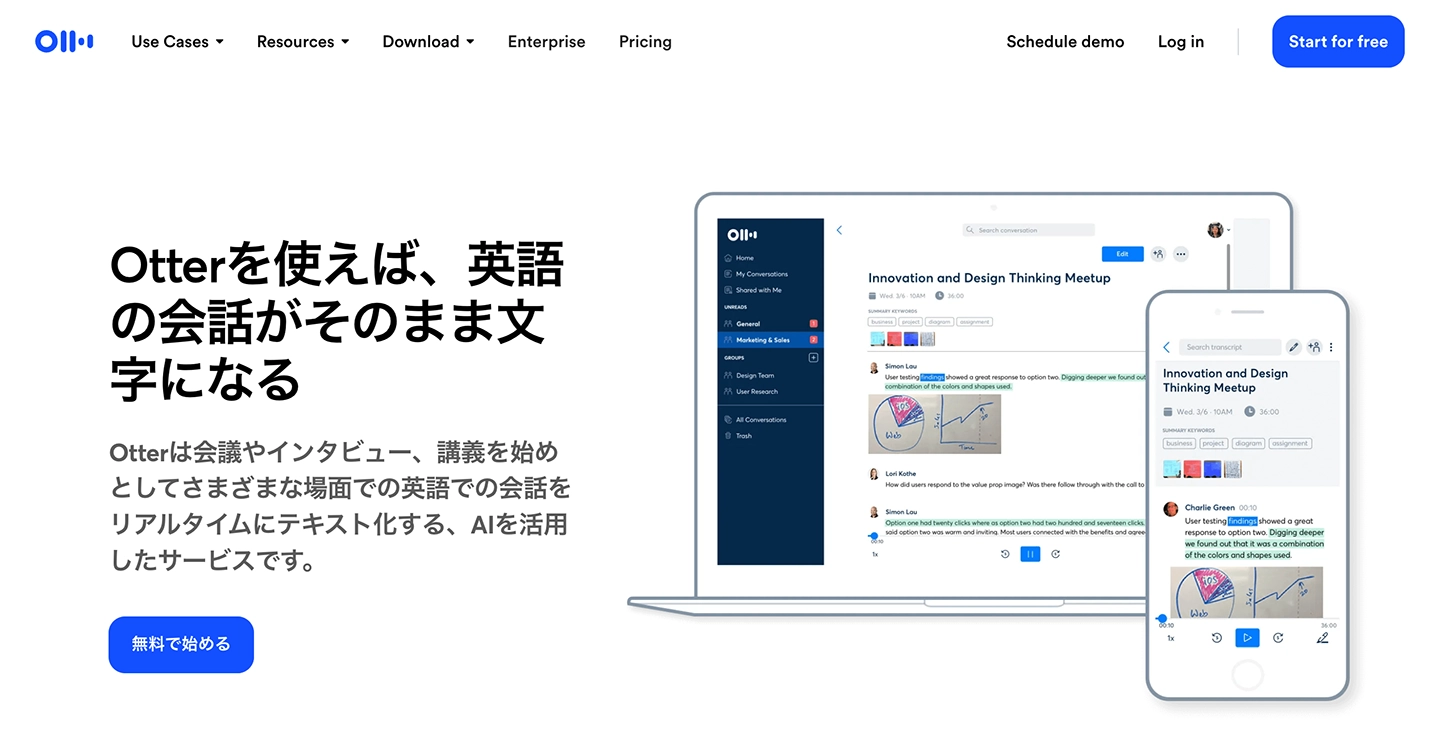
Recommended if you want highly accurate English transcription — this is the one.
It is an AI transcription service that supports English, French, Spanish, Japanese and more, and it reliably distinguishes speakers even in conversations with several people, so it is also ideal as a meeting minutes tool.
Summary: How to Transcribe with Google Docs
This article has explained the transcription features of Google Docs.
Google Docs is often treated as a substitute for Microsoft Word, but in fact it also has many features that are more convenient than Word.
Why not use this article as a reference and make the most of its many features?
Services dedicated to transcription are also easy to use for this purpose, so we recommend using one alongside Google Docs!
■ AI transcription service "Mr. Transscription"
"Mr. Transcription" is an online transcription tool that can be used from zero initial cost and 1,000 yen per month (* free version available).
- Supports more than 20 file formats such as audio, video, and images
- Can be used from both PC and smartphone
- Supports technical terms such as medical care, IT, and long-term care
- Supports creation of subtitle files and speaker separation
- Supports transcription in approximately 100 languages including English, Chinese, Japanese, Korean, German, French, Italian, etc.
To use it, just upload the audio file from the site. Transcription text is available in seconds to tens of minutes.
You can use it for free if you transcribe it for up to 10 minutes, so please try it once.

It is "Mr. Transcription" who can easily transcribe from audio, video, and images.
Transcription allows you to transcribe for up to 10 minutes for free.
You can copy, download, search, delete, etc. the transcribed text.
You can also create subtitle files, which is ideal for transcription of interview videos.
HP: mojiokoshi3.com
Email: mojiokoshi3.com@gmail.com
Email: mojiokoshi3.com@gmail.com
Related article
Transcription for audio / video / image transcription. It is a transcription service that anyone can use for free without installation.
- What is Mr. Transcription?
- Transcript images, sounds, and videos with Mr. Transcription
- Free registration
- Rate plan
- manual
- Try other free services