
音声文字起こしの外注相場はいくら?【安く依頼するコツも解説】
9 Free Android Transcription Apps for Audio, Video & Meetings
Oct. 9, 2026
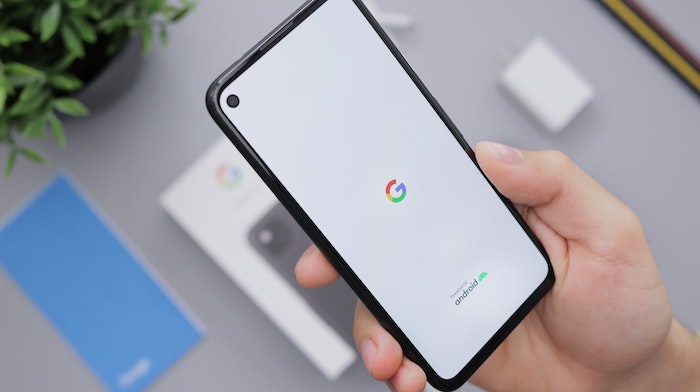

I want to try voice input and meeting minutes easily on my Android smartphone!
For anyone who feels that way, we have put together transcription services and apps you can use on Android.
- You want to turn speech into text easily on your smartphone
- You want to turn audio recorded with your phone's voice recorder into meeting minutes
- You want to pick out the app that fits your purpose perfectly
- You want to try an app for free and be convinced before choosing a paid one
Have you ever had thoughts like these while using an Android smartphone?
So in this article, we focus on apps that work on Android and carefully select and introduce recommended apps, each with different strengths.
Once you read this article, you will be able to transcribe audio right away.
9 Recommended Transcription Services and Apps for Android
Let's get started. From AI-powered transcription web apps to apps that excel at audio, here are services and apps that help when you want to transcribe on Android!
1. Mr. Transcription
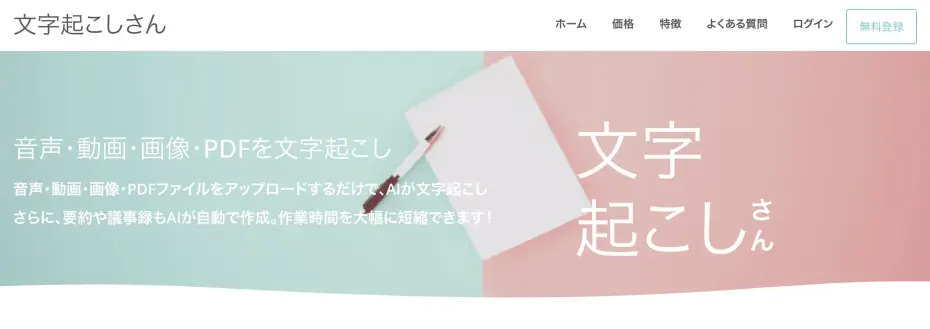
Here is our recommendation for a high-performance AI transcription service.
Its hallmark is high-performance transcription that handles almost any need, so if you are unsure which to choose, you can't go wrong with this one.
Its biggest strength is that the latest AI speech recognition engine transcribes with high accuracy in just 1 minute.
The latest AI, with support for 100 languages, reliably converts even difficult audio into text.
It also recognizes specialized terms from IT, medicine, and other fields with confidence.
It supports more than 20 file types, so it is recommended not only for audio files but also for anyone who wants to transcribe videos, images, or photos.

Supported Files and File Sizes for Mr. Transcription: How to Convert Unsupported Files to Supported Ones
We explain which files Mr. Transcription supports and what to do when your file is not supported.
It can also transcribe PDF documents, so you can use it as a simple OCR tool as well.
You can try PDF transcription for free with the PDF transcription tool.
It is free for up to 3 minutes per day without registration, and up to 10 minutes per day with a free account, so you can easily experience high-performance AI transcription.
To use it, simply upload a media file from the top page.
It works in your browser, so it is also perfect for people who don't want to install extra apps.
If you can't decide on a transcription tool, why not start with “Mr. Transcription”?
2. Speechnotes
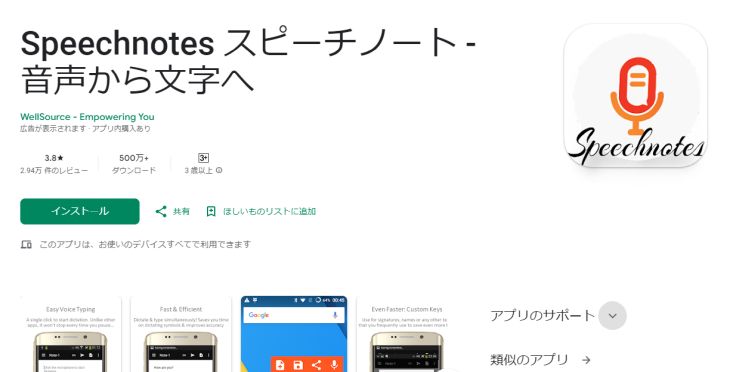
This app is recommended for creating voice memos with ease.
Just launch the app and tap the microphone button. Speech-to-text starts immediately.
Its features are simple, but you can insert punctuation marks such as commas, periods, and exclamation points, as well as line breaks, into the text with a single tap, and voice commands work too.
It is also handy that you can send the text you create to other apps using the share function.
3. Long Audio File Player
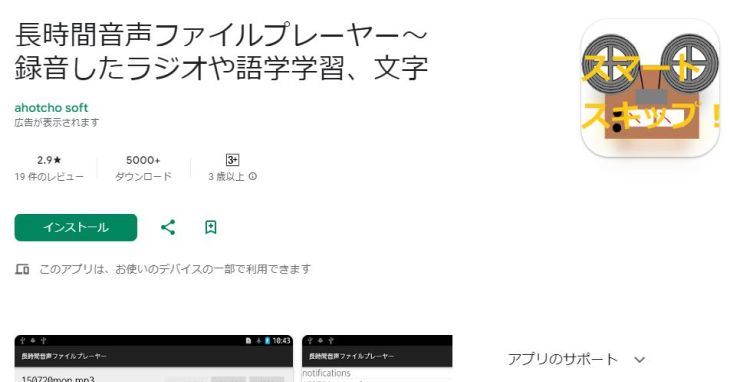
If you are looking for a player to play back audio while transcribing by hand, this one is recommended.
It has a dedicated slider for smooth fast-forward and rewind, plus buttons that let you skip playback by the number of seconds you prefer.
It supports a very wide range of audio files: wav, mp3, wma, aac, and m4a.
Besides transcription, it also looks useful for playing audiobooks or studying English.
4. AutoMemo
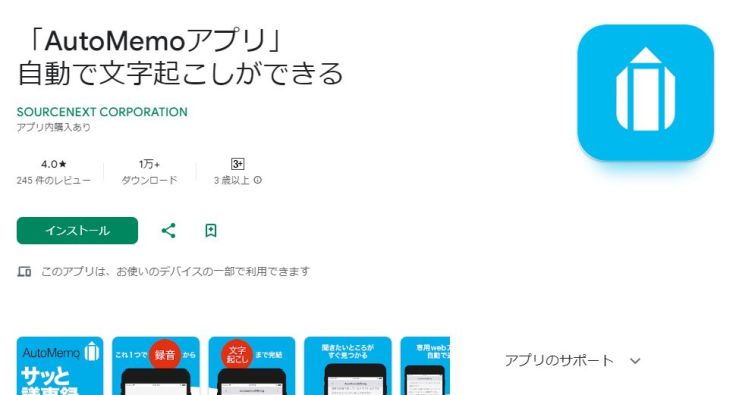
AutoMemo is a service provided by the Japanese company Sourcenext, and it is an Android app that can both record and transcribe.
In addition to the app's own recording function, you can also specify a file and transcribe it.
It uses AI for transcription, and being a service made in Japan adds peace of mind.
As for performance, however, there are reviews on the Google Play Store saying that its Japanese is so-so and its English still has a long way to go, which is a concern.
How about considering it as one of your options for an Android transcription app?
5. Transkriptor
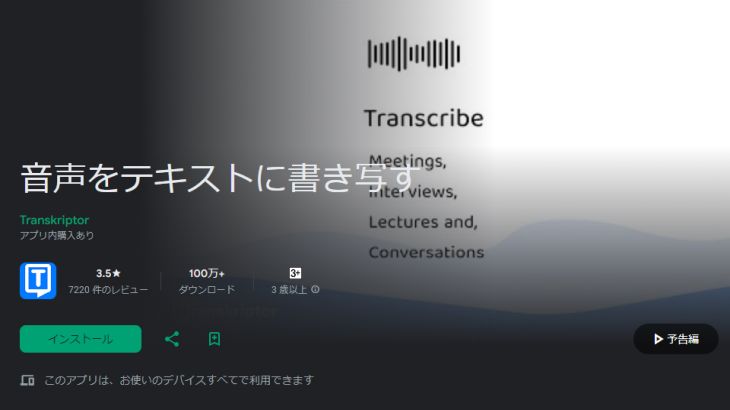
Here is an Android app with orthodox features.
It supports real-time transcription for meetings and the like as well as transcription from files, and it offers standard features for an AI transcription app.
However, although the app itself and its descriptions are localized into Japanese, it is a foreign app. We recommend using it with the understanding that its support and service are not as thorough as those of apps and services built for the Japanese market, such as “Mr. Transcription”.
6. iRecord Auto Transcription
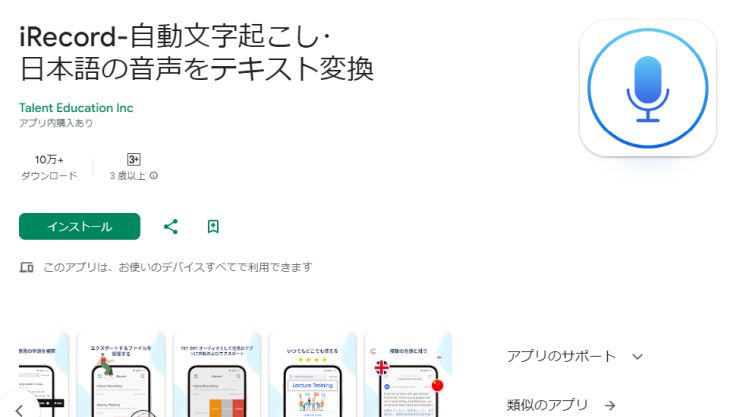
Here is an Android app that supports automatic transcription of audio such as interviews and meetings.
It has orthodox features: it recognizes speech in real time and writes it out, or you can load a file and transcribe it.
Even though it is a smartphone app, it can export text files, a basic feature on a PC, which will please people who prefer simplicity.
How about this one when you are looking for a simple app?
That said, this is also a foreign app, so it is wise to use it with the understanding that its support differs from services made for the Japanese market.
7. Otter
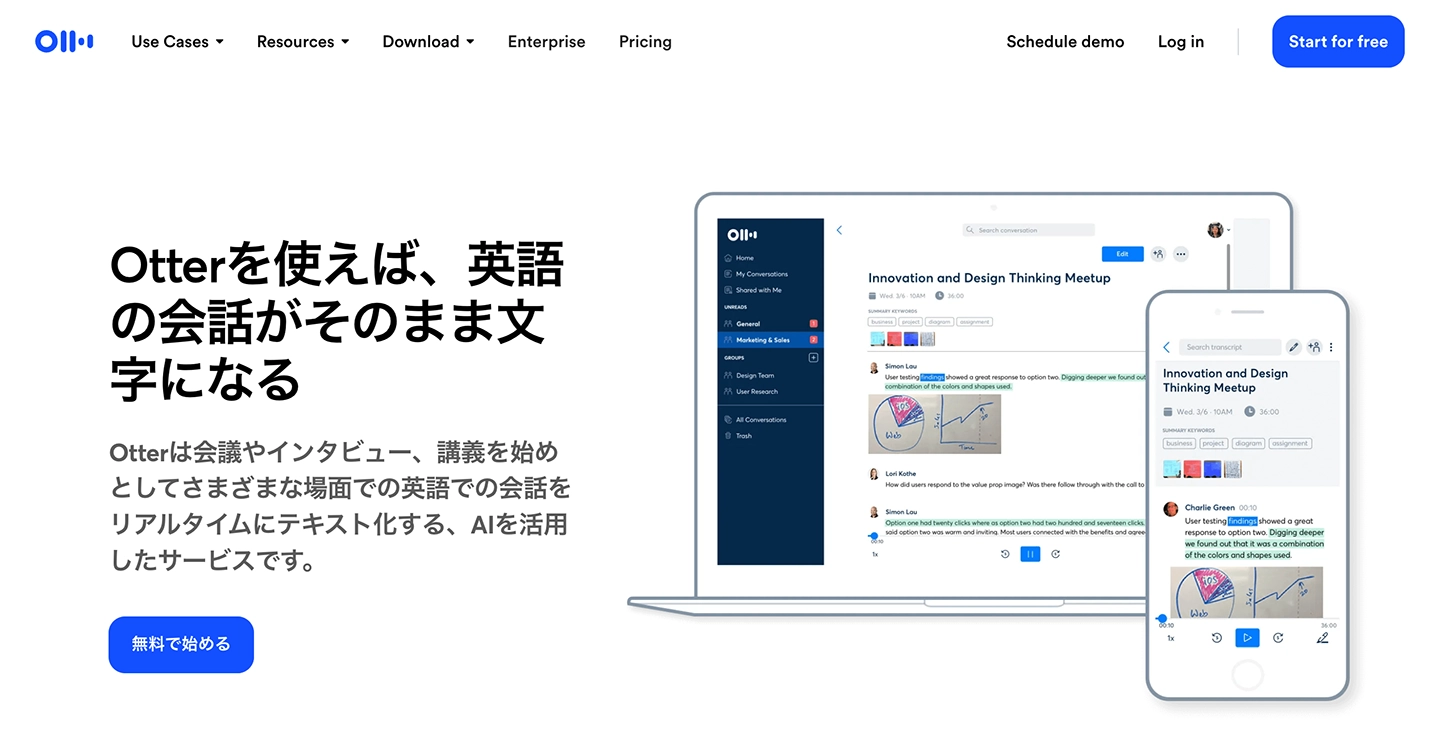
If the audio you want to transcribe is in English, this app, which is strong in English, is recommended.
From actual use, my impression is that the accuracy of its English speech recognition surpasses that of Google and Microsoft, the well-known names in this field.
It also comes with a standard “voiceprint identification” feature that distinguishes multiple speakers, making it an excellent tool for meeting minutes.
If you often communicate with overseas partners or clients, be sure to give it a try.
8. Notta
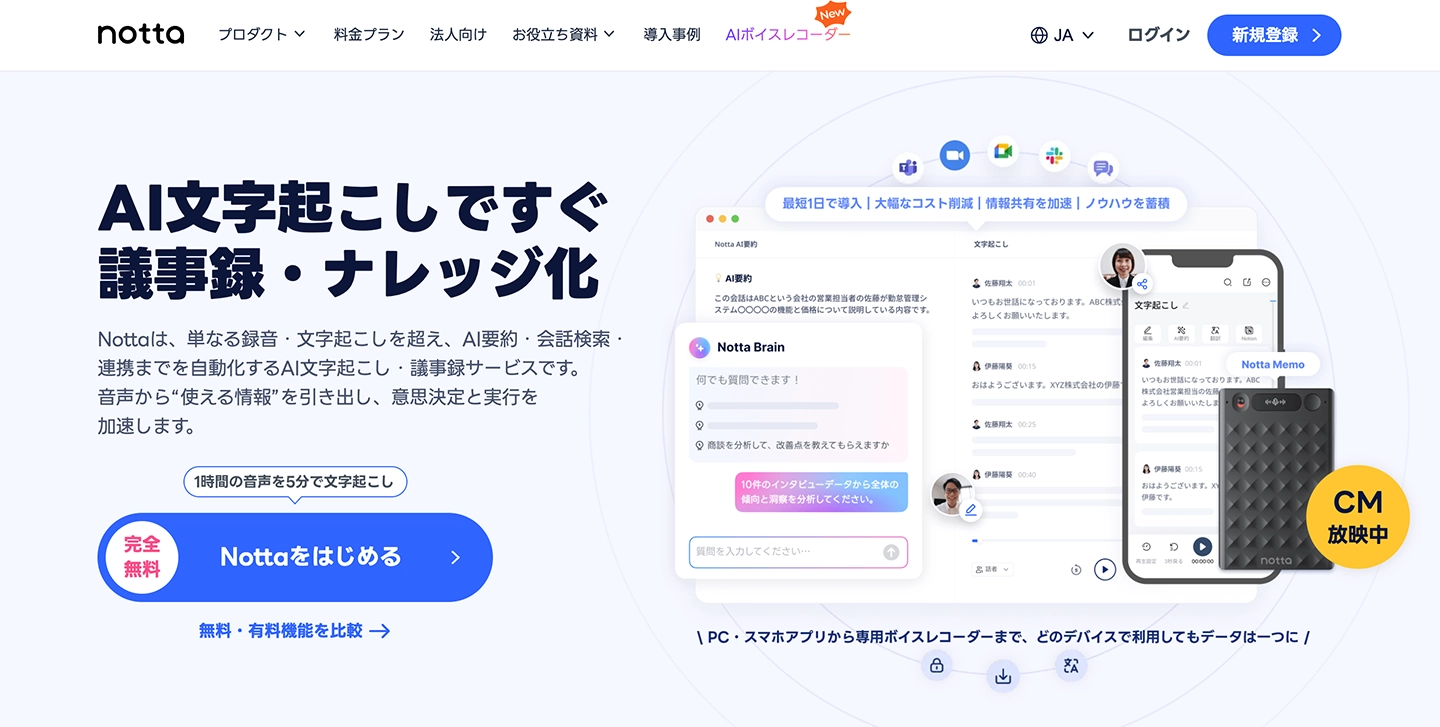
This app is recommended for people who want to take their time editing automatically transcribed text afterward.
Its big feature is an extremely rich set of editing tools, including keyword search, tagging, marking and cue points, image insertion, and proofreading.
However, because it has so many features, it may take some effort before you can use it fully.
The features available for free are fairly limited, so if you plan to use it seriously, consider the paid version as well.
9. Papago - AI Interpreter & Translator
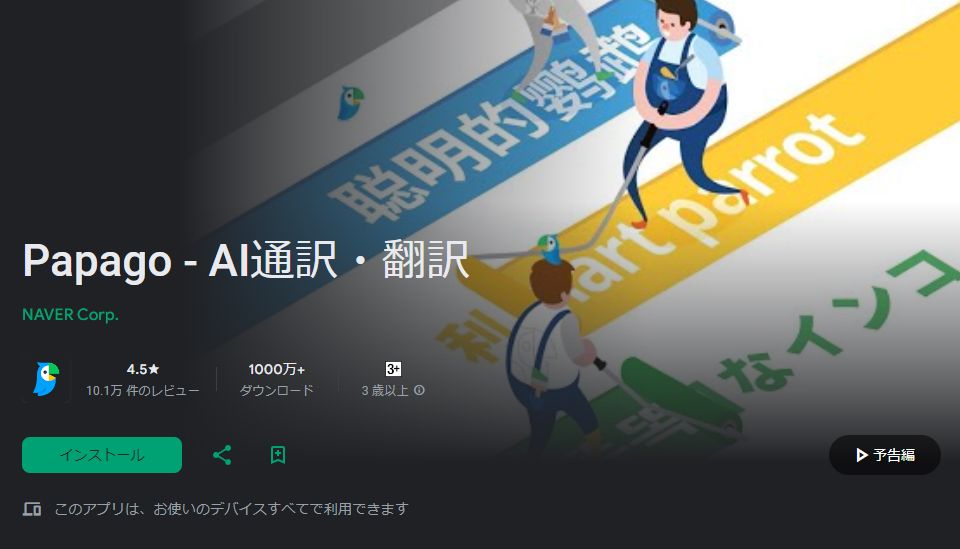
Here is a sharply focused app that is “strong in Korean”.
No wonder: it is an AI app made by Naver of Korea, and it can also translate between Japanese and Korean.
It supports 14 languages, including Korean, English, Japanese, and Chinese, and transcribes speech on screen as it picks it up.
It is recommended for anyone who wants to transcribe Korean.
Papago - AI Interpreter & Translator
This article also introduces transcription apps for smartphones. Please take a look.
Points for Choosing a Transcription Service or App for Android Smartphones

So what should you pay attention to when choosing a service or app for transcribing on an Android smartphone?
We explain the points you should be especially careful about.
1. We Recommend AI Transcription Services
This is the point to prioritize when choosing a transcription service or app for Android smartphones.
It is to choose an AI-powered transcription service.
As AI has advanced rapidly, the quality of transcription has improved dramatically.
Quality that used to be available only by paying a lot of money for people to type out transcripts by hand can now be achieved much faster and at a reasonable price, thanks to AI.
Handling audio, including transcription, is a field where AI excels.
By choosing an AI transcription service, you will surely get the results you are looking for.
2. Choose a Versatile AI Transcription Service
Another point when choosing an AI transcription service or app is to choose a service that can be used for all kinds of purposes.
When people think of transcription, they tend to picture turning recorded audio files into text, but you can actually transcribe from video files too.
Furthermore, just as “Mr. Transcription” can also transcribe PDF files and image files, some services can transcribe things other than audio and video.
It is also important that the AI is strong across a wide range of areas.
AI for transcription is highly capable, but each type has its own strengths.
The latest AI of “Mr. Transcription” is not only fast (even files that are tens of minutes long are done in about 1 minute) but also supports 100 languages.
You can use it for just about anything!
Even with difficult audio files, such as “foreign-language audio with few speakers” or “audio full of specialized terms,” it transcribes with high accuracy without trouble.
When looking for an AI transcription service, we recommend choosing one that can handle a wide variety of situations.
3. Choose a Transcription Service or App That Is Easy to Use
Being easy to use is also an important point when choosing a transcription service or app.
Transcription services and apps are often used in situations that demand speed, such as business and interviews.
The easier the operation, the more smoothly and quickly you can transcribe.
Of the services and apps introduced here, the easiest to use is, without question, “Mr. Transcription”.
Just open the top page and upload a file, and transcription starts.
We explain how to use it in detail below, so please use it as a reference.
4. Choose a Service or App That Protects Personal and Confidential Information
When you use a transcription service or app for work, one concern is whether personal and confidential information is protected.
From that standpoint, we recommend choosing apps and services provided by companies in Japan for the Japanese market.
When you transcribe files that contain personal or confidential information, check the confidentiality provisions in the service's terms of use beforehand.
Services also differ in how they support business use. For example, “Mr. Transcription” can help you fill out security check sheets.
We explain the security of “Mr. Transcription” in detail in the article below. Please read it as well.
5. Check Whether You Can Try It for Free
Even if AI transcription is high-performing, paying money without actually using it first is scary, isn't it?
That is why we recommend that you use it for free beforehand and check how accurately and quickly it transcribes.
As mentioned above, for example, “Mr. Transcription” can be used for free for up to 3 minutes per day without registration.
With a free account registration, it is free for up to 10 minutes per day.
Other services also offer free plans.
If you can't decide on a transcription tool, we recommend first trying it for free on the Android smartphone you are reading this article on right now!
Features to Check When Choosing a Transcription Service or App, by Scenario
Let's look at the deciding features, by scenario, when choosing a transcription service or app that works on Android smartphones.
Check the Meeting Minutes Feature
When you transcribe for work, a very useful feature is creating meeting minutes.
An app that uses the latest AI will automatically create minutes from the transcription results.

It greatly reduces the effort of creating minutes in particular, so be sure to check for it when you transcribe meetings.
Lectures: Check How Well It Handles Specialized Terms
For academic lectures or business talks where a speaker is invited to your company, a transcription AI that is strong with specialized terms is useful.
In general, AI transcription engines transcribe specialized terms with high accuracy too, but specialized terms include many homophones written with different characters.
Even a high-performance AI may transcribe a word with the wrong kanji.
The most important thing is the performance of the AI speech recognition engine.
By using an accurate AI speech recognition engine, such as the latest high-performance AI that Mr. Transcription uses, you can save a great deal of effort when you later transcribe the lecture.
Foreign Languages: Check Multilingual Support
Starting with English, how many languages other than Japanese are supported is also an important point.
Many transcription services support English, but many do not support other languages.
Transcription services that are strong in many languages, such as “Mr. Transcription,” which supports 100 languages, handle Japanese, English, Chinese, various European languages, and also languages of Asia and Africa.
The price is the same, so if you do work with a global reach, choosing a service that supports many languages in advance will broaden how you can use it.
How to Do AI Transcription on an Android Smartphone with “Mr. Transcription”
Now, using the AI transcription service “Mr. Transcription” as an example, we explain concretely how to transcribe on an Android smartphone.
1. Open the Official Website
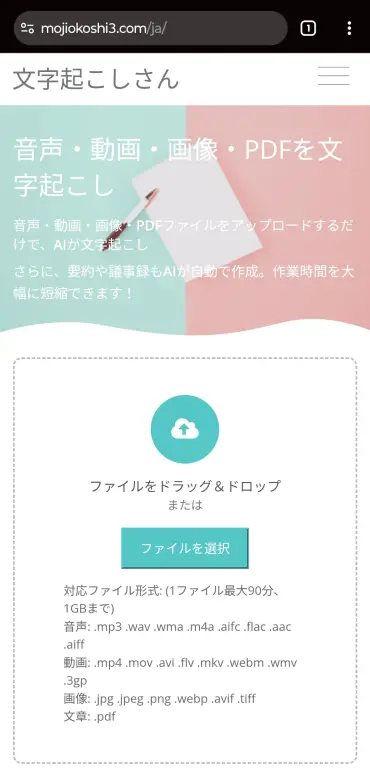
In the web browser you normally use to browse the internet, open the official website of Mr. Transcription.
2. Select the File to Transcribe
Next, select the file you want to transcribe.
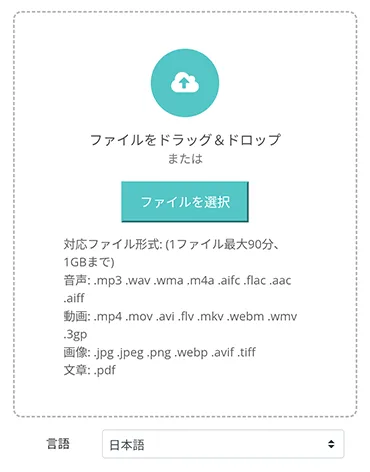
Tap the area labeled “Select,” and “Camera,” “Camera Video Recording,” and “Select Media” appear.
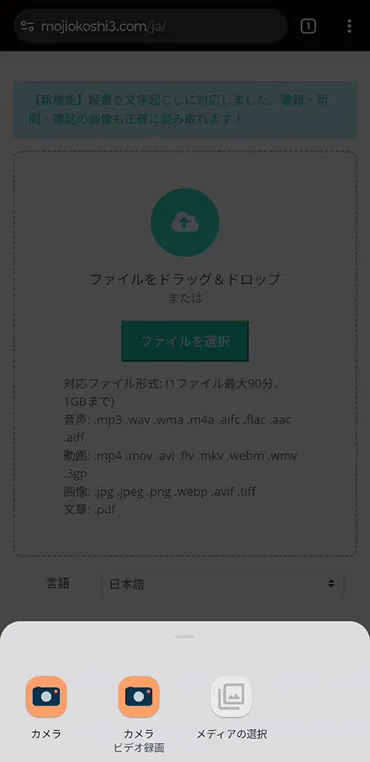
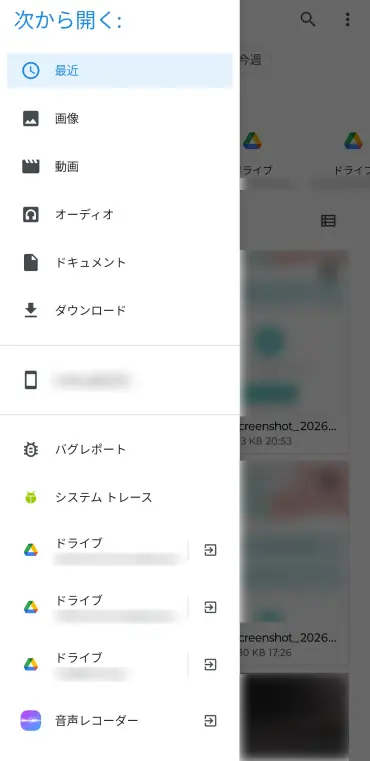
Tap “Select Media” to open the file selection screen on your Android smartphone, and choose the file you want to transcribe.
Tip: Text Captured by the Camera Can Also Be Recognized
When selecting a file, if you tap “Camera” instead of “Select Media” to launch the camera and photograph a document in front of you, the text written on that document can also be transcribed as text.
Also, if you choose an image file when uploading, the text in the image can be transcribed in the same way.
3. Start Transcription
The audio file is now selected.
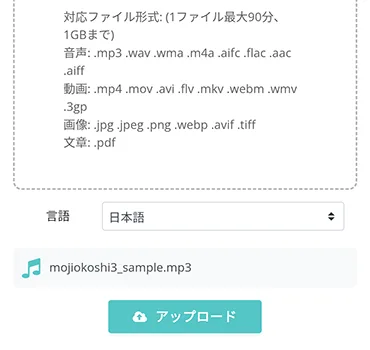
Tap “Upload.”
The file then starts uploading, and transcription begins automatically.
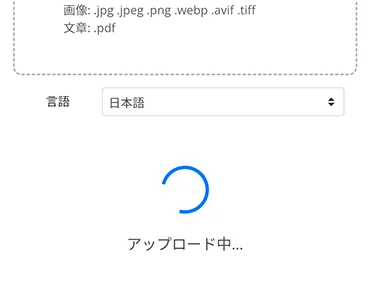
After that, just leave it to the AI.
4. Transcription Complete
When transcription finishes, the results are displayed automatically.
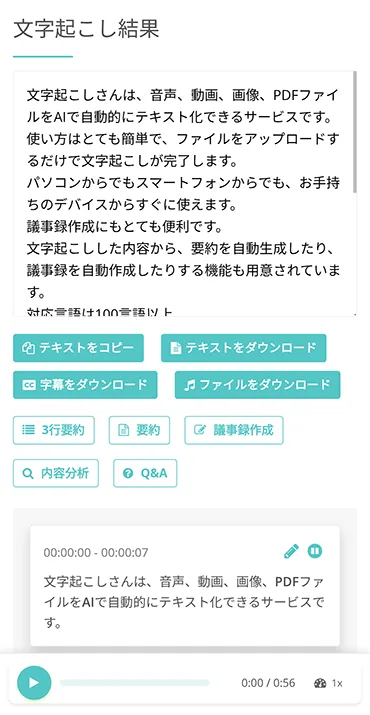
With the transcription results, you can play back the audio for each section individually,
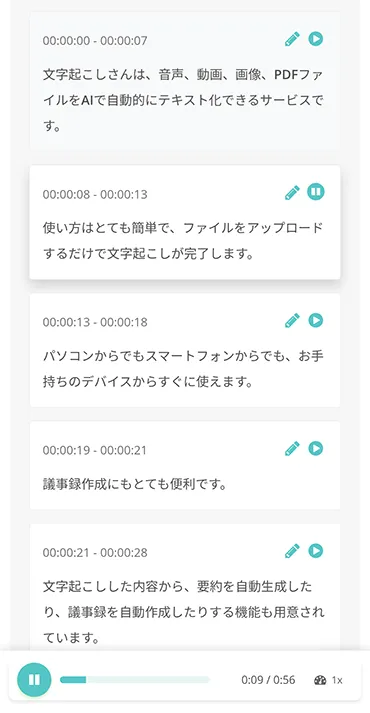
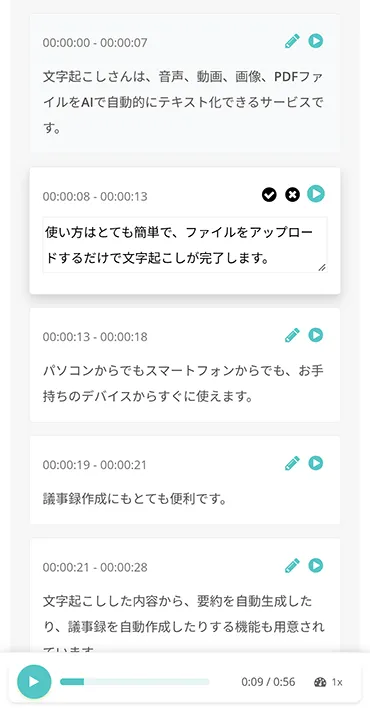
and edit and save the results after checking them.
AI summaries, minutes, and Q&A creation are also available from this screen.
That completes the flow of automatic transcription with “Mr. Transcription.”
You can try the transcription method explained here for free for up to 10 minutes per day by creating an account.
Even without creating an account, you can use it for free for up to 3 minutes per day.
When you want to turn audio into text on your Android smartphone, we recommend starting with the AI transcription service “Mr. Transcription.”
How to Transcribe Easily with Android's Built-in Features


It's a company-issued smartphone, so I can't install new apps on my own!
For people in that situation, we close by introducing how to transcribe easily with Android (Google) built-in features and apps.
Please note that, depending on the model, some of them do not seem to be preinstalled.
Gboard / Google Keep / Google Docs
Google Docs and Google Keep have a voice input button built in.
Many of you have probably noticed the small microphone on the keyboard screen. Just tap it to start voice input easily.
Google Keep is especially convenient: just long-press its icon on the home screen and a quick voice memo menu appears. It can also record the audio at the same time.
Gboard, the keyboard input system, can be used outside Google's own apps too, so please try it in various ways.
Type with your voice - Android - Gboard Help
Live Transcribe
This is a feature preinstalled on some models, such as the Pixel.
Settings → Accessibility → Live Transcribe
It works in a simple way, converting spoken input into text in real time. It uses AI and is characterized by automatically correcting text conversion to match the context.
If you download the language data in advance, you can also use it offline.
Use Live Transcribe - Android Accessibility Help
Live Transcribe is also used when people who have difficulty hearing want to follow the content of a conversation visually.
We explain how to use speech-to-text for people with hearing loss in detail in this article: “A Guide to Speech-to-Text Apps for People with Hearing Loss: How to Convert Speech for Free on iPhone and Android”.
Please read it as well.
Live Caption
This feature has been included since Android 10.
Settings → Accessibility → Live Caption: ON
When you play a video or audio on a phone with this feature turned ON, text is displayed automatically like subtitles, an interesting mechanism.
* Supports multiple languages, including Japanese. Supported languages vary by model.
It runs on the device's own system, so it is also usable offline.
Use Live Caption - Android Accessibility Help
Summary
In this article, we explained free transcription apps you can use on Android.
As a final recap, here are the recommended apps introduced in this article by feature.
- Mr. Transcription (a high-performance Japanese service; recommended if you can't decide)
- Speechnotes (voice memos)
- Long Audio File Player (manual transcription)
- AutoMemo (Japanese-made transcription app)
- Transkriptor (conventional overseas app)
- iRecord Auto Transcription (simple foreign app)
- Notta (Japan, advanced editing)
- Otter (USA, strong in English)
- Papago - AI Interpreter & Translator (strong in Korean)
Android smartphones are well suited to transcription; for example, Google's Pixel series comes with a recorder that can transcribe Japanese out of the box.
Early adopters are already using dedicated transcription apps like those introduced here to make their daily lives and work even more efficient.
If you want to cut down on wasted time even a little, we recommend trying these free apps right away!
■ AI transcription service "Mr. Transscription"
"Mr. Transcription" is an online transcription tool that can be used from zero initial cost and 1,000 yen per month (* free version available).
- Supports more than 20 file formats such as audio, video, and images
- Can be used from both PC and smartphone
- Supports technical terms such as medical care, IT, and long-term care
- Supports creation of subtitle files and speaker separation
- Supports transcription in approximately 100 languages including English, Chinese, Japanese, Korean, German, French, Italian, etc.
To use it, just upload the audio file from the site. Transcription text is available in seconds to tens of minutes.
You can use it for free if you transcribe it for up to 10 minutes, so please try it once.

It is "Mr. Transcription" who can easily transcribe from audio, video, and images.
Transcription allows you to transcribe for up to 10 minutes for free.
You can copy, download, search, delete, etc. the transcribed text.
You can also create subtitle files, which is ideal for transcription of interview videos.
HP: mojiokoshi3.com
Email: mojiokoshi3.com@gmail.com
Email: mojiokoshi3.com@gmail.com
Related article
Transcription for audio / video / image transcription. It is a transcription service that anyone can use for free without installation.
- What is Mr. Transcription?
- Transcript images, sounds, and videos with Mr. Transcription
- Free registration
- Rate plan
- manual
- Try other free services