7 Tips to Boost Transcription Efficiency & Save Time
Transcribe iPhone Voice Memos: Easy Visual Guide
June 8, 2025


I want to transcribe audio recorded with iPhone Voice Memos, but how do I do it?
iPhone Voice Memos allow for easy recording on your smartphone. Since you don't need dedicated equipment like an IC recorder, you can record anytime, from spontaneous moments to work and daily use.
However, Voice Memos do not have a "transcription" feature.
- You need a transcript for meeting minutes.
- You recorded something for evidence but want to keep it in text form too.
- You want to convert audio to text because you can't tell what data is what.
- You need a draft script for YouTube captions.
There are surprisingly many situations where you might want to transcribe Voice Memo recordings.
This time, we will introduce how to easily transcribe iPhone Voice Memos on your smartphone using the "AI Transcription Service: Mojiokoshi-san."
It's super easy because everything can be done on your iPhone alone. Give it a try!

[Free] Recommended AI Transcription Service for iPhone Voice Memos

For converting audio files recorded with iPhone Voice Memos to text, "Mojiokoshi-san" is highly recommended!
"Mojiokoshi-san" is an AI service that uses the latest AI to convert audio, video, images, and PDFs to text with high speed and accuracy.
Anyone can use it easily from their browser with simple operations.
With the latest speech recognition AI engine "PerfectVoice," you can:
- Transcribe long audio in just 10 minutes.
- Support over 100 foreign languages.
You can use it freely in various scenarios.
What's more, "Mojiokoshi-san" is free!
You can transcribe up to 3 minutes of audio without registration or login, so if you want to transcribe iPhone Voice Memo audio, why not try "Mojiokoshi-san" first?
How to Record Audio and Save Data with iPhone Voice Memos
Recording Meetings and Interviews is Easy with iPhone Voice Memos

When you want to record audio for meetings, interviews, or lectures, the easiest method is to use iPhone Voice Memos.
With an iPhone, anyone can easily record using the pre-installed Voice Memos app.
Compared to Android phone voice recorders, the operation is straightforward, and you can record in high quality.
Audio files recorded with iPhone Voice Memos can be easily converted to text using an AI transcription service.
Recording with iPhone Voice Memos
To transcribe Voice Memo audio, you need the data recorded with Voice Memos.
First, let's review how to record with Voice Memos.
Launch "Voice Memos"
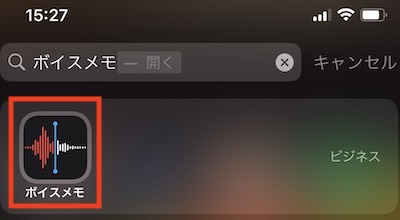
If you can't find Voice Memos, search for "Voice Memos" in the search bar. The Voice Memos icon will appear, so tap it.
Tap the Red Button at the Bottom of the Screen to Record Audio
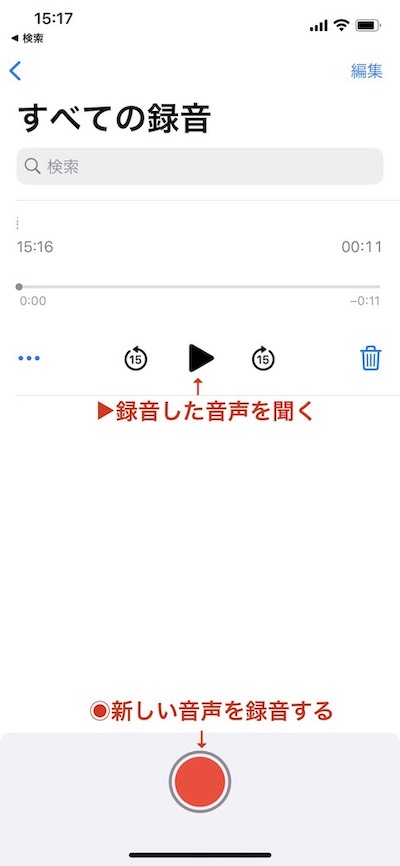
To record new audio, tap "◉".
To play back already recorded audio, tap "▶︎" on the recorded data to listen to it.
Save the Data You Want to Transcribe
Audio recorded with Voice Memos cannot be opened outside of the "Voice Memos" app as is.
Save the data you want to transcribe to another location.
Saving Recorded Data for Transcription
Tap "..."
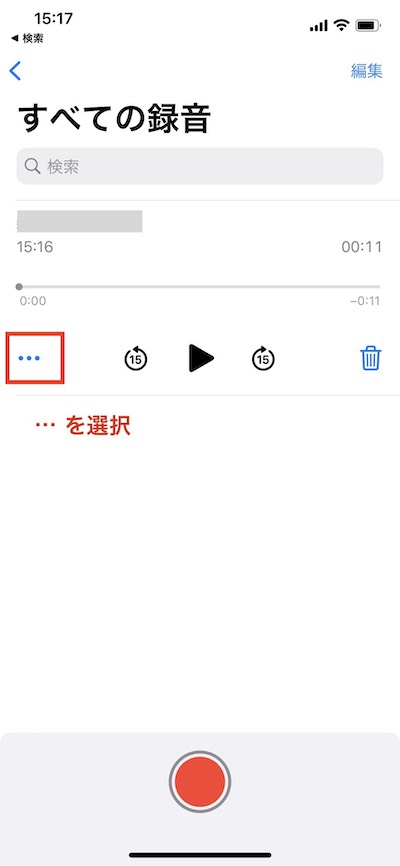
Select "Save to Files"
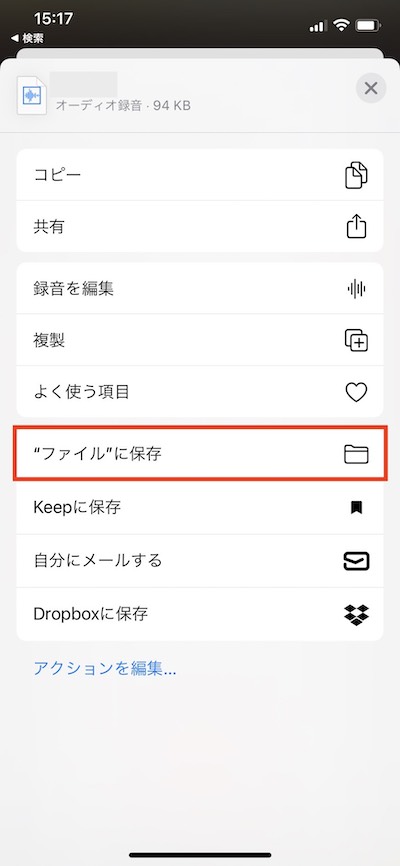
Tapping "..." brings up a menu. Since you want to save the recorded data, select "Save to Files."
Save to "iCloud Drive" or "On My iPhone"

You can save the data to either iCloud Drive or On My iPhone. Both are fine.
Save it to the location that is most convenient for you.
Once the data is saved, you're ready. Now, let's actually transcribe it.
Transcribing Voice Memos
Open Mojiokoshi-san in a Web Browser
Official Website: Mojiokoshi-san
https://mojiokoshi3.com
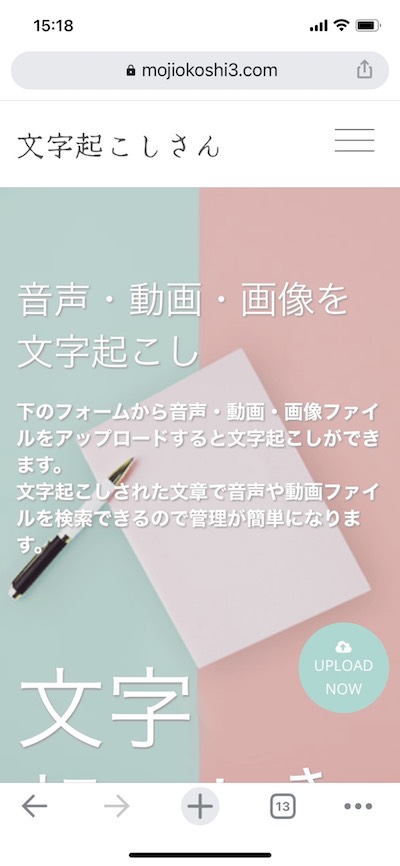
Upload the File You Want to Transcribe
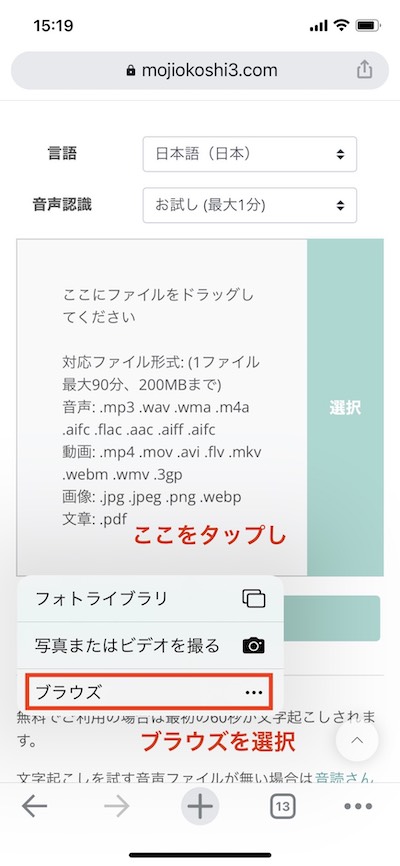
Scroll down the page and select the file upload screen.
Tap the upload area to bring up a menu.
Select "Browse."
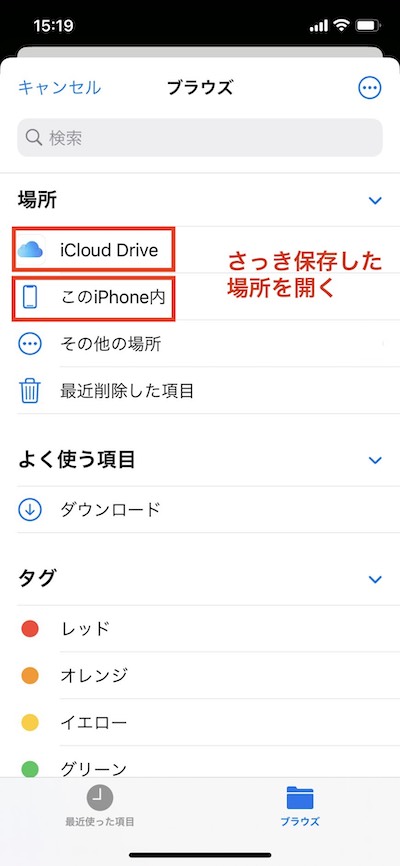
Open the location where you saved the file earlier and select the file.
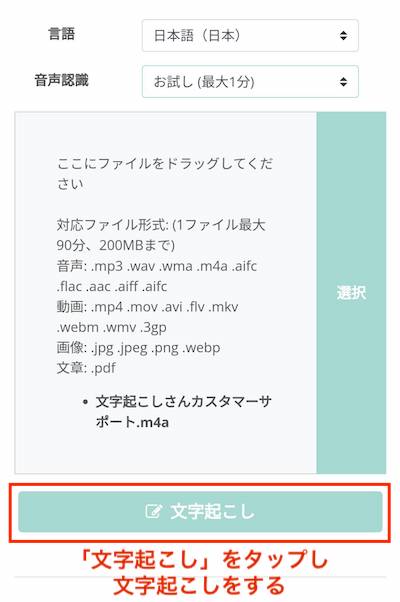
Tap the "Transcribe" button to start the transcription.
Mojiokoshi-san allows you to easily transcribe the first minute without the hassle of membership registration!
Check Transcription Quality

We were able to successfully transcribe the audio.
Mojiokoshi-san uses the latest AI transcription engine to conveniently transcribe iPhone Voice Memos.
Long audio files can be transcribed in just 10 minutes, and it even supports foreign language transcription!
When you need to transcribe iPhone Voice Memos, why not try "Mojiokoshi-san"?
For free use, the first 3 minutes will be transcribed.

If You Like It, Purchase a Plan to Transcribe the Full Duration
If you want to transcribe more than 3 minutes, you can do so by subscribing to a paid plan.
<blockquote class="blockquote g-bg-gray-light-v5 g-br■ AI transcription service "Mr. Transscription"
"Mr. Transcription" is an online transcription tool that can be used from zero initial cost and 1,000 yen per month (* free version available).
- Supports more than 20 file formats such as audio, video, and images
- Can be used from both PC and smartphone
- Supports technical terms such as medical care, IT, and long-term care
- Supports creation of subtitle files and speaker separation
- Supports transcription in approximately 100 languages including English, Chinese, Japanese, Korean, German, French, Italian, etc.
To use it, just upload the audio file from the site. Transcription text is available in seconds to tens of minutes.
You can use it for free if you transcribe it for up to 10 minutes, so please try it once.

It is "Mr. Transcription" who can easily transcribe from audio, video, and images.
Transcription allows you to transcribe for up to 10 minutes for free.
You can copy, download, search, delete, etc. the transcribed text.
You can also create subtitle files, which is ideal for transcription of interview videos.
HP: mojiokoshi3.com
Email: mojiokoshi3.com@gmail.com
Email: mojiokoshi3.com@gmail.com
Related article
Transcription for audio / video / image transcription. It is a transcription service that anyone can use for free without installation.
- What is Mr. Transcription?
- Transcript images, sounds, and videos with Mr. Transcription
- Free registration
- Rate plan
- manual
- Try other free services