Mr. Transcription Delete and Bulk Delete: How to Use and Notes
How to Set Up Two-Step Verification in Mr. Transcription
Oct. 9, 2026
Thank you for always using “Mr. Transcription.”
To protect your important data more securely, we have introduced two-step verification.
What Is Two-Step Verification?
Two-step verification is a security feature that prevents unauthorized access by third parties by requiring you to enter a verification code, such as one sent to your smartphone, in addition to your password.
Even if your password is ever leaked, your account stays protected.
How to Enable Two-Step Verification in “Mr. Transcription”
Enabling two-step verification in “Mr. Transcription” is very easy.
It takes only about one minute from the settings page.
1. Open the “Mr. Transcription” Settings Page
First, open the settings page of “Mr. Transcription.”
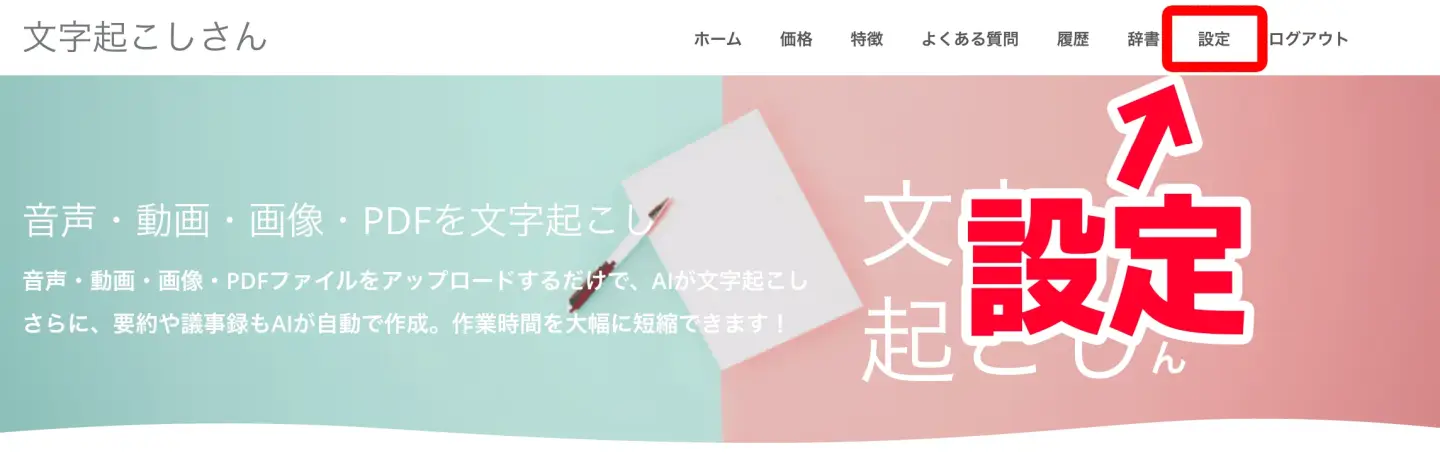
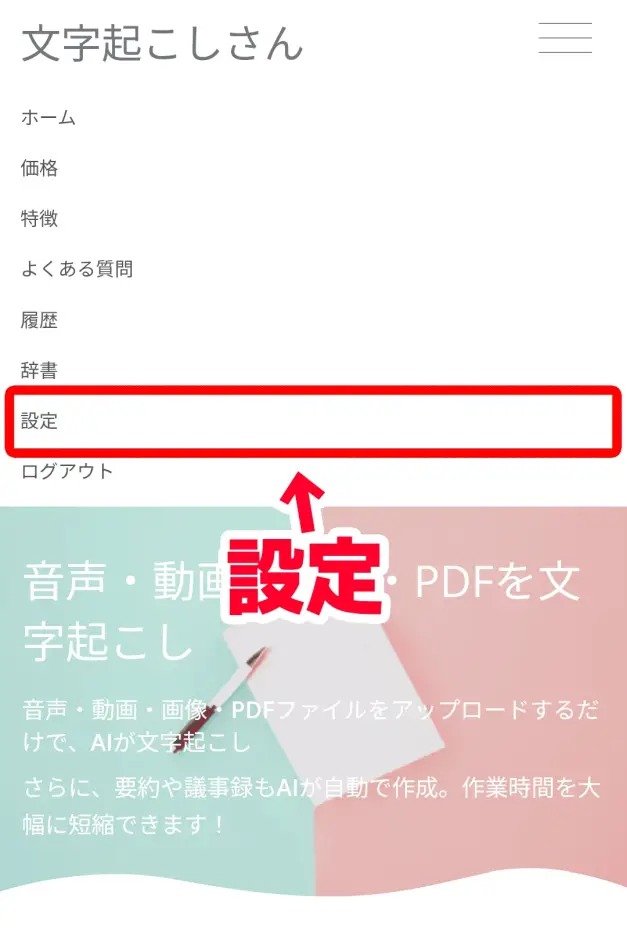
You can open the settings page from “Settings” in the menu.
On a PC
On an iPhone (iOS) or Android smartphone
The settings page has opened.
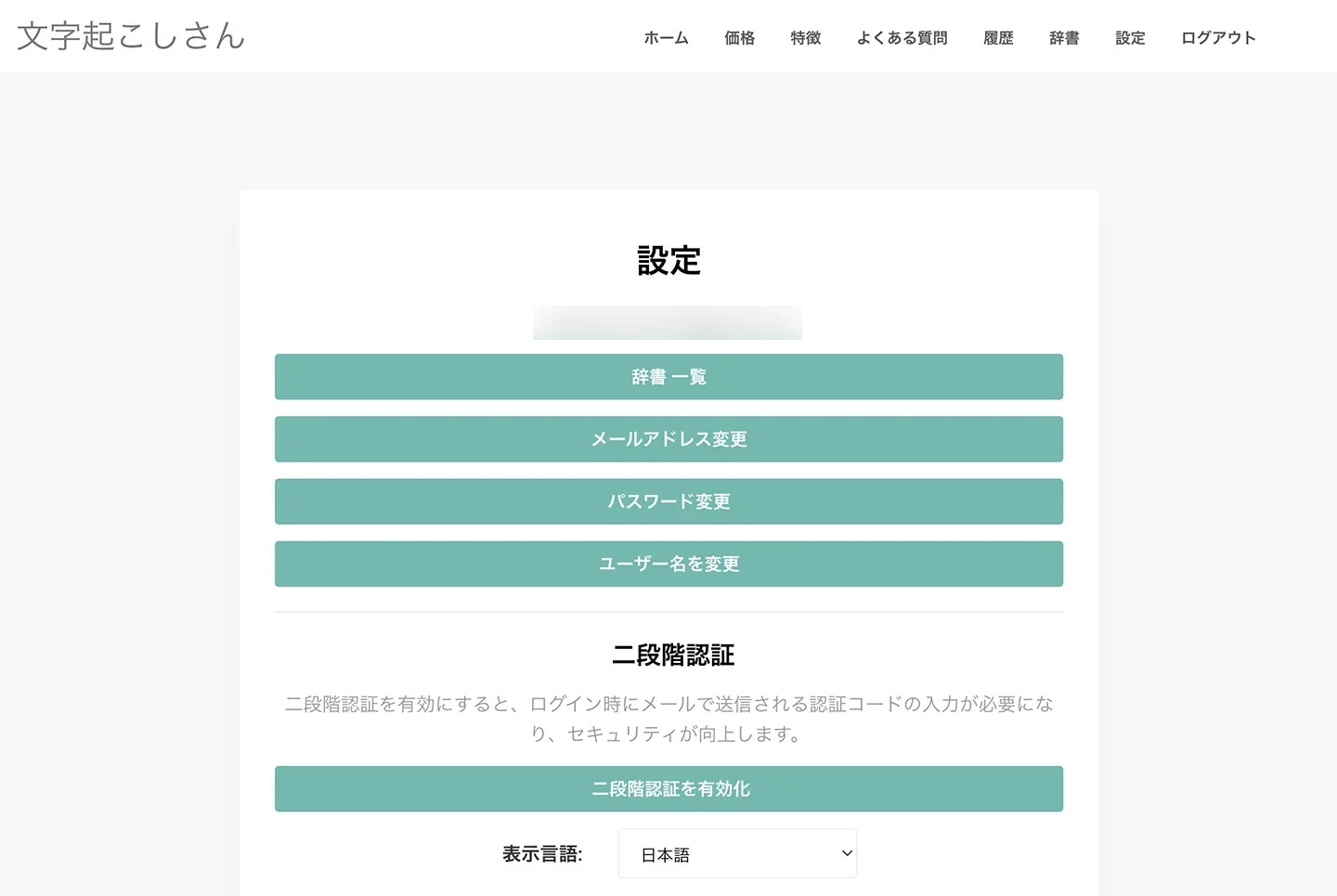
As you can see, there is a “Two-step verification” section.
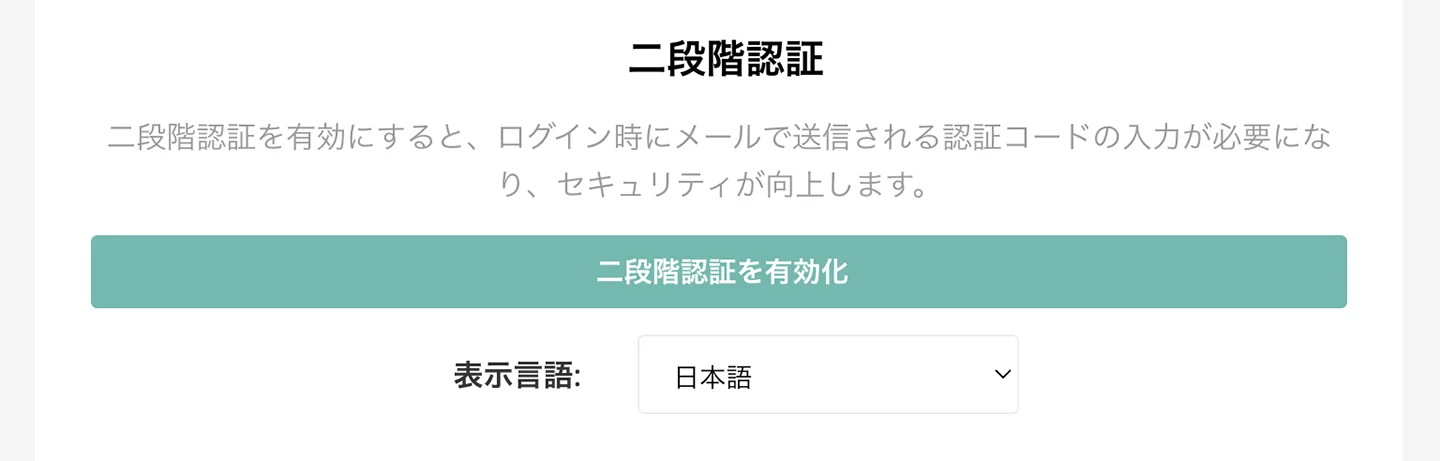
When you press the “Enable two-step verification” button, the “Enable two-step verification” screen opens.
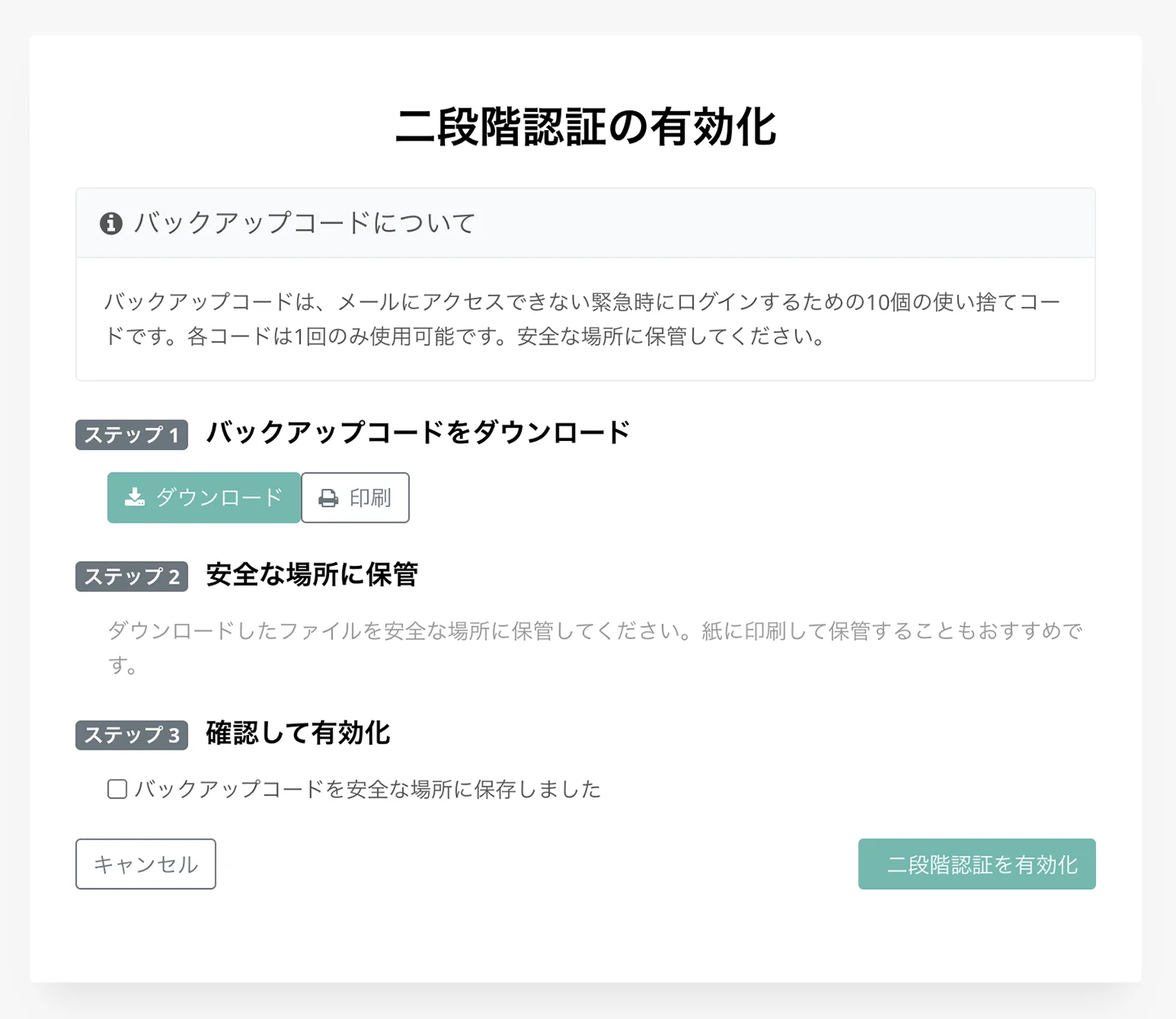
2. [Important] Download Your Backup Codes
When the “Enable two-step verification” screen opens, first download your “backup codes.”
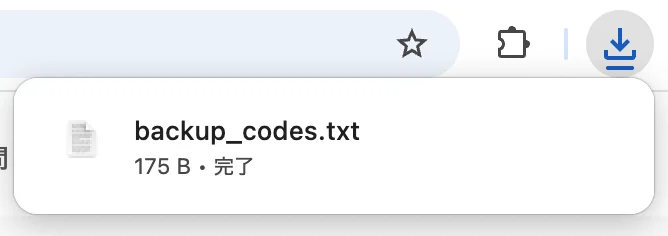
Backup codes are codes you can use to log in if you can no longer access your email address.
These backup codes are displayed only once.
If you lose them, you need to regenerate them.
If you can no longer use either your email address or your backup codes, you will not be able to log in to “Mr. Transcription,” so please be careful!

After you download the backup codes and store them in a safe place, tick the confirmation checkbox.
3. Enable Two-Step Verification
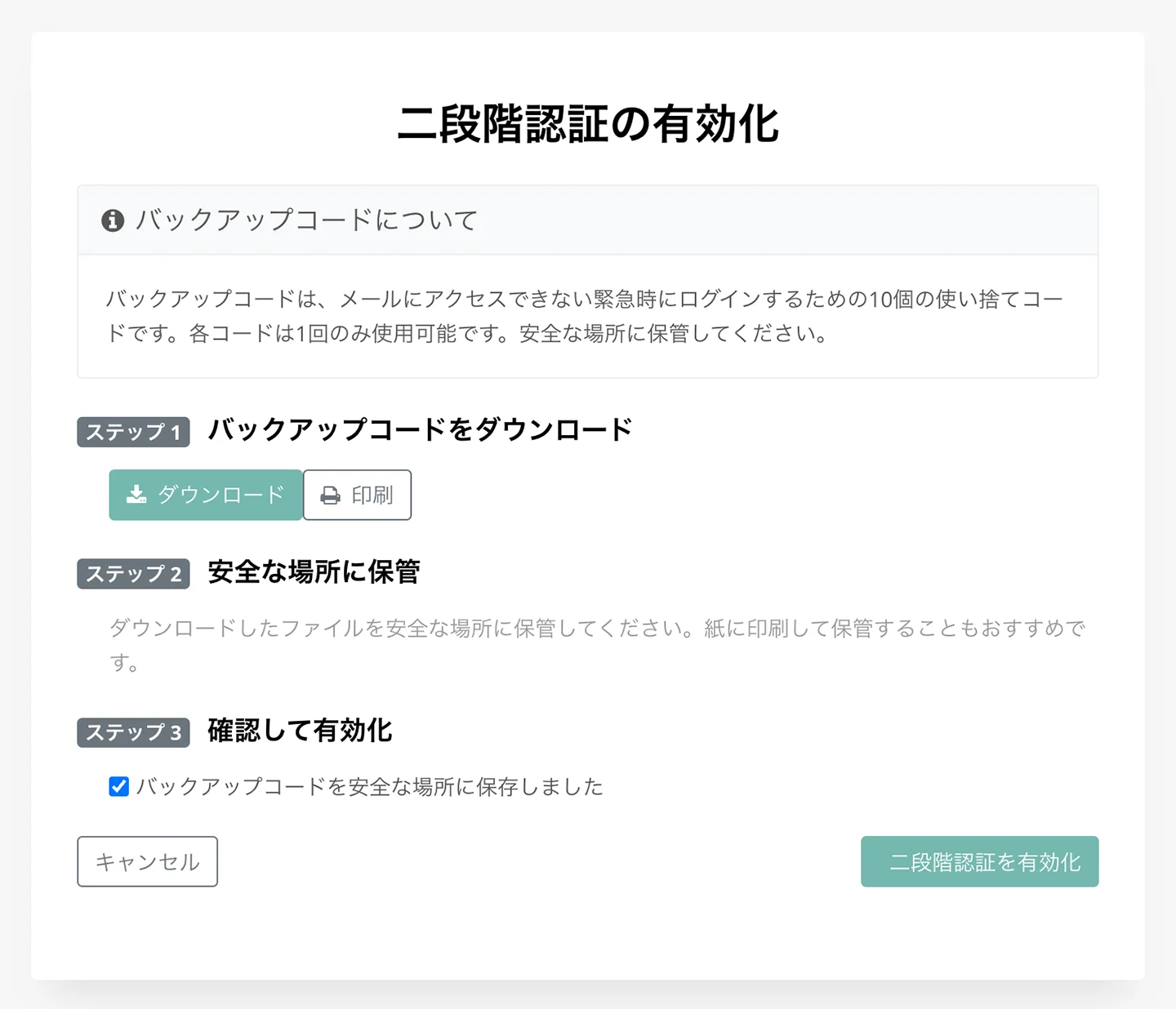
When you press “Enable,” two-step verification is turned on.
The screen changes and displays “Two-step verification has been enabled.”
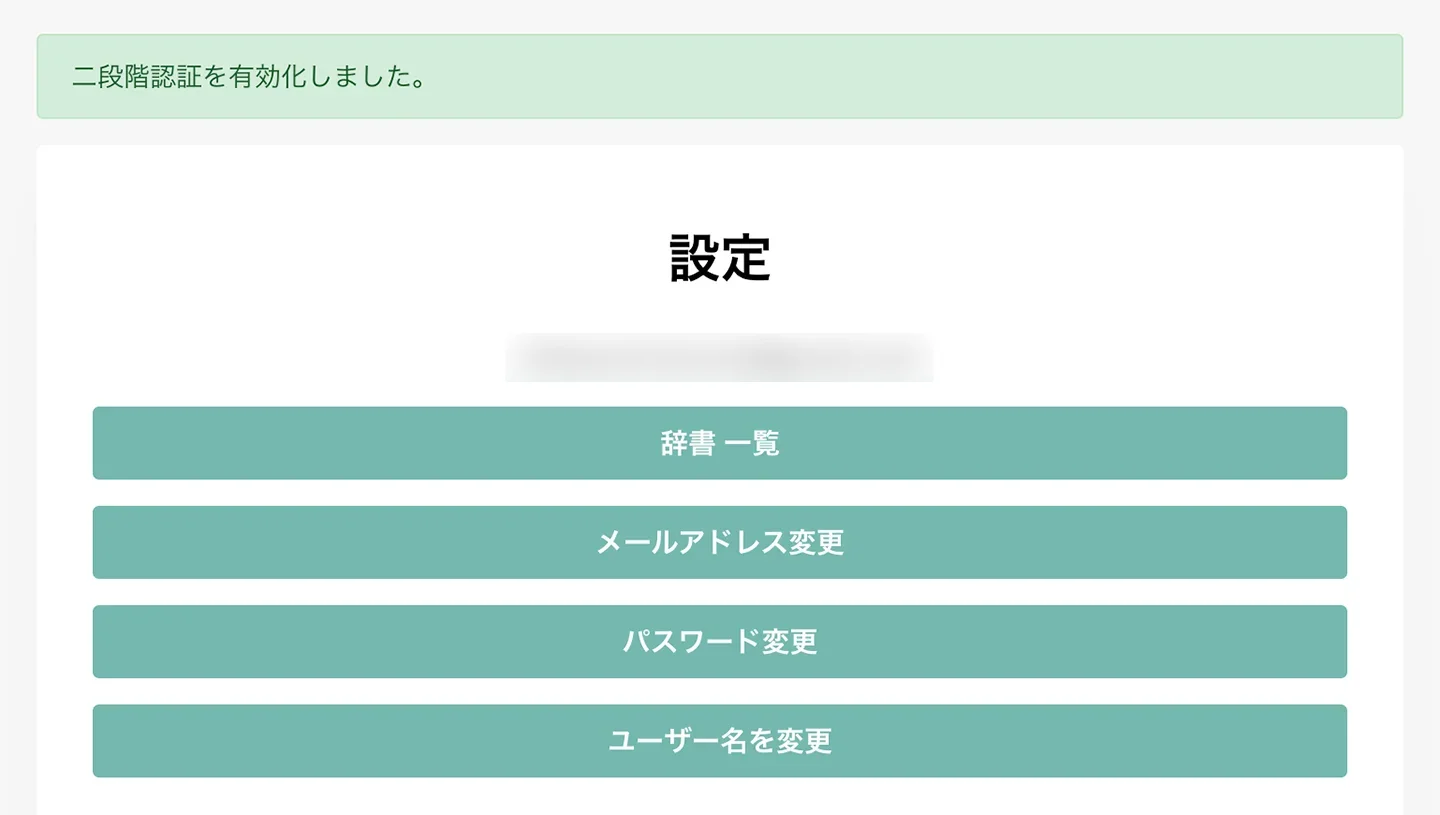
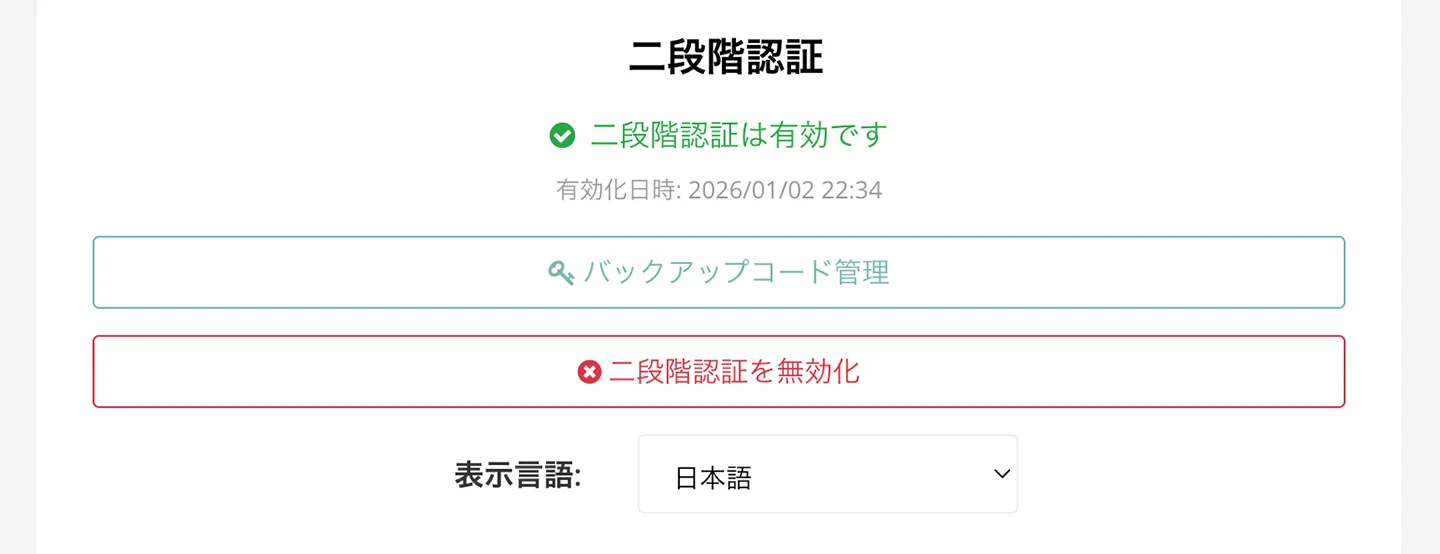
You can check the status of two-step verification on the settings screen.
When it is enabled, “Two-step verification is enabled” is displayed as shown here.
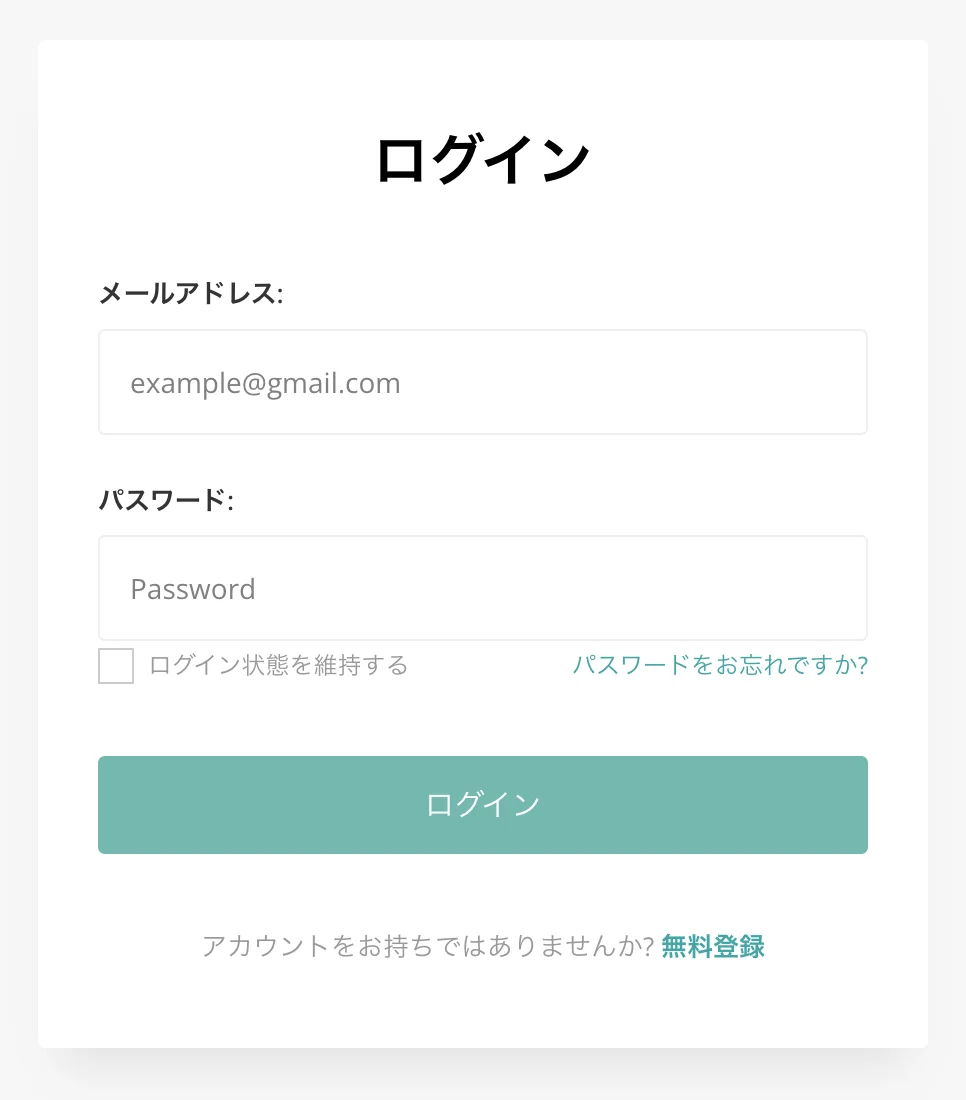
How to Log In with Two-Step Verification
To log in to “Mr. Transcription” with two-step verification, first enter your email address and password and press “Log in.”
The two-step verification screen then opens, as shown here.
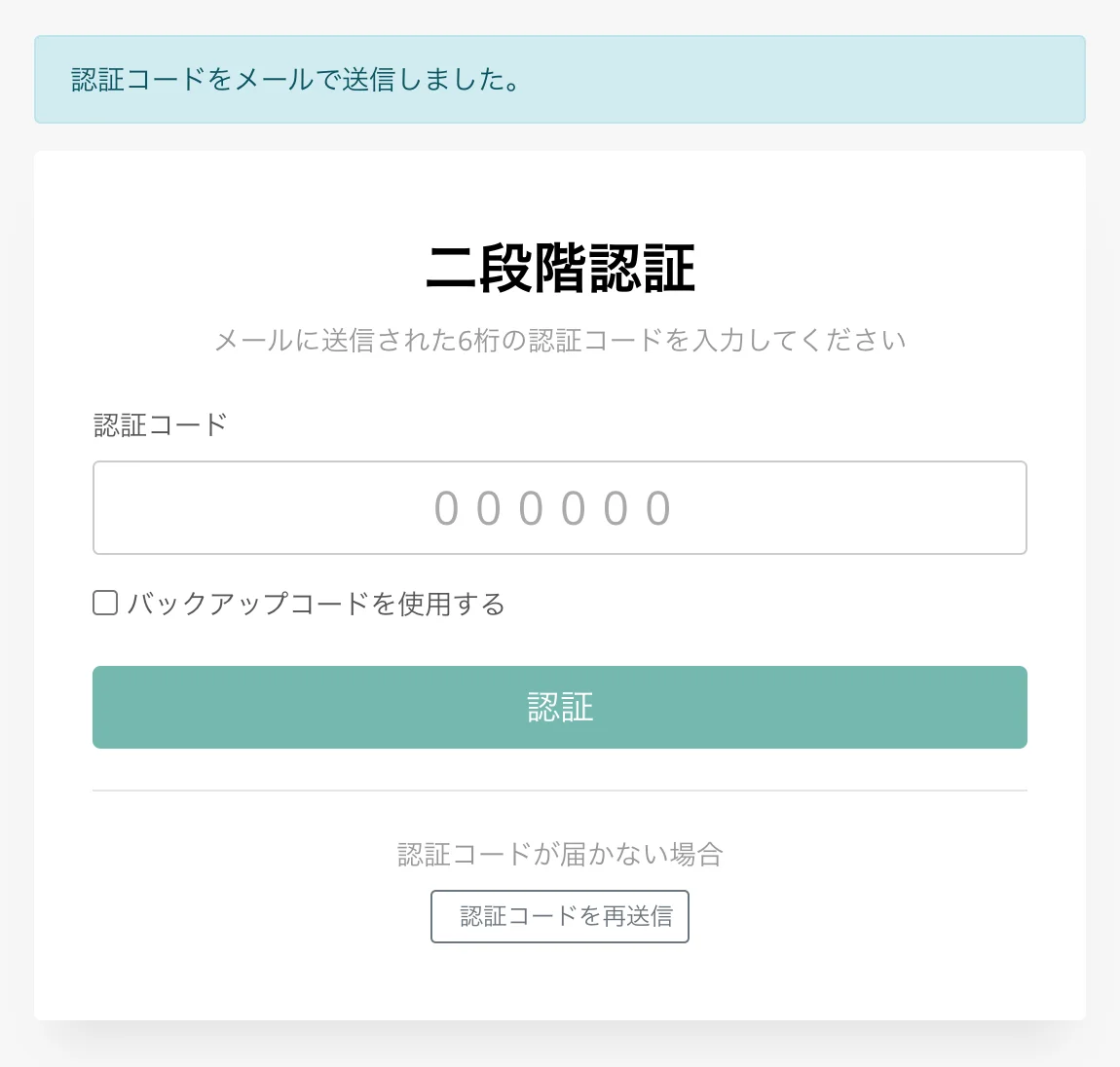
A two-step verification code is sent to the email address you use to log in. Enter it to complete the login.
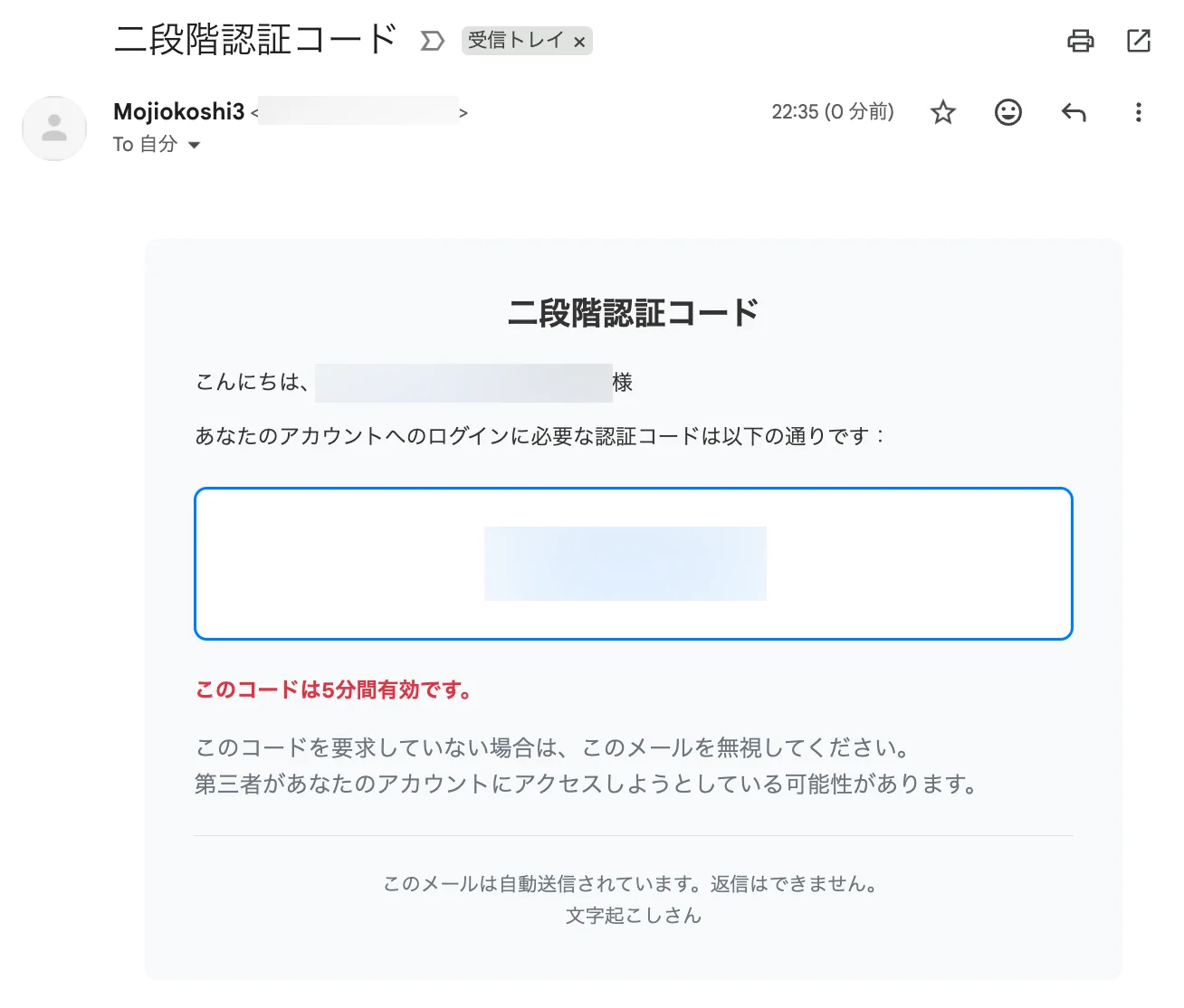
* The two-step verification code is valid for 5 minutes.
How to Disable Two-Step Verification in “Mr. Transcription”
You can disable two-step verification with “Disable two-step verification” on the “Settings” page of “Mr. Transcription.”
* To keep your account safer, we strongly recommend using two-step verification.
When you press “Disable two-step verification,” a confirmation screen opens.
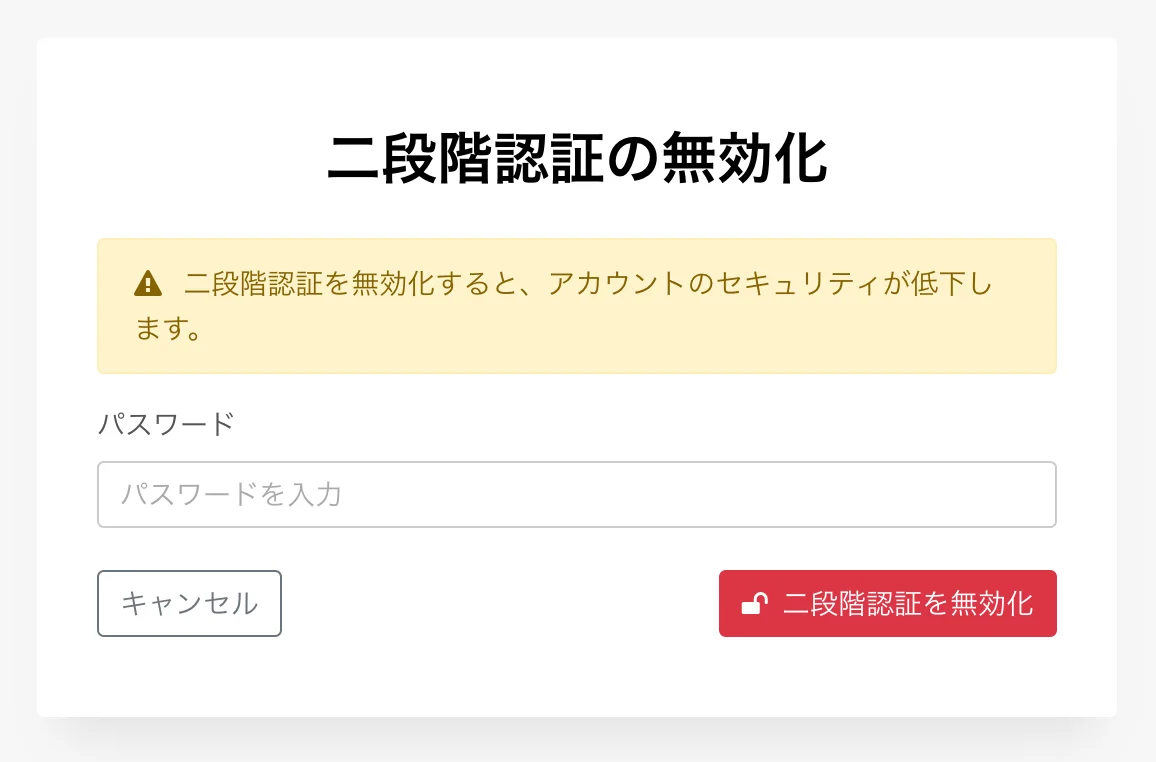
Enter your password on this screen, and two-step verification is turned off.
* After you disable two-step verification, you will need to log in again.
Please Use Two-Step Verification in “Mr. Transcription”
As you can see, two-step verification in “Mr. Transcription” is easy to set up.
To keep your account safer, we strongly recommend setting up two-step verification.
For details on the security measures of “Mr. Transcription”, see the article below.

How Secure Is Mr. Transcription? A Detailed Answer on Servers and More
Is it safe to upload data to Mr. Transcription? Could it be misused? Files sometimes contain confidential company information, so it is only natural to be cautious. How does Mr. Transcription handle security?
We will continue to strengthen our security so that you can keep using “Mr. Transcription” as the best transcription software for you.
■ AI transcription service "Mr. Transscription"
"Mr. Transcription" is an online transcription tool that can be used from zero initial cost and 1,000 yen per month (* free version available).
- Supports more than 20 file formats such as audio, video, and images
- Can be used from both PC and smartphone
- Supports technical terms such as medical care, IT, and long-term care
- Supports creation of subtitle files and speaker separation
- Supports transcription in approximately 100 languages including English, Chinese, Japanese, Korean, German, French, Italian, etc.
To use it, just upload the audio file from the site. Transcription text is available in seconds to tens of minutes.
You can use it for free if you transcribe it for up to 10 minutes, so please try it once.

It is "Mr. Transcription" who can easily transcribe from audio, video, and images.
Transcription allows you to transcribe for up to 10 minutes for free.
You can copy, download, search, delete, etc. the transcribed text.
You can also create subtitle files, which is ideal for transcription of interview videos.
HP: mojiokoshi3.com
Email: mojiokoshi3.com@gmail.com
Email: mojiokoshi3.com@gmail.com
Related article
Transcription for audio / video / image transcription. It is a transcription service that anyone can use for free without installation.
- What is Mr. Transcription?
- Transcript images, sounds, and videos with Mr. Transcription
- Free registration
- Rate plan
- manual
- Try other free services