Mr. Transcription Powers Up: New AI & File Formats!
Translate YouTube Subtitles: Chrome's Auto-Translate for Videos
April 5, 2026

I can't translate YouTube videos because there are no subtitles!

Have you ever wanted to watch English YouTube videos with Japanese subtitles, but the subtitles don't appear or can't be translated?
Actually, by using Google Chrome's "Live Caption" and "Live Translate" features, you can automatically translate videos without adding any extensions.
You can translate not only YouTube videos where subtitles are unavailable but also videos from other video sites.
The setup is just 3 steps and takes about 30 seconds.
| Step 1 | Open Chrome Settings → "Accessibility" |
|---|---|
| Step 2 | Turn ON "Live Caption" (add languages) |
| Step 3 | Turn ON "Live Translate" → Set translation target to Japanese |
In this article, we will clearly explain how to translate videos using Chrome's Live Caption feature with images.
We also cover troubleshooting tips for when subtitles don't appear or can't be translated, so please refer to them if you encounter any issues.
What is YouTube's Subtitle Translation Feature? How Live Caption and Auto-Translate Work
Before explaining Chrome's features, let's briefly explain YouTube's standard subtitle features.
How to Use YouTube's Subtitle Feature
YouTube has both a subtitle feature and a translation feature.
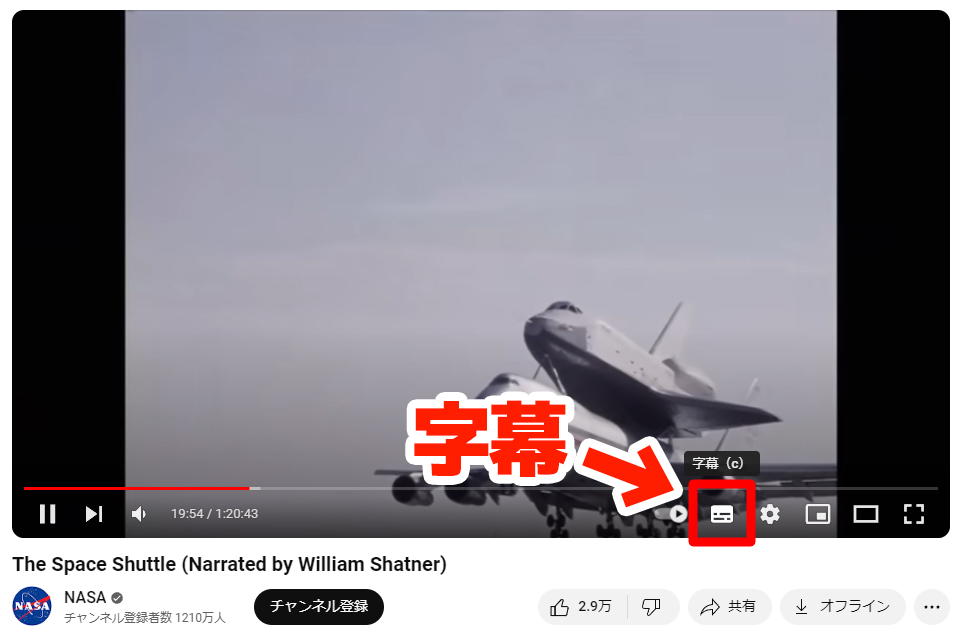
The subtitle feature displays subtitles on videos.
You can display them by clicking "Subtitles" in the bottom right corner of the video.
YouTube Has Manual and Automatic Subtitles
There are two types of subtitles on YouTube:
- Subtitles manually set by the video creator
- Subtitles automatically generated by AI recognizing speech
Manual subtitles require a lot of effort to set up, so across YouTube, most videos use automatic subtitles generated by AI.
How to Translate YouTube Subtitles to Japanese Using the Auto-Translate Feature
On YouTube, you can automatically translate video subtitles into other languages.
Both manual and automatic subtitles can be translated.
Steps to Use YouTube's Auto-Translate
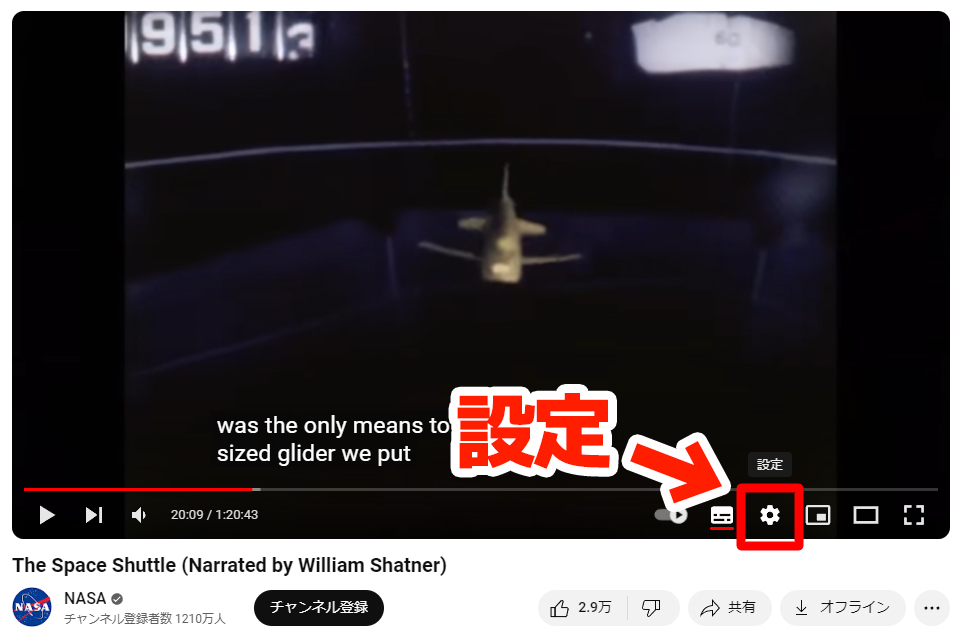
With subtitles displayed, click on "Settings" (the gear icon) in the bottom right of the video.
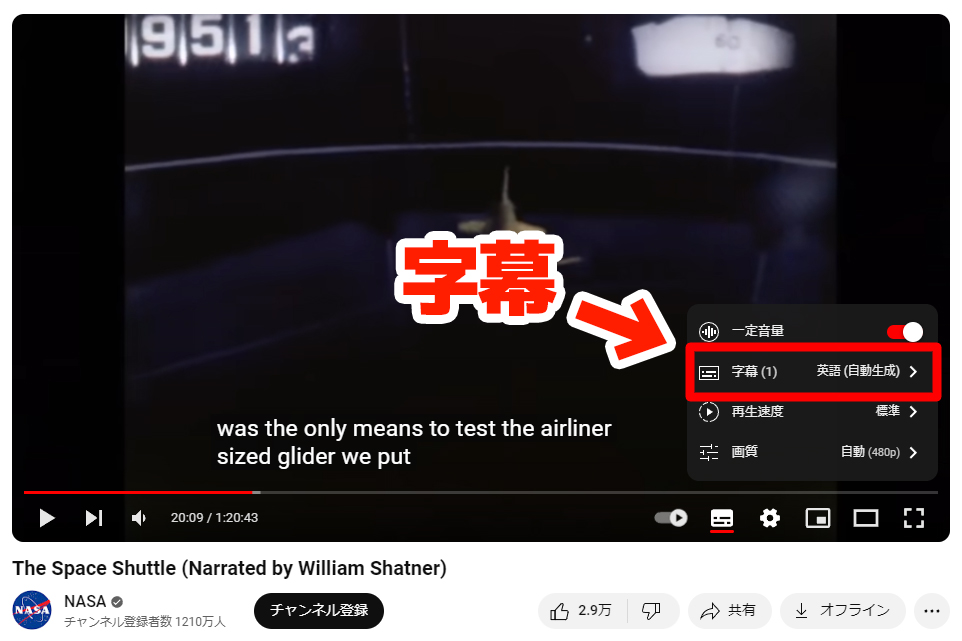
From the menu that appears, click "Subtitles".
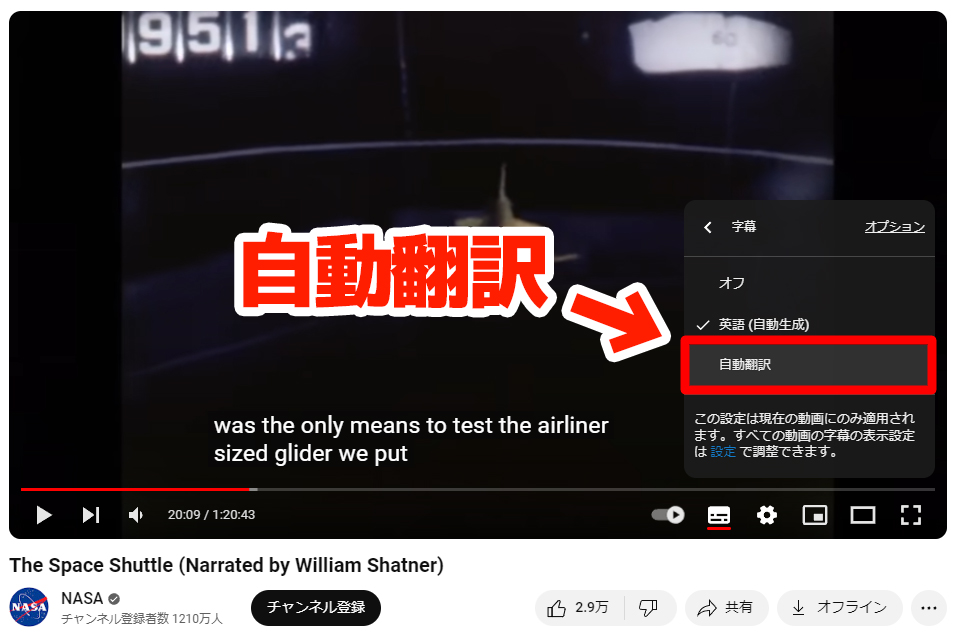
From the menu that appears after clicking "Subtitles", click "Auto-translate".
From the menu that appears after clicking "Auto-translate", select the target language for translation.
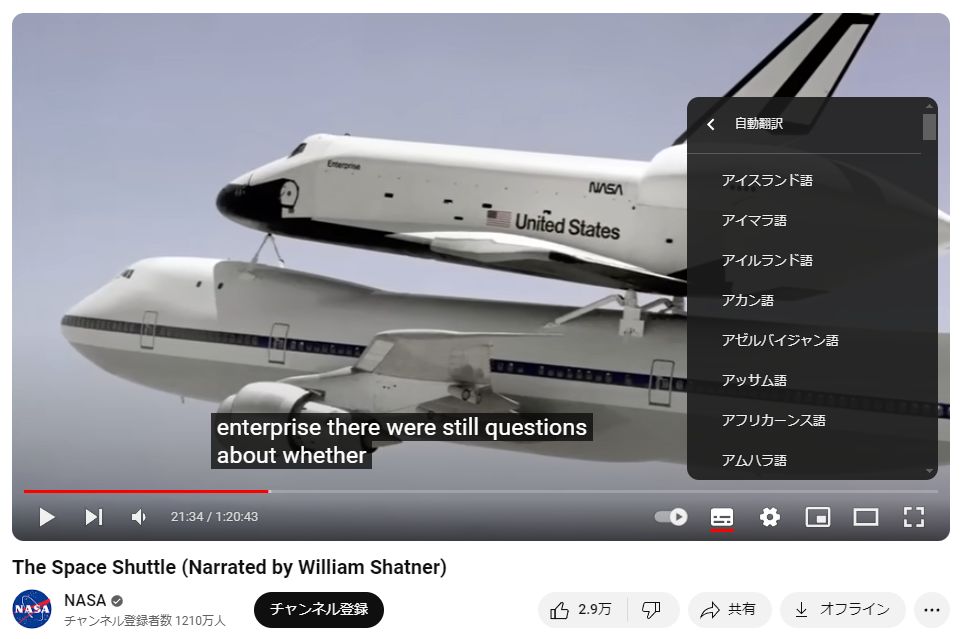 For example, Japanese is selected.
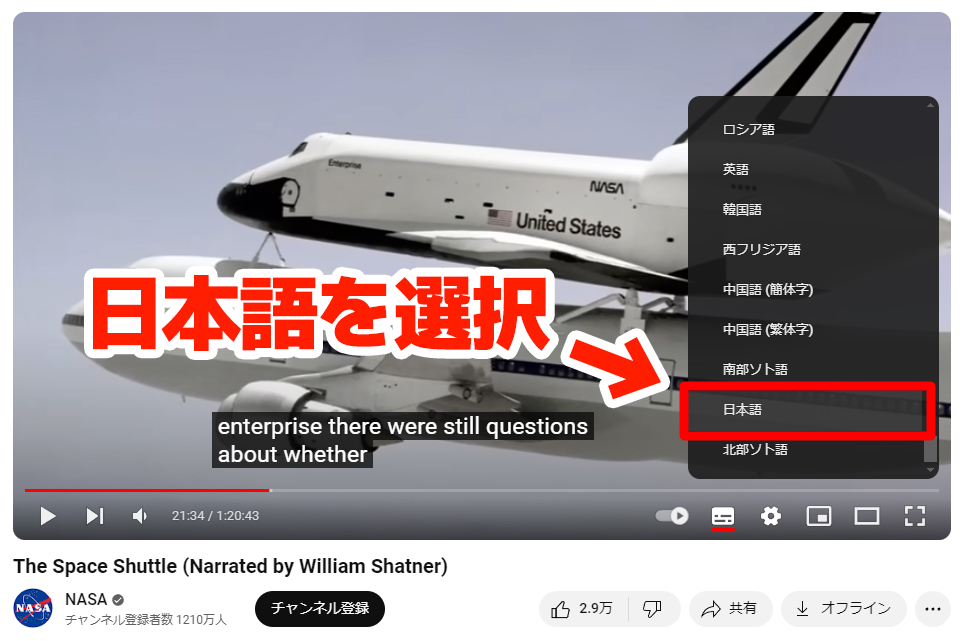
※The target language for translation may automatically be set to the user's language.
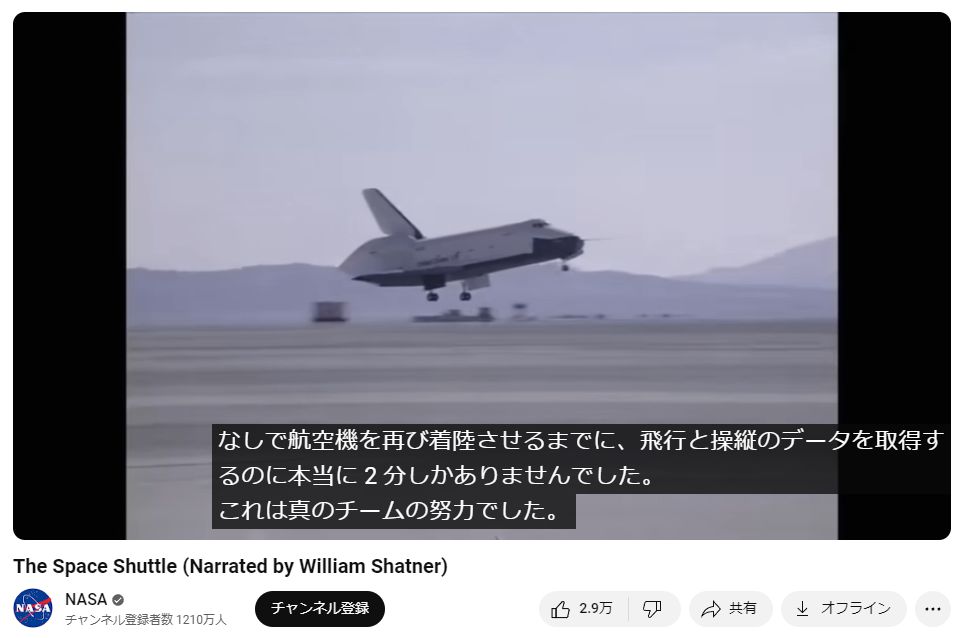
Now, YouTube subtitles have been automatically translated into Japanese.
Some YouTube Videos Don't Show Subtitles or Can't Be Translated
However, many YouTube videos do not display automatic subtitles.
For example, the video in this image, uploaded by YouTube's official channel, does not allow the use of subtitles.
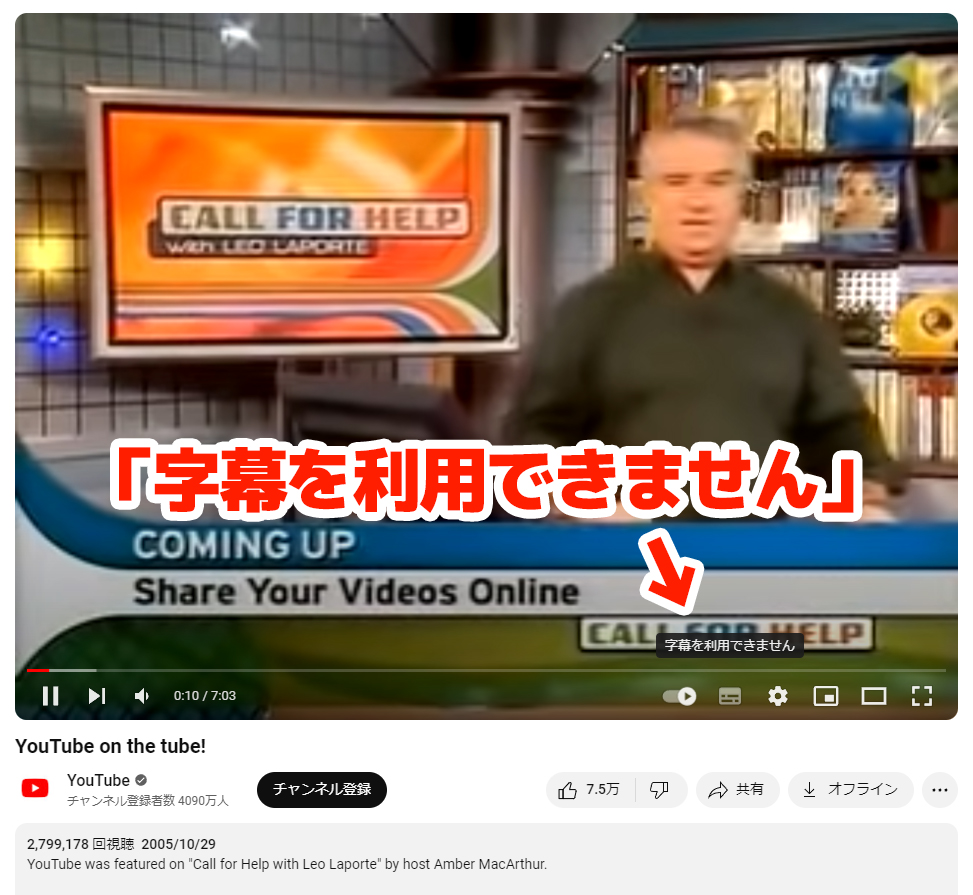
Since there are no original subtitles, automatic translation is also not possible.
There are two main reasons why automatic subtitles may not be available:
Reason 1: Video Creator Has Not Configured Subtitles
For automatic subtitles to be generated on a YouTube video, the video creator must set:
- Language used
- Permission for automatic subtitles
If these settings are not configured for a video, automatic subtitles will not be displayed.
Reason 2: Older Videos Without Subtitle Settings
Older videos uploaded before YouTube's automatic subtitle feature was implemented may not have the necessary subtitle settings configured.
If the video creator configures the settings later, automatic subtitles can be displayed even for older videos.
Google Chrome's Live Caption Feature is the Solution
Videos without automatic subtitles cannot be translated, making it difficult to understand foreign language videos such as English.
In such cases, using Google Chrome's Live Caption feature is highly recommended!
Chrome recognizes the audio in the video, automatically generates subtitles, and translates them into Japanese in real-time.
Moreover, this feature is a standard Chrome function, so no extension installation is required.
A major advantage is that it can be used for videos without subtitles on YouTube, as well as on other video sites.
How to Translate Videos to Japanese with Chrome's Live Caption and Live Translate [5 Steps]
How do I use Google Chrome's Live Caption feature?

We will explain how to use Google Chrome's Live Caption to translate videos into Japanese in real-time, with images.
Requirements: Google Chrome for desktop (Windows / Mac)
Supported Languages: English, Japanese, Korean, Chinese, French, Spanish, and over 20 other languages. Over 100 languages available for translation.
Cost: Free (no extensions needed, standard Chrome feature)
1. Open Chrome Settings
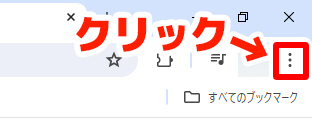
In Google Chrome, click the "⋮" (vertical three dots) icon in the top right corner.
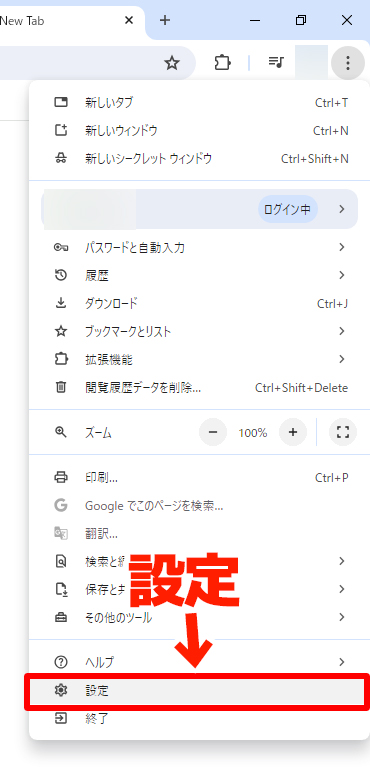
From the menu that opens, click "Settings" towards the bottom.
2. Open "Accessibility"
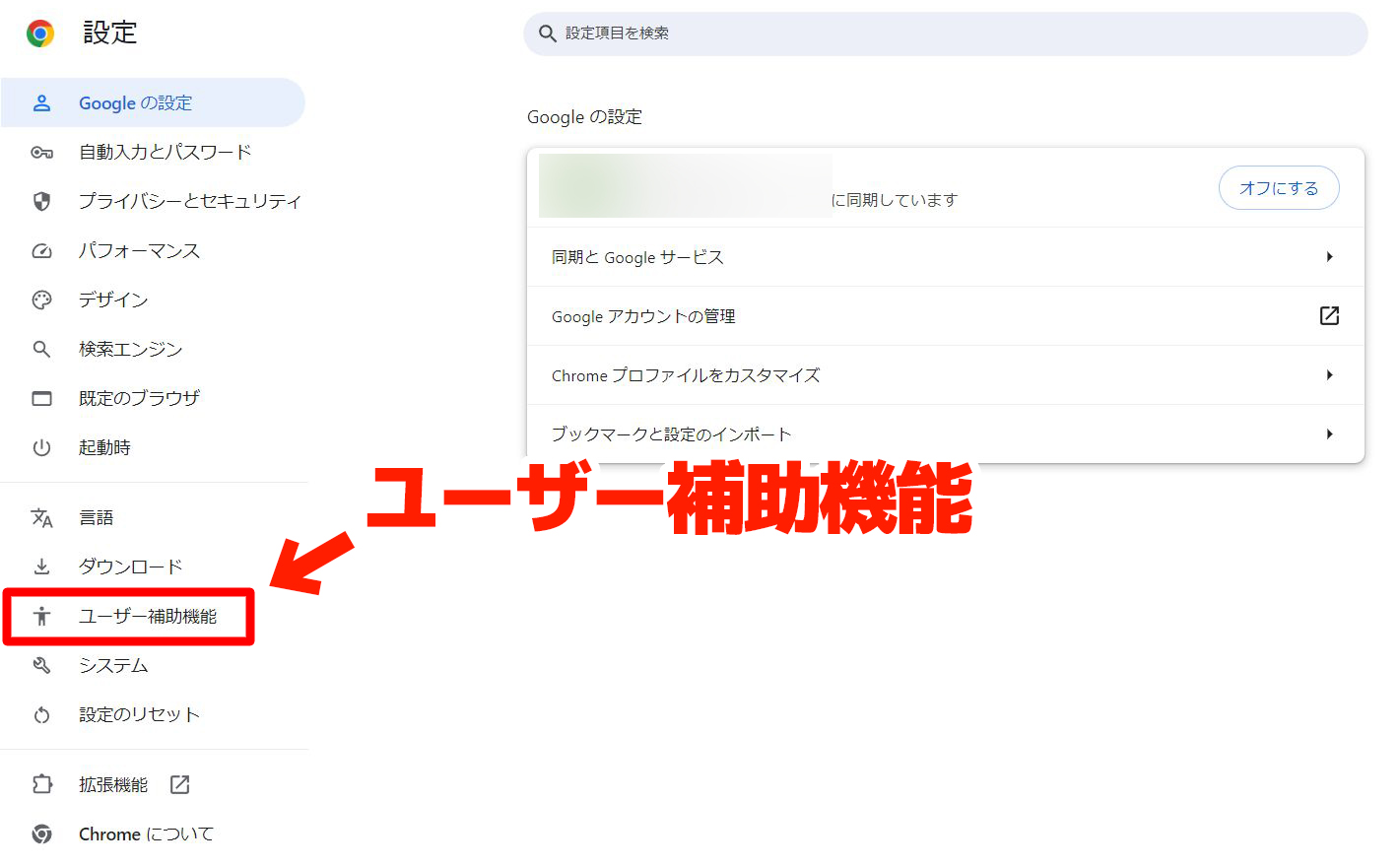
From the left-hand menu in Google Chrome's settings, click "Accessibility".
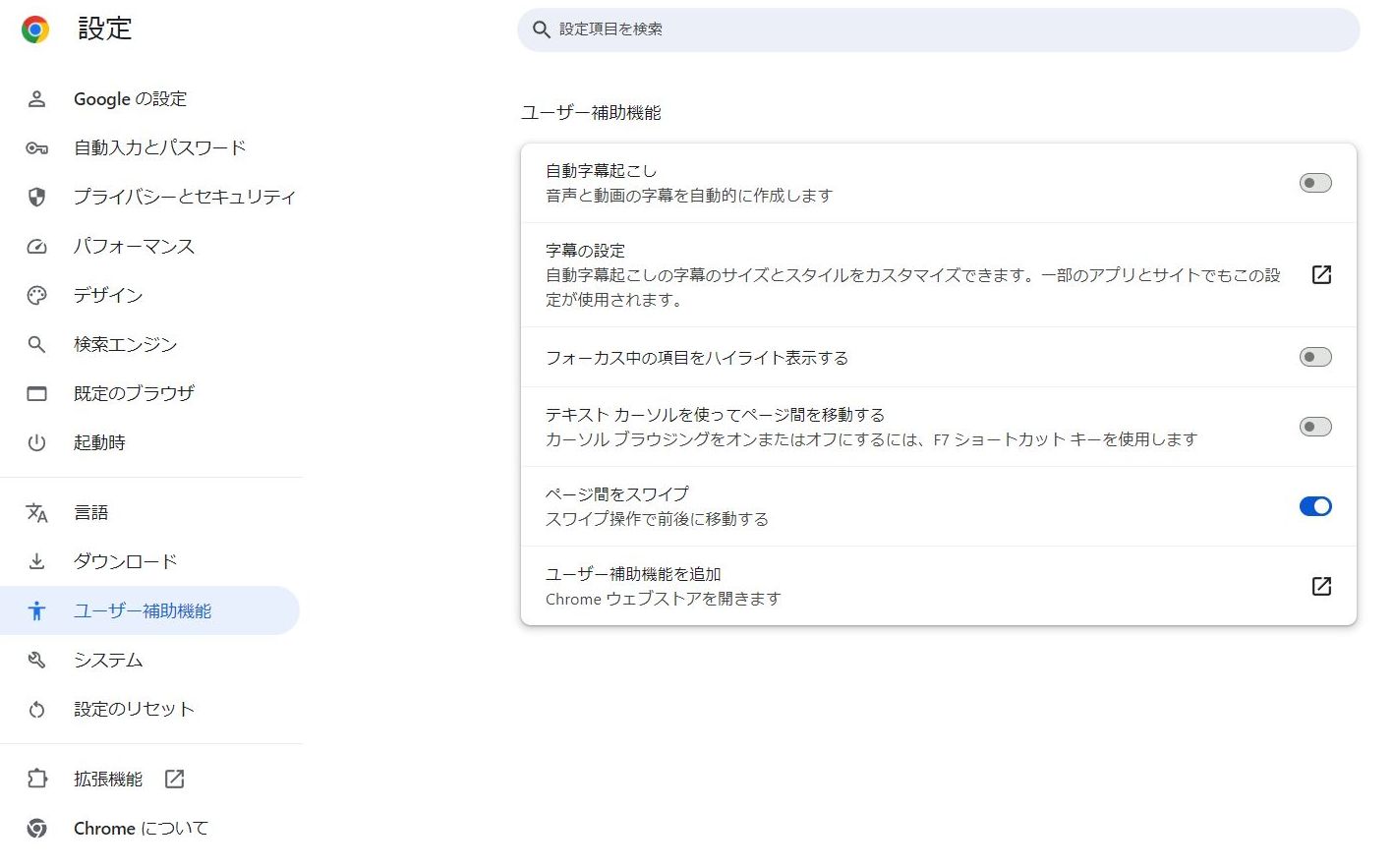
"Accessibility" has opened.
3. Turn ON "Live Caption"
At the top of "Accessibility", turn ON "Live Caption".
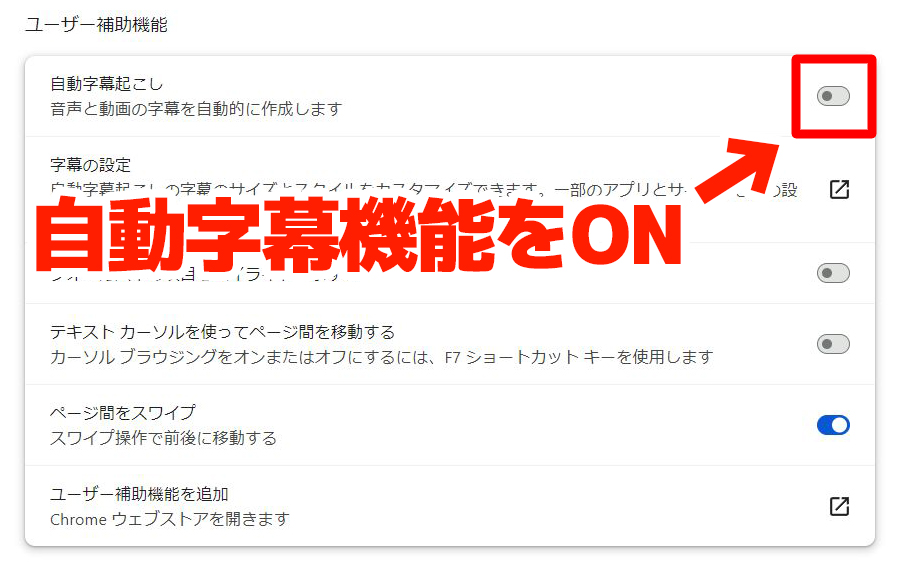
Then, the download of speech recognition files will begin.
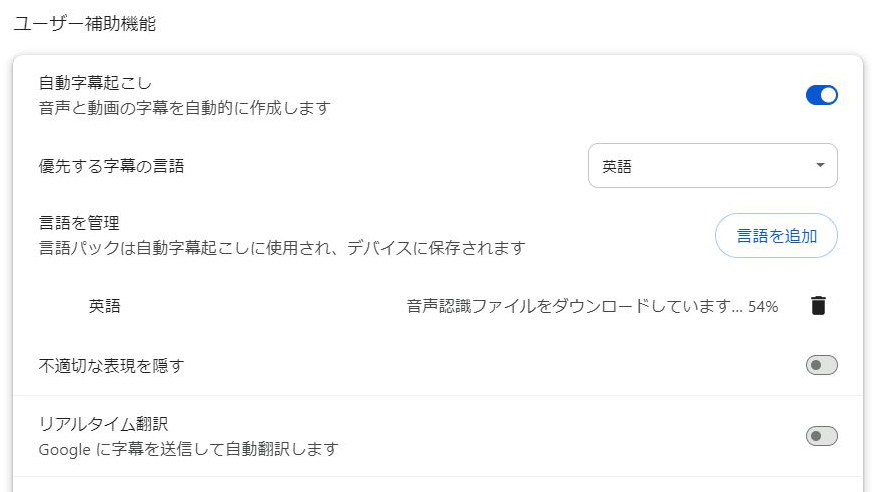
(The file being downloaded at this time is for English speech recognition)
When "Speech files downloaded" is displayed, the download of the English speech recognition file is complete.

Now, Live Caption for English videos is available in Google Chrome.
How to Add Languages Other Than English
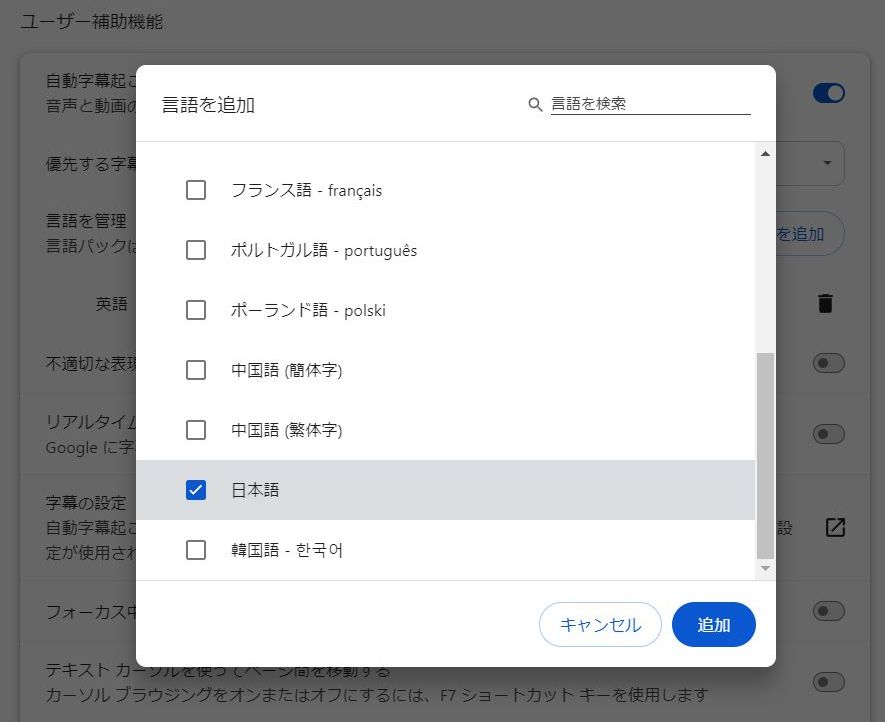
If you want to translate videos in languages other than English (such as Korean, Chinese, French, etc.),click "Add languages" and download the necessary languages.
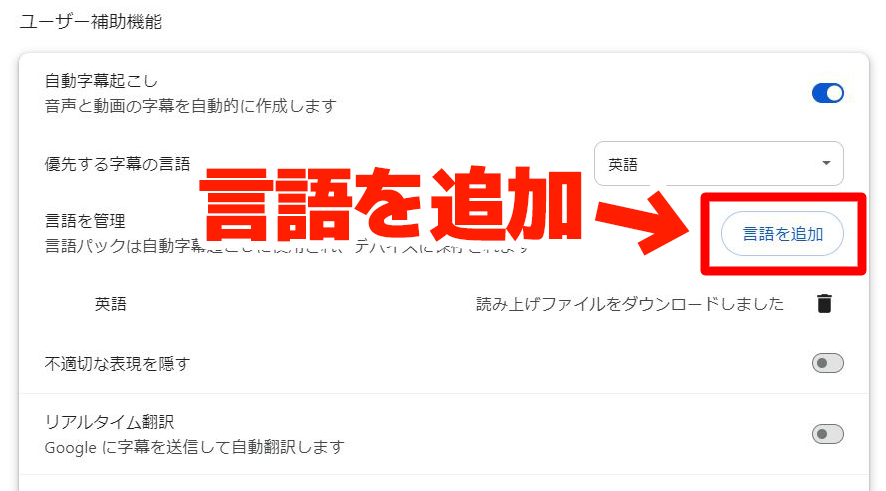
Select the language you want to add and click "Add". The speech recognition file will be downloaded just like for English.
4. Turn ON "Live Translate"
Next, turn ON "Live Translate", which is below "Live Caption".
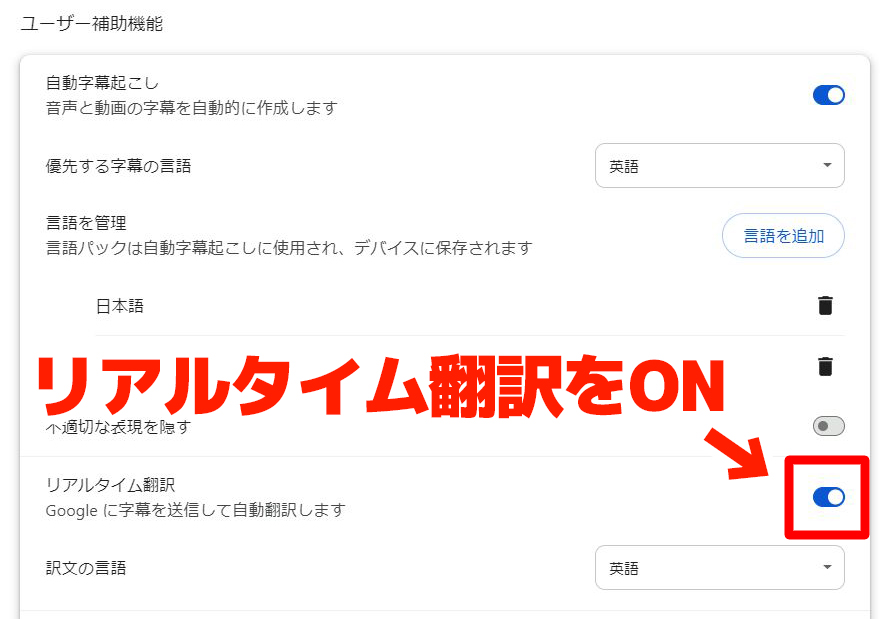
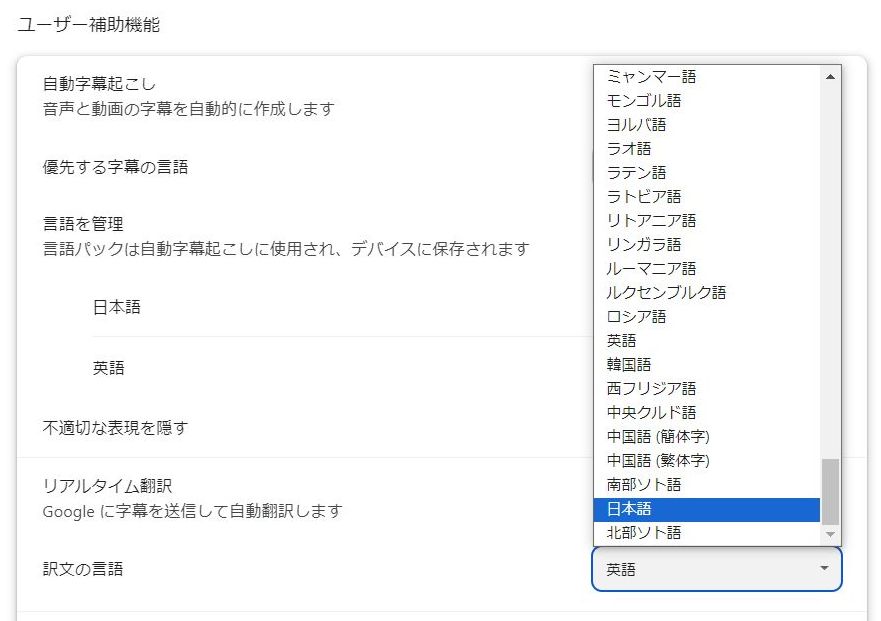
When turned on, the target language for translation is English, so select Japanese from the "Translate captions to" menu.
5. Play a Video on a Video Site
The setup is now complete. When you play a video on YouTube or other sites in this state, Japanese subtitles will automatically appear.
As an example, let's display a YouTube video where automatic subtitles are not available.
As you can see, translated subtitles will appear on the Chrome browser screen.
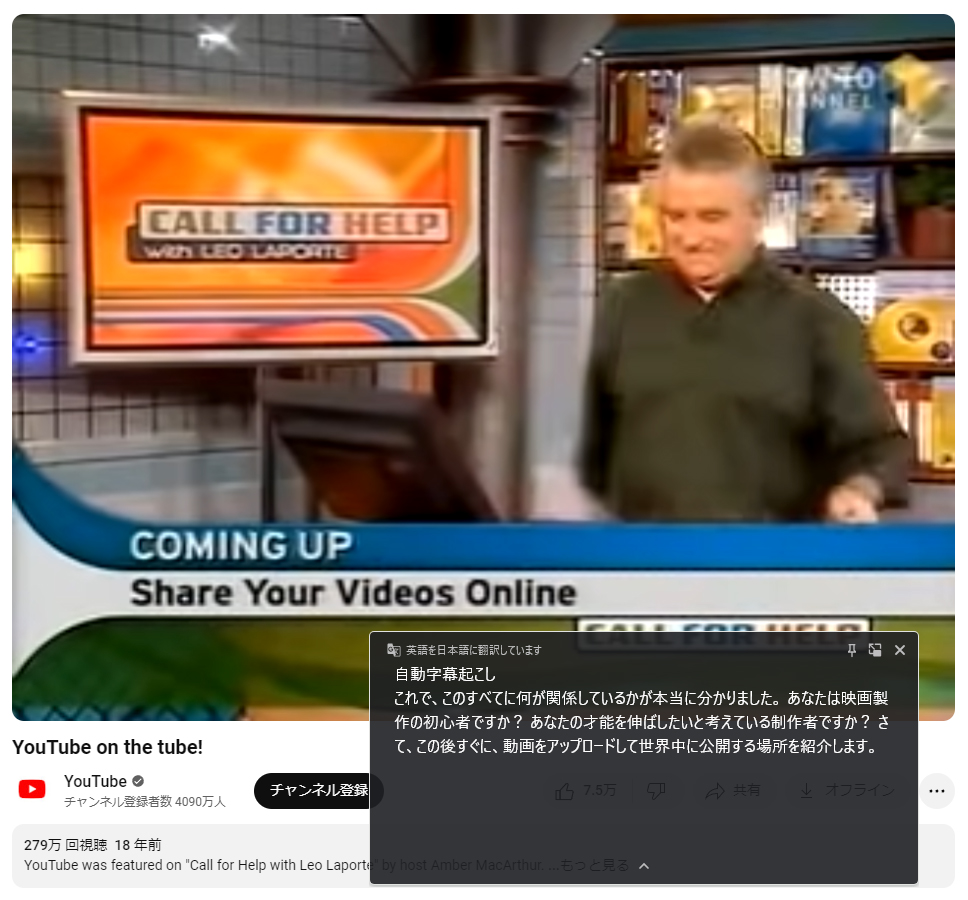
With the "Live Translate" feature on, the English audio of the video is automatically translated and displayed in Japanese.
You can also drag the subtitle window with your mouse to adjust its position.
Translation Available on Video Sites Other Than YouTube
Chrome's Live Caption and Live Translate features can be used on video sites other than YouTube.
For example, in this image, a video is playing on the BBC website in the UK, and automatically translated Japanese subtitles are displayed just like on YouTube.
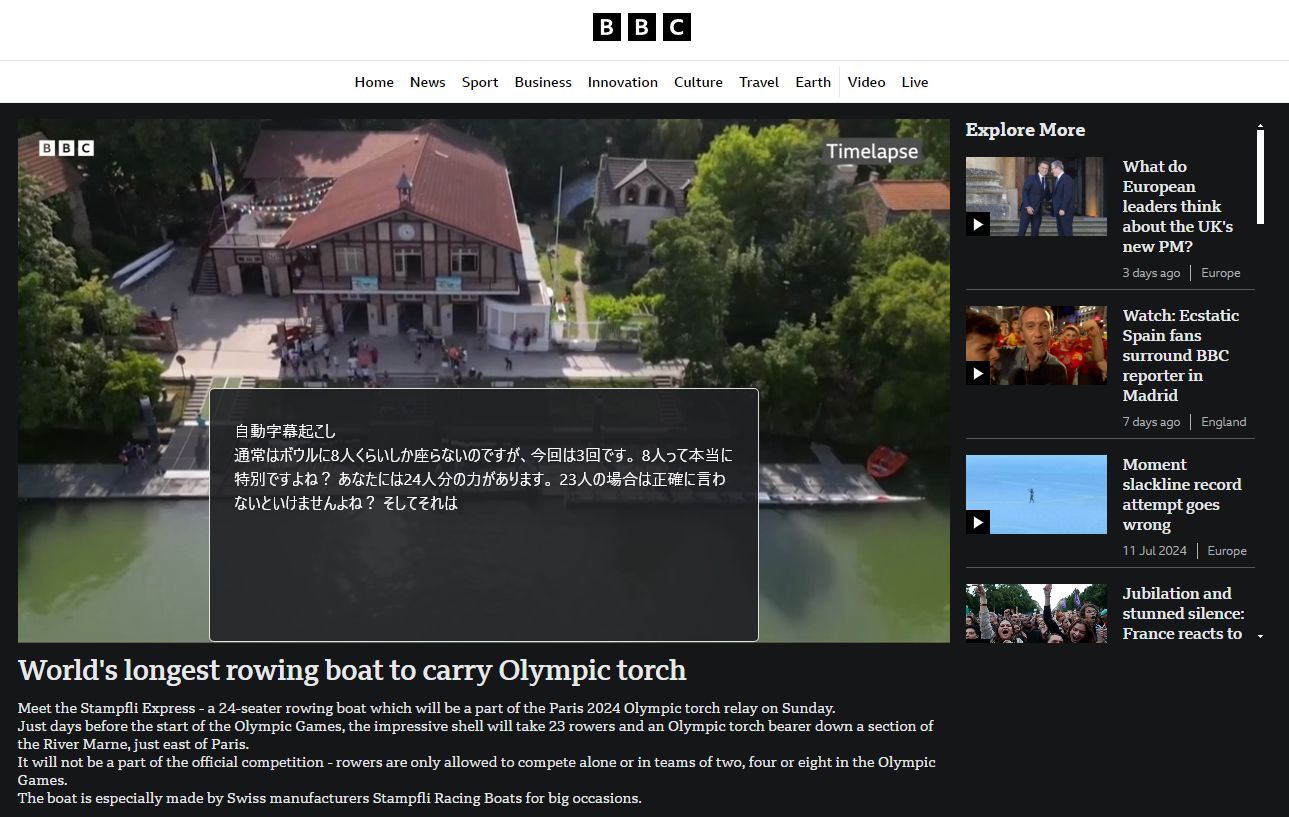
For videos on overseas news sites, social media, etc., any video that can be played in the Chrome browser can use Live Caption and translation.
Troubleshooting: When Subtitles Don't Appear or Translate
Here are common issues with Chrome's Live Caption and YouTube's translation features, along with their solutions.
When Chrome's Live Caption Doesn't Appear
| Symptom | Solution |
|---|---|
| "Live Caption" is not found in the settings screen | Update Chrome to the latest version. You can update from the top right "⋮" → "Help" → "About Google Chrome" |
| Subtitles don't appear after turning it ON | Check if the speech recognition files have finished downloading. Also, subtitles will not be generated if the video volume is muted |
| Subtitles remain in English and don't translate | Check if "Live Translate" is ON and if "Translate captions to" is set to Japanese |
| Live Caption cannot be used on a smartphone | Chrome's Live Caption and Live Translate features are only supported on desktop Chrome (Windows / Mac). On smartphones, please use the YouTube app's standard subtitle feature |
When YouTube's Subtitle Translation Doesn't Work Properly
■ AI transcription service "Mr. Transscription"
"Mr. Transcription" is an online transcription tool that can be used from zero initial cost and 1,000 yen per month (* free version available).
- Supports more than 20 file formats such as audio, video, and images
- Can be used from both PC and smartphone
- Supports technical terms such as medical care, IT, and long-term care
- Supports creation of subtitle files and speaker separation
- Supports transcription in approximately 100 languages including English, Chinese, Japanese, Korean, German, French, Italian, etc.
To use it, just upload the audio file from the site. Transcription text is available in seconds to tens of minutes.
You can use it for free if you transcribe it for up to 10 minutes, so please try it once.

It is "Mr. Transcription" who can easily transcribe from audio, video, and images.
Transcription allows you to transcribe for up to 10 minutes for free.
You can copy, download, search, delete, etc. the transcribed text.
You can also create subtitle files, which is ideal for transcription of interview videos.
HP: mojiokoshi3.com
Email: mojiokoshi3.com@gmail.com
Email: mojiokoshi3.com@gmail.com
Related article
Transcription for audio / video / image transcription. It is a transcription service that anyone can use for free without installation.
- What is Mr. Transcription?
- Transcript images, sounds, and videos with Mr. Transcription
- Free registration
- Rate plan
- manual
- Try other free services