Free AI Transcription Now: Use Mr. Transcription (10 Mins Daily)
How to Send a LINE Voice Message (iPhone and Android)
Oct. 9, 2026

How do you send a voice message on LINE?
LINE voice messages are easy to send: just tap the microphone icon on the chat screen, record, and send.
A voice message is a feature that lets you send audio you record on the spot through LINE.
For congratulations on a birthday or graduation, the melody of a song, and more, you can deliver feelings and information that text cannot fully convey, using your voice.
In this article, we explain how to send a LINE voice message, with screenshots for both iPhone and Android.
[iPhone and iPad] How to Send a LINE Voice Message
This section explains how to send a voice message on iOS on an iPhone or iPad.
1. Tap the microphone icon
Open the chat screen and tap the microphone icon to the right of the input field.
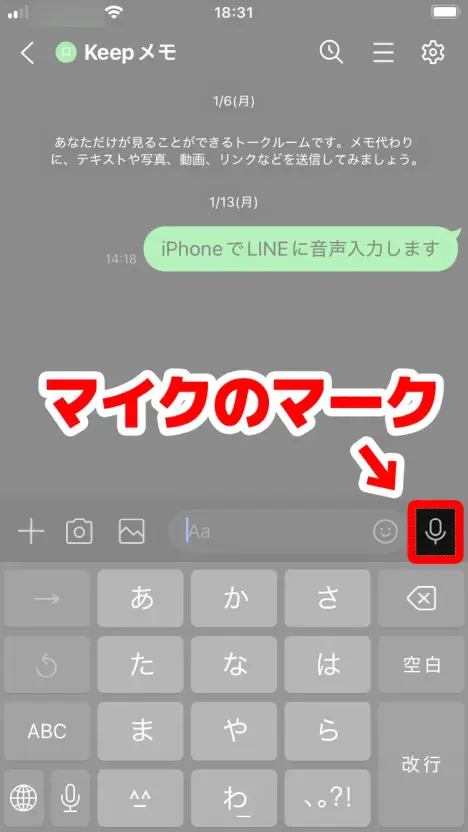
"Tap the button to record" appears.
2. Start recording
Tap the red record icon, and the voice message recording starts.
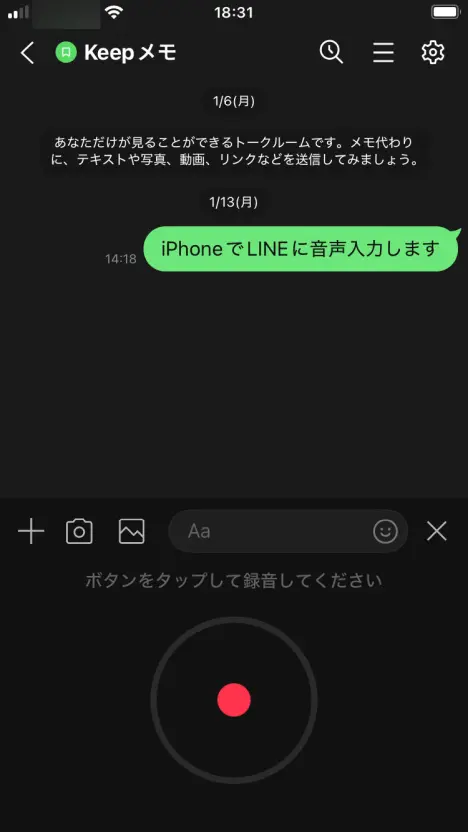
3. Stop recording and send
Tap the stop icon, and the voice message recording stops.
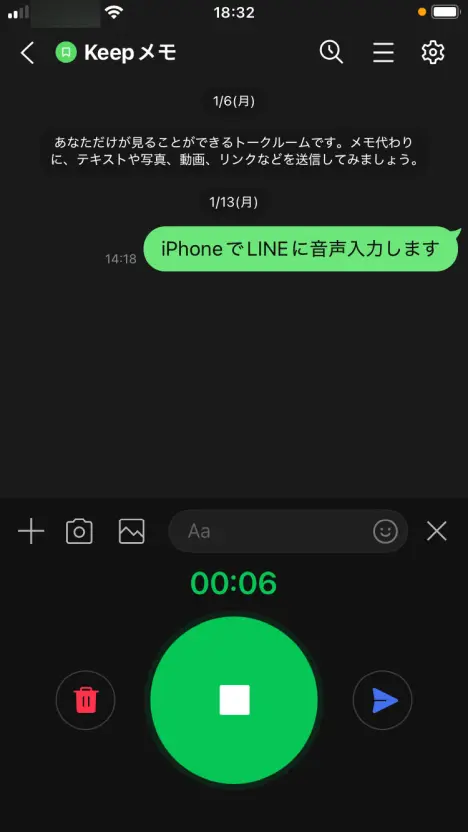
When you tap the send button, the recorded audio is sent as a voice message.
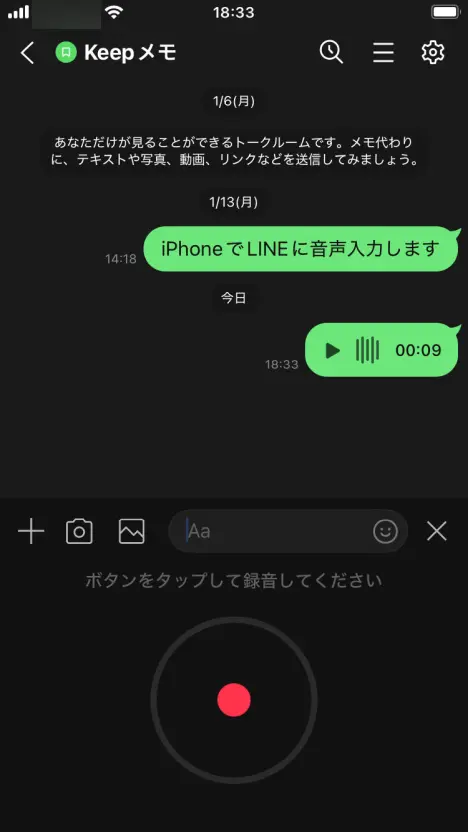
You can listen to the voice message you sent by tapping the play button.
[Android Smartphone] How to Send a LINE Voice Message
On an Android smartphone, you send a voice message in basically the same way as on an iPhone.
1. Tap the microphone icon
Once you have opened the chat screen, tap the microphone icon to the right of the input field.
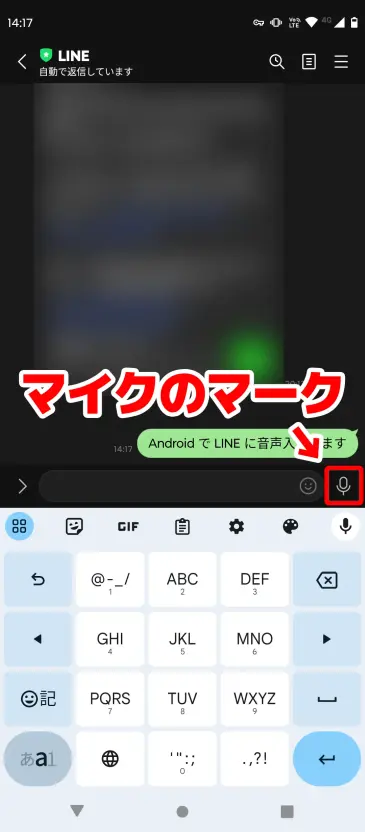
"Tap the button to record" appears.
2. Start recording
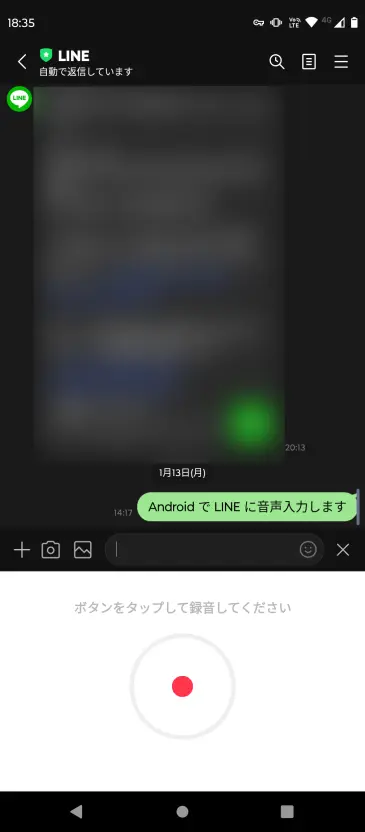
Tap the red record icon, and the voice message recording starts.
3. Stop recording and send
Tap the stop icon, and the voice message recording stops.
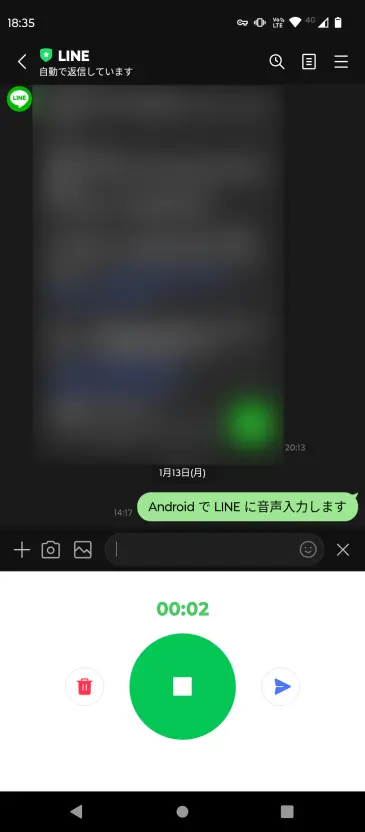
Tap the send button to send the recorded voice message.
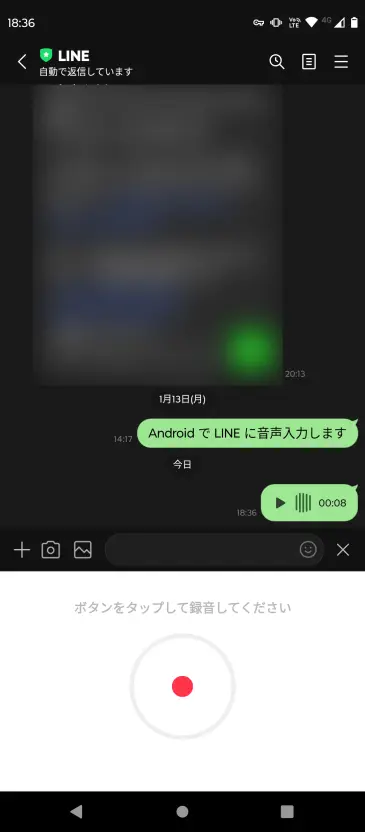
Tap the play button to listen to the voice message you sent.
Note the Difference Between Voice Messages and Voice Input
LINE has two microphone icons, so they are easy to mix up.
Voice messages (sending the audio as it is) are sent by tapping the microphone icon to the right of the input field.
Voice input (converting what you say into text and sending it) is done by tapping the microphone icon on the keyboard.
The only difference is the position of the microphone you tap, so go ahead and tap the one that suits your purpose.
If You Want to Transcribe a Voice Message You Received
If you want to check the content of a voice message you received as text, we recommend the AI transcription site "Mr. Transcription"!
Just save the voice message and upload it to "Mr. Transcription", and the AI converts it to text automatically.
Our other article explains how to transcribe voice messages, so please take a look!

How to Transcribe LINE Voice Messages [iPhone/Android]
How to transcribe LINE voice messages, explained by device. Also covers converting LINE call recordings to text, using voice input, and what to do when it does not work.
■ AI transcription service "Mr. Transscription"
"Mr. Transcription" is an online transcription tool that can be used from zero initial cost and 1,000 yen per month (* free version available).
- Supports more than 20 file formats such as audio, video, and images
- Can be used from both PC and smartphone
- Supports technical terms such as medical care, IT, and long-term care
- Supports creation of subtitle files and speaker separation
- Supports transcription in approximately 100 languages including English, Chinese, Japanese, Korean, German, French, Italian, etc.
To use it, just upload the audio file from the site. Transcription text is available in seconds to tens of minutes.
You can use it for free if you transcribe it for up to 10 minutes, so please try it once.

It is "Mr. Transcription" who can easily transcribe from audio, video, and images.
Transcription allows you to transcribe for up to 10 minutes for free.
You can copy, download, search, delete, etc. the transcribed text.
You can also create subtitle files, which is ideal for transcription of interview videos.
HP: mojiokoshi3.com
Email: mojiokoshi3.com@gmail.com
Email: mojiokoshi3.com@gmail.com
Related article
Transcription for audio / video / image transcription. It is a transcription service that anyone can use for free without installation.
- What is Mr. Transcription?
- Transcript images, sounds, and videos with Mr. Transcription
- Free registration
- Rate plan
- manual
- Try other free services