Mr. Transcription Powers Up: New AI & File Formats!
How to Use Voice Input on LINE: Setup and Sending, with Images
Oct. 9, 2026

I want to send messages on LINE using voice input!
To send LINE messages by voice input, all you need to do is turn on the voice input feature on your iPhone, iPad, or Android smartphone and tap the microphone icon on the keyboard.
This article explains in detail how to send messages on LINE using voice input, from the settings to the actual input steps, with screenshots.
*The screens shown are iOS 18 for iPhone and Android 12 for Android smartphones.
How to Set Up Voice Input (iPhone and Android)
To use voice input for LINE messages, you first need to turn on the voice input feature on your smartphone.
How to Set Up Voice Input on iPhone and iPad
To turn on voice input in iOS on your iPhone or iPad, first open the Settings app.
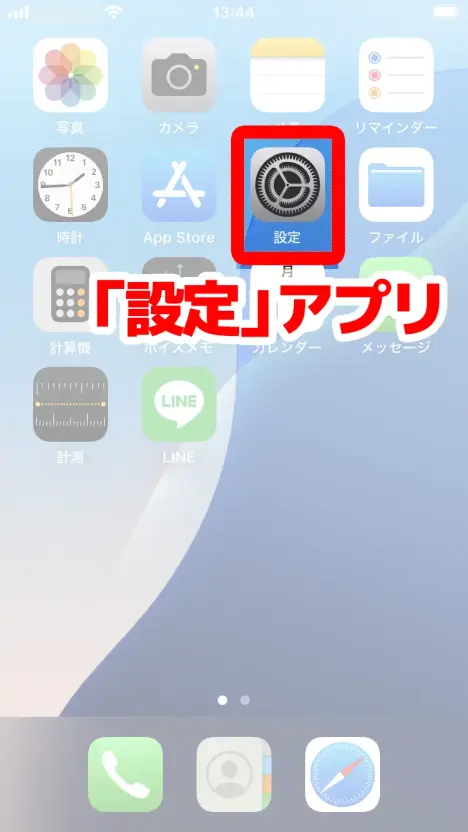
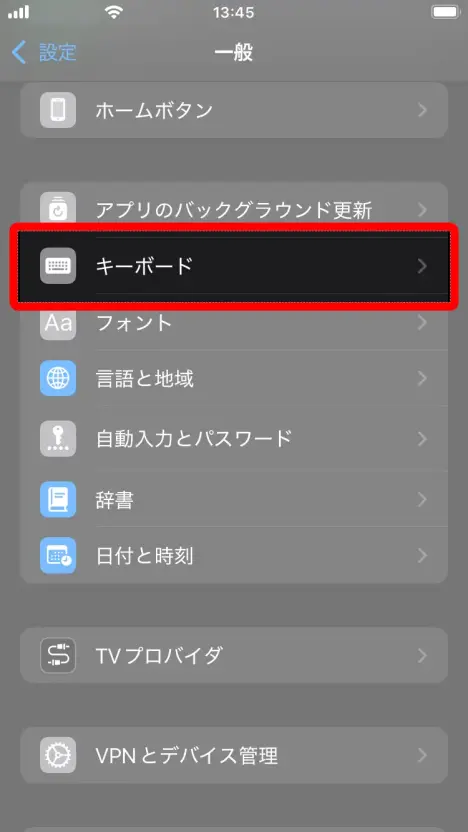
In the Settings app, open "General".
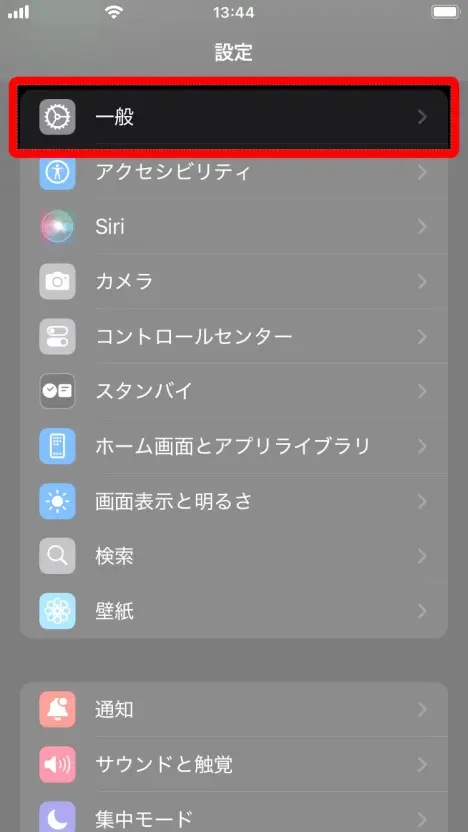
Select "Keyboard".
In "Keyboard," turn "Enable Dictation" ON.
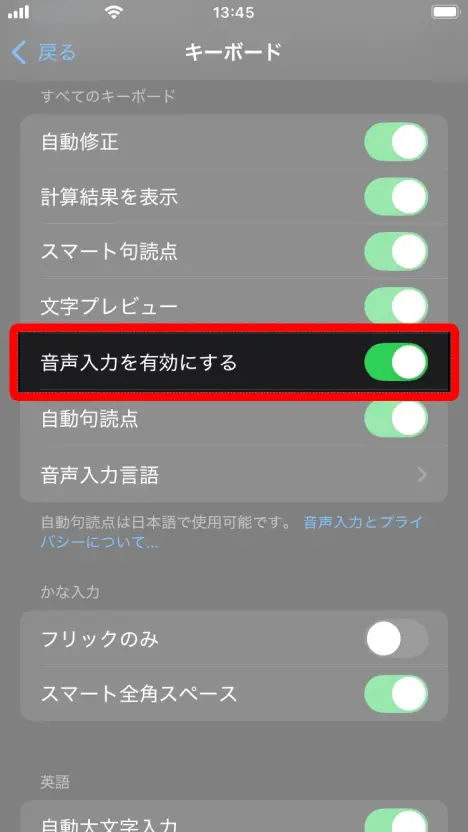
That completes the preparation for voice input on your iPhone or iPad.
How to Set Up Voice Input on Android Smartphones
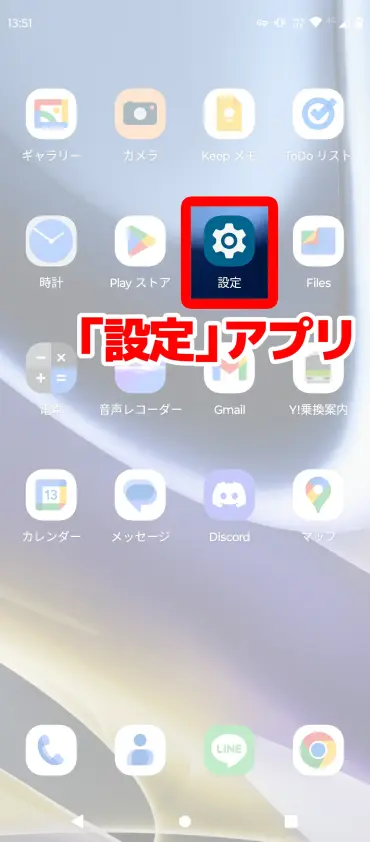
To turn on voice input on an Android smartphone, first open the Settings app.
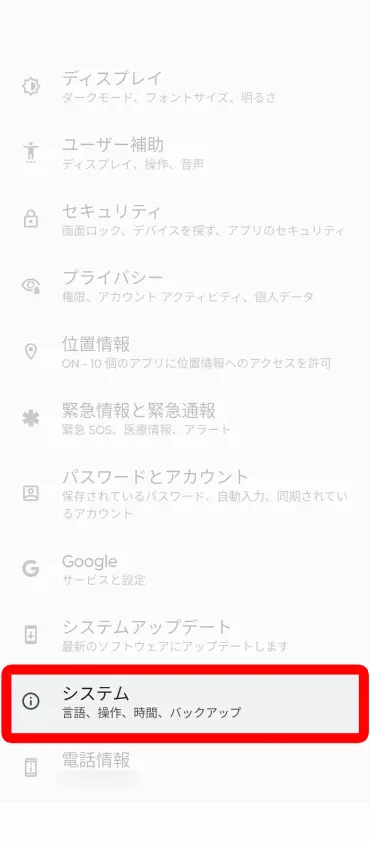
Scroll down in the Settings app and select "System", near the bottom.
Next, open "Languages & input" in "System."
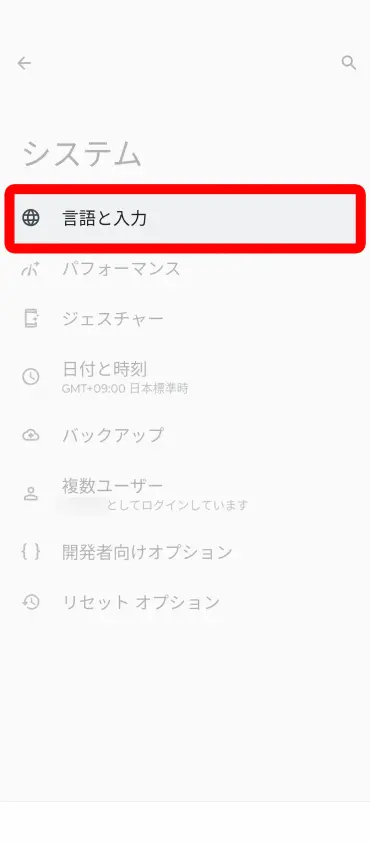
On the "Languages & input" screen, select "On-screen keyboard".
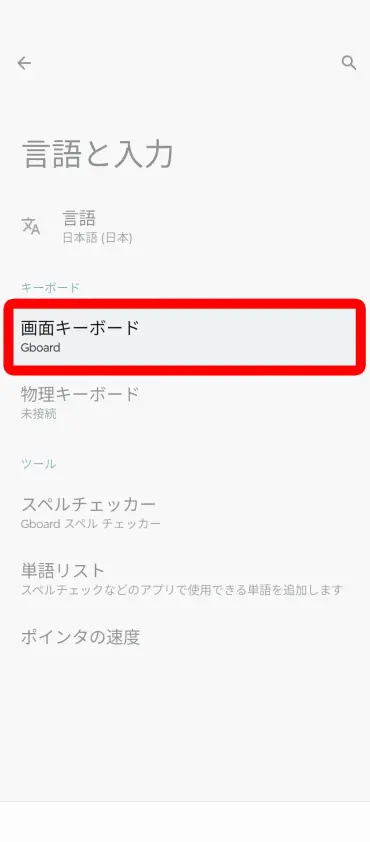
When you open "On-screen keyboard," a list of the keyboards currently installed appears. Select the keyboard you normally use (here, we selected "Gboard").

On the keyboard settings screen, select "Voice typing."
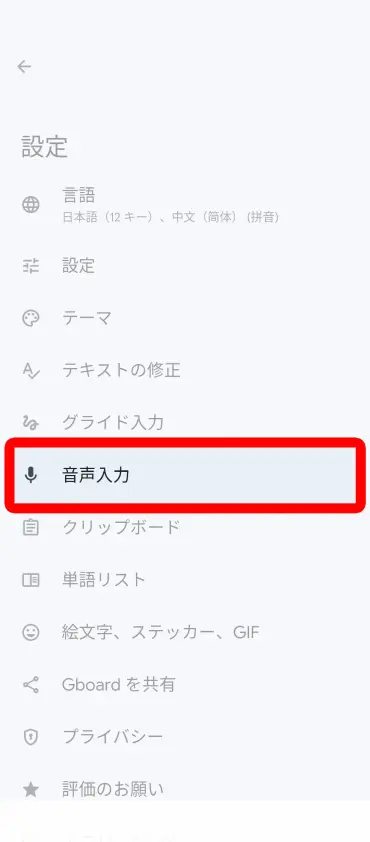
On the screen that opens, turn voice typing ON.
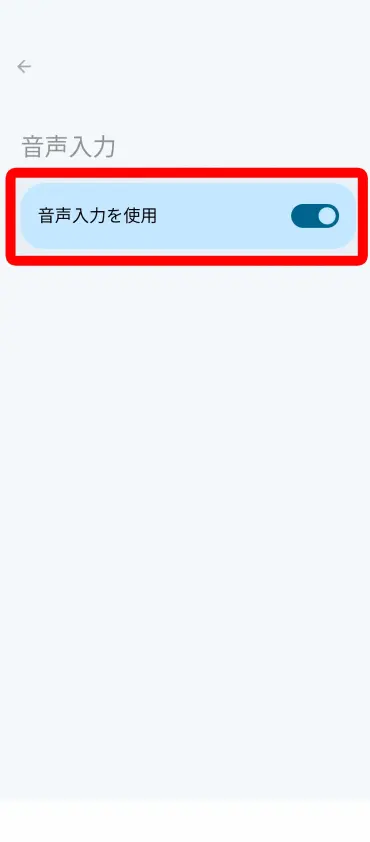
That completes the preparation for voice input on your Android smartphone.
*On Android smartphones, the setup steps may differ depending on the keyboard app you use.
How to Send LINE Messages by Voice Input
Once the setup is complete, let's try voice input on LINE.
Using Voice Input on LINE with an iPhone
On the LINE chat screen, tap the message field to open the keyboard.
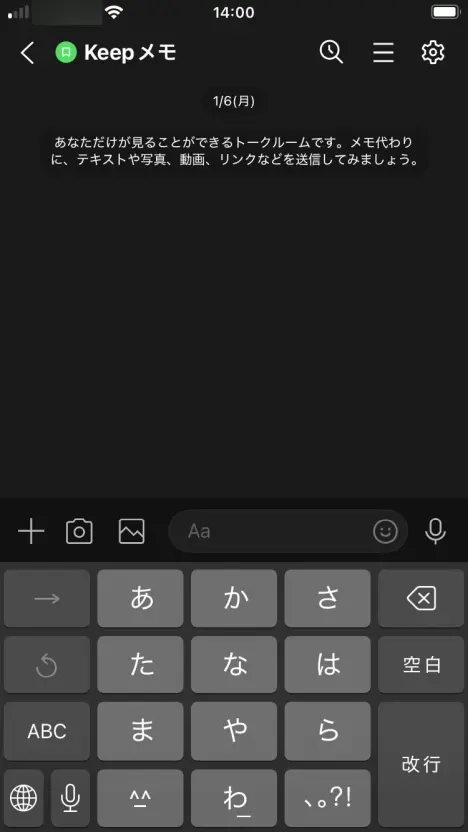
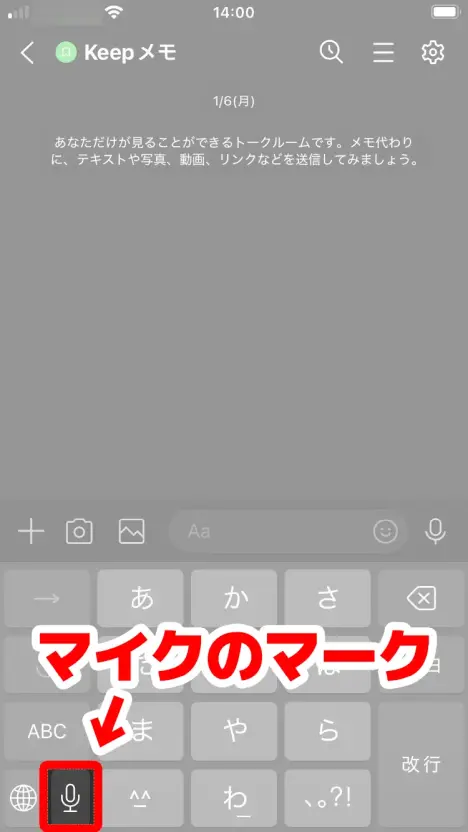
Tap the microphone icon at the bottom left of the keyboard.
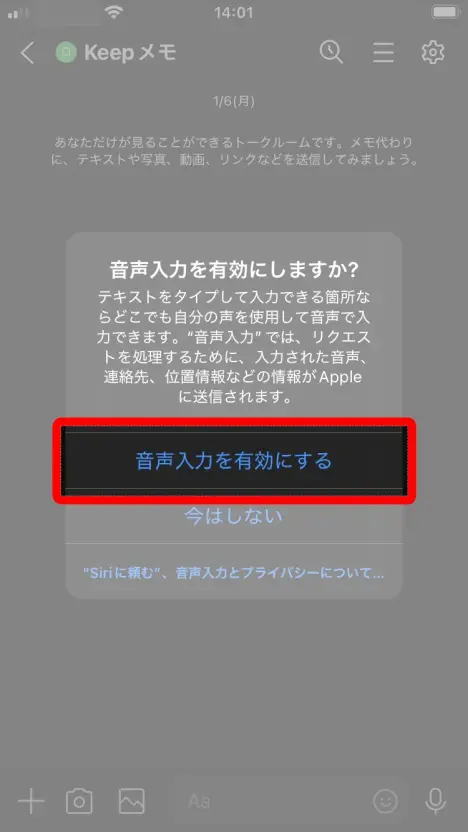
If "Enable Dictation?" is displayed at this point, select "Enable Dictation".
A microphone and "あ" icon appears in the message field, which means voice input is ready.
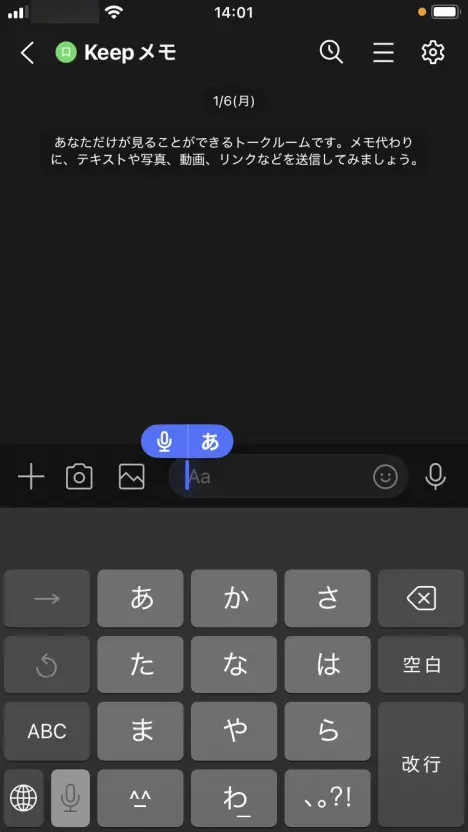
In this state, when you speak into the microphone of your iPhone or iPad, what you say is transcribed as shown here.
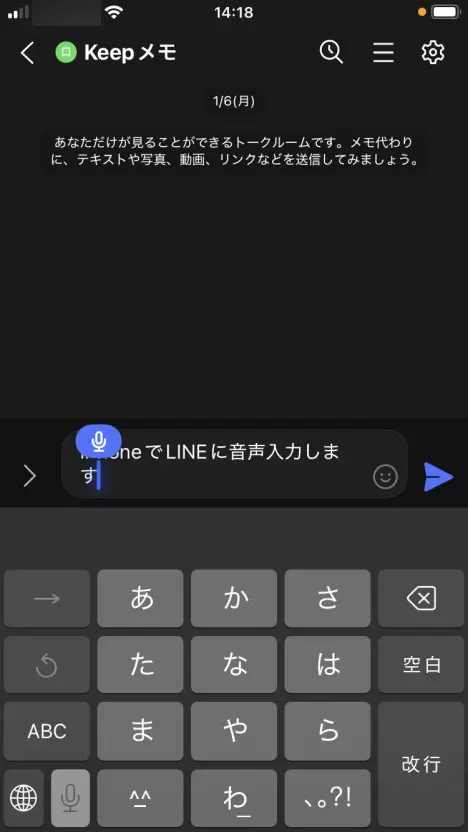
Press the send button to send the transcribed text.
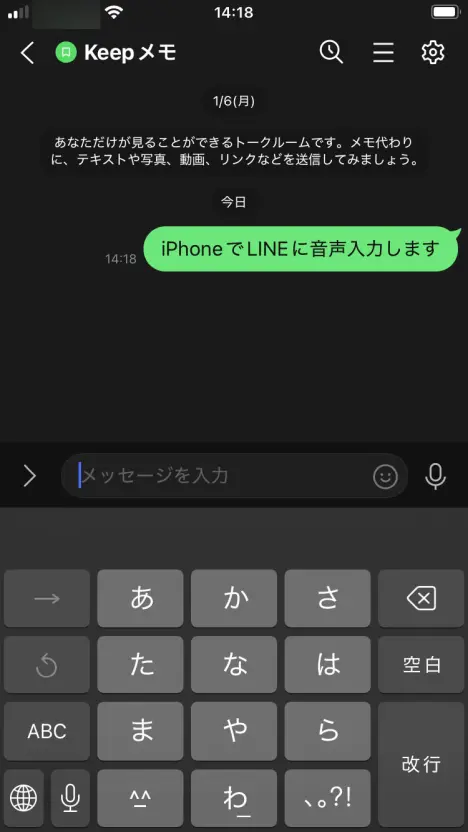
Tap the microphone icon at the bottom left of the keyboard once more to end voice input.
Using Voice Input on LINE with an Android Smartphone
On the LINE chat screen, tap the message field to open the keyboard.
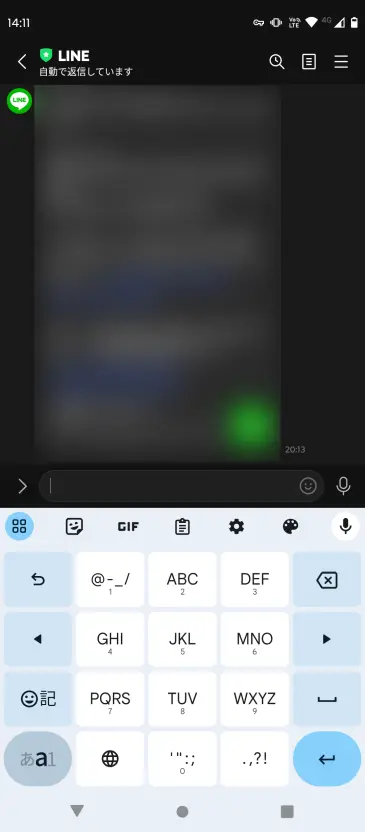
Tap the microphone icon at the top right of the keyboard.
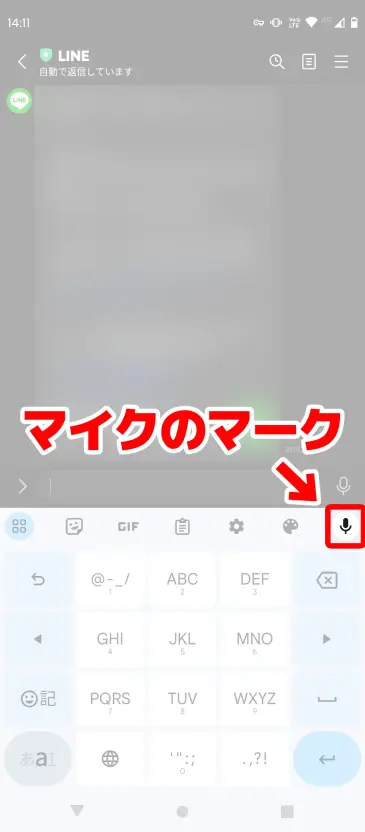
*Do not tap the microphone to the right of the LINE message field. Tap the one just below it.
The microphone to the right of the message field is for "voice messages" (a feature that sends your recorded voice as it is), so please be careful not to confuse the two.
"Speak now" is displayed, which means voice input is ready.
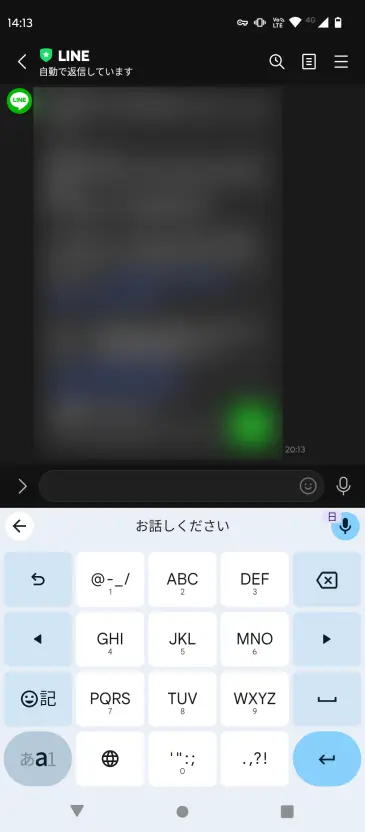
In this state, when you speak into the microphone of your Android smartphone, what you say is transcribed as shown here.
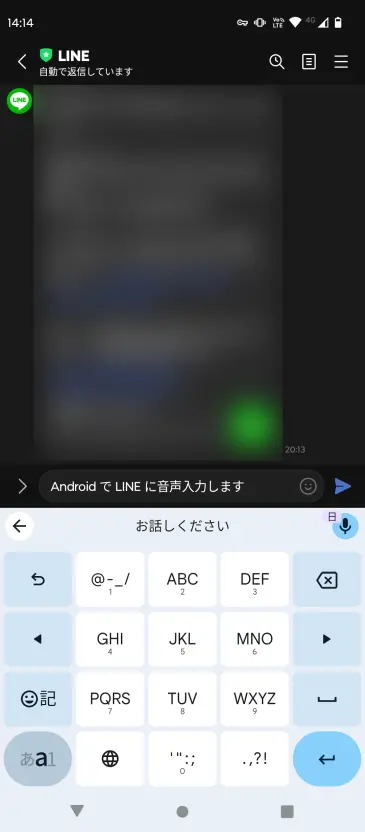
Press the send button to send the transcribed text.
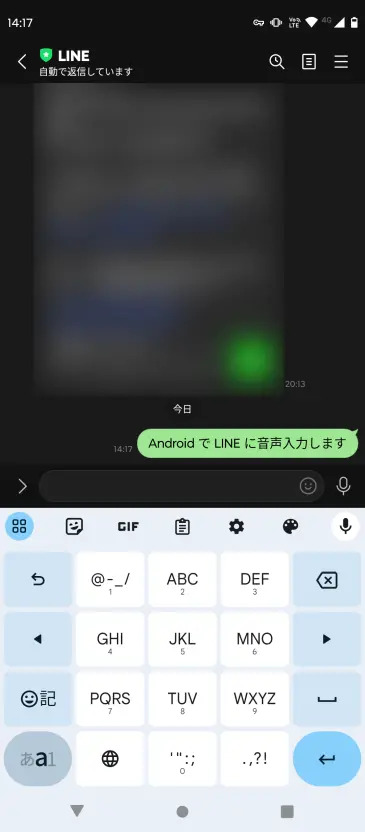
Press the microphone button again, or tap any other button, to end voice input.
What to Do If Voice Input Doesn't Work
If voice input doesn't work on LINE, please check the following points.
Voice input is turned OFF in the settings
On an iPhone or iPad, check that "Settings" → "General" → "Keyboard" → "Enable Dictation" is turned ON.
On an Android smartphone, check that "Settings" → "System" → "Languages & input" → "On-screen keyboard" → the keyboard you use → "Voice typing" is turned ON.
The LINE app doesn't have permission to use the microphone
On an iPhone, check that "Settings" → "LINE" → "Microphone" is ON. On Android, check that "Settings" → "Apps" → "LINE" → "Permissions" → "Microphone" is allowed.
You tapped the wrong microphone icon
LINE has two microphone icons.
The microphone on the keyboard is for voice input (converting speech to text), and the microphone to the right of the message field is for voice messages (sending audio).
When you want to use voice input, tap the microphone on the keyboard.
Conversely, when you want to deliver your recorded voice as it is, use the voice message feature.
For how to send voice messages, see our article "How to Send a Voice Message on LINE (iPhone and Android)", which explains it in detail.
Please read it as well.
Need to Transcribe Audio Files? Try "Mr. Transcription"

Besides sending LINE messages by voice input, you may also want to convert voice messages or call recordings into text.
In that case, we recommend the AI transcription site "Mr. Transcription".
Just upload an audio file, and the latest AI transcribes it with high accuracy.
It is free and requires no registration, so please give it a try.
■ AI transcription service "Mr. Transscription"
"Mr. Transcription" is an online transcription tool that can be used from zero initial cost and 1,000 yen per month (* free version available).
- Supports more than 20 file formats such as audio, video, and images
- Can be used from both PC and smartphone
- Supports technical terms such as medical care, IT, and long-term care
- Supports creation of subtitle files and speaker separation
- Supports transcription in approximately 100 languages including English, Chinese, Japanese, Korean, German, French, Italian, etc.
To use it, just upload the audio file from the site. Transcription text is available in seconds to tens of minutes.
You can use it for free if you transcribe it for up to 10 minutes, so please try it once.

It is "Mr. Transcription" who can easily transcribe from audio, video, and images.
Transcription allows you to transcribe for up to 10 minutes for free.
You can copy, download, search, delete, etc. the transcribed text.
You can also create subtitle files, which is ideal for transcription of interview videos.
HP: mojiokoshi3.com
Email: mojiokoshi3.com@gmail.com
Email: mojiokoshi3.com@gmail.com
Related article
Transcription for audio / video / image transcription. It is a transcription service that anyone can use for free without installation.
- What is Mr. Transcription?
- Transcript images, sounds, and videos with Mr. Transcription
- Free registration
- Rate plan
- manual
- Try other free services