8 Best Chinese Transcription Services & Key Considerations
7 Best OCR Apps to Extract Text from Images & PDFs (Free)
Oct. 23, 2026
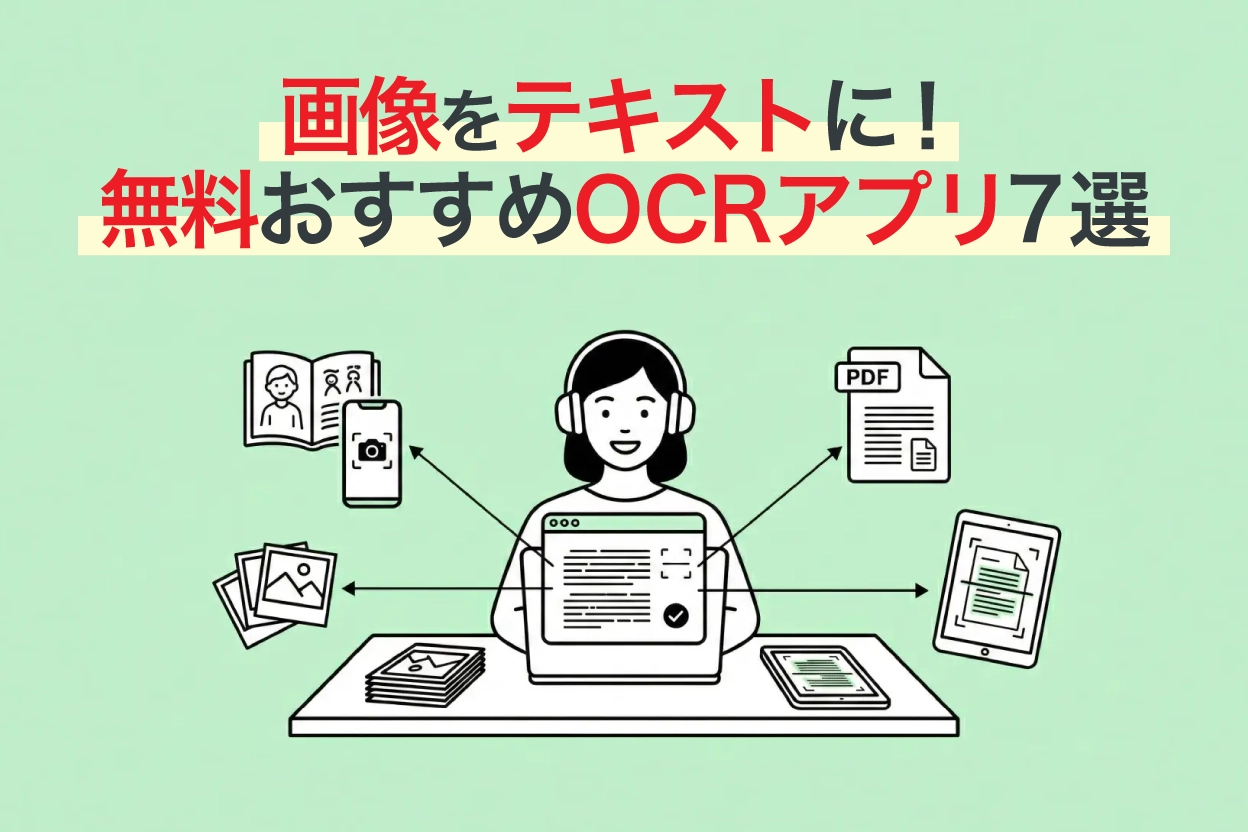
Want to quickly transcribe and digitize text from images, photos, and screenshots?

It's tough to manually convert text from images or PDFs into digital text. Is there a tool that can automatically read it for me?
In such cases, we recommend using the latest AI tools for OCR!
You can accurately convert not only printed materials but also handwritten text and foreign language documents into digital text.
OCR tools include web apps that can be used directly in your browser, smartphone apps that can read photos instantly, and PC software for handling large volumes of documents offline. Support for handwriting, vertical writing, and foreign languages also varies by tool.
In this article, we compare 7 recommended OCR transcription apps for images, PDFs, and photos, looking at differences such as free tiers, supported formats, languages, and handling of handwriting and vertical text.
First, take a look at the comparison table to get an overview.
Image, PDF, and Photo OCR Transcription & Text Conversion Apps Comparison Chart [2026 Edition]
We've summarized free tiers and supported formats in a list, with detailed features explained below the table.
You can scroll horizontally
| Tool Name | Type | Free Tier | Supported Formats | Supported Languages | Handwriting | Vertical OCR | AI Summary |
|---|---|---|---|---|---|---|---|
| Mr. Transcription | Web App | Up to 10 images/day free | Images, PDFs, Audio, Video | 100 languages | ○ | ○ | ○ |
| Google Docs | Web App | Free | Images (under 2MB) | 200+ languages | ○ | × | × |
| Microsoft OneNote | PC / Mobile App | Free | Images, Screenshots, PDFs (via image insertion) | Japanese, English, and many other languages | △ | × | × |
| LINE (OCR function) | Mobile App | Free | Camera capture, Images | Japanese, English, etc. | × | × | × |
| Adobe Scan | Mobile App | OCR up to 25 pages/month free | Camera capture, Images → PDF | Major languages | ○ | × | × |
| iPhone Live Text | iOS Standard Feature | Free | Camera, Images in Photos app | Japanese, English, etc. | ○ | × | × |
| Yomitori Kakumei Ver.17 | PC Installation | None | Images, PDFs | Japanese, English | ○ | ○ | ○ |
※Prices and free tiers are as of March 2026. Please check the official websites of each service for the latest information.
Let's take a closer look at each app.
Top 7 Recommended OCR Apps for Transcribing Text from Images, PDFs, and Photos
1. Mr. Transcription
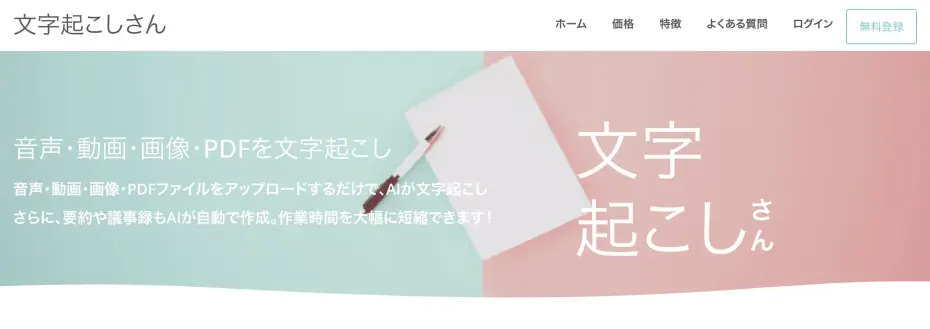
| Type | Web app (PC/smartphone compatible) |
|---|---|
| Pricing | Paid (subscription model) *Free for up to 10 images per day |
| Supported Formats | Images, PDFs, Audio, Video |
| Supported Languages | 100 languages including Japanese and English |
| Handwriting Support | ○ |
| Vertical Text OCR | ○ (Automatically detects columns, headings in newspapers, magazines, books) |
| AI Summarization | ○ (3-line summary, summary, content analysis, Q&A generation) |
Mr. Transcription image OCR tool is a web app that automatically performs OCR text transcription using AI simply by uploading files.
Since it runs in a browser, it can be used on PCs, smartphones, and tablets.
It supports not only images and PDFs but also audio and video, with a strong emphasis on multilingual support for 100 languages and handwriting recognition.
No registration is required, and you can try it for free with up to 10 images per day, making it an excellent first choice for anyone looking for an OCR tool!
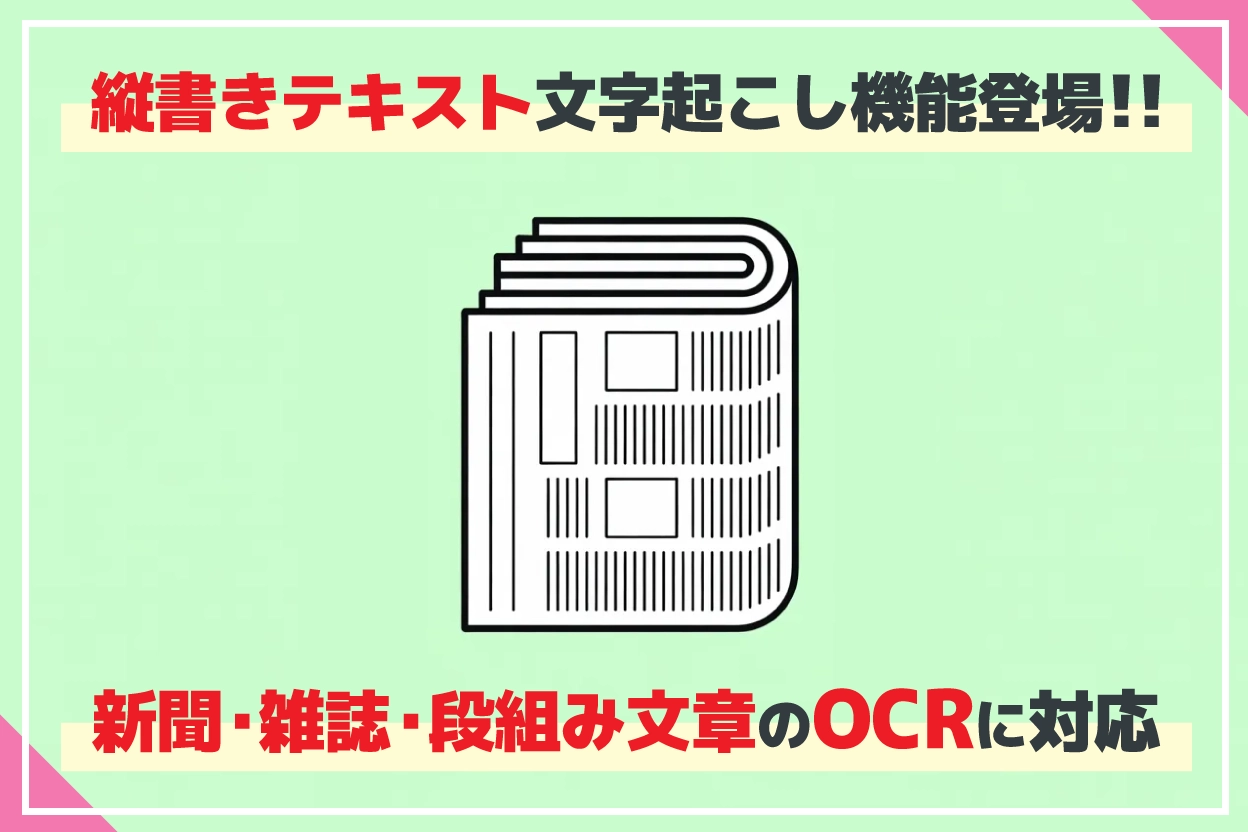
Furthermore, it offers a unique feature not found in other OCR apps: vertical text OCR! (Learn more about vertical text OCR here)
It can automatically detect and accurately transcribe vertical text from newspapers, magazines, and books, including columns, headings, and photo captions.
While other tools like Google Docs often mix columned text with the main body, Mr. Transcription eliminates the need for tedious editing.
Additionally, the OCR results can be directly used for AI summarization(Learn more about AI summarization here).
From 3-line summaries and meeting minute creation to content analysis and Q&A generation, you can complete the entire process of text utilization within a single service.
As such, Mr. Transcription is highly recommended for OCR of images and PDFs!
Why not try Mr. Transcription for free today?
2. Google Docs

| Type | Web App |
|---|---|
| Price | Free (Google account required) |
| Supported Formats | Images (under 2MB) |
| Supported Languages | 200+ languages |
| Handwriting Support | Yes |
Google Docs offers a free OCR method if you have a Google account. By uploading an image file to Google Drive and selecting "Open with Google Docs," text recognition is performed automatically.
A key feature is its support for over 200 languages.
It also supports reading handwritten text.
When tested with a sample image, the recognition accuracy was sufficient for a free tool.
However, there is a limit of 2MB for uploaded file sizes.
If you need to process high-resolution images or multi-page PDFs, consider using it in conjunction with other tools.

4 Easy Ways to Transcribe with Google Docs for Free
For those who want to master Google Docs' voice typing feature, we explain in detail how to do real-time transcription, convert audio data to text, create meeting minutes for web conferences, and extract text from images and PDFs.
3. Microsoft OneNote
| Type | PC app (Windows / Mac) / Mobile app (iOS / Android) |
|---|---|
| Pricing | Free (available without a Microsoft 365 subscription) |
| Supported Formats | Image files, screenshots, PDF (inserted as printout) |
| Supported Languages | Japanese, English, Chinese, Korean, and many others |
| Handwriting Support | △ (High accuracy for printed text, varying accuracy for handwriting) |
Microsoft's note-taking app, OneNote, comes with a built-in OCR feature that extracts text from images.
You can copy the recognized text to your clipboard by simply right-clicking an image and selecting "Copy Text from Picture."
Particularly useful is its ability to transcribe text from screenshots.
By pasting a screenshot of a web page or app screen into OneNote and performing OCR, you can easily extract text that cannot be copied directly from the screen.
It also supports PDF text extraction; when you insert a PDF as a "printout" into OneNote, each page is loaded as an image, allowing you to extract text from each page using OCR.
Available on Windows, Mac, iOS, and Android, a major advantage is that it's free to use even without a Microsoft 365 subscription.
For those who regularly use Office products, there's almost no effort required for adoption.
Microsoft OneNote Official Website
4. LINE (OCR Text Recognition Feature)

| Type | Mobile app (also available on PC version) |
|---|---|
| Pricing | Free |
| Supported Formats | Camera photos, images in chats |
| Supported Languages | Japanese, English, and others |
| Handwriting Support | × |
LINE, widely used on smartphones, also includes an OCR feature that can extract text from photos taken with the camera or images attached in chats.
Since there's no need to install a new app, it's perfect for casual uses like "I want to read this text right now."
It also has a translation function, making it convenient for uses like reading menus or signs during international travel.
5. Adobe Scan
| Type | Smartphone App (iOS / Android) |
|---|---|
| Pricing | Free (Paid plans available: from ¥450/month) |
| Supported Formats | Camera capture → OCR-enabled PDF・JPEG output |
| Supported Languages | Major languages (Japanese, English, Hindi, etc.) |
| Handwriting Support | ○ |
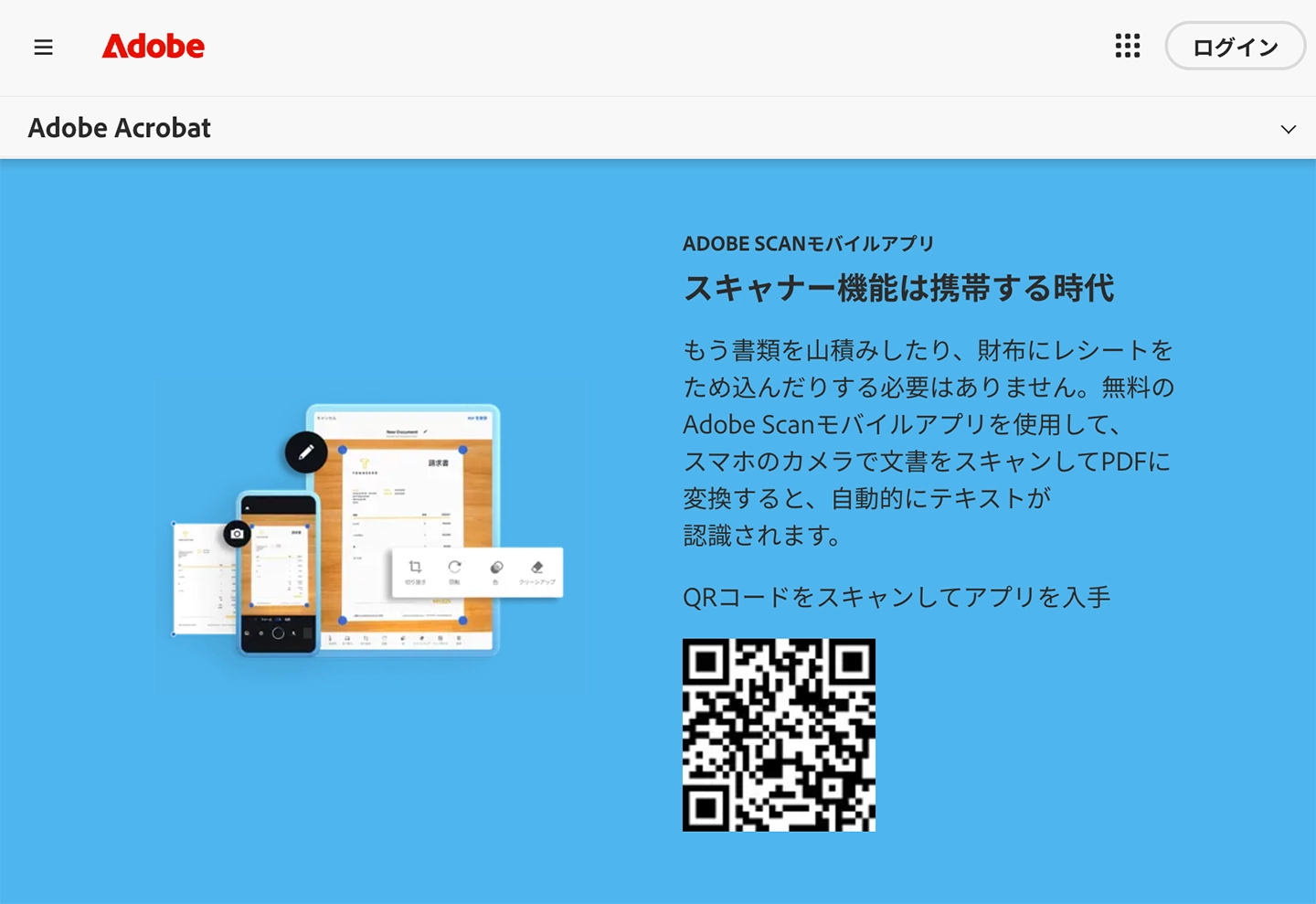
Adobe Scan is a free OCR scanner app provided by Adobe.
It automatically detects and corrects boundaries when you photograph documents with your camera, creating high-quality PDFs.
These are then OCR-processed and converted into searchable and copyable PDFs.
You can select scanning modes for documents, books, business cards, whiteboards, and more, with automatic correction for distortion and glare.
Scanned PDFs are automatically saved to Adobe Document Cloud, making them accessible from PCs and tablets.
The OCR feature is available in the free version, but it has a limit of 25 pages per month.
With a paid plan (Adobe Scan Premium), you can OCR up to 100 pages, and also gain access to file merging and compression features.
When integrated with the Acrobat Reader app, you can directly annotate, highlight, and sign your scanned PDFs.
This app is ideal for those who want to complete everything from document scanning to utilization with just one smartphone.
6. iPhone Live Text Feature
| Type | iOS / iPadOS / macOS Standard Feature |
|---|---|
| Price | Free (OS built-in) |
| Supported Formats | Images from Camera, Photos app, Safari |
| Supported Languages | Japanese, English, Chinese, French, German, etc. |
| Handwriting Support | ○ |
This is an OCR feature built into iPhones (iOS 16 or later), iPads, and Macs.
No app installation is required; you can directly recognize and copy text from your camera or the Photos app.
It's very simple to use.
When you point your camera at text, a text recognition icon appears in the bottom right of the screen.
Tapping the icon allows you to select, copy, translate, and search the text within the image.
You can also extract text from images already saved in your Photos app in the same way.
It supports handwriting recognition, and text is digitized in real-time just by pointing the camera, making it ideal for when you "want to quickly copy text right in front of you."
7. YomiKakuMe Ver.17
| Type | PC Installation Software (Windows) |
|---|---|
| Price | Paid (One-time purchase) |
| Supported Formats | Images, PDF |
| Supported Languages | Japanese, English |
| Handwriting Support | ○ |
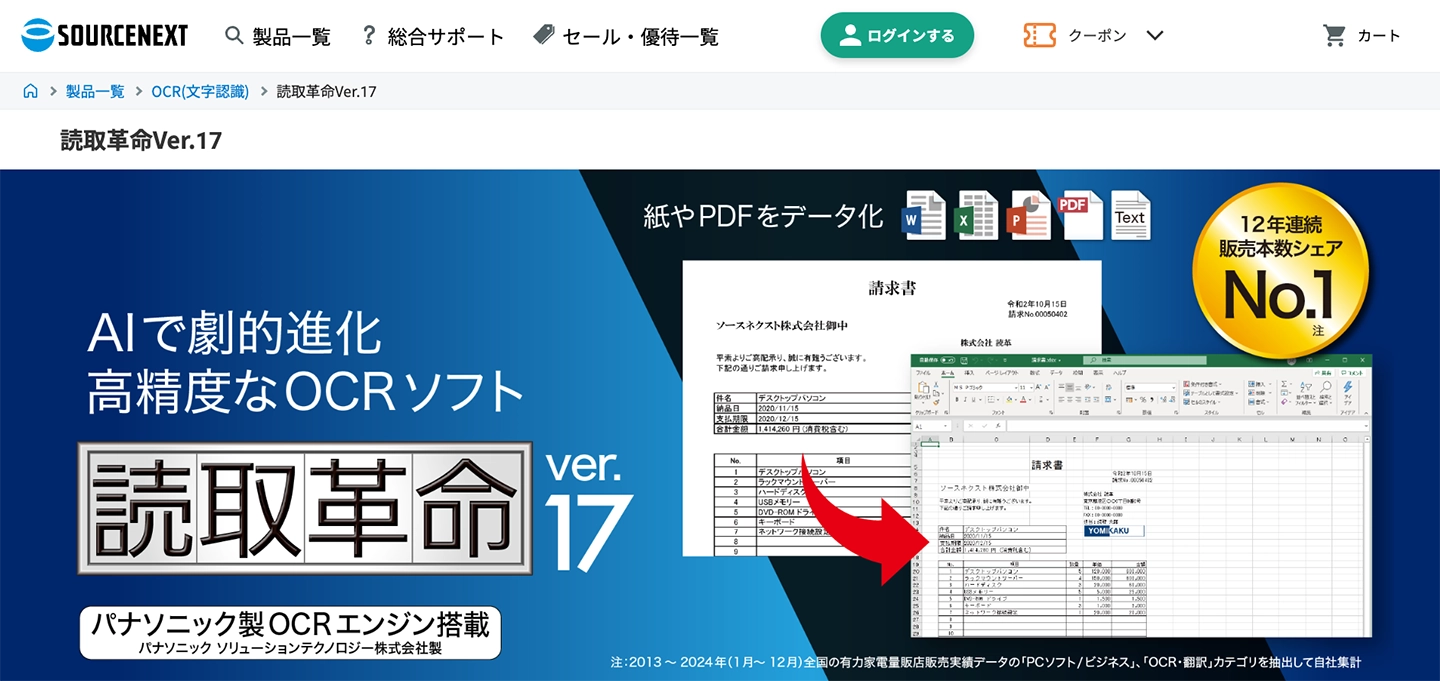
YomiKakuMe is a popular dedicated OCR PC software sold by SOURCENEXT.
The latest Ver.17 includes "AI Total Assist," a feature that integrates with ChatGPT.
This allows AI to correct OCR errors, such as distinguishing between the letter 'O' and the number '0', and also to summarize OCR'd text.
A key feature is its high OCR accuracy, which is strong at recognizing low-quality documents from faxes or copies, and even handwritten text.
As it's a purchased software, there are no running costs, and it can be used offline (AI assist features require an internet connection), which is another advantage.
YomiKakuMe Ver.17 Official Website
How to Choose the Right OCR App
We've introduced seven apps, but you might be wondering, "Which one should I choose?" Refer to the guide below based on your specific needs.
| Recommended for people who want to | Recommended Tool |
|---|---|
| Perform high-accuracy OCR on images including handwritten or multilingual text | Mr. Transcription |
| OCR vertically written documents like newspapers, magazines, and books | Mr. Transcription (Equipped with vertical OCR. Automatically detects columns and headings) |
| Summarize and analyze OCRed text with AI | Mr. Transcription (Supports AI summarization, content analysis, and Q&A generation) |
| Transcribe not only images but also audio and video | Mr. Transcription (The only all-in-one tool that supports transcription beyond OCR) |
| Easily OCR using Google, which they use regularly | Google Docs |
| Instantly read text on the spot with a smartphone | LINE / iPhone Live Text |
| Extract text from screenshots or on-screen content | Microsoft OneNote |
| Scan documents to convert them to PDF and manage them | Adobe Scan |
| OCR a large volume of documents offline | Yomitori Kakumei Ver.17 |
If you're unsure, we recommend trying Mr. Transcription first.
Mr. Transcription is the only service that handles images, PDFs, audio, and video, and offers vertical OCR and AI summarization all in one place.
3 Steps to Transcribe and Digitize Text from Photos, Images, and Screenshots

Here, we will specifically demonstrate how to OCR and digitize text from images, photos, and screenshots, using the dedicated image page of the popular web app "Mr. Transcription" as an example.
How to OCR Images with Mr. Transcription
OCR transcription of images, photos, and screenshots using Mr. Transcription is easily completed in just 3 steps!
- Access Mr. Transcription
- Upload images, photos, or screenshots (or capture them with your smartphone camera)
- Click the "Transcribe" button and copy the displayed results
With these 3 steps, text conversion is completed in a few seconds to a few minutes.
For OCRing PDFs, use the dedicated PDF page instead of the image page.
Let's look at each step in detail.
Step 1: Access Mr. Transcription
Official Website: Mr. Transcription
First, access the Mr. Transcription website.
You can use it from any device connected to the internet, such as a smartphone, computer, or tablet, via your browser.
[Step 2] Upload an image (or take a photo on the spot)
Upload the image, photo, or screenshot you want to transcribe.
※If you want to OCR books or printed materials, take a photo with your smartphone beforehand or digitize them with a scanner.
Scanning with a scanner generally yields higher accuracy.
When taking photos with a camera, be careful to avoid light reflection on the paper's surface.
A key tip for improving OCR accuracy is to use the clearest possible images.
Images with blurry text or extremely unconventional handwriting may result in lower recognition accuracy.
For PC users
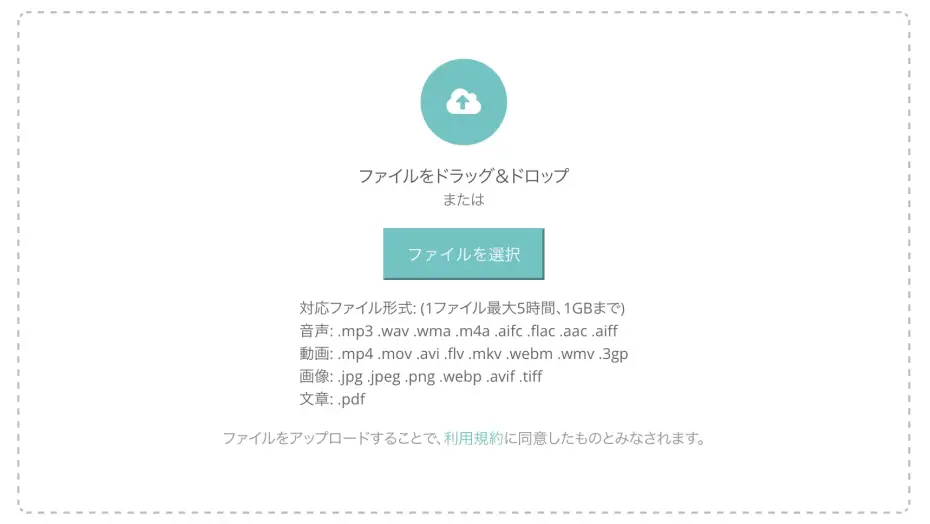
There are two ways to upload from a computer:
- Drag and drop the image into the designated area
- Click "Select audio/image" and choose your file
For smartphone/tablet users
On smartphones, you can select the upload source.
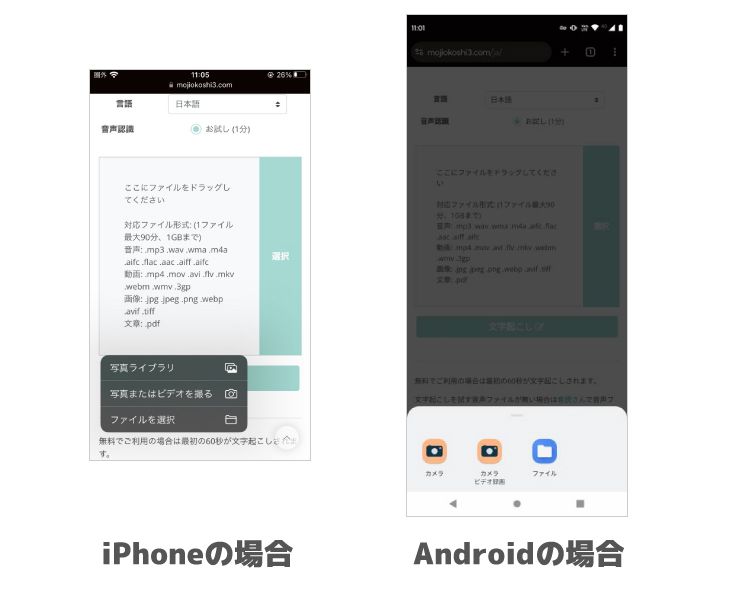
If you want to OCR by taking a photo on the spot, select "Camera".
After taking the photo, press the OK button to upload it.
To upload an existing file, select "Choose File" (iPhone) or "Files" (Android) and then select the image file.
To upload multiple images at once, follow these steps:
- Long-press an image in the folder
- Check the boxes to enter multiple selection mode
- Select the necessary images and upload
※You cannot upload multiple images taken with the camera on the spot simultaneously. Please upload images after they have been saved to a folder.
[Step 3] Click the "Transcribe" button and copy the results
Once you have selected the image, click the "Transcribe" button.
The image analysis will begin, and the OCR process will complete and display the text in a few seconds to several minutes.

Once the transcription results are displayed, copy the necessary text.
You can edit the results on the spot or save them as a text file.
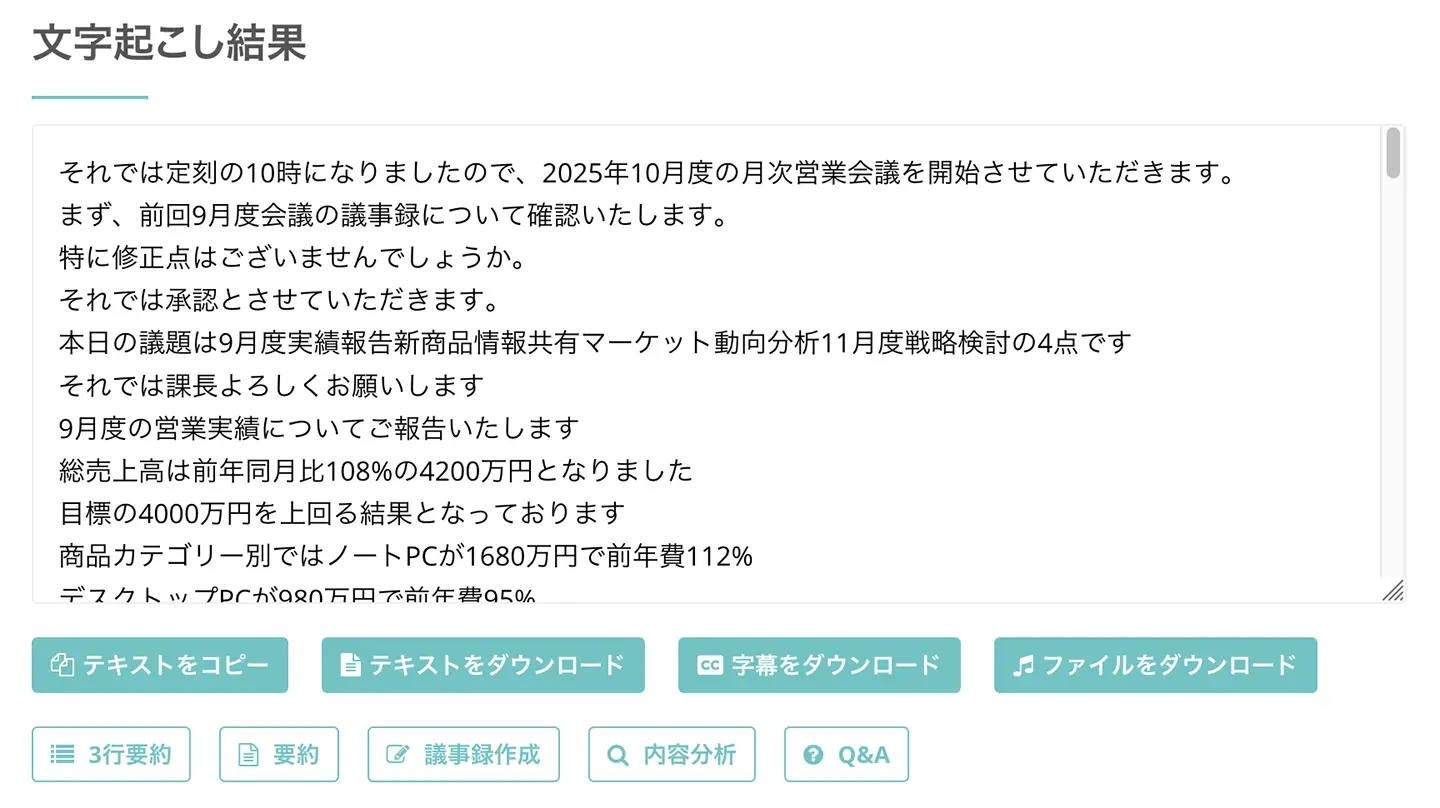
What's more, with Mr. Transcription, you can not only OCR horizontal text but also vertical text!
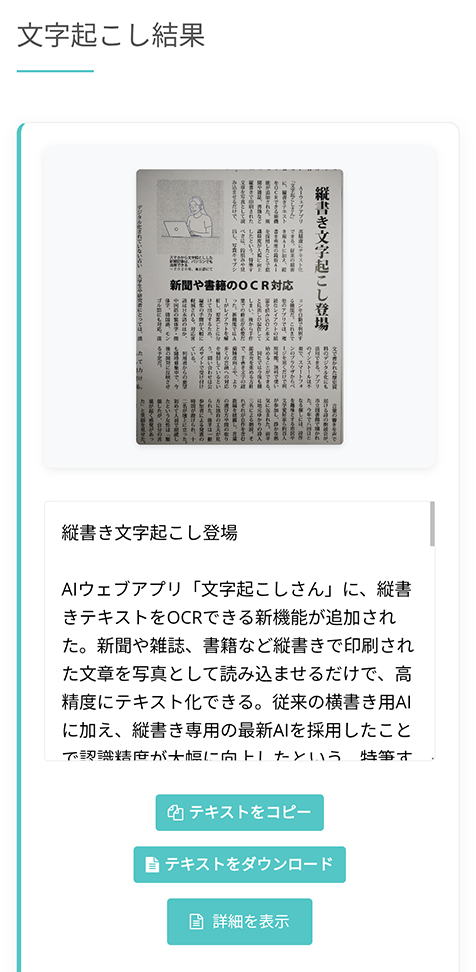
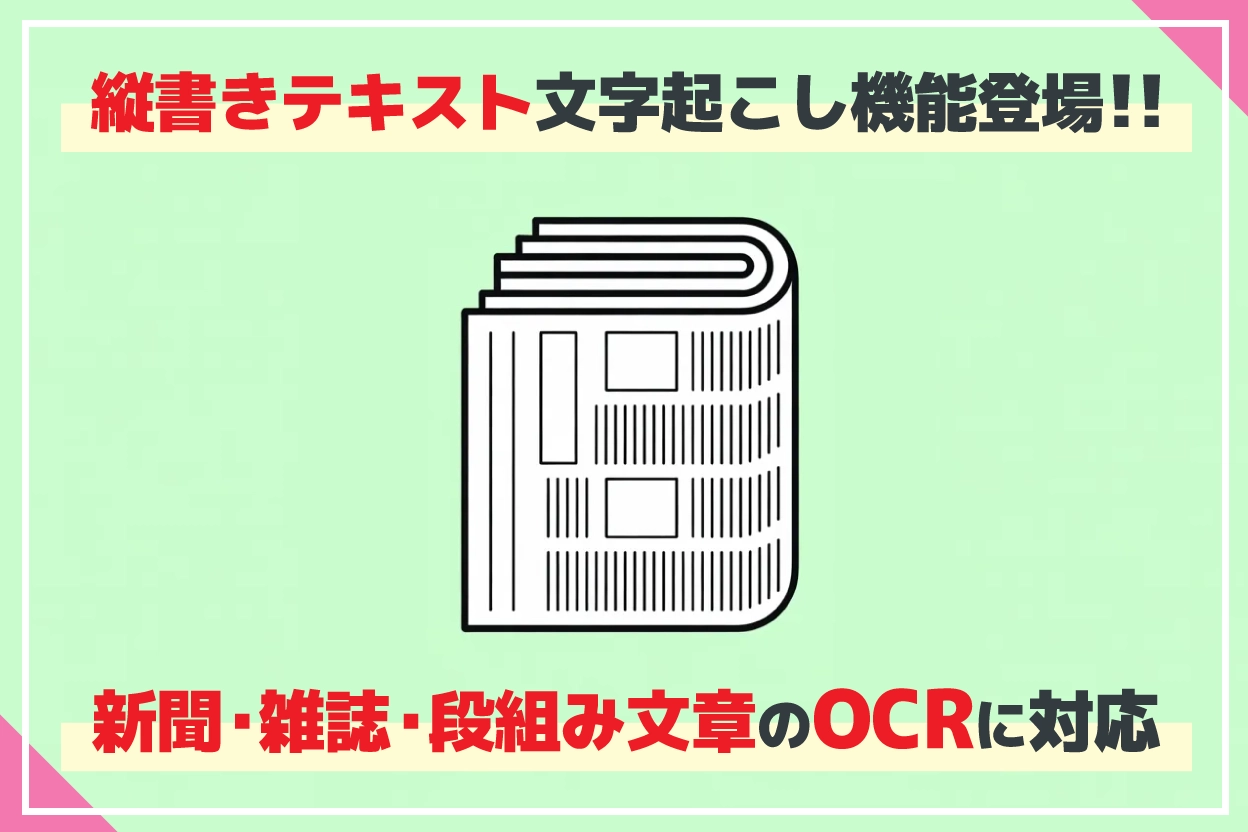
New Vertical Text Transcription Feature! OCR for Newspapers, Magazines, and Books is Even More Convenient!
A new feature for high-precision AI OCR of vertical text in newspapers, magazines, and books is here! It automatically detects columns, headings, and captions. Learn how to use Mr. Transcription to transcribe text for free just by taking a photo with your smartphone.
Once transcribed, you can check and edit the data from your history at any time!
On this screen, you can also summarize, analyze, and create meeting minutes from OCR results.
For more details on the summarization, analysis, and meeting minute creation features, please refer to this article.
![[Free] AI Summarization and Meeting Minute Creation Features Added to Mr. Transcription! Detailed Usage Guide](https://storage.googleapis.com/mojiokoshi3/post/image/%E6%96%87%E5%AD%97%E8%B5%B7%E3%81%93%E3%81%97%E3%81%95%E3%82%93AI%E8%A6%81%E7%B4%84%E8%AD%B0%E4%BA%8B%E9%8C%B2%E3%81%8B%E7%84%A1%E6%96%99.png)
[Free] AI Summarization and Meeting Minute Creation Features Added to Mr. Transcription! Detailed Usage Guide
AI summarization and meeting minute creation features have been added to Mr. Transcription! This feature allows you to easily summarize long texts transcribed from audio. Meeting minutes can also be created simply by pressing a button! This makes daily tasks, learning, and information organization even smoother...
6 Scenarios Where Image, PDF, and Photo OCR Apps Are Useful
What specific situations are OCR apps useful for?

Here are 6 main use cases for OCR apps!
- Scan and digitize paper documents and materials
- Automatically register business card and address book information
- Digitally save handwritten notes and notebooks
- Transcribe and extract text from photos
- Transcribe books, textbooks, and publications into text
- OCR and translate English (foreign language) books
As you can see, converting text from paper or images into digital text data makes management, searching, and utilization significantly more convenient.
Let's look at each in detail.
1. Scan and Digitize Paper Documents and Materials
One of the most common uses of OCR is digitizing paper documents.
If you have a backlog of paper documents stored in warehouses or on shelves, converting them into digital data with OCR can greatly simplify management.
Paper documents are not only difficult to organize and search but also carry the risk of deterioration or loss due to disasters.
Once digitized, you can perform full-text searches, and backups are easy.
This offers significant advantages in terms of both ease of management and data preservation.
2. Automatically Register Business Card and Address Book Information with OCR
If you have a pile of unorganized business cards on your desk, we recommend digitizing them with OCR to create a database!
There are smartphone apps that can read business cards with a camera, automatically recognize names, company names, and job titles, and register them into a management app.
It's important not just to exchange business cards, but to organize and utilize them properly.
3. Digitally Save Handwritten Memos and Notes with OCR Transcription

It's easier to take quick notes or organize thoughts on paper memos or notebooks.
Many people feel this way.
For them, OCR transcription is highly recommended!
By transcribing handwritten memos and notebook contents with OCR, you can save them as digital data on your computer or smartphone.
This is much more convenient than saving them as images, as you can perform text searches on your notes!
Latest AI Supports OCR for Handwritten Text
The latest AI-OCR tools can recognize handwritten text with high accuracy, allowing you to digitize even hastily written notes.
The accuracy for handwritten text varies by tool, so it's important to choose a tool marked with "○" for handwritten support in comparison tables.
Mr. Transcription supports OCR for handwritten text and can even read somewhat messy handwriting.
4. Transcribing and Textifying from Photos
OCR functionality is also useful when you want to extract text from photos, such as explanatory signs for cultural properties, foreign language documents, restaurant menus, or posters!
Using an AI transcription app, you can automatically convert photos taken with your smartphone into text data just by uploading them.
This is also convenient for extracting text from maps or signs during international travel and pasting it into a translation app.
You can transcribe text immediately after taking a photo on both iPhone and Android smartphones.
5. Transcribing and Textifying Books, Textbooks, and Publications (Self-Scanning)
In "self-scanning," where paper books and textbooks are scanned to create e-books, OCR text conversion enables full-text search.
By using a camera-type document scanner that doesn't require cutting, you can OCR and read printed materials while the book is open.
※Please note that self-scanned data should be for personal use only and not distributed or published to third parties.
6. OCR and Translate English (Foreign Language) Books
OCR is also helpful when you want to read books or printed materials in English or other foreign languages.
By using OCR to convert scanned foreign language texts into digital text, you can easily translate them with AI translation services like DeepL or Google Translate.
If you choose a transcription tool that supports many languages beyond English, such as Chinese, Korean, French, and Spanish, you can read books from all over the world.
For tools that support multilingual OCR, we recommend Mr. Transcription, which supports 100 languages!
【File Format Guide】How to Transcribe and Textify PDFs, Photos, and Screenshots

We'll explain how OCR works for different file formats to answer the question, "Can I OCR this file format?"
Transcribing and Textifying PDFs
There are two types of PDFs: "text PDFs" (PDFs containing text data) and "image PDFs" (PDFs created from scanned images).
OCR is needed for "image PDFs".
Tools that support PDF transcription include:
- Mr. Transcription: Can directly upload PDF files for OCR. Supports multiple pages.
- Google Docs: Upload a PDF to Google Drive and select "Open with Google Docs" to convert to text.
- Microsoft OneNote: Insert a PDF as a "printout" and extract text using OCR page by page.
- Adobe Scan: Use your smartphone to photograph paper documents and create OCR-enabled PDFs.
- Yomitori Kakumei Ver.17: Handles PDF import → OCR → Word/Excel output in one go.
When you want to OCR a PDF, it's recommended to first try the free tier (10 images per day) on the PDF Transcription (OCR) page or use Google Docs.
The process from uploading to Mr. Transcription to checking OCR results is explained in detail in How to Transcribe PDFs with OCR.
Transcribing and Textifying from Photos (JPG, JPEG, PNG)
Transcribing text from photos taken with a smartphone or image files in JPG/PNG format is supported by all OCR apps introduced here.
When transcribing from photos, pay attention to three key points:
- Shoot as much as possible from the front, without shadows or blur (recognition accuracy may decrease with angled shots).
- Shoot with sufficient brightness so that the text is clearly visible.
- A resolution of 300dpi or higher is a good guideline (standard smartphone cameras are usually fine).
On both iPhone and Android smartphones, you can simply take a photo and upload it directly to an OCR app to convert it to text.
Transcribing and Textifying Screenshots
Text contained within screenshots of websites or app screens can also be transcribed using OCR.
This is particularly useful when you need to extract text from screens that prohibit copying, PDFs, or protected documents.
Here are three recommended tools for transcribing screenshots:
- Mr. Transcription: Easily perform OCR by uploading screenshot images.
- Microsoft OneNote: The smoothest method is to paste a screenshot, then right-click and select "Copy Text."
- iPhone Live Text: Directly select text from screenshots saved in the Photos app.
Comparison Summary: Image, PDF, and Photo Transcription
In this article, we compared and introduced 7 recommended apps for transcribing and textifying images, PDFs, and photos using OCR.
For easy and free OCR, "Mr. Transcription" is highly recommended!
Its appeal lies in its high overall capability, offering a wide range of supported formats, multi-language support, compatibility with handwritten and vertical text, and even AI summarization, all within a single service!
- An all-in-one OCR solution supporting images, PDFs, audio, and video.
- Equipped with vertical OCR: Automatically detects column layouts and headings in newspapers, magazines, and books.
- AI summarization, meeting minute creation, and content analysis: Utilize transcription results directly for further processing.
- Supports 100 languages, including English and Chinese documents.
- Also supports recognition of handwritten text.
Manually entering text from images, PDFs, and photos becomes increasingly burdensome as the number of pages grows.
By utilizing OCR apps powered by AI, you can accurately textify photos and scanned documents in minutes, freeing up time for other tasks.
If you're unsure which OCR app to choose, why not try "Mr. Transcription" for free first?
■ AI transcription service "Mr. Transscription"
"Mr. Transcription" is an online transcription tool that can be used from zero initial cost and 1,000 yen per month (* free version available).
- Supports more than 20 file formats such as audio, video, and images
- Can be used from both PC and smartphone
- Supports technical terms such as medical care, IT, and long-term care
- Supports creation of subtitle files and speaker separation
- Supports transcription in approximately 100 languages including English, Chinese, Japanese, Korean, German, French, Italian, etc.
To use it, just upload the audio file from the site. Transcription text is available in seconds to tens of minutes.
You can use it for free if you transcribe it for up to 10 minutes, so please try it once.

It is "Mr. Transcription" who can easily transcribe from audio, video, and images.
Transcription allows you to transcribe for up to 10 minutes for free.
You can copy, download, search, delete, etc. the transcribed text.
You can also create subtitle files, which is ideal for transcription of interview videos.
HP: mojiokoshi3.com
Email: mojiokoshi3.com@gmail.com
Email: mojiokoshi3.com@gmail.com
Related article
Transcription for audio / video / image transcription. It is a transcription service that anyone can use for free without installation.
- What is Mr. Transcription?
- Transcript images, sounds, and videos with Mr. Transcription
- Free registration
- Rate plan
- manual
- Try other free services