
【MP3を分割】文字起こしさんで音声文字起こし可能時間を上手に使い切る方法
How to Transcribe iPhone Voice Memos for Free [2026]
Oct. 9, 2026
![How to Transcribe iPhone Voice Memos for Free [2026] | AI Transcription Service - Mr. Transcription](https://storage.googleapis.com/mojiokoshi3-web/post/image/iphone-voicememo-mojiokoshi_tmb_20260303.webp)
How do I transcribe voice memos from my iPhone?

To transcribe audio recorded in iPhone Voice Memos, we recommend uploading the voice memo audio file to an AI transcription site.
In particular, "Mr. Transcription" supports the iPhone Voice Memos format (m4a) as is.
Just upload the file, and even long recordings are converted to text with high accuracy in only about 1 minute.
This article explains how to transcribe Voice Memos for free on iPhone and iPad (iOS) and introduces recommended AI transcription sites and apps.
First, take a look at the comparison of recommended transcription sites and apps.
You can scroll sideways
| Service | Type | Free allowance | m4a support | English support | AI summary |
|---|---|---|---|---|---|
| Mr. Transcription | Web app | 3 min per day (no registration) | ○ | 100 languages | ○ |
| Speechy Lite | iOS app | Yes (limited features) | ○ | Multilingual | × |
| SoundType AI | iOS app | Yes | ○ | Multilingual | × |
| Notta | Web + app | 120 min per month | ○ | 58 languages | △ (paid) |
| Texter | iOS app | Yes (short durations) | ○ | Multilingual | × |
Only "Mr. Transcription" handles everything from AI summaries to meeting minutes on a single site!
If you are not sure which to choose, we recommend trying Mr. Transcription first.
[Free and Supports Long Recordings] The Recommended AI Transcription Site for iPhone Voice Memos
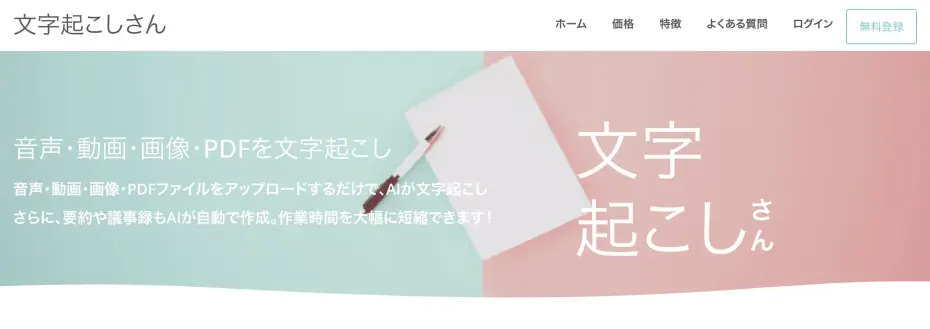
To transcribe audio recorded with Voice Memos on an iPhone or iPad (iOS), we recommend "Mr. Transcription"!
"Mr. Transcription" is an AI transcription site that converts speech to text with high accuracy using the latest AI.
It can transcribe even long audio files quickly, in only about 1 minute.
Because it is a "web app" that runs in your browser, there is nothing to install, and anyone can use it regardless of their smartphone's performance!
It is very easy to use.
Just upload the file you recorded with Voice Memos!
And "Mr. Transcription" is free to use!
You can transcribe audio files of up to 3 minutes per day with no registration or login, so you can experience the power of the latest AI right away.
Why not try "Mr. Transcription" the next time you transcribe iPhone Voice Memos audio?
The 2 Ways to Transcribe for Free on iPhone and iPad
There are 2 ways to transcribe for free on iPhone and iPad (iOS).
- Record with Voice Memos, then transcribe with an AI transcription service (app)
- Transcribe with a voice input tool
These are the two ways.
1. [Recommended] Record with Voice Memos, Then Transcribe for Free
For free transcription on iPhone, we recommend the method of recording with the standard iOS Voice Memos app.
You then transcribe the finished audio file with an AI transcription service (app).
What Is the iPhone Voice Memos App?
iPhone and iPad (iOS) come with the "Voice Memos" app for recording audio preinstalled.

"Voice Memos" is an excellent, easy-to-use tool for long recordings.
It is easy to operate, and the quality of the recorded audio is very good, so you can use it to record meetings, interviews and research sessions without installing another app.

You may worry that using an iPhone to record at work is rude, but there is no need to worry.
Even professional interviewers and writers widely use iPhone Voice Memos for recording.
Built-in Transcription Also Available from iOS 18
Starting with iOS 18, the iPhone Voice Memos app includes a built-in English transcription feature.
In iOS 18.4, Japanese is also supported for built-in transcription (available on iPhone 12 and later).
However, if you want to transcribe even more conveniently, we recommend using an AI transcription site or app, some of which are free.
2. Transcribe with a Voice Input Tool (Not Suited to Long Recordings)
The keyboard on iPhone and iPad (iOS) includes a built-in voice input tool.

This feature transcribes what you say into the iPhone's microphone and enters it as text in real time.
With the iPhone keyboard displayed, you can turn on voice input by tapping the microphone icon at the bottom left.

It Is a Text Input Feature, So It Is Not Suited to Long Transcriptions
The voice input tool on iPhone and iPad (iOS) is a feature for entering text by voice instead of using the keyboard.
As an advanced technique, you can leave the voice input tool running and have the transcribed content entered in real time into the Notes app or the Google Docs app.
However, this is not the intended use, and voice input often turns off partway through, so the transcription frequently fails.
The voice input tool is ultimately a feature for entering text while holding the iPhone in your hand.
It is not suited to long transcriptions, so to avoid mistakes, we recommend recording with the Voice Memos app and converting the audio to text with an AI transcription site or transcription app.
[Free and Supports Long Recordings] How to Use the Voice Memos App on iPhone and iPad

To be honest, I have never used Voice Memos on my iPhone... I would like to know how
From here, we briefly explain how to use the Voice Memos app on iPhone and iPad (iOS)!
1. Launch the Voice Memos App
First, launch the Voice Memos app on your iPhone.
If you cannot find the Voice Memos app, it is in the "Utilities" folder.

The app is simply named "Voice Memos".
Voice Memos is a standard iOS app, so it is free to use.
2. Start Recording in the Voice Memos App
The red circle at the bottom of the Voice Memos screen is the record button.

Tap the button to start recording.
3. Operating the Voice Memos App While Recording
On the recording screen, the length of the recording is displayed.

iPhone Voice Memos has no time limit, so you can record for a long time as long as your iPhone has storage space.
The Voice Memos app keeps recording even when the screen is locked.
While the screen is locked, the display looks like this image.

You can also record in the background, as long as no other app is playing sound.
Note, however, that recording stops if another app plays sound.
4. Finish Recording and Save in the Voice Memos App
Tap the stop button at the bottom of the screen to stop recording.

You can check the recorded audio files in a list like this.
You can listen to the contents at any time.
The iPhone and iPad Voice Memos Save Format Is "m4a"
Audio files recorded with the Voice Memos app on iPhone and iPad (iOS) are saved in "m4a" format.
When you convert audio files to text with an AI transcription site or app, we recommend choosing one that supports the m4a format.
No conversion is needed, so you can upload the file directly from your iPhone and transcribe it easily and smoothly.
Tips for Long Recordings with iPhone and iPad Voice Memos

There are a few points to keep in mind when recording for a long time with the iPhone Voice Memos app.
Turn On Airplane Mode Before You Start Recording
The most important thing to watch out for with Voice Memos on iPhone and iPad (iOS) is failure caused by incoming calls.
If a call comes in while you are recording with iPhone Voice Memos, the call takes priority and the recording stops.
To prevent this failure, we recommend putting your iPhone in airplane mode before you start recording.
This is especially important when you record for a long time for work, such as meetings, research sessions or interviews.
[Free Options Available] 5 Recommended Apps for Transcribing iPhone Voice Memos

Tell me which apps are good for transcribing Voice Memos!
To transcribe iPhone and iPad (iOS) Voice Memos easily and smoothly, free AI transcription sites and apps are ideal!
From here, we introduce recommended sites and apps!
1. Mr. Transcription (Free Web App, Supports Long Recordings)
We recommend "Mr. Transcription" for transcribing iPhone and iPad Voice Memos!
"Mr. Transcription" is a web app that anyone can use to transcribe iPhone and iPad Voice Memos audio easily.
Open the page from here, and you can transcribe by just uploading the file.
With the latest high-performance AI, transcription finishes in only about 1 minute even for long audio files.
Because it supports m4a files, you can simply upload the file from your iPhone.
It is also reassuring that it is a web app from Japan.
It supports more than 100 languages, so you can convert a wide range of recorded audio into text, including Japanese, English, Korean and Chinese.
English audio can also be recorded with Voice Memos and transcribed as is. Meetings and interviews with overseas counterparts and recordings of English seminars can also be converted to text just by uploading them.
It also offers unique features that other transcription apps do not have.
- AI summary and meeting minutes: With one click, you can create a 3-line summary, meeting minutes, a content analysis and Q&A from your transcription (see here for details)
- SRT subtitle file output: Download the transcription of a video as an SRT file and use it right away as subtitles in Adobe Premiere or DaVinci Resolve (see here for details)
- Speaker separation: Transcribe recordings of meetings and interviews speaker by speaker
The strength of Mr. Transcription is that everything from transcription to what you do with the text afterward can be completed on a single site.
A Recommended Web App You Can Use for Free
And "Mr. Transcription" is free to use!
You can transcribe files of up to 3 minutes per day with no registration or login, so you can experience the power of the latest AI right away.
Even for transcribing long files, the price is extremely low, from 25 yen per hour, which makes it ideal for work such as meetings, research sessions and interviews.
Why not try "Mr. Transcription" to transcribe your iPhone Voice Memos?
[Long Recordings Are Fine] How to Use "Mr. Transcription"
This section briefly explains how to transcribe audio recorded with the iPhone Voice Memos app using "Mr. Transcription".
* The explanation uses Safari on iOS 18.
1. Save the Voice Memos Recording to "Files"
First, to upload the audio file, save the file recorded with Voice Memos to "Files" on your iPhone.
In the Voice Memos app, tap "…" to the right of the file you want to save.

Tap "Share".

The save menu opens, so scroll down a little.

Select "Save to Files".

The Files app opens, so choose a folder and save.

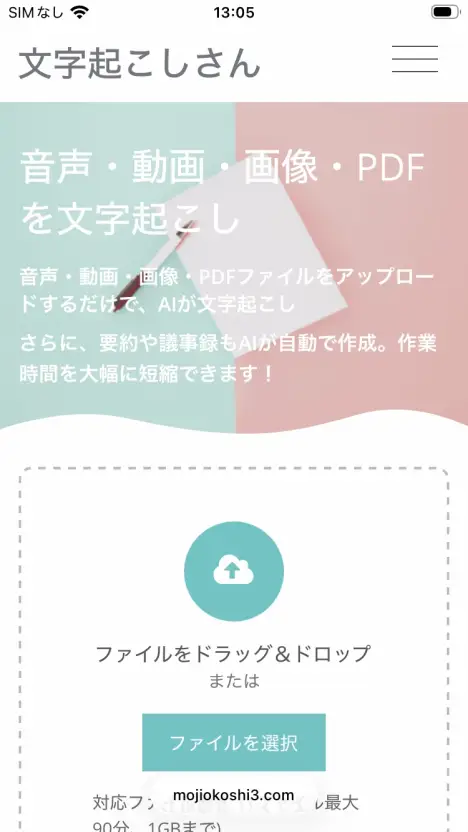
2. Open the "Mr. Transcription" Page
Open the "Mr. Transcription" page from this link.
3. Select the Audio File
Tap "Choose File".
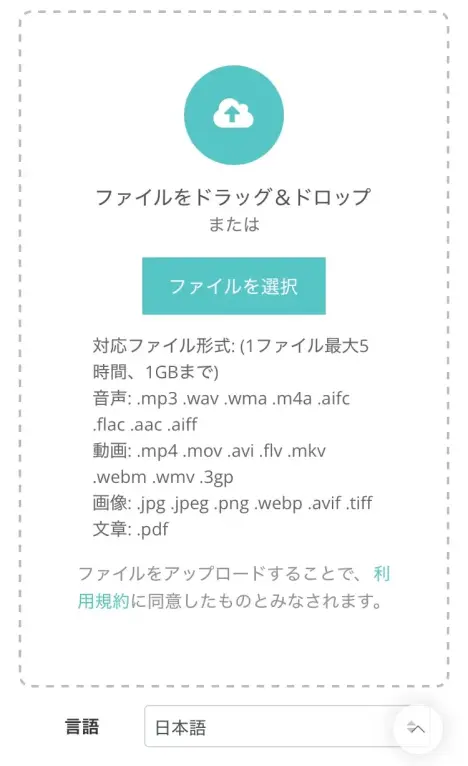
The browser menu then opens, so tap "Choose File".
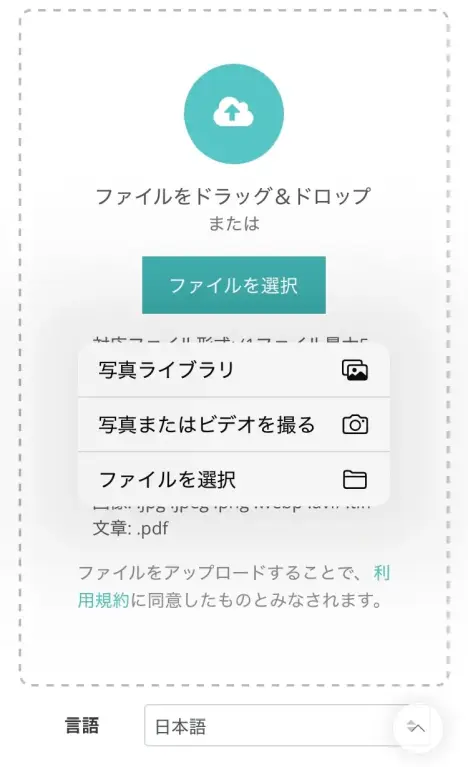
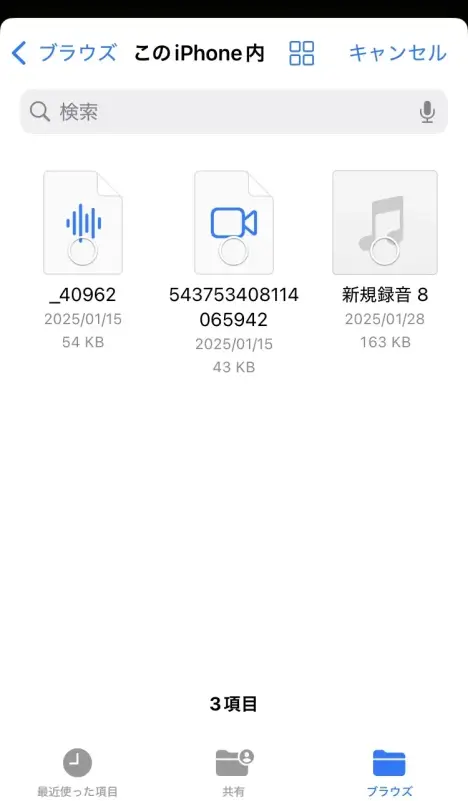
The file selection screen opens, so select the audio file you recorded with Voice Memos.
4. Upload the Audio File
After you select the audio file, tap the "Upload" button.
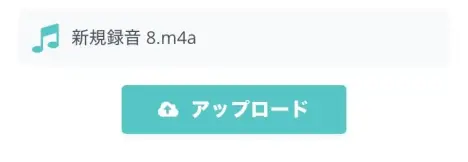
The file upload starts.
When the upload finishes, transcription starts automatically.
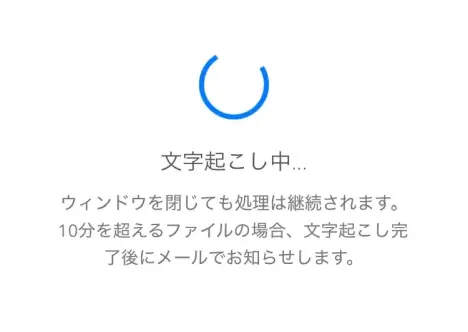
If you are using the service without registering or logging in, wait without closing the screen.
If you are logged in and transcribing a long audio file with a paid plan, you can close the screen once the upload finishes.
You will be notified by email when processing is complete.
5. Transcription Complete!
If you left the screen open, the screen changes and the transcription result is displayed when transcription finishes.
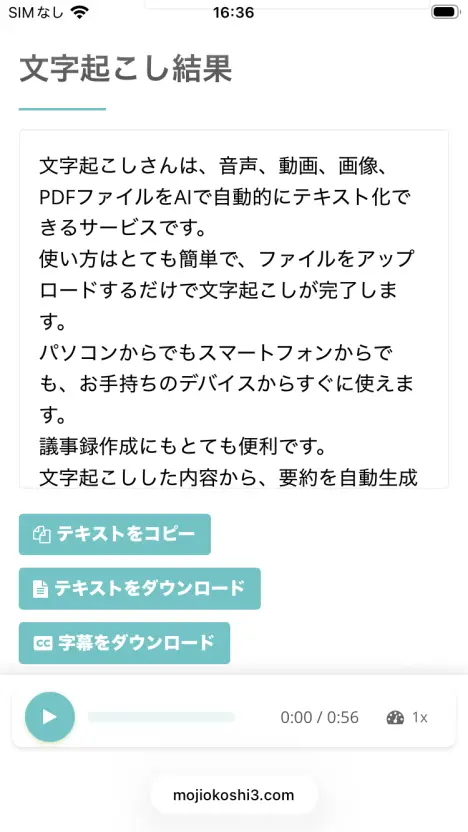
If you closed the screen once, check the transcription result as follows.

On the "Mr. Transcription" page, open the "History" page from the menu to check the transcription result, or use the link in the email.
On the top page and the History page, you can play back the audio of each part of the transcription result individually, as shown here,
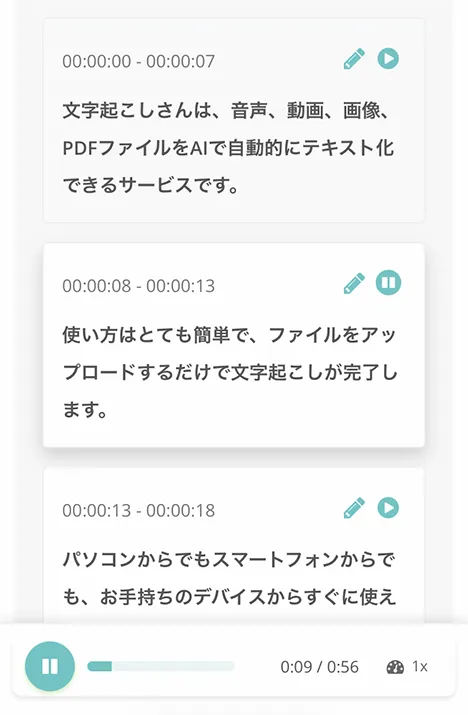
and edit and save the transcription result.
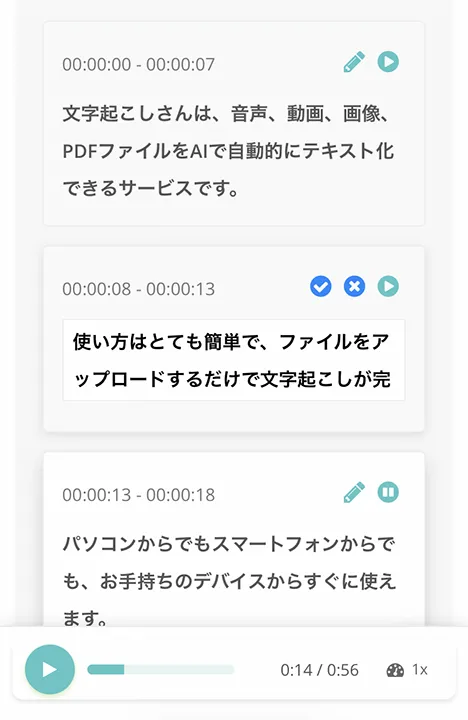
You can also summarize and analyze the file and create meeting minutes.
In this way, "Mr. Transcription" makes it very easy to transcribe iPhone Voice Memos audio!
You can also convert long audio to text comfortably.
Why not try AI transcription of your Voice Memos audio with "Mr. Transcription" yourself?
2. Speechy Lite (iOS App You Install)
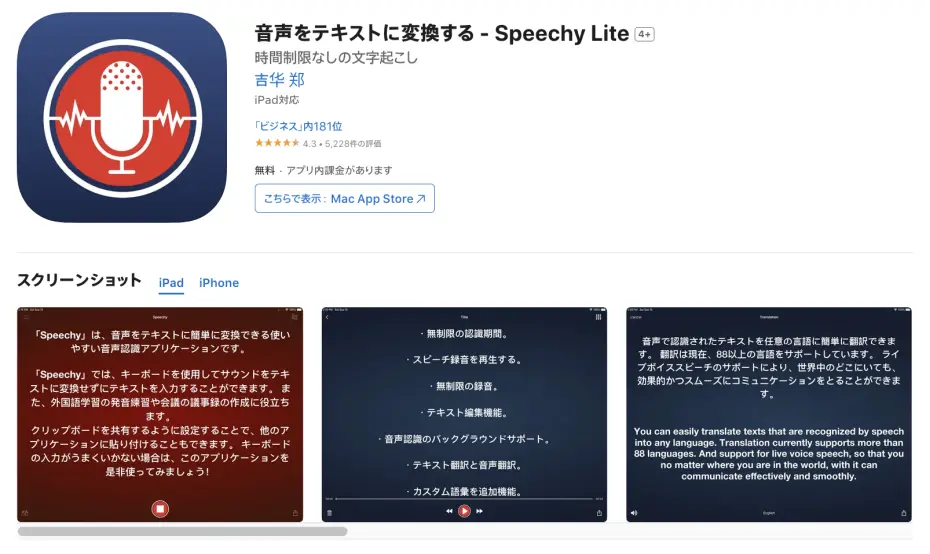
If you are looking for an iOS app to install on your iPhone or iPad, we recommend Speechy Lite.
Speechy Lite is an app that can import audio recorded with iPhone Voice Memos and transcribe it.
It also supports foreign languages.
It also has a real-time transcription feature.
It is free to use, but as the name "Lite" suggests, its features are limited and it cannot transcribe long recordings.
To transcribe long files, you need to purchase the paid version.
3. SoundType AI (Transcription App for iPhone and iPad)

SoundType AI is an app you install on your iPhone or iPad to transcribe audio.
It can transcribe uploaded audio files and turn them into text.
Transcribing long recordings requires a paid plan, and there are a Pro plan and a Business plan.
4. Notta (Service for Transcribing Audio Files)
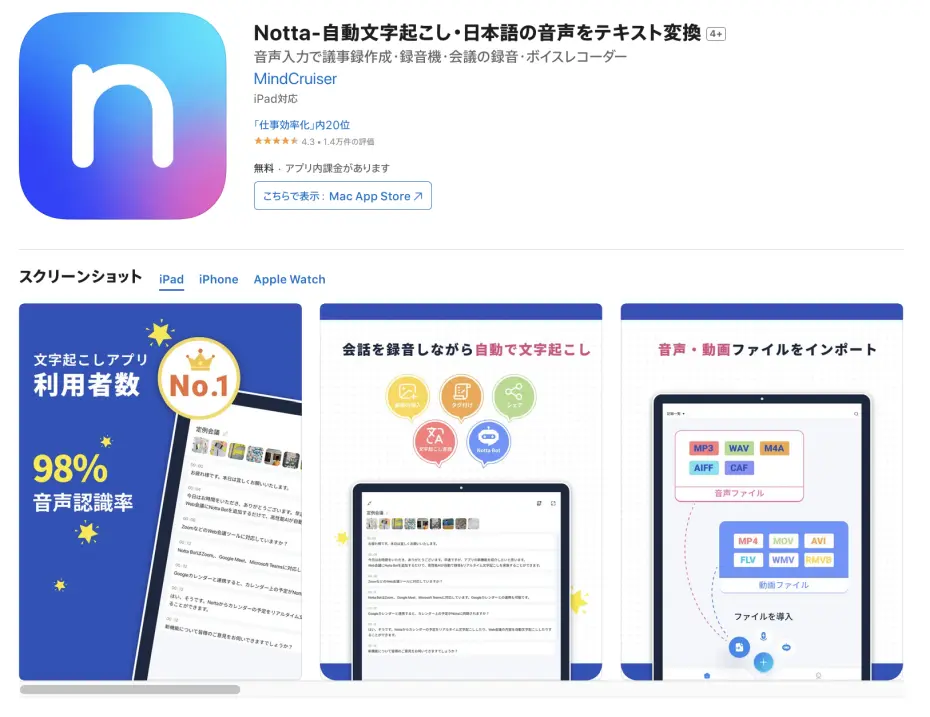
Notta is a service that can load Voice Memos audio files and transcribe them.
From the management screen, you can import iPhone Voice Memos audio files and convert them to text.
It is free to use, but a paid plan is required for longer recordings.
5. Texter (Transcription App for iOS and Android)
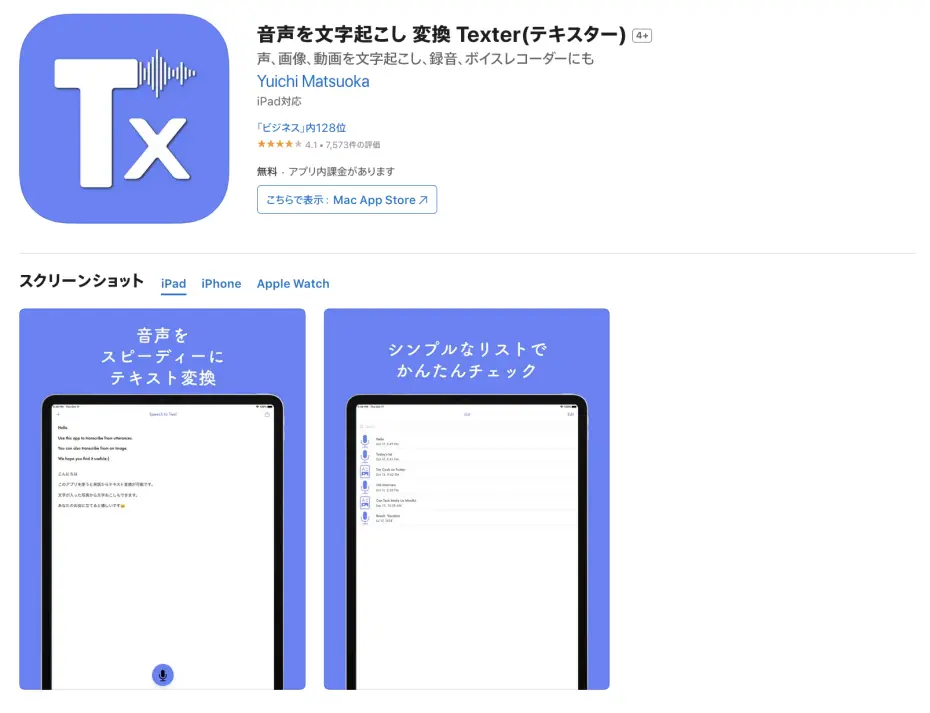
Texter is an AI transcription app for iPhone (iOS) and Android.
It specializes in smartphone apps and can load Voice Memos audio files and convert them to text.
Besides iPhone and iPad (iOS), it also features integration with the Apple Watch.
A short free trial is available, but a paid plan is required to transcribe for long periods.
If you also want to convert audio other than Voice Memos, as well as videos and images, to text, using a different app is also a good option.
Also see this article comparing the apps available on iPhone by use: "7 Recommended iPhone Transcription Apps [Free Options Available, 2026 Edition]".
What to Do When You Cannot Transcribe iPhone Voice Memos
The transcription of my Voice Memos isn't working...
Here is what to do if you cannot transcribe iPhone Voice Memos.
When You Cannot Transcribe with the Voice Memos Built-in Feature
The standard transcription feature introduced in iOS 26 cannot be used on unsupported models or iOS versions.
Depending on your iPhone's language settings, the transcription feature may also not be displayed.
In that case, we recommend using an AI transcription service.
You can transcribe simply by uploading the audio file recorded with Voice Memos, so you can use it regardless of your iOS version or model.
When the Audio File Format Is Not Supported
Audio files recorded with iPhone Voice Memos are saved in "m4a" format.
Some transcription sites and apps do not support the m4a format.
"Mr. Transcription" supports m4a files as is, so you can simply upload them from your iPhone without converting the file format.
When the Recording Quality Is Too Low to Transcribe
Loud background noise or a large distance between the speaker and the iPhone can lower transcription accuracy.
For highly accurate transcription, it is important to record in as quiet an environment as possible, with the iPhone placed close to the speaker.
Summary: Transcribing iPhone Voice Memos
This article introduced how to transcribe iPhone Voice Memos and recommended AI transcription sites and apps.
To transcribe iPhone Voice Memos, we recommend "Mr. Transcription".
- Supports m4a files as is: No conversion needed; just upload from your iPhone
- Supports long recordings: With the latest AI, even long recordings are converted to text in only about 1 minute
- Supports 100 languages: Converts speech in a wide range of languages, including Japanese and English, to text
- AI summary and meeting minutes: Summarize or turn the transcription into meeting minutes with one click
- Speaker separation: Convert recordings with multiple people to text speaker by speaker
- SRT subtitle output: Can also be used to create subtitles for videos
It is free to use with no registration, so first experience Mr. Transcription's accuracy with your own Voice Memos audio.
■ AI transcription service "Mr. Transscription"
"Mr. Transcription" is an online transcription tool that can be used from zero initial cost and 1,000 yen per month (* free version available).
- Supports more than 20 file formats such as audio, video, and images
- Can be used from both PC and smartphone
- Supports technical terms such as medical care, IT, and long-term care
- Supports creation of subtitle files and speaker separation
- Supports transcription in approximately 100 languages including English, Chinese, Japanese, Korean, German, French, Italian, etc.
To use it, just upload the audio file from the site. Transcription text is available in seconds to tens of minutes.
You can use it for free if you transcribe it for up to 10 minutes, so please try it once.

It is "Mr. Transcription" who can easily transcribe from audio, video, and images.
Transcription allows you to transcribe for up to 10 minutes for free.
You can copy, download, search, delete, etc. the transcribed text.
You can also create subtitle files, which is ideal for transcription of interview videos.
HP: mojiokoshi3.com
Email: mojiokoshi3.com@gmail.com
Email: mojiokoshi3.com@gmail.com
Related article
Transcription for audio / video / image transcription. It is a transcription service that anyone can use for free without installation.
- What is Mr. Transcription?
- Transcript images, sounds, and videos with Mr. Transcription
- Free registration
- Rate plan
- manual
- Try other free services