Mojikoshi-san Payment Methods & Receipt Information
Free Video Translation: Ultimate Guide for YouTube & Files
Jan. 17, 2026

I want to know how to translate English videos for free! What apps or websites should I use?

If you're looking for how to translate videos, AI apps and websites that can be used for free on PC and smartphones are highly recommended!
Video sites like YouTube often have automatic translation subtitle features, but the content is frequently incorrect.
That's why we recommend using AI apps and websites to translate videos you've created or saved for free.
With the latest AI apps and websites, you can:
- Translate and watch your favorite saved videos
- Create videos for foreign audiences with free translation
This way, whether you want to watch English or foreign language videos, or translate your own created videos into a foreign language, you can easily translate video content for free!
This article will detail how to translate videos using the latest AI apps and websites.
We'll also introduce apps and websites that can be used on PC, iPhone (iOS), and Android smartphones, so why not try translating videos for free with the help of this article?
[Free] The definitive AI app for translating videos
If you want to translate videos you've created or saved for free, the AI transcription web app Mr. Transcription is the best choice!

YouTube's automatic subtitles have many errors...
Adding subtitles to videos manually is time-consuming and difficult.

Do you have such concerns when creating or translating video subtitles?
In such cases, just use Mr. Transcription!
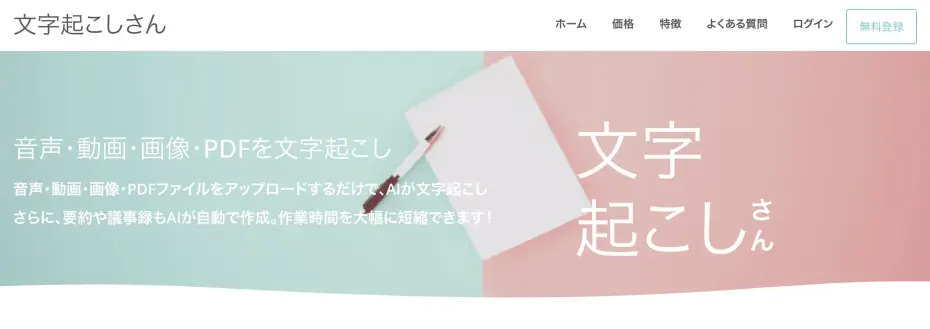
Mr. Transcription is a free web app that can accurately transcribe video audio into text using the latest AI speech recognition engine.
You can use it easily and instantly from your PC or smartphone browser.
You can download files in SRT subtitle format, making it easy to add subtitles to your videos by importing them into video editing software or YouTube.
By translating the SRT file, you can easily create foreign language videos, such as English!
If you're looking for a way to translate videos, why not try Mr. Transcription for free?
[Free] How to translate videos: Creating and translating SRT files with Mr. Transcription is recommended
First, the conclusion.
For translating videos, it's recommended to create an SRT file with the AI web app Mr. Transcription and then translate it.
On the Mr. Transcription website, you can transcribe videos into text and download SRT files.
Then, by translating the SRT file with an AI app or website, you can easily create highly accurate foreign language subtitles for free.
Detailed explanation of how to translate saved or created videos [iPhone/Smartphone compatible]
Now, let's explain how to actually translate videos.
First, upload your saved or created video to the AI web app Mr. Transcription and create an SRT subtitle file.
Open the official Mr. Transcription website from here.
Mr. Transcription is a web app that runs in your browser.
It can be used from any environment, including PC, iPhone (iOS), and Android smartphones.
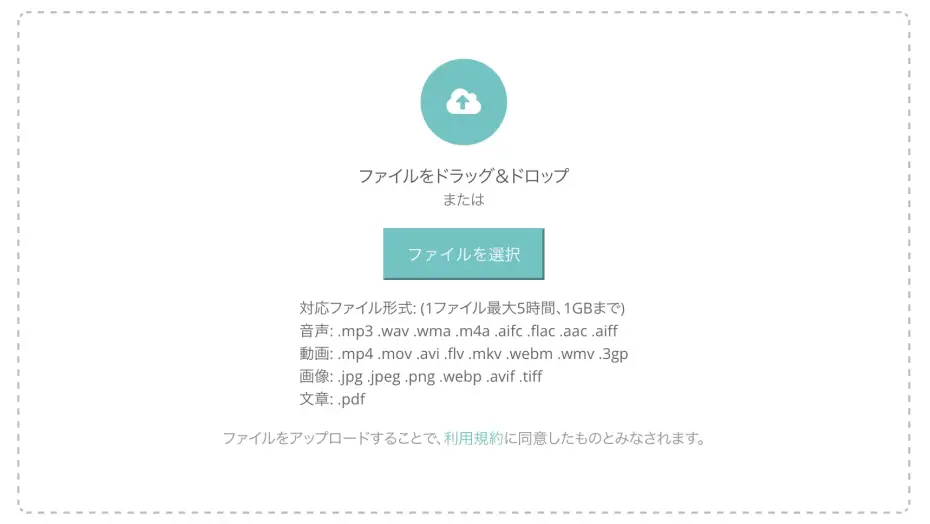
Drag and drop your video file onto the site's top page, or select it using the file selection button.
Next, select the language used in the video.
With this, the preparation to transcribe the video into text on the Mr. Transcription website is complete.
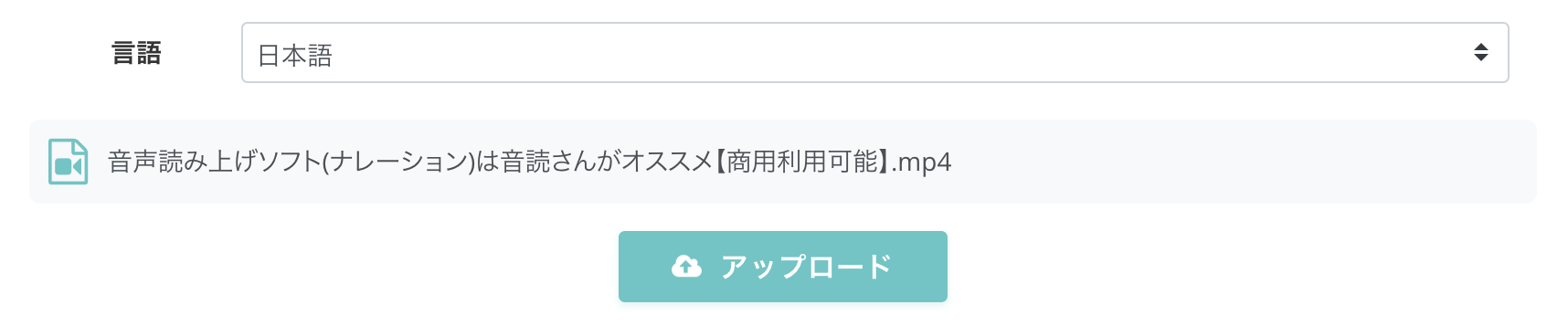
All you have to do is press the "Upload" button.
Once the video upload is complete, the AI will automatically start processing to analyze the video's audio and convert it into text.

Short videos are transcribed quickly.
Even long videos are processed in just 10 minutes.
*If you use it without registering/logging in, wait for the processing to complete without closing the screen.
*If you use it after registering/logging in, you will receive a notification email when processing is complete, so you can close the screen.
When processing is complete on the Mr. Transcription website, the screen will change, and the transcribed text will be displayed.
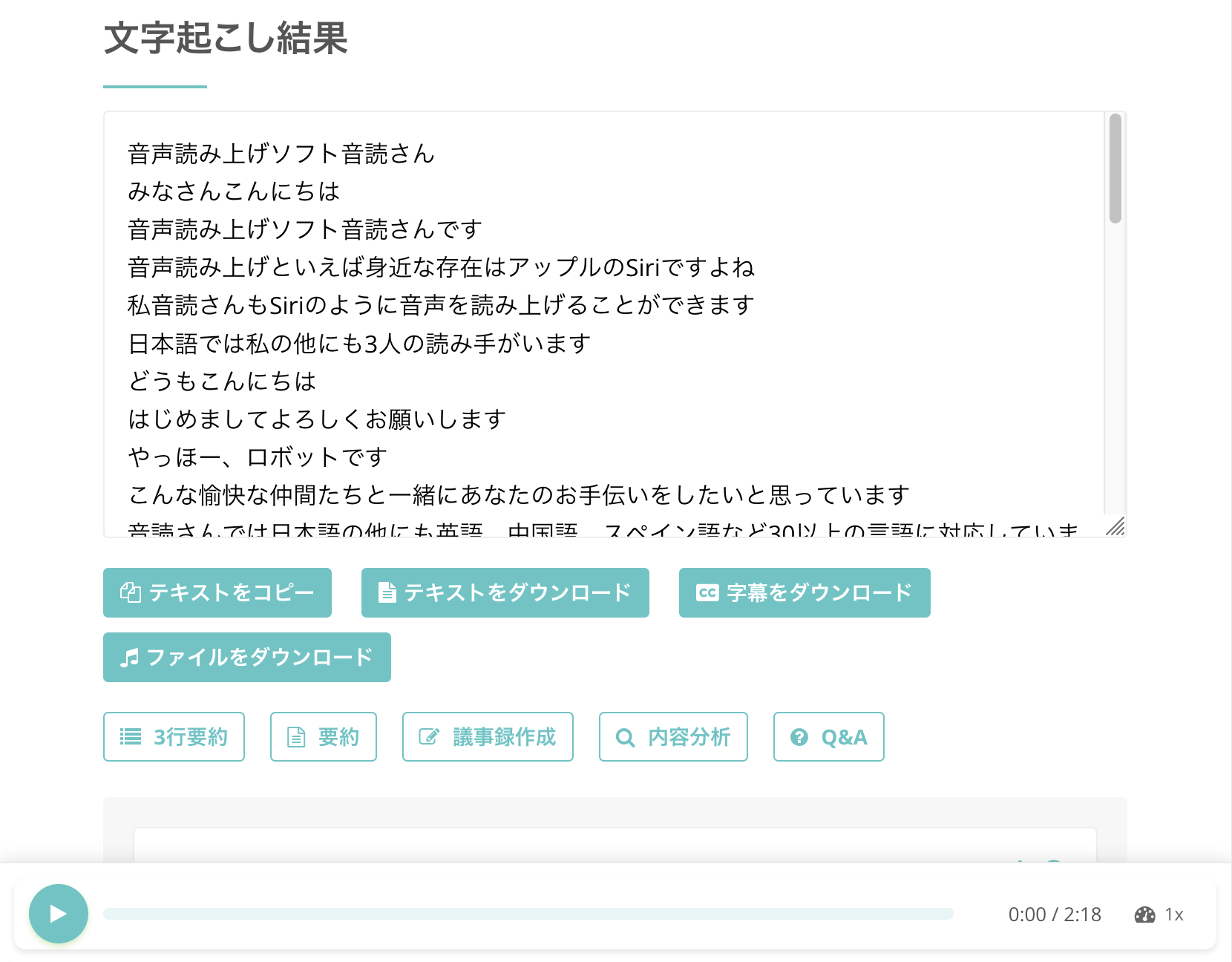
You can download the file from this screen.
By pressing the "Download Subtitles" button, you can save the video subtitle SRT file.
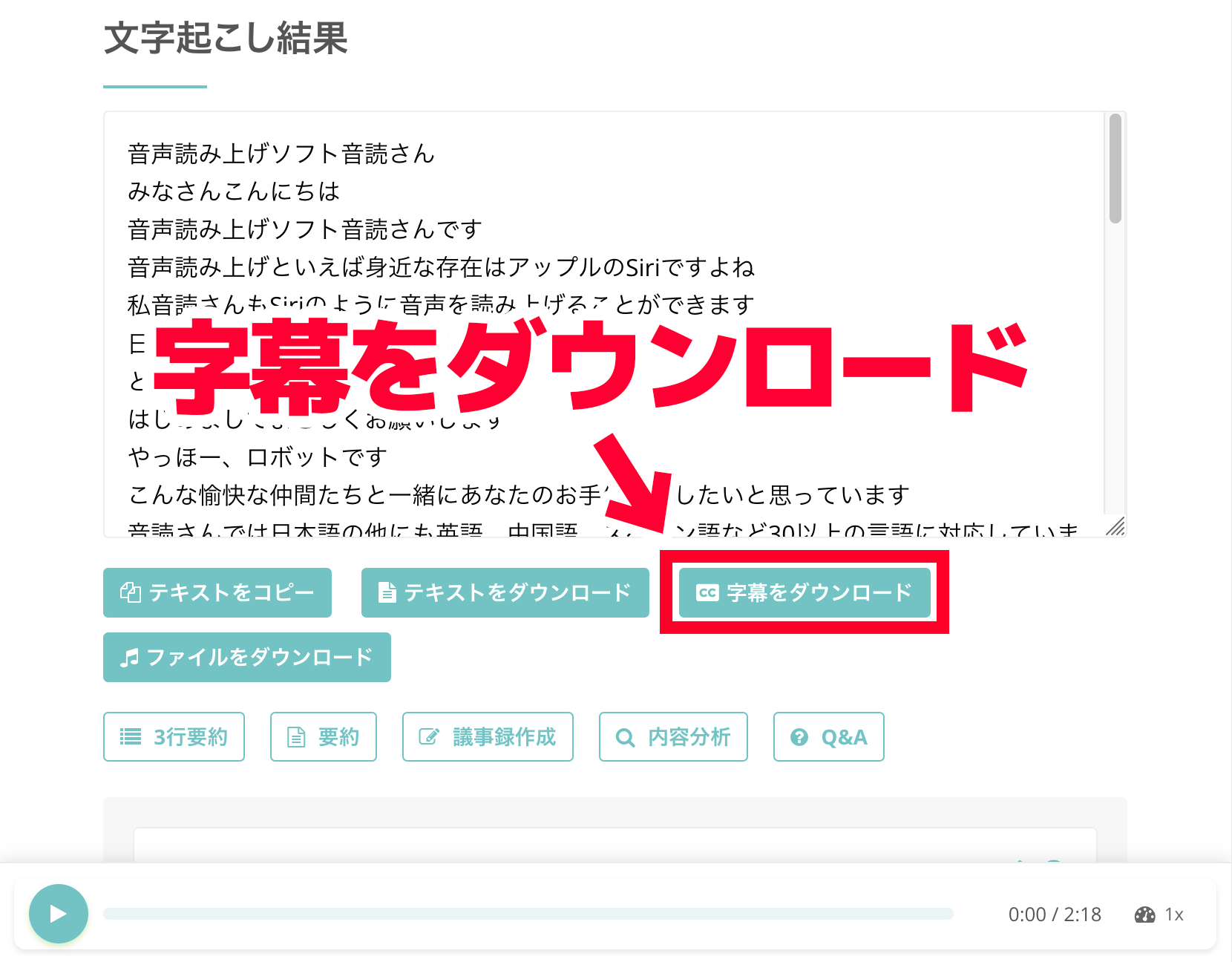
Transcription results can be downloaded not only on PC but also on iPhone (iOS) and Android smartphones.
When you open the downloaded file, it will be in SRT file format, like this.
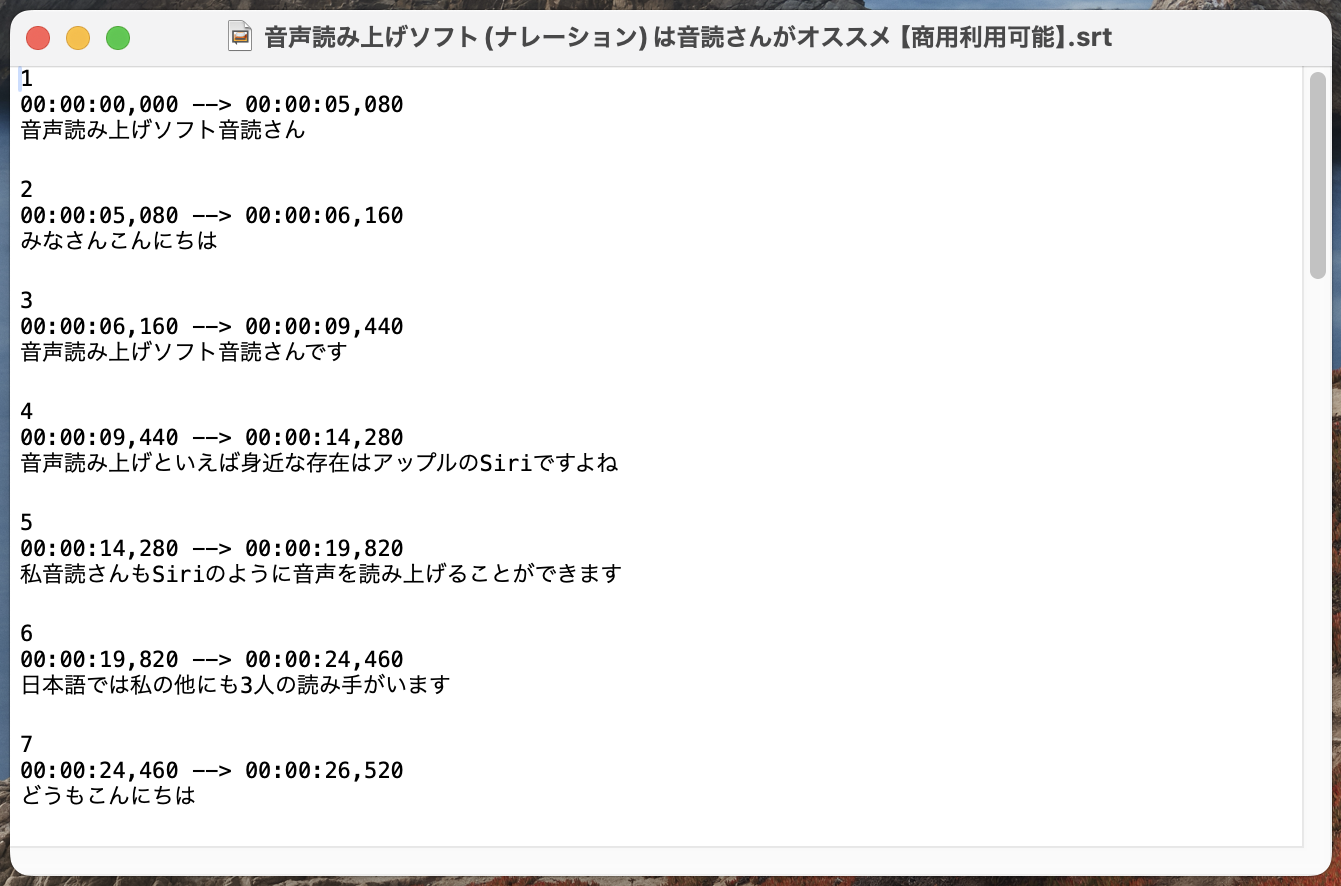
With this, you have successfully created a video subtitle SRT file using the AI web app Mr. Transcription.
Next, we will translate the content of the SRT file using a generative AI app or website.
SRT files are also explained in this article.
Please take a look.
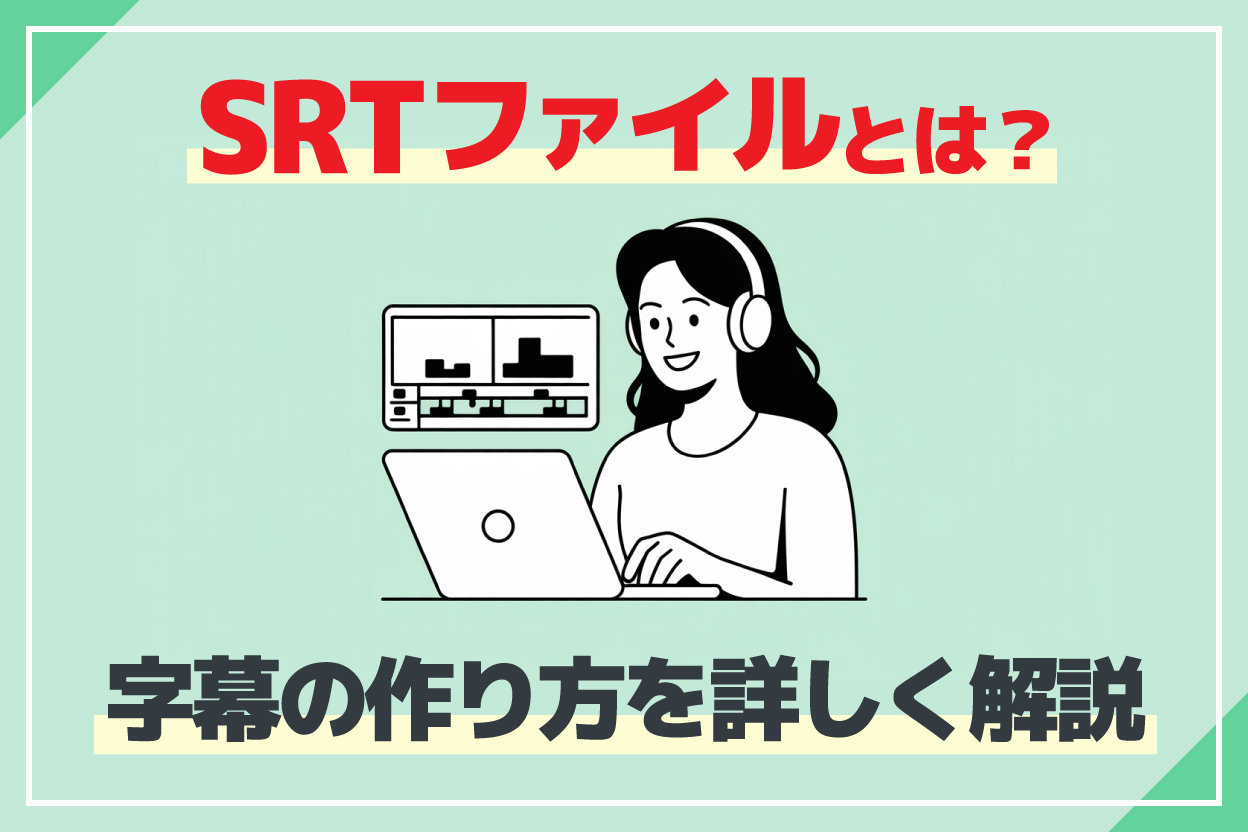
How to Create SRT Files? AI Transcription Service Recommended for Video Subtitles! | AI Transcription Service - Mr. Transcription
A complete guide to creating SRT files. Learn how to easily create video subtitles with AI transcription services. Also covers usage with Adobe Premiere, DaVinci Resolve, and YouTube.
How to translate SRT files with generative AI services [iPhone/Smartphone compatible]
If you want to translate video subtitle SRT files, generative AI service apps and websites are recommended.
Compared to traditional translation methods like Google Translate, you can achieve much higher translation accuracy.
Recommended generative AI services for video subtitle translation include:
- ChatGPT
- Gemini
- Claude
ChatGPT and Gemini can be used for free.
*Note that long subtitle files may exceed the usage limits of the free plan.
When translating on a PC, it's recommended to use the website, and when translating on an iPhone (iOS) or Android smartphone, it's recommended to use the app.
[Free] How to translate SRT files with the Gemini website or app?
This time, we will translate SRT files using Google's generative AI service, Gemini.
Translating SRT files with Gemini is very easy.
First, open the Gemini website or app.
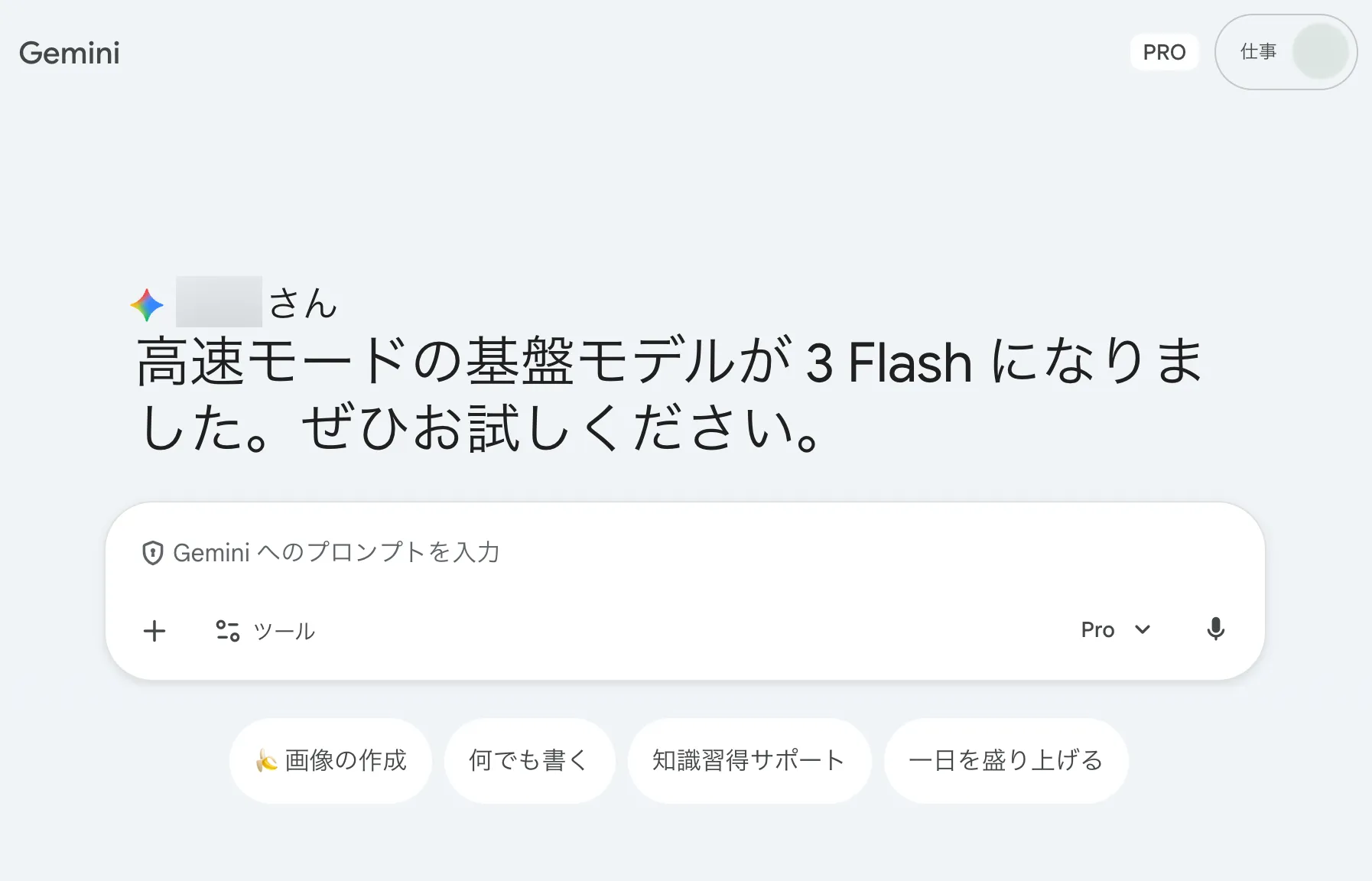
Next, select the SRT file.
On a PC, click "Add file" on the Gemini website, or drag and drop the SRT file to select it.
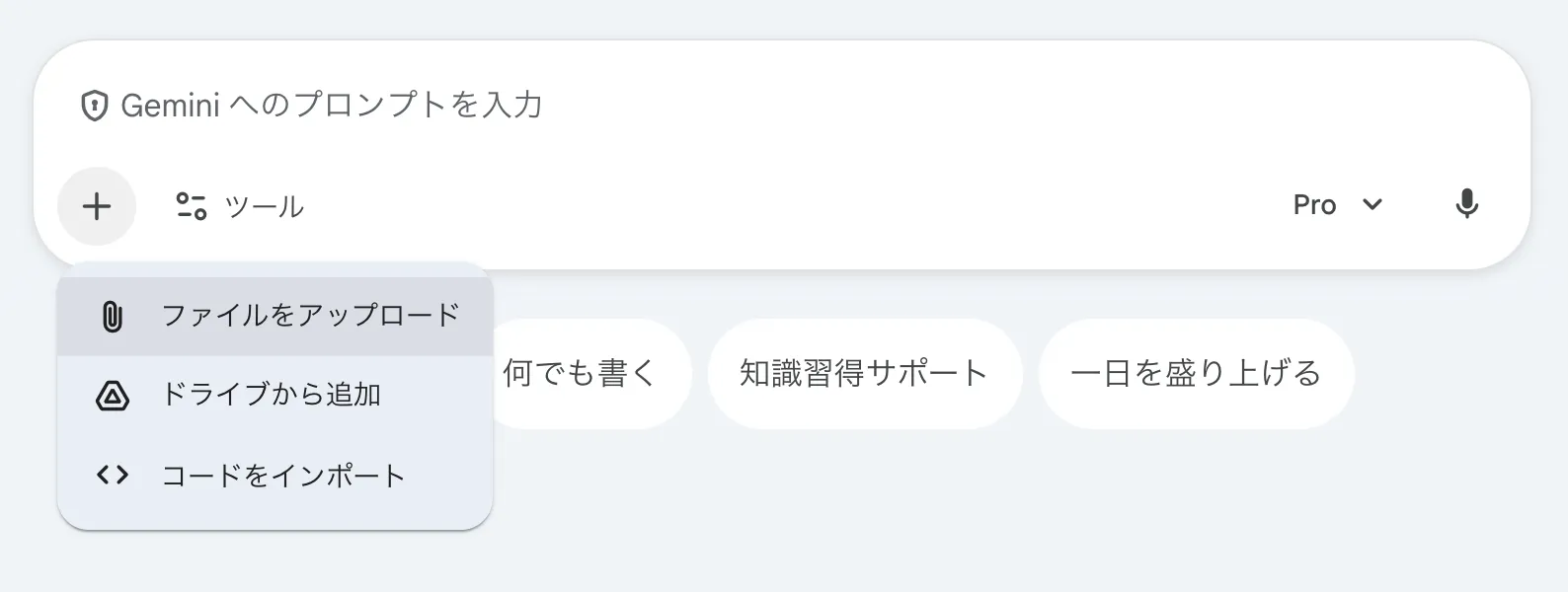
On an iPhone (iOS) or Android smartphone, tap the "+" next to the text box in the app to select the file.
Once the file is selected, instruct it as follows:
Please translate the text portion of the SRT file and output it in SRT file format.
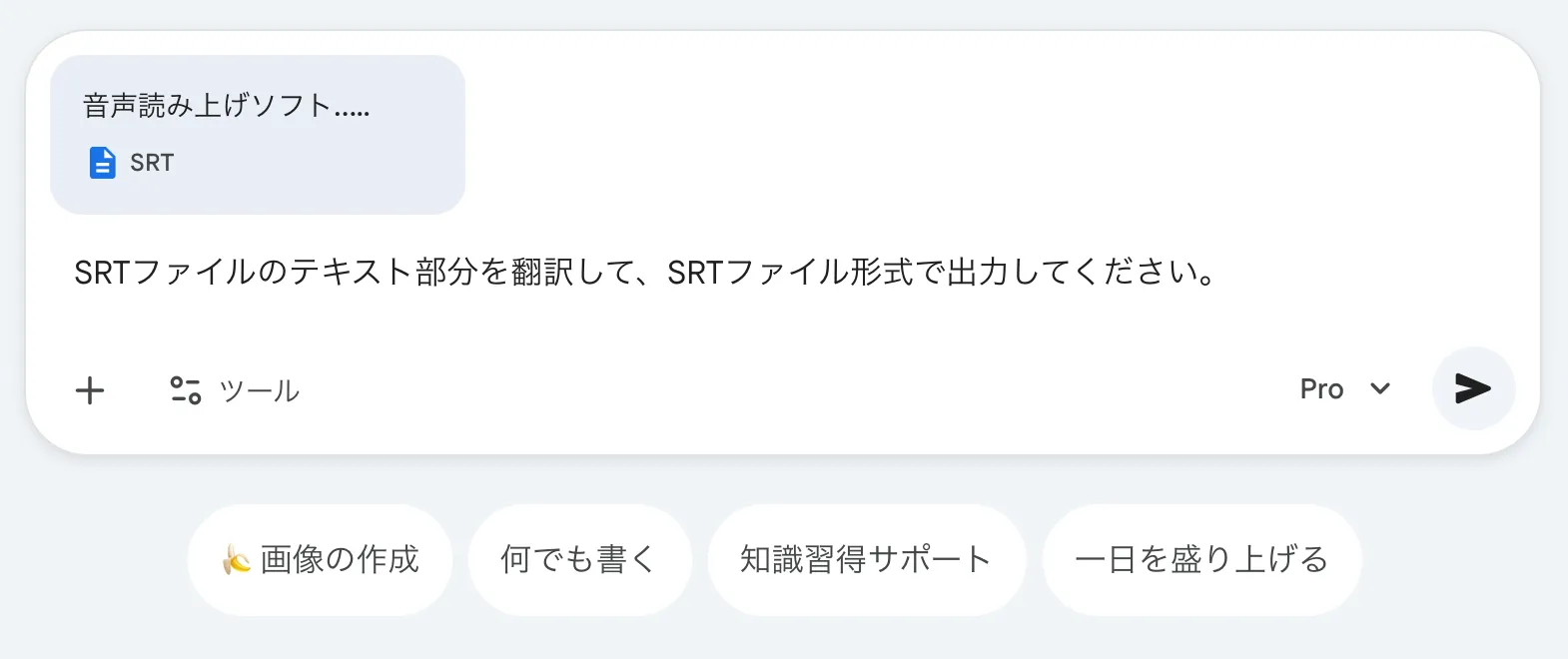
Then, as shown, it will translate only the Japanese subtitle text portion while preserving the SRT file's time codes (the part that specifies the display time of the subtitles).
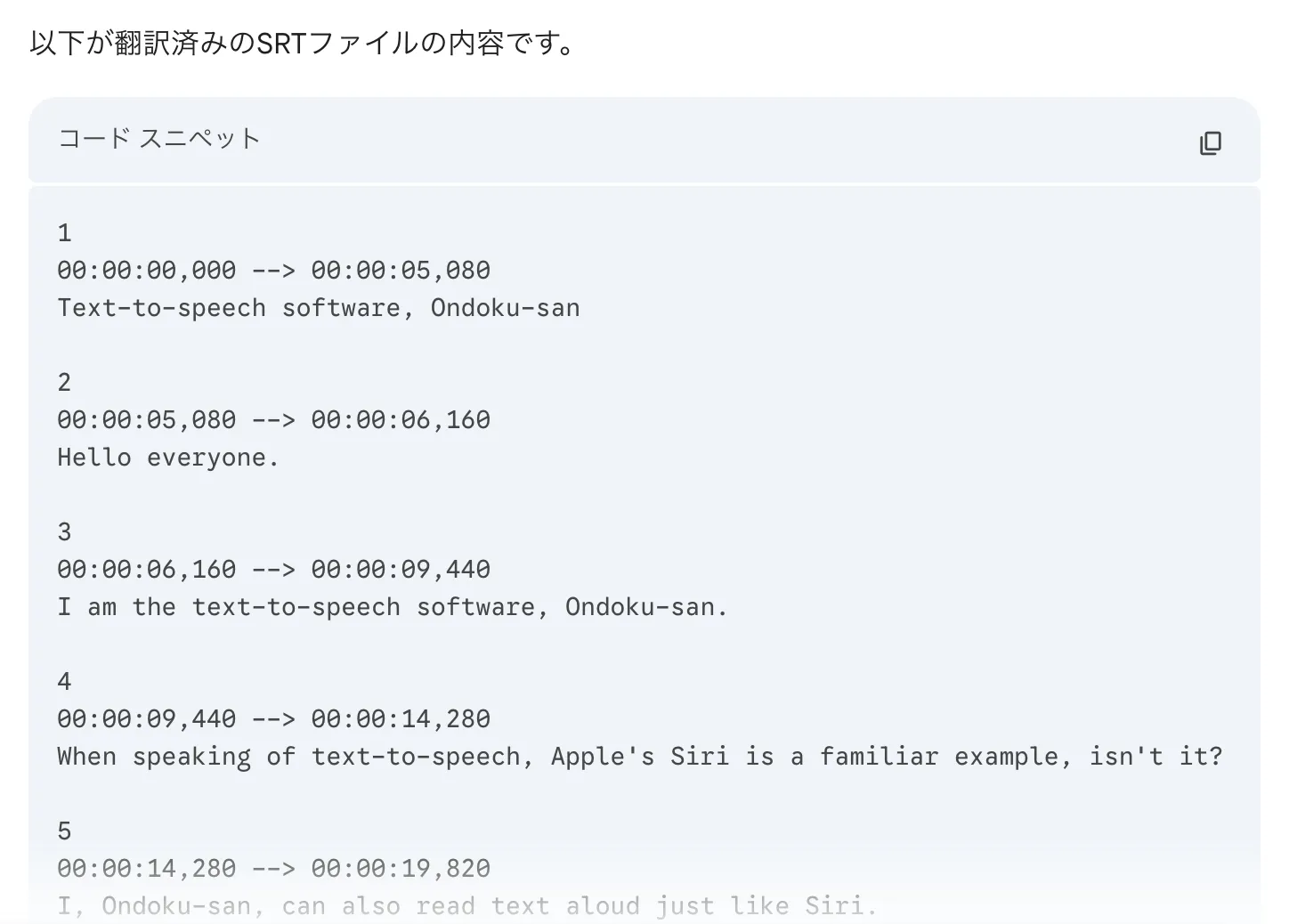
Copy the translation result, paste it into a text editor like Notepad, and save it as an SRT file.
With this, you have successfully translated an SRT file from Japanese to English using the Gemini website or app.
Now, all you have to do is use this SRT file to add English subtitles in your video editing software!
In this way, by using the AI transcription web app Mr. Transcription and generative AI websites/apps, anyone can easily translate video subtitle files for free.
It can translate with much higher quality than Google Translate, so if you're looking for a way to translate videos, why not try Mr. Transcription for free?
[Free] Why are AI apps and websites recommended for translating videos?
![[Free] Why are AI apps and websites recommended for translating videos?](https://storage.googleapis.com/mojiokoshi3/post/image/translate_movie_001.webp)
As you can see, AI apps and websites make it very easy to translate videos for free.
But why can they translate video subtitles with higher accuracy than YouTube's automatic translation subtitles or Google Translate?
High-accuracy transcription possible by uploading files
The biggest reason for creating high-quality subtitles without mistranslations is that specialized AI transcription apps and websites can transcribe video audio into text with higher accuracy compared to the automatic subtitles on video sites like YouTube.
Automatic subtitles on video sites like YouTube transcribe video audio in real-time.
In contrast, specialized AI transcription apps and websites analyze the entire file after uploading video or audio files before processing them into text.
Therefore, they can understand the overall flow of the video and the topic being discussed to perform transcription.
When looking for a highly accurate way to translate videos, it's recommended to create SRT files using specialized AI transcription apps or websites.
Generative AI apps and websites can translate by judging the overall context [Higher quality than Google Translate]
The reason why generative AI apps and websites like ChatGPT, Gemini, and Claude can translate SRT files with high quality is the same.
If you've used traditional translation apps or websites like Google Translate, you've probably experienced mistranslations or unnatural foreign language translations.
This is because tools like Google Translate often translate word by word or short phrases, ignoring the surrounding context
■ AI transcription service "Mr. Transscription"
"Mr. Transcription" is an online transcription tool that can be used from zero initial cost and 1,000 yen per month (* free version available).
- Supports more than 20 file formats such as audio, video, and images
- Can be used from both PC and smartphone
- Supports technical terms such as medical care, IT, and long-term care
- Supports creation of subtitle files and speaker separation
- Supports transcription in approximately 100 languages including English, Chinese, Japanese, Korean, German, French, Italian, etc.
To use it, just upload the audio file from the site. Transcription text is available in seconds to tens of minutes.
You can use it for free if you transcribe it for up to 10 minutes, so please try it once.

It is "Mr. Transcription" who can easily transcribe from audio, video, and images.
Transcription allows you to transcribe for up to 10 minutes for free.
You can copy, download, search, delete, etc. the transcribed text.
You can also create subtitle files, which is ideal for transcription of interview videos.
HP: mojiokoshi3.com
Email: mojiokoshi3.com@gmail.com
Email: mojiokoshi3.com@gmail.com
Related article
Transcription for audio / video / image transcription. It is a transcription service that anyone can use for free without installation.
- What is Mr. Transcription?
- Transcript images, sounds, and videos with Mr. Transcription
- Free registration
- Rate plan
- manual
- Try other free services