Mojikoshi-san Payment Methods & Receipt Information
Automatic Video Subtitles: Free with AI Transcription
Oct. 9, 2026

How can I generate subtitles for a video automatically?

When you make a video, do you spend hours typing out subtitles and on-screen captions one character at a time?
Listening to the audio and entering text in time with it is one of the most time-consuming steps in video editing.
In that case, we recommend using an AI transcription site!
Just upload your video and an SRT file is generated automatically, so you can add high-quality subtitles to your YouTube videos.
Another plus is that everything is processed in your browser, with no complicated settings.
In this article, we explain in detail how to automatically generate subtitles and captions for videos with an AI transcription site.
We also walk through adding subtitles in Adobe Premiere, DaVinci Resolve, and YouTube's built-in features, so why not add automatically generated subtitles to your own videos?
[Free] An AI transcription site is the way to go for automatically generating subtitles and captions
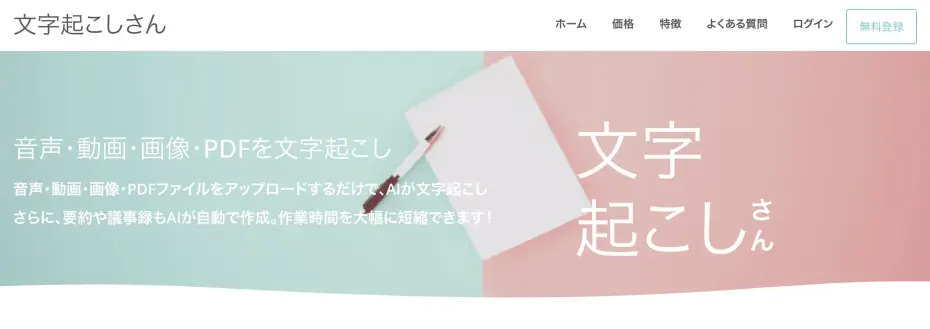
To automatically generate subtitles and captions for a video, we recommend "Mr. Transcription".
"Mr. Transcription" is an AI service that recognizes the audio in a video and converts it into text automatically.
Its biggest feature is that you can generate an SRT file automatically just by uploading a video.
When you upload a video file, the latest AI listens to the audio and converts it to text automatically.
You can then download the converted text in SRT format as it is.
All that is left is to load the SRT file into your video editing software or YouTube, and you can insert subtitles with ease.
Everything is processed in your browser, so there is no need to install dedicated software.
It is free for up to 3 minutes per day without registration.
If you sign up for a free membership, you can use it free for up to 10 minutes per day.
Why not try generating subtitles for your video for free with "Mr. Transcription" first?
How to automatically generate subtitles and captions & how to use "Mr. Transcription"
Let's get started. Here is how to automatically generate subtitles and captions with the AI transcription service "Mr. Transcription".
"Mr. Transcription" is an AI service that anyone can use to create video subtitles with simple operations.
You can save subtitles in SRT format and load them easily into video editing software or YouTube.
1. Prepare the video file you want to add subtitles to

First, prepare the video file you want to generate subtitles for.
The video file formats supported by "Mr. Transcription" are
- MP4
- MOV
- AVI
- FLV
- MKV
- WEBM
- WMV
- 3GP
as listed above.
Because all the major video file formats are supported, you can upload files as they are, from files exported by video editing software to files you have just shot on your smartphone.
When you select a large file, Mr. Transcription automatically extracts only the audio and uploads it, so you can simply select the encoded video file as it is.
Of course, you can also export just the audio track and upload that.
2. [Free] Transcribe the video's audio and generate an SRT file automatically
Once your video or audio file is ready, convert it to text with "Mr. Transcription".
First, open the "Mr. Transcription" top page.
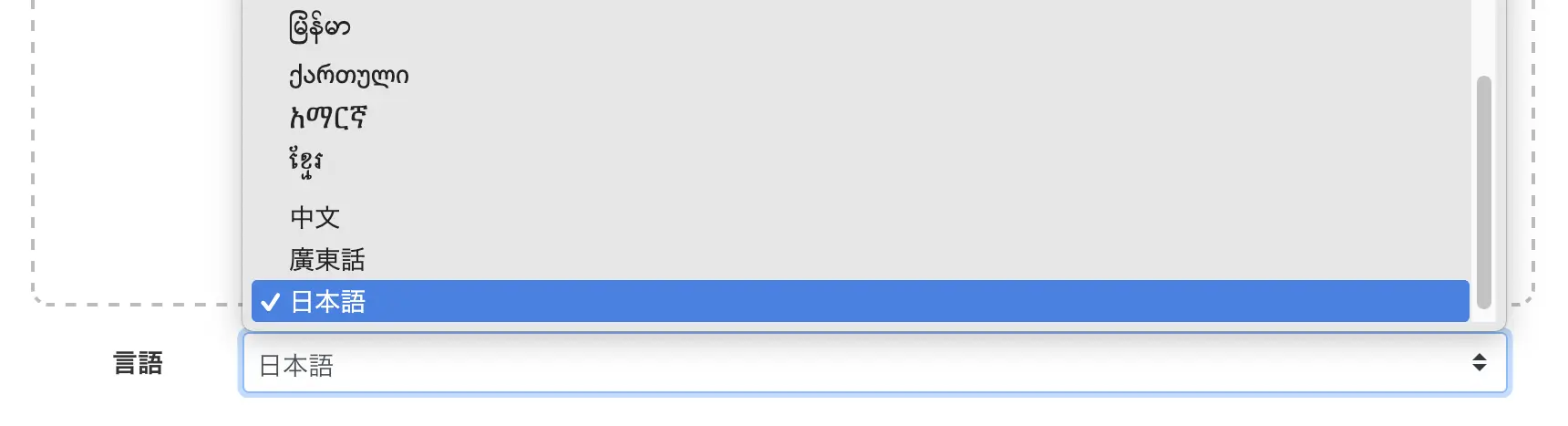
On the top page, select the language used in the video.
Normally, the language you use on your PC is selected (for example, "Japanese" if your PC is set to Japanese).
If you want to create subtitles for a YouTube video aimed at an overseas audience, select the language used in the video, such as English.
Next, select the file.
- Drag and drop the file
- Click "Select file"
There are these two ways.
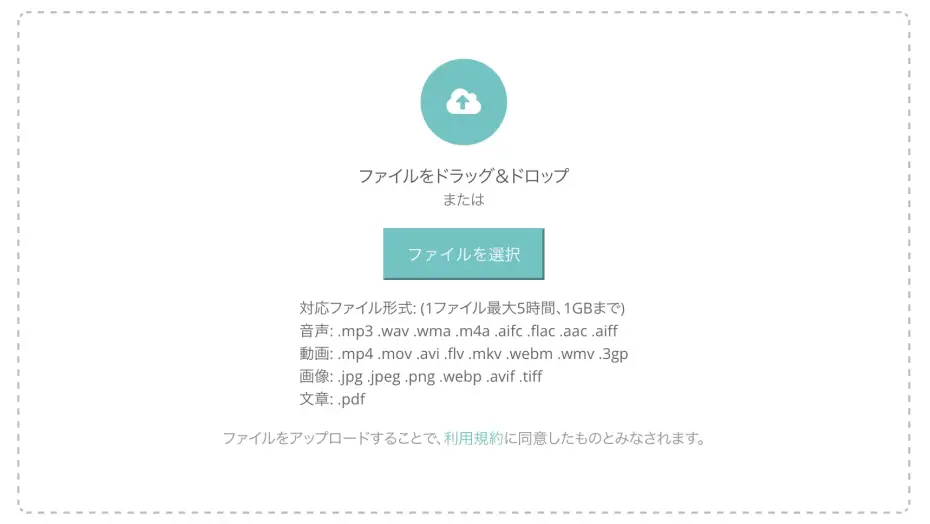
Once you select the file, uploading and transcription start automatically.

"Mr. Transcription" uses the latest AI.
Even long video and audio files are processed in only about a minute.
If you use the service without registering or logging in, keep the screen open and wait until processing is complete.
If you are registered and logged in, you will receive an email notification when transcription is complete.

You can check the result from the link in the notification email or from the "History" page in the menu.
Download the SRT file from the transcription result
When transcription finishes, the screen changes and the transcription result is displayed.
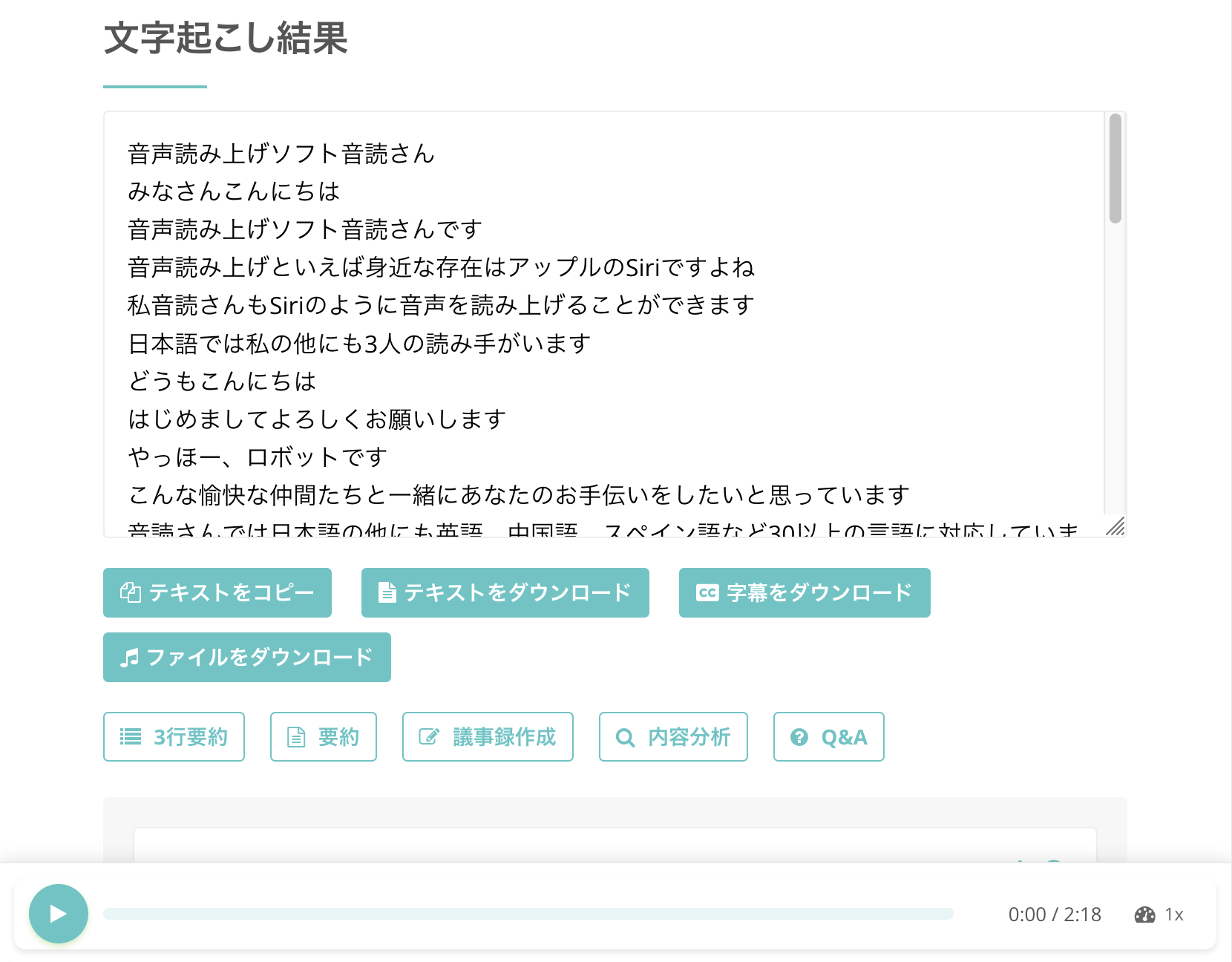
Before downloading, you can also check the result by pressing the play button next to a statement to play the video's audio from that point.
When you play from the player at the bottom of the screen, the displayed text also switches to match the playback position.
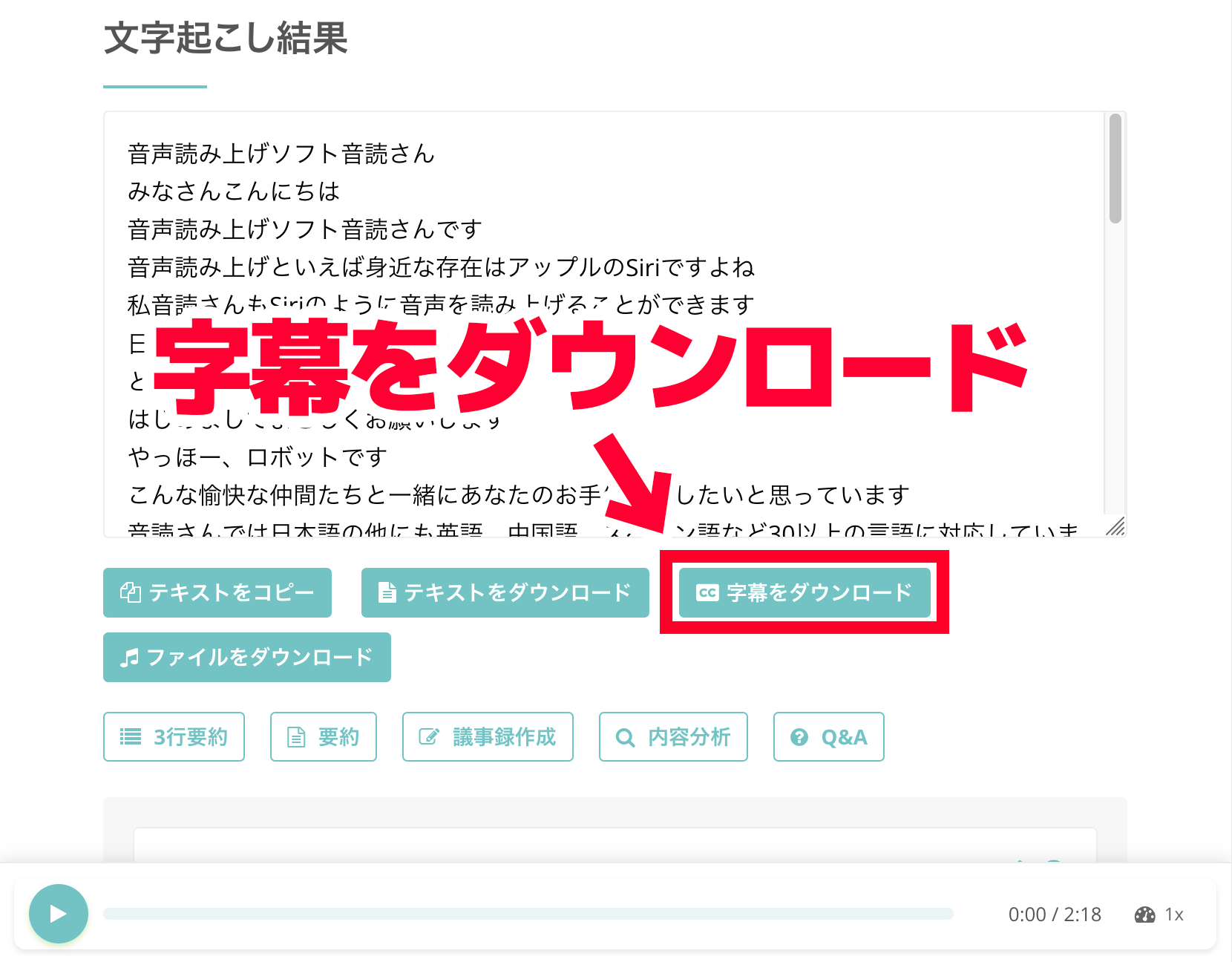
With "Mr. Transcription", no extra steps are needed to create an SRT file.
Just press the "Download subtitles" button to save the SRT file.
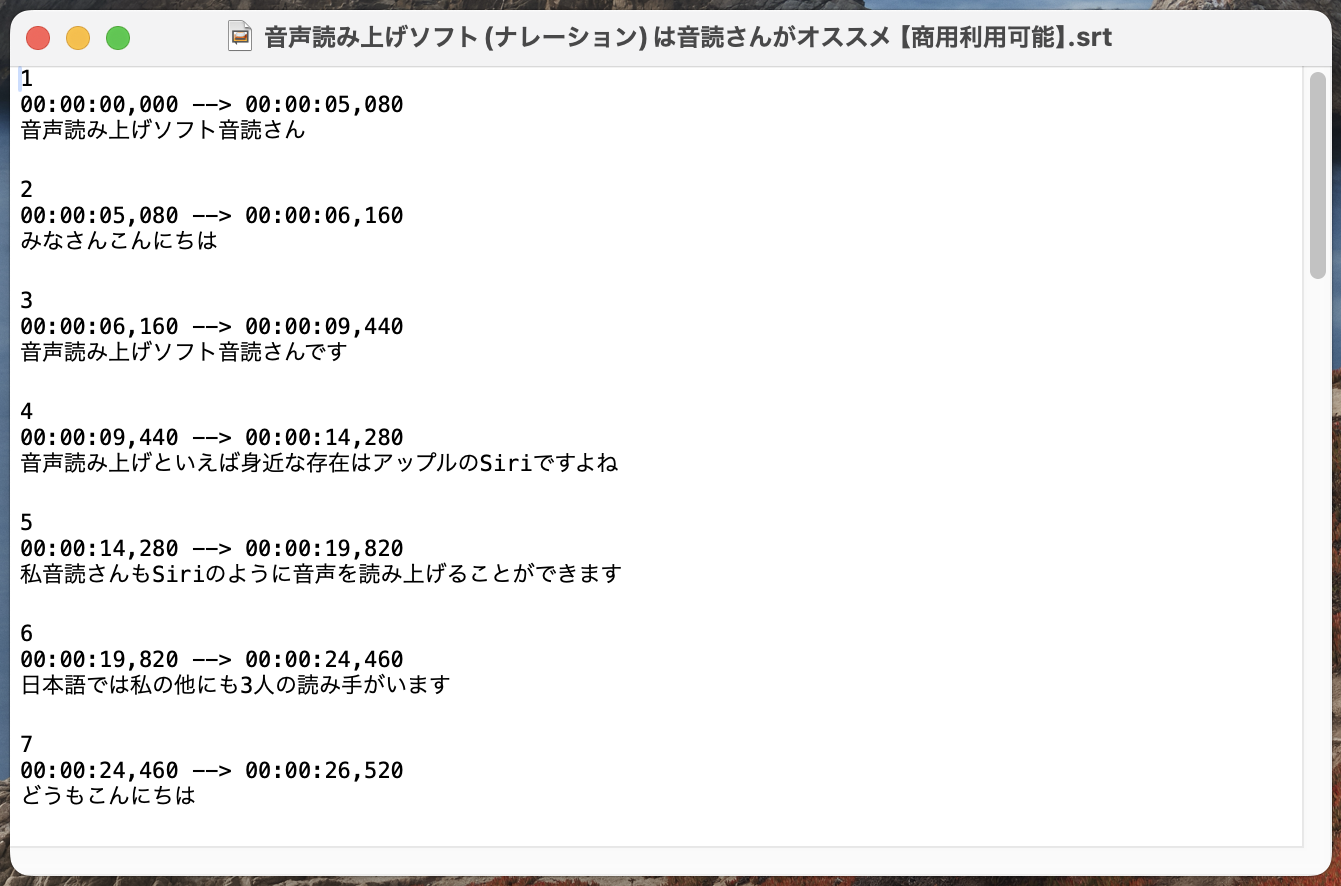
If you open the downloaded file in a text editor, you can see it has been converted automatically into the SRT format for subtitles, like this.
You can also download from the History page
SRT files created with "Mr. Transcription" can also be downloaded from the History page.
You can open the History page from the menu on the "Mr. Transcription" site.
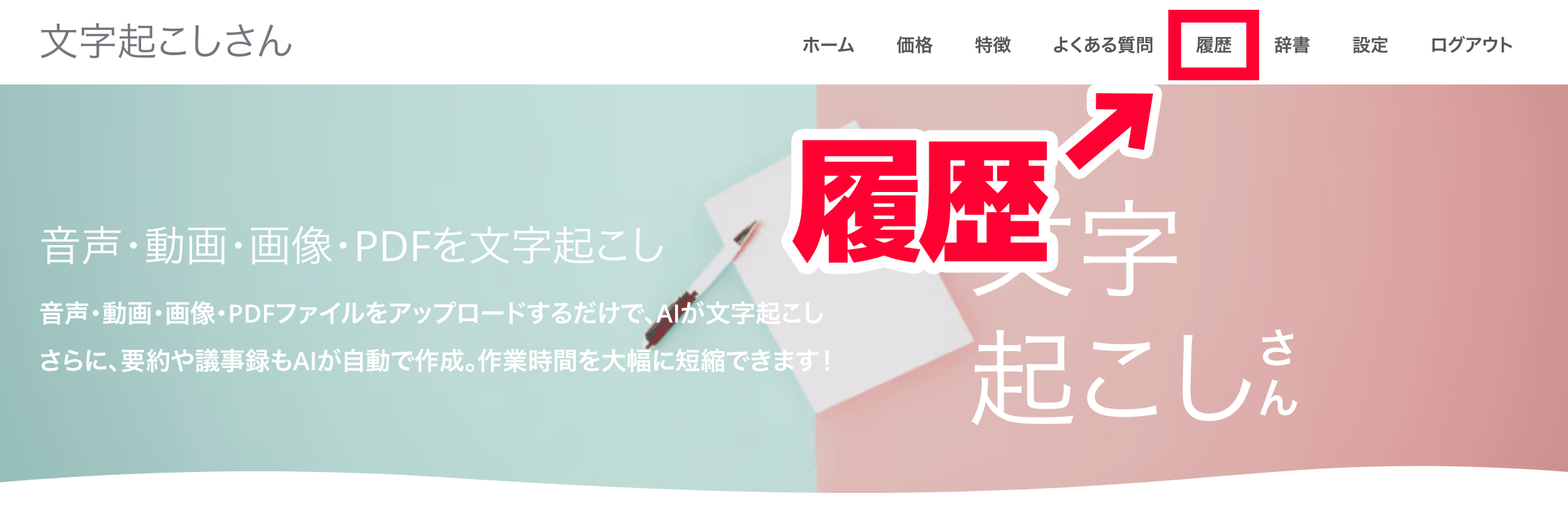
When the History page opens, click the area where the file name is displayed.
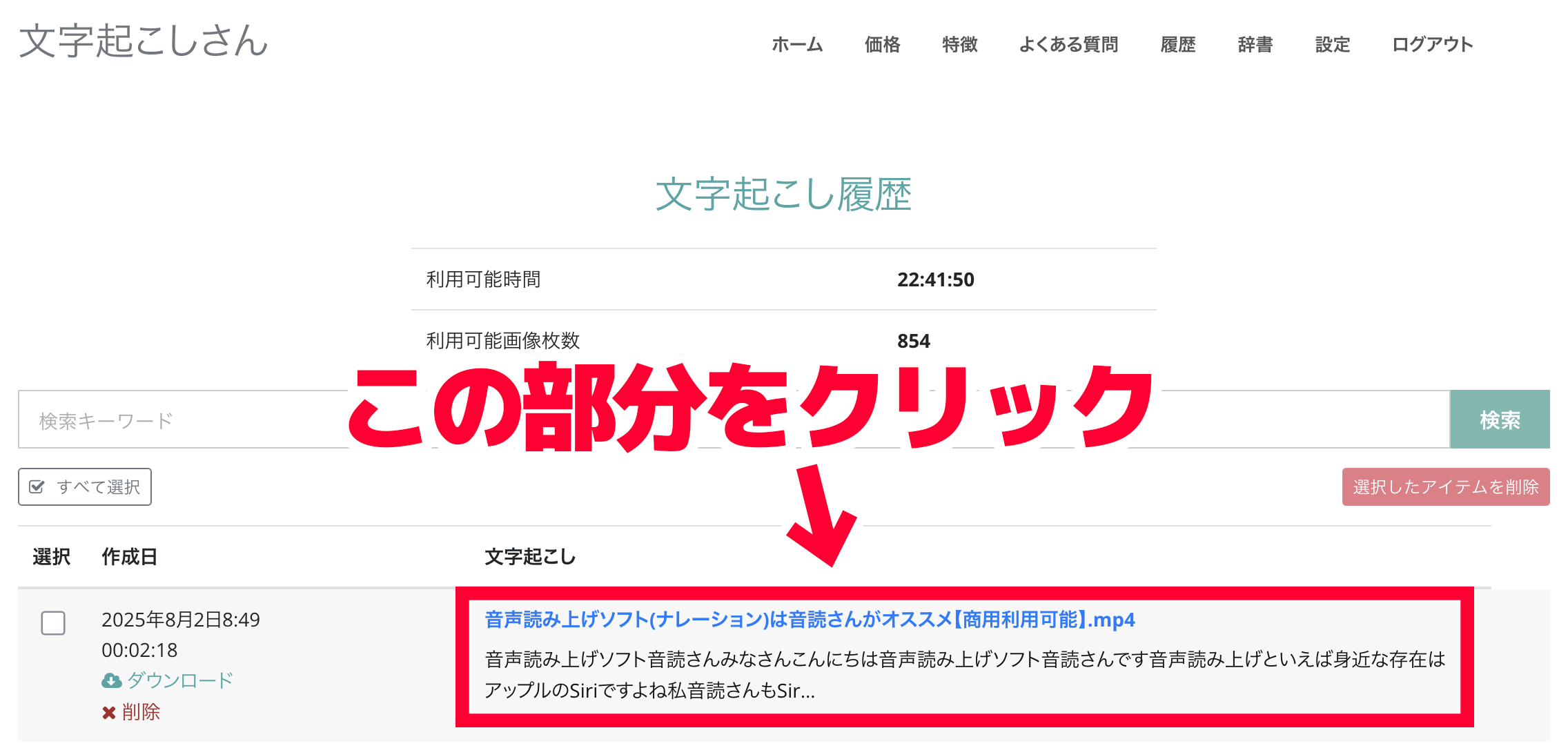
The detail page for the transcription result opens, so press "Download subtitles" to save the file.
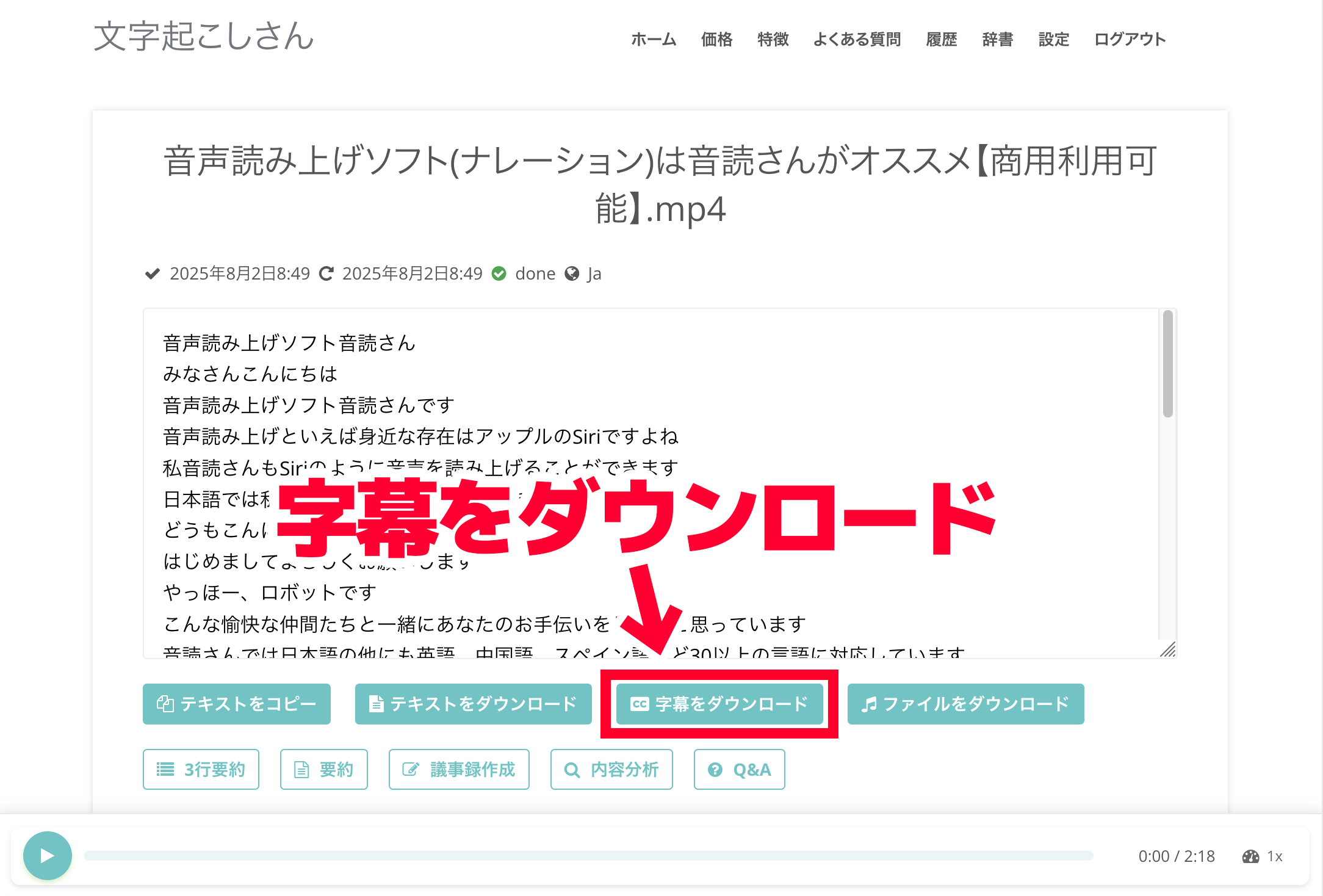
The History page lists all your previous transcription results, so you can also save text you transcribed in the past as subtitles again.
3. Insert the automatically generated SRT file into your video
With that, you have generated an SRT file for free using the AI transcription service "Mr. Transcription".
All that remains is to load the SRT file into video editing software such as Adobe Premiere Pro or DaVinci Resolve, or on the detail screen of a video uploaded to YouTube.
The SRT file is a standard file format widely used for video subtitles.
It can be used in a wide range of situations, from video editing software to video sites.
We explain how to load the file into each program in the sections that follow.
If you want to learn more about SRT files, please also see this article.

[Free] How to Create an SRT File: Make Video Subtitles in Just Your Browser
Learn how to create an SRT file, a subtitle file that records subtitle text and display times. With an AI transcription site, you can make one in just your browser. Also covers how to use it in video editing software and YouTube.
Because subtitles can be generated so easily, why not start by making an SRT file for your video with "Mr. Transcription"?
How to insert automatically generated subtitles in Adobe Premiere Pro
From here, we explain how to insert the SRT file generated by the AI transcription service "Mr. Transcription" into a video.
First, we show how to add subtitles from an SRT file in Adobe Premiere Pro, video editing software that professionals also use.
*This explanation uses the Windows version of Adobe Premiere Pro.
1. Import the SRT file into the project
Inserting subtitles from an SRT file in Adobe Premiere Pro is very easy.
First, open the editing project of the video you want to add subtitles to.
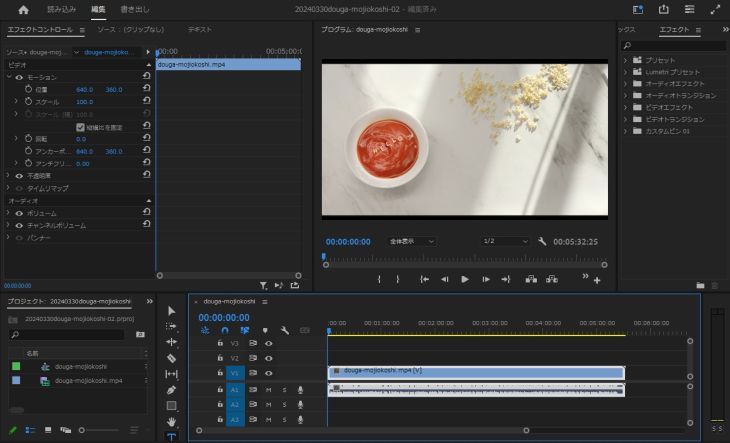
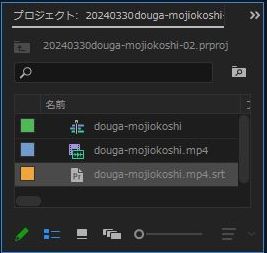
At the lower left of this screen is the Project panel (the area that lists assets such as video and audio).
Import the SRT file here.
The method is the same as for importing other assets such as video and audio:
- Drag and drop the file directly onto the Project panel
- Choose "Import" from the File menu
Either one works.
This time, we dragged and dropped the SRT file.
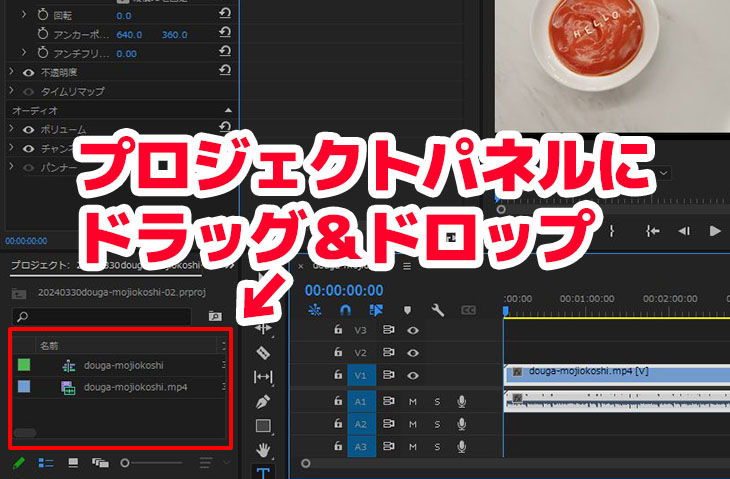
Once the SRT file is loaded, Adobe Premiere Pro automatically recognizes it as a captions file.
2. Place the subtitles on the timeline
Next, drag and drop the imported SRT file onto the timeline to place it.
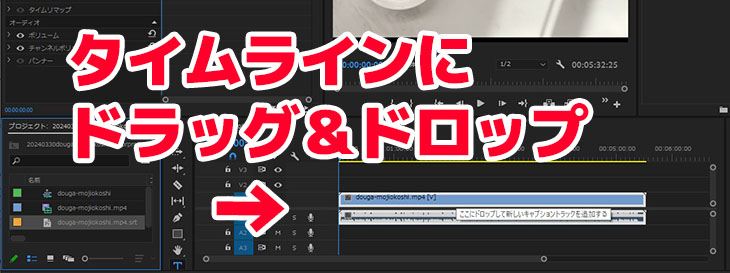
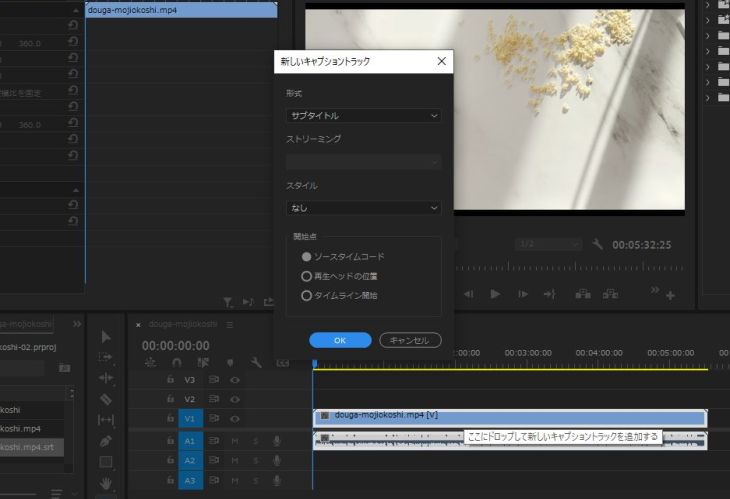
The "New Caption Track" dialog appears, so check the settings and press "OK".
A "Subtitle" track is added to the top row of the timeline, and the subtitles are inserted.
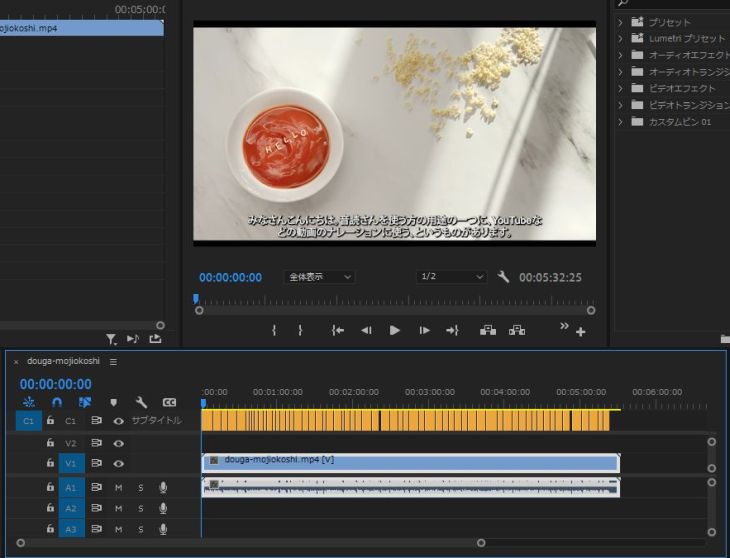
You have now automatically added subtitles from the SRT file to the Adobe Premiere Pro timeline.
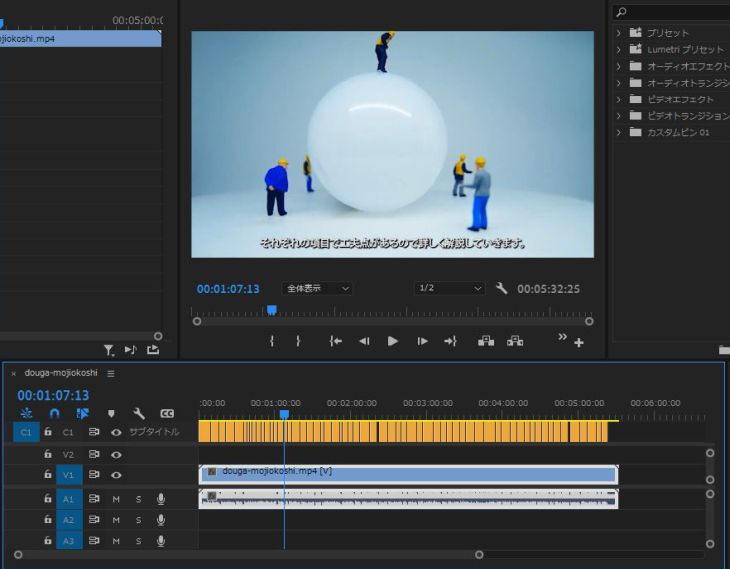
3. How to customize subtitles in Adobe Premiere Pro
Subtitles loaded as "Subtitle" in Adobe Premiere Pro can also have their appearance edited.
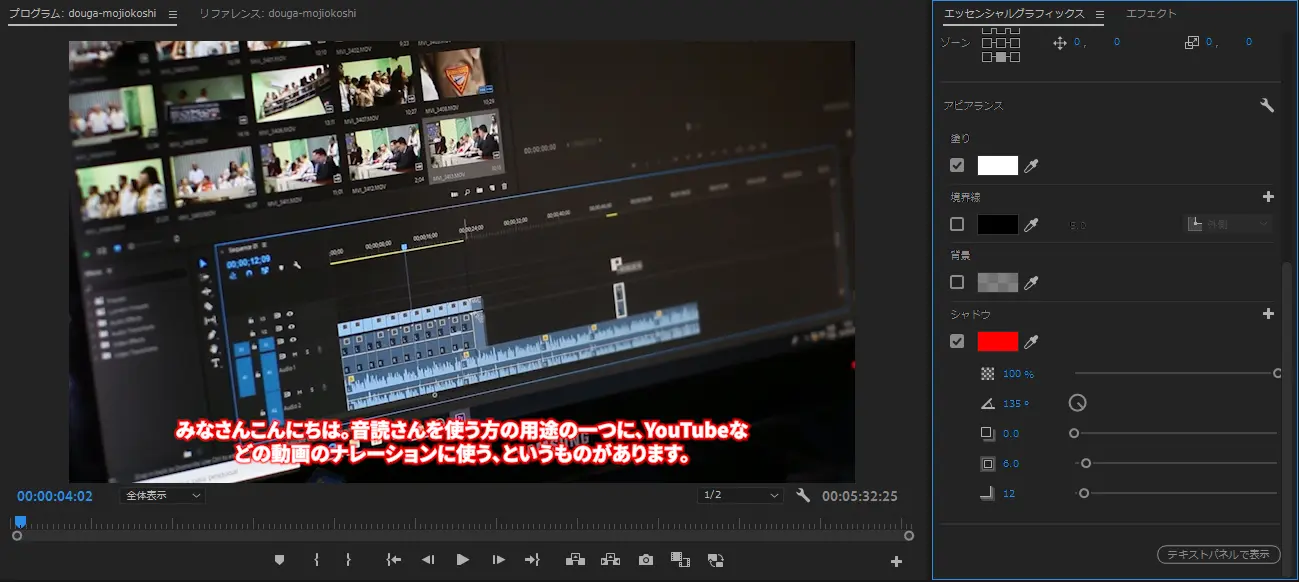
To edit the font and color of the subtitles, open the "Essential Graphics" panel.
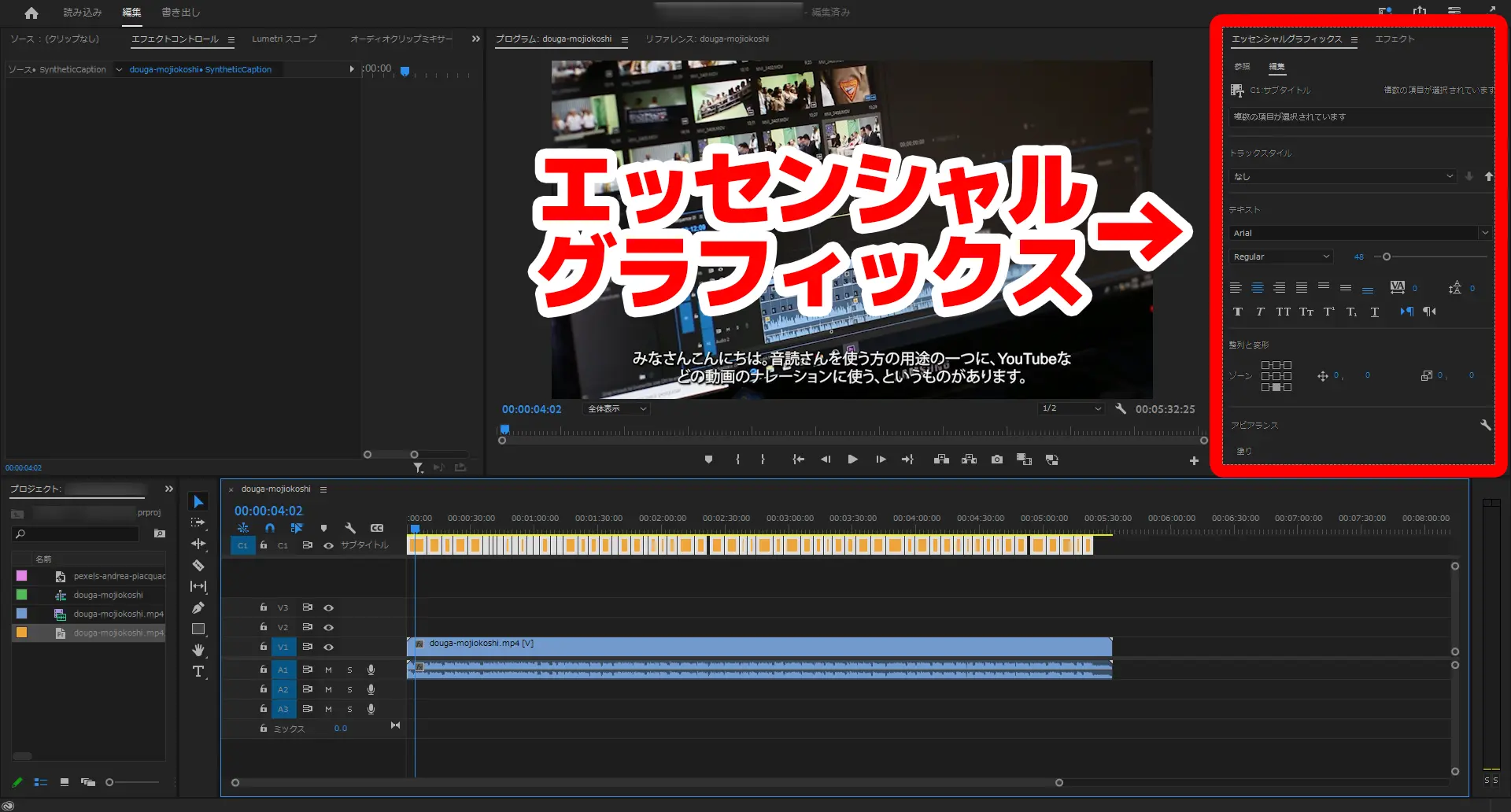
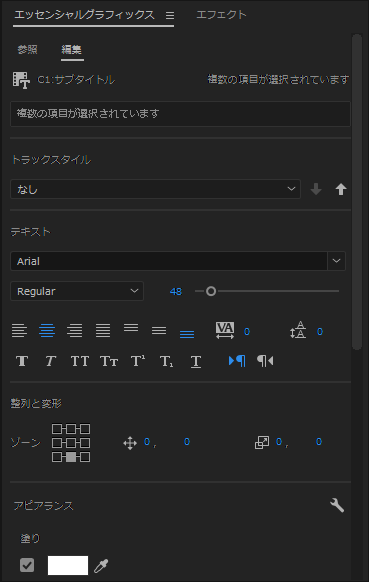
When you open the "Edit" view, you can change the font size, typeface, decoration, and more.
For example, you can change the font of the subtitles, as shown here,
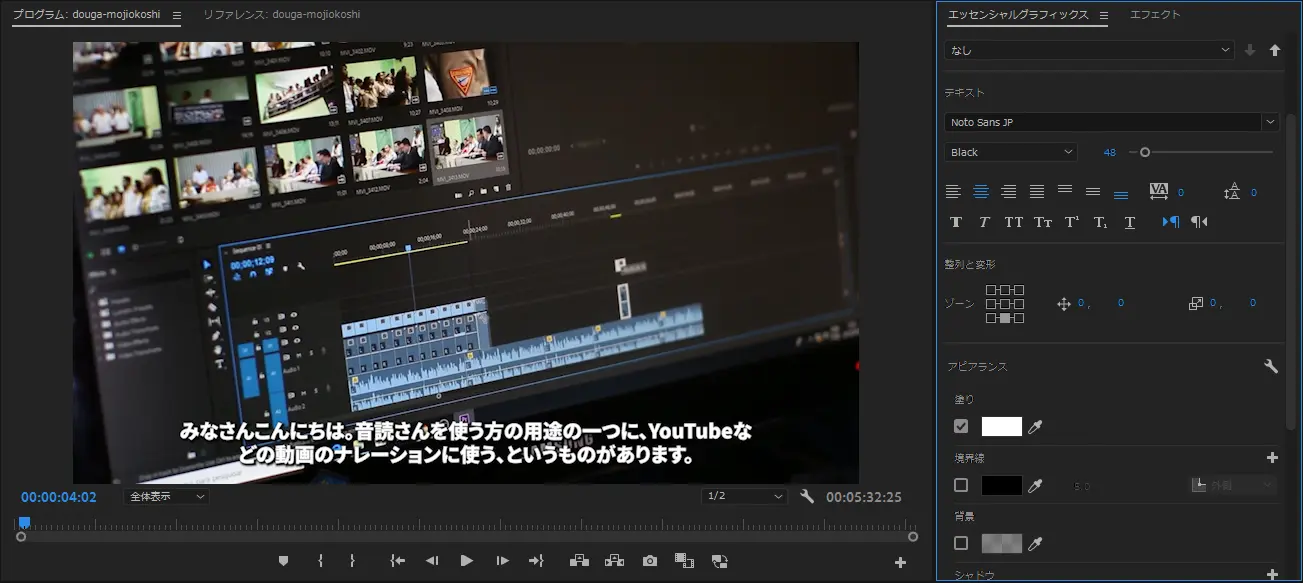
or change the color of the subtitle outline (shadow), among many other edits.
4. Encode the video in Adobe Premiere Pro
Finally, encode the project with the subtitles inserted and export a file to upload to video sites such as YouTube.
As you can see, generating an SRT file with the AI transcription service "Mr. Transcription" lets you add subtitles to a video far more easily than typing them in yourself on a keyboard.
How to insert automatically generated subtitles in DaVinci Resolve
DaVinci Resolve is a popular video editing program whose professional features are free to use.
In DaVinci Resolve as well, you can add subtitles automatically from an SRT file just as easily as in Adobe Premiere Pro.
1. Load the SRT file into DaVinci Resolve
To load a subtitle SRT file into DaVinci Resolve, first open your project.
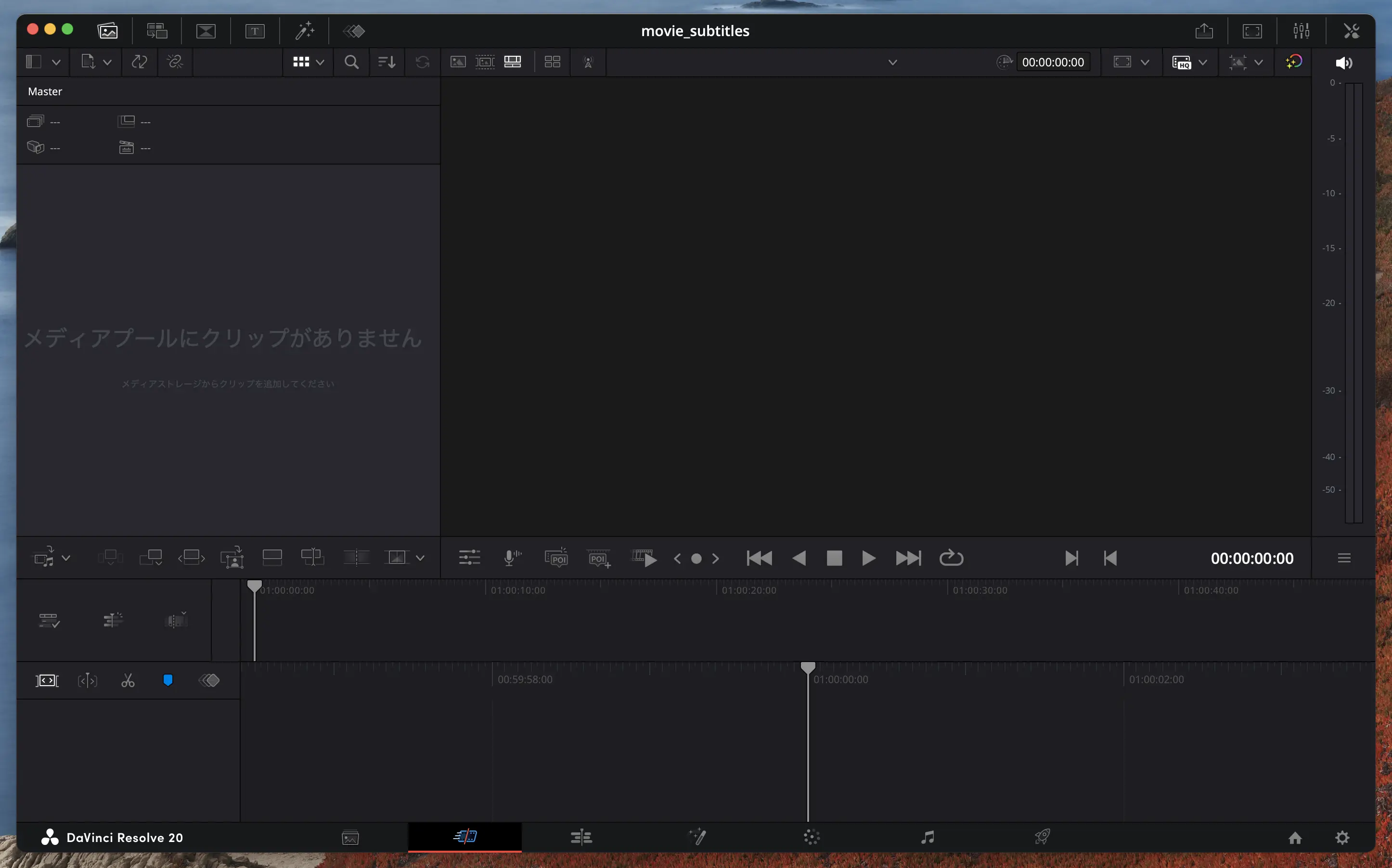
Once the project is open, import the SRT file into the Media Pool.
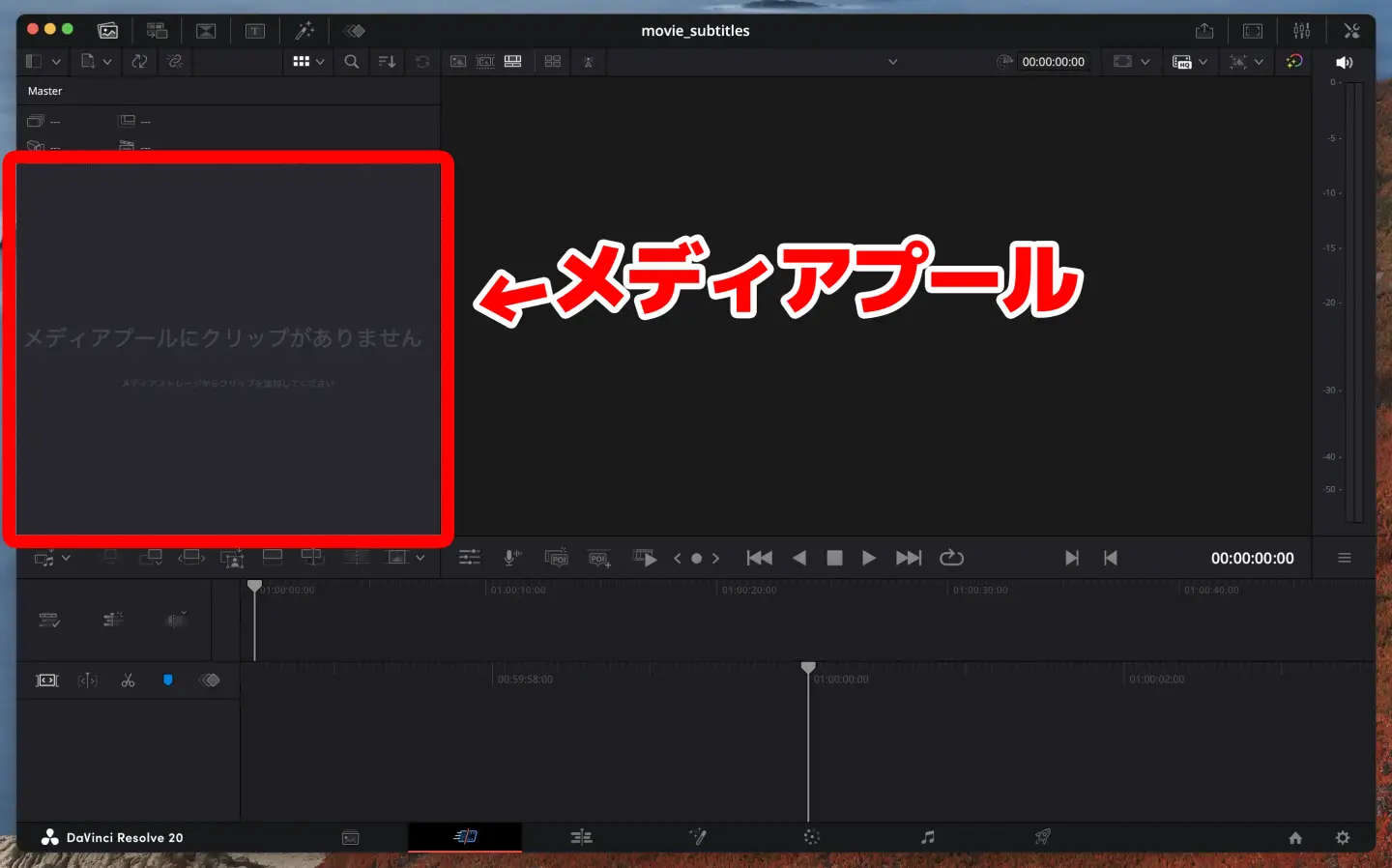
There are two ways to import an SRT file into the Media Pool.
- Drag and drop the SRT file directly onto the Media Pool
- Choose "Import Media" → "Subtitle" from the File menu
With either method, once the import succeeds, the subtitle SRT file appears in the Media Pool.
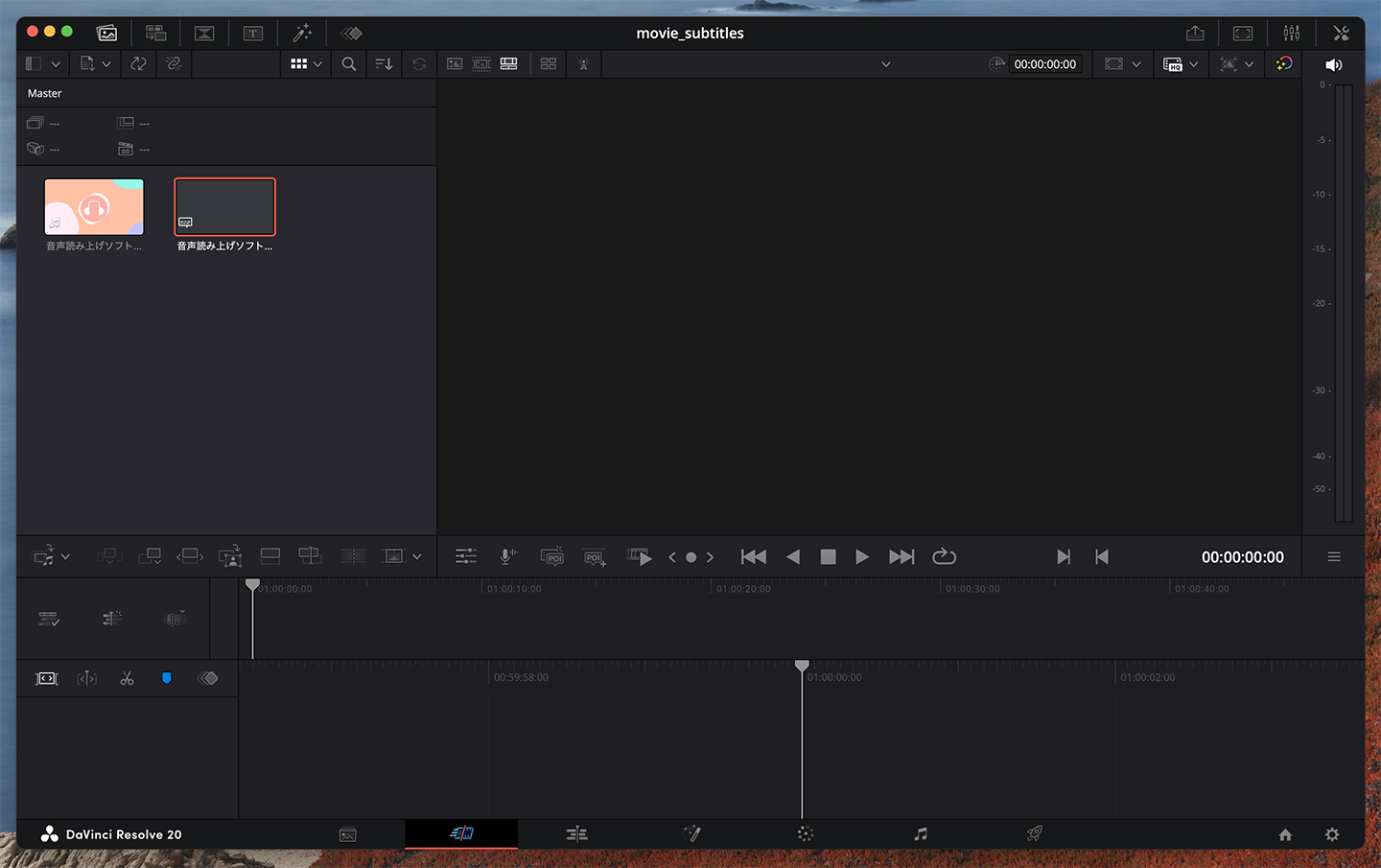
2. Place the subtitle SRT file on the timeline
After loading the SRT file into the Media Pool, next place the subtitles on the timeline.
The method is very simple.
Just drag and drop the SRT file onto the timeline.
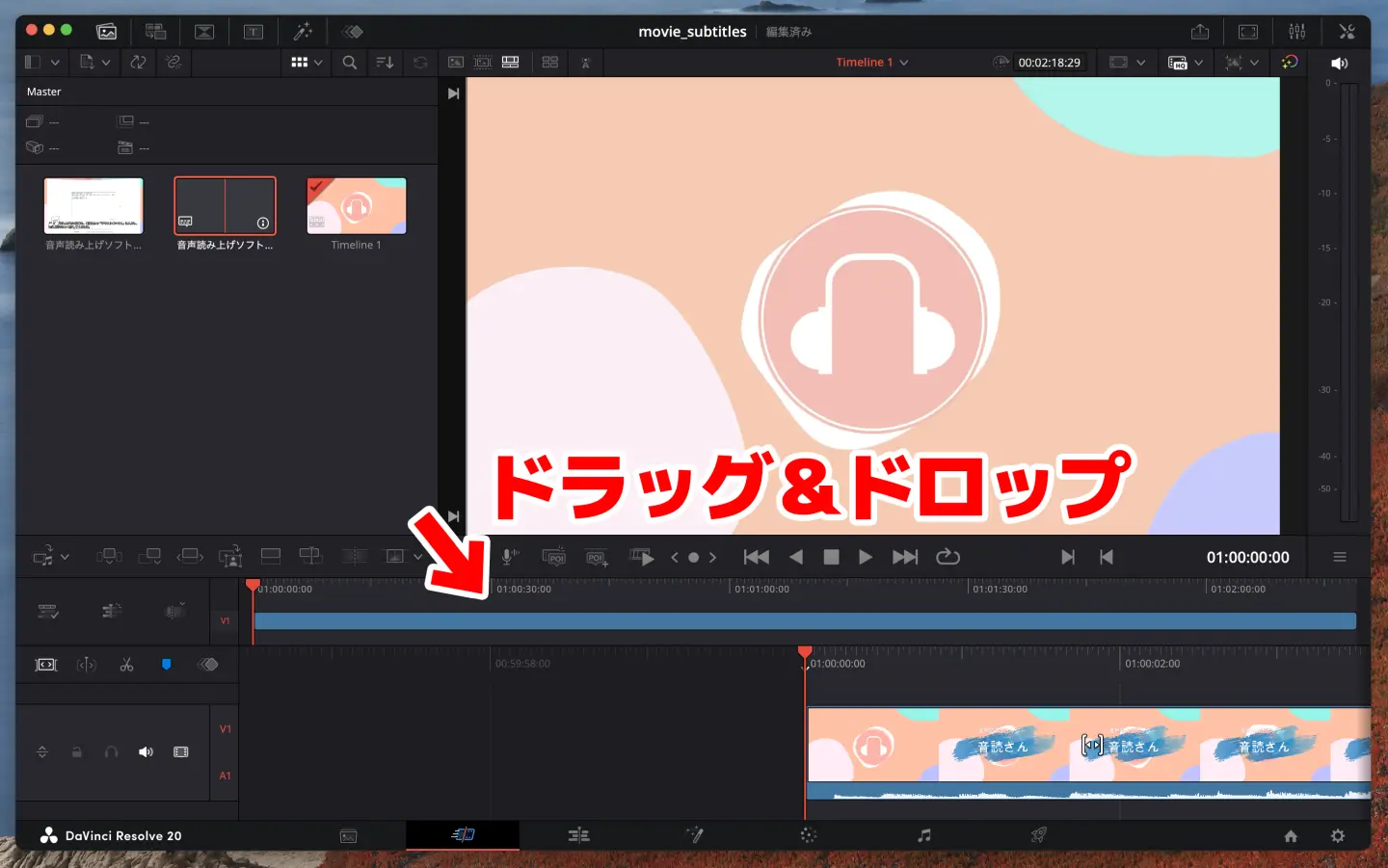
Then, as shown here, the subtitles appear above the video footage.
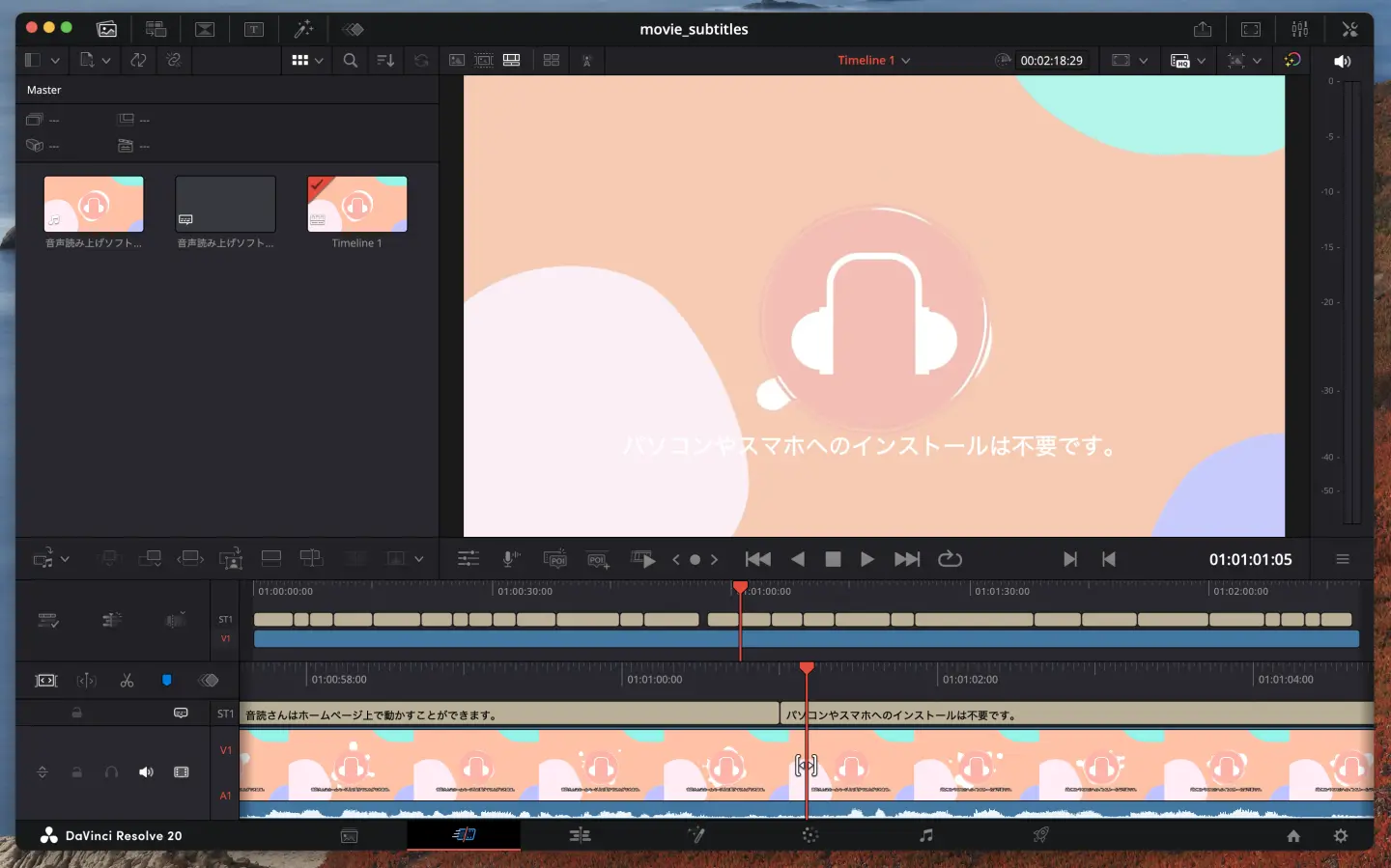
3. Adjust the subtitle display and encode the video
Once the subtitle content is loaded, adjust how the subtitles look by editing the display size and line break positions.
After that, just encode the video in a format suited to video sites such as YouTube and export it.
DaVinci Resolve, which is free to use, is a very full-featured video editing program that can handle professional work.
Combined with the automatic subtitle generation of the AI transcription service "Mr. Transcription", you can easily produce high-quality videos.
Related articles on using Adobe Premiere Pro and DaVinci Resolve
This article also explains in detail how to transcribe video files such as MP4 and add subtitles.
Please take a look.
How to Transcribe a Video and Create Subtitles: Recommended Steps to Make an SRT File from MP4 for Free
Learn how to transcribe video files such as MP4 and create subtitles (an SRT file). Just upload the video in your browser to create the subtitle text, then apply it in Adobe Premiere and DaVinci Resolve. Free...
How to add an automatically generated SRT file to a YouTube video
Next, we show how to add subtitles with an SRT file using YouTube's built-in subtitle feature.
With the SRT file generated by "Mr. Transcription", you can easily add subtitles to videos you have uploaded to your YouTube channel.
YouTube supports loading SRT files
For videos uploaded to YouTube, you can load an SRT file to add subtitles automatically.
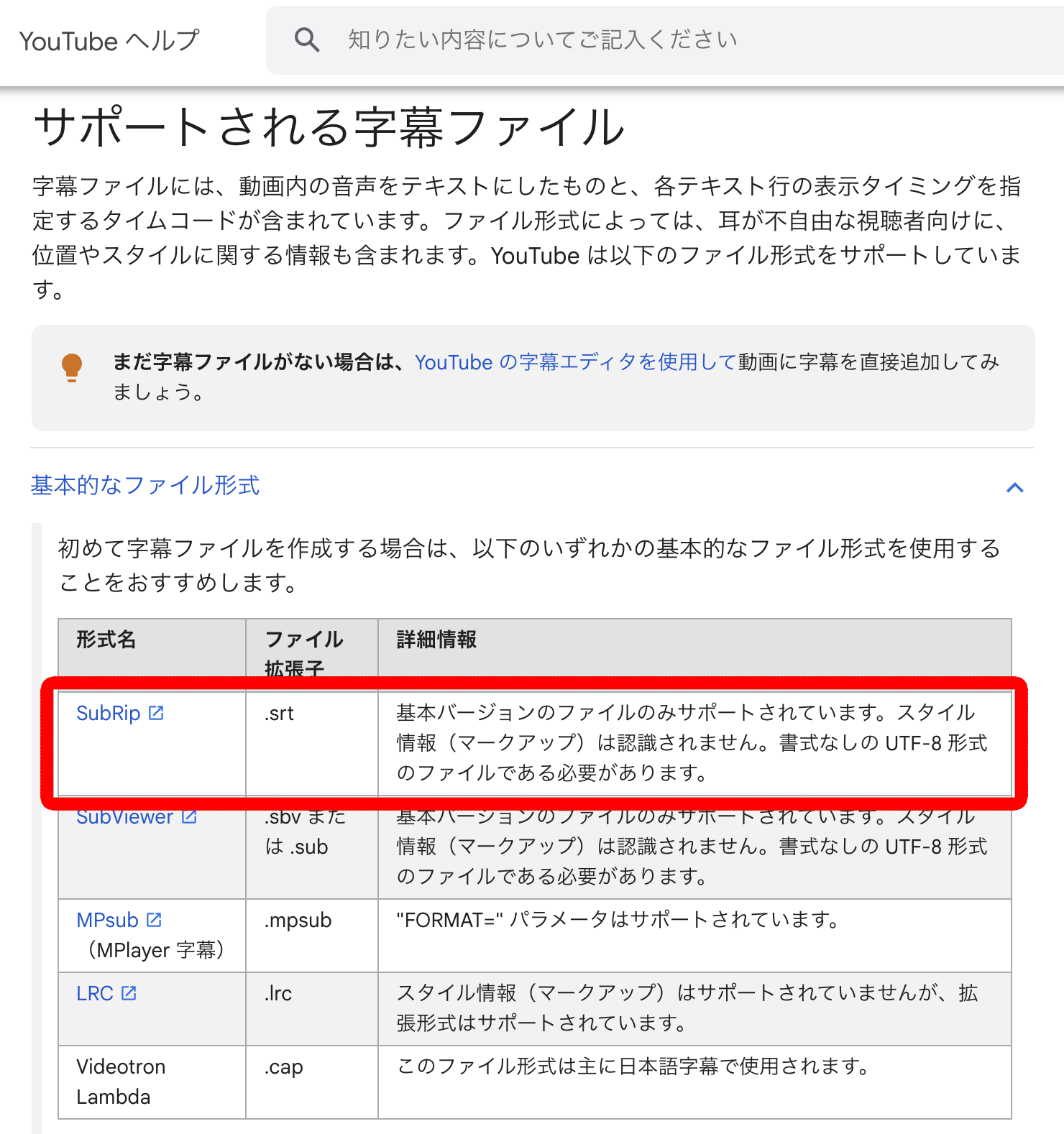
According to the official YouTube site, as shown here, it supports various video subtitle file formats, starting with SRT files.
Of course, it also supports loading SRT files.
You can easily add subtitles even to videos that are already uploaded, so you can make past videos easier to watch, or add foreign-language subtitles to increase views and subscribers.
How to upload an SRT file with Japanese subtitles to YouTube
Here are the steps to add Japanese subtitles to YouTube with an SRT file.
First, in your browser, open the "Video details" screen of the video you want to add subtitles to.
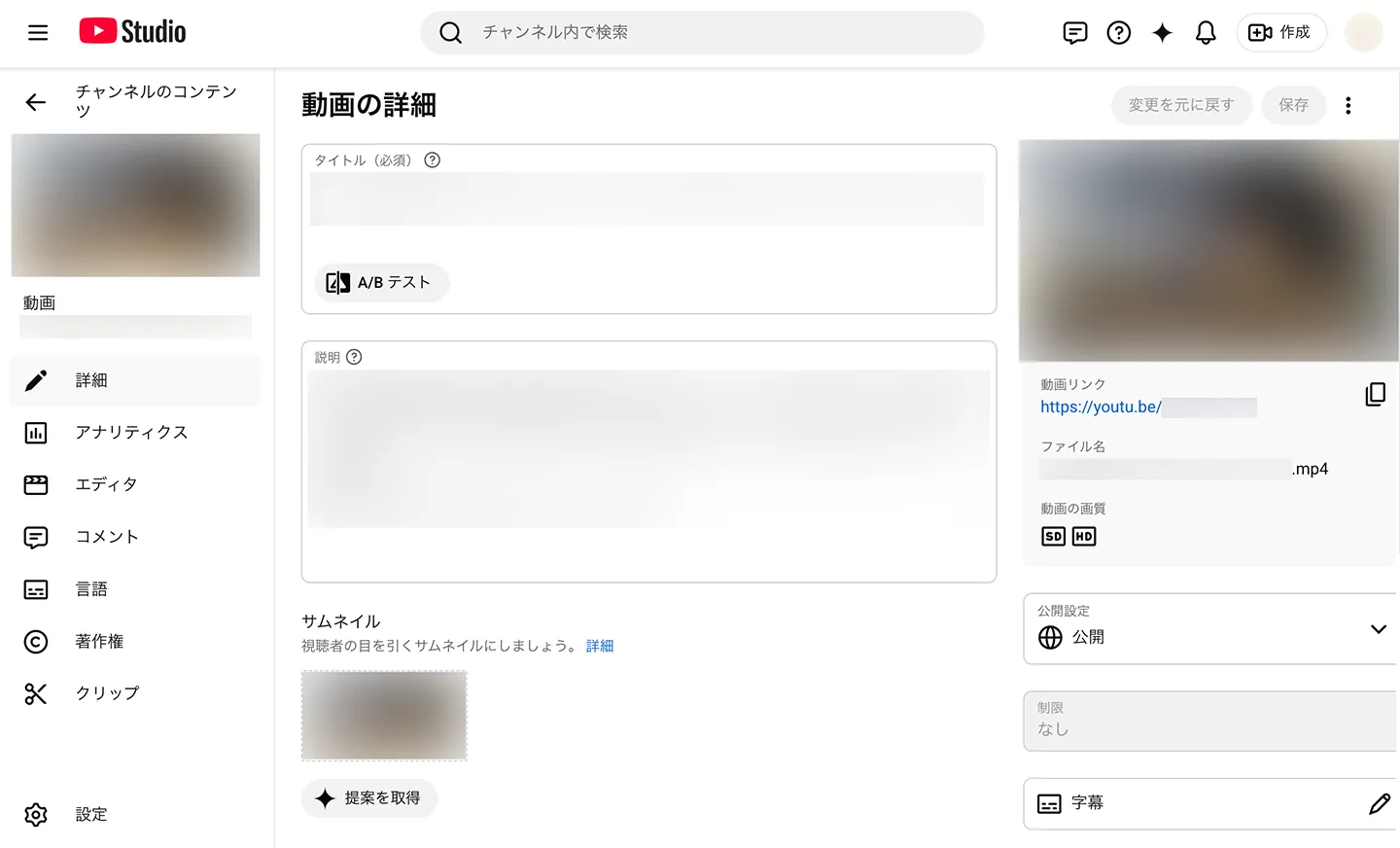
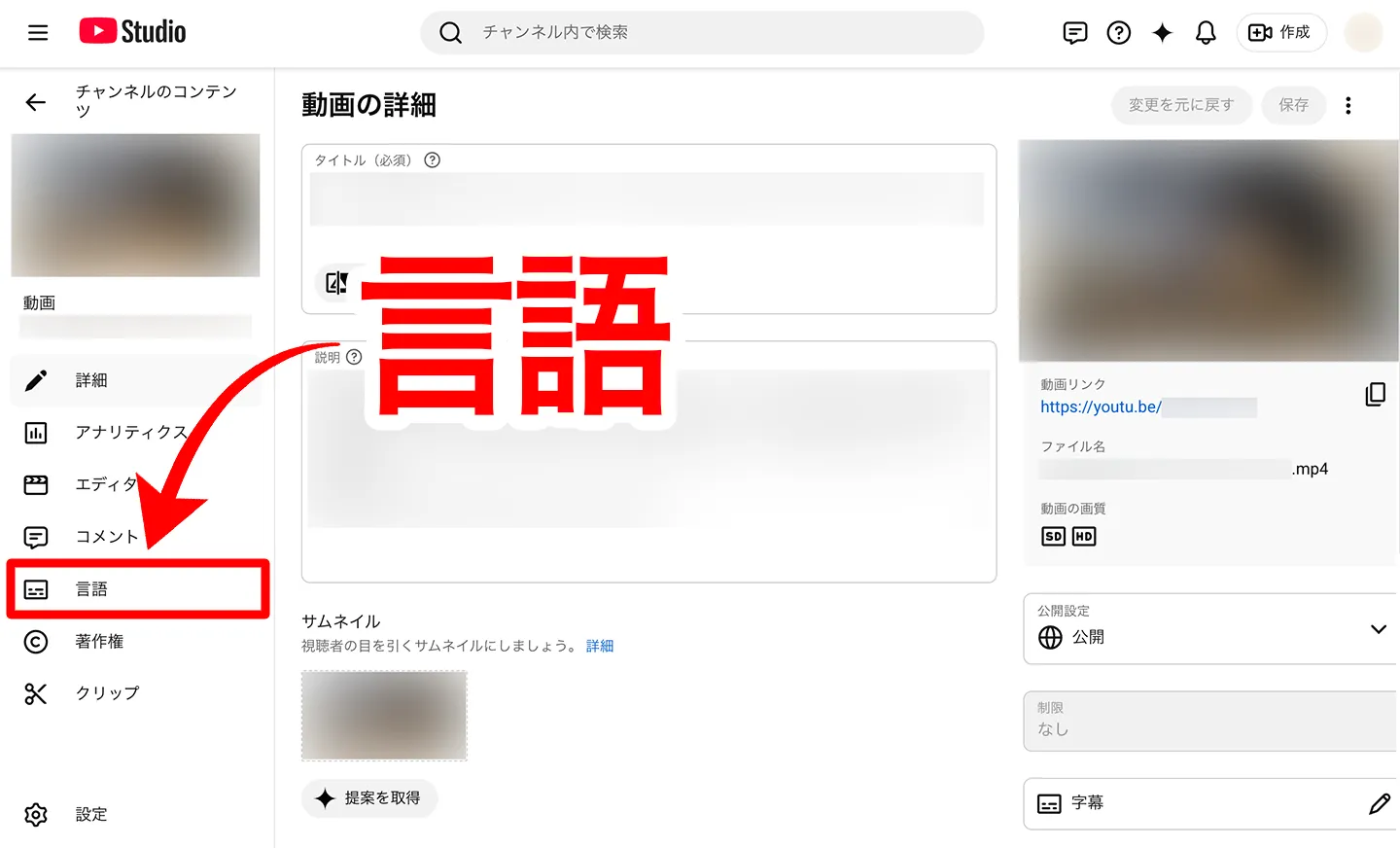
Click "Languages" in the menu on the left.
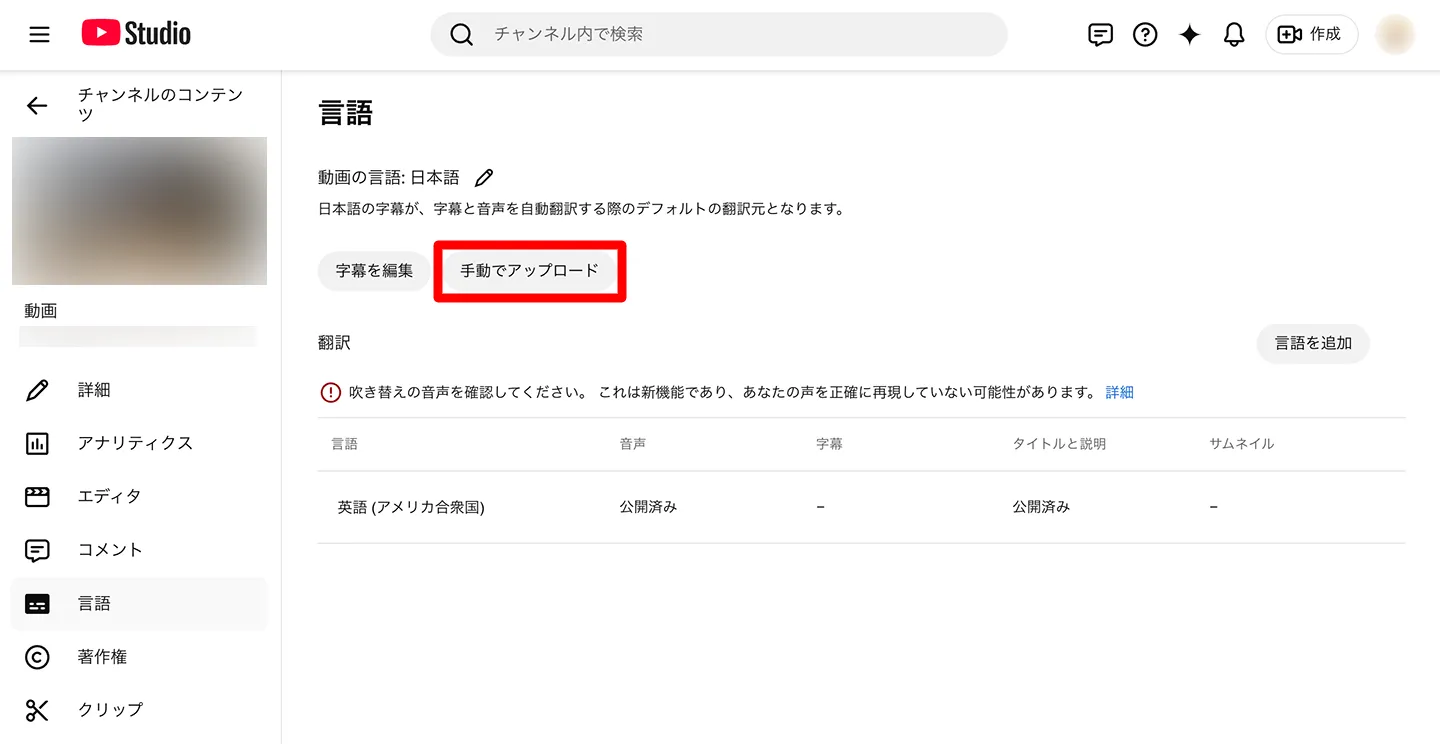
Click "Upload manually" under "Video language".
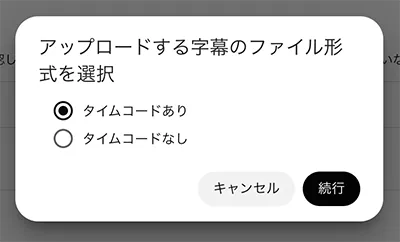
A window appears asking whether the file has timing. Select "With timing".
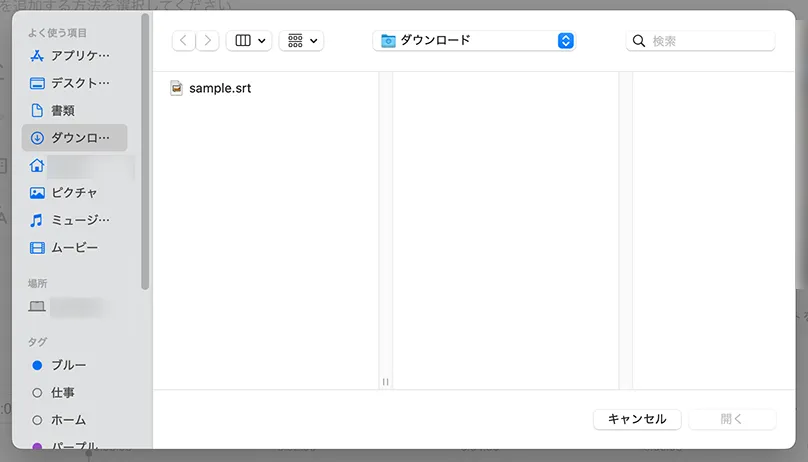
Select the SRT file you generated automatically.
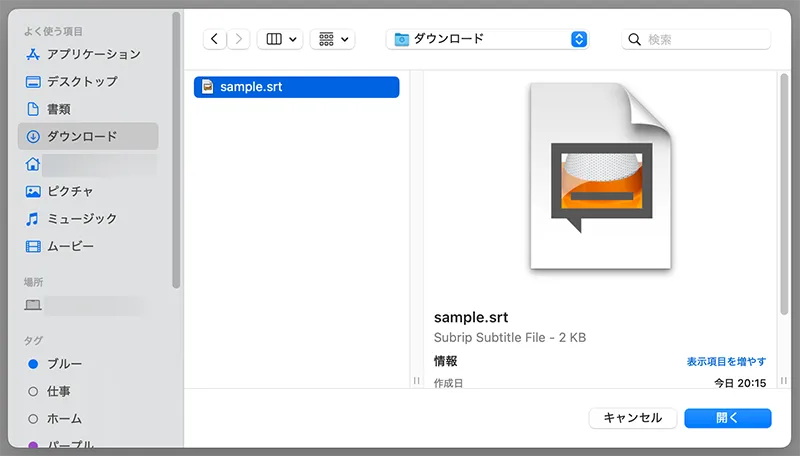
Once the SRT file is loaded, an upload completion message appears, such as "Japanese subtitles uploaded".
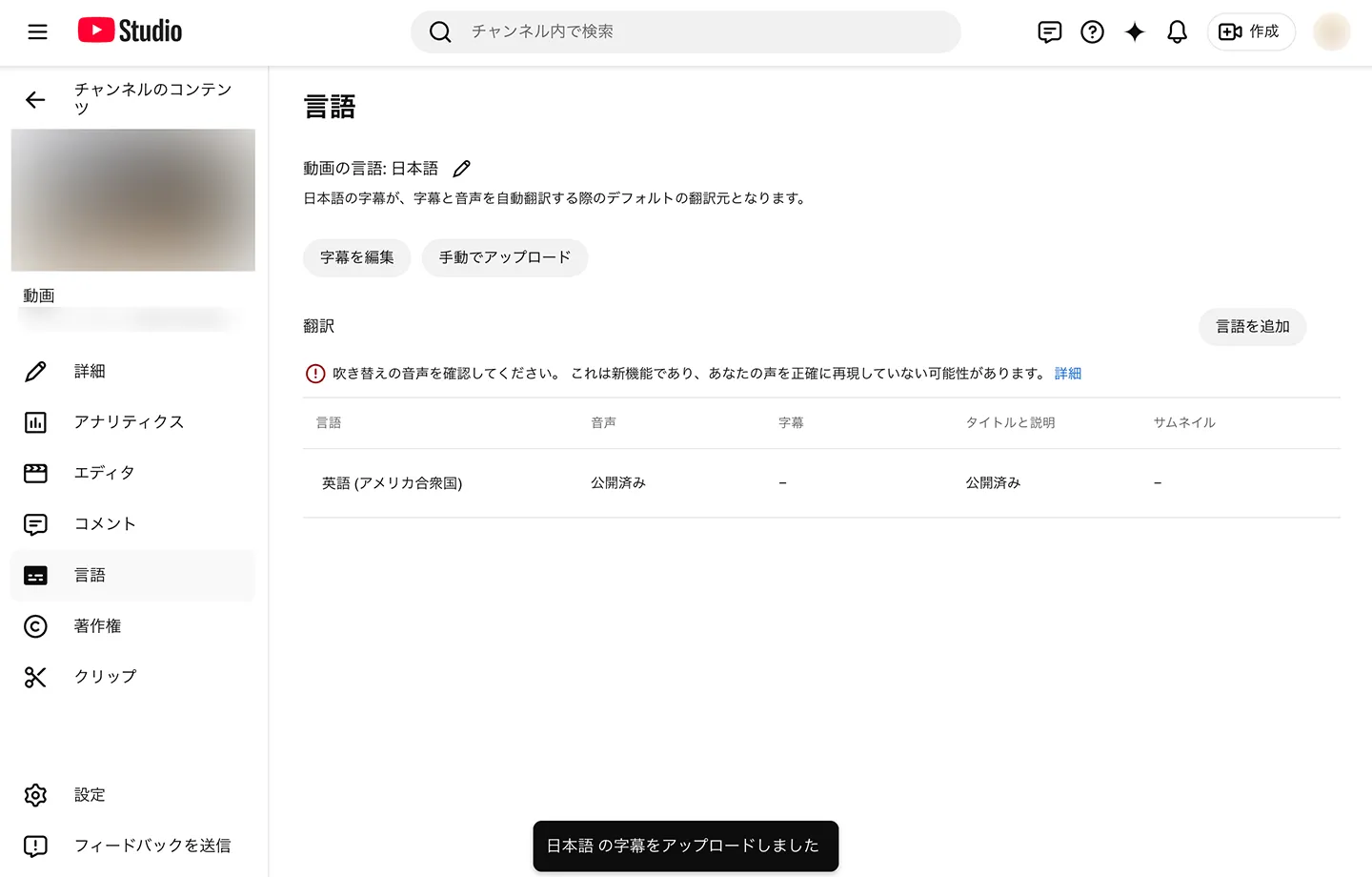
You have now loaded Japanese subtitles from the SRT file into your YouTube video.
What if the SRT file upload fails?
Even after you choose "Upload manually", the file sometimes cannot be loaded and an error appears.
In that case, re-saving the automatically transcribed subtitles will let you upload the SRT file.
First, click "Edit subtitles".
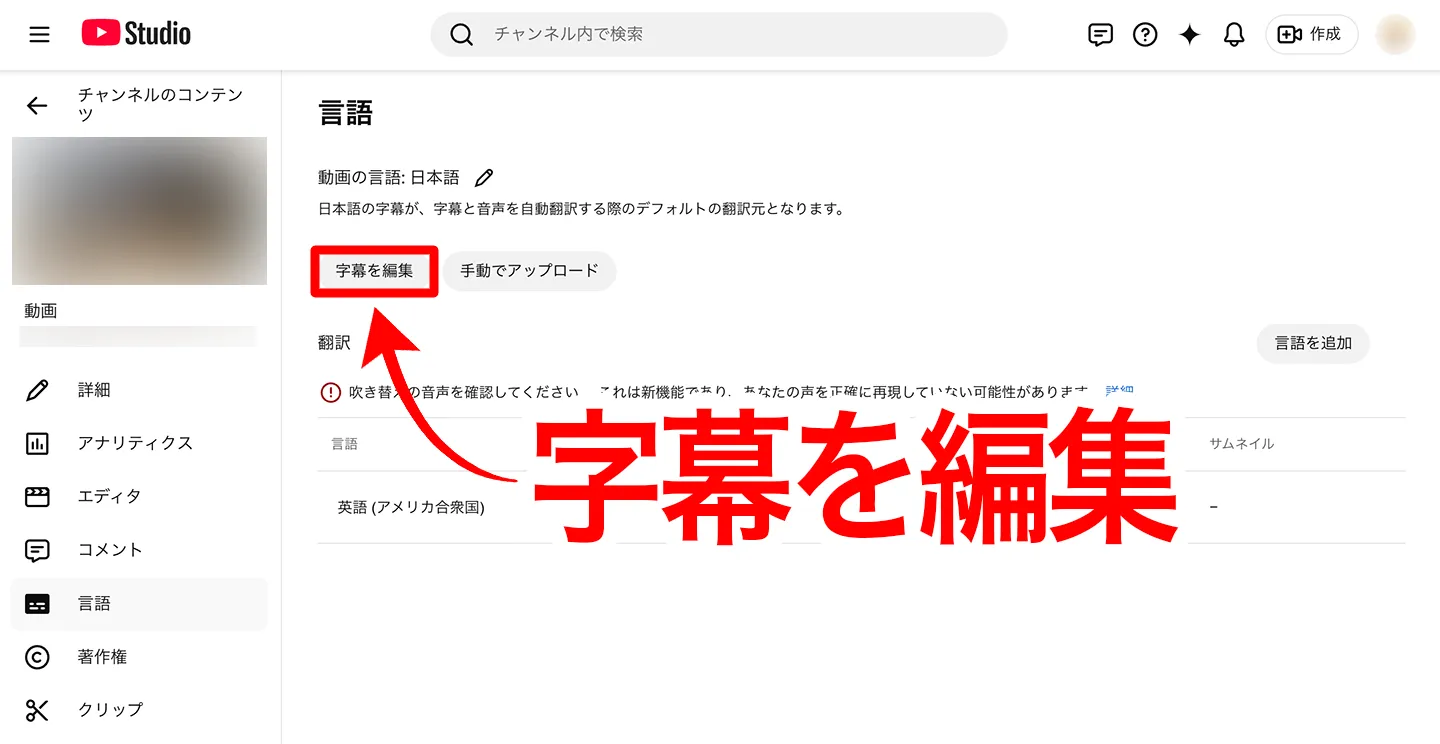
The subtitles that YouTube created automatically are displayed. Without editing them, click "Publish" to save them as they are.
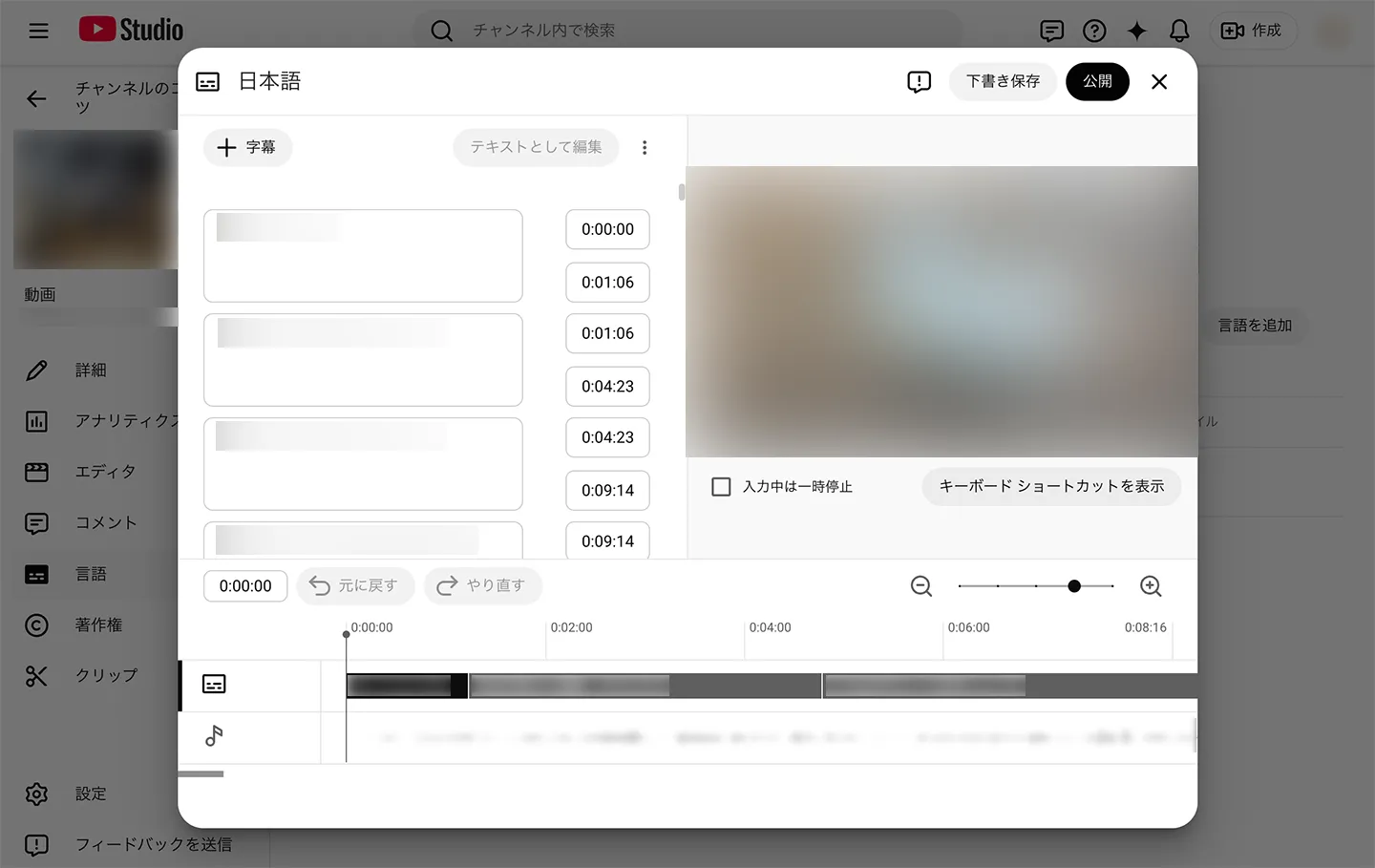
After that, press "Upload manually" again and you will be able to load the subtitle file.
How to add an SRT file for foreign-language subtitles such as English
With an SRT file, you can also easily add subtitles in foreign languages, starting with English.
To add foreign-language subtitles, click "Add language" on the "Languages" screen and select the language you want to add, such as English.
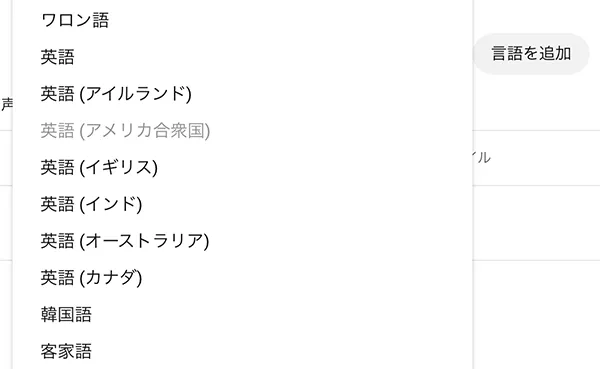
The language has been added to the language list, as shown here.
*YouTube may already have added "English (United States)" automatically.
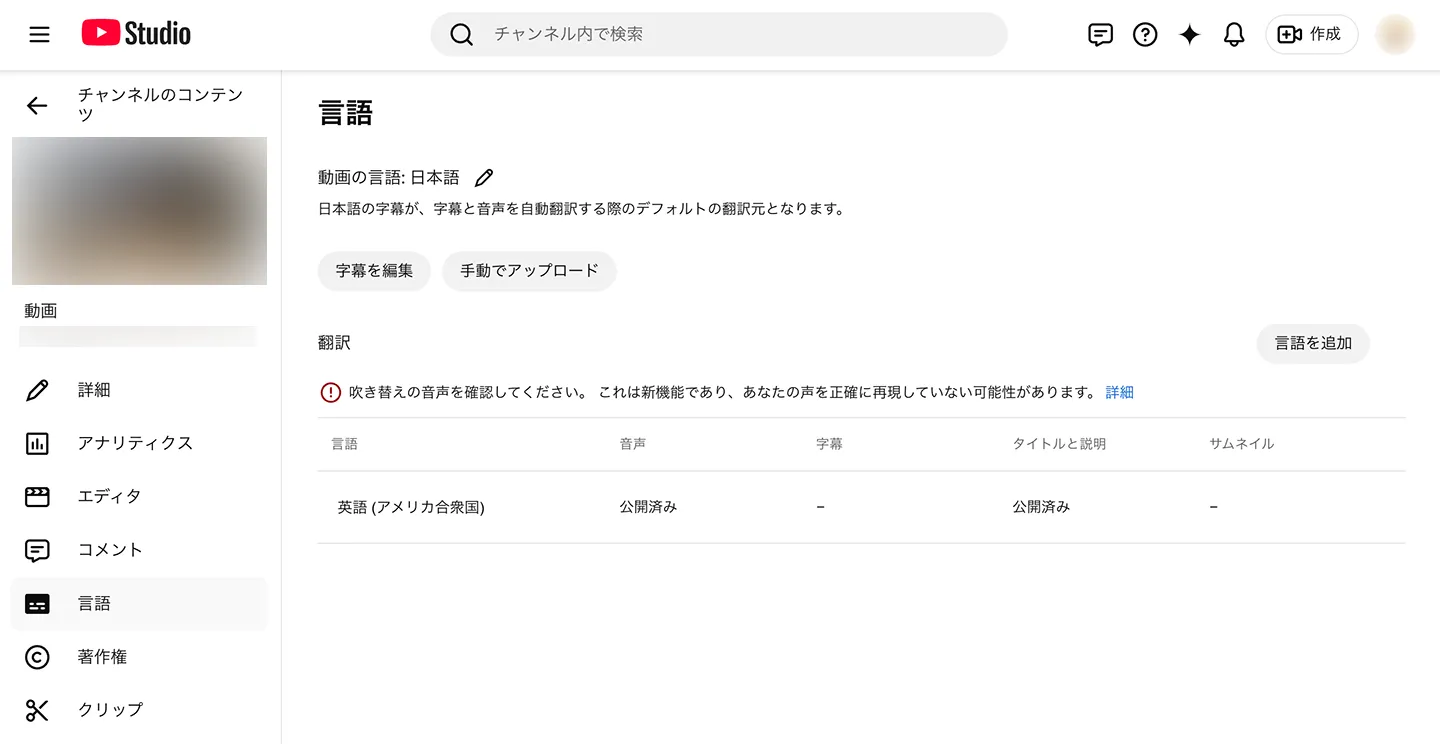
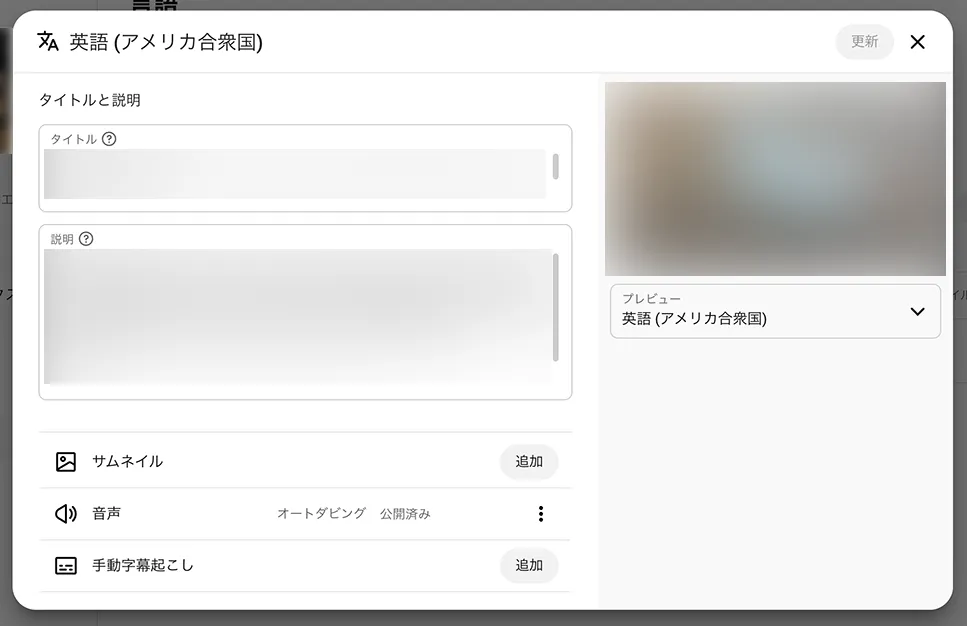
When you click the language name, the editing screen for the title, description, and subtitles opens, so enter the title and description for that language.
Click "Add" in the "Manual transcription" row.
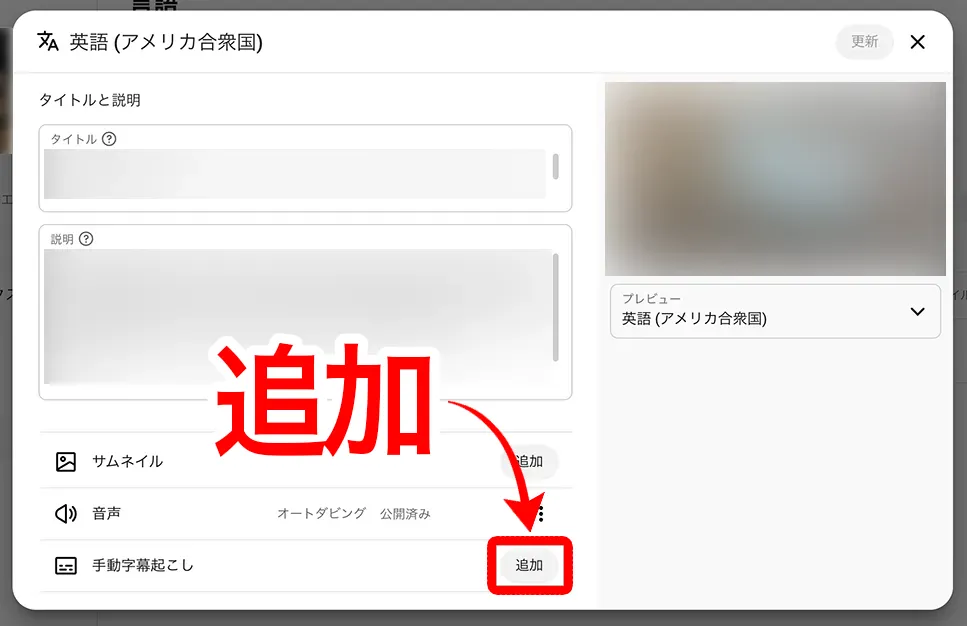
Select "With timing".
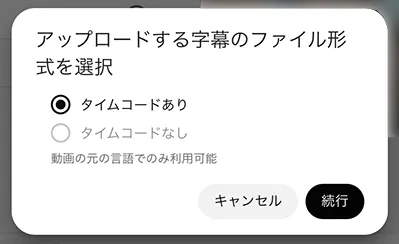
The file selection screen opens, so select the SRT file.
Once the SRT file is loaded, the subtitle editing screen opens.
Check the content, and if everything looks fine, click "Publish".
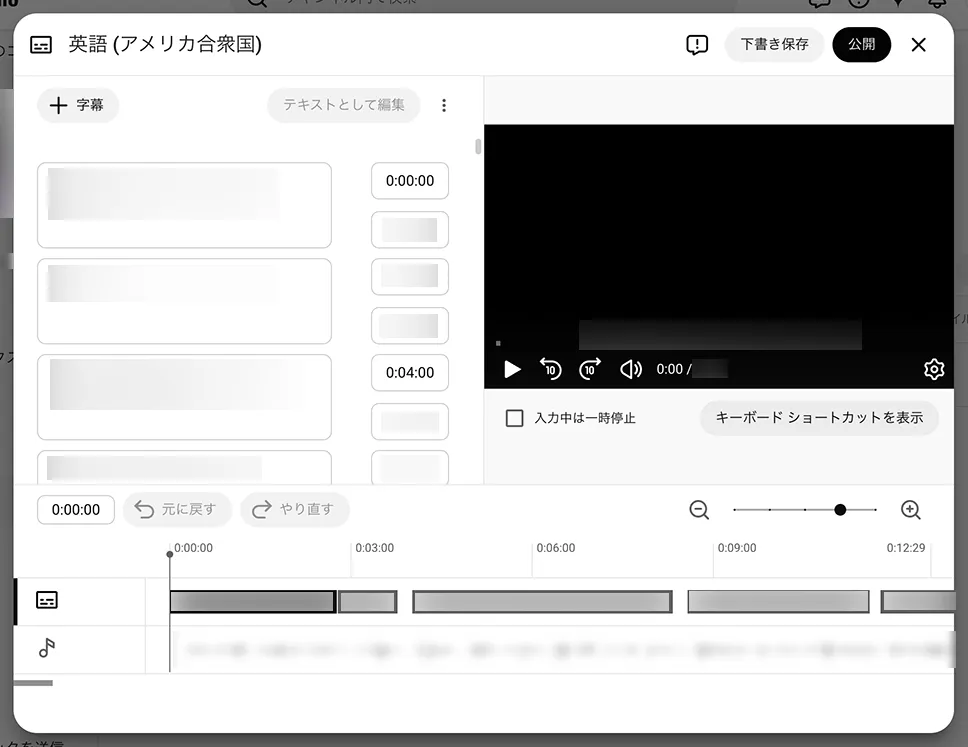
You have now added subtitles from an SRT file in a language other than Japanese as well.
This article explains in more detail how to create SRT files for foreign-language subtitles such as English using AI translation.
If you want to grow your audience and subscribers abroad, be sure to read it as well.

[Free] How to Add English Subtitles to a YouTube Video: AI-Translate an SRT File in Just Your Browser
Learn how to add English or other foreign-language subtitles to a YouTube video for free, in just your browser. With images: create a Japanese SRT file on an AI transcription site, translate it with generative AI, and add it to YouTube.
Benefits of automatically generating SRT files for video subtitles

Adding subtitles to a video brings many benefits.
By adding subtitles to videos you upload to YouTube, other video sites, and social media, you can boost views and subscribers all at once.
With subtitles, a video can be watched in any situation
The biggest benefit of adding subtitles to YouTube videos is that people can watch your videos in a variety of situations.
On a commuter train, while waiting at a café, during a break at the office: there are many situations in which you want to watch a video without sound.
With subtitles, viewers can understand a video's content even without earphones.
Viewers can watch freely to suit their own lifestyle, so more people will see your videos.
Add subtitles to the whole video to improve understanding and appeal
By generating subtitles automatically, you can add subtitles to the whole video and greatly improve viewers' understanding and the video's appeal.
Entering subtitles yourself takes effort, so until now it was common to add subtitles only to important parts of a video.
If you generate subtitles automatically with the latest AI, you can easily add them to the entire video.
Compared with partial subtitles, the video's content is conveyed more clearly, which makes the video more appealing and increases views and subscribers.
Improve the accessibility of YouTube videos
For people with hearing impairments, subtitles are essential to enjoying a video.
Adding subtitles can also improve accessibility for older viewers.
We are entering an era in which YouTube videos too are expected to be accessible and barrier-free.
By generating subtitles automatically with the latest AI, anyone can easily make their YouTube videos more accessible.
Generate subtitles and captions automatically and get more people to watch your videos
As you can see, with AI transcription you can generate an SRT file automatically just by uploading a video.
With the AI transcription service "Mr. Transcription", no complicated settings are needed, and you can create subtitles in just your browser.
To start, we recommend using "Mr. Transcription" to experience automatic subtitle generation for free.
Why not generate subtitles and captions for your videos automatically and boost the views and subscribers of your YouTube channel?
■ AI transcription service "Mr. Transscription"
"Mr. Transcription" is an online transcription tool that can be used from zero initial cost and 1,000 yen per month (* free version available).
- Supports more than 20 file formats such as audio, video, and images
- Can be used from both PC and smartphone
- Supports technical terms such as medical care, IT, and long-term care
- Supports creation of subtitle files and speaker separation
- Supports transcription in approximately 100 languages including English, Chinese, Japanese, Korean, German, French, Italian, etc.
To use it, just upload the audio file from the site. Transcription text is available in seconds to tens of minutes.
You can use it for free if you transcribe it for up to 10 minutes, so please try it once.

It is "Mr. Transcription" who can easily transcribe from audio, video, and images.
Transcription allows you to transcribe for up to 10 minutes for free.
You can copy, download, search, delete, etc. the transcribed text.
You can also create subtitle files, which is ideal for transcription of interview videos.
HP: mojiokoshi3.com
Email: mojiokoshi3.com@gmail.com
Email: mojiokoshi3.com@gmail.com
Related article
Transcription for audio / video / image transcription. It is a transcription service that anyone can use for free without installation.
- What is Mr. Transcription?
- Transcript images, sounds, and videos with Mr. Transcription
- Free registration
- Rate plan
- manual
- Try other free services