How to Use Mojikoshi-san: Easy AI Transcription Service Guide
Add Screen Recording to iPhone Control Center: Easy iOS Guide
March 14, 2026

My iPhone Control Center doesn't have a screen recording button...

You might find that the screen recording button is missing from your iPhone or iPad Control Center.
The screen recording feature can be easily added from the Control Center settings.
In this article, we'll explain how to add the screen recording feature to your iPhone's Control Center, complete with screenshots.
You can also use the same steps to add other features besides screen recording to your Control Center, so be sure to check it out.
*This guide uses iOS 26 screens.
Steps to Add Screen Recording to Control Center
Sometimes, the screen recording feature might not be visible in your iPhone or iPad's Control Center.
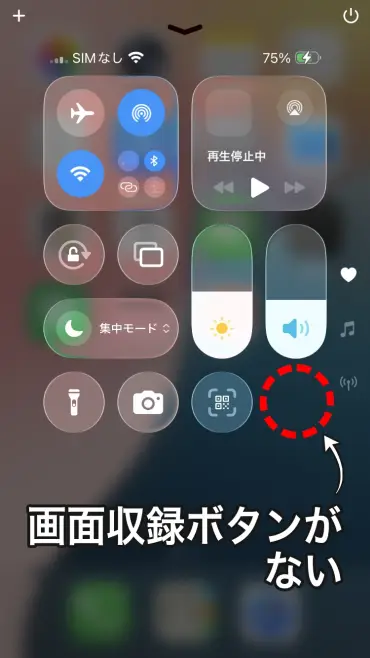
In this case, you'll need to add the screen recording feature to the Control Center.
1. Open the Control Center Edit Screen
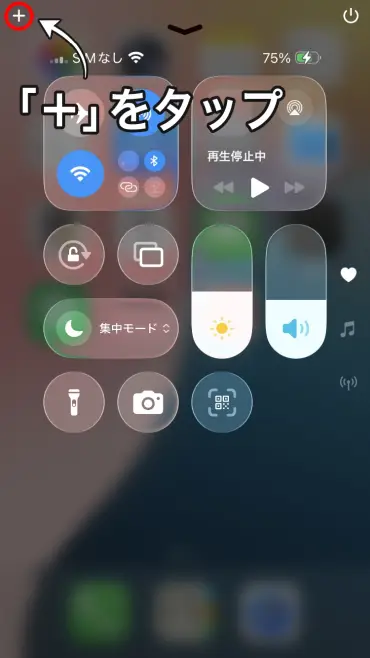
To add the screen recording feature, first, tap the "+" in the top left corner of the Control Center to enter the control editing screen.
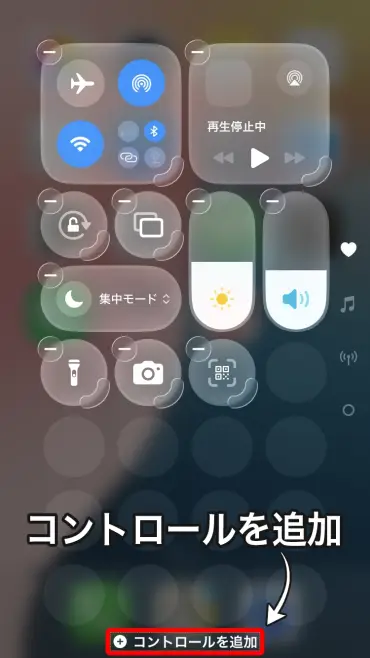
2. Tap "Add Control"
Tap "Add Control" at the bottom of the screen.
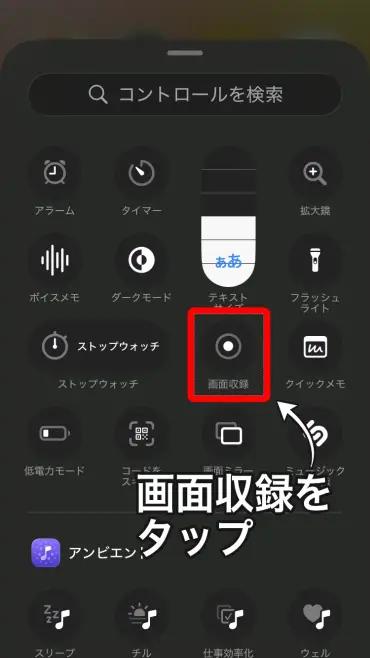
3. Select "Screen Recording"
A list of available controls will appear, so tap "Screen Recording".
This will add the screen recording feature to your Control Center.
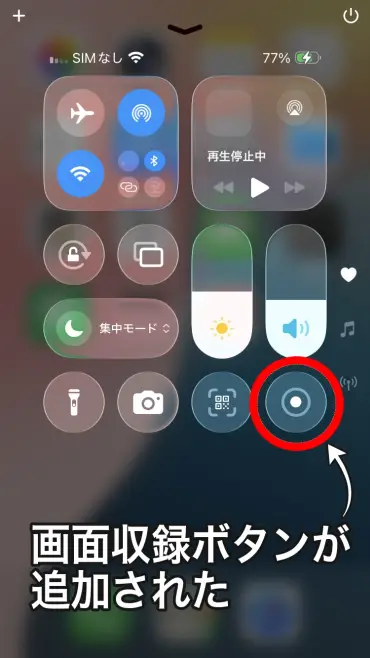
Now you can use screen recording directly from the Control Center.
Other Features Can Be Added Using the Same Steps
The steps described above can also be used to add other controls besides screen recording.
The "Add Control" screen offers various features such as timers, calculators, alarms, and text size options.
Adding frequently used features to your Control Center is convenient, as it allows you to access them quickly without having to search for the app.
If You Want to Transcribe Videos Recorded with Screen Recording
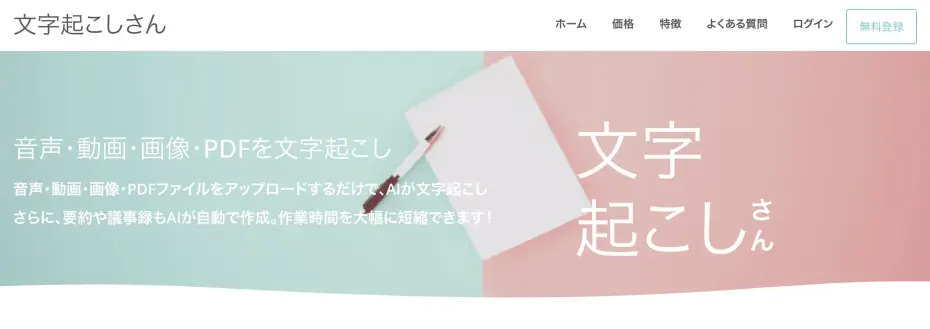
If you want to convert the content of videos recorded with screen recording into text, the AI transcription website Mr. Transcription is highly recommended.
Simply upload your video file, and the AI will automatically transcribe the audio into text.
It's also useful for transcribing screen recordings of LINE calls or web conferences to create meeting minutes.
It's free to use and no registration is required, so give it a try!
■ AI transcription service "Mr. Transscription"
"Mr. Transcription" is an online transcription tool that can be used from zero initial cost and 1,000 yen per month (* free version available).
- Supports more than 20 file formats such as audio, video, and images
- Can be used from both PC and smartphone
- Supports technical terms such as medical care, IT, and long-term care
- Supports creation of subtitle files and speaker separation
- Supports transcription in approximately 100 languages including English, Chinese, Japanese, Korean, German, French, Italian, etc.
To use it, just upload the audio file from the site. Transcription text is available in seconds to tens of minutes.
You can use it for free if you transcribe it for up to 10 minutes, so please try it once.

It is "Mr. Transcription" who can easily transcribe from audio, video, and images.
Transcription allows you to transcribe for up to 10 minutes for free.
You can copy, download, search, delete, etc. the transcribed text.
You can also create subtitle files, which is ideal for transcription of interview videos.
HP: mojiokoshi3.com
Email: mojiokoshi3.com@gmail.com
Email: mojiokoshi3.com@gmail.com
Related article
Transcription for audio / video / image transcription. It is a transcription service that anyone can use for free without installation.
- What is Mr. Transcription?
- Transcript images, sounds, and videos with Mr. Transcription
- Free registration
- Rate plan
- manual
- Try other free services