Mr. Transcription Delete and Bulk Delete: How to Use and Notes
How to Add Screen Recording to iPhone Control Center (iOS)
Oct. 9, 2026

There's no Screen Recording button in my iPhone's Control Center...

The Screen Recording button may be missing from the Control Center on your iPhone or iPad.
You can easily add Screen Recording from the Control Center settings.
This article explains, with screenshots, how to add Screen Recording to the Control Center on your iPhone.
The same steps let you add other features to the Control Center too, so please use this as a reference.
※The screens shown here are from iOS 26.
How to add Screen Recording to the Control Center
Sometimes Screen Recording can't be found in the Control Center on an iPhone or iPad.
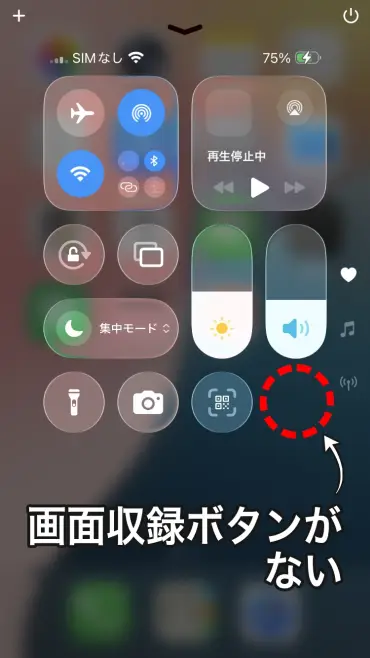
In this case, you need to add Screen Recording to the Control Center.
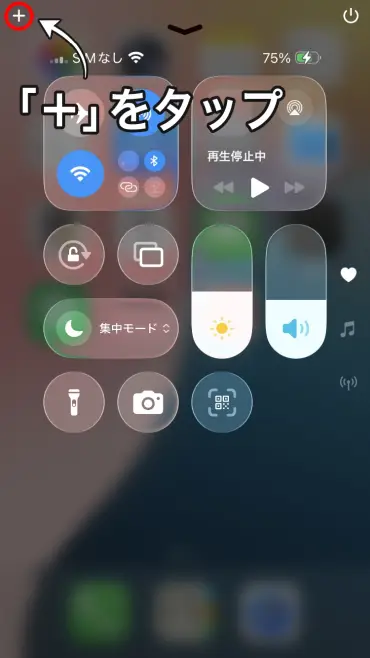
1. Open the Control Center edit screen
To add Screen Recording, first tap the "+" at the top left of the Control Center to enter the controls edit screen.
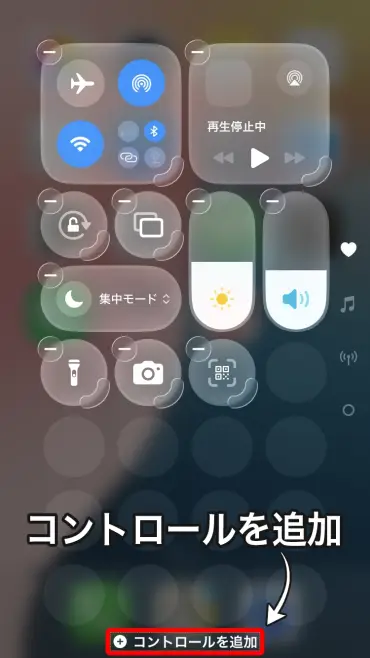
2. Tap "Add a Control"
Tap "Add a Control" at the bottom of the screen.
3. Select "Screen Recording"
A list of controls you can add appears, so tap "Screen Recording".
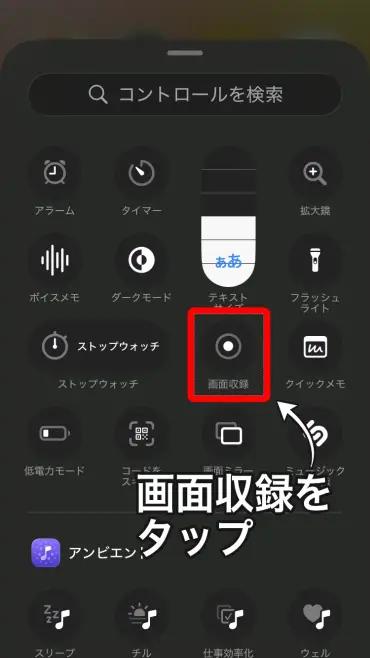
Screen Recording is then added to the Control Center.
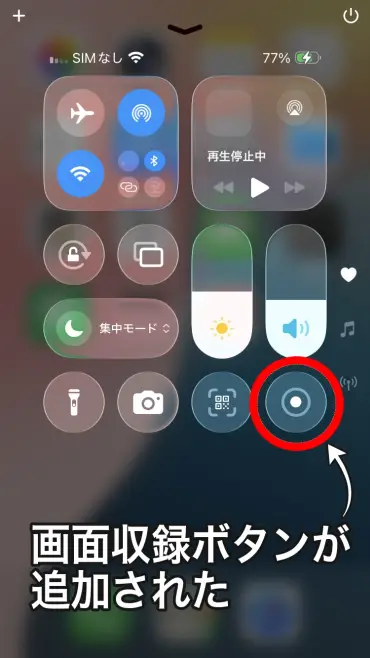
You can now use Screen Recording from the Control Center.
Other features can be added with the same steps
The steps above work the same way when you add controls other than Screen Recording.
The "Add a Control" screen offers a variety of features, such as Timer, Calculator, Alarm, and Text Size.
If you add the features you use often to the Control Center, you can reach them right away without searching for the app, which is very handy.
If you want to transcribe videos recorded with Screen Recording
If you want to turn the contents of a video recorded with Screen Recording into text, we recommend the AI transcription site "Mr. Transcription".
Just upload the video file as it is, and the AI transcribes the audio automatically.
It is also handy when you want to transcribe a screen recording of a LINE call or web meeting and turn it into meeting minutes.
It is free to use with no registration required, so please give it a try.
If you would like to compare transcription apps for iPhone and choose one, please also see the article "7 Best Transcription Apps for iPhone [Free Options Included, 2026 Edition]".
■ AI transcription service "Mr. Transscription"
"Mr. Transcription" is an online transcription tool that can be used from zero initial cost and 1,000 yen per month (* free version available).
- Supports more than 20 file formats such as audio, video, and images
- Can be used from both PC and smartphone
- Supports technical terms such as medical care, IT, and long-term care
- Supports creation of subtitle files and speaker separation
- Supports transcription in approximately 100 languages including English, Chinese, Japanese, Korean, German, French, Italian, etc.
To use it, just upload the audio file from the site. Transcription text is available in seconds to tens of minutes.
You can use it for free if you transcribe it for up to 10 minutes, so please try it once.

It is "Mr. Transcription" who can easily transcribe from audio, video, and images.
Transcription allows you to transcribe for up to 10 minutes for free.
You can copy, download, search, delete, etc. the transcribed text.
You can also create subtitle files, which is ideal for transcription of interview videos.
HP: mojiokoshi3.com
Email: mojiokoshi3.com@gmail.com
Email: mojiokoshi3.com@gmail.com
Related article
Transcription for audio / video / image transcription. It is a transcription service that anyone can use for free without installation.
- What is Mr. Transcription?
- Transcript images, sounds, and videos with Mr. Transcription
- Free registration
- Rate plan
- manual
- Try other free services