7 Best OCR Apps: Extract Text from Images & PDFs Easily
LINE Voice Input: Send Messages Easily on iPhone & Android
March 14, 2026

I want to send messages on LINE using voice input!
To send LINE messages by voice input, all you need to do is turn on the voice input function on your iPhone, iPad, or Android smartphone and tap the microphone icon on the keyboard.
This article provides a detailed, screenshot-guided explanation of how to send messages on LINE using voice input, from setup to the actual input process.
※This guide uses screenshots from iOS 18 for iPhone and Android 12 for Android smartphones.
How to Set Up Voice Input (iPhone/Android)
To use voice input for LINE messages, you first need to enable the voice input function on your smartphone.
How to Set Up Voice Input on iPhone/iPad
To enable voice input on your iPhone or iPad (iOS), first open the "Settings" app.
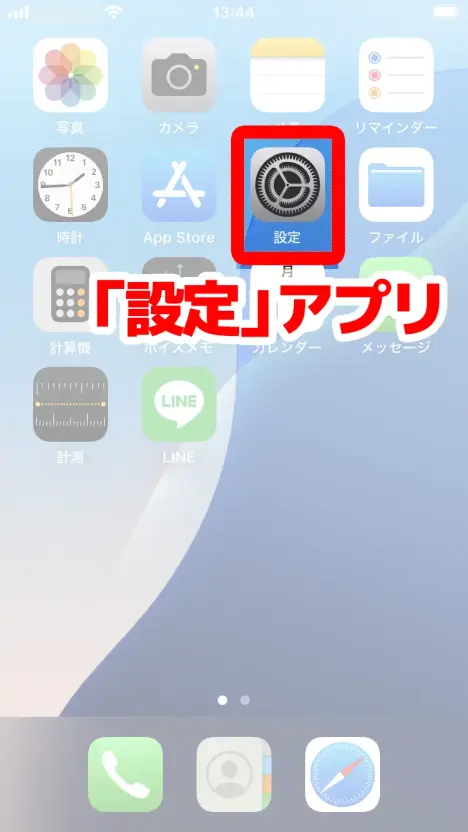
From the "Settings" app, open "General".
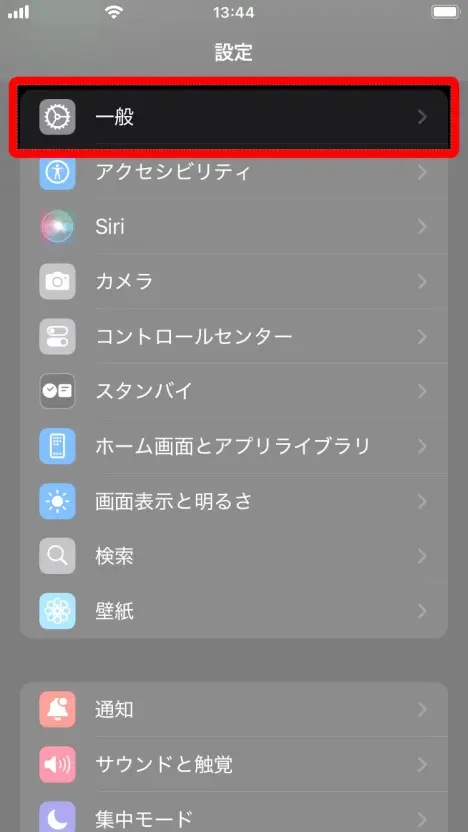
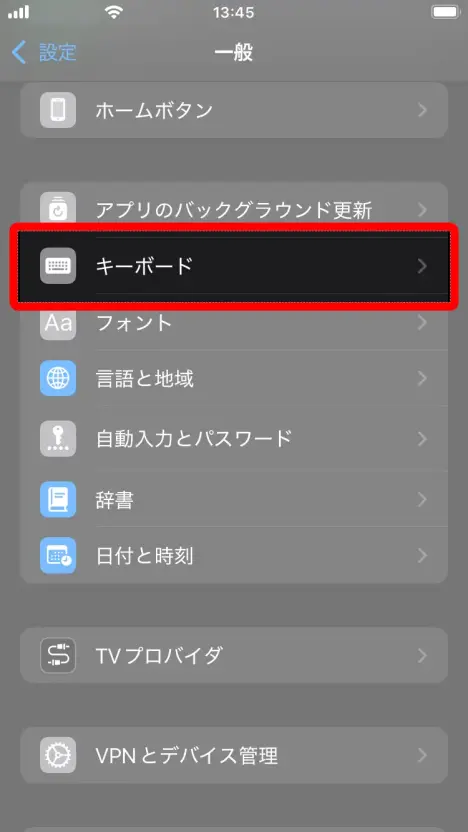
Select "Keyboard".
In "Keyboard," turn ON "Enable Dictation".
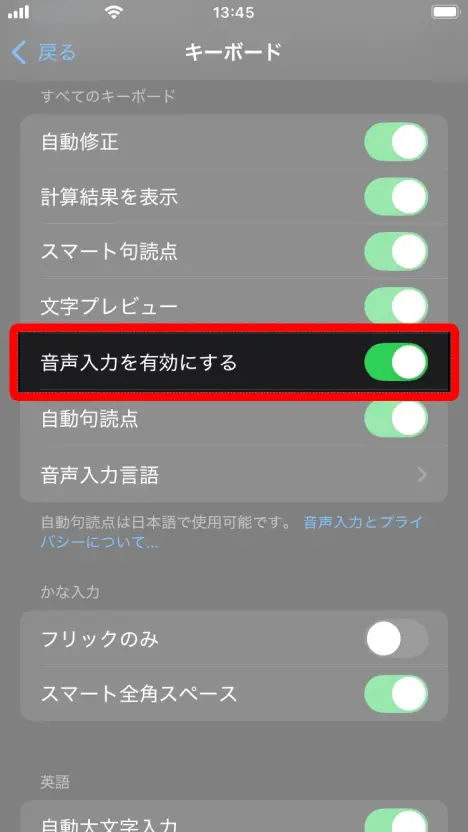
Now, your iPhone/iPad is ready for voice input.
How to Set Up Voice Input on Android Smartphone
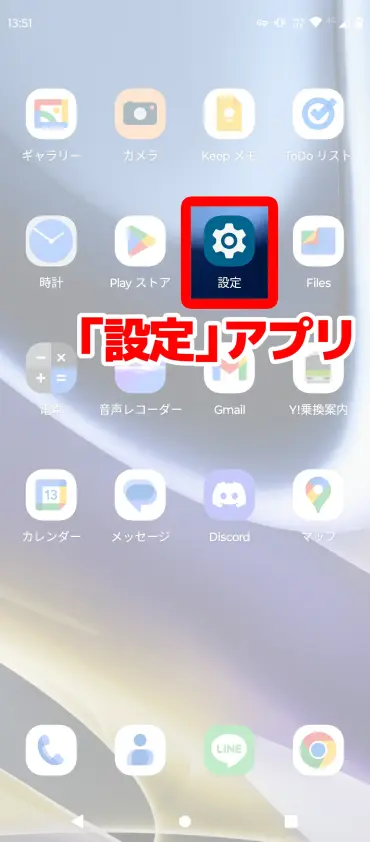
To enable voice input on your Android smartphone, first open the "Settings" app.
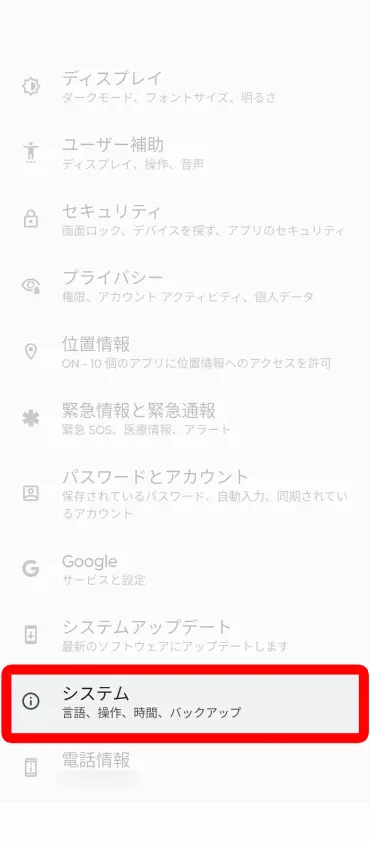
Scroll down the "Settings" app and select "System" at the bottom.
Next, open "Languages & input" within "System."
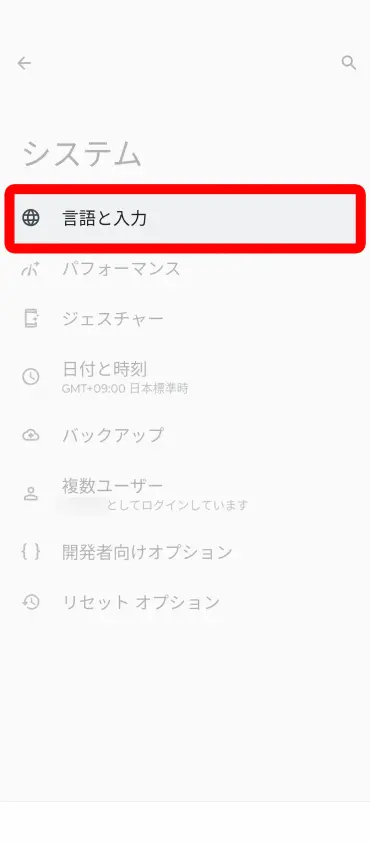
On the "Languages & input" screen, select "On-screen keyboard".
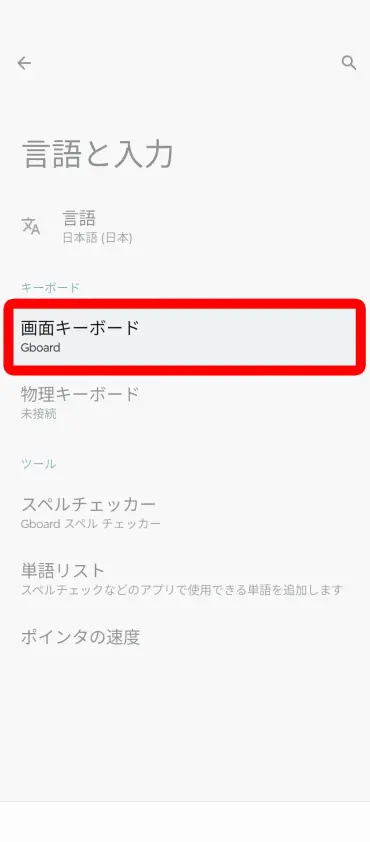
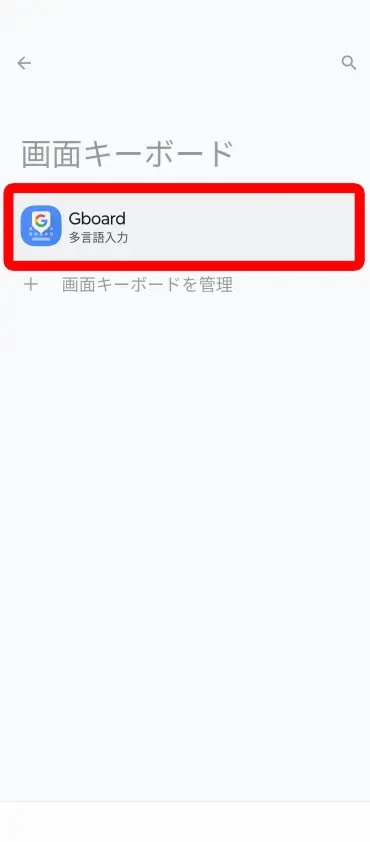
Opening "On-screen keyboard" will display a list of currently installed keyboards. Select the keyboard you normally use (in this case, "Gboard" was selected).
On the keyboard settings screen, select "Voice typing."
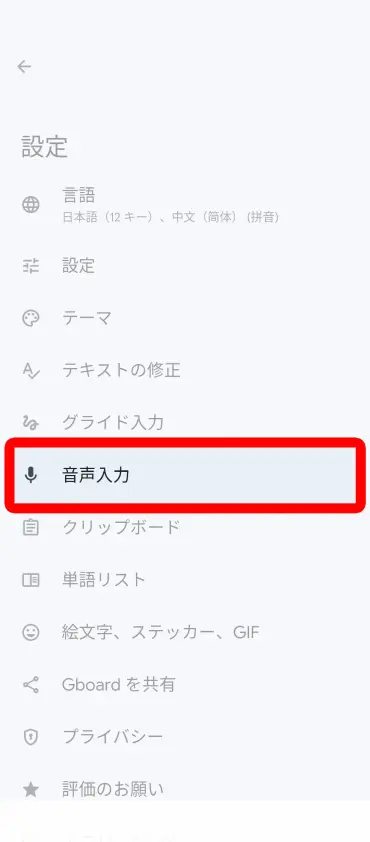
On the opened screen, turn ON voice typing.
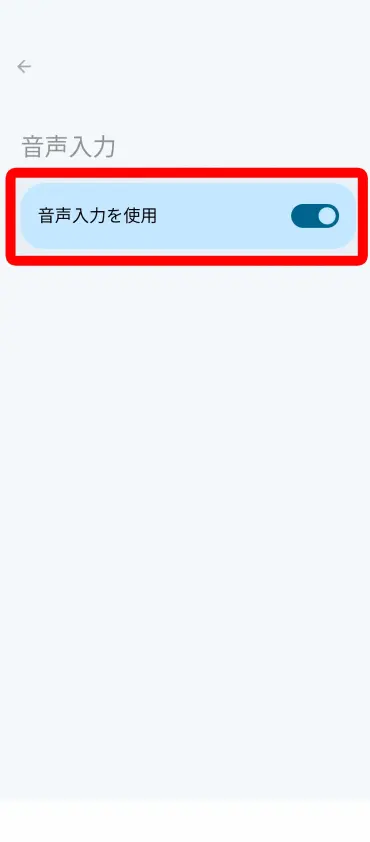
Now your Android smartphone is ready for voice input.
※Please note that the setup method may vary depending on the keyboard app you are using on your Android smartphone.
Steps to Send Messages on LINE with Voice Input
Once the settings are complete, let's try voice inputting into LINE.
Voice Input on LINE with iPhone
On the LINE message screen, select the message input field to open the keyboard.
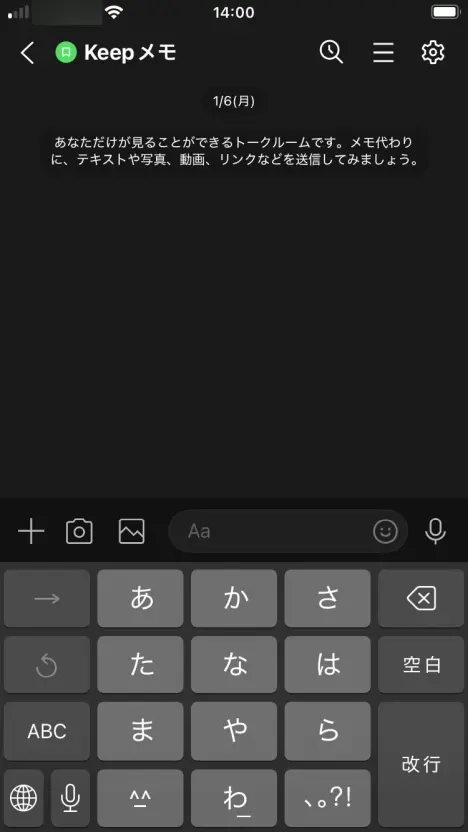
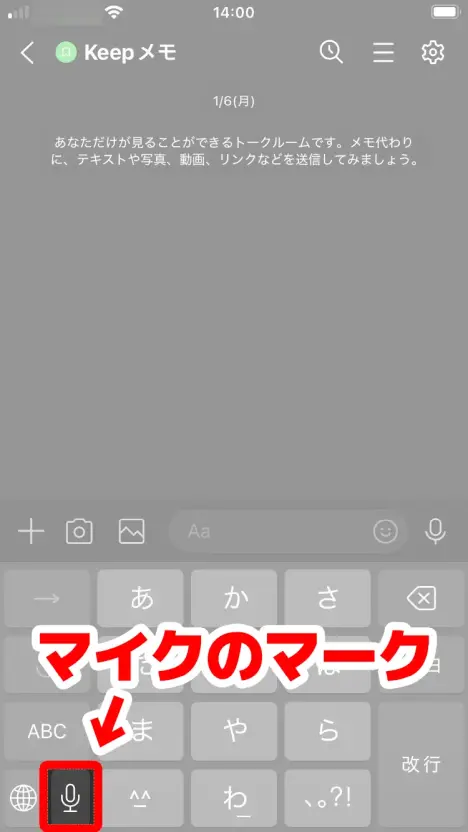
Tap the microphone icon at the bottom left of the keyboard.
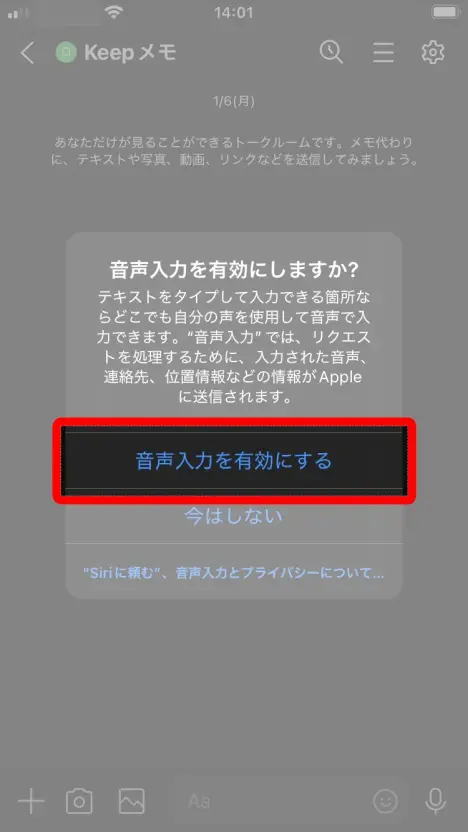
If "Enable Dictation?" appears, select "Enable Dictation".
A microphone and "あ" (Japanese character) icon will appear in the input field, indicating that voice input is ready.
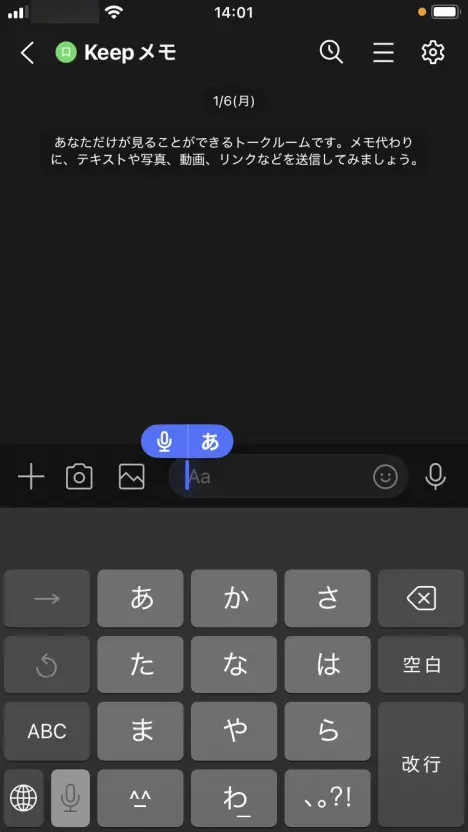
When you speak into your iPhone or iPad's microphone in this state, your spoken words will be transcribed like this.
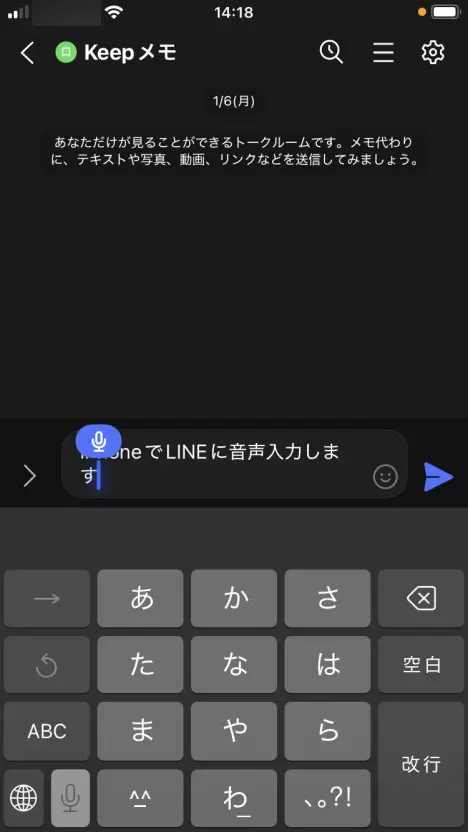
Tap the send button to send the transcribed content.
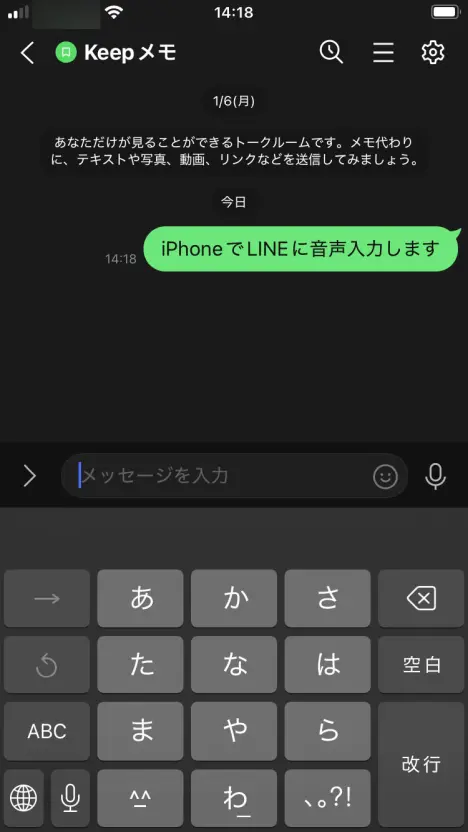
Tapping the microphone icon at the bottom left of the keyboard again will end voice input.
Voice Input on LINE with Android Smartphone
On the LINE message screen, select the message input field to open the keyboard.
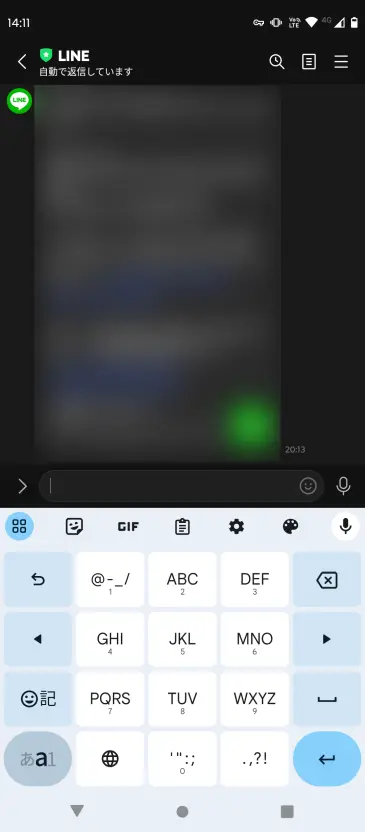
Tap the microphone icon at the top right of the keyboard.
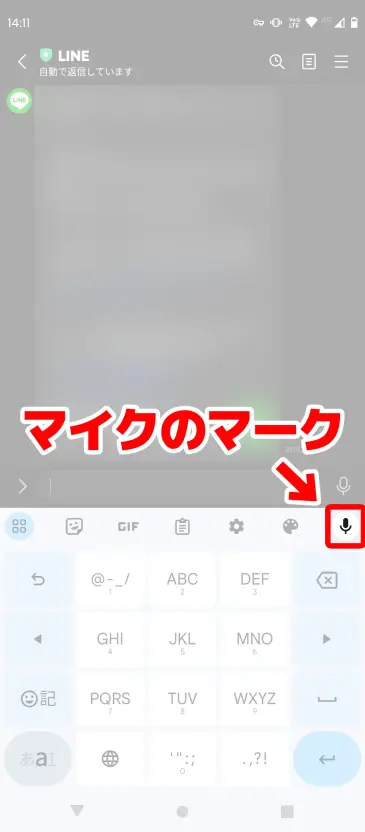
※Tap the microphone below the one on the right side of the LINE input field, not the one directly on the right.
Be careful not to confuse it with the microphone on the right of the input field, which is for "voice messages" (a function to send audio as is).
"Speak now" will be displayed, indicating that voice input is ready.
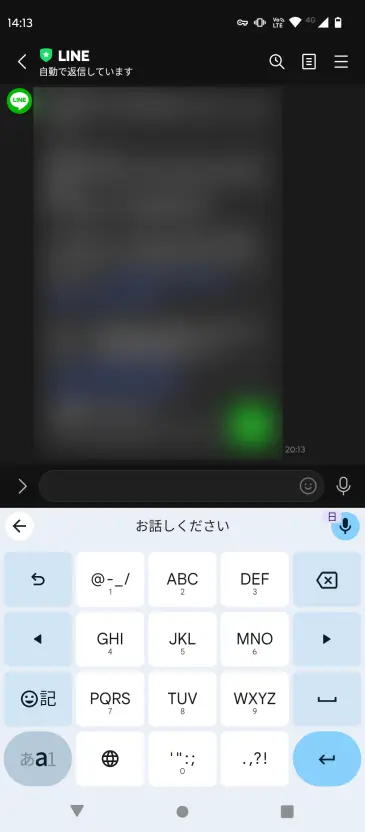
When you speak into your Android smartphone's microphone in this state, your words will be transcribed as shown.
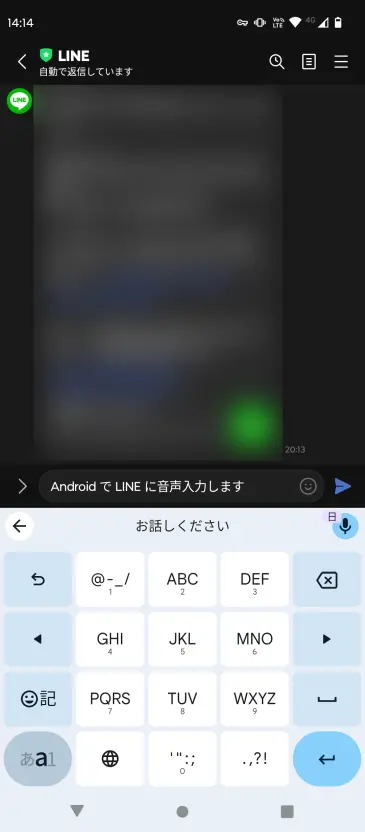
Tap the send button to send the transcribed content.
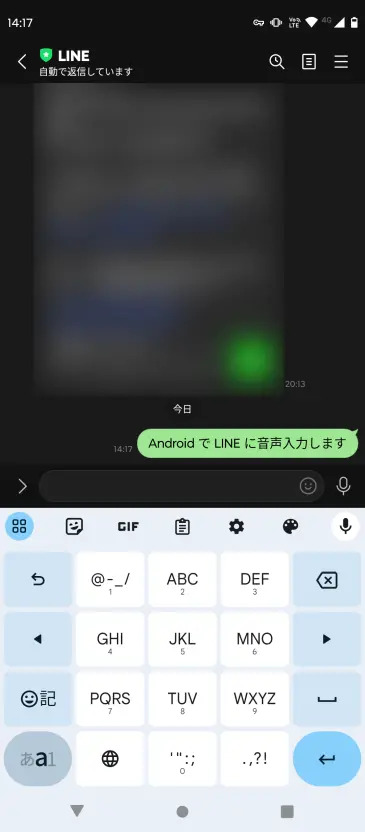
Tapping the microphone button again or tapping another button will end voice input.
Troubleshooting When Voice Input Doesn't Work
If voice input isn't working on LINE, check the following points:
Voice Input Setting is OFF
For iPhone/iPad, check if "Settings" → "General" → "Keyboard" → "Enable Dictation" is ON.
For Android smartphones, check if "Settings" → "System" → "Languages & input" → "On-screen keyboard" → your current keyboard → "Voice typing" is ON.
LINE App Microphone Permission Not Granted
For iPhone, check if "Settings" → "LINE" → "Microphone" is ON. For Android, check if "Settings" → "Apps" → "LINE" → "Permissions" → "Microphone" is allowed.
Tapping the Wrong Microphone Icon
LINE has two microphone icons.
The microphone on the keyboard is for voice input (text conversion), and the microphone to the right of the input field is for voice messages (sending audio).
When you want to use voice input, tap the microphone on the keyboard.
For Voice File Transcription, Use 'Mr. Transcription'

Beyond just sending LINE messages with voice input, sometimes you want to transcribe voice messages or call audio into text, right?
In such cases, the AI transcription website 'Mr. Transcription' is highly recommended.
Simply upload your audio file, and the latest AI will accurately transcribe it for you.
It's free to use and requires no registration, so please give it a try.
■ AI transcription service "Mr. Transscription"
"Mr. Transcription" is an online transcription tool that can be used from zero initial cost and 1,000 yen per month (* free version available).
- Supports more than 20 file formats such as audio, video, and images
- Can be used from both PC and smartphone
- Supports technical terms such as medical care, IT, and long-term care
- Supports creation of subtitle files and speaker separation
- Supports transcription in approximately 100 languages including English, Chinese, Japanese, Korean, German, French, Italian, etc.
To use it, just upload the audio file from the site. Transcription text is available in seconds to tens of minutes.
You can use it for free if you transcribe it for up to 10 minutes, so please try it once.

It is "Mr. Transcription" who can easily transcribe from audio, video, and images.
Transcription allows you to transcribe for up to 10 minutes for free.
You can copy, download, search, delete, etc. the transcribed text.
You can also create subtitle files, which is ideal for transcription of interview videos.
HP: mojiokoshi3.com
Email: mojiokoshi3.com@gmail.com
Email: mojiokoshi3.com@gmail.com
Related article
Transcription for audio / video / image transcription. It is a transcription service that anyone can use for free without installation.
- What is Mr. Transcription?
- Transcript images, sounds, and videos with Mr. Transcription
- Free registration
- Rate plan
- manual
- Try other free services