Mr. Transcription Delete and Bulk Delete: How to Use and Notes
Transcribe Web Meetings: 3 Easy Ways & Streamline Minutes
Nov. 10, 2026


Transcribing web conferences is tough...! I want to create meeting minutes automatically!
Web conferences have become commonplace with the spread of remote work.
Web conferencing tools like ZOOM, Microsoft Teams, and Google Meet are now very familiar.
The truth is, you can easily create meeting minutes for web conferences using AI transcription tools.
With the latest AI transcription services, meeting minutes are completed automatically and quickly!
Since transcription can be done in just about 1 minute, anyone can easily convert web conference content into text.
Why not easily transcribe your web conferences using an AI transcription service?
Recommended Services for Web Conference Transcription
If you're looking to create meeting minutes for web conferences, the AI transcription service Mr. Transcription is highly recommended.
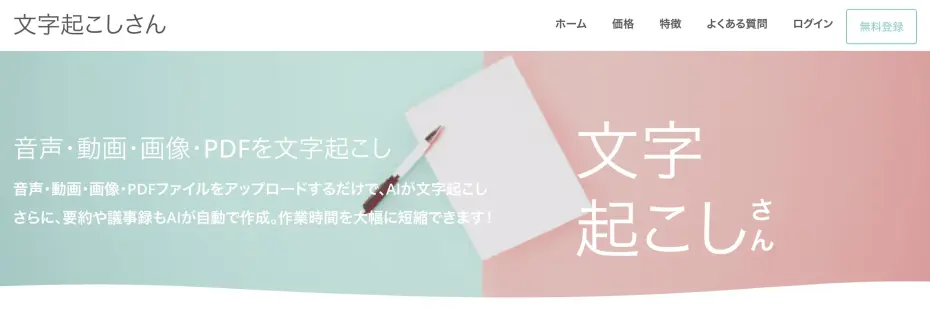
Mr. Transcription is a web application that transcribes using the latest AI.
Compared to real-time transcription tools, it features higher accuracy in its transcriptions.
It's also very easy to use!
Simply upload your audio or video files from the top page.
Automatic Meeting Minute Creation with the Latest AI Features
Mr. Transcription is equipped with a meeting minute creation function!
After transcribing audio data, you just need to click the "Create Meeting Minutes" button, and the content of the meeting will be automatically summarized into minutes.
The completed meeting minutes can be downloaded in Word format, making them easy to use!
Since transcription and meeting minute creation can be completed within a single service, Mr. Transcription is ideal for transcribing meetings.
Supports 100 Languages
Mr. Transcription is also recommended for transcribing web conferences with foreign participants!
It supports 100 languages, including Japanese and English, which helps prevent "he said, she said" disputes when dealing with foreign companies.
Free Transcription Service
What's more, Mr. Transcription is free.
You can transcribe up to 3 minutes of audio per day for free, no registration or login required.
Furthermore, if you register for a free account, you can use it for up to 10 minutes per day!
Why not try Mr. Transcription from here first?
3 Ways to Transcribe Web Meetings
What are the methods for transcribing web meetings?

There are three main ways to transcribe web conferences or online meetings.
- Transcribe using features built into web conferencing tools
- Transcribe recorded audio files with a transcription service
- Real-time transcription using a transcription service
1. Transcribe Using Features Built into Web Conferencing Tools
Web conferencing tools like Zoom, Microsoft Teams, and Google Meet can transcribe meetings using their standard or extended features.
First, let's briefly explain how to transcribe using the standard or extended features of web conferencing tools.
For ZOOM
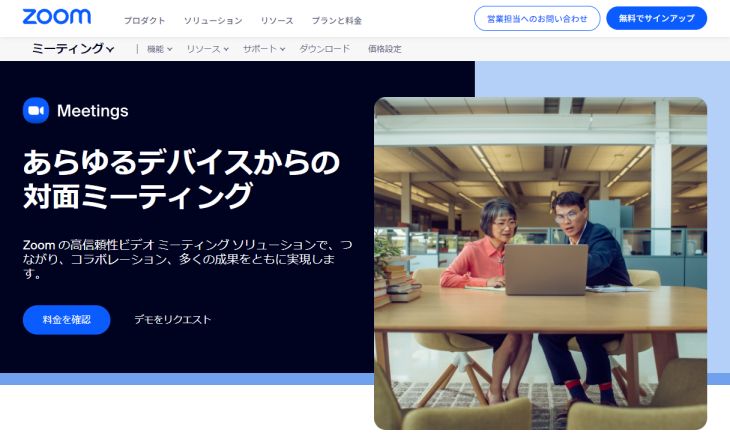
In ZOOM, you can easily transcribe web conference content using the closed captioning feature.
How to use ZOOM's closed captioning feature
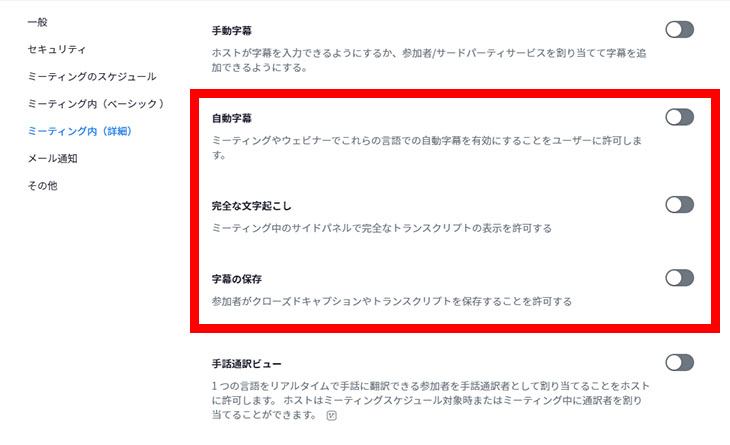
First, log in to the ZOOM website and, in the settings, turn on:
- Automated captions
- Full transcript
- Save captions
Once the meeting starts in the ZOOM app, click "Show Captions" from the menu at the bottom of the screen.
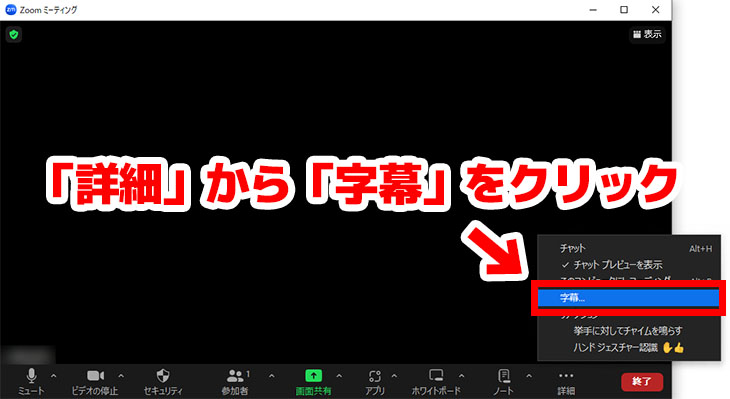
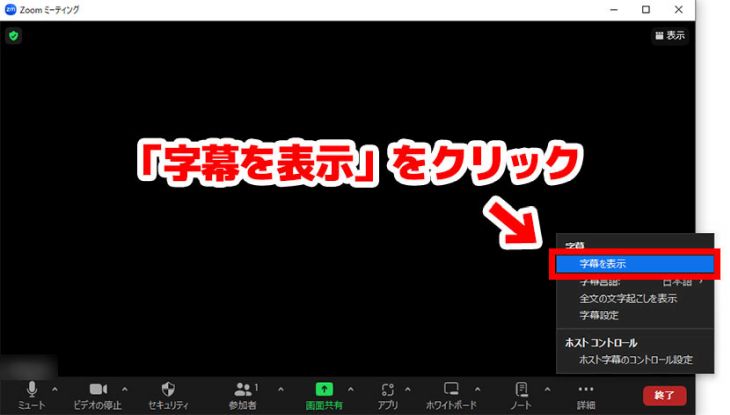
With captions displayed, click "View Full Transcript" from the caption menu.
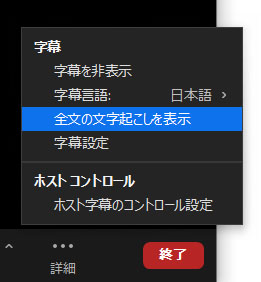
This will display the transcribed content.
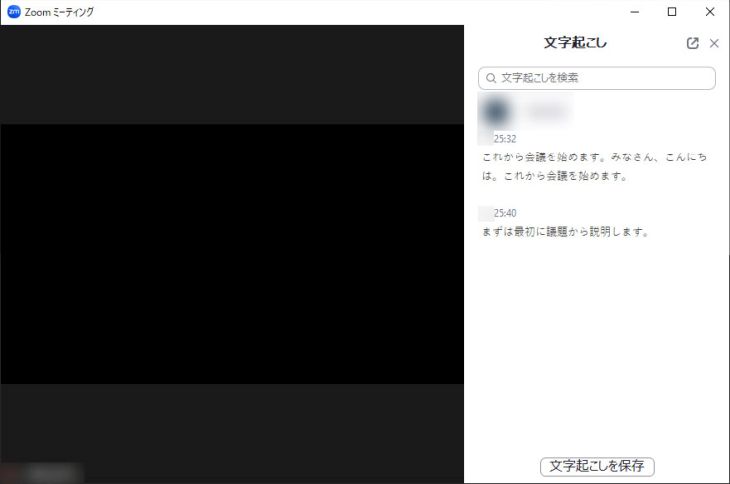
After the meeting, before closing the app, click "Save Transcript" to save the content.
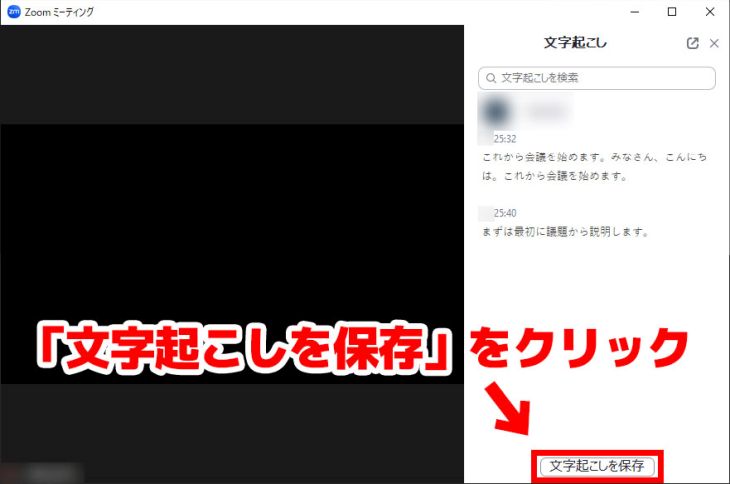
This completes the process of transcribing ZOOM meetings.
For a more detailed explanation of how to transcribe ZOOM, please refer to this article.

How to Transcribe ZOOM Meetings to Easily Create Minutes? Recommended Efficiency Techniques for Online Meetings
Learn how to transcribe content from ZOOM web conferences. We thoroughly explain methods using ZOOM's built-in features and combining them with recommended transcription tools!
For Microsoft Teams
In Microsoft Teams, you can transcribe web meeting content using the "Transcription" feature.
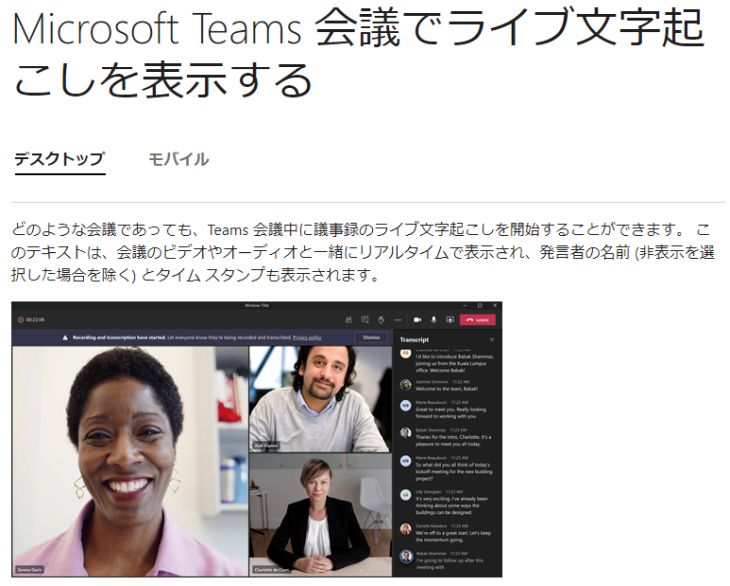
The transcription feature allows spoken content to be transcribed in real-time.
The transcribed content is automatically saved as text data once the meeting ends.
However, the transcription feature is only available if you have a paid plan such as Office 365 or Microsoft 365.
This article provides a more detailed explanation of how to transcribe in Microsoft Teams.

How to Transcribe and Record Microsoft Teams Web Meetings? Easy Meeting Minutes with AI Transcription
We explain three methods for transcribing and creating meeting minutes when hosting web conferences in Microsoft Teams.
For Google Meet
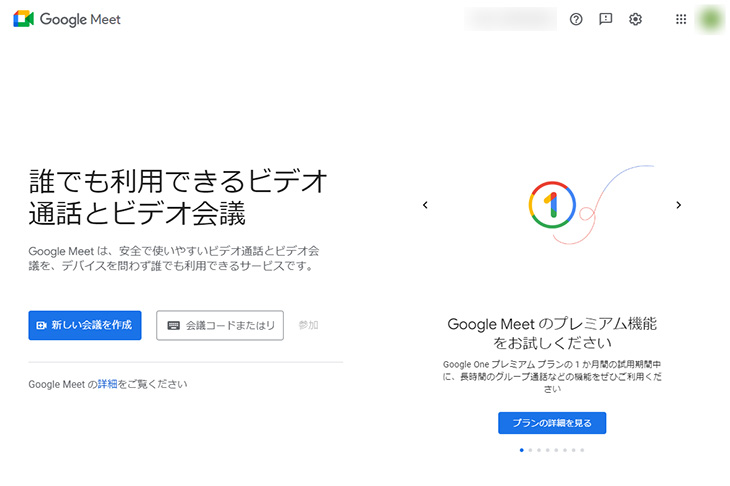
With Google Meet, you can transcribe web conference content using the "Koemoji" extension.
How to Use Koemoji
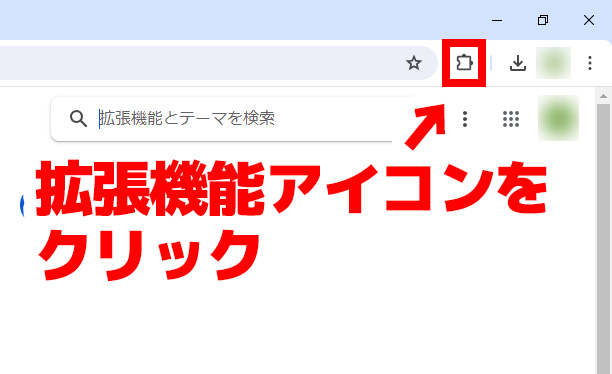
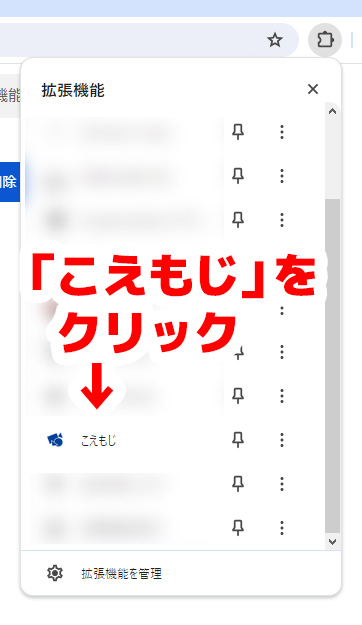
First, open the Chrome Web Store and install "Koemoji" on Google Chrome.
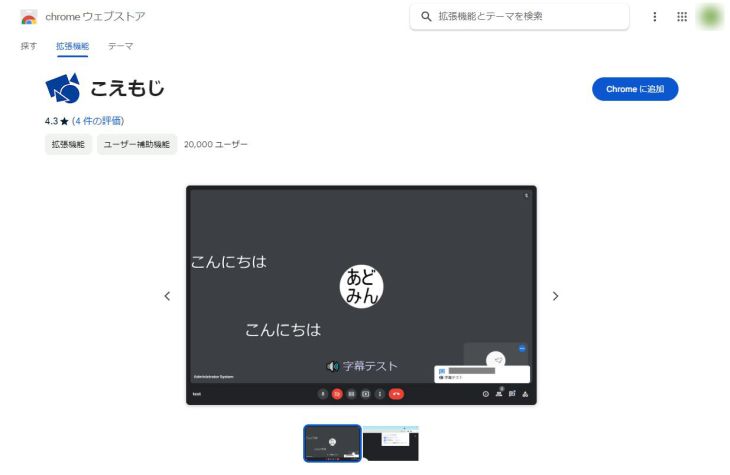
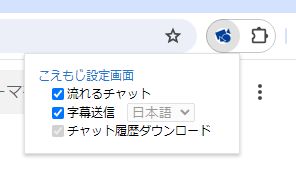
Once you open "Koemoji" from the extension management screen,
- Streaming chat
- Send subtitles
Check if they are checked.
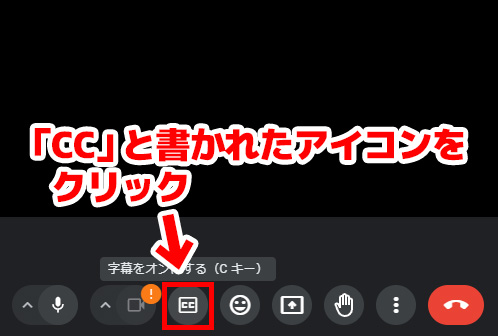
With this setup, when you start a meeting in Google Meet, click the "CC" icon at the bottom of the screen to turn on captions.
When Google Meet captions are turned on with "Koemoji" installed, the caption content is automatically posted to the chat window.
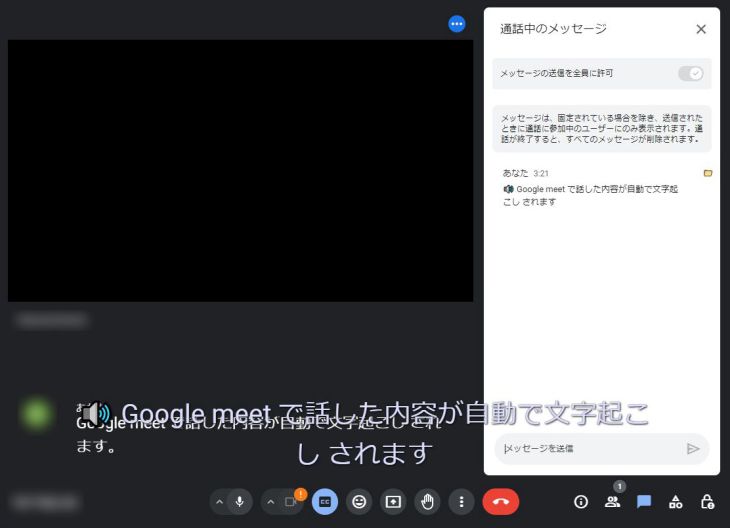
Finally, click the folder icon to download the transcription results.
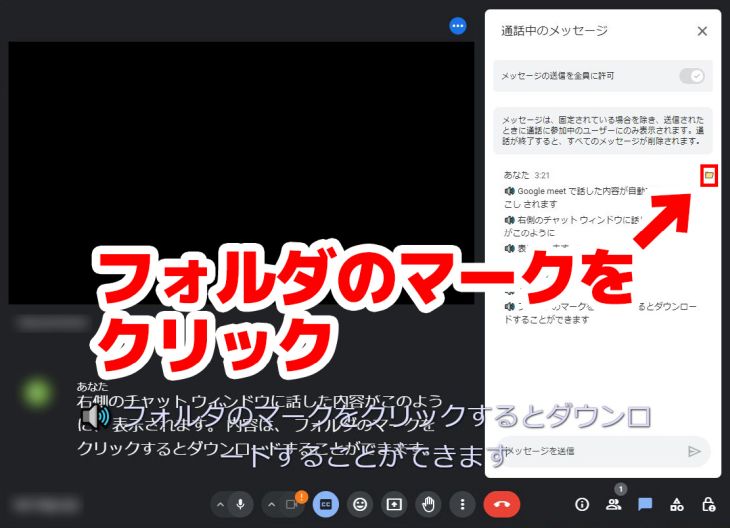
This completes the process of transcribing Google Meet.
More details on how to transcribe Google Meet are explained in this article.

How to Transcribe Google Meet Meetings? Using the 'Koemoji' Extension and Recommended AI Transcription Methods
This article explains how to transcribe Google Meet web conferences using the "Koemoji" extension and introduces recommended AI transcription methods.
2. Transcribe Recorded Files and Automatically Create Meeting Minutes with a Transcription Service
This method is highly recommended!
Web conferencing tools like ZOOM, Microsoft Teams, and Google Meet allow you to record meeting content.
Once you've recorded your web conference, all you need to do is upload the file to the AI transcription service Mr. Transcription!
What's more, Mr. Transcription doesn't just transcribe audio into text; it can also create meeting minutes using the latest AI!
Meeting minutes are completed in just 3 steps!
Step 1: How to Record on ZOOM
Recording a web conference on ZOOM is very easy.
Simply click on "Record" in the menu.

Once the meeting ends, it will automatically convert to MP4 format and save.
Saving is complete when the "Convert Meeting Recording" window disappears.
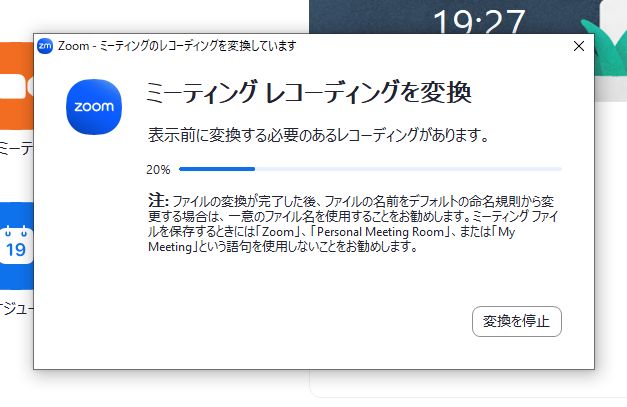
You can find a detailed explanation of how to record on ZOOM in this article.
How to Record on Microsoft Teams
In Microsoft Teams,
Click "More actions" → "Record and transcribe" → "Record" → "Start" in the meeting controls.
By following these steps, you can record your web conference.
The recorded audio is saved to OneDrive.
You can find a detailed explanation of how to record on Microsoft Teams in this article.
How to Record on Google Meet
Google Meet uses a recording feature instead of just audio recording.
※Since a video file is saved instead of an audio file, when transcribing Google Meet, we recommend a service like Mr. Transcription that can also transcribe video!
To record a web conference on Google Meet, first log in as an administrator to Google Workspace and enable the recording feature.
On the web conference screen, click "Record meeting" to start recording.

When you select "Stop recording" and the recording ends, the file is saved to Google Drive.
Then, upload the recorded file to the AI transcription service Mr. Transcription to complete the transcription.
※Please note that to record on Google Meet, you must have a paid Google Workspace plan.
Step 2: Transcribe Recorded Web Conference Files with Mr. Transcription
Transcribing files recorded during web conferences using Mr. Transcription is incredibly easy.
Once you open the top page of Mr. Transcription from here,
- Drag and drop your file into "Drag files here"
- Click the "Select File" button to choose your file
You can select your file using either method.
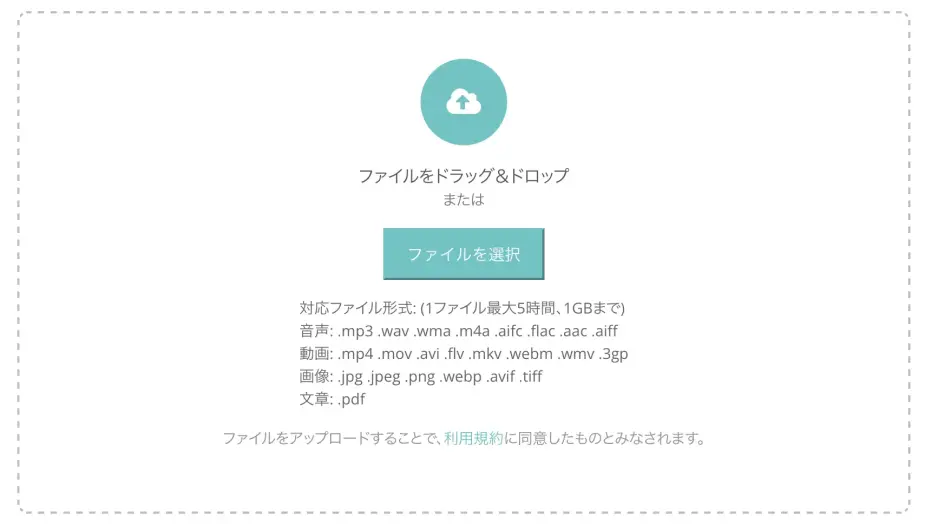
Once you select a file, uploading and transcription start automatically.

Even long files are transcribed in about 1 minute.
Once the transcription is complete, the transcription results will be displayed on the top page, like this.
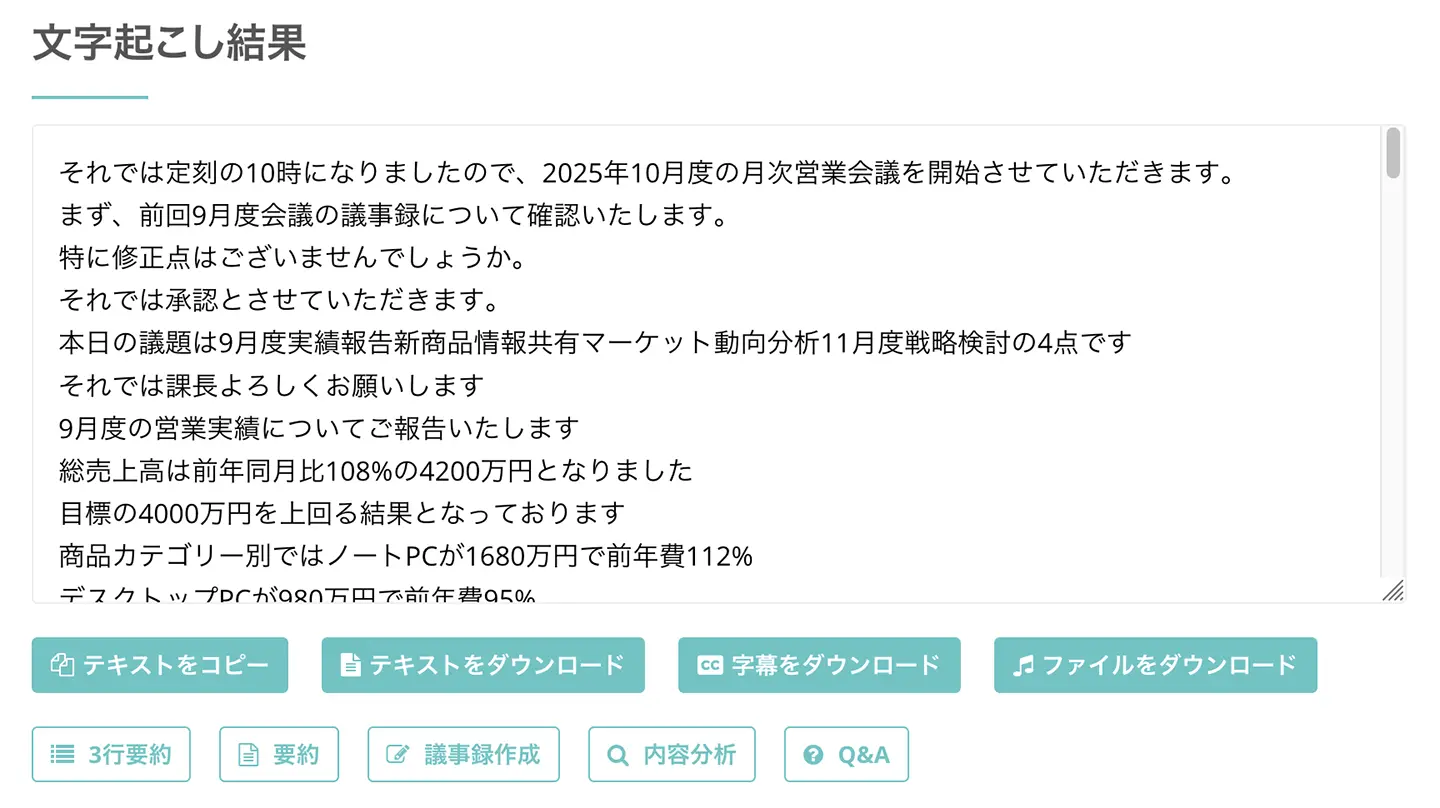
Clicking the play button next to a statement allows you to play the audio or video from that specific point.
When you play using the player at the bottom of the screen, the text display automatically switches to match the playback position.
If you register your email address, you can also check transcription results from the "History" page.
Step 3: Create Meeting Minutes with Mr. Transcription
Below the transcription results, "Summarize" and "Create Minutes" buttons are displayed.

Clicking the "Create Minutes" button starts generating the meeting minutes.
The latest AI completes the process in just a few seconds.
This way, the audio content was successfully converted into meeting minutes!
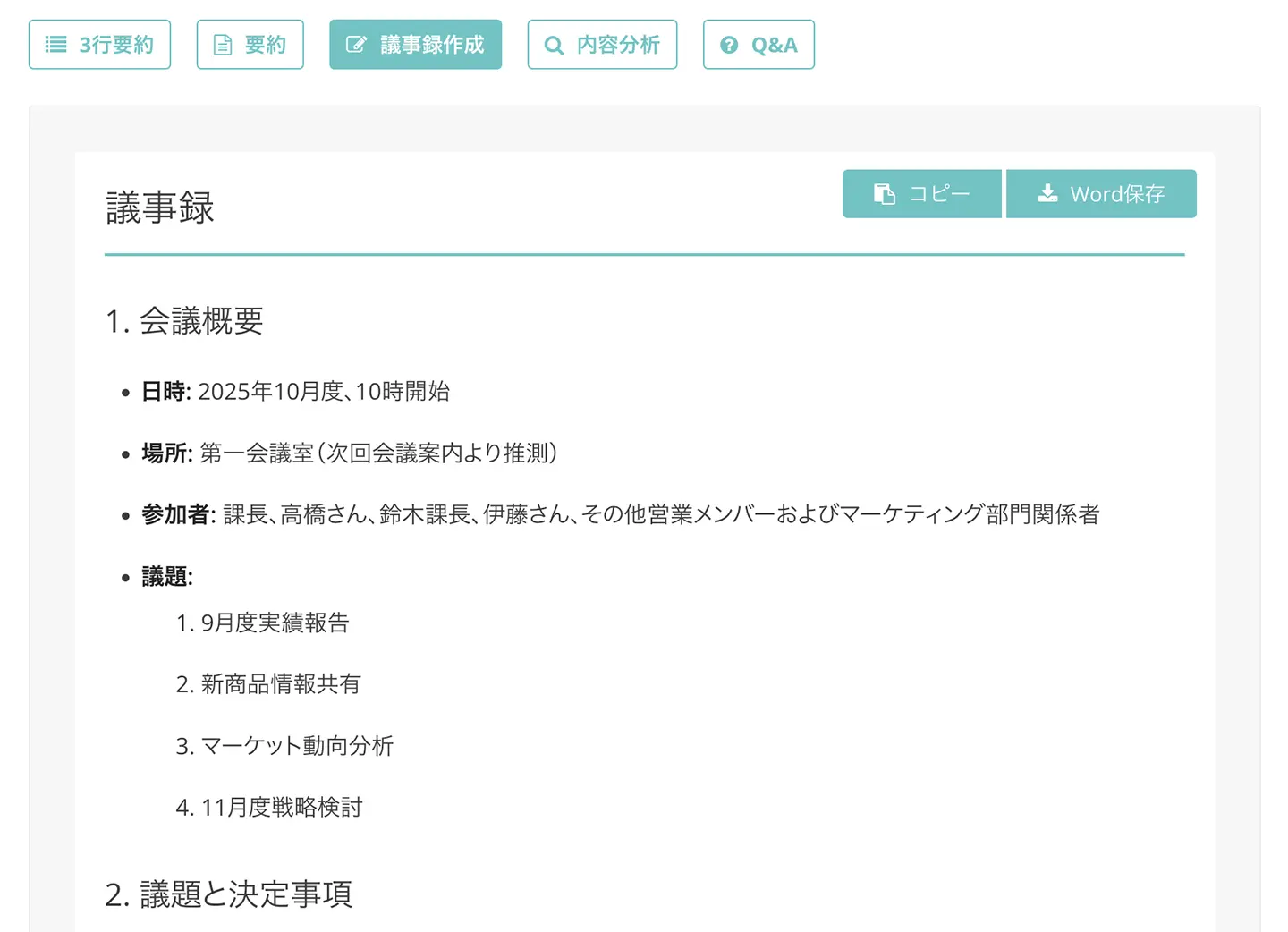
The created minutes can be downloaded in Word format.
Mr. Transcription makes it easy to transcribe web conference content and create meeting minutes.
Its high speech recognition accuracy makes it ideal for those who were not satisfied with real-time web conference transcription tools.
It's free to use without registration or login, so why not try Mr. Transcription from here?
3. Real-time Transcription with Transcription Services
Some AI transcription tools can transcribe web conference content in real-time.
The advantage is that the transcription is complete by the time the meeting ends, as it's converted to text in real-time.
Beware of Misrecognition and Conversion Errors
While real-time transcription may seem convenient at first glance, misrecognitions and conversion errors can occur.
AI-powered speech recognition requires very high computing performance, so in real-time, processing may not keep up, leading to inaccurate transcriptions.
Meeting minutes are crucial documents for setting business directions and ensuring smooth operations.
It's recommended to choose a transcription method after considering whether to prioritize the convenience of real-time text conversion or the accuracy of transcribing after recording.
For higher accuracy transcription, we recommend Mr. Transcription, which allows you to upload audio and video files for transcription.
3 Services for Real-time Transcription
1. Rimo (formerly Rimo Voice)
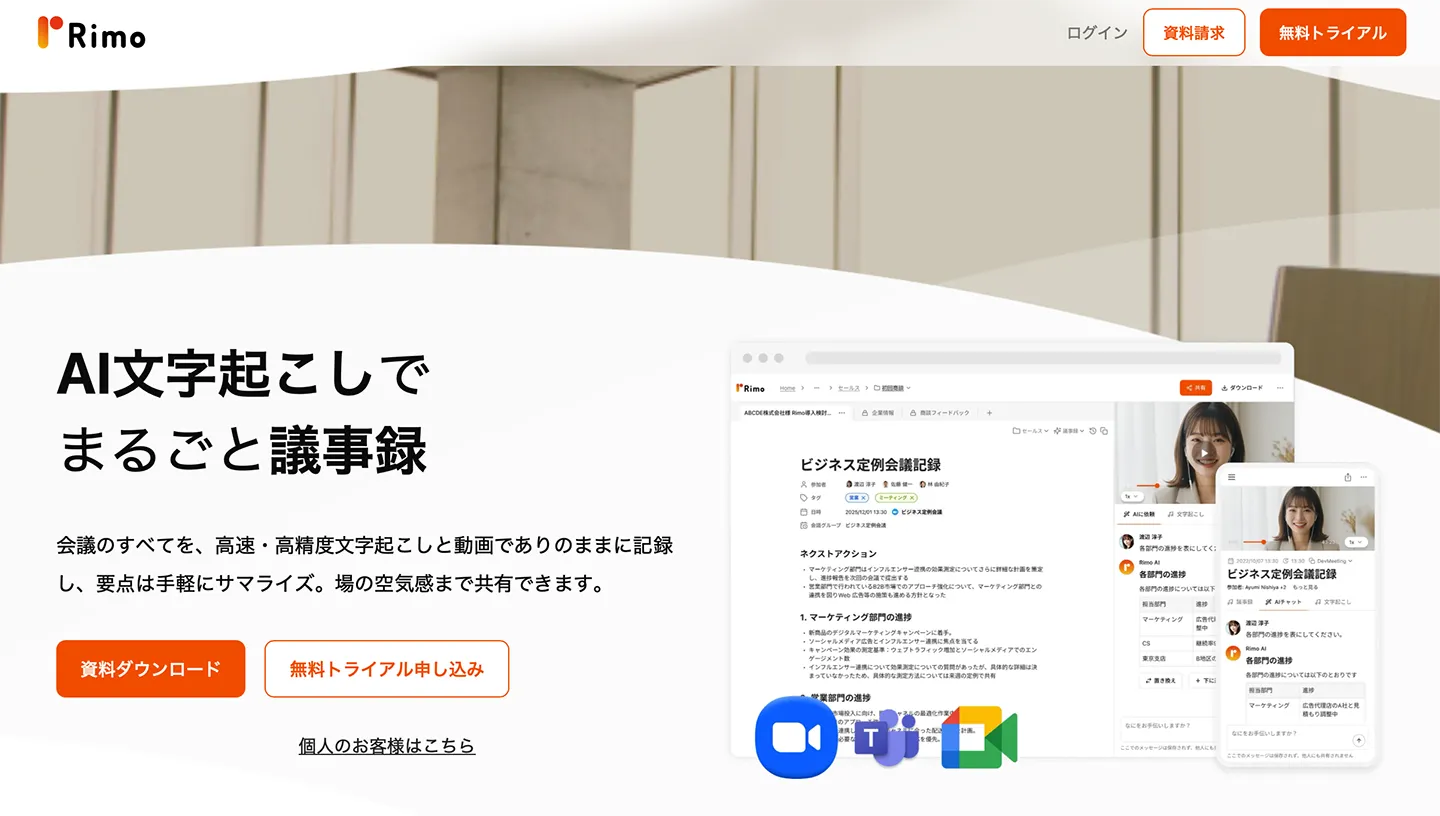
Rimo is an AI transcription service that supports over 30 languages, including Japanese.
It enables web conference transcription using integration features with Zoom, Microsoft Teams, Google Meet, and Webex.
It also includes an AI meeting minutes creation feature, which can automatically summarize and generate minutes from meeting content.
Individual plans are available from 1,650 yen per month.
Corporate plans require a quote.
2. Otolio (formerly Smart Shoki)
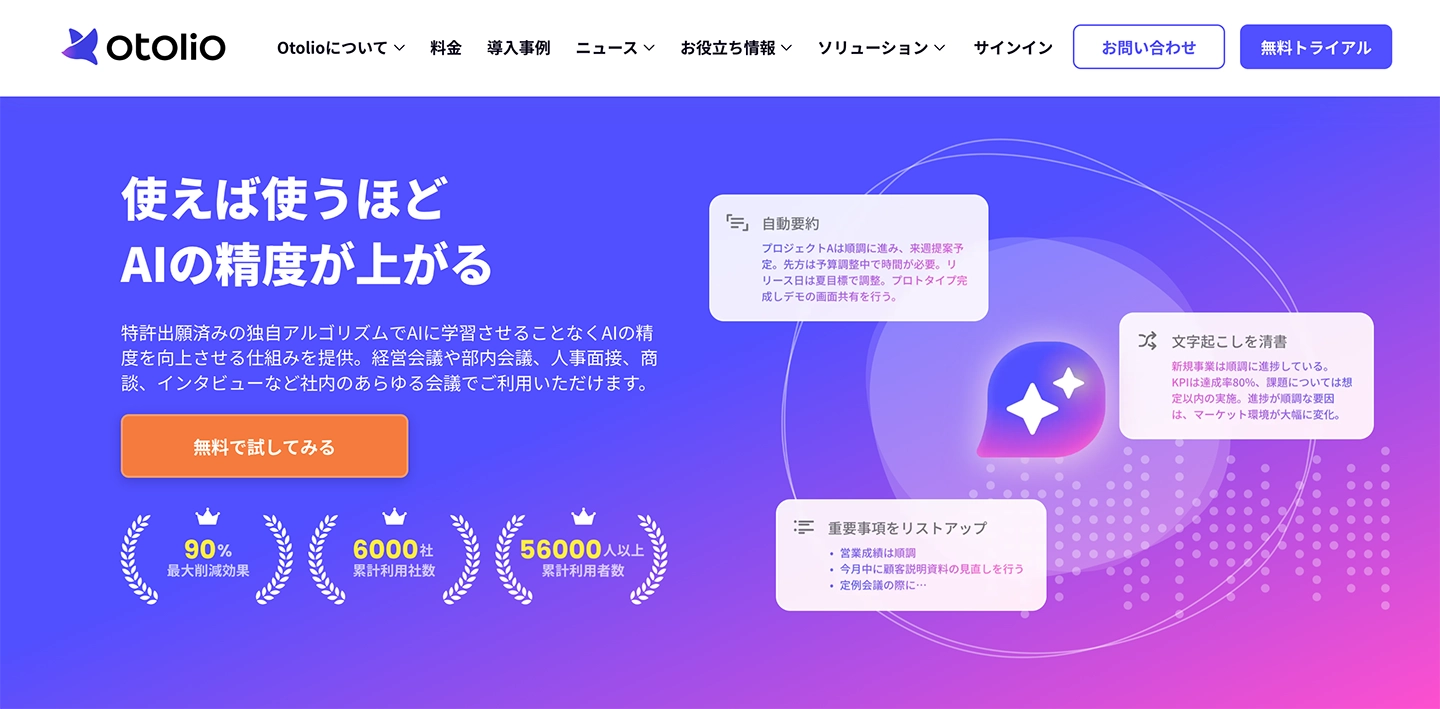
Otolio (formerly Smart Shoki) is a transcription service designed for efficient meeting minute creation.
It can record and transcribe content from web conferencing tools like Zoom, Microsoft Teams, and Google Meet in real-time.
Transcription accuracy is over 90%.
Primarily a service for corporations, pricing varies depending on the number of users.
3. Sloos
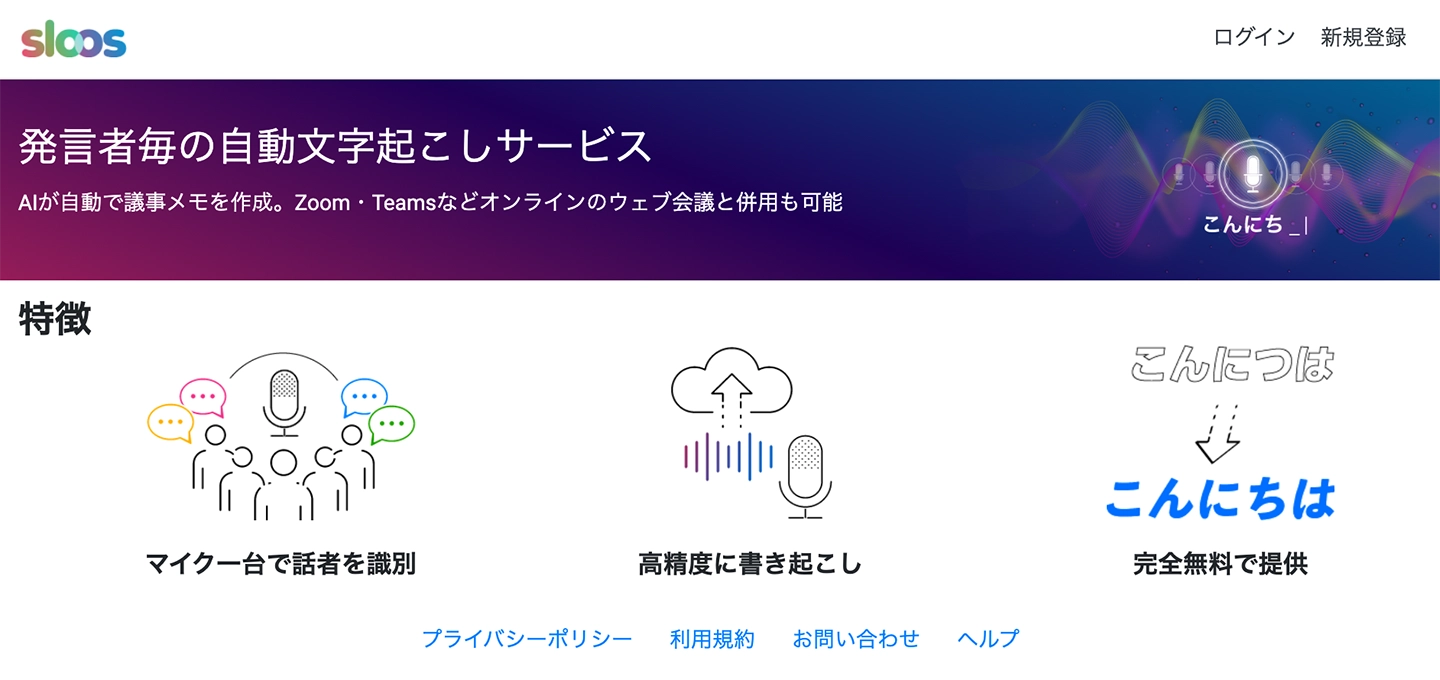
Sloos is a simple transcription service that supports meeting minute creation.
It can be used in conjunction with web conferences such as Zoom and Microsoft Teams, with AI creating real-time notes of meeting content.
It also features speaker separation.
This real-time transcription service is recommended if extensive support is not required.
There are other transcription apps available for creating meeting minutes.
If you want to compare real-time and file-upload transcription apps, please refer to this article.

7 Recommended Transcription Apps for Meeting Minutes! Tools to Boost Efficiency
Introducing recommended apps to streamline meeting minute creation. We explain apps and tools for transcribing by uploading files and real-time transcription.
Additionally, this article compares 10 transcription apps suitable for web conferences.
It also introduces free apps, so be sure to check it out.

Top 10 Recommended Apps for Web Conference Transcription and Meeting Minutes [2026 Edition]
Comparing transcription apps that automate web conference and online meeting minute creation. We explain how to choose, including free tools, and the steps to create minutes from recorded data.
■ AI transcription service "Mr. Transcription"
"Mr. Transcription" is an online transcription tool that can be used from zero initial cost and 1,000 yen per month (* free version available).
- Supports more than 20 file formats such as audio, video, and images
- Can be used from both PC and smartphone
- Supports technical terms such as medical care, IT, and long-term care
- Supports creation of subtitle files and speaker separation
- Supports transcription in approximately 100 languages including English, Chinese, Japanese, Korean, German, French, Italian, etc.
To use it, just upload the audio file from the site. Transcription text is available in seconds to tens of minutes.
You can use it for free if you transcribe it for up to 10 minutes, so please try it once.

It is "Mr. Transcription" who can easily transcribe from audio, video, and images.
Mr. Transcription allows you to transcribe for up to 10 minutes for free.
You can copy, download, search, delete, etc. the transcribed text.
You can also create subtitle files, which is ideal for transcription of interview videos.
HP: mojiokoshi3.com
Email: mojiokoshi3.com@gmail.com
Email: mojiokoshi3.com@gmail.com
Related article
Mr. Transcription for audio / video / image transcription. It is a transcription service that anyone can use for free without installation.
- What is Mr. Transcription?
- Transcript images, sounds, and videos with Mr. Transcription
- Free registration
- Rate plan
- manual
- Try other free services