How Long Does 1 Hour of Audio Transcription Take?
7 Best Free OCR Apps for Image, PDF & Photo to Text (2024)
April 5, 2026
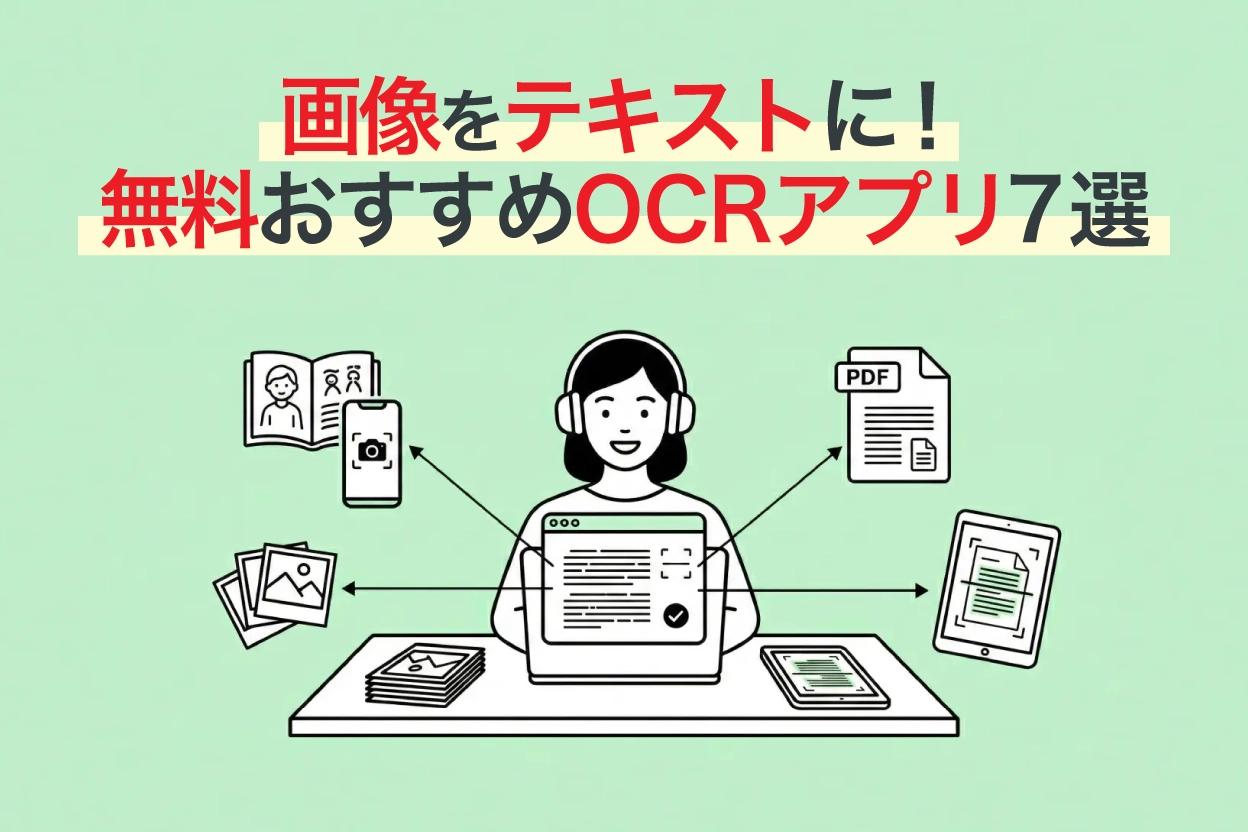
Do you want to convert text from images, PDFs, or photos into digital text data?
That's where transcription apps and services with OCR capabilities come in handy.
This article compares 7 recommended OCR transcription apps for images, PDFs, and photos based on four criteria: "accuracy, pricing, free tier, and supported formats"!
We cover a wide range of tools, from free web and smartphone apps to PC-installed software, so you can find the right tool for your needs and budget.
Furthermore, in the latter half of the article, we'll introduce steps to convert text from photos and scanned images, and useful scenarios for transcribing PDFs, screenshots, and handwritten notes.

Manually typing out text from images and PDFs is a pain... Is there a tool that can automatically read it?
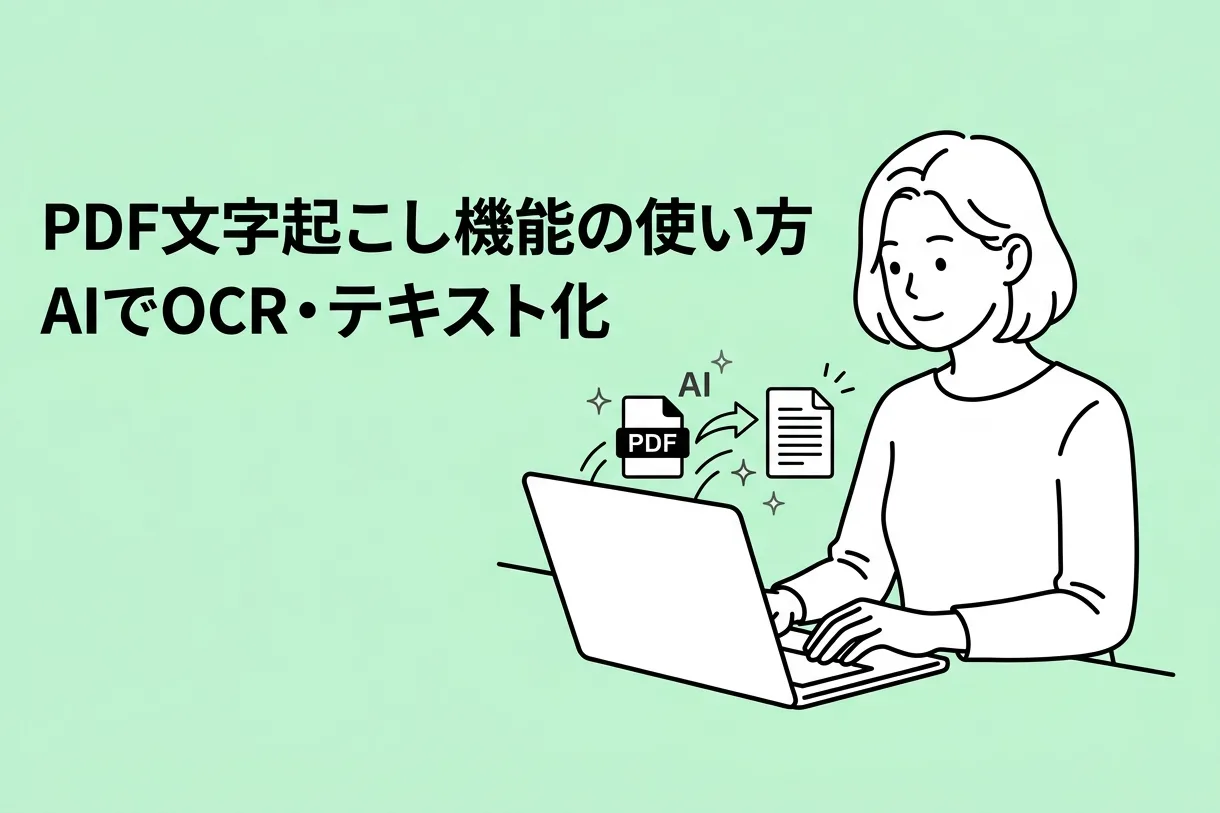
With the latest AI-OCR tools, you can accurately convert not only printed materials but also handwritten text and foreign language documents like English into digital text.
Transcribing from photos and scanned documents is also easy. First, take a look at the comparison table below to get an overview.
OCR Transcription & Text Conversion Apps for Images, PDFs, and Photos: Comparison List [2026]
We've summarized the main specifications of the 7 OCR apps introduced in this article. Detailed features of each are explained below the table.
| Tool Name | Type | Free Tier | Supported Formats | Supported Languages | Handwriting | Vertical OCR | AI Summary |
|---|---|---|---|---|---|---|---|
| Mr. Transcription | Web App | Up to 10 images/day free | Images, PDFs, Audio, Video | 100 languages | ○ | ○ | ○ |
| Google Docs | Web App | Free | Images (under 2MB) | 200+ languages | ○ | × | × |
| Microsoft OneNote | PC / Mobile App | Free | Images, Screenshots, PDFs (via image insertion) | Japanese, English, many others | △ | × | × |
| LINE (OCR function) | Mobile App | Free | Camera capture, Images | Japanese, English, others | × | × | × |
| Adobe Scan | Mobile App | OCR up to 25 pages/month free | Camera capture, Images → PDF | Major languages | ○ | × | × |
| iPhone Live Text | iOS Standard Feature | Free | Camera, Images in Photos app | Japanese, English, others | ○ | × | × |
| Yomitori Kakumei Ver.17 | PC Install | None | Images, PDFs | Japanese, English | ○ | ○ | ○ |
*Pricing and free tiers are as of March 2026. Please check each service's official website for the latest information.
Let's take a closer look at each app.
Top 7 Recommended OCR Apps for Image, PDF, and Photo Transcription
1. Mr. Transcription
| Type | Web App (PC/Smartphone compatible) |
|---|---|
| Pricing | Paid (subscription model) *Up to 10 images/day free |
| Supported Formats | Images, PDFs, Audio, Video |
| Supported Languages | 100 languages including Japanese and English |
| Handwriting Support | ○ |
| Vertical OCR | ○ (Automatically detects columns, headings, and captions in newspapers, magazines, and books) |
| AI Summary | ○ (3-line summary, summary, content analysis, Q&A creation) |
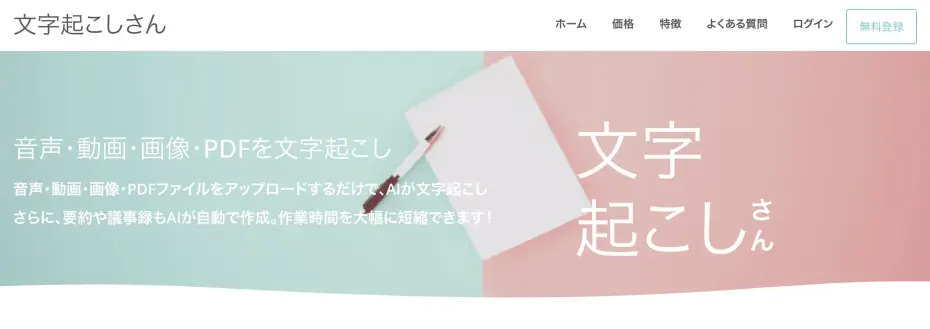
Mr. Transcription is a web app that automatically performs OCR transcription using AI simply by uploading files.
Since it runs in a browser, it can be used on PCs, smartphones, and tablets.
It supports not only images and PDFs but also audio and video, with a strong focus on multi-language support for 100 languages and handwritten text recognition.
You can try it for free with up to 10 images per day without registration, making it an excellent first choice for anyone looking for an OCR tool!
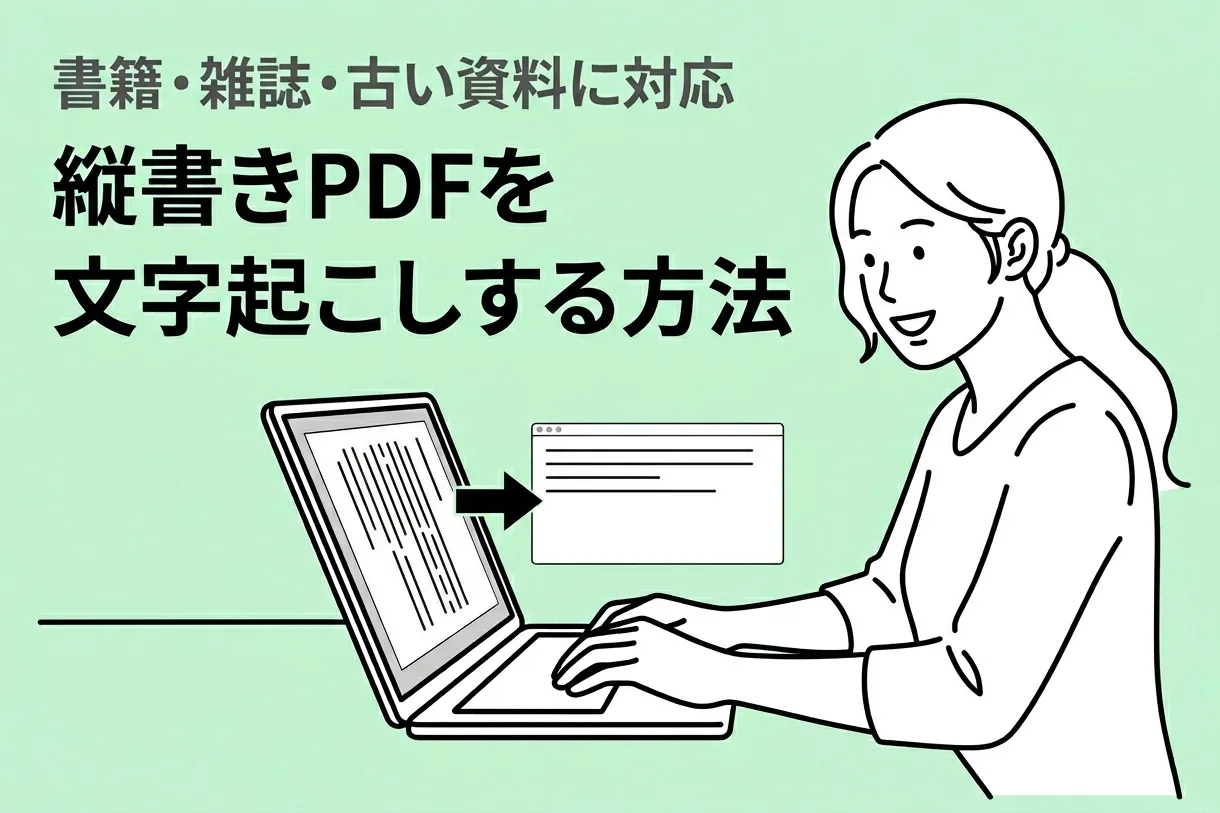
Furthermore, as a unique feature not found in other OCR apps, it also supports vertical text OCR! (Learn more about vertical OCR here)
It can automatically detect and accurately transcribe vertical text from newspapers, magazines, and books, including columns, headings, and photo captions.
While other tools like Google Docs might mix columnar text with the main body, Mr. Transcription eliminates the need for tedious editing.
Additionally, you can directly AI summarize the OCR results (Learn more about AI summary here).
From 3-line summaries and meeting minute creation to content analysis and Q&A generation, you can complete the entire process from text conversion to utilization within a single service.
Thus, Mr. Transcription is highly recommended for OCR of images and PDFs!
Why not try Mr. Transcription for free yourself?
2. Google Docs

| Type | Web App |
|---|---|
| Pricing | Free (Google account required) |
| Supported Formats | Images (under 2MB) |
| Supported Languages | 200+ languages |
| Handwriting Support | ○ |
Google Docs offers a free OCR method if you have a Google account. By uploading an image file to Google Drive and selecting "Open with Google Docs," text recognition is performed automatically.
A key feature is its support for over 200 languages.
It also supports handwritten text recognition.
When tested with sample images, the recognition accuracy was sufficient for a free tool.
However, there is a limitation: the maximum file size you can upload is 2MB.
If you need to process high-resolution images or multi-page PDFs, consider using it in conjunction with other tools.

4 Easy Ways to Transcribe with Google Docs for Free
For those who want to master Google Docs' voice typing feature, we explain in detail how to do real-time transcription, convert audio data to text, create meeting minutes, and extract text from images and PDFs.
3. Microsoft OneNote
| Type | PC App (Windows / Mac) / Mobile App (iOS / Android) |
|---|---|
| Pricing | Free (available without Microsoft 365 subscription) |
| Supported Formats | Image files, Screenshots, PDFs (inserted as printouts) |
| Supported Languages | Japanese, English, Chinese, Korean, many others |
| Handwriting Support | △ (High accuracy for printed text, varying accuracy for handwriting) |
Microsoft's note-taking app, OneNote, comes with a built-in OCR feature that reads text from images and converts it into editable text.
You can simply right-click on an image and select "Copy Text from Picture" to copy the recognized text to your clipboard.
Especially useful is the ability to transcribe from screenshots.
By pasting a screenshot of a web page or app screen into OneNote and performing OCR, you can easily extract text from screens that cannot be copied directly.
It also supports PDF transcription; when you insert a PDF as a "printout" into OneNote, each page is loaded as an image, and you can extract text from each page using OCR.
It's available on Windows, Mac, iOS, and Android, and a major advantage is that it's free to use even without a Microsoft 365 subscription.
For those who regularly use Office products, the effort to get started is minimal.
Microsoft OneNote Official Website
4. LINE (OCR Text Recognition Feature)

| Type | Mobile App (also available on PC) |
|---|---|
| Pricing | Free |
| Supported Formats | Camera capture, Images in chat |
| Supported Languages | Japanese, English, others |
| Handwriting Support | × |
LINE, widely used on smartphones, also features an OCR function that can read text from photos taken with the camera or images attached in chats.
Since there's no need to install a new app, it's perfect for casual use cases like "I need to read this text right now".
It also includes a translation feature, making it convenient for situations like reading menus or signs during international travel.
5. Adobe Scan
| Type | Mobile App (iOS / Android) |
|---|---|
| Pricing | Free (paid plans available: from ¥450/month) |
| Supported Formats | Camera capture → OCR-enabled PDF / JPEG output |
| Supported Languages | Major languages (Japanese, English, Hindi, others) |
| Handwriting Support | ○ |
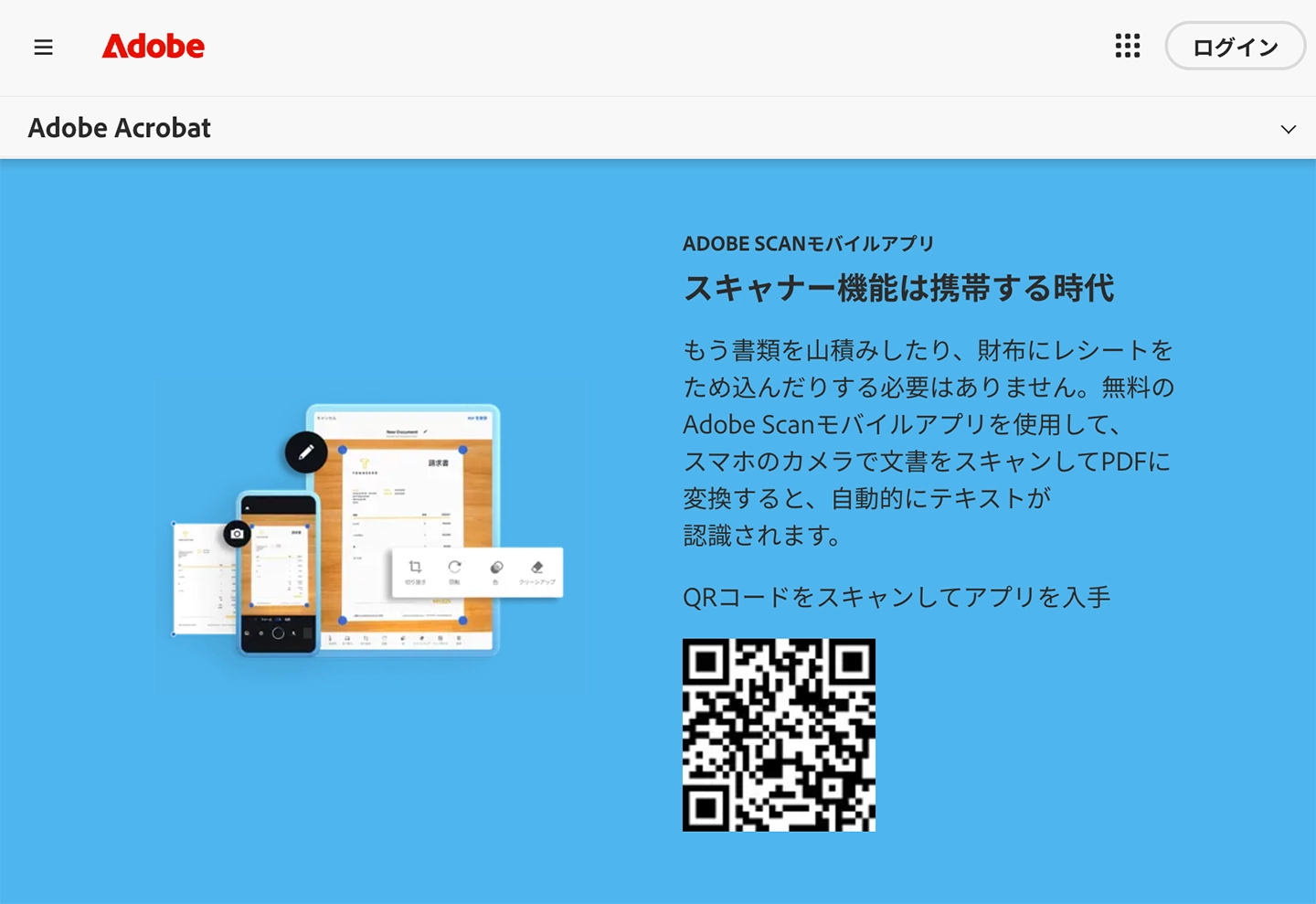
Adobe Scan is a free OCR-enabled scanner app provided by Adobe.
When you photograph a document with your camera, it automatically detects and corrects boundaries to create a high-quality PDF.
It then performs OCR to convert it into a searchable and copyable PDF.
You can select scanning modes for documents, books, business cards, whiteboards, etc., and it automatically corrects distortion and glare.
Scanned PDFs are automatically saved to Adobe Document Cloud, making them accessible from PCs and tablets.
The OCR feature is available in the free version, but it has a limit of 25 pages per month.
Upgrading to a paid plan (Adobe Scan Premium) allows OCR for up to 100 pages, as well as file merging and compression features.
When integrated with the Acrobat Reader app, you can directly annotate, highlight, and sign scanned PDFs.
This app is suitable for those who want to complete document scanning and utilization with just one smartphone.
■ AI transcription service "Mr. Transscription"
"Mr. Transcription" is an online transcription tool that can be used from zero initial cost and 1,000 yen per month (* free version available).
- Supports more than 20 file formats such as audio, video, and images
- Can be used from both PC and smartphone
- Supports technical terms such as medical care, IT, and long-term care
- Supports creation of subtitle files and speaker separation
- Supports transcription in approximately 100 languages including English, Chinese, Japanese, Korean, German, French, Italian, etc.
To use it, just upload the audio file from the site. Transcription text is available in seconds to tens of minutes.
You can use it for free if you transcribe it for up to 10 minutes, so please try it once.

It is "Mr. Transcription" who can easily transcribe from audio, video, and images.
Transcription allows you to transcribe for up to 10 minutes for free.
You can copy, download, search, delete, etc. the transcribed text.
You can also create subtitle files, which is ideal for transcription of interview videos.
HP: mojiokoshi3.com
Email: mojiokoshi3.com@gmail.com
Email: mojiokoshi3.com@gmail.com
Related article
Transcription for audio / video / image transcription. It is a transcription service that anyone can use for free without installation.
- What is Mr. Transcription?
- Transcript images, sounds, and videos with Mr. Transcription
- Free registration
- Rate plan
- manual
- Try other free services