Mr. Transcription: Your Ultimate Guide (Registration to Export)
Translate YouTube Subtitles: Chrome's Auto-Translate for Videos
Aug. 17, 2026
I can't translate YouTube videos because there are no subtitles!

Have you ever wanted to watch English YouTube videos with Japanese subtitles, but the subtitles didn't appear or couldn't be translated?
Actually, by using Google Chrome's "Live Caption" and "Real-time Translation" features, you can automatically translate videos without adding any extensions.
You can translate not only YouTube videos that don't have subtitles but also videos from other video sites.
The setup only takes 3 steps.
It takes about 30 seconds.
| Step 1 | Open Chrome Settings → "Accessibility" |
|---|---|
| Step 2 | Turn ON "Live Caption" (add languages) |
| Step 3 | Turn ON "Real-time Translation" → Set target language to Japanese |
In this article, we will clearly explain how to translate videos using Chrome's Live Caption feature with images.
We've also compiled solutions for when subtitles don't appear or can't be translated, so please refer to them if you encounter any issues.
What is YouTube's Subtitle Translation Feature? How Live Caption and Auto-translate Work
Before explaining Chrome's features, let's briefly explain YouTube's standard subtitle features.
How to Use YouTube's Subtitle Feature
YouTube has both a subtitle feature and a translation feature.
The subtitle feature displays subtitles on the video.
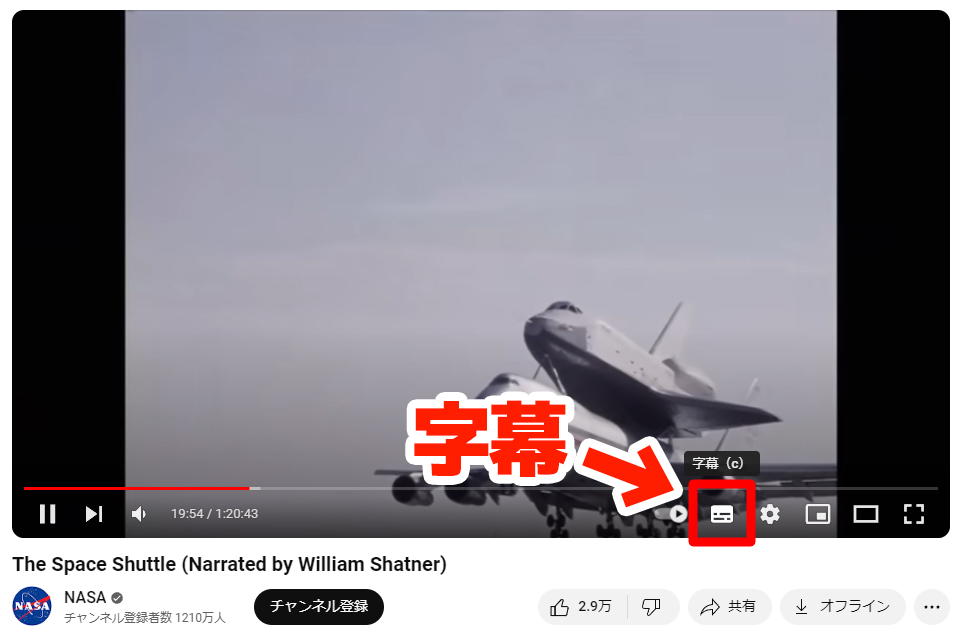
You can display them by clicking "Subtitles" in the bottom right of the video.
YouTube Has Manual and Automatic Subtitles
There are two types of subtitles on YouTube.
- Subtitles manually set by the video uploader
- Subtitles automatically generated by AI recognizing speech
Manual subtitles require a lot of effort to set up, so most videos on YouTube use AI-generated automatic subtitles.
How to Translate YouTube Subtitles to Japanese Using the Auto-translate Feature
On YouTube, you can automatically translate video subtitles into other languages.
Both manual and automatic subtitles can be translated.
Steps to Use YouTube's Auto-translate
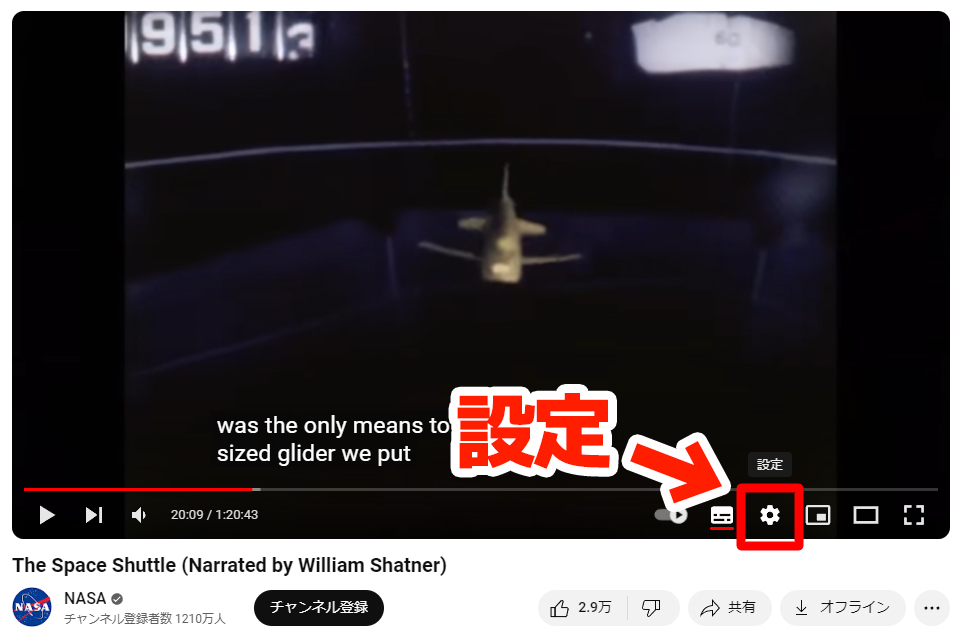
With subtitles displayed, click the "Settings" (gear icon) in the bottom right of the video.
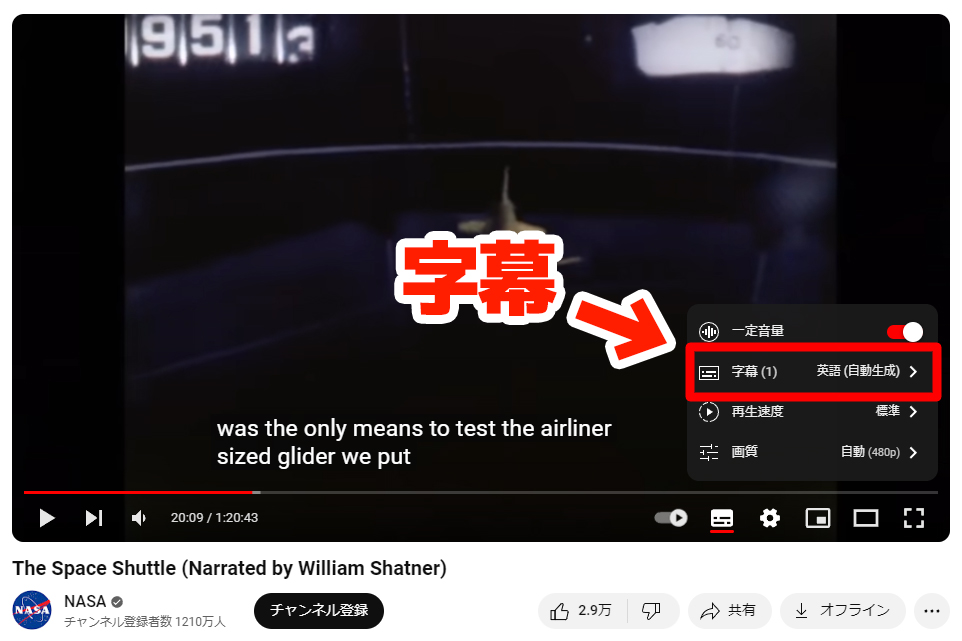
From the menu that appears, click "Subtitles".
From the menu that appears after clicking "Subtitles", click "Auto-translate".
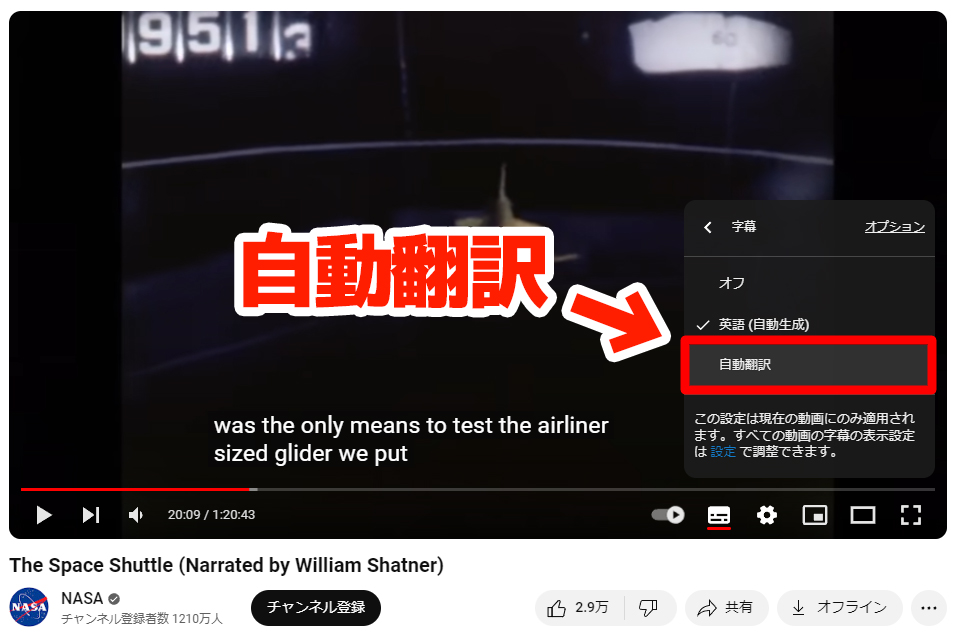
From the menu that appears after clicking "Auto-translate", select the target language for translation.
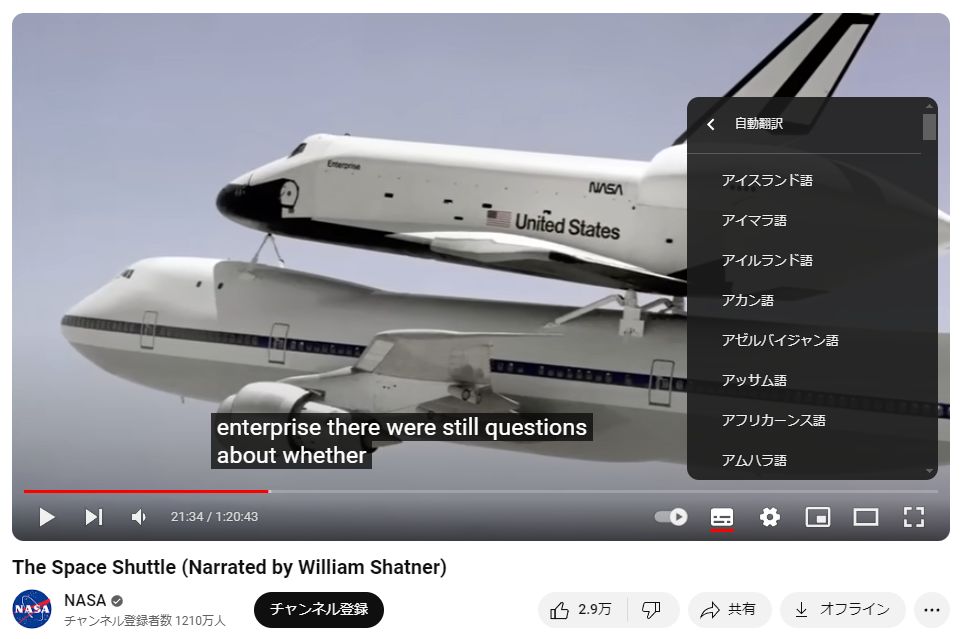 As an example, Japanese is selected.
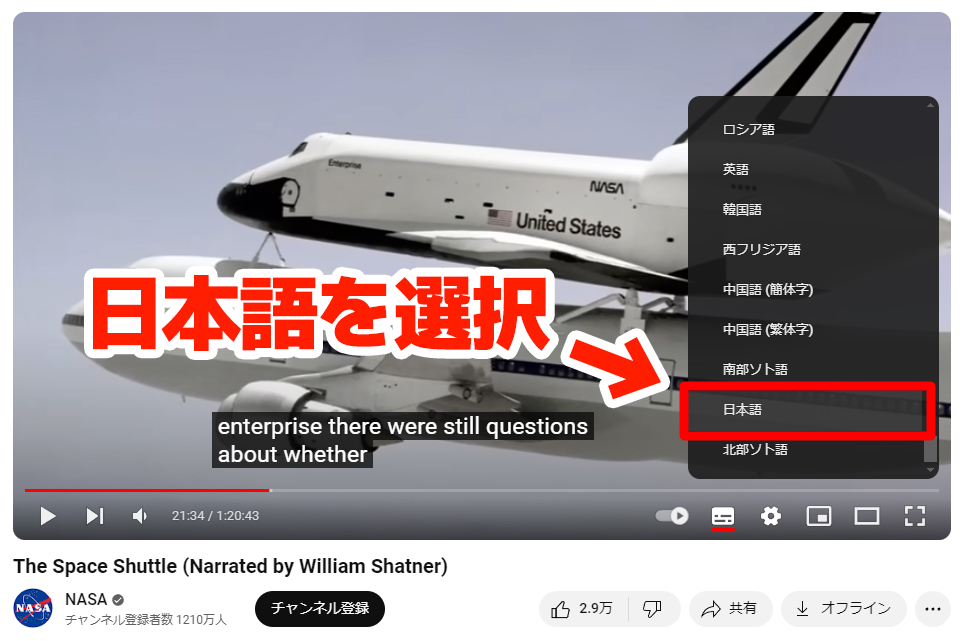
※The target language for translation may sometimes be automatically selected based on the user's language.
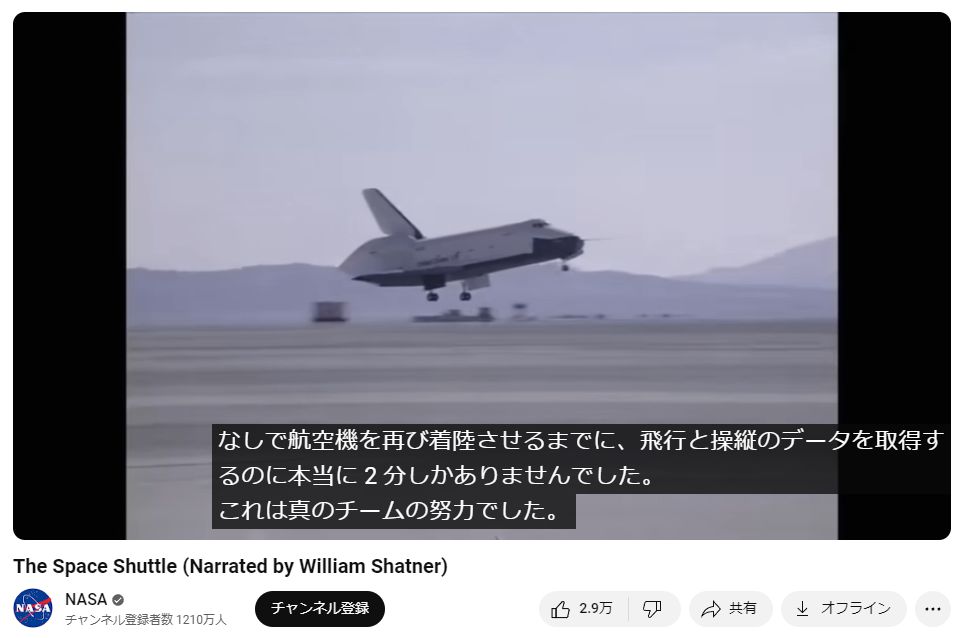
Now, YouTube subtitles have been automatically translated into Japanese.
Some YouTube Videos Don't Show Subtitles or Can't Be Translated
However, there are many videos on YouTube for which automatic subtitles cannot be displayed.
For example, the video in this image, uploaded by YouTube's official channel, does not allow the use of subtitles.
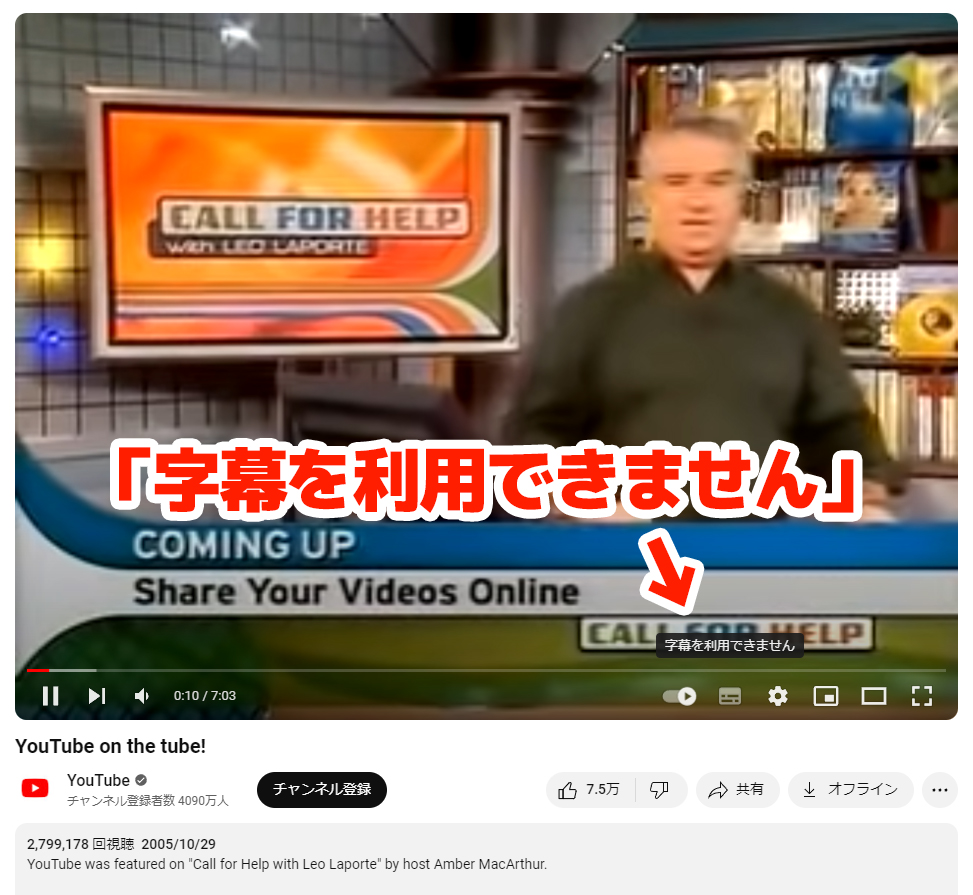
Since there are no original subtitles, they cannot be automatically translated.
There are two main reasons why automatic subtitles may not be available.
Reason 1: The video uploader has not set up subtitles
For automatic subtitles to be generated on a YouTube video, the video uploader must set:
- Language used
- Permission for automatic subtitles
Automatic subtitles will not be displayed for videos where these settings are not configured.
Reason 2: Old videos without subtitle settings
Older videos uploaded before YouTube's automatic subtitle feature was implemented may not have the necessary subtitle settings.
If the video uploader sets them later, automatic subtitles can be displayed even for old videos.
In such cases, Google Chrome's Live Caption feature is the solution
Videos without automatic subtitles also cannot be translated, making it difficult to understand foreign language videos like English.
In such cases, we recommend using Google Chrome's Live Caption feature!
Chrome recognizes the video's audio, automatically generates subtitles, and translates them into Japanese in real-time.
Moreover, this feature is a standard Chrome function, so no extension installation is required.
A big advantage is that it can be used for videos without subtitles on YouTube, as well as on other video sites.
How to Translate Videos to Japanese with Chrome's Live Caption and Real-time Translation [5 Steps]
How do I use Google Chrome's Live Caption feature?

This section explains how to use Google Chrome's Live Caption to translate videos into Japanese in real-time, with images.
Requirements: Desktop Google Chrome (Windows / Mac)
Supported Languages: English, Japanese, Korean, Chinese, French, Spanish, and over 20 other languages. Over 100 languages available for translation.
Cost: Free (no extensions needed, standard Chrome feature)
1. Open Chrome Settings
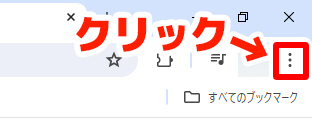
In the top right of Google Chrome, click the "⋮" (vertical three dots) icon.
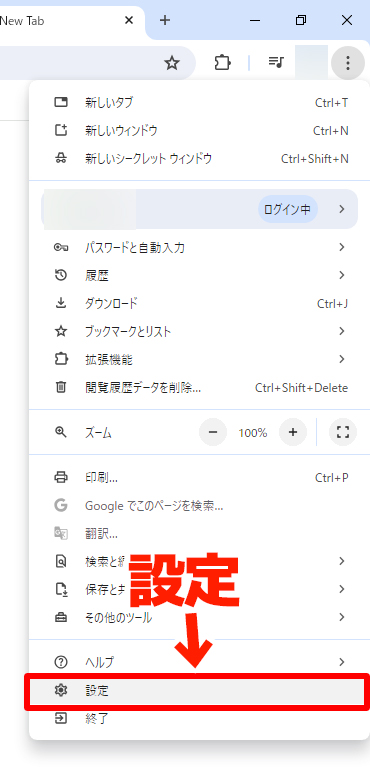
From the menu that opens, near the bottom, click "Settings".
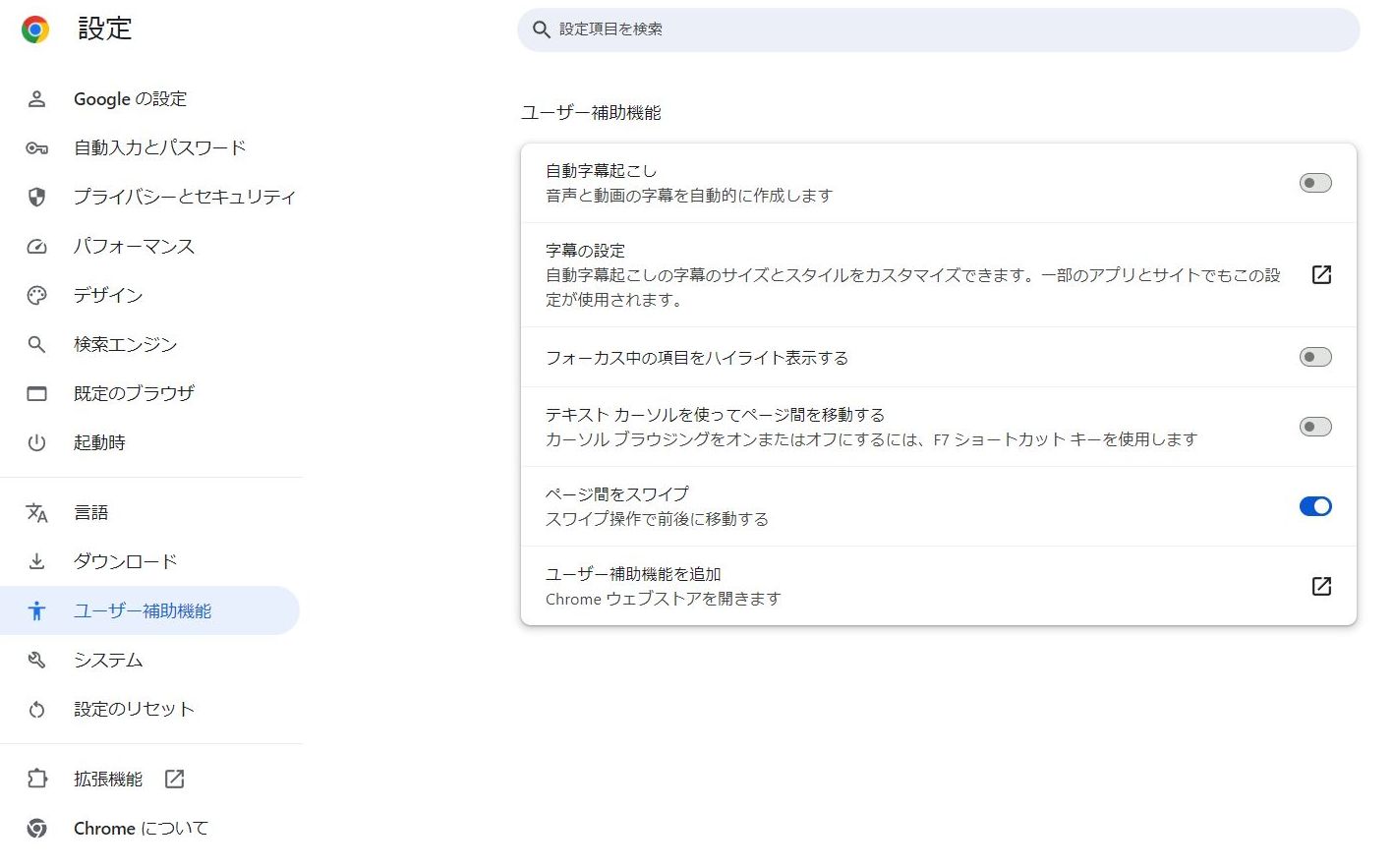
2. Open "Accessibility"
From the left-hand menu in Google Chrome's settings, click "Accessibility".
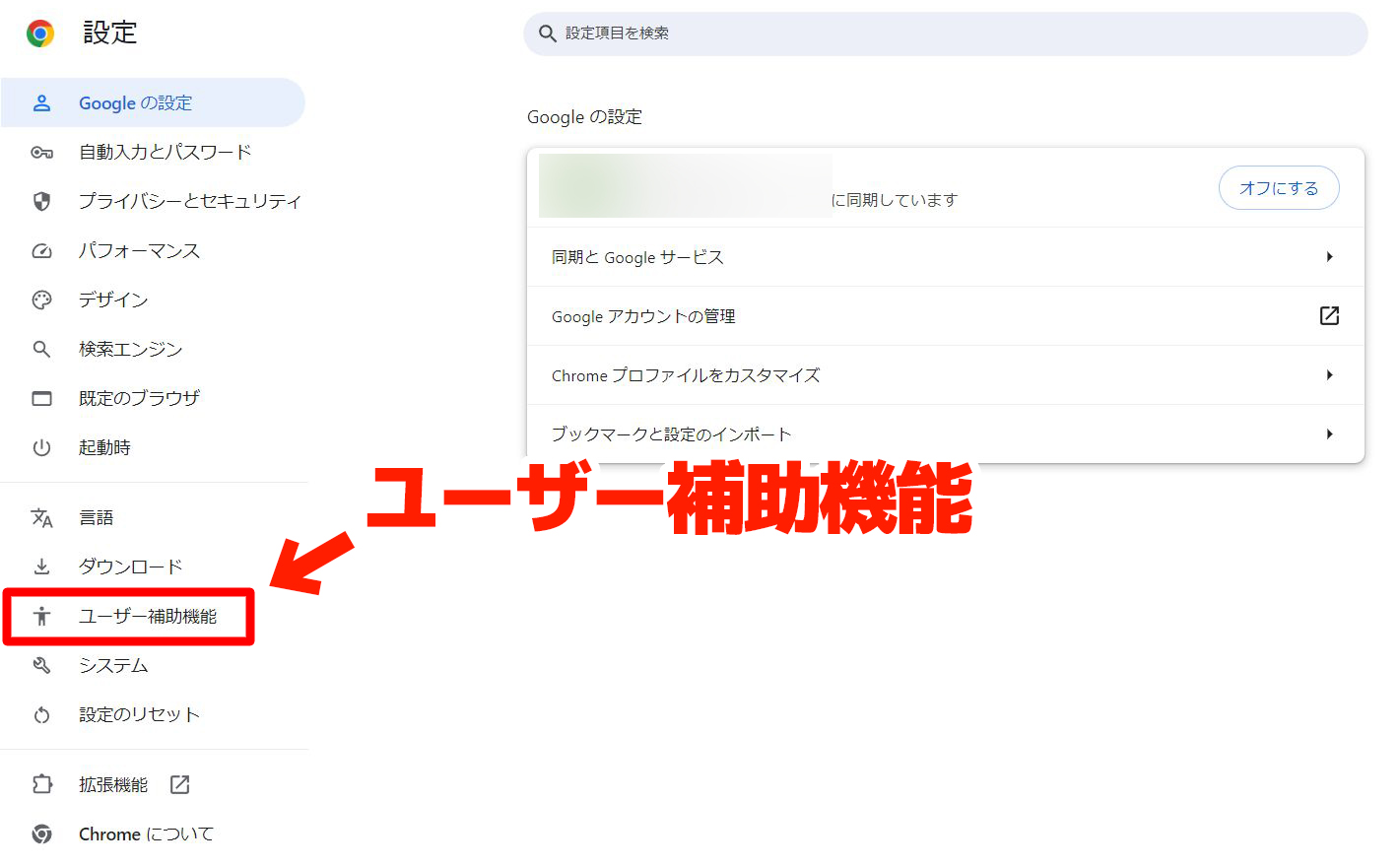
The "Accessibility" screen has opened.
3. Turn ON "Live Caption"
At the top of "Accessibility", turn ON "Live Caption".
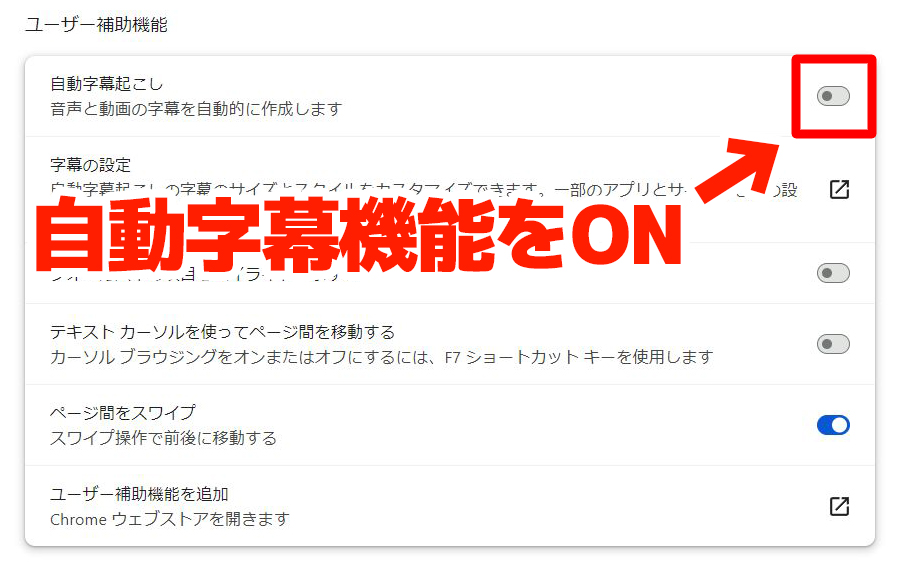
Then, the download of speech recognition files will begin.
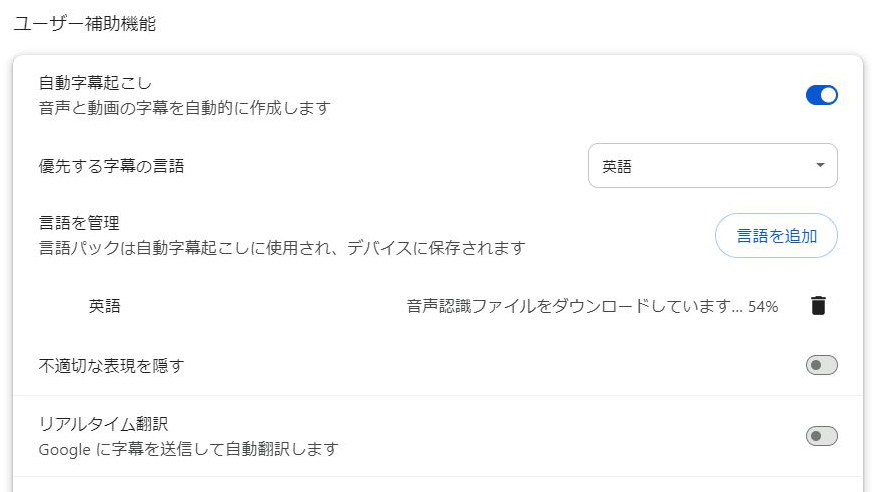
(The file being downloaded at this time is for speech recognition of English.)
When "Speech files downloaded" is displayed, the download of the English speech recognition file is complete.

Now, Google Chrome can use Live Caption for English videos.
How to Add Other Languages
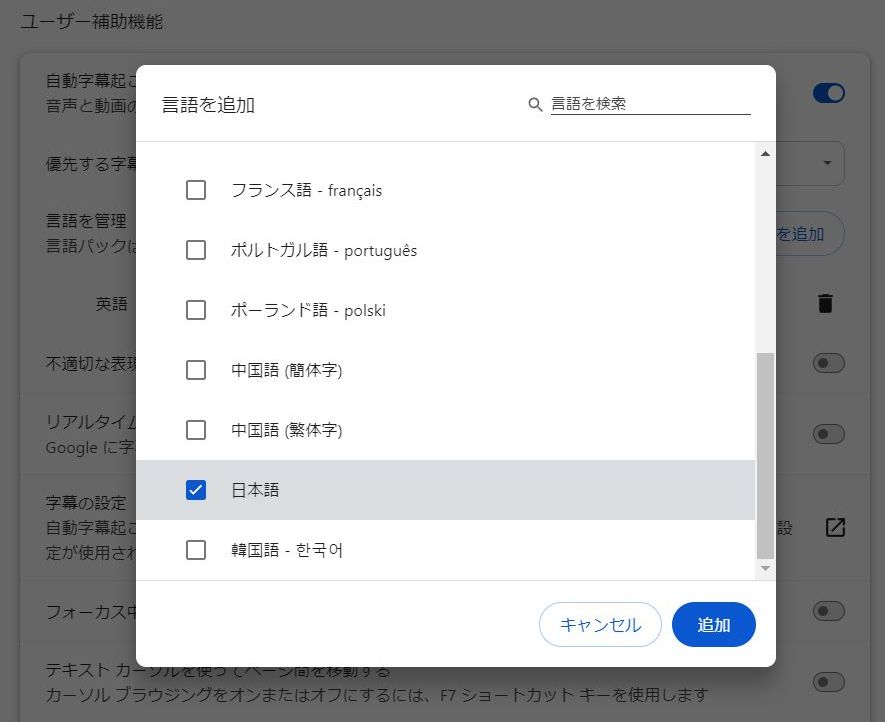
If you want to translate videos in languages other than English (such as Korean, Chinese, French, etc.), click "Add languages" and download the necessary languages.
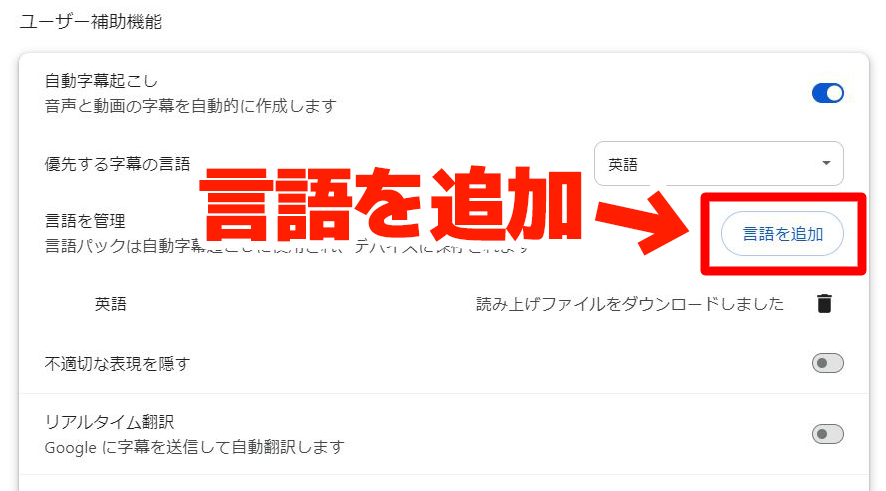
Select the language you want to add and click "Add". The speech recognition file will be downloaded just like for English.
4. Turn ON "Real-time Translation"
Next, turn ON "Real-time Translation", which is below "Live Caption".
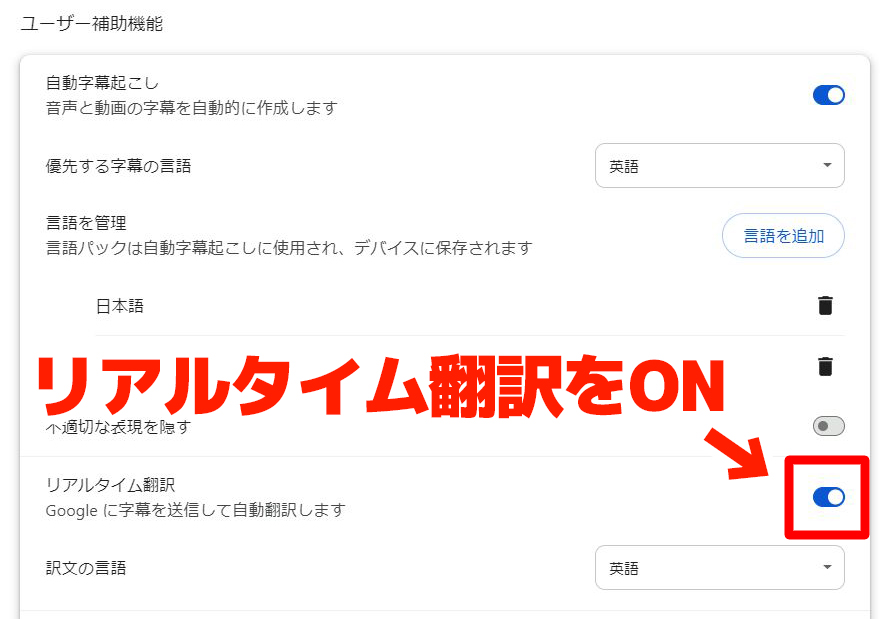
When turned ON, the target language for translation is English, so select Japanese from the "Translate captions to" menu.
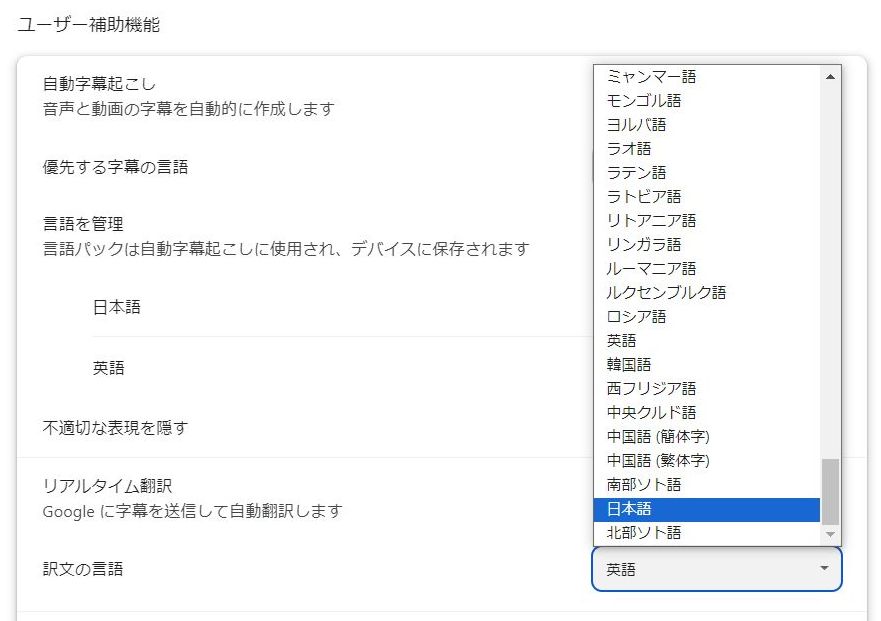
5. Play a video on a video site
The setup is now complete. When you play a video on YouTube or other video sites in this state, Japanese subtitles will automatically appear.
As an example, let's display a YouTube video where automatic subtitles are not available.
Then, translated subtitles will appear on the Chrome browser screen like this.
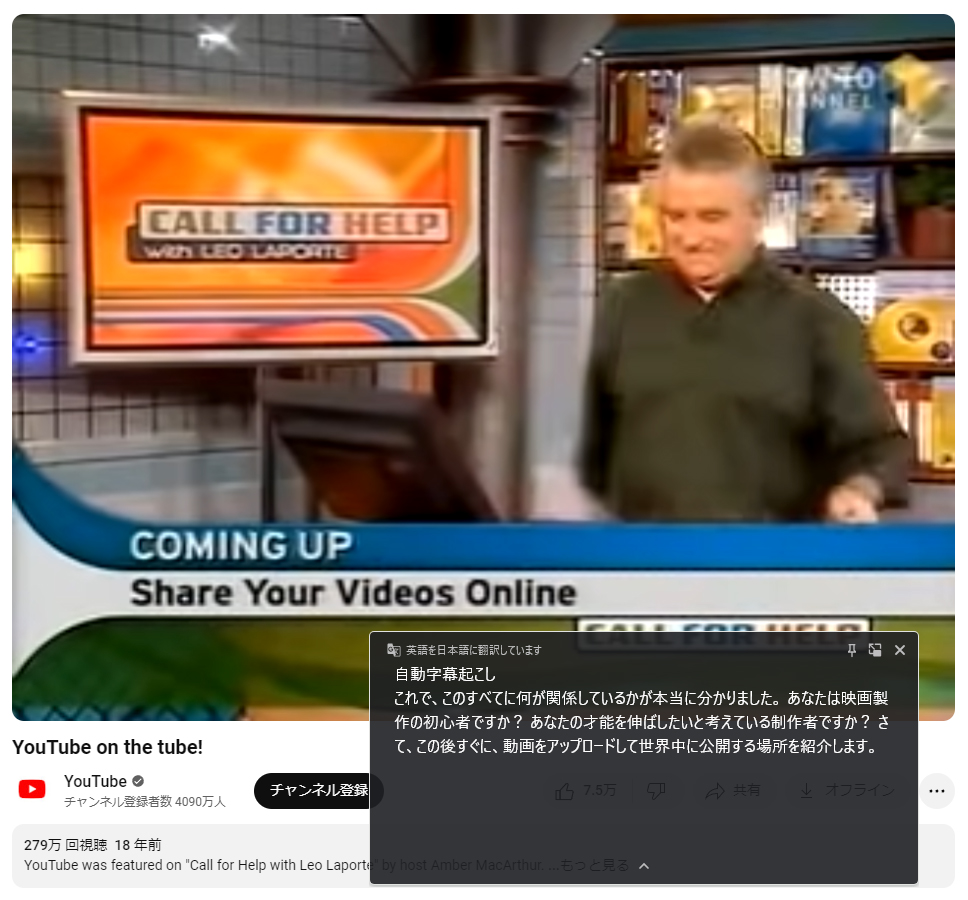
Since the "Real-time Translation" feature is on, the English audio of the video is automatically translated and displayed in Japanese.
The subtitle window can also be dragged with the mouse to adjust its position.
Translation Available on Video Sites Other Than YouTube
Chrome's Live Caption and Real-time Translation features can be used on video sites other than YouTube.
For example, in this image, a video is being played on the BBC website in the UK, and automatically translated Japanese subtitles are displayed, just like on YouTube.
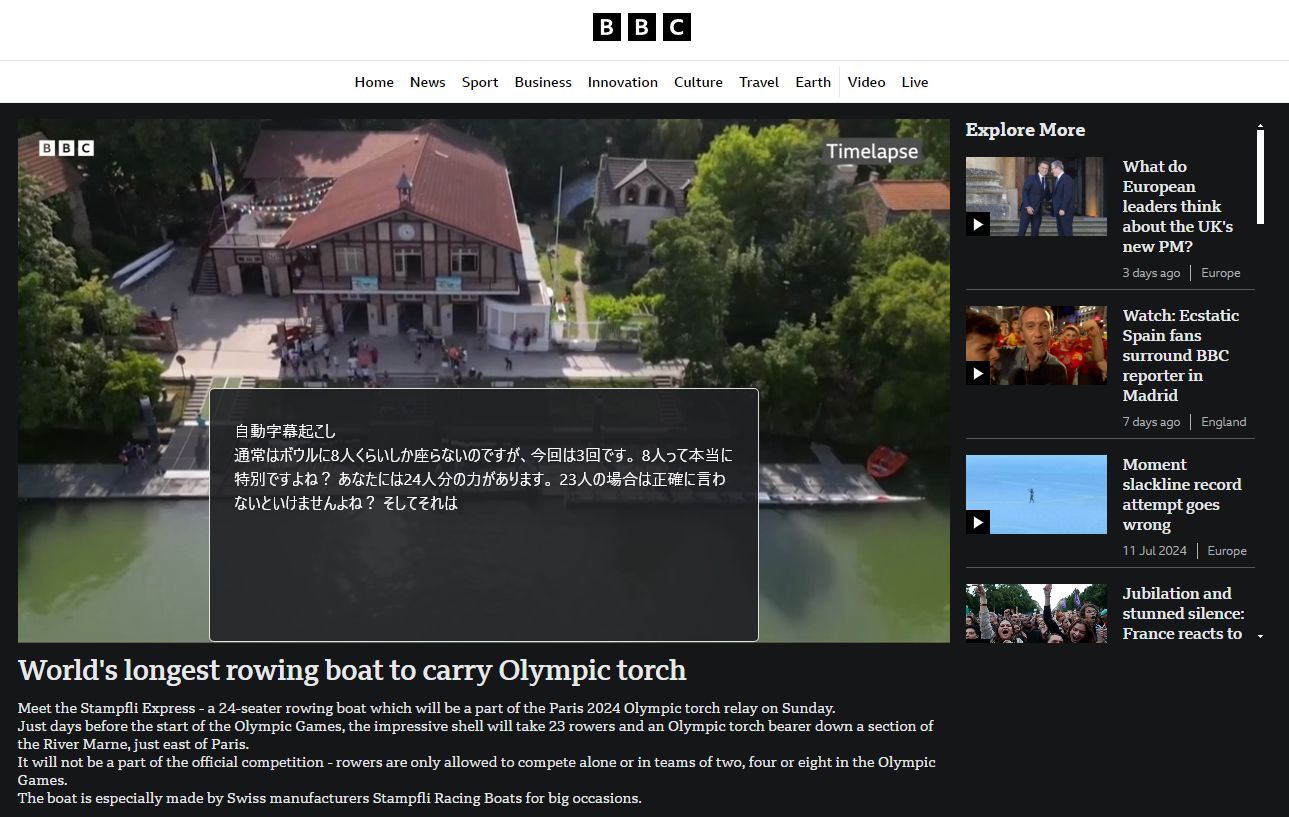
Whether it's international news sites or social media videos, any video that can be played in the Chrome browser can use Live Caption and translation.
Troubleshooting: When Subtitles Don't Appear or Can't Be Translated
Here are common issues with Chrome's Live Caption feature and YouTube's translation feature, along with their solutions.
When Chrome's Live Caption doesn't appear
■ AI transcription service "Mr. Transscription"
"Mr. Transcription" is an online transcription tool that can be used from zero initial cost and 1,000 yen per month (* free version available).
- Supports more than 20 file formats such as audio, video, and images
- Can be used from both PC and smartphone
- Supports technical terms such as medical care, IT, and long-term care
- Supports creation of subtitle files and speaker separation
- Supports transcription in approximately 100 languages including English, Chinese, Japanese, Korean, German, French, Italian, etc.
To use it, just upload the audio file from the site. Transcription text is available in seconds to tens of minutes.
You can use it for free if you transcribe it for up to 10 minutes, so please try it once.

It is "Mr. Transcription" who can easily transcribe from audio, video, and images.
Transcription allows you to transcribe for up to 10 minutes for free.
You can copy, download, search, delete, etc. the transcribed text.
You can also create subtitle files, which is ideal for transcription of interview videos.
HP: mojiokoshi3.com
Email: mojiokoshi3.com@gmail.com
Email: mojiokoshi3.com@gmail.com
Related article
Transcription for audio / video / image transcription. It is a transcription service that anyone can use for free without installation.
- What is Mr. Transcription?
- Transcript images, sounds, and videos with Mr. Transcription
- Free registration
- Rate plan
- manual
- Try other free services