文字起こしさんの使い方ガイド【登録〜文字起こし完了まで】
How to Transcribe a Video and Create Subtitles (MP4 to SRT)
Oct. 14, 2026


Adding subtitles to videos is such a chore...!
Don't worry, there's an easy way to do it!

For anyone who makes videos, adding subtitles and captions is a tough job.
Typing in the text and setting the start and end times is usually more work than cutting and joining the video footage.
But what if that subtitle work could be automated…?
In fact, with the latest AI technology, you can automate the most tedious subtitle-related work.
The method is simple: just upload the MP4 file you made for YouTube to an AI transcription service.
Since you no longer have to do the most troublesome work, you can cut the time spent on video editing by more than half.
This article explains how to transcribe MP4 files made for video sites such as YouTube into text and add subtitles.
It also covers the specific steps in the two major video editing programs, Adobe Premiere and DaVinci Resolve, so why not use it as a guide and add subtitles to your own videos?
How to Transcribe a Video and Add Subtitles (Works with MP4 Videos for YouTube!)
For people who make videos for work or as a hobby, and for YouTubers, adding subtitles is one of the most troublesome tasks.
In fact, by transcribing your video with the latest AI, you can add subtitles easily.
The Flow of Adding Subtitles to a Video
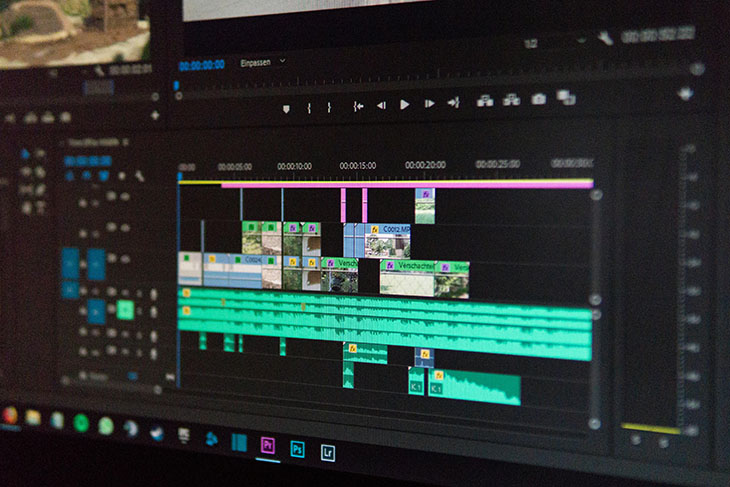
If you upload videos to video sites such as YouTube, you are probably using video editing software such as Adobe Premiere or DaVinci Resolve for editing.
In fact, both programs can import subtitle files such as "srt files", so you don't have to type the subtitles in by hand; you can add subtitles automatically just by importing the contents of the subtitle file.

I didn't know this, so I've been adding subtitles by hand all this time...
The Old Way (Typing Everything by Hand)
Until now, you had to add the subtitle text by hand like this.
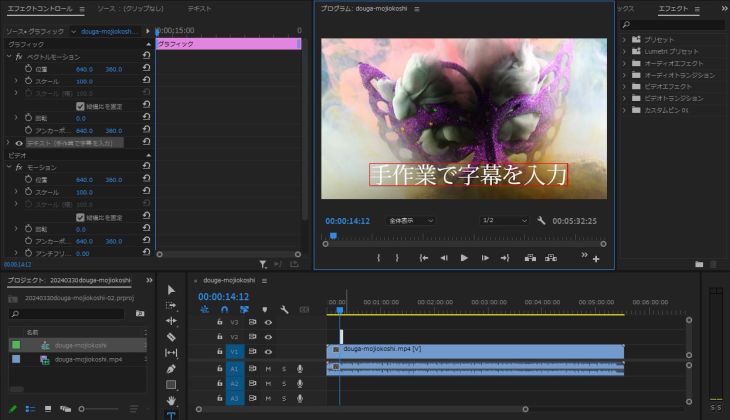
For every single subtitle, you had to
- Type in the subtitle text
- Set the start time and end time
so video editing took a very long time.
The New Way (Using an AI Transcription Service)
But from now on, you don't need to do any of that!
Just import the subtitle text transcribed by AI, and subtitles are added from the beginning to the end of your video in an instant!
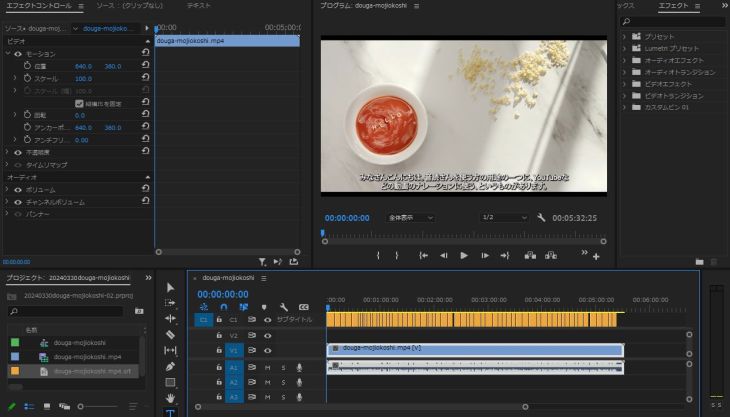
Of all the work involved in video editing, adding subtitles and captions was especially time-consuming.
With an AI transcription tool, you can cut the time spent on video editing by more than half.
Why not use an AI transcription tool and make your video editing far more efficient?
For Transcribing Video Subtitle Text, Try "Mr. Transcription"
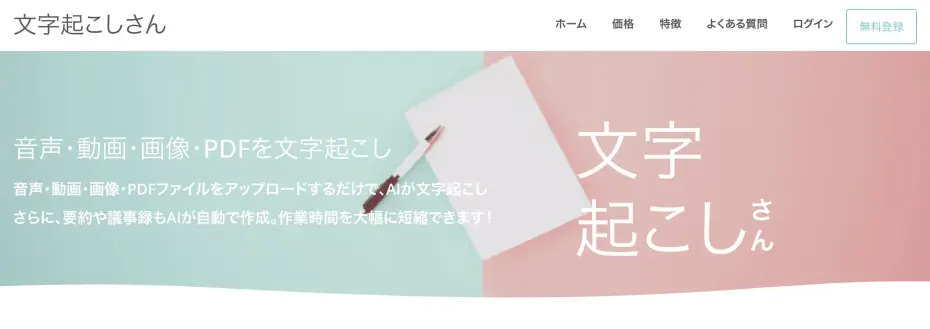
For creating subtitles, we recommend "Mr. Transcription"!
"Mr. Transcription" is a recommended AI transcription tool for creating subtitle text for videos.
By using the latest speech recognition AI, it creates subtitle text quickly and with high quality.
What's more, you can upload and import video files directly, so there is no need to go to the trouble of creating an audio file just for making subtitles.
It supports many file formats for upload,
- MP4
- MOV
- AVI
- FLV
- MKV
- WEBM
- WMV
- 3GP
covering all of the major video file formats.
You can transcribe directly from an MP4 video made for YouTube, or from a MOV file of footage shot on an iPhone.
For details on supported files, see this article.

Files and File Sizes Supported by Mr. Transcription, and How to Convert Unsupported Files
A guide to the files Mr. Transcription supports and what to do when your file is not supported.
It also supports 100 languages, including Japanese and English (using the latest AI), so you can also use it like this:
Transcribe in a foreign language → translate into Japanese with AI to create subtitles
and so on.
What's more, "Mr. Transcription" is free for up to 10 minutes a day!
With "Mr. Transcription," an AI transcription tool that covers everything video editors need, why not boost your video views?
How to Create a Subtitle File from an MP4 Video for YouTube
From here, we explain in detail how to use the AI transcription service "Mr. Transcription" to transcribe an MP4 file for YouTube into a subtitle text file.
1. Open the "Mr. Transcription" Top Page
The AI transcription service "Mr. Transcription" is used from a web browser.
You upload videos from the top page.
Go to the "Mr. Transcription" top page
You can use it from any environment, whether a Windows or Mac computer or an iPhone or Android smartphone, as long as you are connected to the internet.
2. Upload the Video
Drag and drop your video onto the area that says "Drag & drop files", or click "Select file" and choose the file.
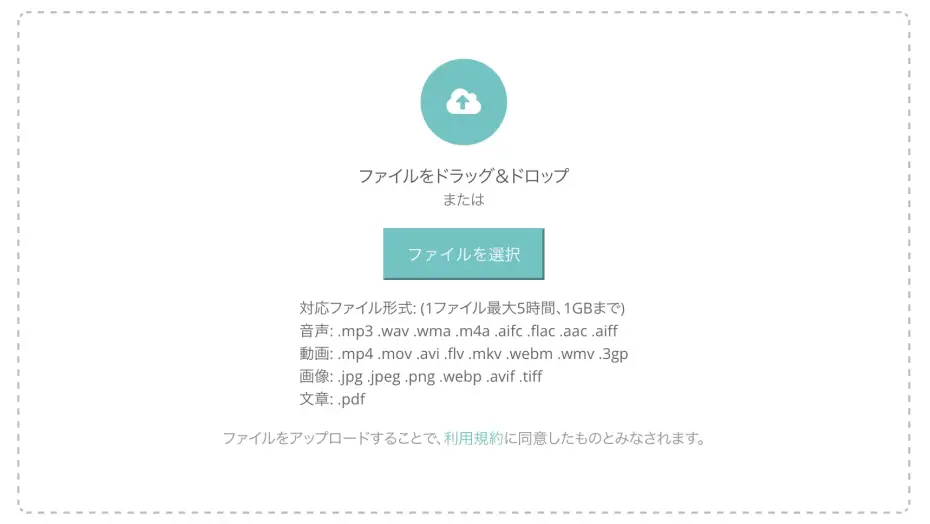
After selecting the file, click the "Upload" button.
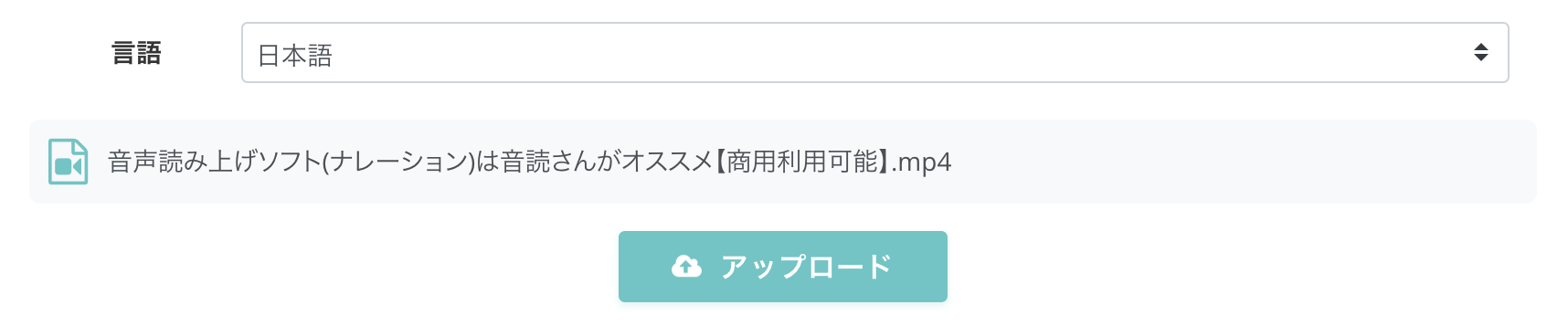
The file upload starts.
This time, we uploaded an MP4 file encoded for YouTube.
3. Transcription to Subtitle Text Begins
When the video file (an MP4 file in this case) has finished uploading, transcription starts automatically.

Once you see this screen, it is fine to close the browser window.
You will be notified by email when the subtitle text transcription is complete.
(Of course, there is no problem if you keep the screen open.)
4. Transcription Complete
When the transcription is finished, you can check the result transcribed into text.
If you kept the screen open, it switches and the transcription result is displayed.
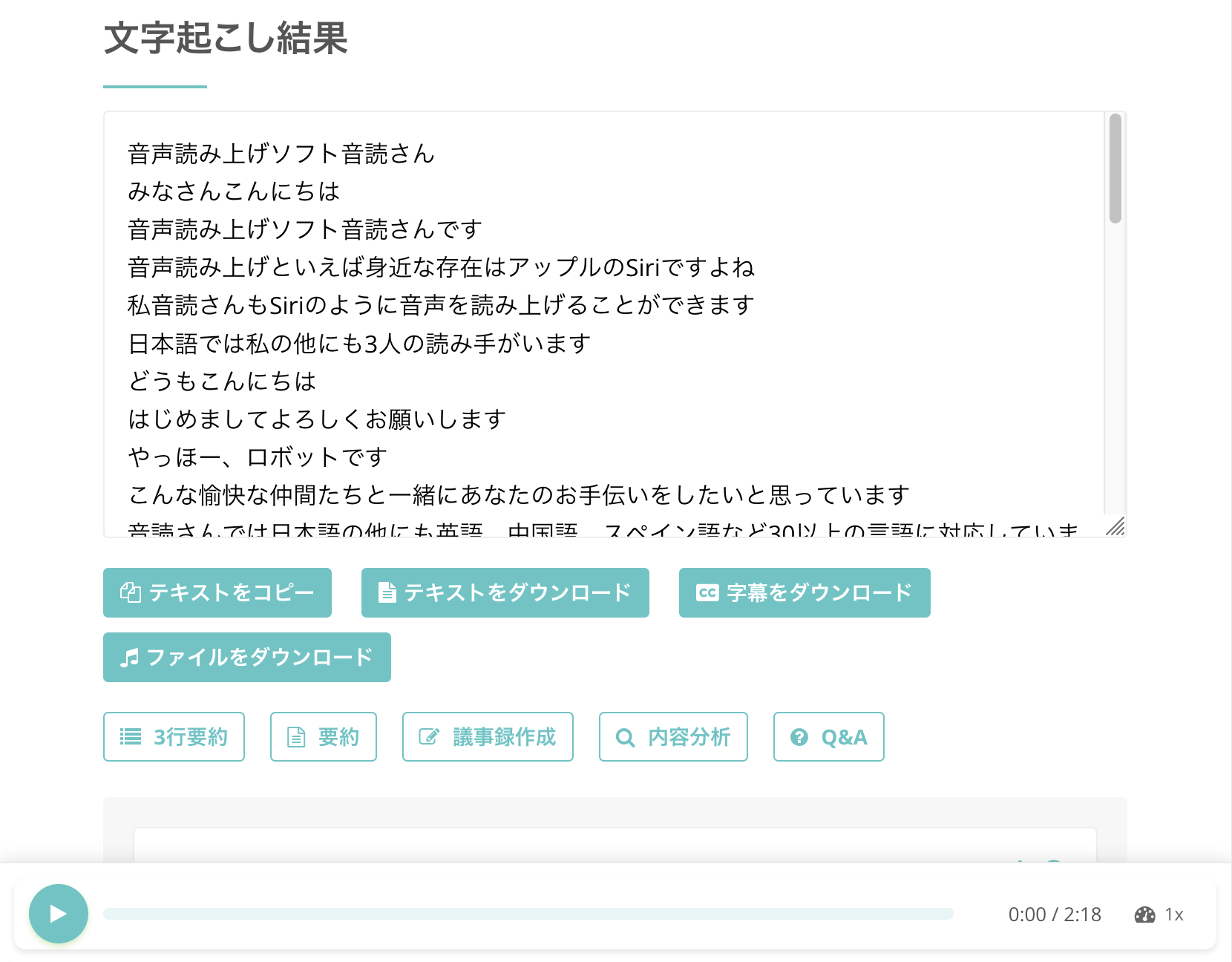 In this case, you can download the subtitle file with the "Download subtitles" button.
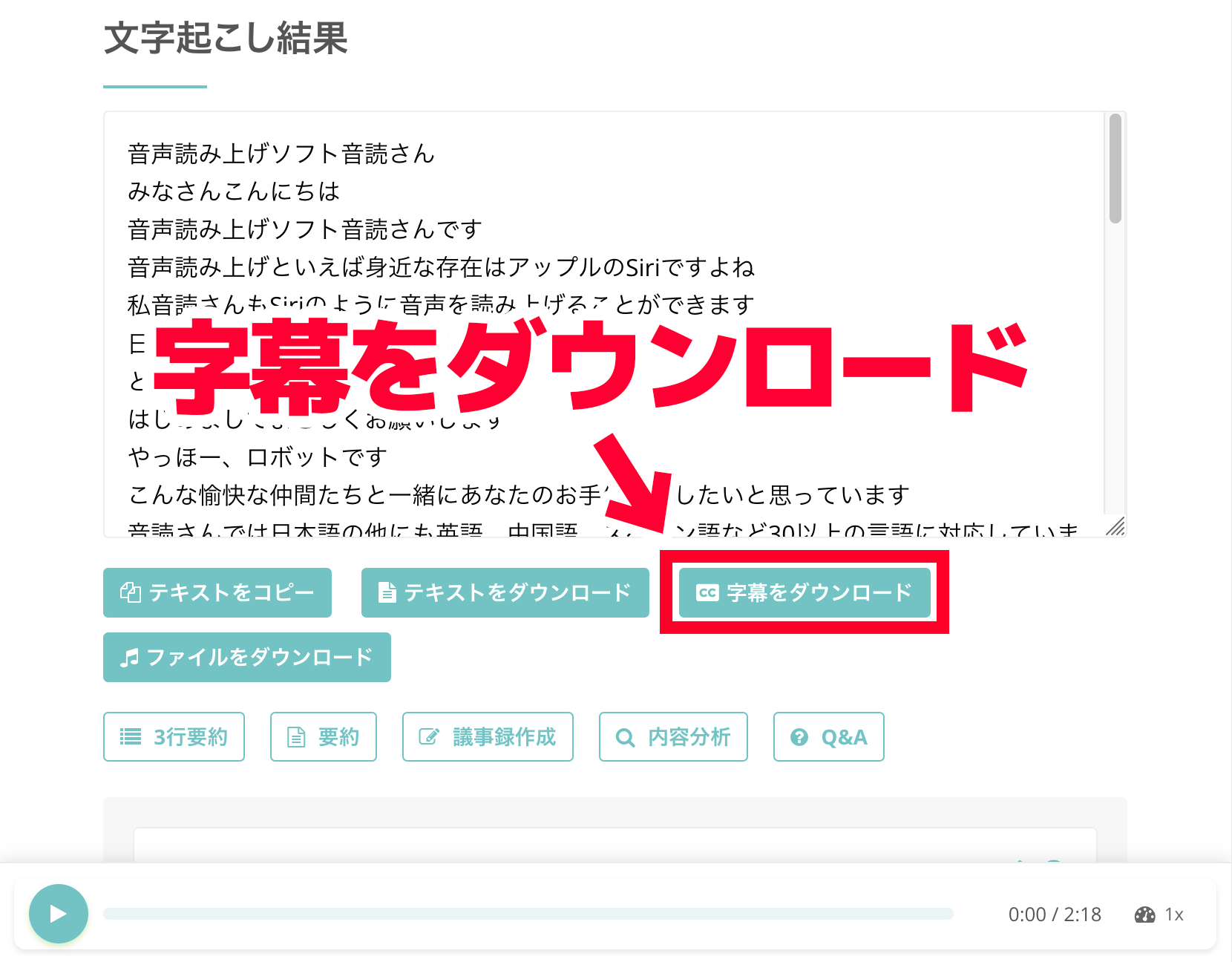
You can also check the transcription result by using the play button next to each utterance to play the video's audio from that point.
When you play the audio with the player at the bottom of the screen, the displayed text switches in step with the playback position.
If you closed the screen after uploading, click "History" in the menu,
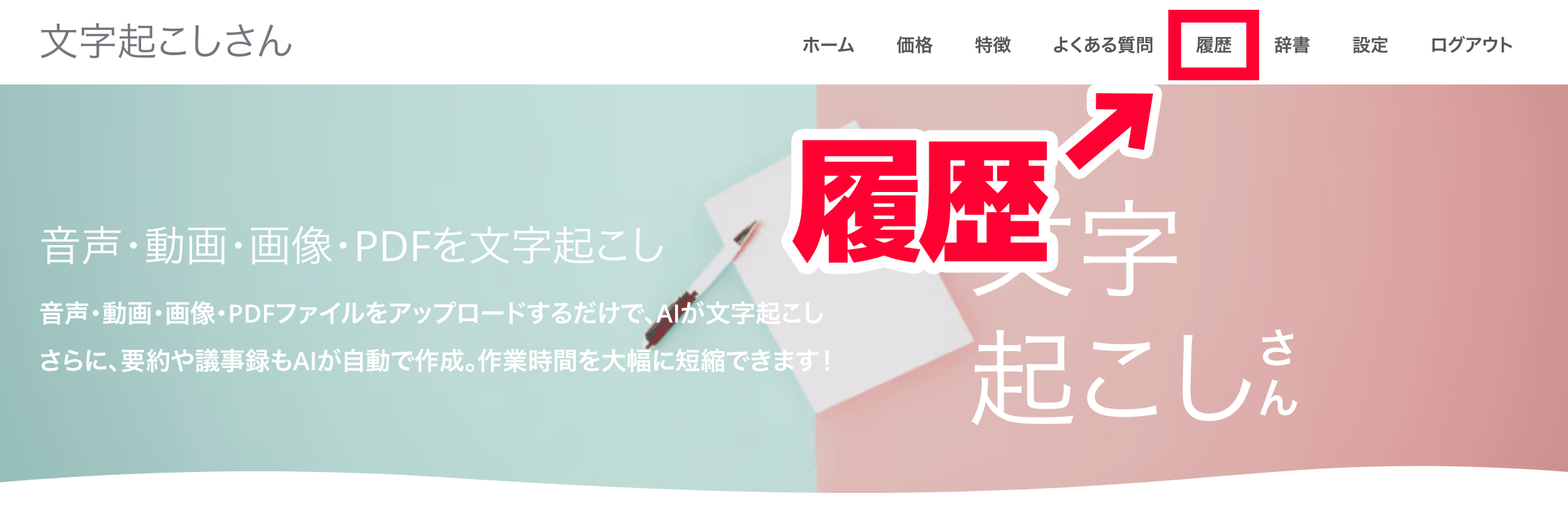
and open the "Transcription History" page.
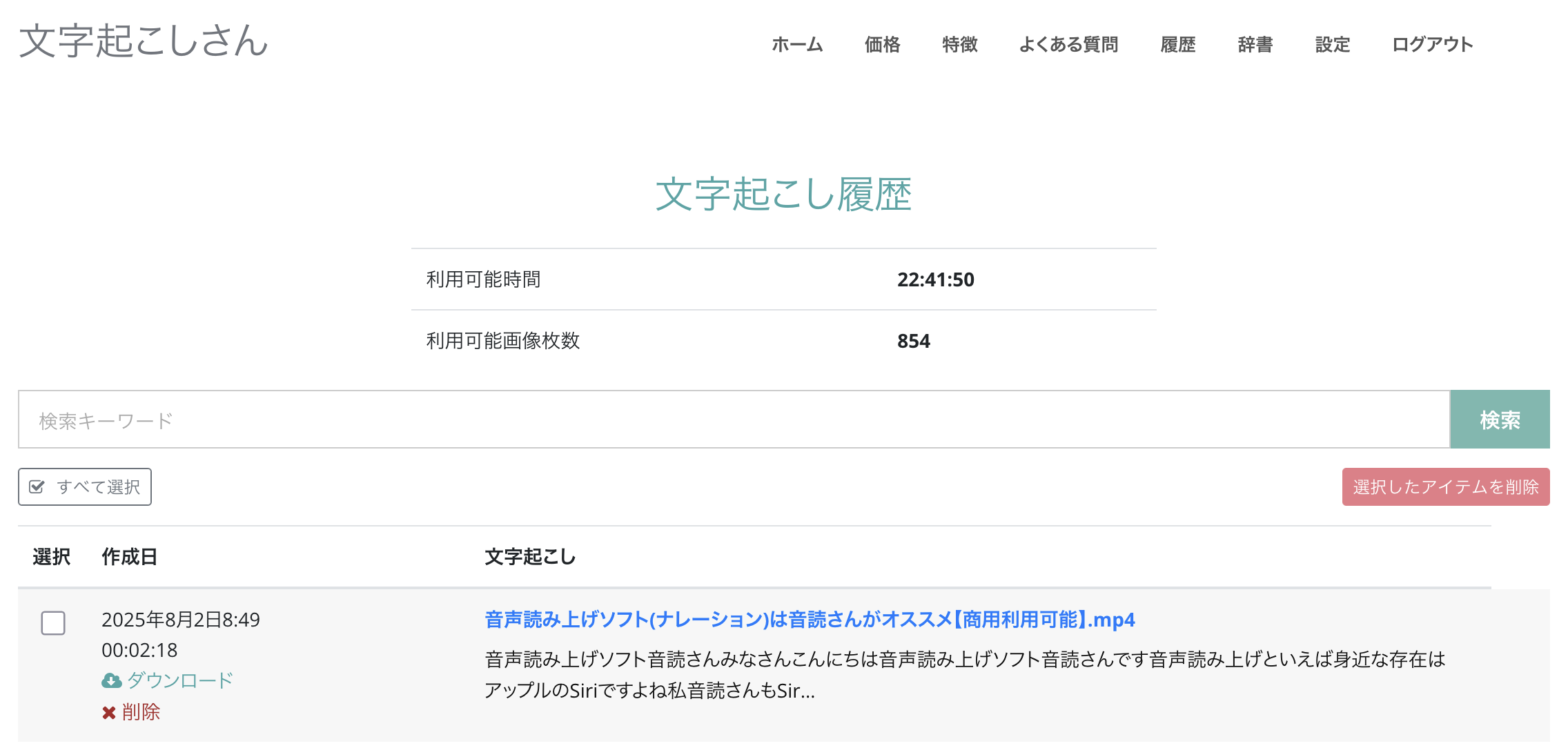
On this screen, click the file name,
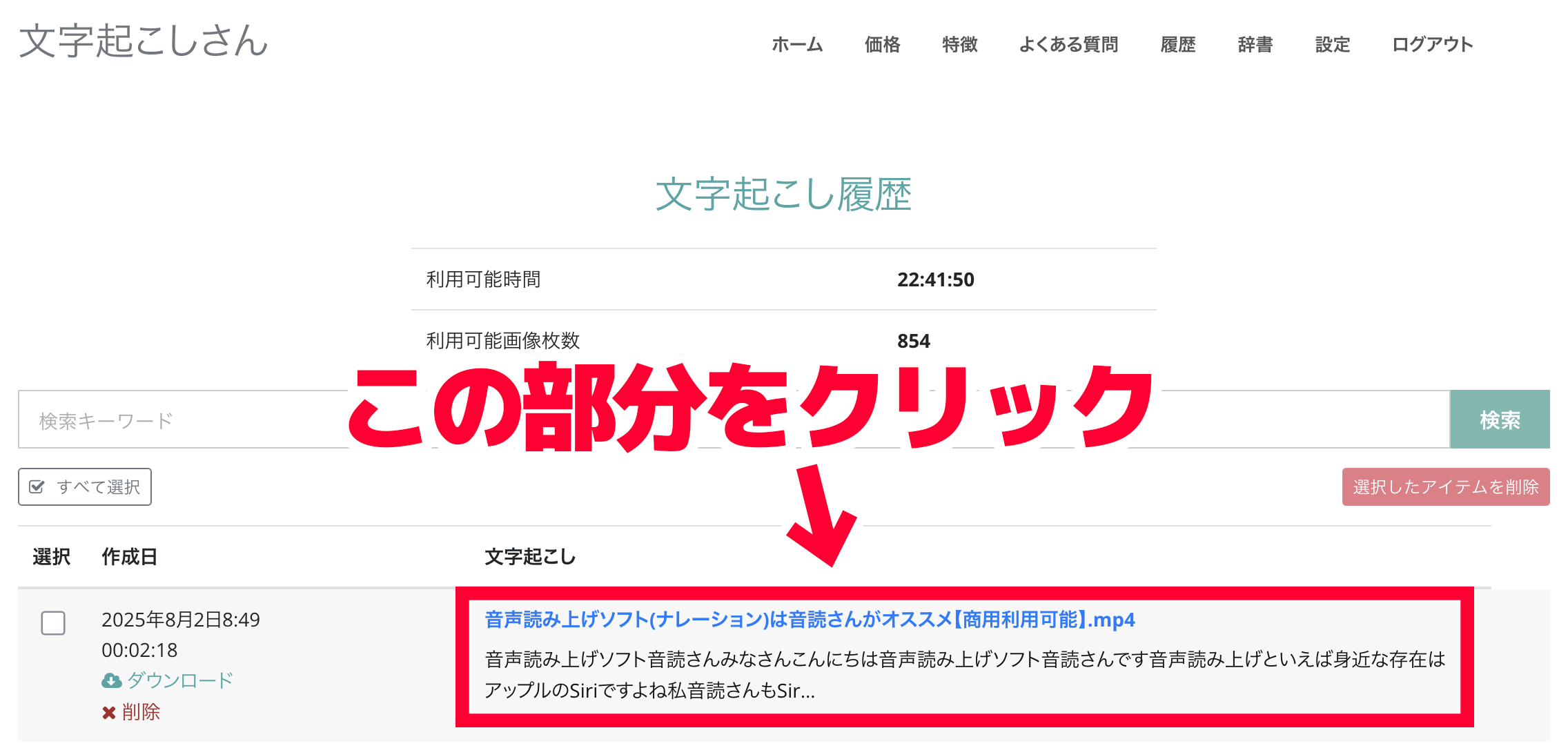
and the details screen opens like this.
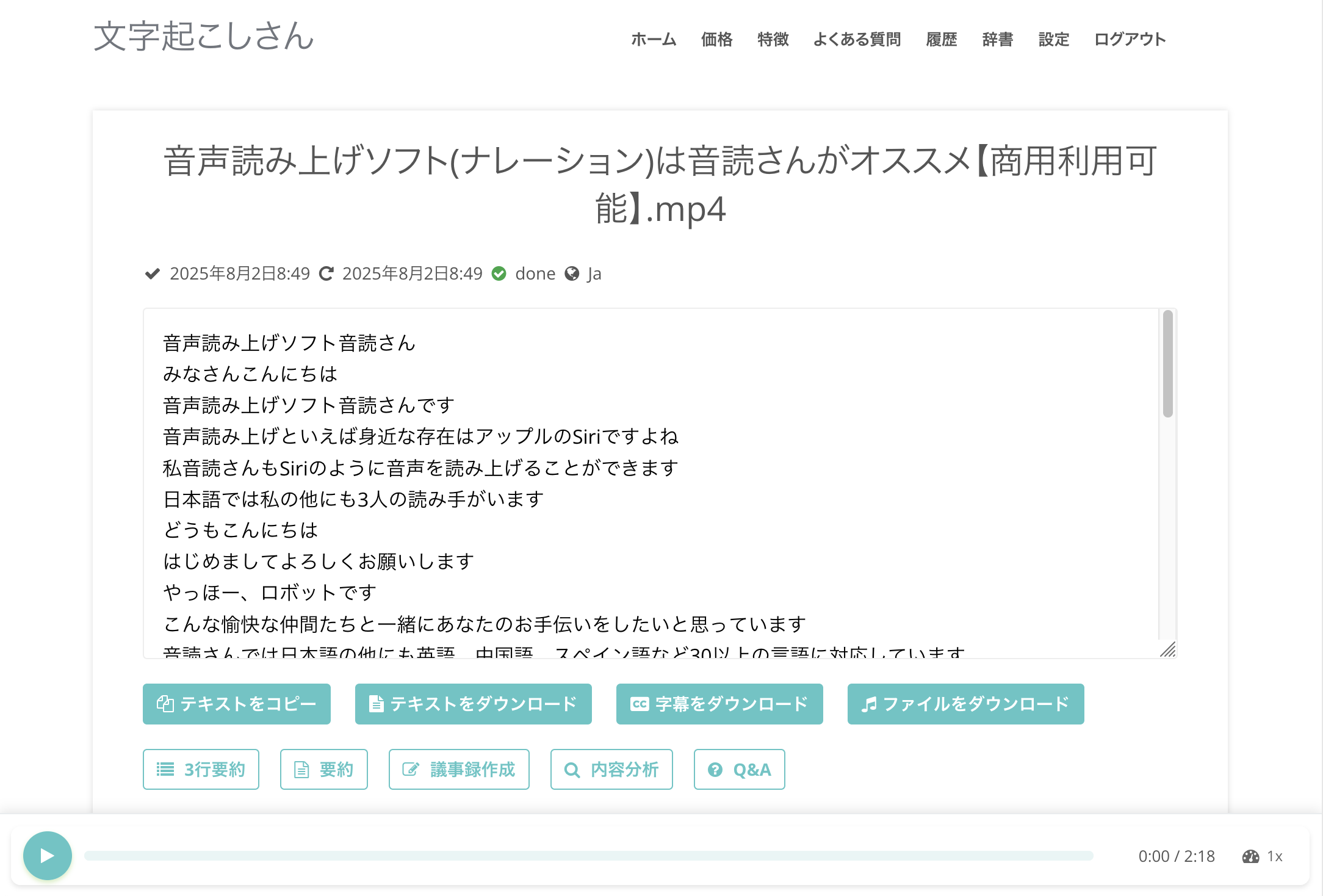
On this screen, click "Download subtitles" to download the subtitle file.
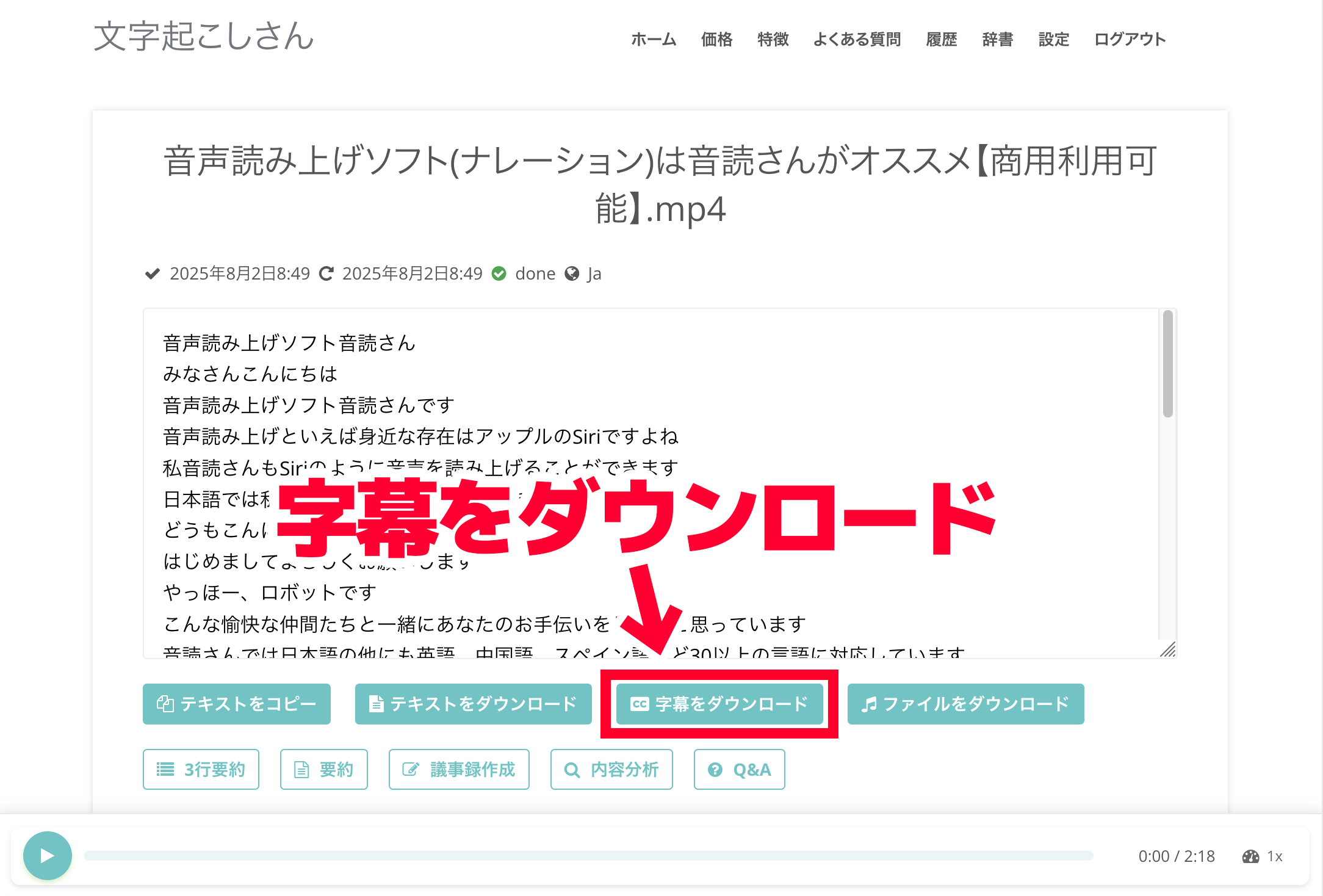
That completes the subtitle transcription work.
About the Subtitle File from "Mr. Transcription"
The file name is "uploaded file name.srt".
For example, in this case it is douga-mojiokoshi.mp4.srt.
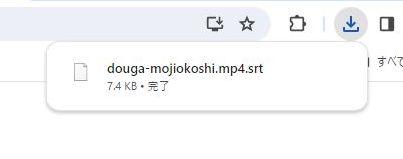
The subtitle file format is an srt file.
An srt file is a file format widely used for video subtitle text, and its contents are a text file containing timecodes and sentences, like this.
On Windows
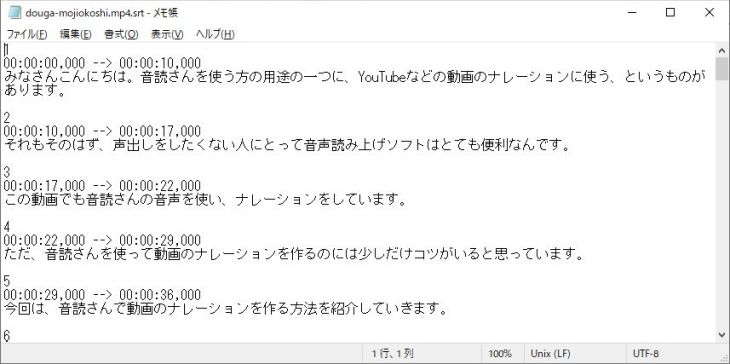
On Mac
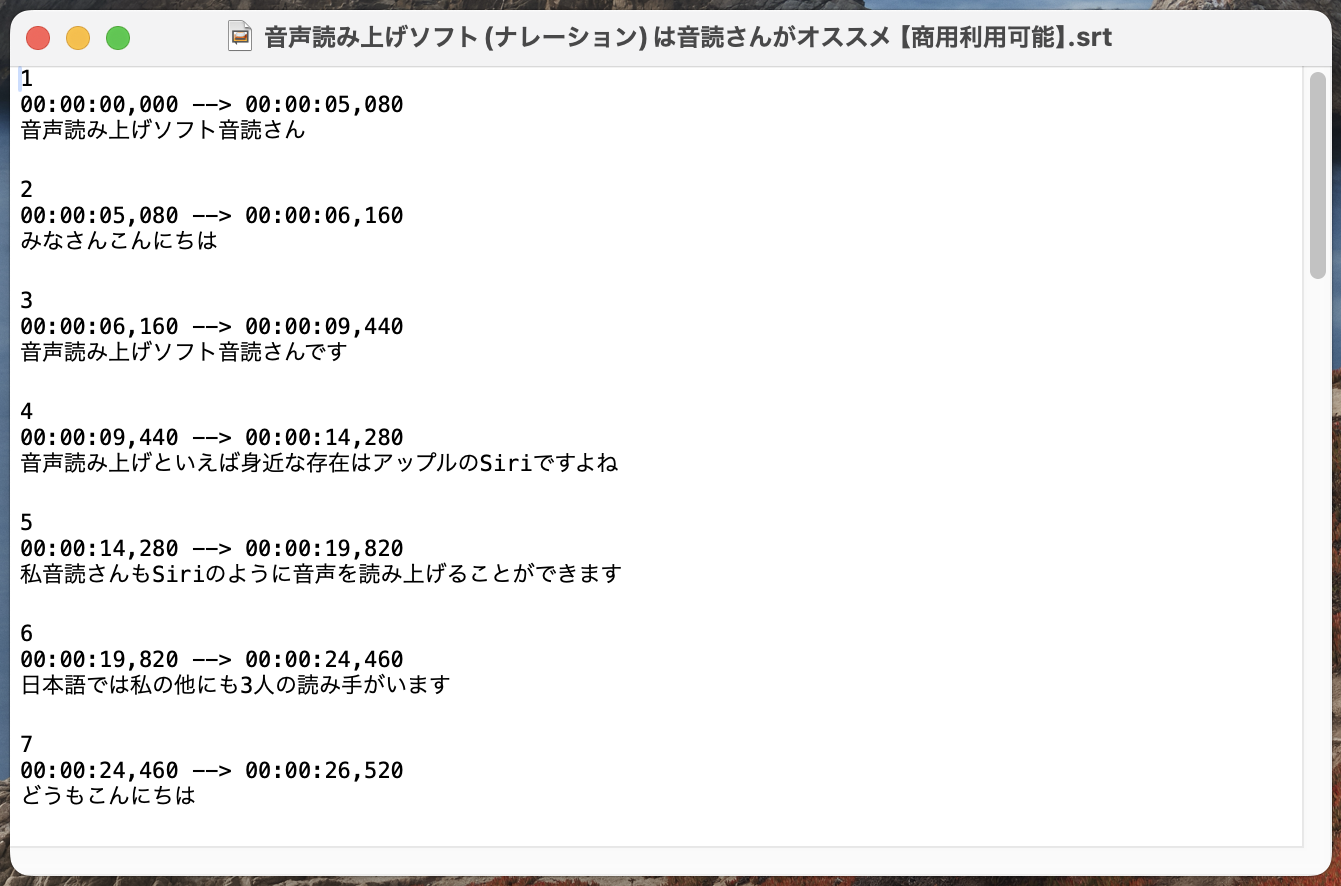
Video editing software such as Adobe Premiere and DaVinci Resolve, as well as YouTube's subtitle feature, support srt files, so all that remains is to import this subtitle file and the subtitle text is added automatically.
* Even if you edit the content on the Mr. Transcription web page, the edits are not reflected in the subtitle file.
If you want to edit the subtitles, download the subtitle file and edit it directly with an app such as Notepad.
SRT files are explained in more detail in this article. Please take a look.

[Free] How to Create an SRT File: Make Video Subtitles in Just Your Browser
How to create an SRT file, a subtitle file that records subtitle text and display times. With an AI transcription site, you can make one in just your browser. Also covers how to use it in video editing software and on YouTube.
How to Add Subtitles to a Video from a Subtitle File in Adobe Premiere
Next, we explain how to add subtitles in "Adobe Premiere" and "DaVinci Resolve," both widely used by video editors.
First up is "Adobe Premiere".
* This explanation uses Adobe Premiere 23.6.0.
1. Open the Project
First, open the project you want to add subtitles to.
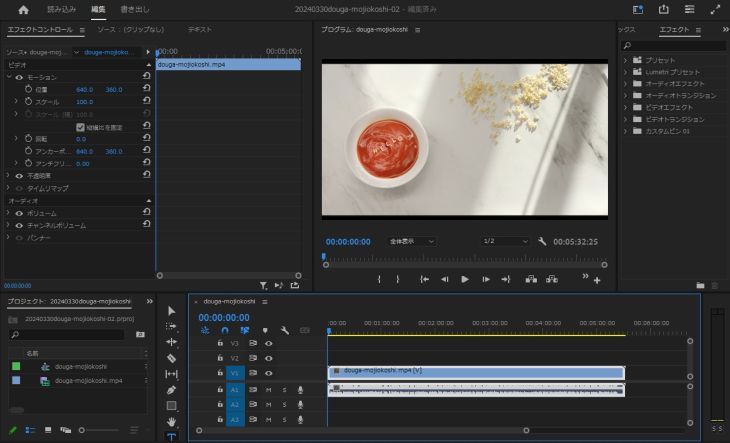
In this example, only the video footage has been imported, and there are no subtitles or captions at all.
2. Import the Subtitle File (srt File) as an Asset
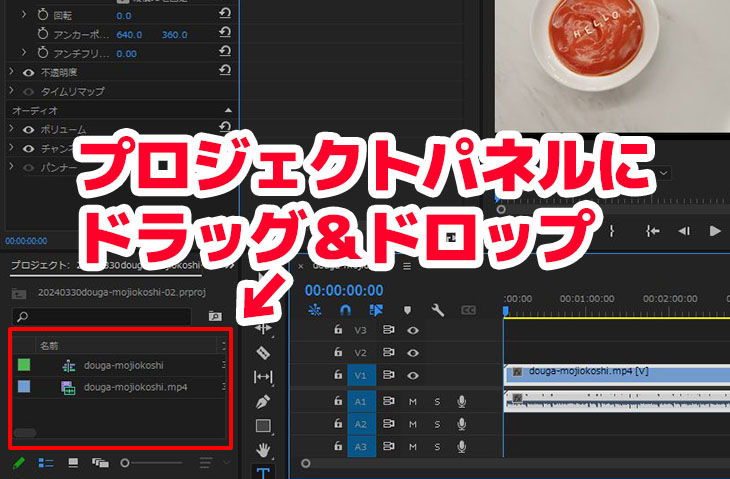
Import the srt file of the transcribed subtitle text into the "Project" panel as an asset.
Either drag and drop the srt file,
or import it from the menu with "File" → "Import".
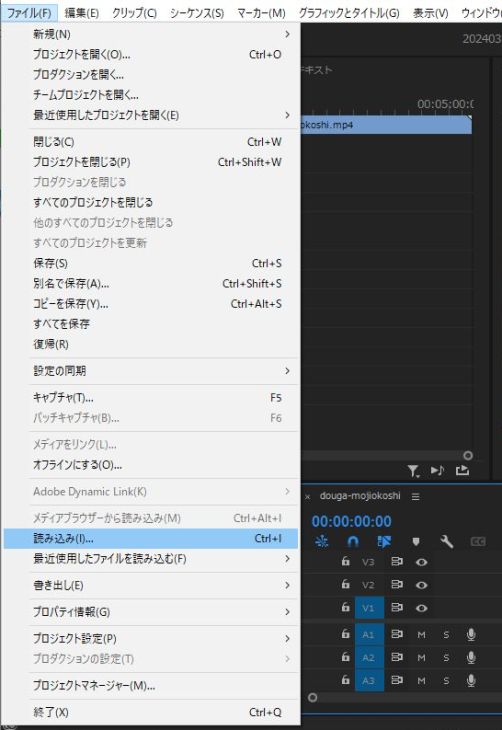
* This is the same as when you normally import assets such as video and audio.
The srt file has now been imported.
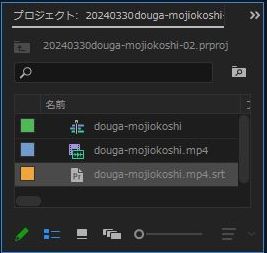
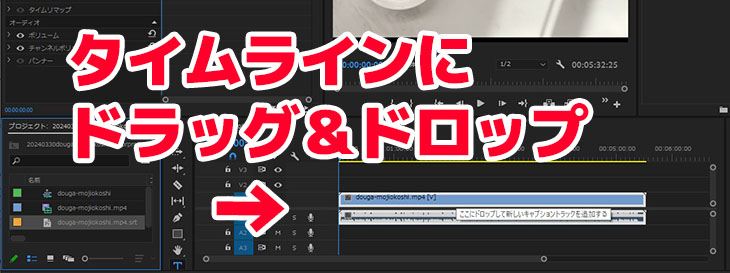
3. Bring the Subtitle File into the Timeline
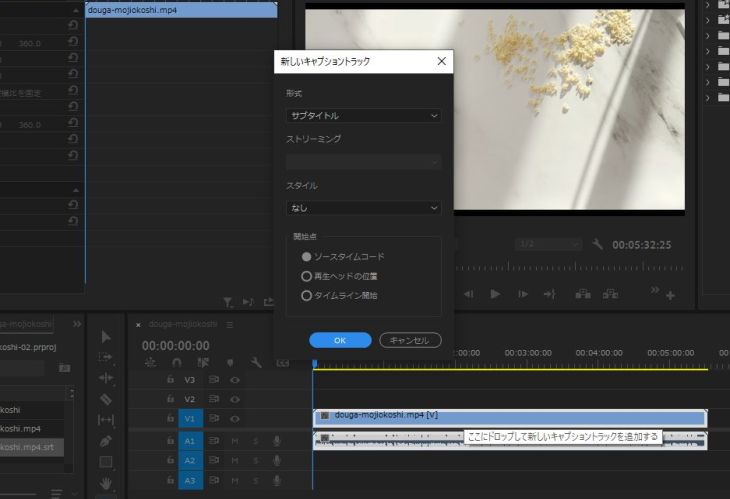
Drag and drop the srt file onto the timeline.
A dialog called "New Caption Track" appears, so click "OK".
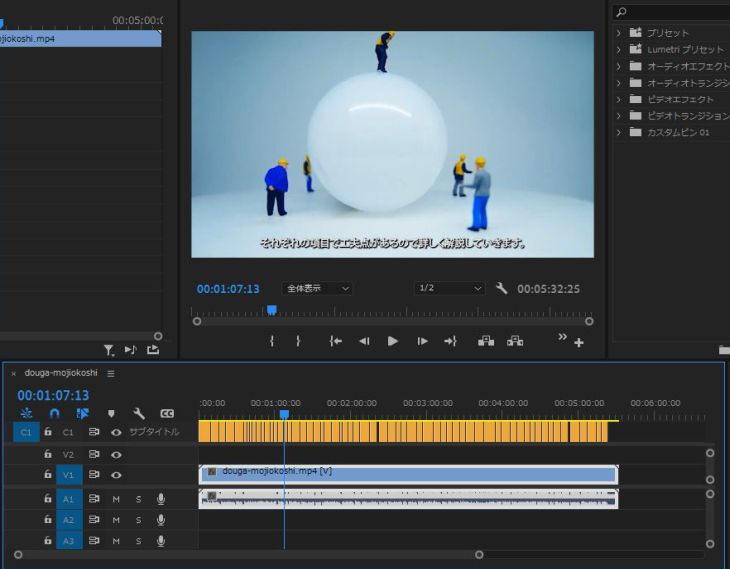
The subtitle text is then imported automatically, as shown here.
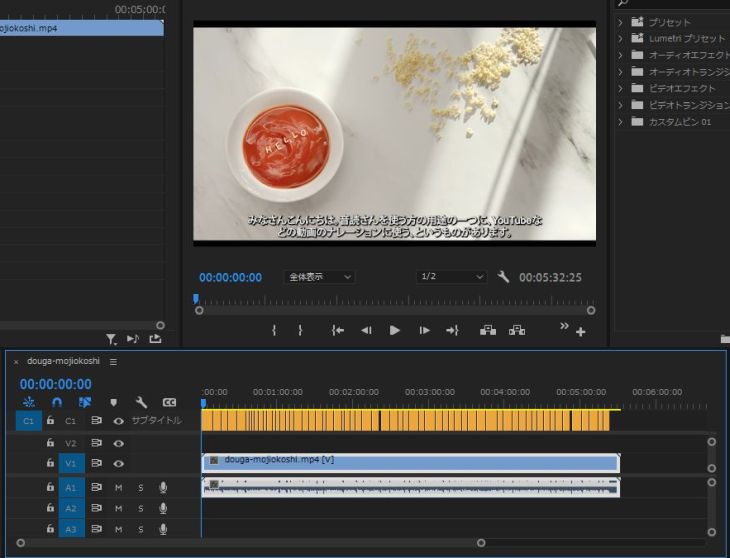
When you press the play button to check, the subtitles are set perfectly across the whole video, as shown here.
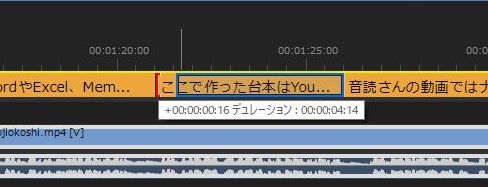
Of course, you can also edit the duration,
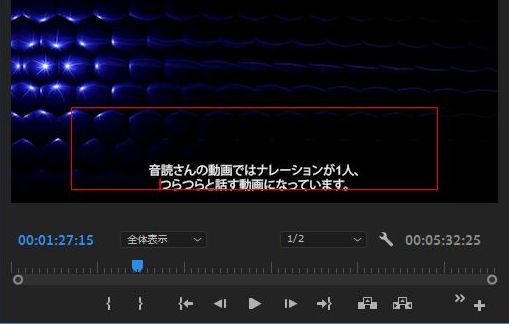
and edit the text content.
4. Encode
After that, just encode to an MP4 file for YouTube.
That completes the flow of adding subtitles to a video for YouTube MP4 in Adobe Premiere.
How to Add Subtitles to a Video from a Subtitle File in DaVinci Resolve
Next, we explain how to add subtitles to an MP4 file for YouTube using "DaVinci Resolve", video editing software that is as widely used as Adobe Premiere.
* This explanation uses DaVinci Resolve 18.1.1.
1. Open the Project
First, open the project you want to add subtitles to.
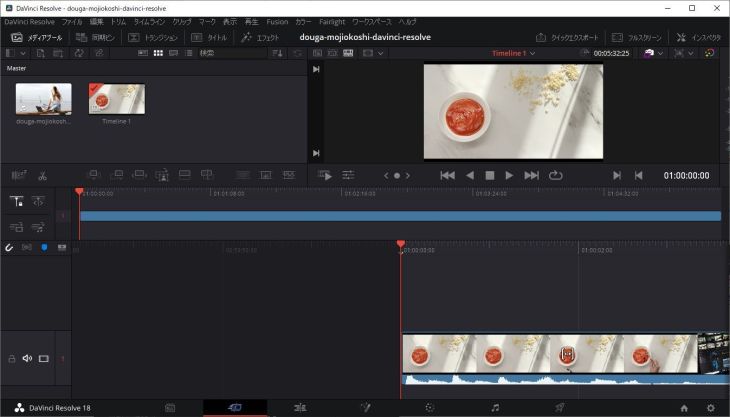
Only the video footage (the source MP4 file) has been imported, and there are no subtitles or captions at all.
2. Add the Subtitle File (srt File) to the Media Pool
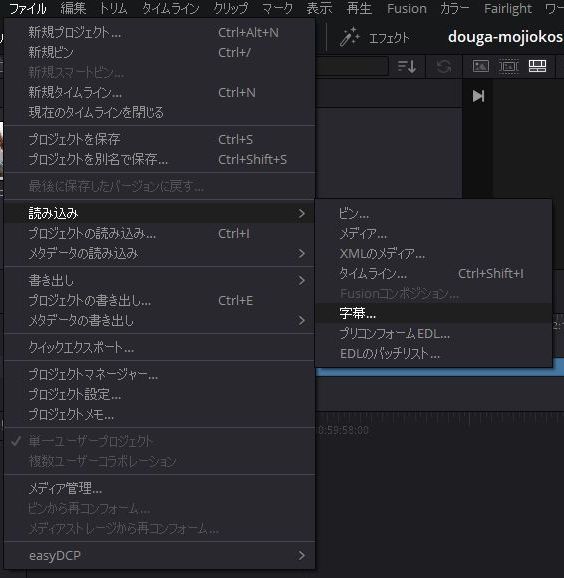
Add the srt file of the subtitle text to the Media Pool.
You can drag and drop it,
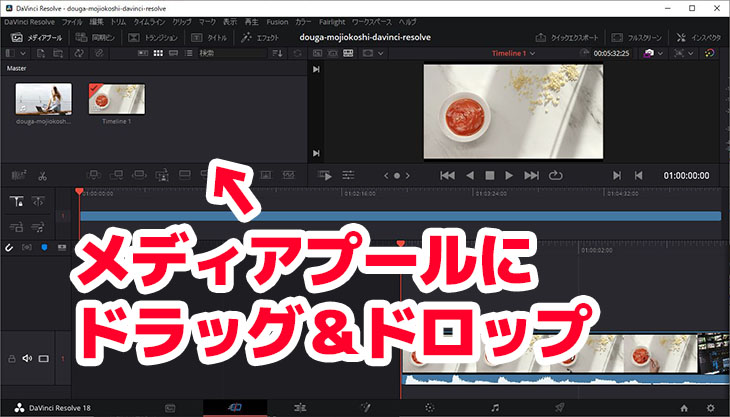
or add it from "Import" → "Subtitle" under "File".
3. Drag and Drop the Subtitles
Drag and drop the srt file to insert the subtitles.
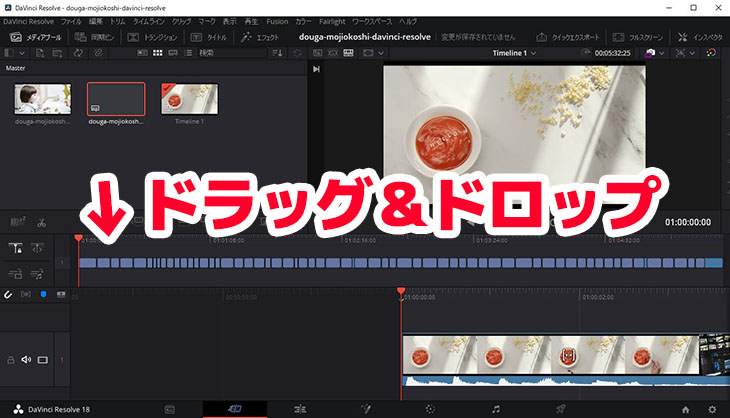
The subtitles now appear over the video footage, as shown here.
4. Adjust the Subtitles
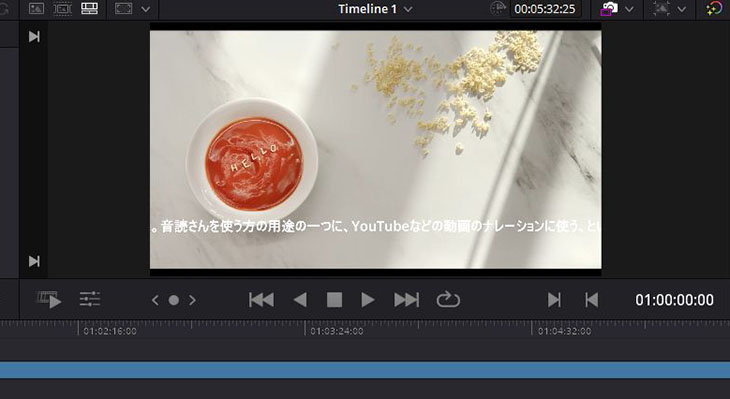
However, unlike in Adobe Premiere, DaVinci Resolve requires you to adjust the subtitles.
In this example the left and right sides of the subtitles are cut off.
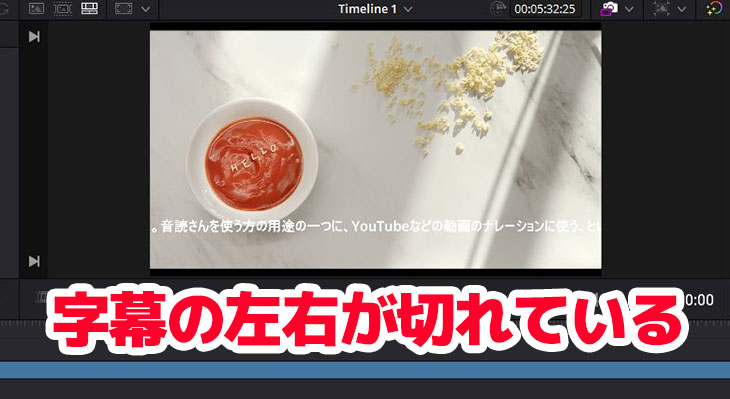
Before encoding to an MP4 file for YouTube or similar, tidy up the subtitles and decorate the text.
5. Encode
When the subtitle adjustments are done, encode the video in the final format, such as MP4.
That completes the flow of adding subtitles in DaVinci Resolve.
[Reference] How to Add Subtitles to a Video Already Uploaded to YouTube
This article explains how to add subtitles from an srt file using YouTube's subtitle feature to an MP4 video that has already been uploaded to YouTube.
Please read it as well.
[For YouTube Creators] How to Set Subtitles and Transcripts for Your Videos
How to set subtitles and transcripts on your own videos posted to YouTube. Just upload a video to create an SRT file of higher quality than YouTube's auto-generated subtitles, in just your browser. Covers how to add Japanese subtitles, language settings, and uploading the subtitle file...
[Reference] How to Transcribe Any Video File and Create Subtitles
How to transcribe video files other than MP4 and create subtitles is explained in this article.
Please read it as well.

Turn Video Subtitles into Text! How to Transcribe a Video and Create Subtitles [Free]
How to transcribe videos and footage and create subtitles. Just upload a video to create an SRT file of higher quality than YouTube's auto-generated subtitles, in just your browser. Recommended free services and how to add subtitles for those who want to turn video subtitles into text...
Why Not Add Subtitles and Increase Your Video Views?
As you can see, adding subtitle text to an MP4 file for YouTube is very easy.
With the AI transcription service "Mr. Transcription," the subtitle text is ready right away just by uploading an MP4 file.
By adding subtitles to your videos, you can gain more viewers and increase watch time.
Transcribing your video also makes it easy to translate into foreign languages, so you can add foreign-language subtitles and get viewers from overseas.
Why not use the AI transcription service "Mr. Transcription" and get your videos in front of even more people?
■ AI transcription service "Mr. Transscription"
"Mr. Transcription" is an online transcription tool that can be used from zero initial cost and 1,000 yen per month (* free version available).
- Supports more than 20 file formats such as audio, video, and images
- Can be used from both PC and smartphone
- Supports technical terms such as medical care, IT, and long-term care
- Supports creation of subtitle files and speaker separation
- Supports transcription in approximately 100 languages including English, Chinese, Japanese, Korean, German, French, Italian, etc.
To use it, just upload the audio file from the site. Transcription text is available in seconds to tens of minutes.
You can use it for free if you transcribe it for up to 10 minutes, so please try it once.

It is "Mr. Transcription" who can easily transcribe from audio, video, and images.
Transcription allows you to transcribe for up to 10 minutes for free.
You can copy, download, search, delete, etc. the transcribed text.
You can also create subtitle files, which is ideal for transcription of interview videos.
HP: mojiokoshi3.com
Email: mojiokoshi3.com@gmail.com
Email: mojiokoshi3.com@gmail.com
Related article
Transcription for audio / video / image transcription. It is a transcription service that anyone can use for free without installation.
- What is Mr. Transcription?
- Transcript images, sounds, and videos with Mr. Transcription
- Free registration
- Rate plan
- manual
- Try other free services