Androidの無料文字起こしアプリおすすめ9選【音声/動画/議事録】
How to Transcribe LINE Voice Messages (iPhone/Android)
Oct. 9, 2026


I want to know how to transcribe LINE voice messages!
To transcribe LINE voice messages, all you need to do is save the voice message and upload it to an AI transcription site.
You can easily turn them into text from either an iPhone (iOS) or an Android smartphone.
In this article, we explain how to transcribe LINE voice messages and call audio and how to use LINE's voice input feature in an easy-to-follow way, with screenshots.
What you will learn in this article:
- How to transcribe voice messages (iPhone and Android)
- How to record and transcribe LINE calls
- How to send LINE messages with voice input
*If you already have the audio file of a voice message, you can transcribe it simply by uploading it to "Mr. Transcription" as it is.
How to Transcribe LINE Voice Messages (iPhone and Android)
You can easily transcribe LINE voice messages with a site powered by the latest AI.
The transcription process takes just 3 steps.
- Save the voice message (save the audio file using LINE's forward feature)
- Upload it to a transcription site (just select the saved file)
- Check the transcription result (you can copy or download the text)
Let's go through each step in detail together.
Step 1: Save the Voice Message
First, save the LINE voice message to your iPhone or Android smartphone.
To save a voice message, first tap and hold the voice message.
A menu then opens above the voice message.
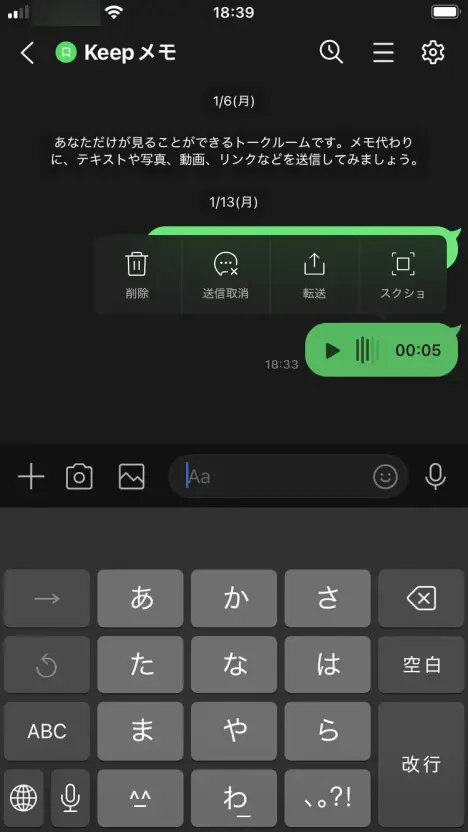
Select "Forward" from the menu.

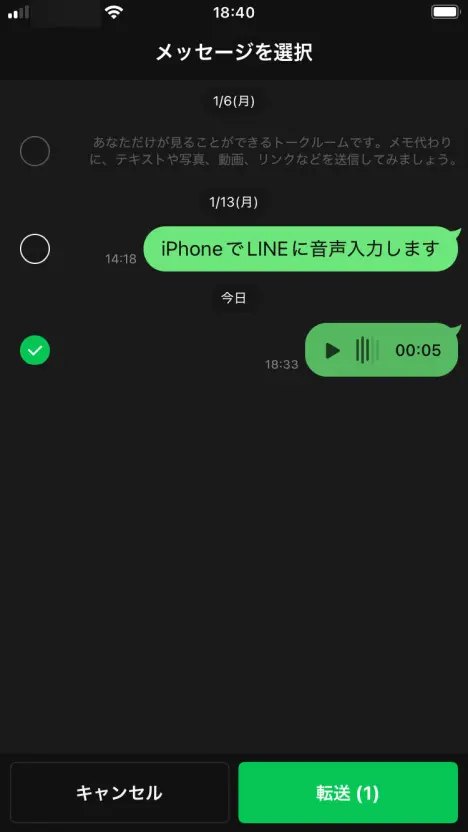
You will be asked to choose which messages to forward, so check the box for the voice message and press the "Forward" button.
On the screen that opens, tap "Other apps" under "Select recipients".

Up to this point, the steps are the same for iPhone (iOS) and Android smartphones.
From here, the steps differ between iPhone and Android.
- iPhone and iPad users → Please continue reading
- Android smartphone users, tap here
Saving a Voice Message on iPhone or iPad (iOS)
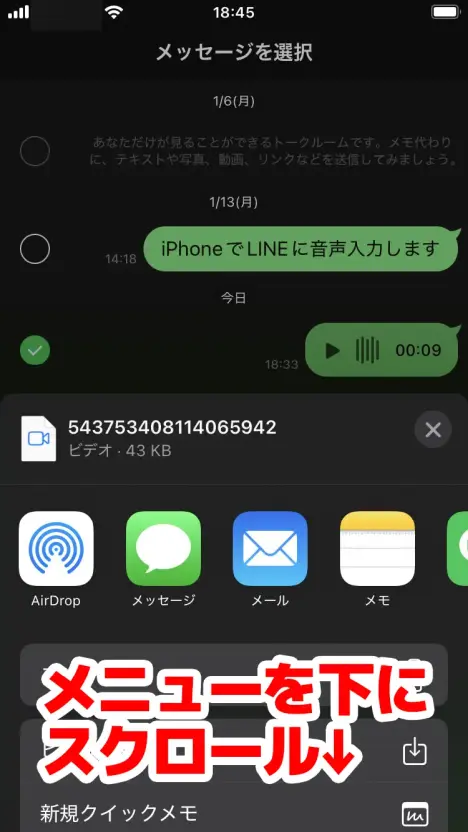
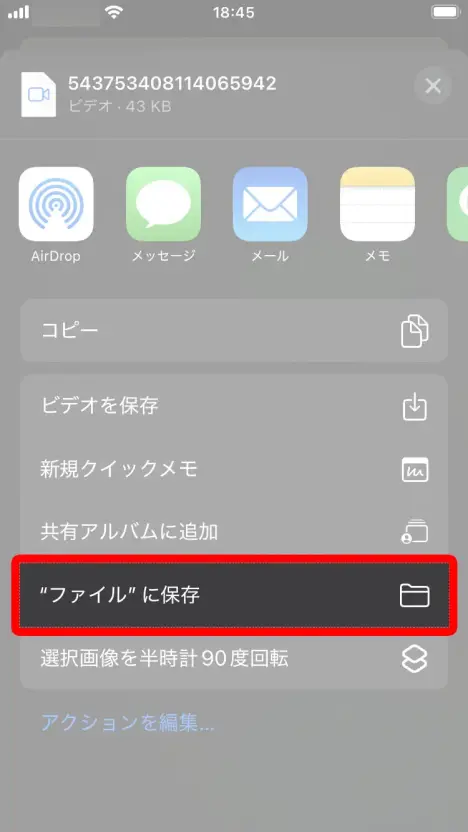
On an iPhone or iPad running iOS, scroll down the menu a little and select "Save to Files".
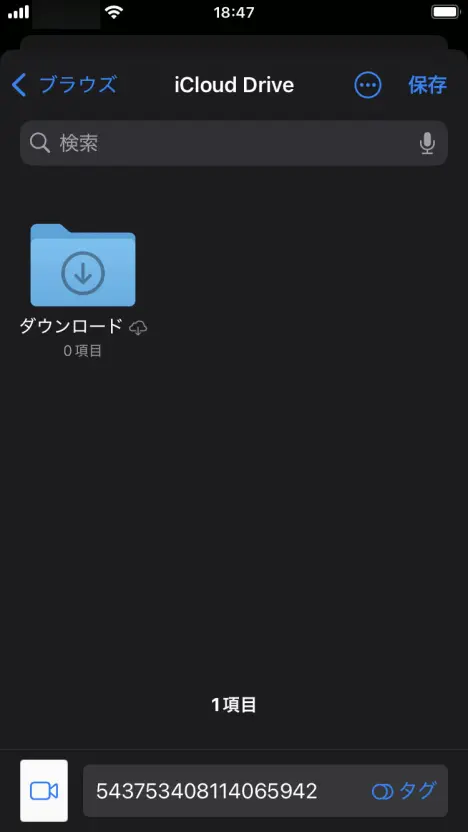
On the screen that opens, tap "Save" in the upper right corner, and the voice message is saved to your iPhone or iPad.
Saving a Voice Message on an Android Smartphone
On an Android smartphone, select the app to save the file to.
This time, we selected "Files by Google Downloads" (the standard file app).
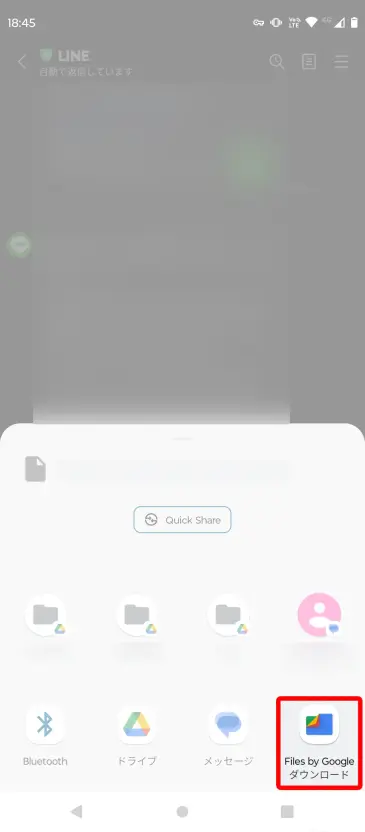
Once you select it, the file is automatically downloaded and saved.
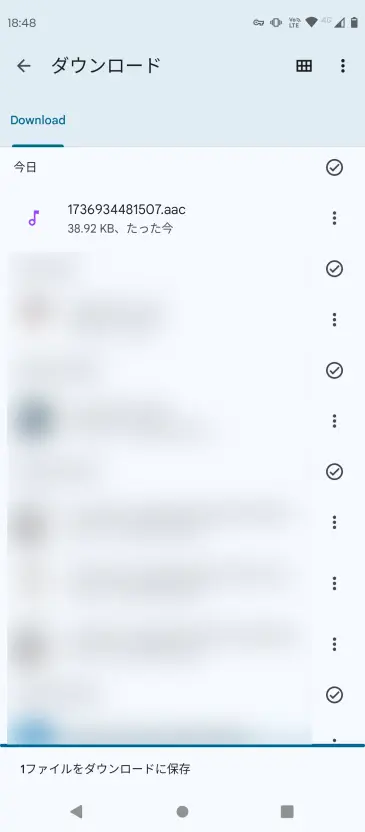
The voice message audio is now saved on your Android smartphone.
Step 2: Upload It to a Transcription Site
Next, upload the saved audio file to the AI transcription site "Mr. Transcription".
Open the "Mr. Transcription" top page here.

Scroll down a little, then tap "Select" to choose a file.
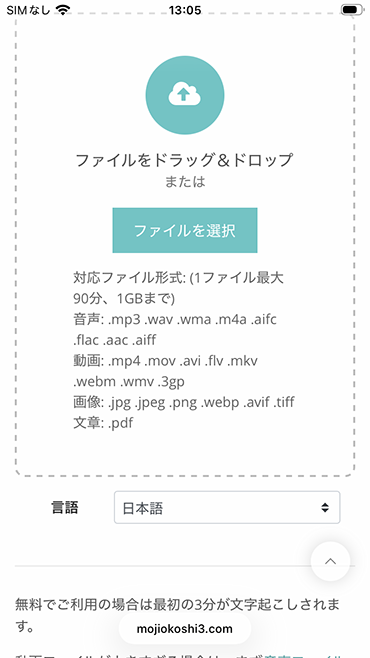
From here, the steps are again slightly different between iPhone (iOS) and Android.
- iPhone and iPad users → Please continue reading
- Android users, tap here
Selecting the Audio File on iPhone or iPad (iOS)
On an iPhone or iPad running iOS, tapping "Select" opens a menu.
Tap "Choose File".
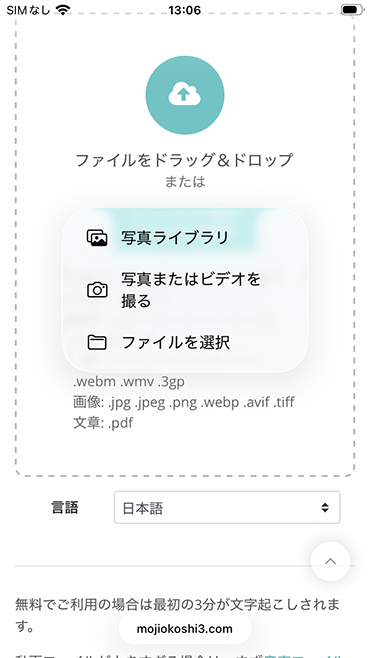
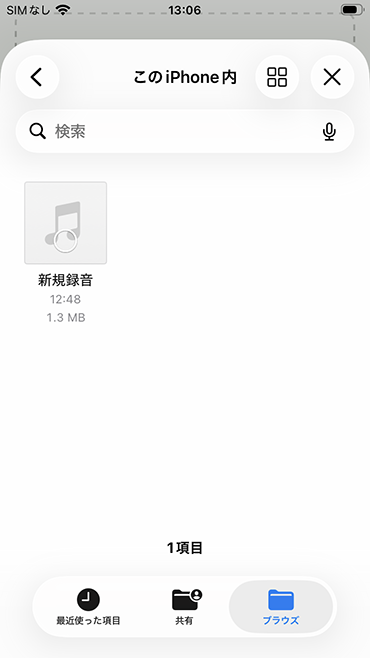
The file selection screen opens, so select the file you want to transcribe.
Selecting the Audio File on Android
On an Android smartphone, tap "Select" and choose "Choose media" from the menu that opens.
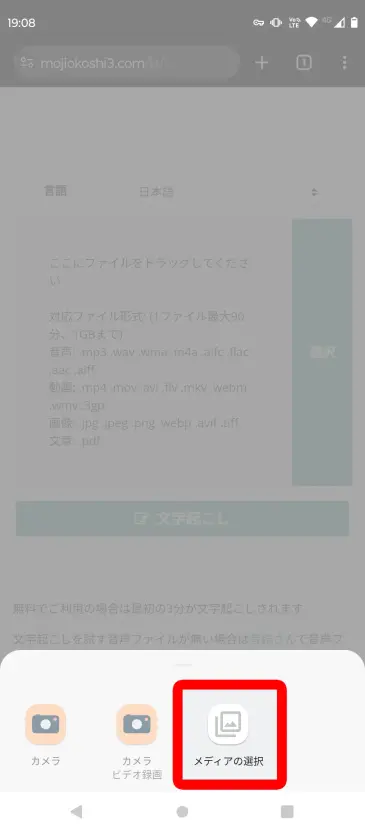
The file selection screen of the "Files" app opens, so go to the folder where you saved the voice message file and select the file.

Upload the File and Start Transcribing
After selecting the file, press the "Transcribe" button to upload the voice message audio file.
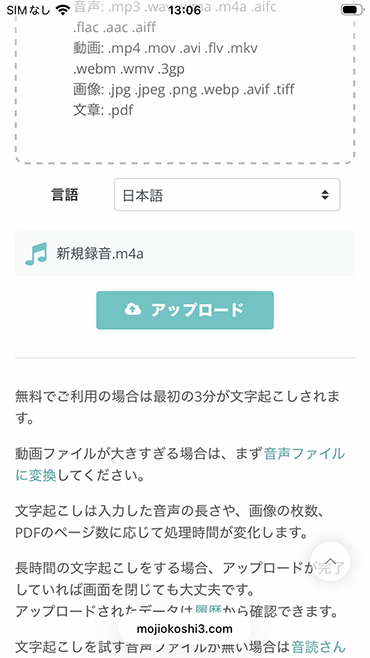
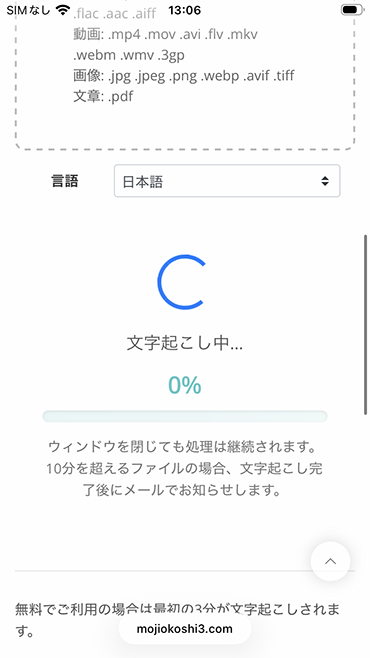
The upload finishes right away, and transcription starts automatically.
Step 3: Check the Transcription Result
For short audio files, transcription finishes in no time.
When transcription is complete, the screen switches and the transcription result is displayed.
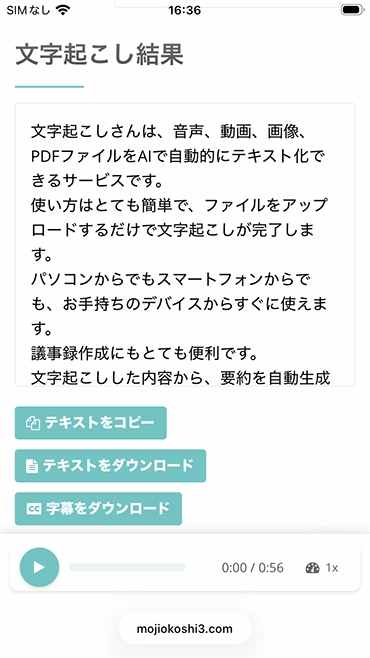
As shown here, you can review the transcription result section by section in an easy-to-read format.
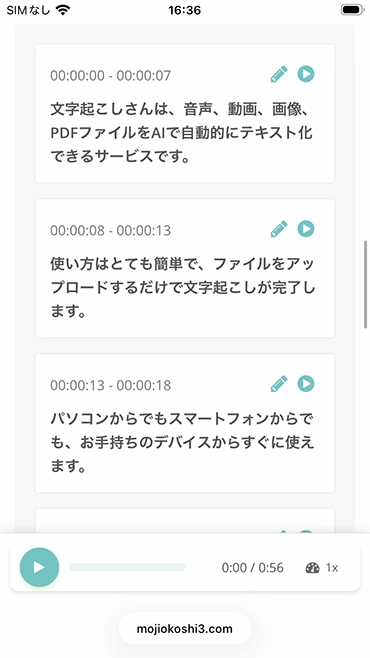
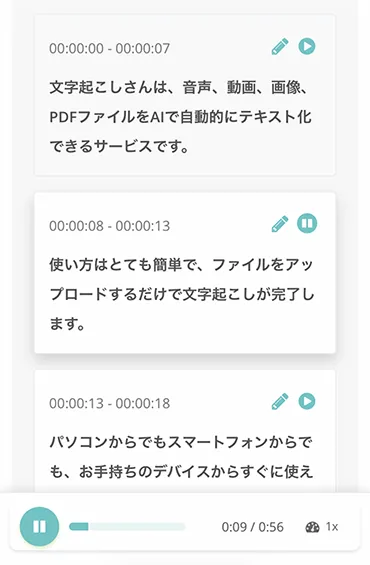
You can also play back the audio section by section to check it,
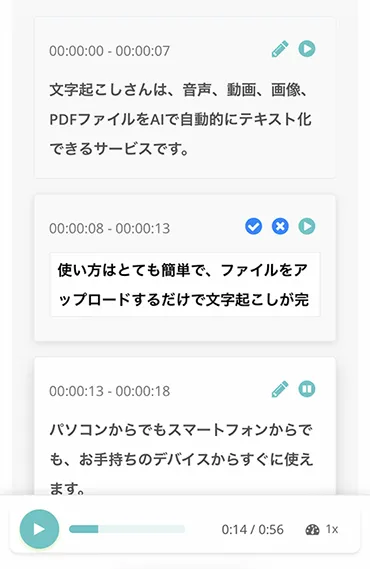
and edit and save the transcription result.
LINE voice message audio files are saved as m4a or MP4 files on iPhone, and as AAC files on Android smartphones.
"Mr. Transcription" supports all of these file formats, so you can transcribe voice messages as they are on both iPhone and Android.

Supported Files and File Sizes for Mr. Transcription, and How to Convert Unsupported Files into Supported Ones
We explain which files Mr. Transcription supports and what to do when your file is not one of them.
Recommended Site for Transcribing LINE (Supports Voice Messages)

If you want to transcribe LINE voice messages or call audio, we recommend the AI transcription site "Mr. Transcription".
"Mr. Transcription" is a transcription site that lets anyone easily turn audio into text with the latest AI.
With the high accuracy that only the latest AI can deliver, it can transcribe even long audio in about 1 minute.
Because it is a web app that runs in your browser, it works in any environment, including iPhones and iPads running iOS, Android smartphones and tablets, and computers.
It supports more than 100 languages, so you can also transcribe voice messages in foreign languages as they are.
It also includes a feature that automatically creates AI summaries and meeting minutes from the transcription result.
This is handy if you want to turn a meeting you held over a LINE call straight into minutes.
What's more, "Mr. Transcription" is free to use.
You can transcribe up to 3 minutes of audio per day without registering or logging in, so why not give it a try?
How to Transcribe LINE Calls and Phone Calls on iPhone or Android Smartphones
How can I transcribe what was said on a LINE call?
If you want to transcribe a LINE call (phone call), we recommend recording the call audio with the screen recording feature and turning it into text with an AI transcription site.
The way to record LINE call audio differs between iPhone (iOS) and Android smartphones, so we explain each one separately.
- iPhone and iPad users → Please continue reading
- Android smartphone users, tap here
How to Record LINE Call Audio on iPhone
*This explanation is based on iOS 26.
On an iPhone or iPad, you can save the screen and audio of a LINE call by using the Screen Recording feature during the call.
To use Screen Recording, first swipe up from the bottom of the screen to open Control Center.
Tap the Screen Recording button in Control Center.
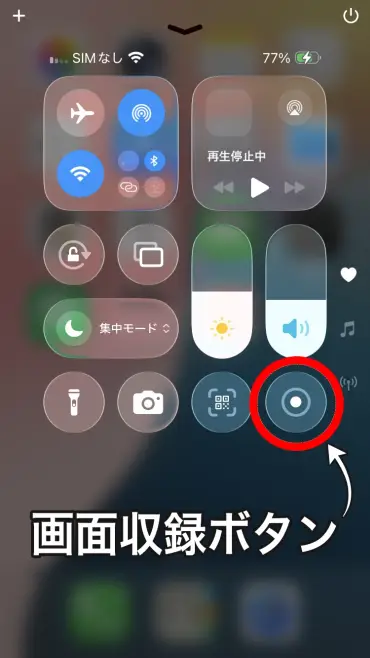
Then a "3, 2, 1" countdown appears, and recording starts.
While recording, the Screen Recording button turns red.
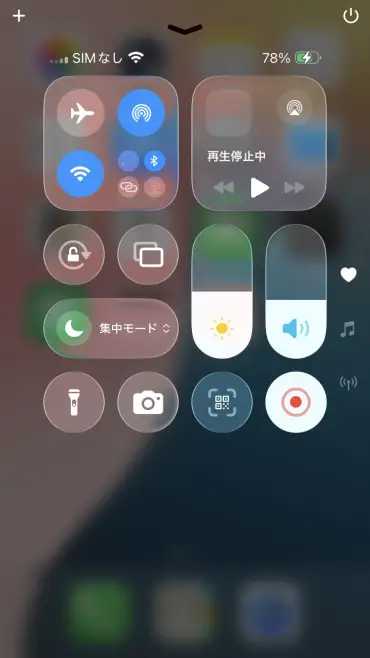
When you close Control Center, the area at the top of the screen where the time is shown also turns red.
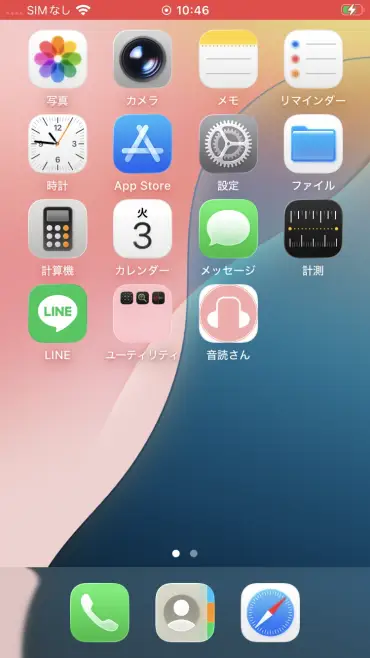
Tap this red area, and a confirmation screen for stopping the recording appears.
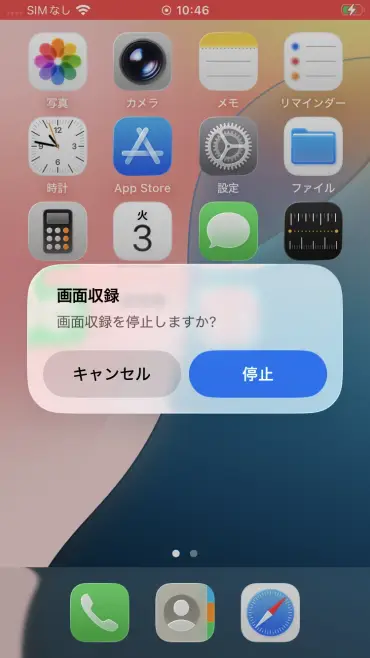
Tap "Stop" to end the recording, and it is saved to the Photos app.
*If you cannot find the Screen Recording button in Control Center, add it by tapping "+" in the upper left of Control Center → "Add a Control" → "Screen Recording". This article explains in detail how to add the Screen Recording button.
*The iPhone's built-in call recording feature (iOS 18.1 or later) cannot be used for LINE calls, so you need to use the Screen Recording feature.
How to Record LINE Call Audio on an Android Smartphone
On an Android smartphone, you can record the screen and audio of a LINE call by using the Screen record feature (screen recording feature).
*On Android smartphones, the steps may differ depending on the manufacturer and model.
To use the Screen record feature, first swipe down from the top of the screen to open the Quick Settings panel.
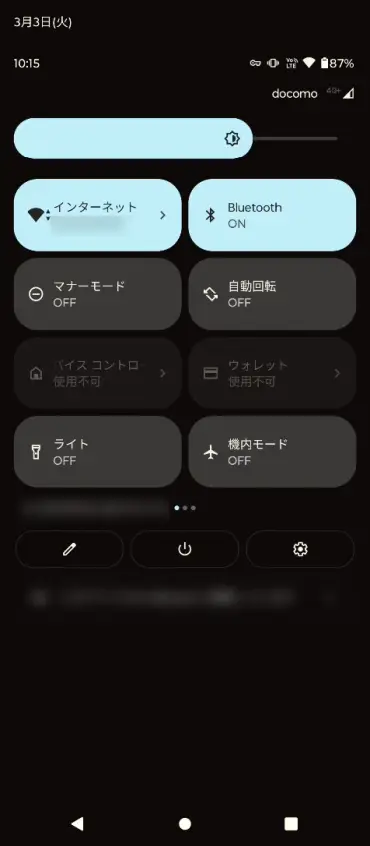
If the Screen record feature is not shown, swipe down further, then swipe left on the area where the icons are displayed to look for the Screen record feature.
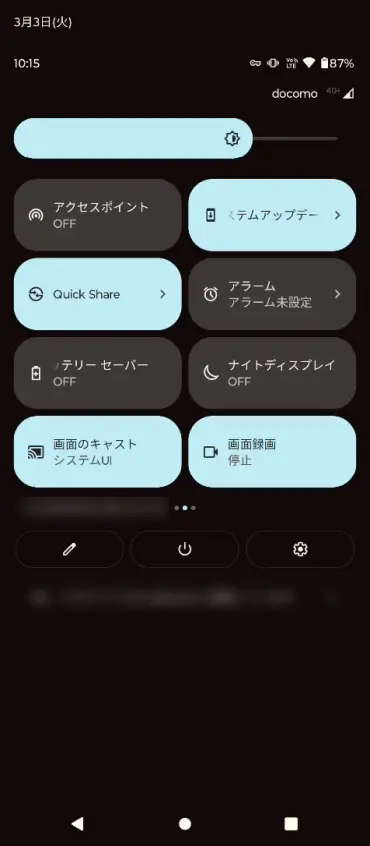
Tap "Screen record".
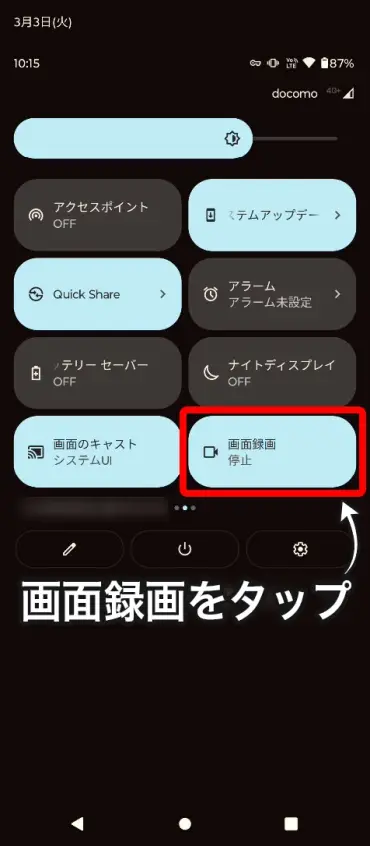
A confirmation screen appears, and pressing "Start" begins the screen recording.
Transcribing the Recorded Call Audio
You can easily turn the recorded LINE call into text by uploading the file to "Mr. Transcription".
Mr. Transcription also supports transcribing video files, so you can upload screen recordings from your iPhone or Android smartphone as they are.
The steps from uploading to transcription are the same as for transcribing voice messages.
With "Mr. Transcription", you can also use the transcription result directly to create AI summaries and meeting minutes! (Learn more here)
How to Send LINE Messages with Voice Input
With the voice input feature of iPhones, iPads, and Android smartphones, you can also turn what you say into text and send it as a LINE message.
How to Use Voice Input in LINE on iPhone
Open the keyboard on the LINE message screen and tap the microphone icon in the lower left of the keyboard.
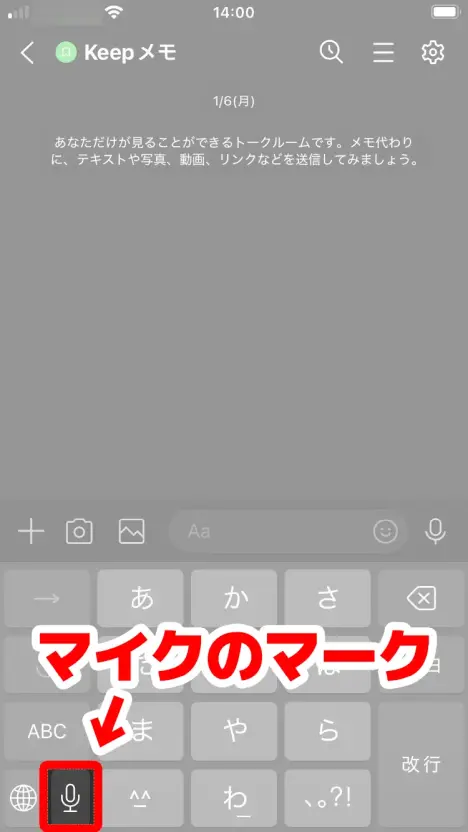
If "Enable Dictation?" appears at this point, select "Enable Dictation".
A microphone and an "あ" icon appear in the input field, and you are ready to use voice input.
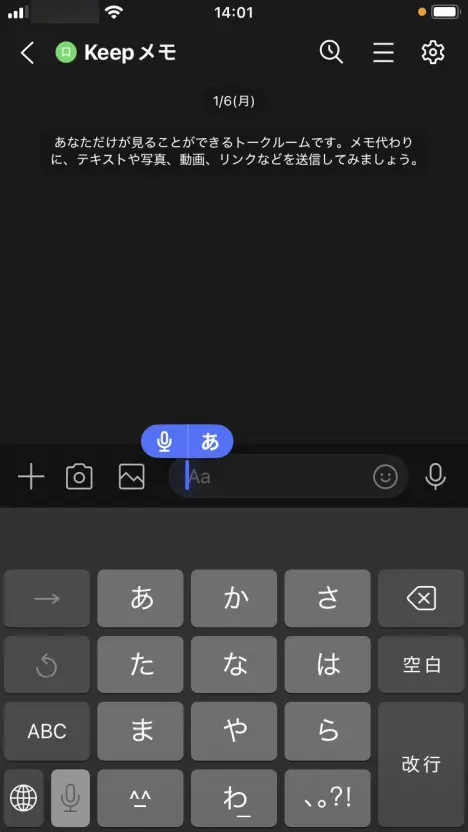
In this state, when you speak into your iPhone or iPad's microphone, what you say is turned into text.
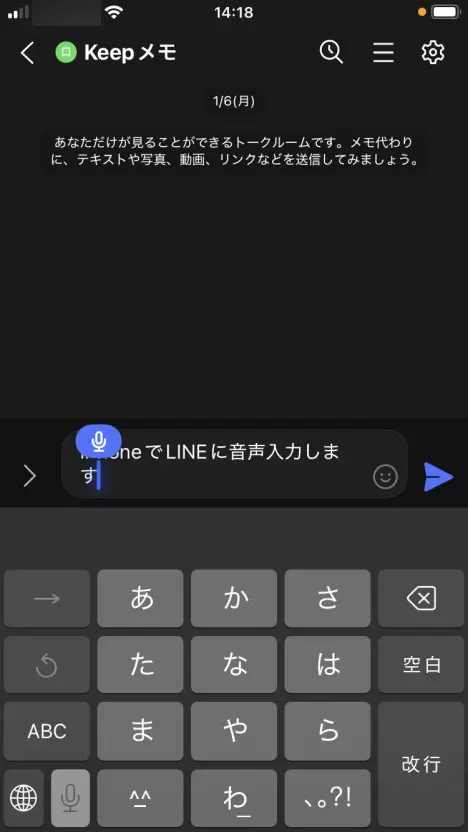
Press the send button to send the transcribed text as a message.
*If voice input does not work, check that "Settings" → "General" → "Keyboard" → "Enable Dictation" is turned ON.
How to Use Voice Input in LINE on an Android Smartphone
Open the keyboard on the LINE message screen and tap the microphone icon in the upper right of the keyboard.
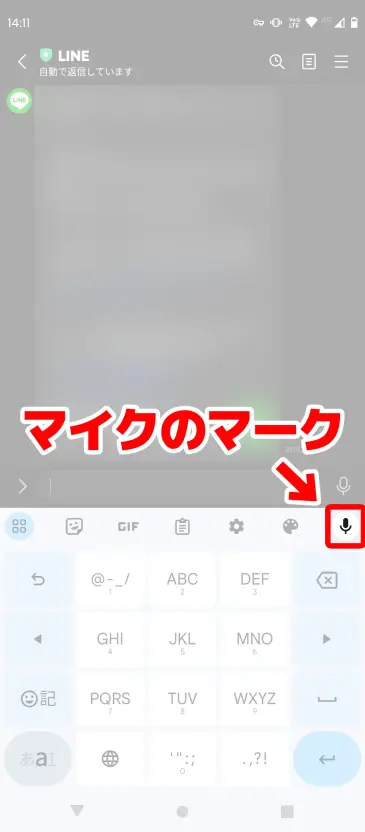
*Tap the microphone on the keyboard one row below, not the microphone to the right of LINE's input field.
"Speak now" appears, and you are ready to use voice input.
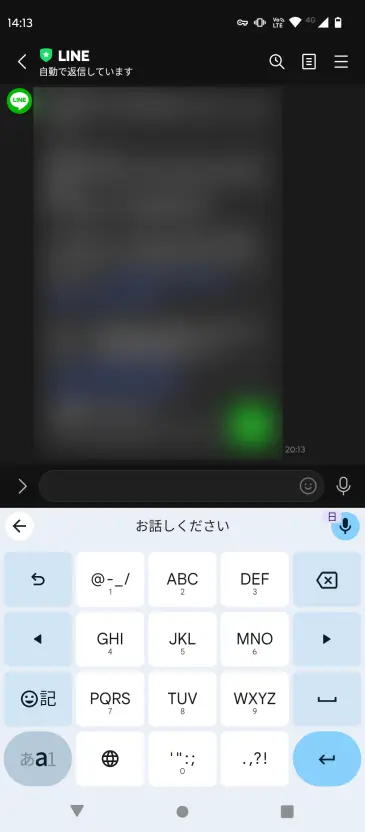
In this state, when you speak into your Android smartphone's microphone, what you say is turned into text.
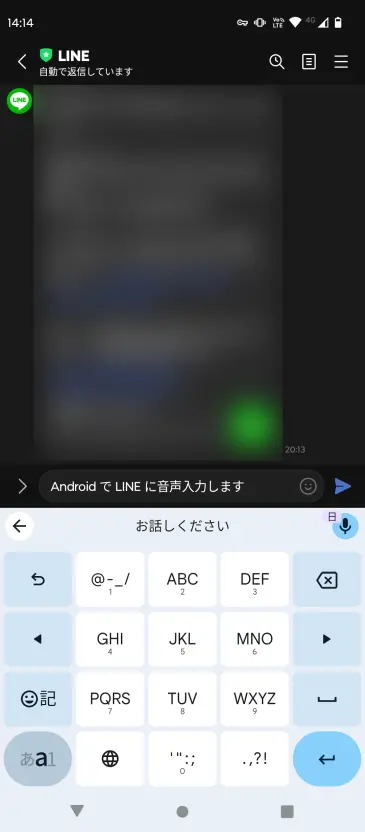
Press the send button to send the transcribed text as a message.
*If voice input does not work, check that "Settings" → "System" → "Languages & input" → "On-screen keyboard" → the keyboard you are using (such as Gboard) → "Voice typing" is turned ON.
What to Do When You Cannot Transcribe in LINE
Voice input isn't working well... What should I do?

When using LINE, voice input or transcription sometimes does not work as expected.
Here are some common problems and how to fix them.
When You Meant to Use Voice Input but Recorded a Voice Message Instead
A common source of confusion is that the LINE input screen has two microphone icons.
To use voice input (turning what you say into text), tap the microphone icon on the keyboard.
For a voice message (sending the audio as it is), tap the microphone icon to the right of the input field.
The only difference is the position of the microphone you tap, so when you want to use voice input, try tapping the microphone on the keyboard side.
When Transcribing a Voice Message Does Not Work Well
If transcribing a LINE voice message does not go well, we recommend using an AI transcription site.
With "Mr. Transcription", you can turn a voice message into highly accurate text just by uploading its audio file.
Save the voice message using the steps explained above and try uploading it to Mr. Transcription.
When Microphone Permission Is Not Allowed
If voice input does not work, check the microphone permission for the LINE app.
On iPhone, check that "Settings" → "LINE" → "Microphone" is ON; on Android, check that "Settings" → "Apps" → "LINE" → "Permissions" → "Microphone" is set to Allowed.
We also explain how to use voice input in LINE in detail in this article.
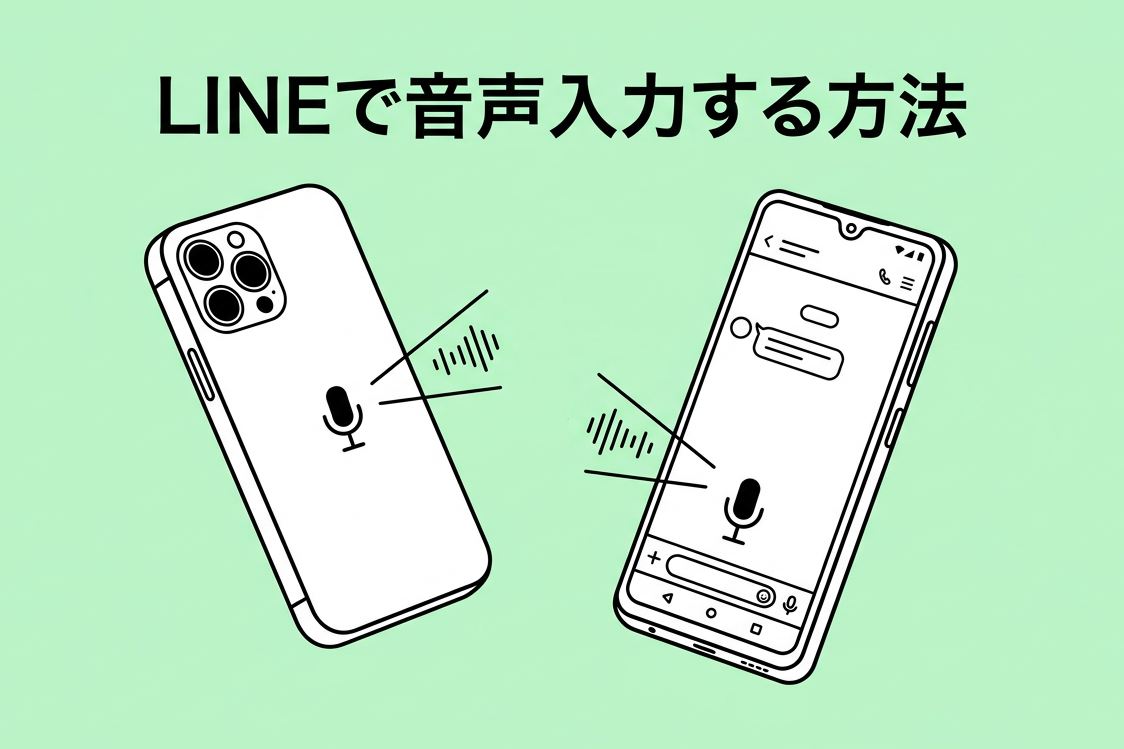
How to Use Voice Input in LINE: From Settings to Sending, Explained with Images (iPhone and Android)
LINE Also Has an Official Transcription Service
As an official LINE transcription service, CLOVA Note used to be available.
It has now been relaunched as LINE WORKS AiNote, a service that both businesses and individuals can use.
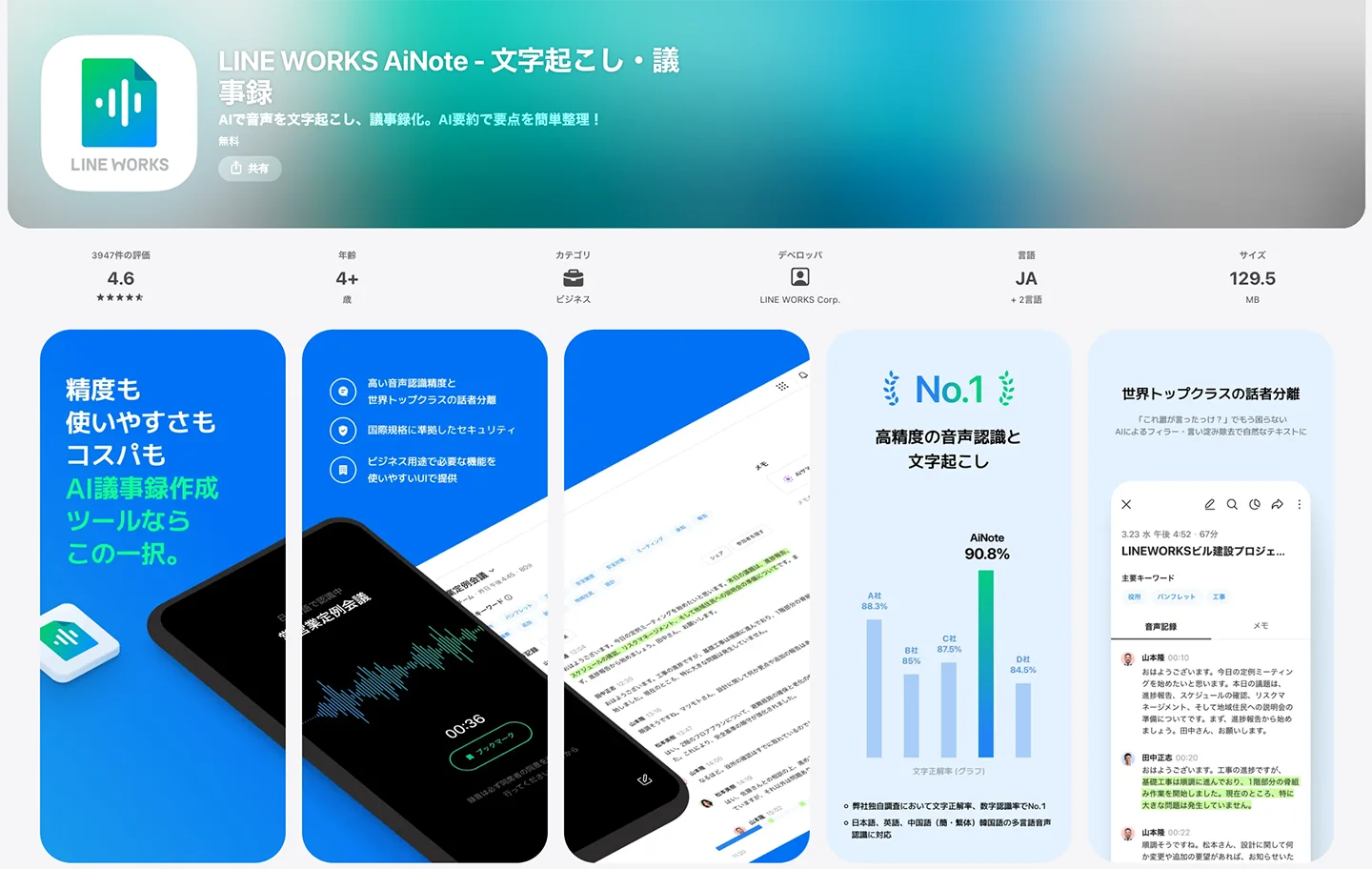
With the free plan of LINE WORKS AiNote, you can transcribe up to 300 minutes per month.
Paid plans are available from 1,440 yen per month (with an annual contract).
However, even for personal use, you need to set up a LINE WORKS account.
If you want to transcribe LINE voice messages right away, we recommend "Mr. Transcription", which you can use without registering.
LINE Transcription: Summary
In this article, we introduced how to transcribe LINE voice messages and call audio, and how to use the voice input feature.
If you want to transcribe LINE voice messages or calls, we recommend "Mr. Transcription".
- Supports m4a/AAC files as they are: Works with LINE voice messages from both iPhone and Android
- High accuracy with the latest AI: Turns even long audio into text in about 1 minute
- Supports 100 languages: Can also transcribe voice messages in foreign languages
- AI summaries and meeting minutes: Turn transcription results into summaries and minutes with one click
It is free and requires no registration, so start by experiencing the accuracy of Mr. Transcription with your own LINE voice messages.
Why not transcribe your important voice messages with "Mr. Transcription"?
■ AI transcription service "Mr. Transscription"
"Mr. Transcription" is an online transcription tool that can be used from zero initial cost and 1,000 yen per month (* free version available).
- Supports more than 20 file formats such as audio, video, and images
- Can be used from both PC and smartphone
- Supports technical terms such as medical care, IT, and long-term care
- Supports creation of subtitle files and speaker separation
- Supports transcription in approximately 100 languages including English, Chinese, Japanese, Korean, German, French, Italian, etc.
To use it, just upload the audio file from the site. Transcription text is available in seconds to tens of minutes.
You can use it for free if you transcribe it for up to 10 minutes, so please try it once.

It is "Mr. Transcription" who can easily transcribe from audio, video, and images.
Transcription allows you to transcribe for up to 10 minutes for free.
You can copy, download, search, delete, etc. the transcribed text.
You can also create subtitle files, which is ideal for transcription of interview videos.
HP: mojiokoshi3.com
Email: mojiokoshi3.com@gmail.com
Email: mojiokoshi3.com@gmail.com
Related article
Transcription for audio / video / image transcription. It is a transcription service that anyone can use for free without installation.
- What is Mr. Transcription?
- Transcript images, sounds, and videos with Mr. Transcription
- Free registration
- Rate plan
- manual
- Try other free services