![[iPhone Voice Memos | How to Transcribe with Images] Complete on Smartphone. Also OK on PC](https://storage.googleapis.com/mojiokoshi3/post/image/green-iphone.jpeg)

![[Free] New Feature: Convert Video to Audio! How to Transcribe Large Video Files Explained](https://storage.googleapis.com/mojiokoshi3/post/image/video-to-audio_howto_tmb03.webp)


文字起こしさんの有料プランの決済のタイミングとプラン変更の仕方・注意点について
Transcribe M4A Files on iPhone: Free & Easy Options
Oct. 23, 2026

How do I transcribe M4A files recorded on my iPhone or iPad?

M4A files recorded with the Voice Memos app on your iPhone or iPad can be transcribed directly without conversion using AI transcription apps or websites that support M4A.
What's more, there are free apps and websites available, so you can easily convert audio to text right away.
This article explains how to transcribe M4A files, covering both methods: uploading directly from an iPhone and transferring to a PC before transcribing.
What you'll learn in this article:
- Steps to transcribe M4A files directly from an iPhone or via a PC (Windows, Mac, etc.)
- Recommended AI transcription websites and apps that support M4A
- Troubleshooting tips when transcription doesn't work well
- Characteristics of M4A files
Let's dive right into the specific steps for transcribing M4A files recorded with Voice Memos on your iPhone or iPad, using the AI transcription web app "Mr. Transcription" as an example!
There are two ways to convert M4A files to text: uploading directly from your iPhone or uploading after transferring them to a PC.
Method 1: Transcribe directly from the iPhone Voice Memos app
This method allows you to complete transcription using only your iPhone or iPad.
The iPhone Voice Memos app has included a Japanese transcription feature since iOS 18.4 (available on iPhone 12 and later).
You can also upload audio files to Mr. Transcription for even more accurate text conversion.
1. Record with the Voice Memos App
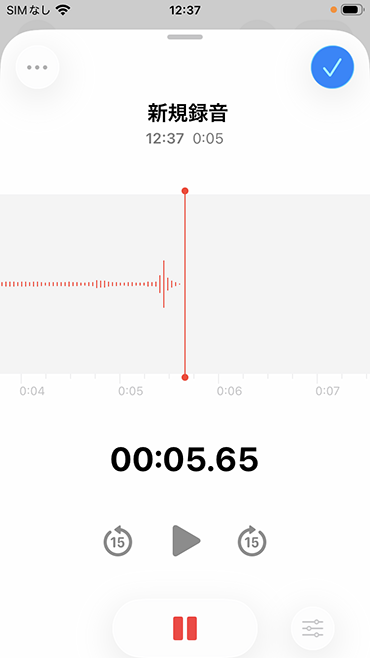
Record meetings and interviews using the Voice Memos app on your iPhone or iPad.
On iPhone or iPad (iOS), Voice Memos are automatically saved as "New Recording" when you stop recording.
2. Open the Mr. Transcription Website
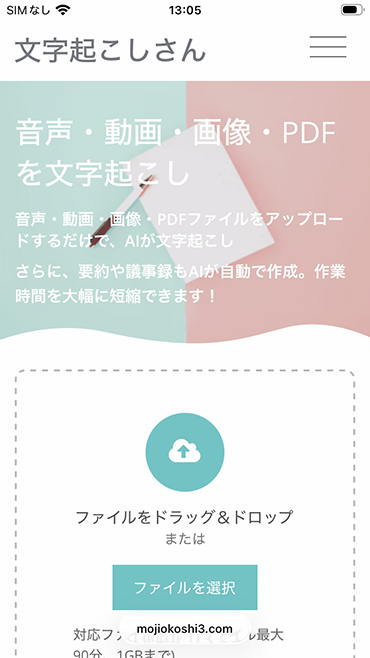
Mr. Transcription is a web app that you use through browser apps like Safari or Google Chrome.
Open the Mr. Transcription homepage from here.
3. Upload the M4A File
Tap "Choose File".
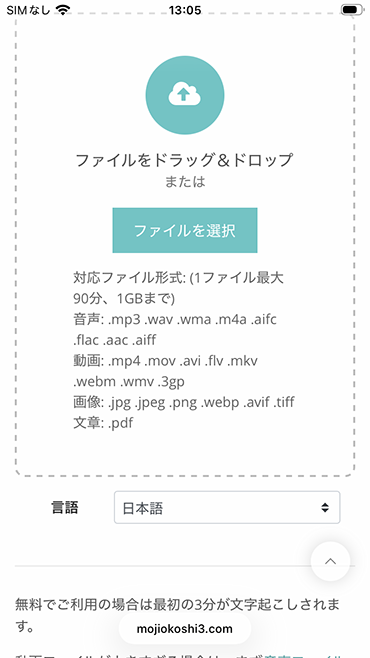
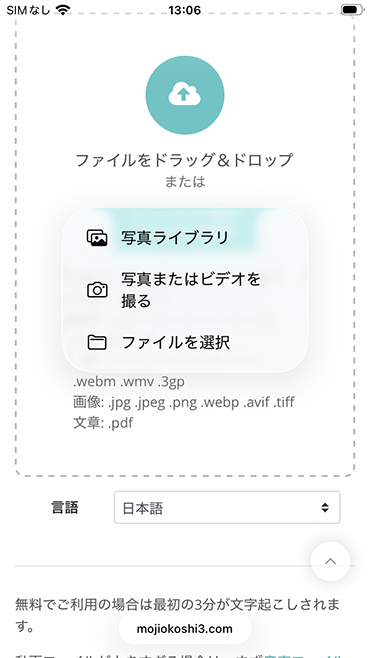
The iOS menu will appear, so tap "Choose File".
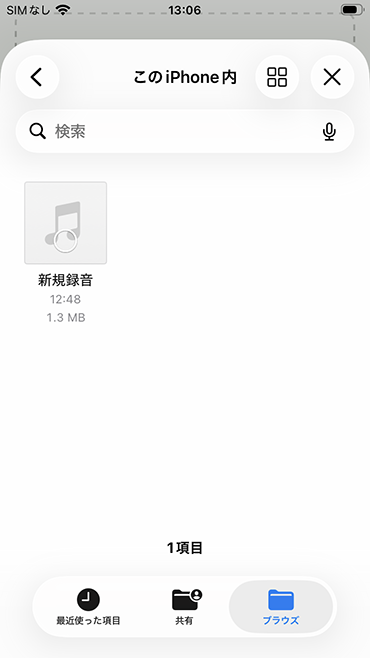
Select the recorded audio file.
The file has now been selected.
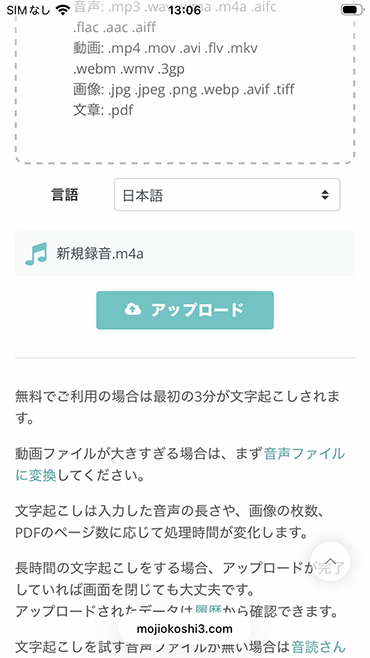
Tap "Upload" to start uploading the recorded audio file and begin the transcription process.
*Do not close the browser window during upload.
4. Free Transcription Process Completed
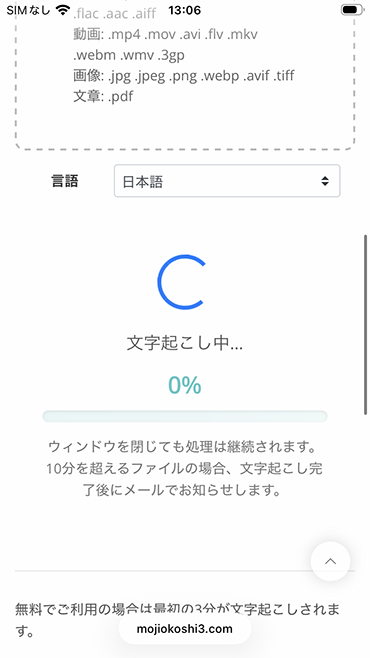
Once the m4a file upload is complete, transcription will start automatically.
※If you are registered and logged in, you can close the screen after the upload finishes.
※If you are transcribing without an account, please wait for the transcription to complete without closing the screen.
Once the transcription is complete, the screen will change, and the transcription results will be displayed.
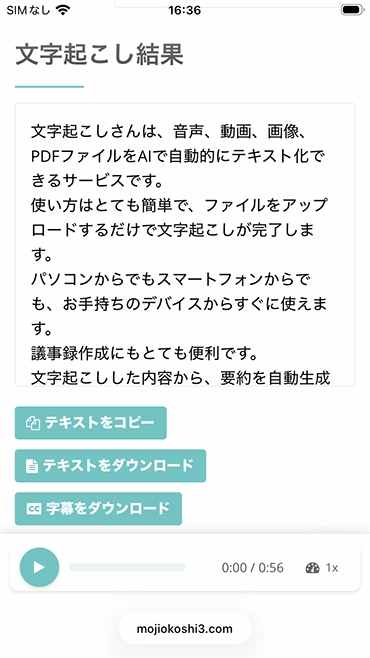
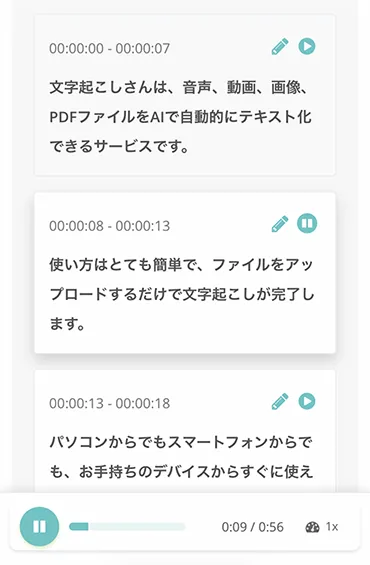
You can also play back audio for individual sections of the transcription results,
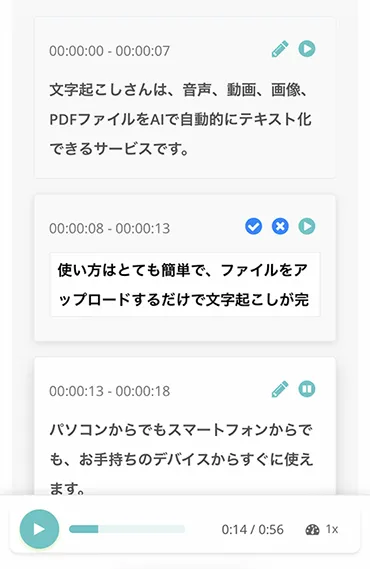
and edit and save the text.
Email Notifications and History Features Available with Registration/Login
You will be notified by email when transcription is finished (if you are registered and logged in).
■ Example of Email Notification

If you closed the screen, you can view the transcription results via the email link or from the "History" section on the Mr. Transcription website.
Method 2: Transcribe m4a Files on Windows/Mac PC
This method involves transferring m4a files recorded with the iPhone Voice Memos app to a Windows or Mac computer before transcribing them.
This is recommended if you want to review and edit transcription results on a larger computer screen.
1. Transfer m4a Files to Windows or Mac
There are several ways to transfer m4a files from an iPhone to Windows or Mac.
- AirDrop (Mac): Send via AirDrop from the Voice Memos share button.
- iCloud Drive: From the Voice Memos share button, select "Save to Files" → save to iCloud Drive, then access from your computer.
- Email/Messages: Send via email or messages from the Voice Memos share button.
Note that you cannot transfer Voice Memos audio to a computer by connecting with a USB cable (only photos and videos can be transferred).
2. Transcribe from a Browser App on Windows or Mac
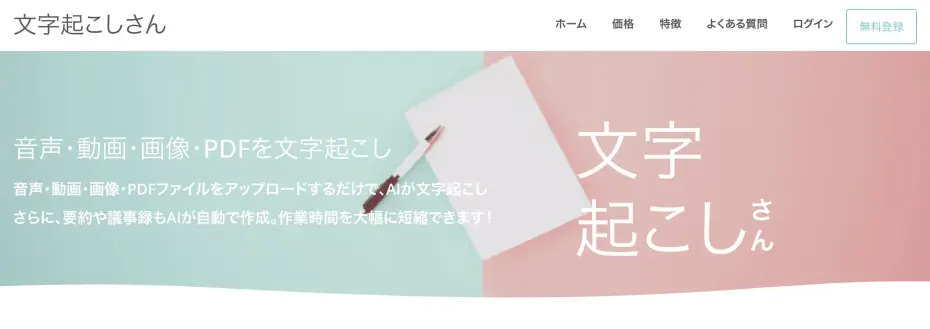
Open the Mr. Transcription website in your computer's browser.
You can upload your m4a file by simply dragging and dropping it.
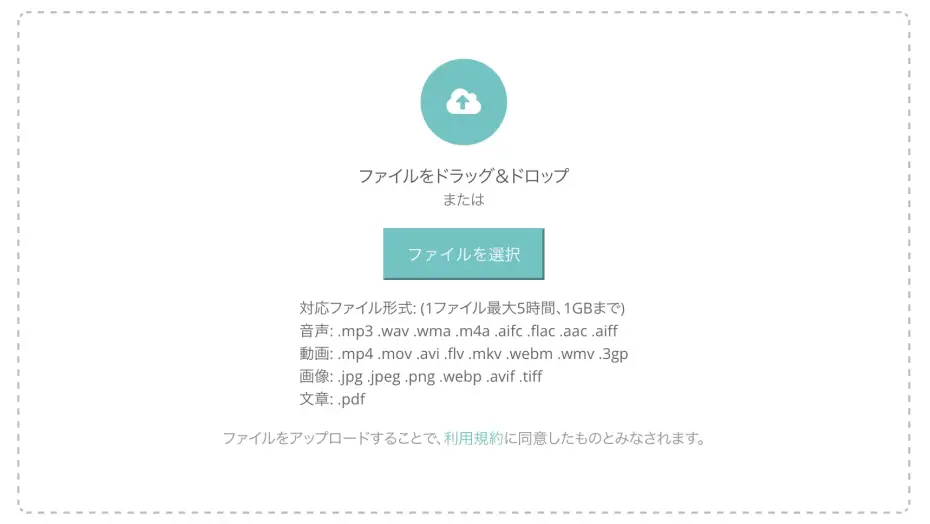
After that, transcription will automatically proceed, just as it would if you uploaded directly from your iPhone.
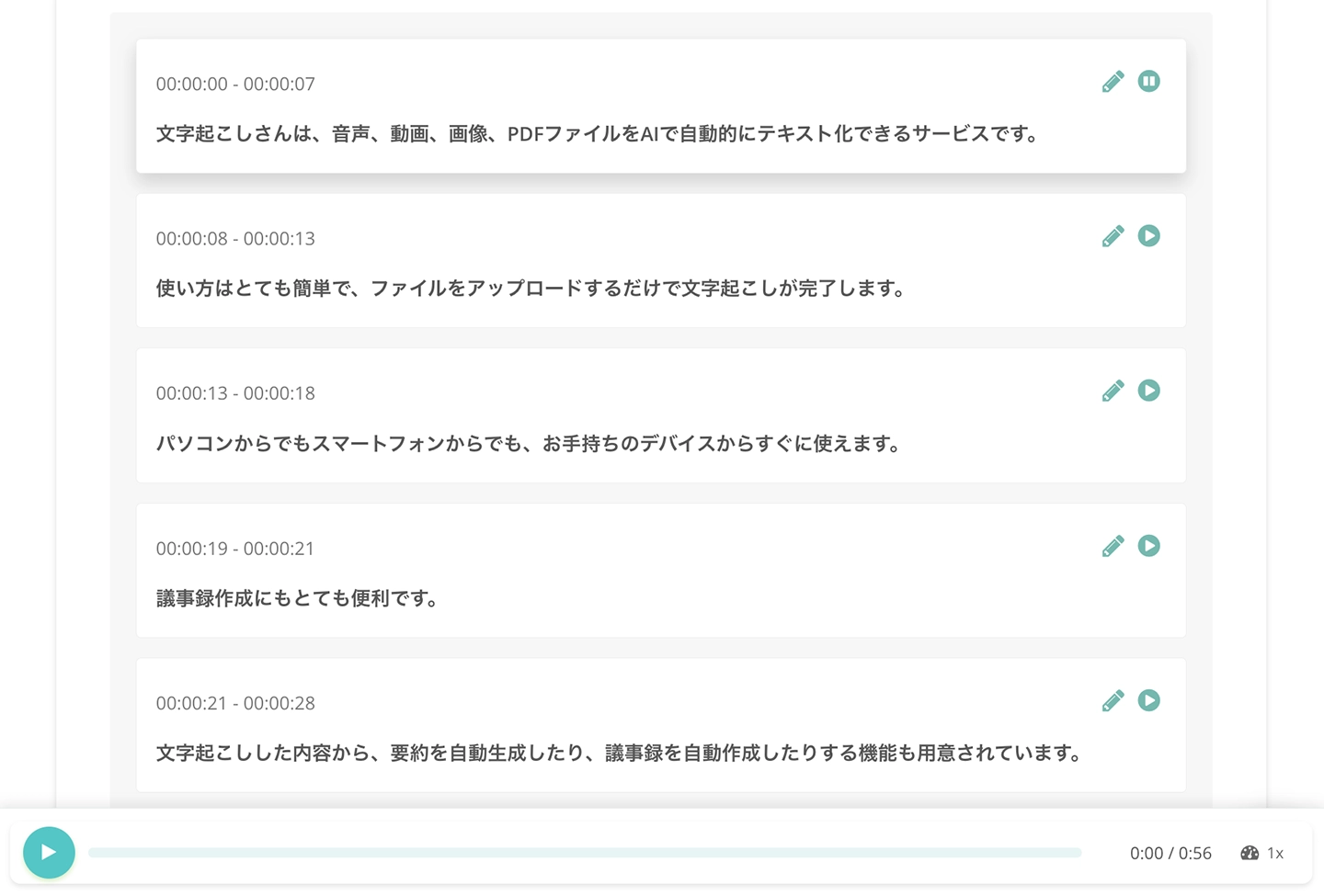
On the results screen, you can edit and download the text, export SRT subtitle files, and create AI summaries or meeting minutes.
You can also play back audio segments and edit the content for each part of the transcription.
The basic usage of Mr. Transcription is also explained with images in this article. Please take a look.
Recommended AI Transcription Apps and Sites for M4A Files (Including Free Options)
Unlike MP3 or WAV files, m4a files may not be readable by all apps or websites.
Therefore, it's crucial to choose a service that specifically supports m4a files.
Here, we introduce recommended AI transcription apps and sites that can transcribe m4a files recorded on your iPhone or iPad.
1. Mr. Transcription: Recommended Free M4A-Compatible Web App
For those looking to transcribe M4A files, the recommended AI transcription service is 'Mr. Transcription'.
Mr. Transcription is an AI transcription web app that supports M4A files, as well as audio files like MP3, WAV, AAC, and FLAC, and can also transcribe videos, images, and PDFs.
Utilizing the latest AI speech recognition engine, it can transcribe even long files with high accuracy in just about 1 minute.
It supports 100 languages, including Japanese and English, making it ideal for transcribing foreign language audio.
Furthermore, it features a function to automatically generate AI summaries and meeting minutes from transcription results! (Click here for details)
This is perfect for those who want to transcribe meeting or interview recordings and compile them directly into meeting minutes.
You can also output SRT subtitle files for use as video captions.
As a web app used via your browser, no installation is required.
You can use it seamlessly from iPhone/iPad (iOS) as well as Windows/Mac.
No registration or login is required for up to 3 minutes of free transcription per day, and registering an account allows up to 10 minutes of free transcription per day.
If you're wondering how to transcribe M4A files, why not try Mr. Transcription first?
2. Rimo (formerly Rimo Voice)
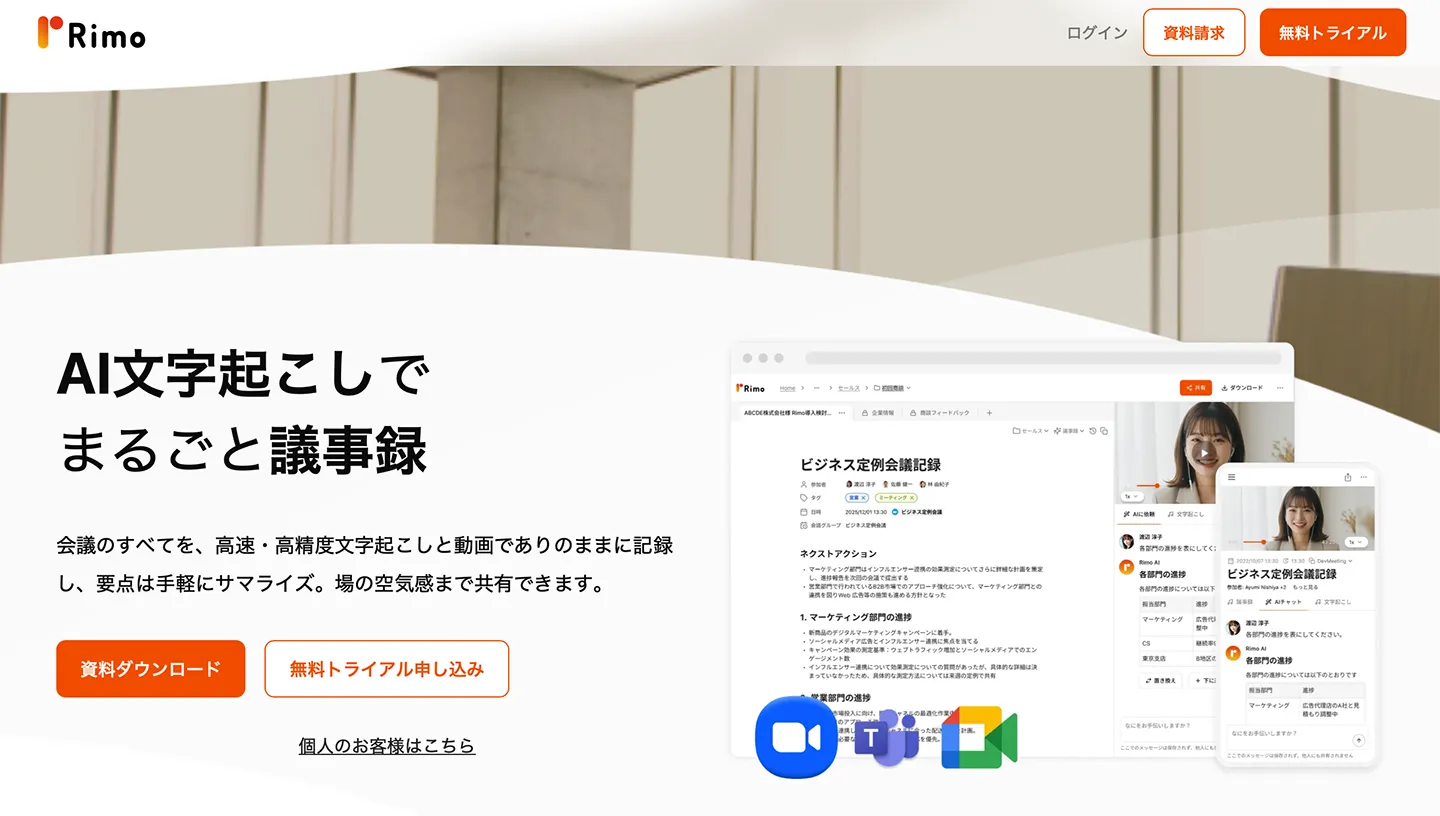
Rimo is an AI meeting minutes tool that supports both in-person and online meetings.
It features highly accurate transcription, supporting over 30 languages including Japanese, and accurately recognizing specialized terminology.
In addition to transcribing uploaded audio files, it can also record and transcribe web conference applications.
Pricing starts from ¥1,650 (tax included) per month, and a free trial is available without credit card registration.
This service is designed for teams and corporations looking to implement AI meeting minute solutions.
3. Texter
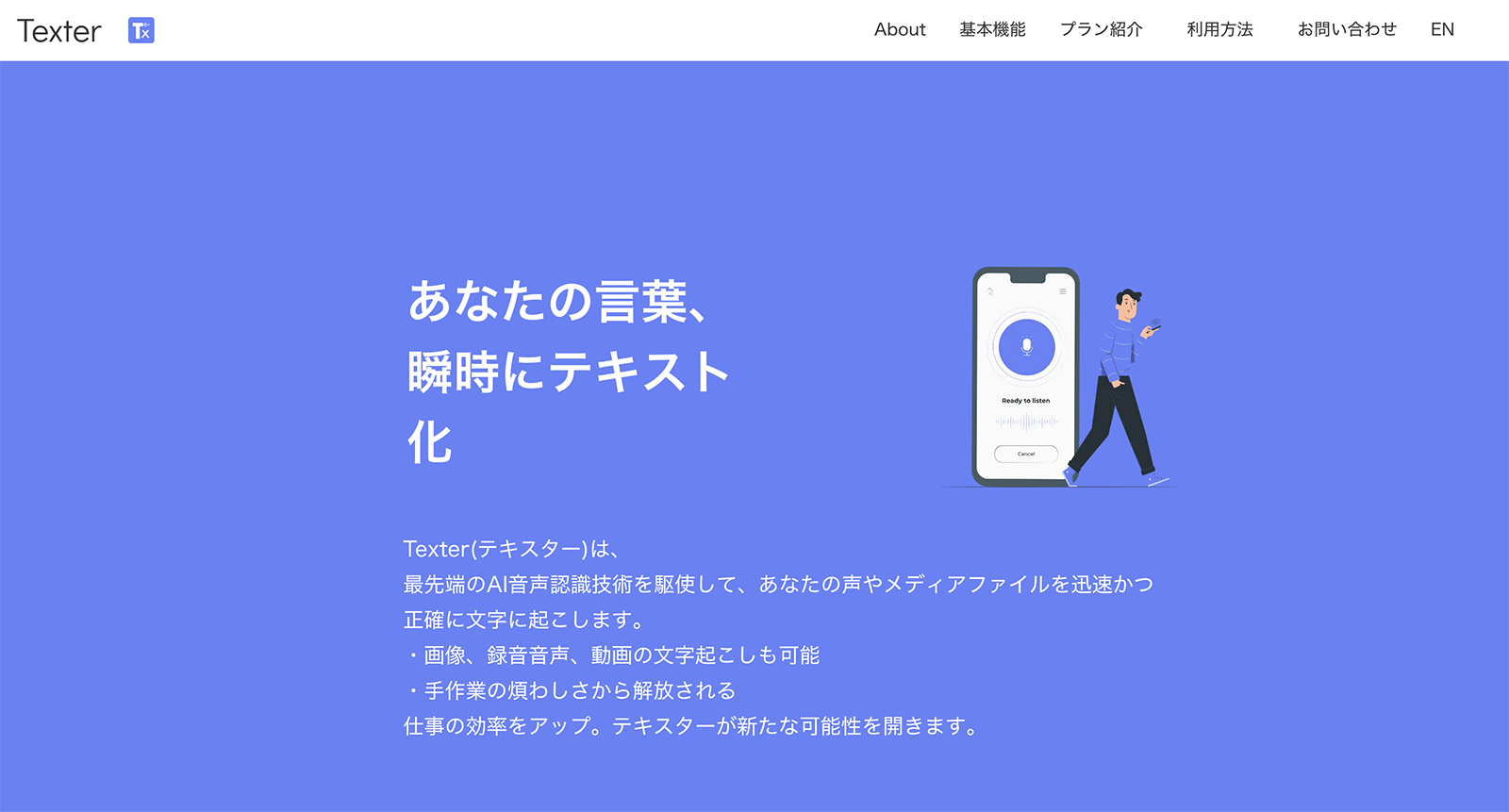
Texter is an AI transcription app compatible with iPhone, iPad, Android, and Mac (Apple Silicon).
It supports both real-time transcription and transcription by uploading audio and video files.
You can also import m4a files from iPhone voice memos for transcription.
In addition to AI summarization, it offers unique features like topic maps (automatic topic classification and visualization) and topic summaries to structure and organize transcribed content.
However, the free plan has somewhat strict limitations, allowing only up to 1 minute of real-time transcription and short durations for file transcription.
For serious use, a paid plan (starting from 1,500 yen per month) is required.
Troubleshooting: What to do when m4a file transcription fails or doesn't work
Here are solutions for common issues encountered when transcribing m4a files.
If the video file size is too large
M4a files recorded with iPhone Voice Memos are typically only tens of MB even for an hour, so file size is rarely an issue.
However, if you record videos with your iPhone camera, even a few minutes of video can quickly exceed 1GB.
With Mr. Transcription, if you upload a video file larger than 100MB, it automatically extracts only the audio from the video.
Removing the video data dramatically reduces the file size, allowing for smooth transcription.
Furthermore, the conversion process happens directly in your browser, eliminating the need to send files to a server.
This ensures that highly confidential data, such as internal meeting videos, can be used with peace of mind.
When the m4a file recording time is too long
Mr. Transcription has a recording time limit per file for each plan.
- Free (non-member): 3 minutes
- Free member: 10 minutes
- Basic plan: 90 minutes
- Value plan: 3 hours
- Premium plan: 5 hours
If the recording exceeds the limit, please split the m4a file before uploading.
※You can check the fees for each plan on the Pricing Plans page.
When using a site or app that does not support m4a files
Some AI transcription sites and apps may not support m4a files.
In such cases, you can convert the m4a file to mp3 or wav and then upload it.
However, this requires extra conversion steps, so it's recommended to choose a service that supports m4a from the start.
When the file format recorded with Voice Memos is not m4a
iOS 26 Voice Memos added a "Recording Mode" setting.
If you record in "Spatial" mode, it may be saved in ".qta" format.
Unlike m4a files, many apps and sites cannot read qta files, so it's recommended to check the file extension if you can't upload it.
To set the saving format to m4a, go to "Settings" app → "Apps" → "Voice Memos" and change the recording mode to "Mono".
After this setting, subsequent recordings will be saved in m4a format.
If a transcription error occurs
If uploading fails or an error occurs, this page explains how to troubleshoot it.
Please take a look.
What is an M4A File? Characteristics of Voice Memo Audio Files

An M4A file is a file format used for storing audio and music.
It's a type of "MP4 file" used for videos and audio, and is primarily used with Apple products like iPhone, iPad, and Mac.
When you record with Voice Memos on an iPhone or iPad (iOS), it is typically saved as an M4A file.
Even when recorded with Sound Recorder on a Windows PC, it's saved in M4A format, making it a widely encountered file type.
However, unlike widely used formats such as MP3 or WAV, M4A files may not be readable by some apps or websites.
Therefore, when transcribing M4A files, it's recommended to use an AI transcription service that supports M4A.
With a transcription app that supports M4A files, you don't need to convert files recorded on your iPhone; you can simply upload them directly from the Voice Memos app to transcribe them.

Mr. Transcription's Supported File Types and Sizes. How to Convert Unsupported Files
Learn about Mr. Transcription's supported file types and what to do if your file is not supported.
AI Transcription Apps and Sites are Recommended for Transcribing M4A Files
For transcribing M4A files recorded with Voice Memos on iPhone or iPad (iOS), using AI transcription apps or websites that support M4A is highly recommended.
Services that support M4A allow you to transcribe recorded M4A files directly by simply uploading them, without the hassle of converting the file.
You can upload directly from your iPhone, or transfer the files to a computer and transcribe them using a browser on Windows or Mac.
For detailed information on how to transcribe audio files, including formats other than M4A, please refer to this article.
With Mr. Transcription, you can transcribe M4A files and a wide range of other formats, and also use AI summarization, meeting minute creation, and speaker separation with just one click.
No registration is required, and you can transcribe up to 3 minutes for free daily.
Free membership allows up to 10 minutes per day.
If you're wondering how to transcribe M4A files, why not try Mr. Transcription first?
■ AI transcription service "Mr. Transscription"
"Mr. Transcription" is an online transcription tool that can be used from zero initial cost and 1,000 yen per month (* free version available).
- Supports more than 20 file formats such as audio, video, and images
- Can be used from both PC and smartphone
- Supports technical terms such as medical care, IT, and long-term care
- Supports creation of subtitle files and speaker separation
- Supports transcription in approximately 100 languages including English, Chinese, Japanese, Korean, German, French, Italian, etc.
To use it, just upload the audio file from the site. Transcription text is available in seconds to tens of minutes.
You can use it for free if you transcribe it for up to 10 minutes, so please try it once.

It is "Mr. Transcription" who can easily transcribe from audio, video, and images.
Transcription allows you to transcribe for up to 10 minutes for free.
You can copy, download, search, delete, etc. the transcribed text.
You can also create subtitle files, which is ideal for transcription of interview videos.
HP: mojiokoshi3.com
Email: mojiokoshi3.com@gmail.com
Email: mojiokoshi3.com@gmail.com
Related article
Transcription for audio / video / image transcription. It is a transcription service that anyone can use for free without installation.
- What is Mr. Transcription?
- Transcript images, sounds, and videos with Mr. Transcription
- Free registration
- Rate plan
- manual
- Try other free services