Free AI Transcription Now: Use Mr. Transcription (10 Mins Daily)
Add English Subtitles to YouTube Videos: Translate SRT with AI
Oct. 9, 2026

I want to know how to add English or other foreign-language subtitles to my YouTube videos!

For exactly that purpose, this article introduces how to add translated English or other foreign-language subtitles to your YouTube videos!
Adding subtitles in English or other foreign languages is a great way to increase your YouTube views and subscribers.
YouTube has its own automatic translated subtitles, but they often sound unnatural or contain mistranslations.
In that case, if you translate a Japanese SRT file created with AI transcription using generative AI, you can add foreign-language subtitles that match the content of your video yourself.
The key to creating English or other foreign-language subtitles is to use an AI transcription site that is free to use.
With the AI transcription site “Mr. Transcription”, you can create SRT subtitle files of higher quality than YouTube's automatic subtitles, using nothing but your browser!
Use the method in this article as a guide, and why not add English or other foreign-language subtitles to your own YouTube videos?
[Free] A Transcription Site Recommended for English and Foreign-Language AI Subtitles on YouTube
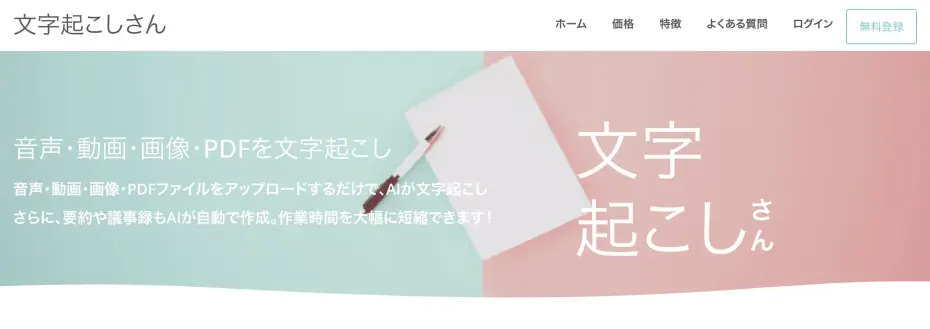
If you want to add English or foreign-language subtitles to YouTube videos, we recommend “Mr. Transcription”!
“Mr. Transcription” is an AI transcription site that creates SRT files for subtitles from video files.
It is very easy to use: all you need to do is upload your video file to the site.
Then just click “Download subtitles” and you get a Japanese SRT file divided into appropriate lengths and timings.
The file can be exported in a form that you can load directly into video editing software or YouTube, so all that remains is to translate this SRT file into a foreign language to complete your foreign-language subtitles.
There is no need to install any troublesome software, because everything is done entirely in your browser.
On top of that, “Mr. Transcription” is free!
You can transcribe up to 3 minutes per day for free without registering, so you can create an SRT file right now.
In addition, with a free membership you can use it free for up to 10 minutes per day.
The paid plans also have clear pricing, starting from 1,000 yen.
Commercial use is also permitted, so you can use it with confidence when monetizing YouTube or in a company (click here for details on commercial use).
If you are looking for a way to add English or foreign-language subtitles to YouTube videos, why not try “Mr. Transcription” first?
[Free] How to Add AI-Translated English and Foreign-Language Subtitles to YouTube Videos
Let's get started. We will explain how to add AI-translated English or foreign-language subtitles to a YouTube video using the AI transcription site “Mr. Transcription”!
As an example, we will walk through adding AI-translated English subtitles to a Japanese video.
The general flow consists of
- Create a Japanese SRT file
- Translate it into a foreign language with a generative AI service
- Load the foreign-language SRT file and edit your video
these three steps.
1. Create a Japanese SRT File from Your Video with “Mr. Transcription”
First, transcribe your YouTube video with AI using “Mr. Transcription” and create the Japanese SRT file that will serve as the basis for translation.
After opening the Mr. Transcription site, select the language of your video's audio from the “Language” drop-down menu.
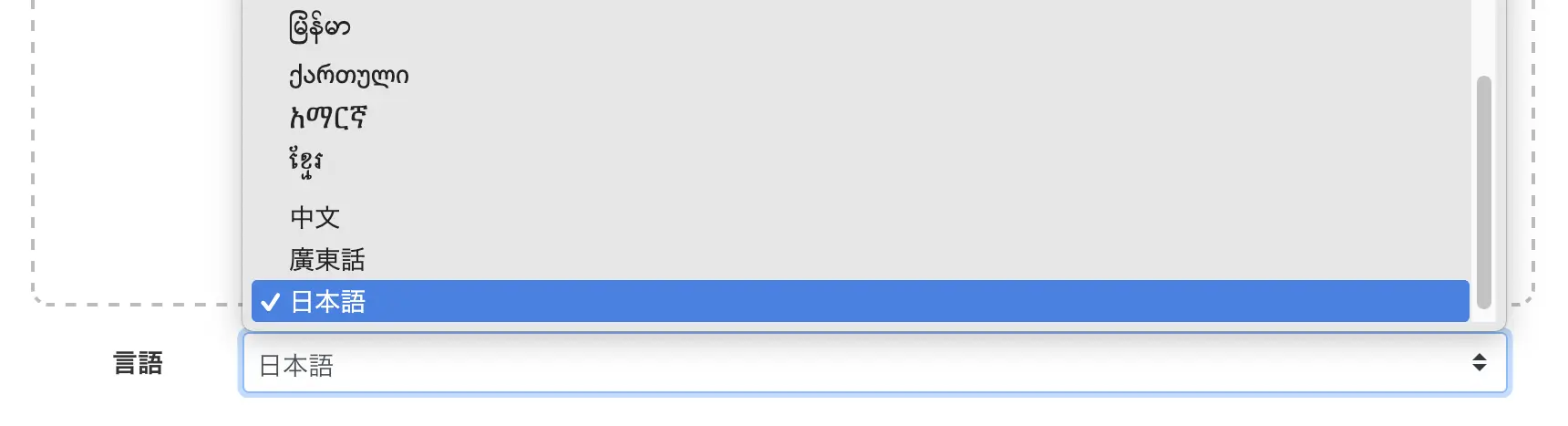
The AI transcription site “Mr. Transcription” supports the following formats:
- MP4
- MOV
- AVI
- FLV
- MKV
- WEBM
- WMV
- 3GP
All of these formats are supported.
Click “Select file” or drag and drop your video to choose the video file.
* If you select a large video file, it is automatically converted to an audio file before being uploaded.
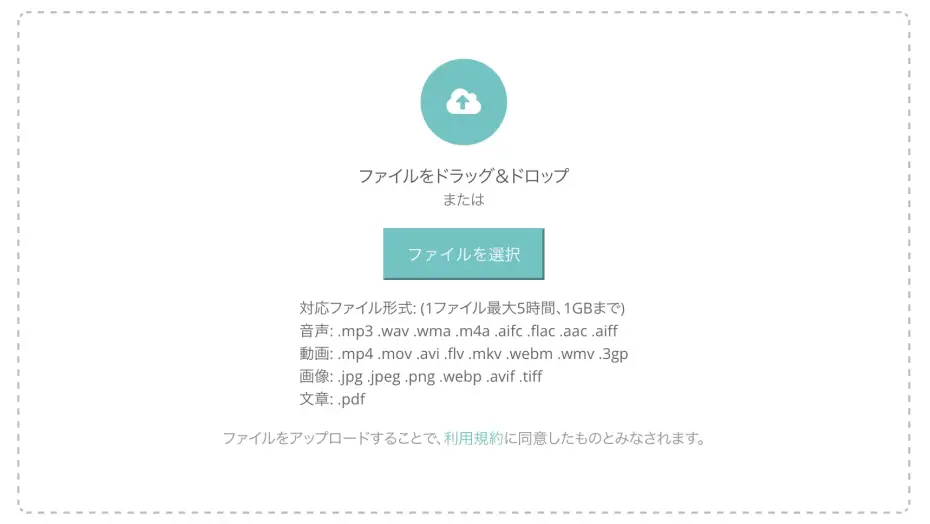
Once you select the file, uploading and transcription start automatically.

If you are using the site without logging in, simply wait until processing is complete.
* If you are registered and logged in, you can close the screen once the upload is complete. In that case, you will receive a notification email when transcription finishes.
The AI transcription by “Mr. Transcription” is completed in about 1 minute even for long video files!
When transcription is finished, the screen changes and the transcription result is displayed.
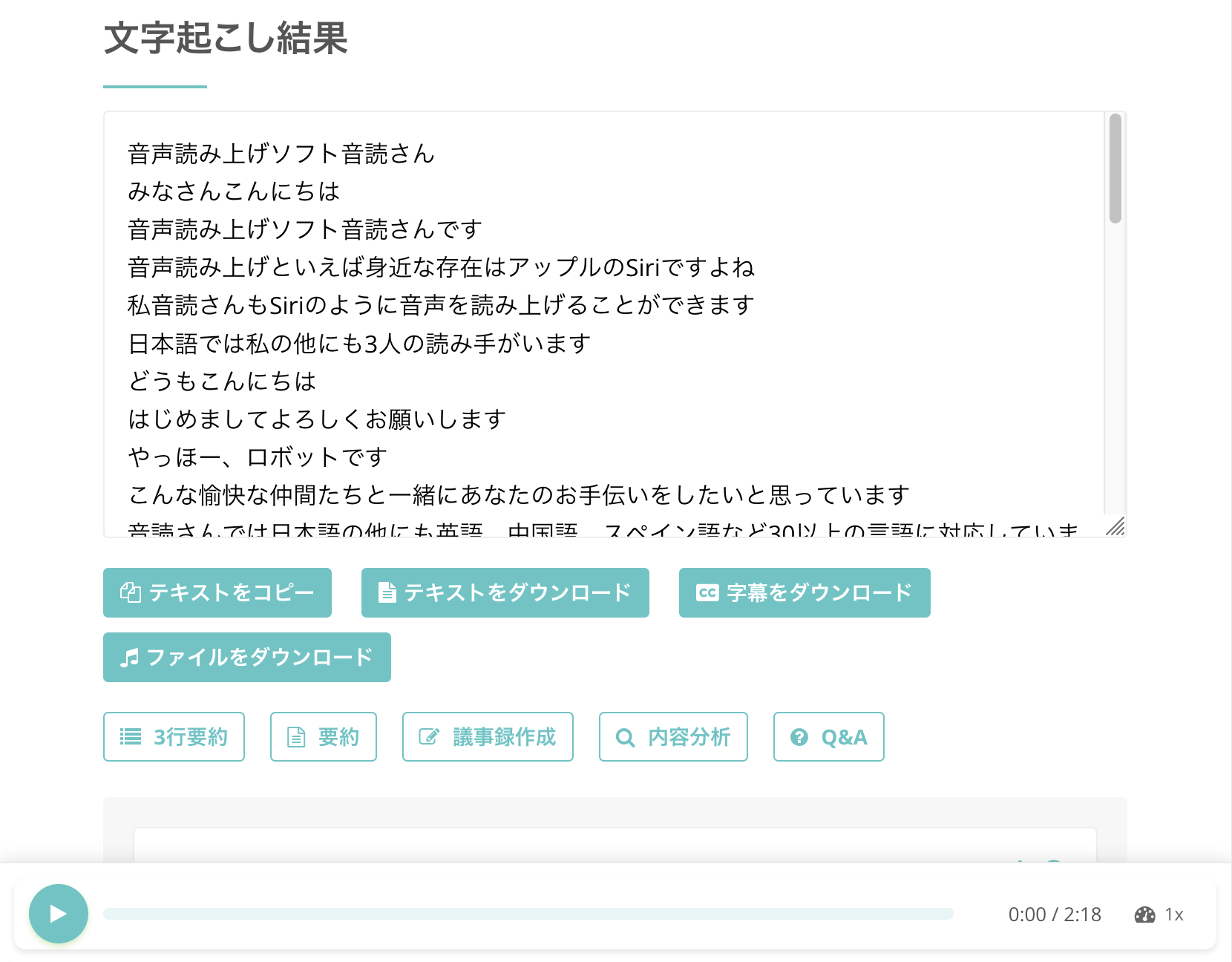
If you click the play button next to a statement, the video's audio plays from the location of that statement.
When you play the video with the player at the bottom of the screen, the displayed text switches to match the playback position.
If you have closed the screen, click the link in the notification email, or

open it from “History” in the site's menu.
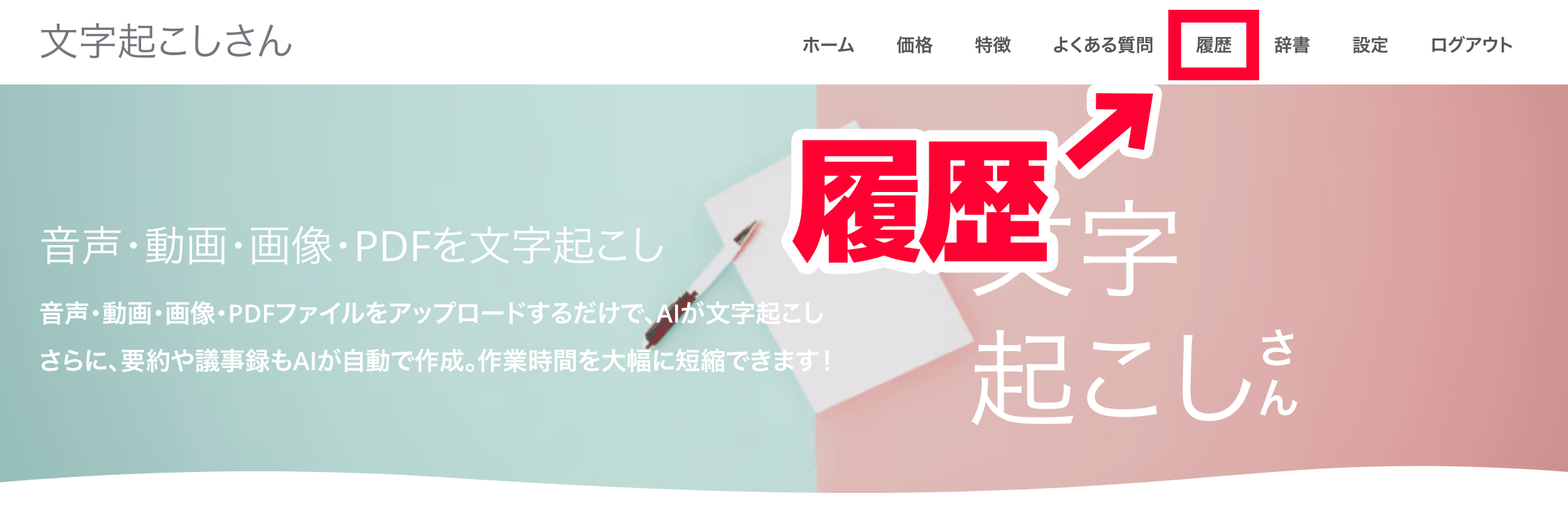
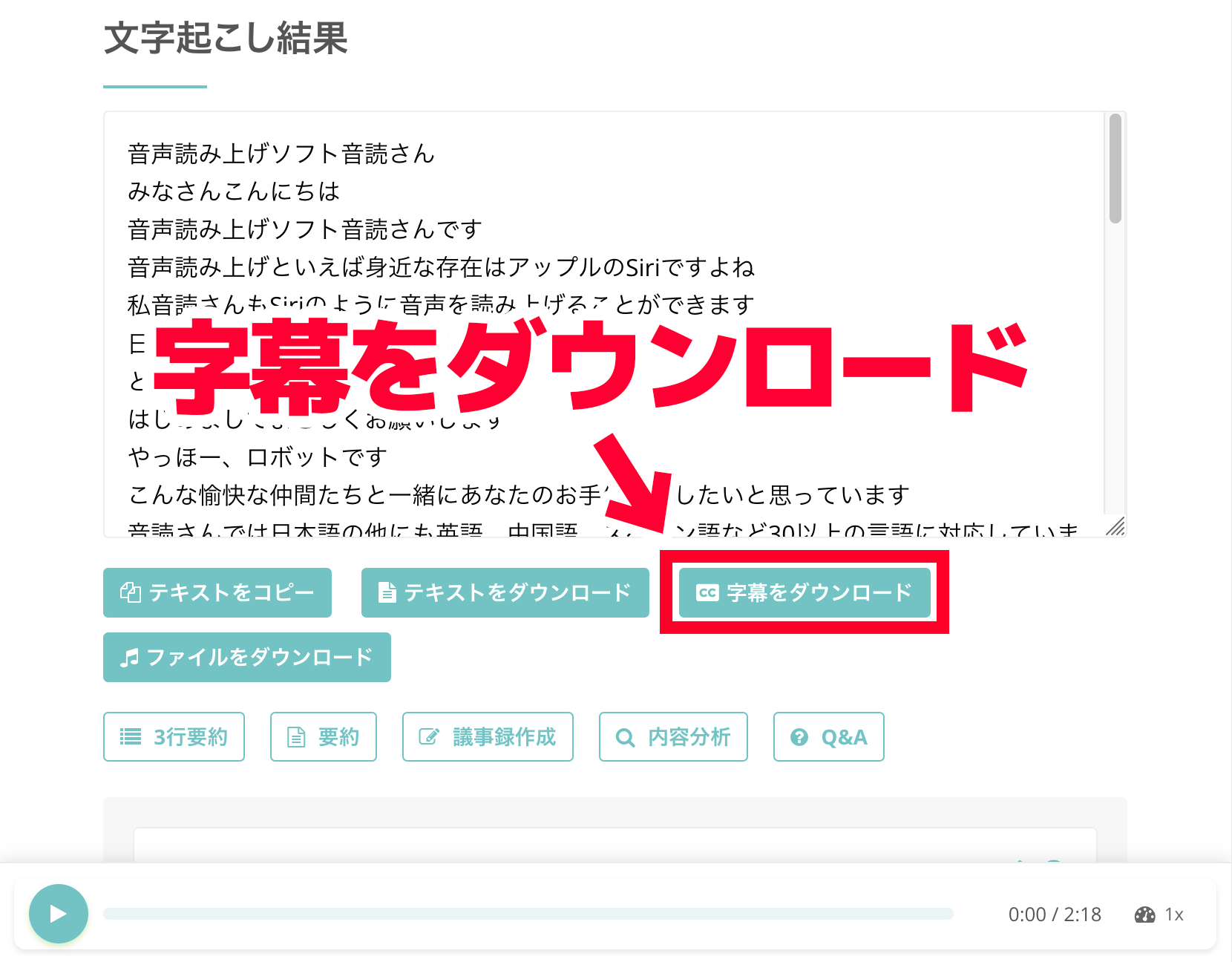
Click “Download subtitles” below the transcription result to save the Japanese SRT file.
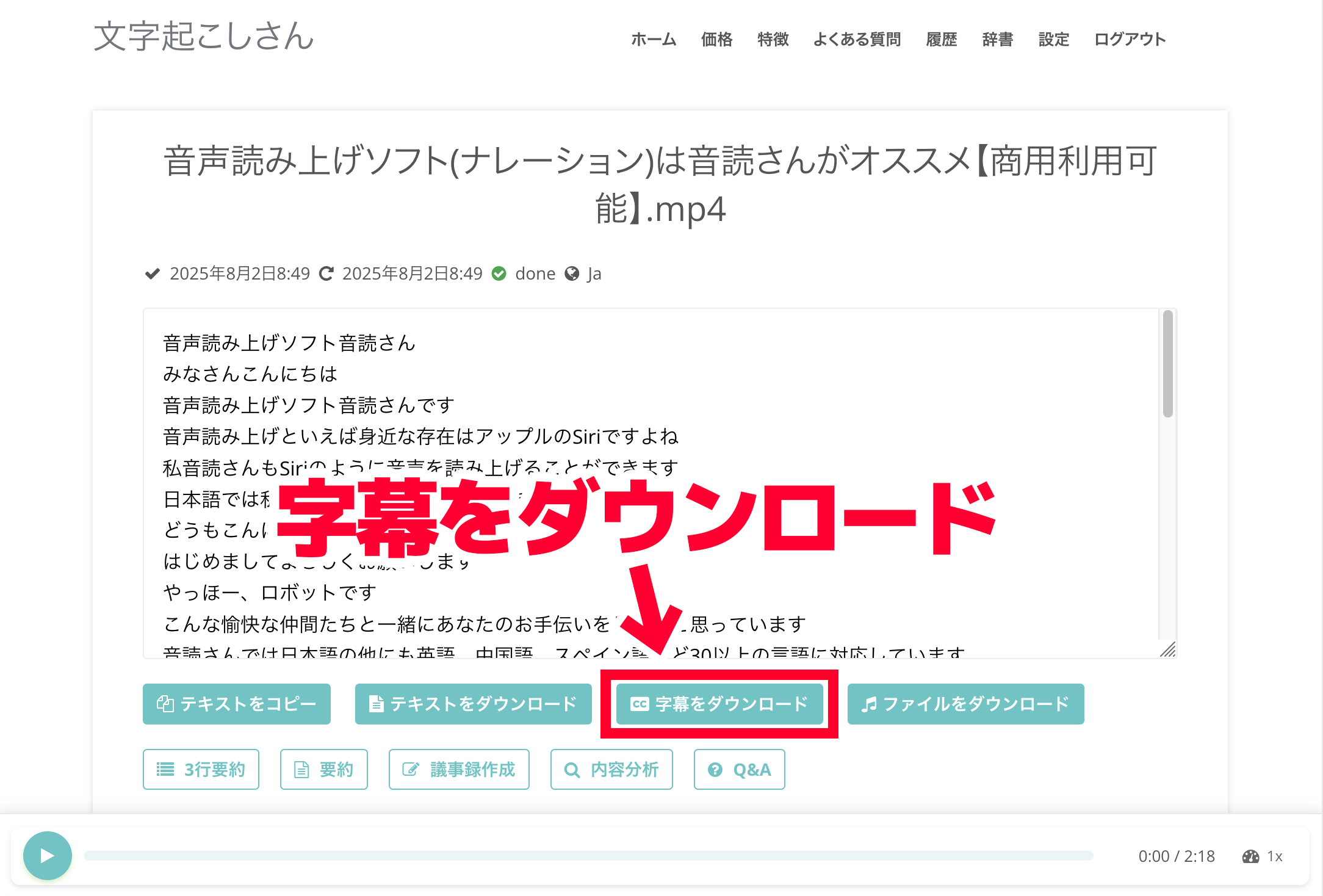
You can also save the SRT file from “Download subtitles” on the History page.
When you open the saved SRT file, you will see content in the SRT format, which is widely used for video subtitles.
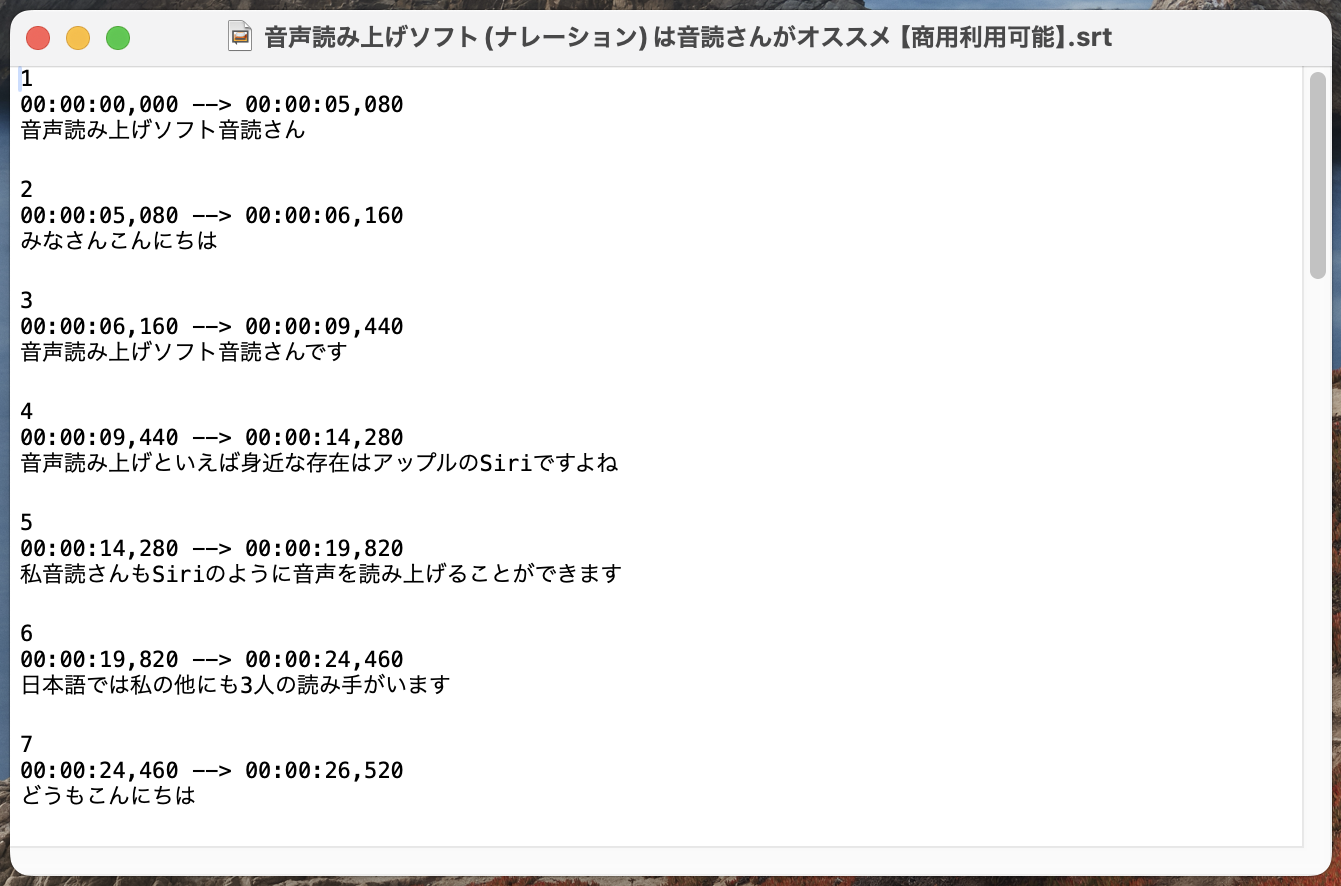
As you can see, with “Mr. Transcription” you can create a Japanese SRT file of higher quality than YouTube's automatic subtitles using only your browser.
For more detail on how to create a Japanese SRT file from a video file, see this article.
[Free] How to Create an SRT File: Make Video Subtitles Using Only Your Browser
Learn how to create an SRT file, a subtitle file that records subtitle text and display times. With an AI transcription site, you can make one using only your browser. Also covers how to use it in video editing software and on YouTube.
From here, we will use this Japanese SRT file to create English translated subtitles.
2. Translate the SRT File into English with a Generative AI Service
Once your Japanese SRT file is ready in “Mr. Transcription”, next create the English translated subtitles with a generative AI service.
We recommend uploading the SRT file as it is to a generative AI service and having it translated.
Upload the SRT file of the Japanese video subtitles as it is to the site of a generative AI service such as ChatGPT, Claude or Gemini and have it translated.
The advantage of this method is that you can create a subtitle file that can be loaded directly into video editing software or YouTube.
Besides the subtitle content, an SRT file contains the order of the subtitles and timecodes that specify when in the video each subtitle is displayed.
For that reason, you cannot simply translate the content as it is with an AI translation service such as DeepL.
With generative AI services such as ChatGPT, Claude or Gemini, however, it is possible to translate only the subtitle content while keeping the SRT file's information other than the subtitles intact.
YouTube's automatic translated subtitles often read unnaturally, but if you have a generative AI translate them yourself, you can create foreign-language subtitles that follow the context.
Example of a Translation Instruction (Prompt) for the AI
When translating the SRT subtitle file of a YouTube video on the site of a generative AI service, we recommend giving an instruction like this.
Please create a subtitle file translated into English from the uploaded SRT file. Keep the timecodes and subtitle information as they are.
Please make it downloadable as an SRT file.
With this, you can translate only the text portion from Japanese into English while keeping the SRT format.
Let's actually give the instruction to a generative AI service (this time we use Claude).
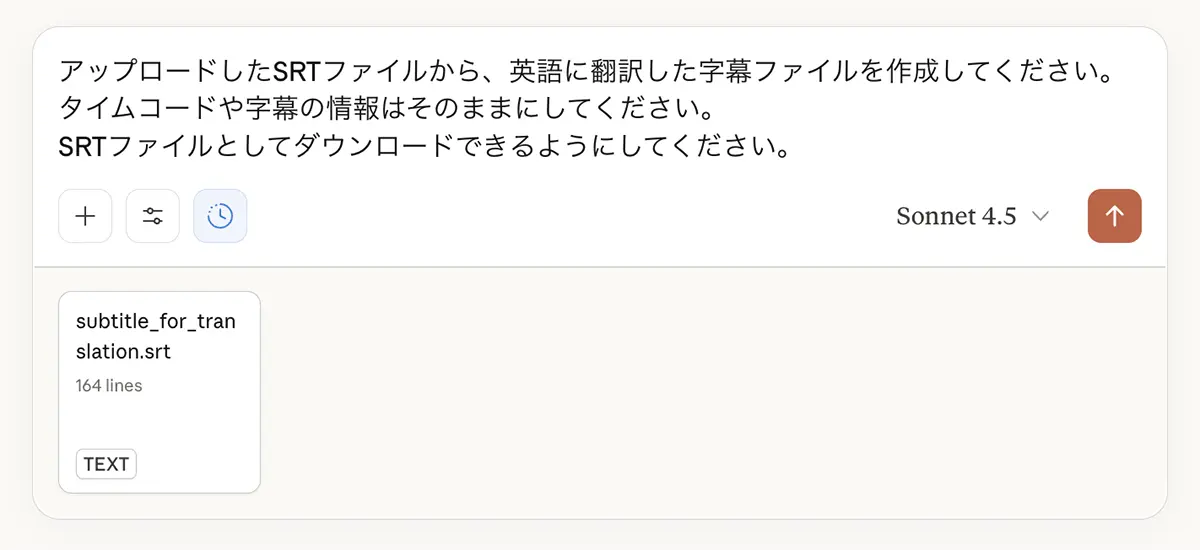
When you upload the SRT file and give the instruction, the subtitles are translated from Japanese into English like this.
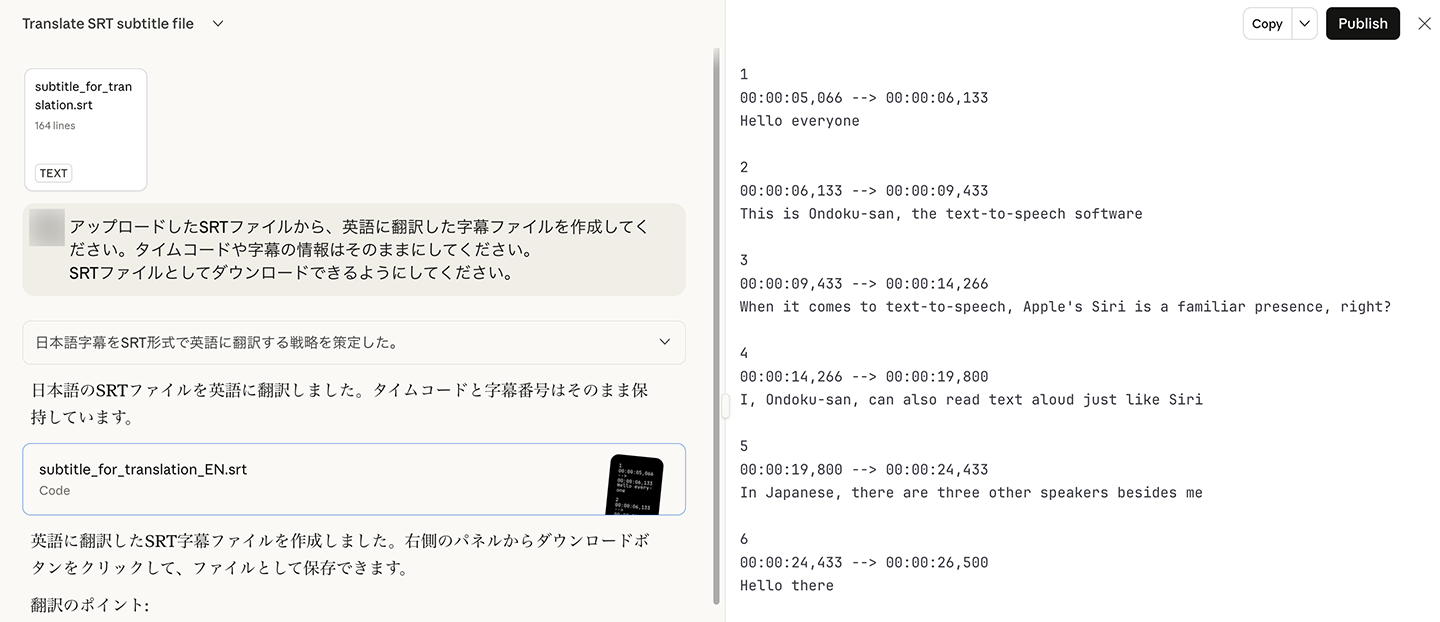
You can download the translation result as a file.
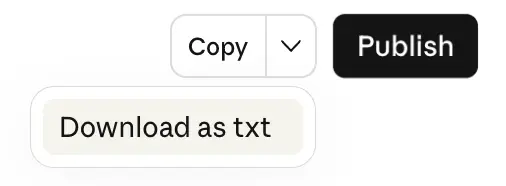
When you open the downloaded file, it is in SRT format like this.
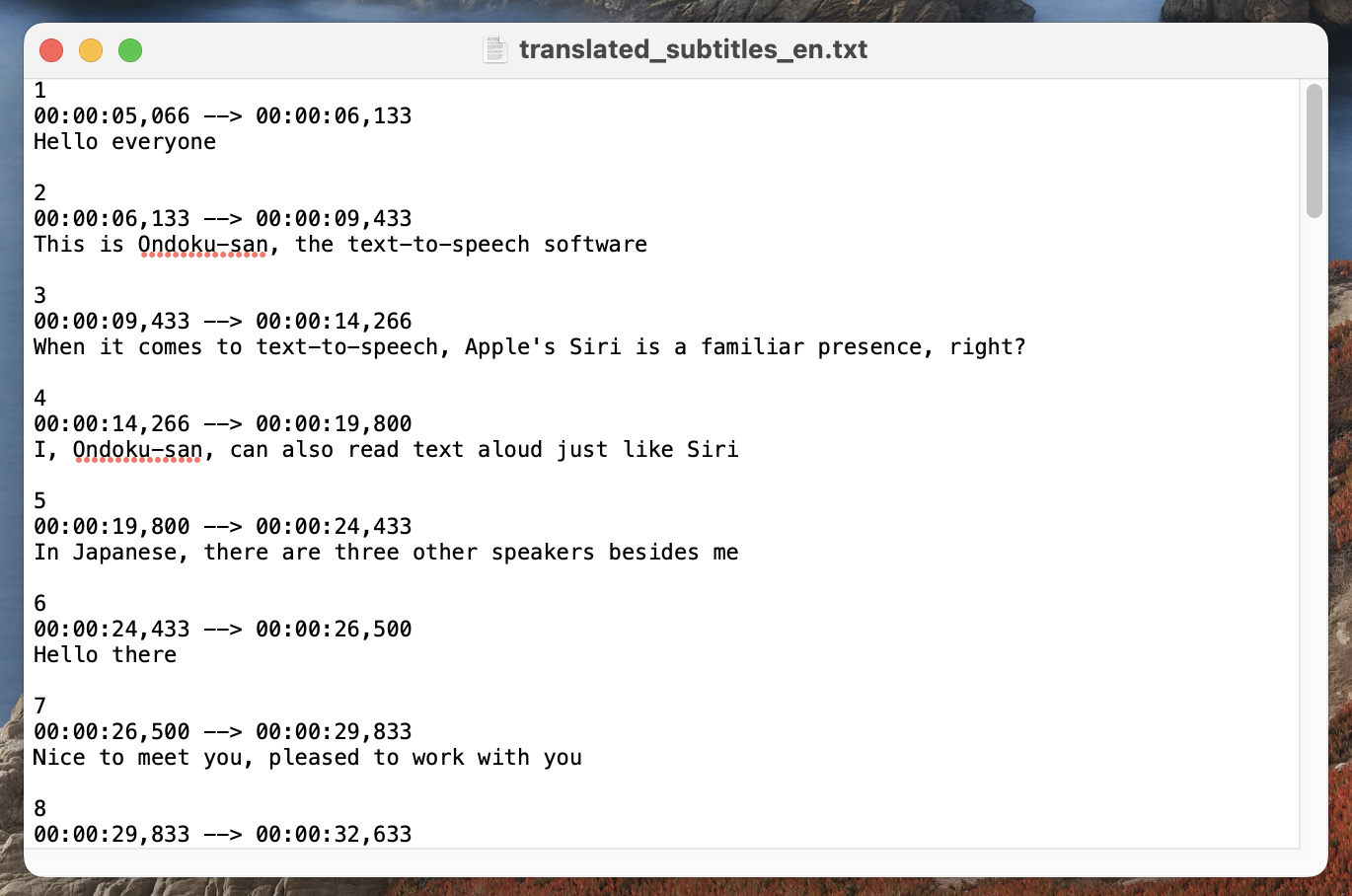
* This time the file was downloaded as a text file (TXT), so we change the file extension to SRT after downloading.
3. Load the English or Foreign-Language SRT Subtitle File and Edit Your Video
We have now created the file with the English translated subtitles.
All that is left is to load this SRT file into video editing software and create your video.
Let's actually load it into the video editing software DaVinci Resolve.
As you can see, it loaded correctly as English subtitles.
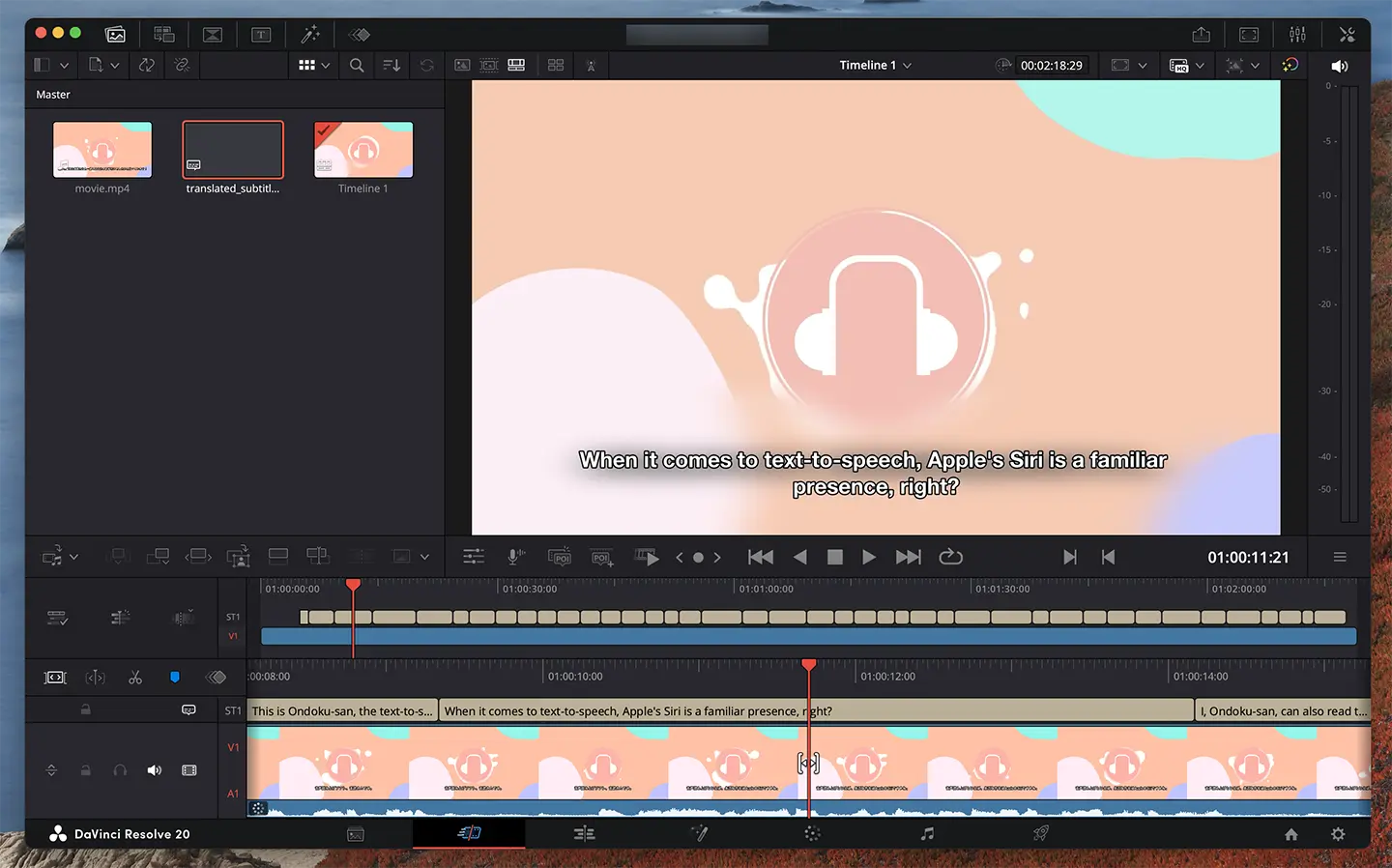
After that, just edit your video and upload it to YouTube or social media!
How to add video subtitles with an SRT file is also explained in detail in this article.
[Free] How to Create an SRT File: Make Video Subtitles Using Only Your Browser
Learn how to create an SRT file, a subtitle file that records subtitle text and display times. With an AI transcription site, you can make one using only your browser. Also covers how to use it in video editing software and on YouTube.
Steps to Add English or Foreign-Language SRT Files to a YouTube Video
English or foreign-language SRT subtitle files created with generative AI can also be added as they are to videos that are already uploaded to YouTube.
How to Upload English or Foreign-Language Subtitles on YouTube
To upload a foreign-language SRT subtitle file to an already published YouTube video, first open the “Video details” screen in a browser on your PC.
Click “Languages” in the left-hand menu to open the subtitle management screen.
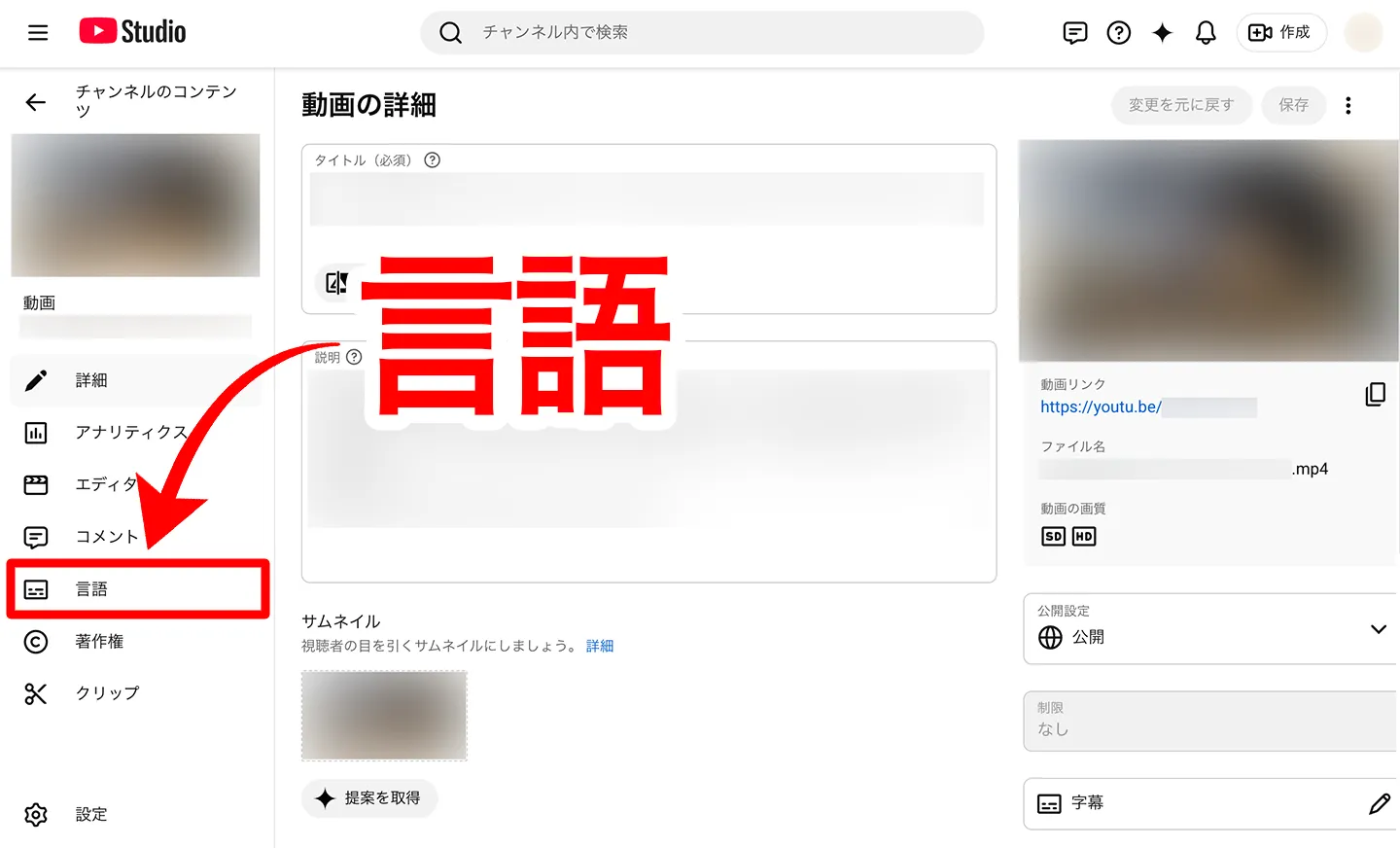
Next, click “Add language” and select the language you want to add, such as English.
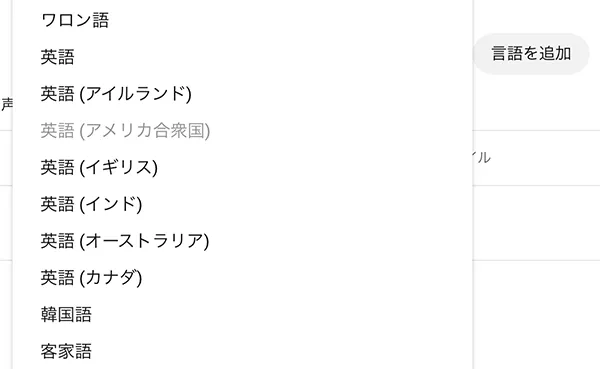
English has now been added.
* With YouTube's standard features, “English (United States)” may be translated and added automatically.
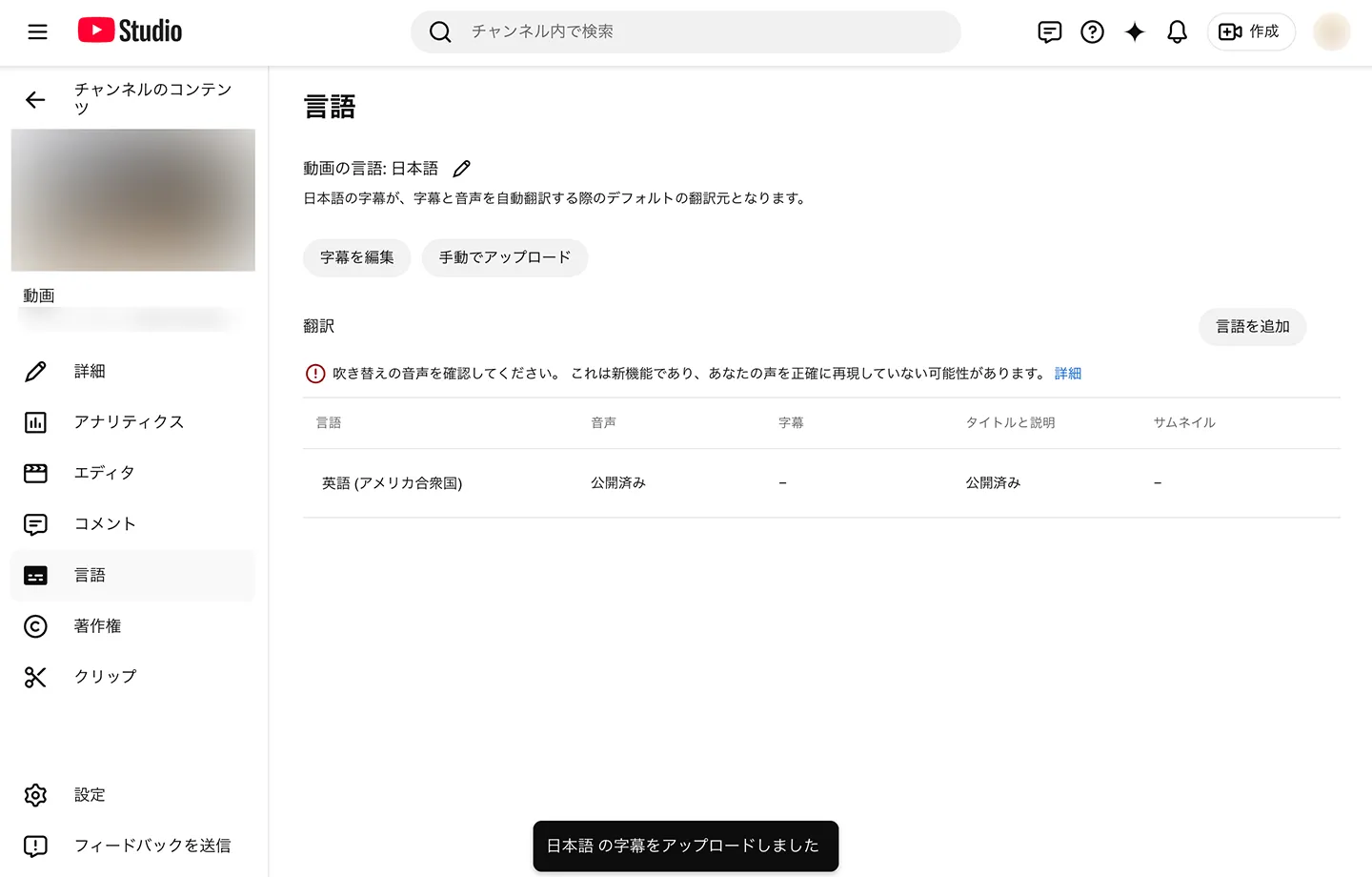
Click the language name to open the editing screen for the title, description and subtitles of the added language.
First, enter the title and description in that language.
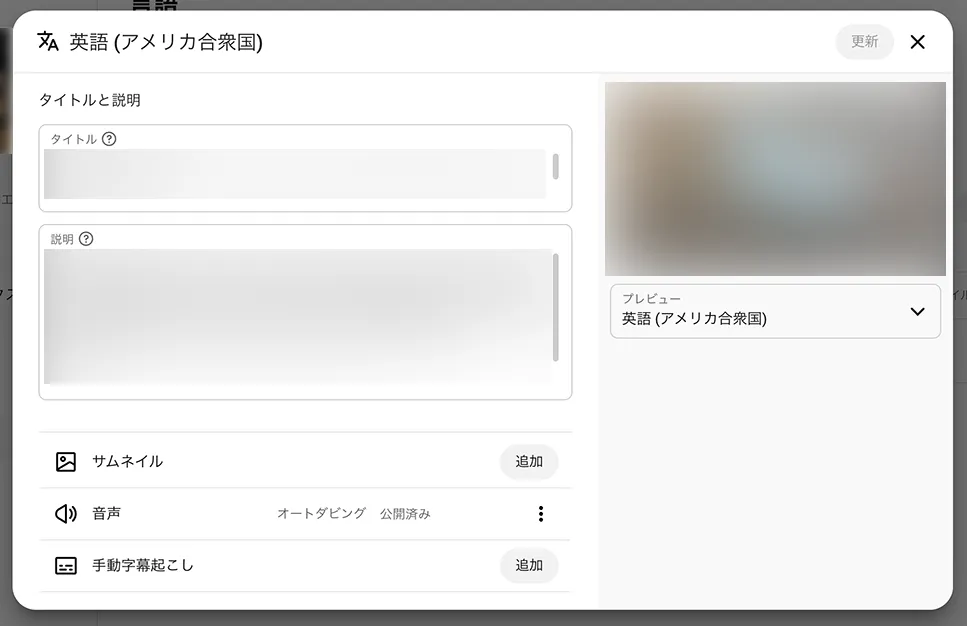
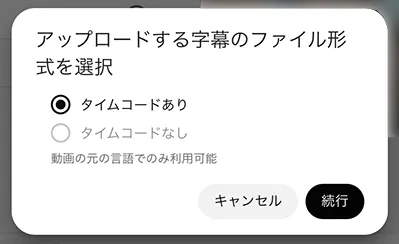
When you have finished, in the subtitles section click “Add” under “Manual transcription”.
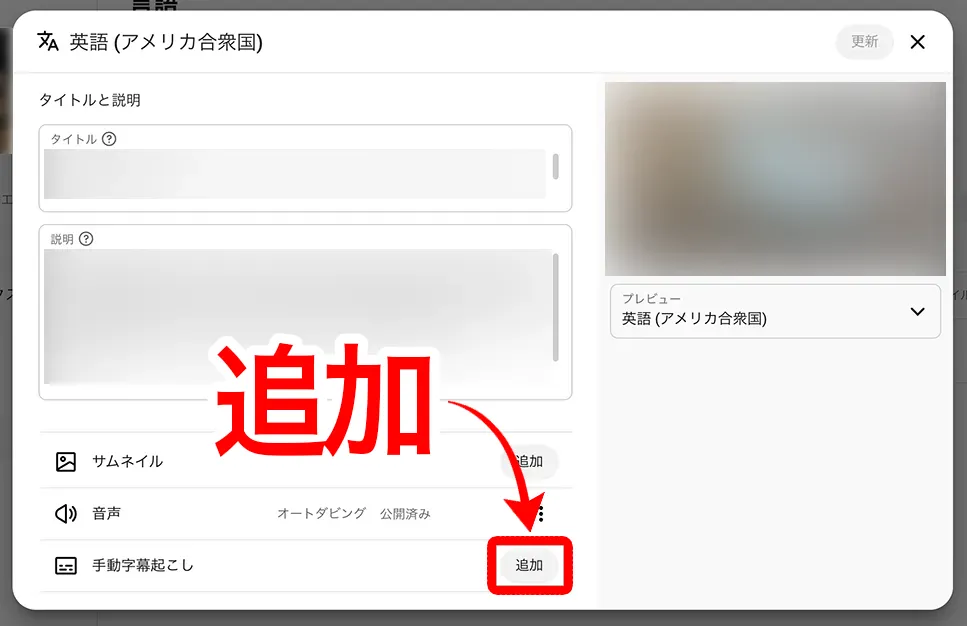
Select “With timing”.
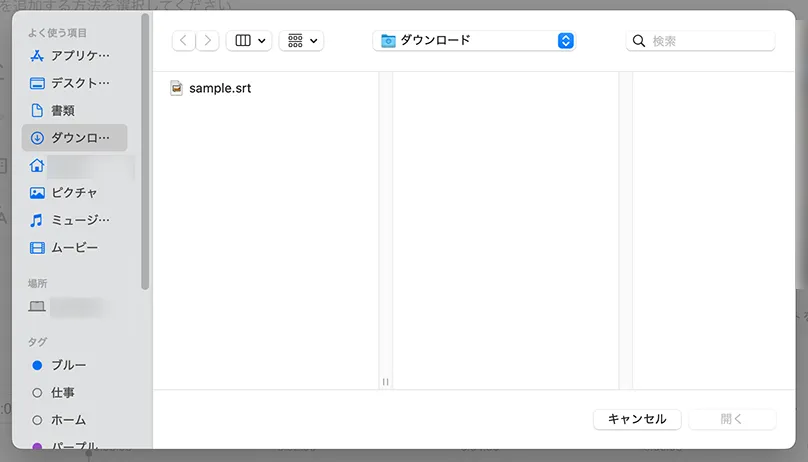
A file selection screen opens, so choose the translated foreign-language SRT file.
After the SRT file is loaded, the subtitle editing screen opens.
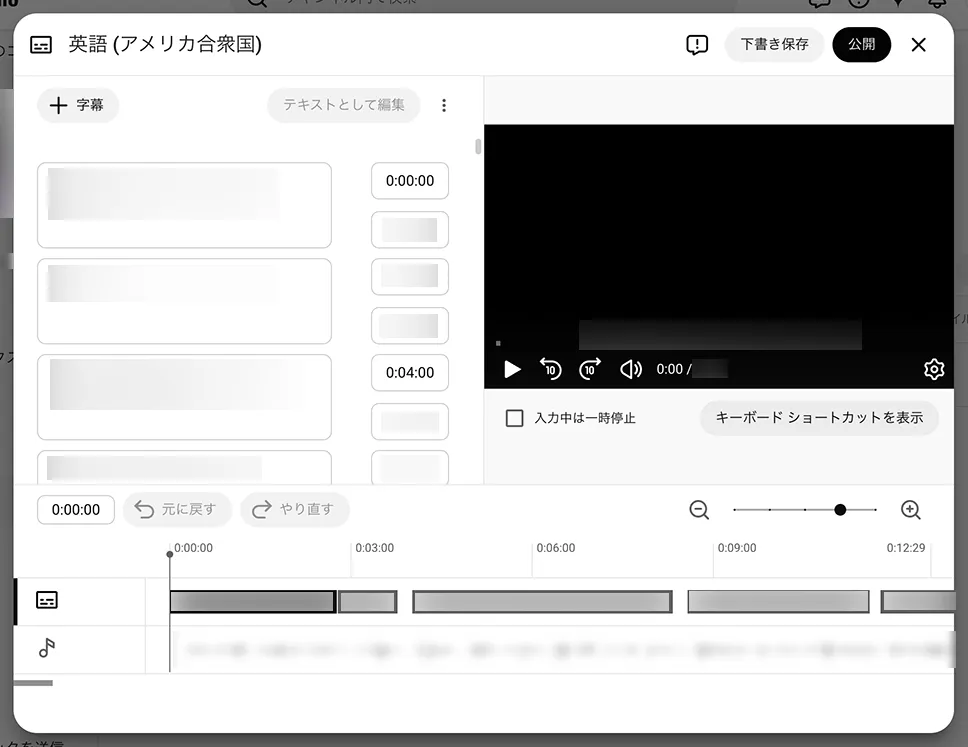
Check the content and, if everything looks fine, click “Publish”.
You have now added translated English or other foreign-language subtitles to your YouTube video.
We Recommend Uploading the Japanese SRT Subtitles Too
In the same way, you can also upload to YouTube the original, untranslated Japanese SRT file that you used when translating into English.
If the language of your video is Japanese, simply upload the SRT file from “Upload manually” under “Video language” on the “Languages” screen.
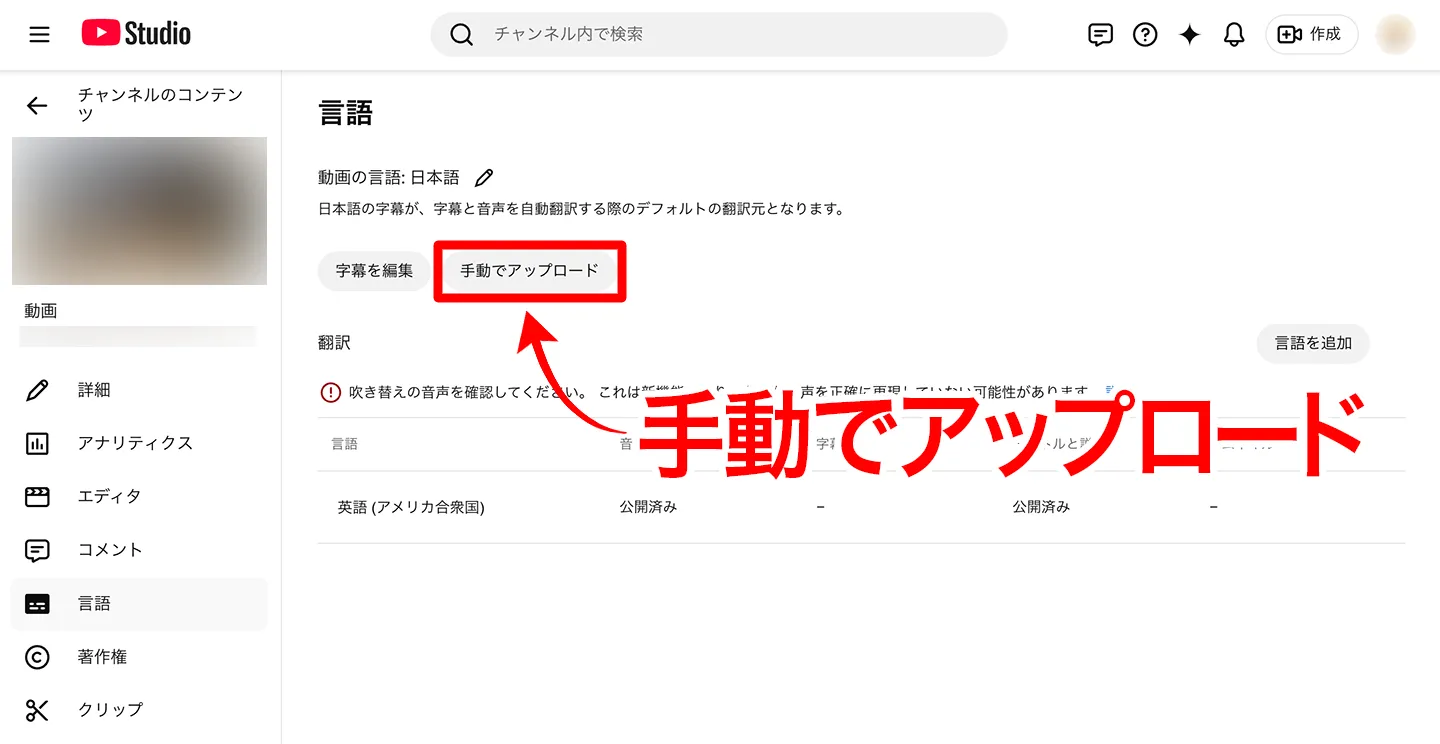
Adding subtitles in the video's original language will appeal to even more viewers.
Easily Create Foreign-Language Subtitles with the AI Transcription Site “Mr. Transcription”
As you can see, with the AI transcription site “Mr. Transcription” and generative AI, you can easily add translated English or foreign-language subtitles to YouTube videos.
What is convenient is that you can create a Japanese SRT file using only your browser without adjusting the subtitle breaks, and then translate it with generative AI into a foreign language that follows the context.
If you want to increase views and subscribers for your YouTube videos, we recommend making your videos multilingual with English or foreign-language subtitles.
Why not add foreign-language subtitles to your own videos with the free “Mr. Transcription”?
A Prompt for Even More Natural AI-Translated Subtitles for YouTube Videos

If you want to translate your YouTube video subtitles into even more natural English or another foreign language, we recommend adding further instructions to your prompt.
From here, we introduce a more practical method for translating subtitles into English or other foreign languages.
The Prompt Used When First Translating the English Subtitles
When we first translated the subtitles into English, we gave the generative AI service the following instruction.
Please create a subtitle file translated into English from the uploaded SRT file. Keep the timecodes and subtitle information as they are.
Please make it downloadable as an SRT file.
This is the instruction we gave the generative AI service.
Based on this, we will add instructions for creating even more natural English subtitles.
How to Specify the Maximum Characters and Lines per Subtitle Line
To make subtitles easy to read, we recommend not putting too many characters on each subtitle line.
Long subtitles are displayed with line breaks in video editing software and YouTube features, but subtitles that are too long are hard to read and make it harder for viewers to concentrate.
To avoid this, we recommend specifying the number of characters per line and the maximum number of lines per subtitle.
We recommend the following number of characters per subtitle line:
- Japanese: about 20 characters at most
- English: about 25 to 40 characters (the same applies to other languages that use the alphabet)
This is the recommended length.
Also, 1 to 2 lines per subtitle is ideal.
Three or more lines are hard to read, so it is better to avoid them.
To specify the number of characters and lines on the site of a generative AI service, you can write something like
Please keep each line to 30 characters or fewer.
Please use no more than one line.
Writing it like this is enough.
How to Say That the Order of Subtitles May Be Changed
Unlike Japanese, English and other foreign languages often differ greatly in the order of words within a sentence.
The order especially tends to change in long sentences.
For example,
Japanese: YouTubeにアップロードする動画に読みやすい英語字幕をつけるためのAIサービスを使う人がどんどん増えています。 (Literally: The number of people using AI services to add easy-to-read English subtitles to videos uploaded to YouTube is growing rapidly.)
English: More and more people are using AI services to add easy-to-read English subtitles to videos they upload to YouTube.
Comparing these two sentences, you can see that the part corresponding to the English subject “More and more people” comes quite late in the Japanese sentence (the part “AIサービスを使う人がどんどん増えています”, meaning “the number of people using AI services is growing rapidly”).
Because word order differs between Japanese and English or other foreign languages, translating without changing the order of the subtitles results in unnatural, hard-to-read foreign-language subtitles.
That is why we recommend telling the AI that it may change the order of the subtitles when translating.
Specifically, you can give an instruction such as
You may change the order of the subtitles so that the English sounds natural. However, make sure the meaning of the sentences does not change.
An instruction like this is enough.
How to Split and Merge Timecodes of Translated Video Subtitles
Also, languages that use the alphabet, such as English, tend to need more characters than Japanese, which uses kanji.
When the higher character count makes the subtitles hard to read, you can say
English has more characters than Japanese, so you may split the timecodes and, where necessary, divide the part corresponding to one Japanese subtitle into two.
With an instruction like this, you can split subtitles that are too long into several.
Subtitles May Be Shorter Depending on the Foreign Language
Depending on the foreign language, the character count may conversely be smaller than in Japanese.
Chinese, for example, is written entirely in Chinese characters, so it has fewer characters than Japanese.
In that case, the opposite of the English case, you can give the instruction
Chinese has fewer characters than Japanese, so you may merge the timecodes of the parts corresponding to several Japanese subtitles into one.
An instruction like this is enough.
Example of an Instruction for Translating Video Subtitles with an AI Service
Combining all the instruction methods introduced here gives the following.
Please create a subtitle file translated into English from the uploaded SRT file. Keep the timecodes and subtitle information as they are.
Please make it downloadable as an SRT file.
Please keep each line to 30 characters or fewer.
Please use no more than one line.
You may change the order of the subtitles so that the English sounds natural. However, make sure the meaning of the sentences does not change.
English has more characters than Japanese, so you may split the timecodes and, where necessary, divide the part corresponding to one Japanese subtitle into two.
Actually Translating Video Subtitles into a Foreign Language with Generative AI
Let's try translating video subtitles with a generative AI service using this prompt.
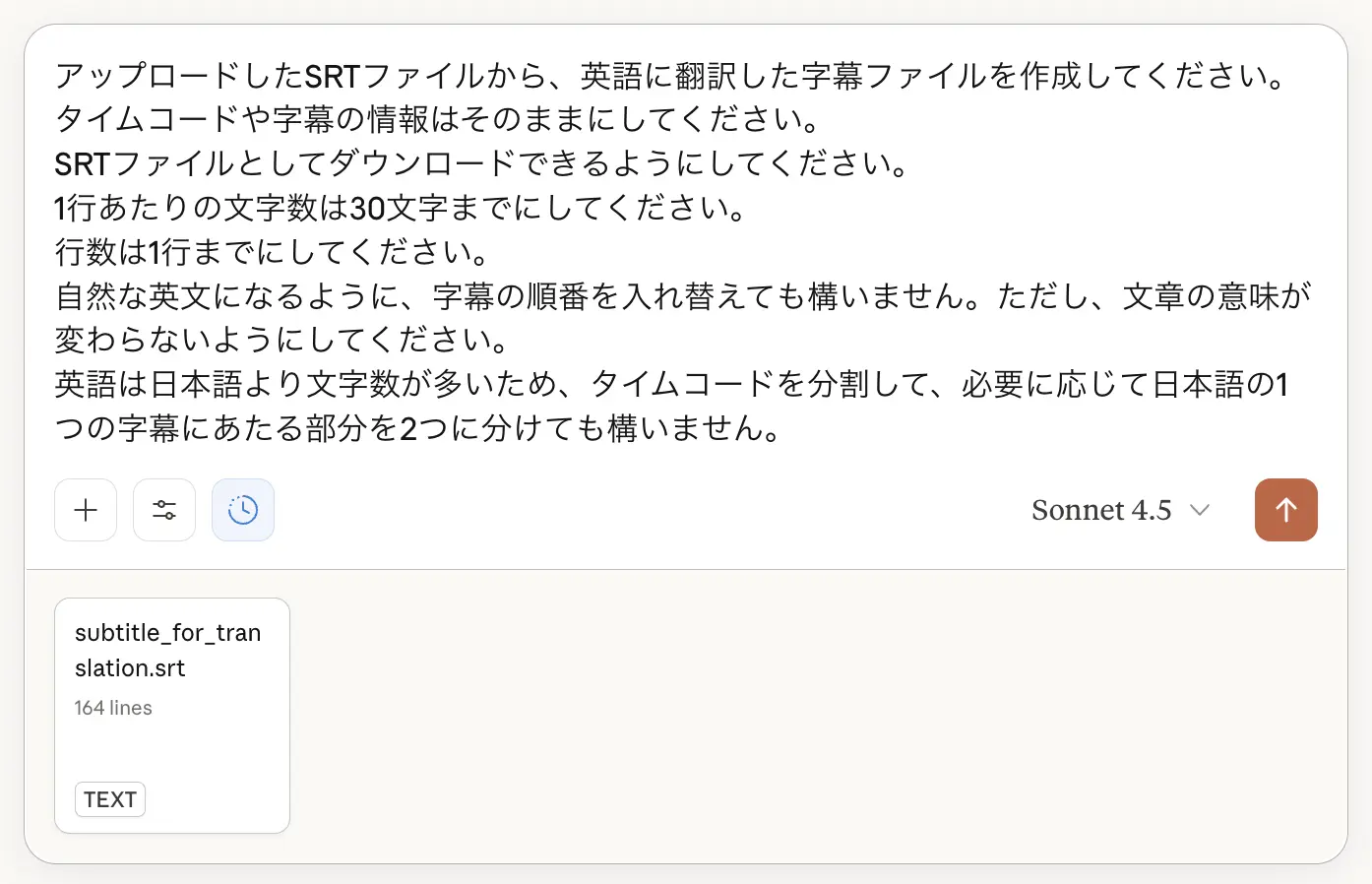
It then creates an SRT file that reflects the instructions, like this.
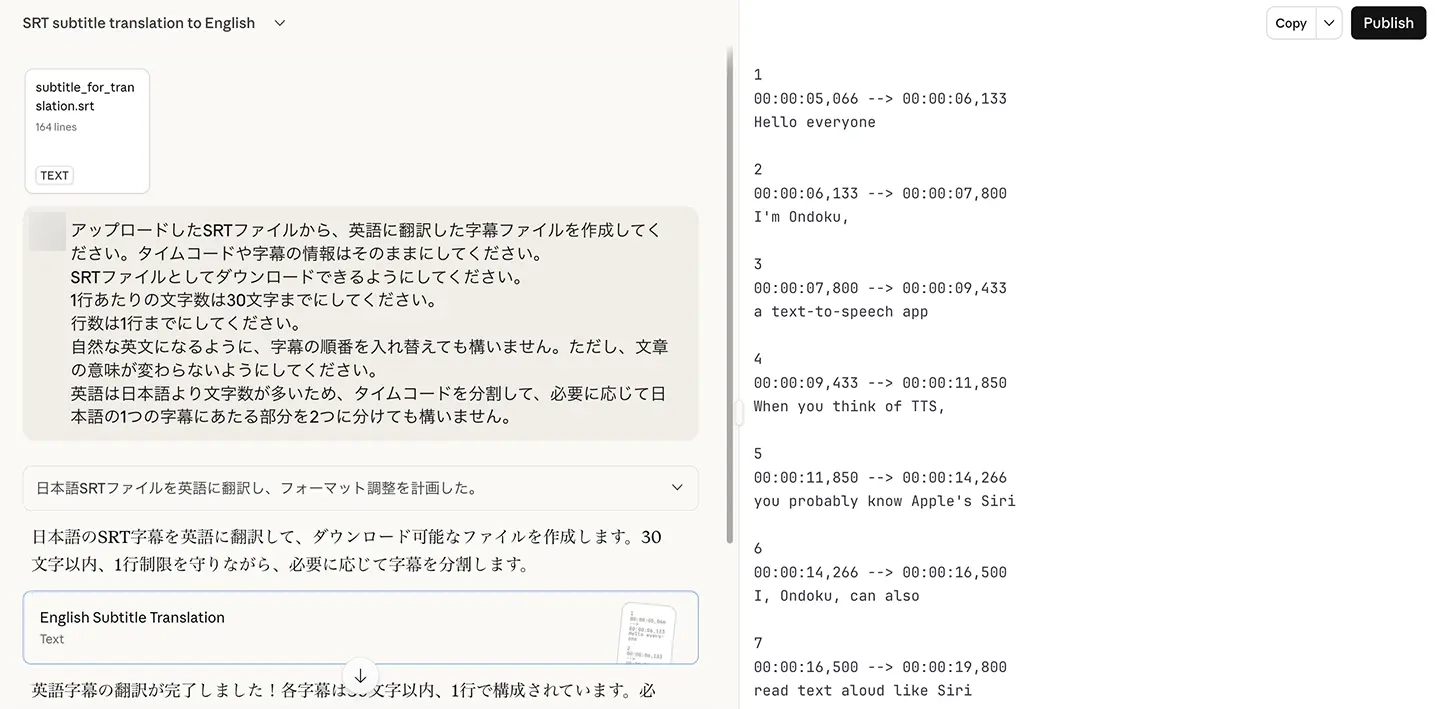
When you load it into video editing software, the subtitle text is split line by line at natural points.
In addition, the translation takes into account the difference in word order between Japanese and English.
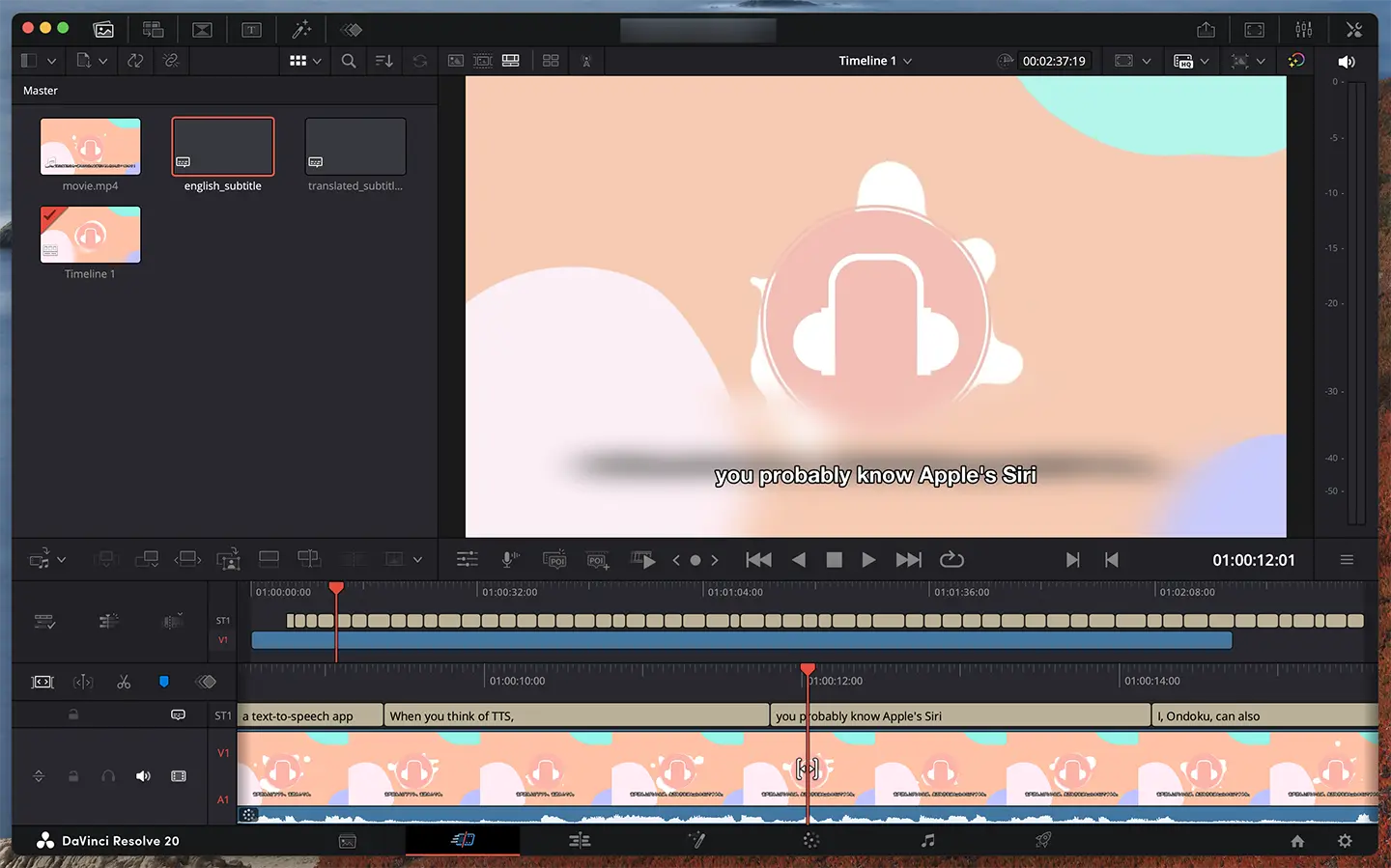
Compared with the first instruction, we were able to translate into more natural English subtitles that follow the context.
If you want to translate not just the subtitles but the video itself, this article explains a different procedure.
[Free] The Definitive Way to Translate Videos! Saved Videos and YouTube Are Best Translated with “Transcription and Generative AI”
Learn how to translate videos for free. Create an SRT file with an AI transcription app and translate it with Gemini or ChatGPT, with step-by-step images. Saved videos and camera roll videos can be handled on an iPhone alone. More accurate than YouTube's automatic translation, English videos into Japa...
Why Not Add Translated Foreign-Language Subtitles to Your YouTube Videos with the Latest AI?
As you can see, with the AI transcription site “Mr. Transcription” and generative AI services such as ChatGPT, Claude and Gemini, you can add translated English or foreign-language subtitles to YouTube videos.
The key point is that you can create a Japanese SRT file of higher quality than YouTube's automatic subtitles using only your browser, and then translate it with generative AI into a foreign language that follows the context.
“Mr. Transcription” is free to use, so why not start by creating an SRT file for your video with the latest AI?
■ AI transcription service "Mr. Transscription"
"Mr. Transcription" is an online transcription tool that can be used from zero initial cost and 1,000 yen per month (* free version available).
- Supports more than 20 file formats such as audio, video, and images
- Can be used from both PC and smartphone
- Supports technical terms such as medical care, IT, and long-term care
- Supports creation of subtitle files and speaker separation
- Supports transcription in approximately 100 languages including English, Chinese, Japanese, Korean, German, French, Italian, etc.
To use it, just upload the audio file from the site. Transcription text is available in seconds to tens of minutes.
You can use it for free if you transcribe it for up to 10 minutes, so please try it once.

It is "Mr. Transcription" who can easily transcribe from audio, video, and images.
Transcription allows you to transcribe for up to 10 minutes for free.
You can copy, download, search, delete, etc. the transcribed text.
You can also create subtitle files, which is ideal for transcription of interview videos.
HP: mojiokoshi3.com
Email: mojiokoshi3.com@gmail.com
Email: mojiokoshi3.com@gmail.com
Related article
Transcription for audio / video / image transcription. It is a transcription service that anyone can use for free without installation.
- What is Mr. Transcription?
- Transcript images, sounds, and videos with Mr. Transcription
- Free registration
- Rate plan
- manual
- Try other free services