文字起こしさんでエラーが発生し、文字起こしができない時の対処法。
YouTube Subtitles: Add & Transcribe Videos Easily (2024 Guide)
Oct. 15, 2026

I want to transcribe YouTube video content into text! How do I do it?
For those of you wondering, we'll explain how to transcribe videos uploaded to YouTube.
The audio from YouTube videos can be incredibly useful when transcribed.
Especially for video creators (YouTubers), transcribing your videos and adding subtitles can help you reach a wider audience.
We recommend using an AI transcription service for transcribing.
By simply uploading your video, you can create high-quality SRT subtitle files directly in your browser, superior to YouTube's auto-generated captions, and then easily import them into YouTube.
Transcribing videos you've uploaded to YouTube also helps with monetization.
Why not use this article as a guide to add subtitles to your videos?
What are the benefits of transcribing YouTube videos?
First, let's explain why you should transcribe YouTube videos.
Transcribing YouTube videos allows you to add "subtitles"
The main reason to transcribe YouTube videos is to add subtitles to your videos.
You've probably seen subtitles when watching YouTube videos.
By following this article, you can add subtitles just like your favorite YouTube channels!
Subtitles Boost Playback Count
The biggest reason to add subtitles to your YouTube videos is to increase your view count.
With subtitles, more people can conveniently watch your videos, leading to a higher playback count.
Crucially, videos with subtitles allow foreign viewers to translate and watch them.
YouTube has an automatic subtitle translation feature.
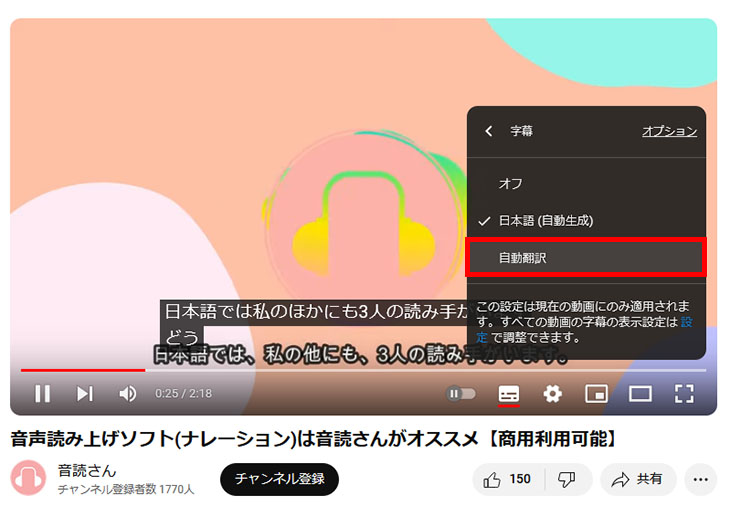
(It's next to the playback speed menu.)
This automatic translation feature cannot be used if subtitles are not set for the video.
For example, videos uploaded before the subtitle feature existed don't have subtitle settings, so the translation feature can't be used.
By adding subtitles to your YouTube videos, you can target a global audience and significantly increase your views.
If you want to add foreign language subtitles, such as English, in addition to Japanese subtitles, please refer to this article which explains how to create foreign language subtitles in detail.

[Free] How to Add English Subtitles to YouTube Videos | AI Translate SRT Files with Just a Browser
Learn how to add English and other foreign language subtitles to YouTube videos for free, using only your browser. This guide shows you how to create Japanese SRT files with an AI transcription site, translate them with generative AI, and add them to YouTube, with images.
AI Transcription Services are Recommended Over Auto-Generated Subtitles

In this article, we will introduce two methods:
- YouTube's auto-generated subtitles
- AI transcription services
However, if you're adding subtitles to videos you've uploaded to YouTube, it's more advisable to use an external AI transcription service to create your own subtitles rather than relying on auto-generated subtitles.
The reason is that YouTube's auto-generated subtitles often contain many transcription errors.
If you've ever watched YouTube with subtitles enabled, you've likely seen incorrect subtitles displayed.
Google, which operates YouTube, is a company with advanced technology, but YouTube's auto-generated subtitle speech recognition seems to be slightly less accurate than the AI used in specialized transcription services.
To avoid mistranslations and speech recognition errors, it's recommended to use the AI transcription services introduced in this article to set your own subtitles.
For YouTube Subtitles and Transcriptions, Mr. Transcription is Recommended
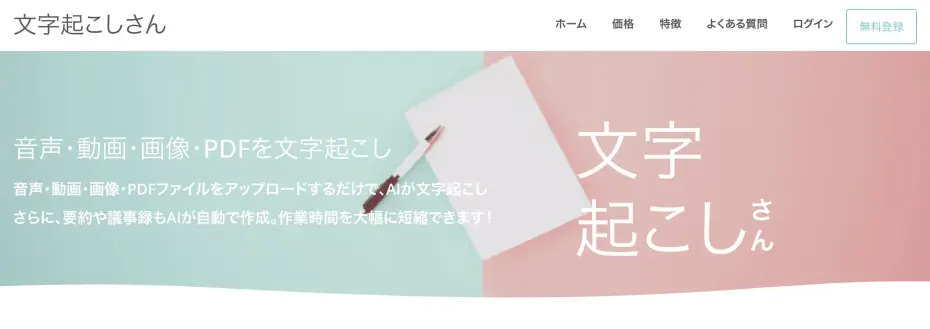
If you're looking to transcribe YouTube video subtitles, the AI transcription service Mr. Transcription is highly recommended.
Mr. Transcription is a Japanese AI-powered transcription service that uses the latest technology.
Key Features of Mr. Transcription
Mr. Transcription is ideal for creating YouTube video subtitles.
It's easy to use.
No complicated settings are required; you can simply upload your YouTube video file as is to get a transcription.
Furthermore, you can download the transcribed content in SRT format, specifically for subtitles.
You can create higher quality Japanese subtitles compared to YouTube's auto-generated captions, so all you need to do is upload that file to YouTube.
We'll explain how to use it in detail later in this article, so why not try adding subtitles to your videos with Mr. Transcription?
Mr. Transcription's Advantages
With Mr. Transcription's cutting-edge AI, even long videos can be transcribed in just about 1 minute!
Moreover, it supports over 100 languages, making it compatible with videos containing audio in languages other than Japanese.
Additionally, no registration is required for up to 3 minutes of free transcription per day, and free members can transcribe up to 10 minutes per day.
If you're struggling with YouTube video transcription, why not give Mr. Transcription a try?
How to Add Subtitles to YouTube Videos
So, how exactly can you add subtitles to YouTube videos?
From here, we will explain for video creators (YouTubers):
- How to auto-generate subtitles on YouTube
- How to add subtitles using an AI transcription service
This article comprehensively explains how to transcribe any video, not just YouTube, and create subtitles (SRT files).
![Convert Video Subtitles to Text! How to Transcribe Videos and Create Subtitles [Free]](https://storage.googleapis.com/mojiokoshi3/post/image/movie-mojiokoshi_tmb_20260321.webp)
Convert Video Subtitles to Text! How to Transcribe Videos and Create Subtitles [Free]
This article explains how to transcribe videos and footage to create subtitles. By simply uploading your video, you can create higher-quality SRT files than YouTube's automatic subtitles, all within your browser. For those who want to convert video subtitles to text, we introduce recommended free services and how to add subtitles...
How to Automatically Generate Subtitles on YouTube
First, let's look at how to use YouTube's automatic subtitle generation feature.
1. Set the "Language" for Your Uploaded Videos
To generate subtitles on YouTube, you need to set the language used in your video.
You can set the video's language on the video details screen.
From "Language and caption certification," set the "Video language" to Japanese.
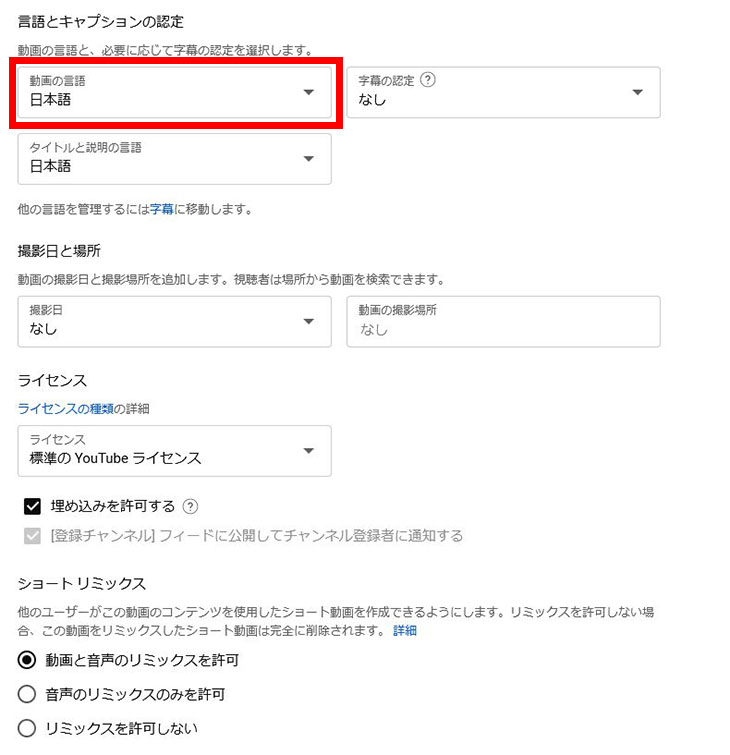
Now you can use YouTube's automatic subtitle generation feature.
It's also a good idea to set the "Title and description language" to Japanese.
[Recommended] Default Upload Settings
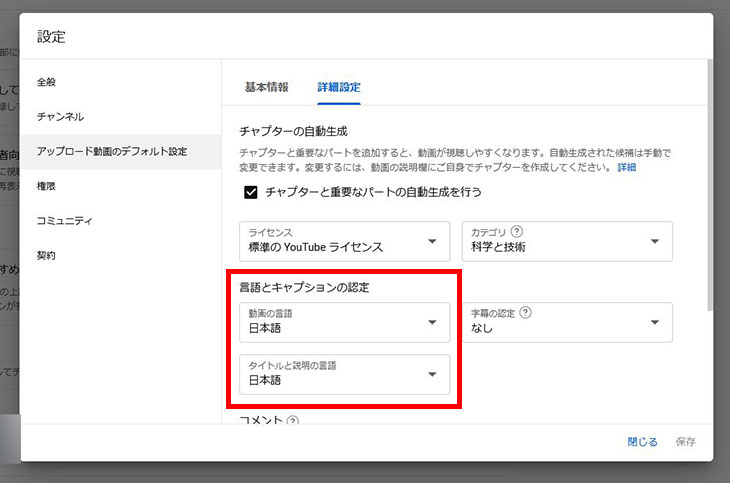
This language setting can be automatically applied when you upload videos by going to "Settings" in the bottom left of your YouTube channel management screen, then navigating to "Upload defaults" → "Advanced settings."
To set this, first click "Settings."
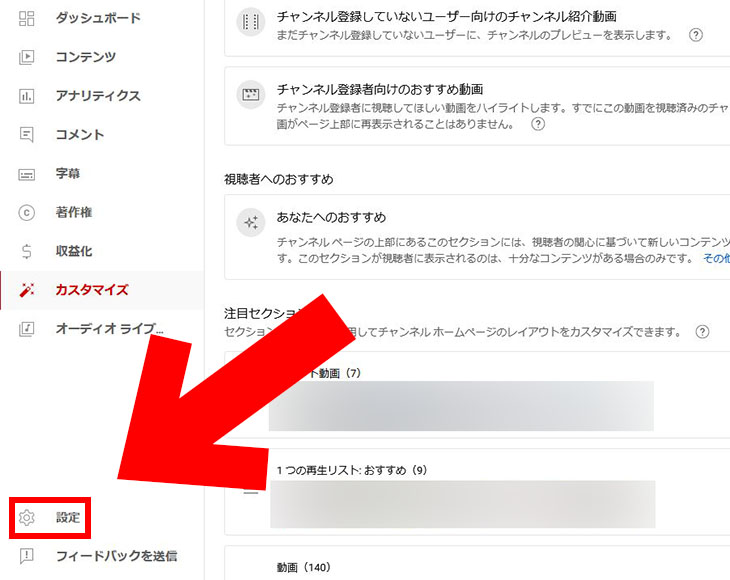
On the screen that appears, set "Video language" and "Title and description language" to Japanese.
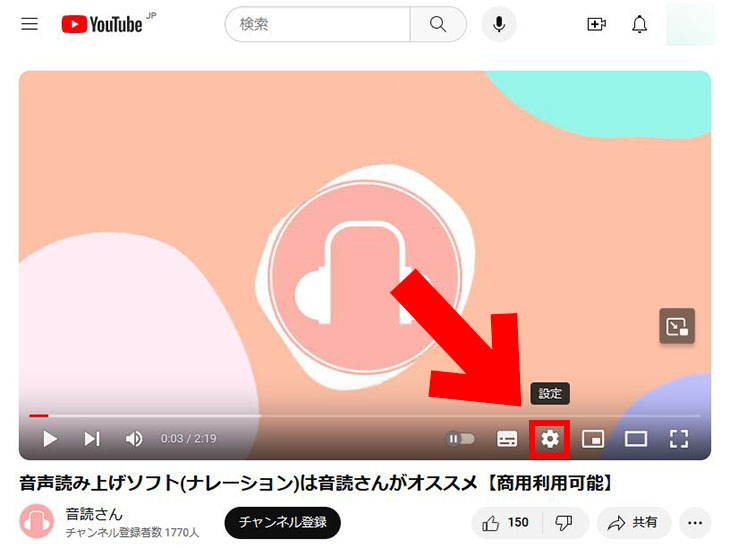
2. Click the Settings Icon on the Video Playback Screen
Now you can set automatically generated subtitles for your videos and transcribe them.
To use automatically generated subtitles in a video, first, click the settings icon (gear icon) on the playback screen.
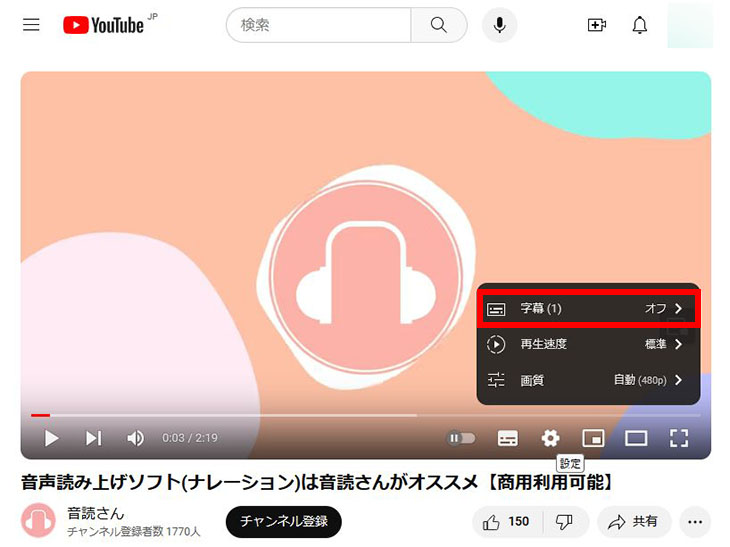
3. Select Subtitles → Japanese
Click "Subtitles" within the settings.
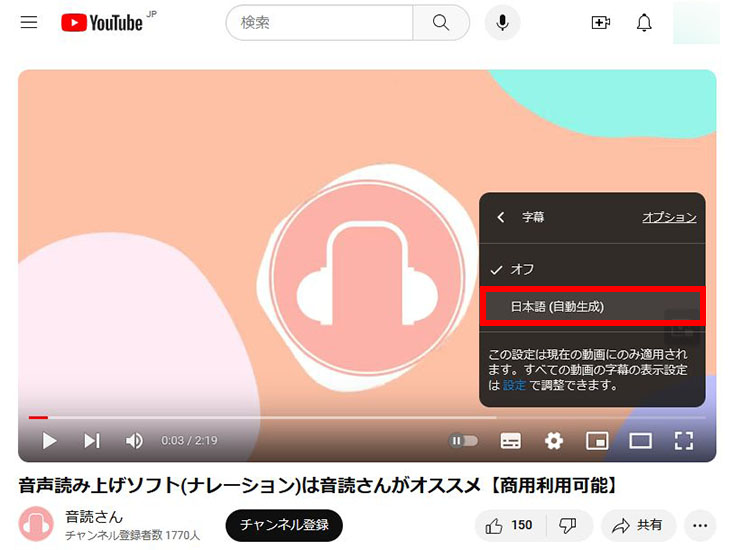
Next, click "Japanese (auto-generated)".
Now, simply play the video, and the auto-generated Japanese subtitles will appear.
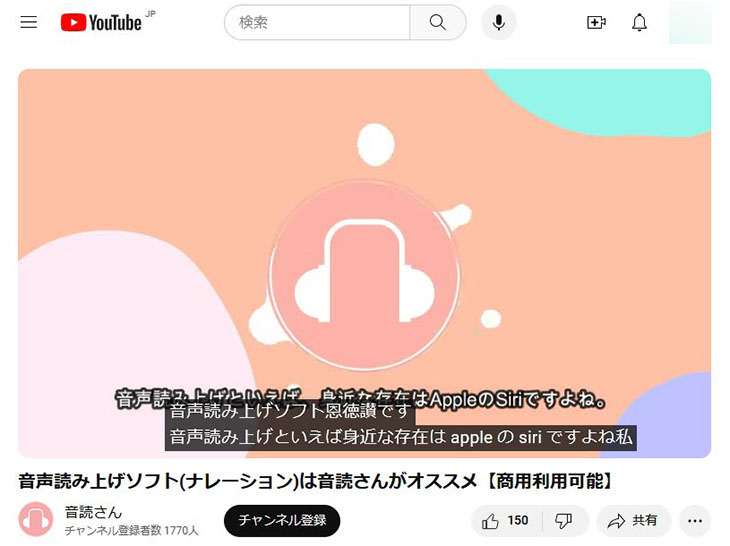
However, auto-generated subtitles often have speech recognition errors.
For example, in the image above, "Ondoku" is incorrectly transcribed as "恩徳讃" (Ontokusan).
To prevent such mistranscriptions and transcription errors, we recommend using an AI transcription service, which will be explained next.
How to Add Subtitles Using the AI Transcription Service Mr. Transcription
Next, we will explain how to add subtitles to your videos using the AI transcription service Mr. Transcription.
By simply uploading your video, you can create high-quality Japanese subtitles (SRT files) in your browser, surpassing automatically generated captions.
1. Transcribe Your Video File with Mr. Transcription
Upload the same video file you uploaded to YouTube from the Mr. Transcription homepage.
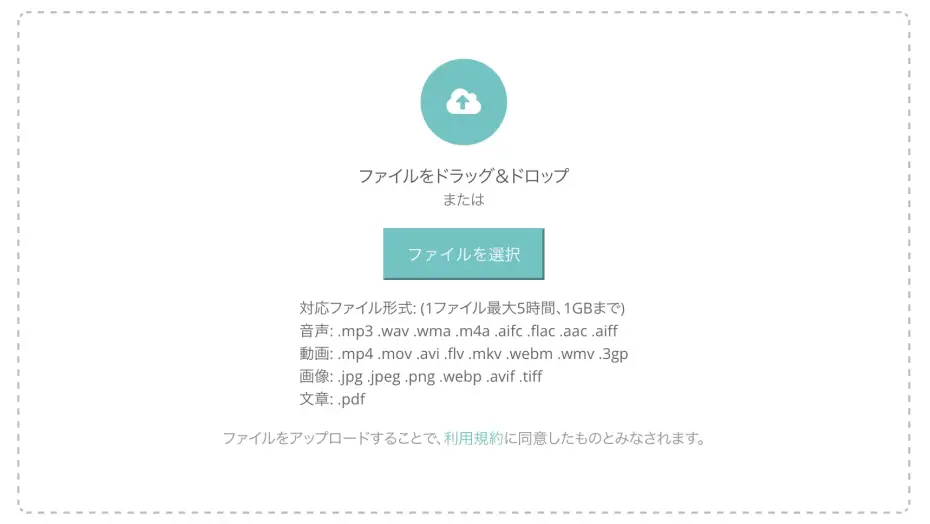
Select your file by dragging and dropping it or by clicking the "Select" button.
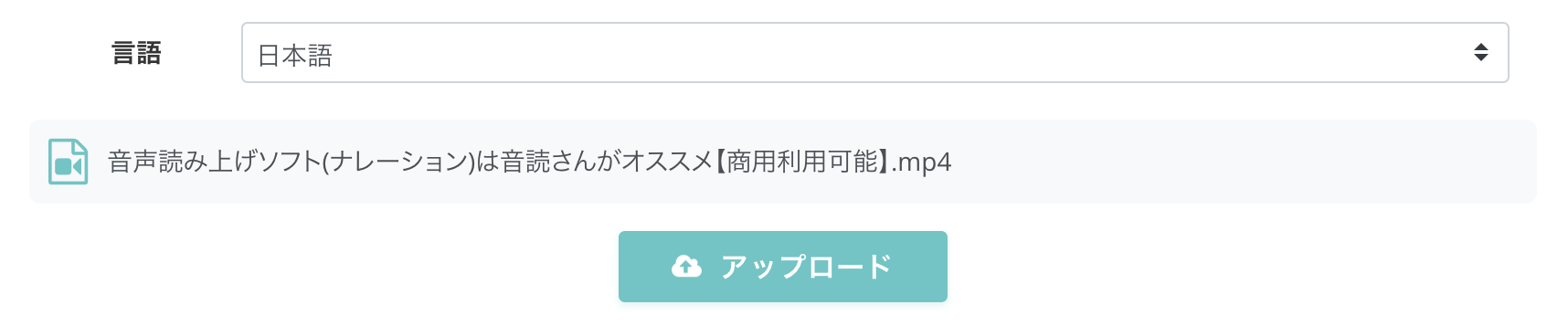
Once you've selected the file, click the "Upload" button to upload it.
YouTube supports many video file formats like .mp4, .wmv, and .mov. When you export videos for YouTube using video editing software like Adobe Premiere or DaVinci Resolve, they are often exported as .mp4 files.
Mr. Transcription supports .mp4 video files, so you can upload them directly without any issues.
Mr. Transcription supports the following video file formats:
- mp4
- mov.avi
- flv
- mkv
- webm
- wmv
- 3gp

Supported Files and File Sizes for Mr. Transcription. How to Make Unsupported Files Compatible
We will guide you on Mr. Transcription's supported files and what to do if your file is not supported.
2. Transcription Complete
Once the upload is complete, transcription will start automatically.

Transcription usually finishes in about 1 minute.
Once transcription is complete, the transcription results will be displayed.
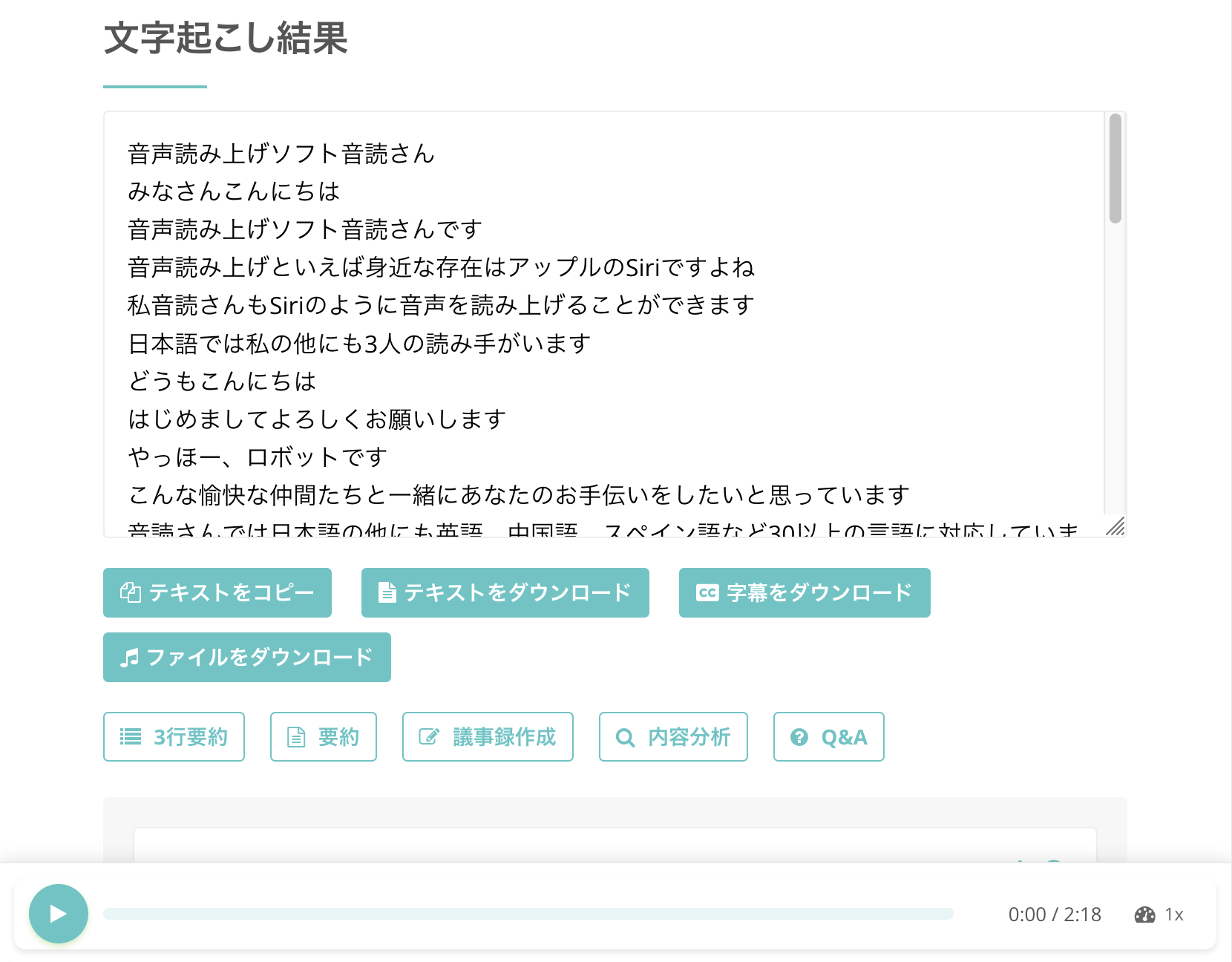
Clicking the play button next to a statement allows you to play and check the video's audio from that specific point.
Also, if you play the video using the player at the bottom of the screen, the text display will switch to match the playback position.
※If you close the browser tab after the upload is complete, you can view the results from "History" in the menu.
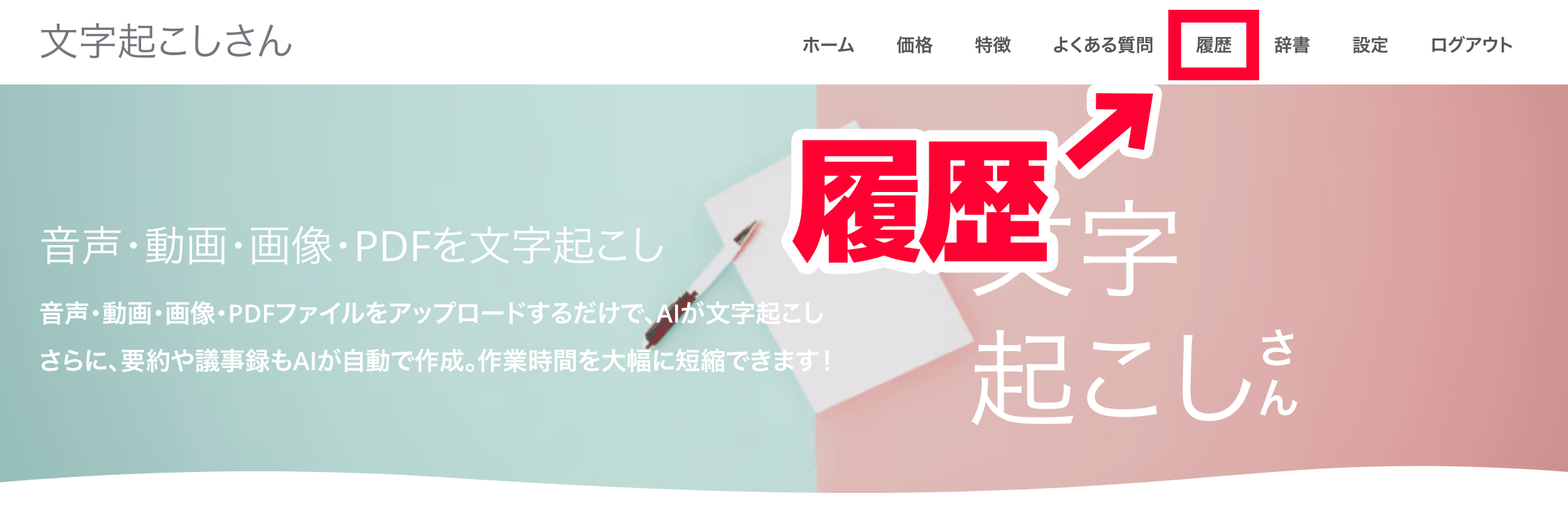
3. Download the Subtitle File
On the transcription results page, click the "Download Subtitles" button.
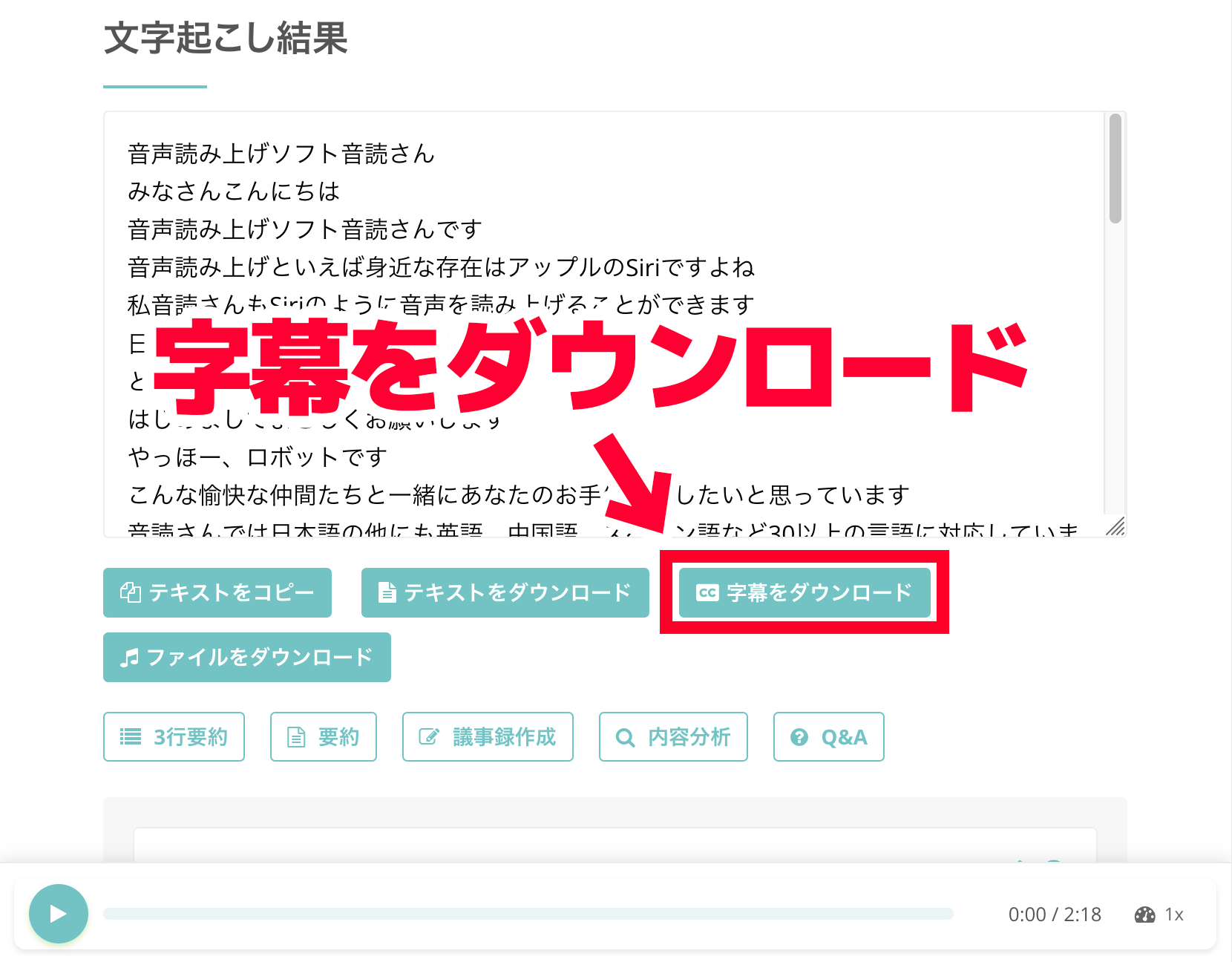
This will allow you to download the subtitle file.
The subtitle file format is SRT file.
SRT files are a widely used format for video subtitles and are supported by YouTube.
Reference: Supported subtitle files - YouTube Help
This article explains SRT files in detail.
How to Create Free SRT Files | How to Make Video Subtitles Using Only a Browser
Learn how to create "SRT files," which record subtitle text and display times. You can create them in your browser using an AI transcription site. Also covers how to use them with video editing software and YouTube.
4. Upload the Subtitle File to YouTube
Here's how to upload the SRT file downloaded from Mr. Transcription to YouTube.
First, open the "Video details" screen for the video you want to add subtitles to.
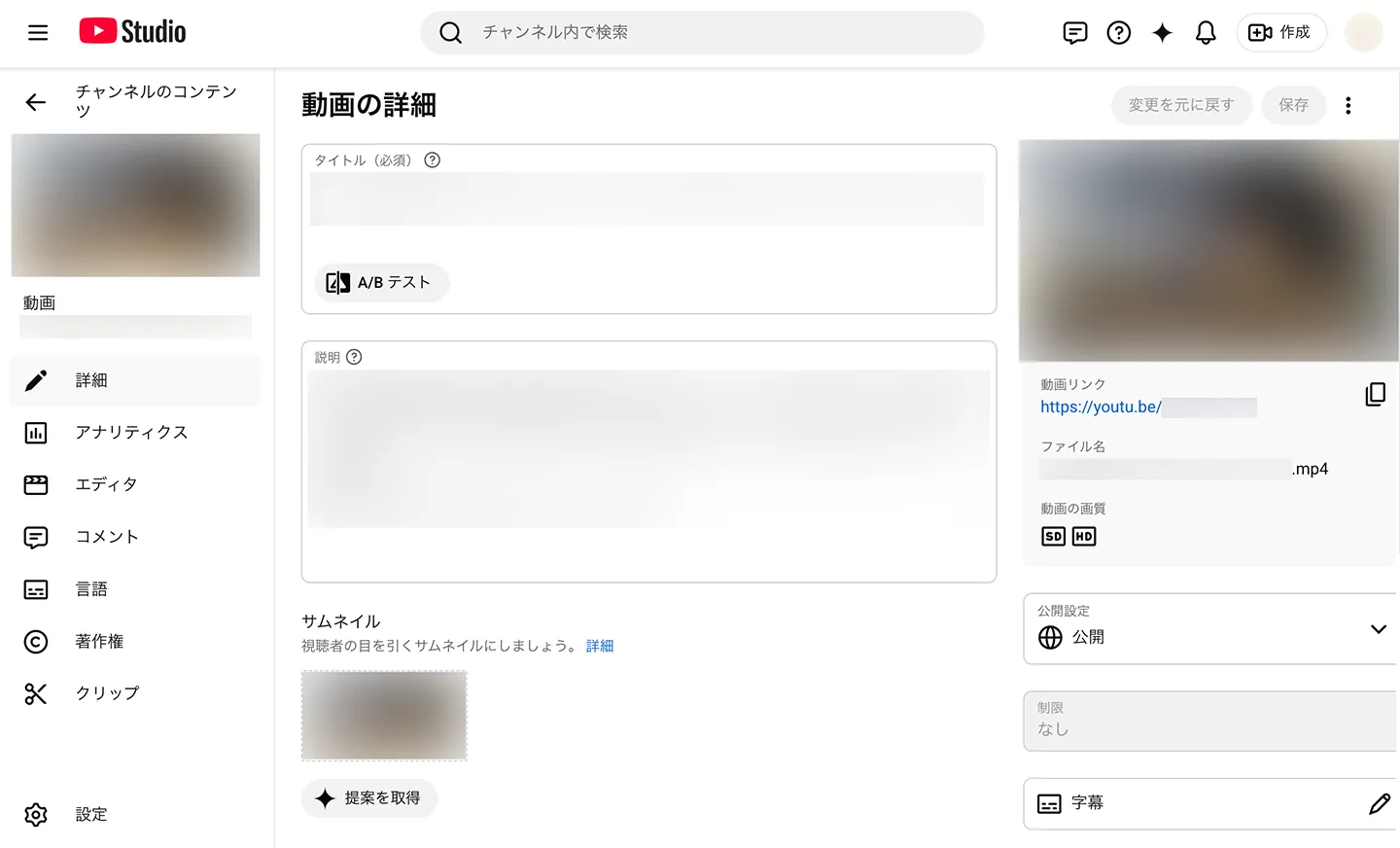
On the video details screen, click "Language" in the left-hand menu.
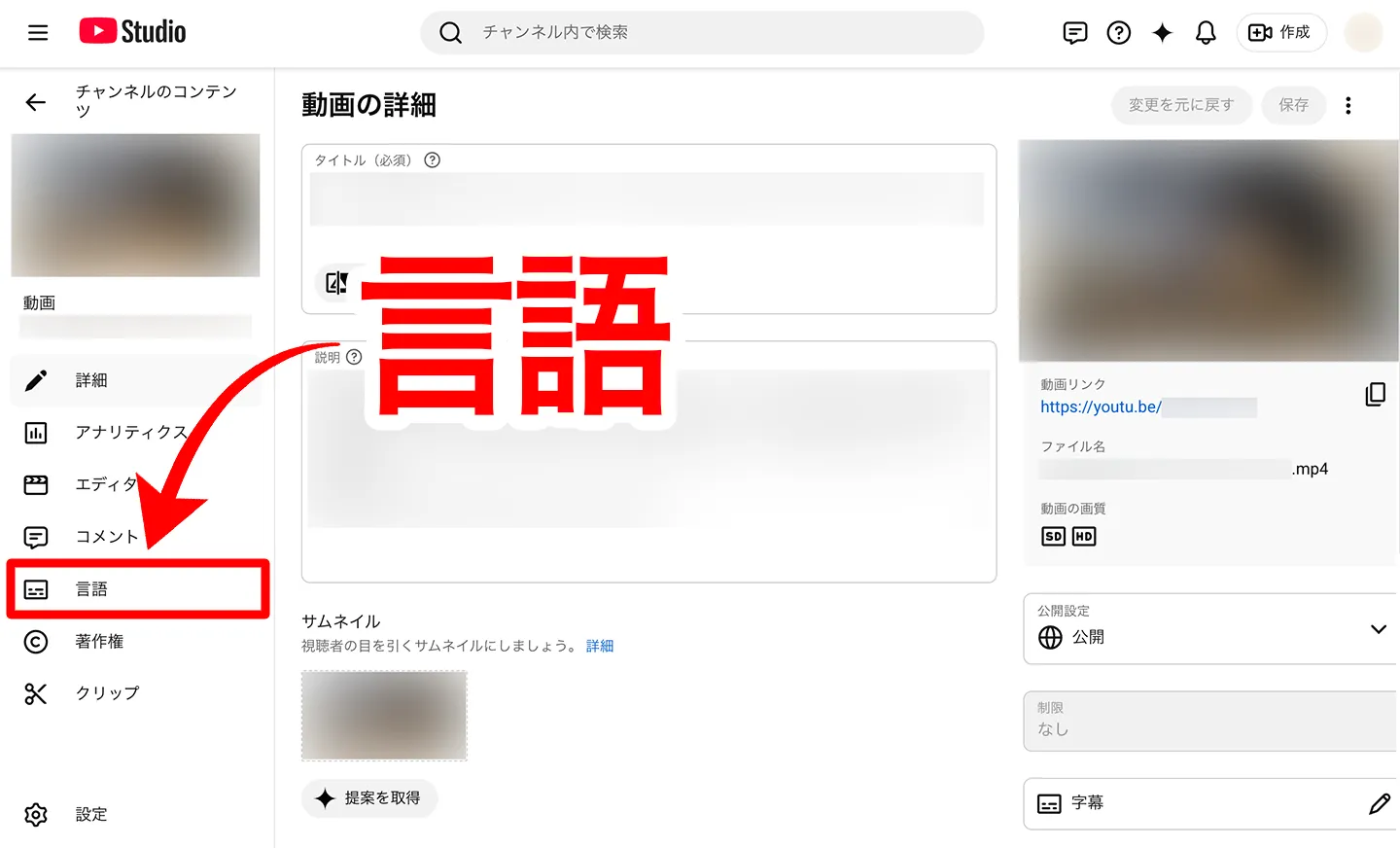
The "Language" page will open.
Click "Upload manually" under "Video language".
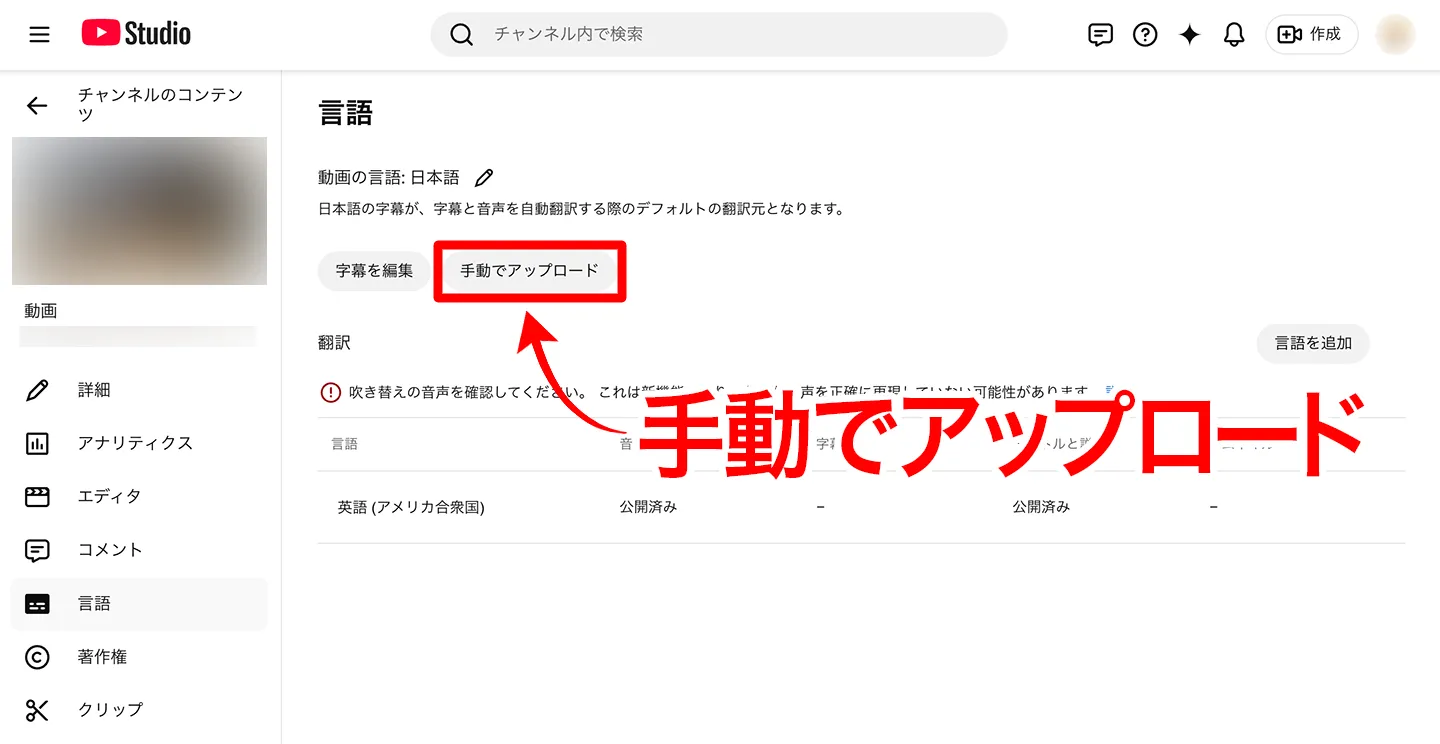
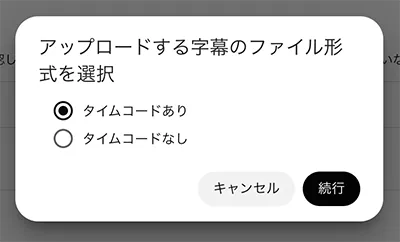
A window will appear asking whether to include timecodes.
Since the SRT file downloaded from Mr. Transcription includes timecodes, select "With timecodes" here.
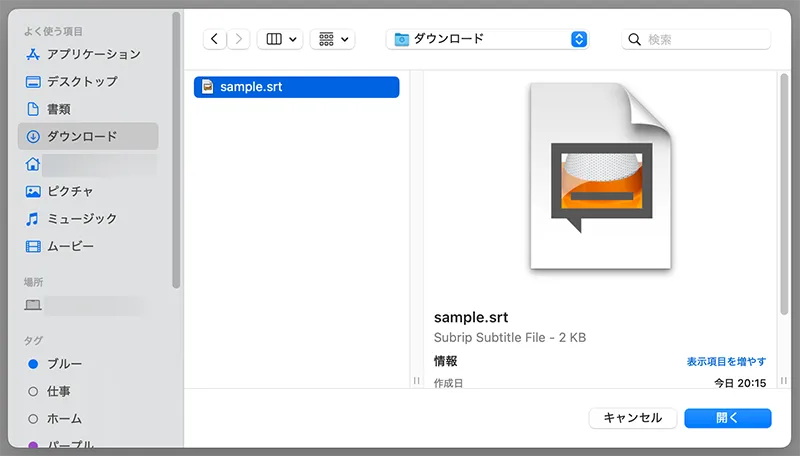
A file selection screen will open, so select the SRT file you downloaded from Mr. Transcription.
Once the SRT file is loaded, it will display "Japanese subtitles uploaded".
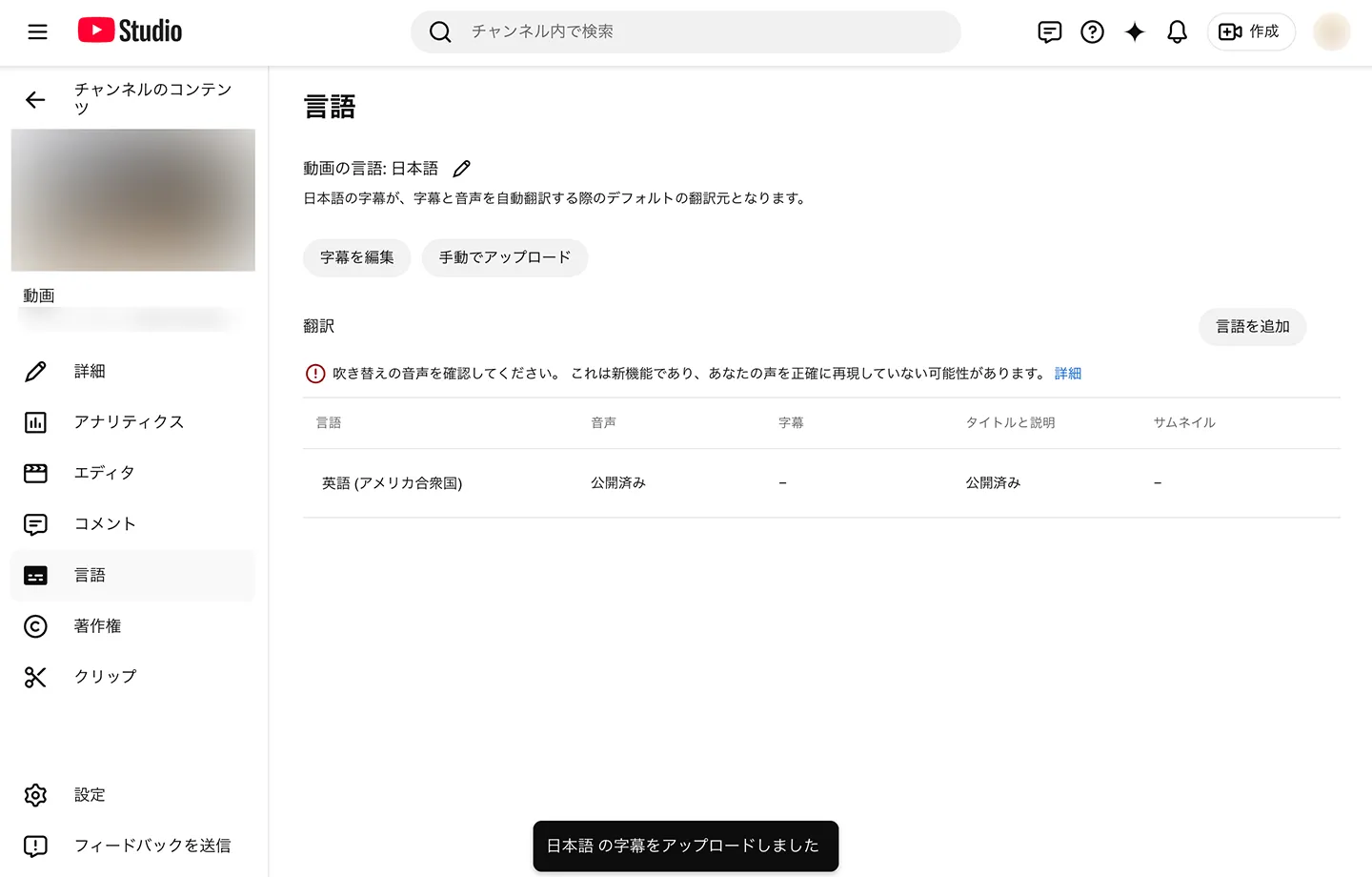
You have now successfully loaded subtitles from an SRT file into your YouTube video.
This completes the process.
As you can see, Mr. Transcription's SRT file download feature makes it ideal for adding subtitles to YouTube videos.
Why not try improving the quality of your YouTube subtitles with Mr. Transcription?
What if SRT file upload fails?
Depending on your environment, you might encounter an error where the file cannot be loaded even after selecting "Upload manually" (as of 2026).
In such cases, you can successfully upload the SRT file by first saving YouTube's auto-transcribed subtitles again.
First, in the "Language" menu of the video details screen, click "Edit subtitles".
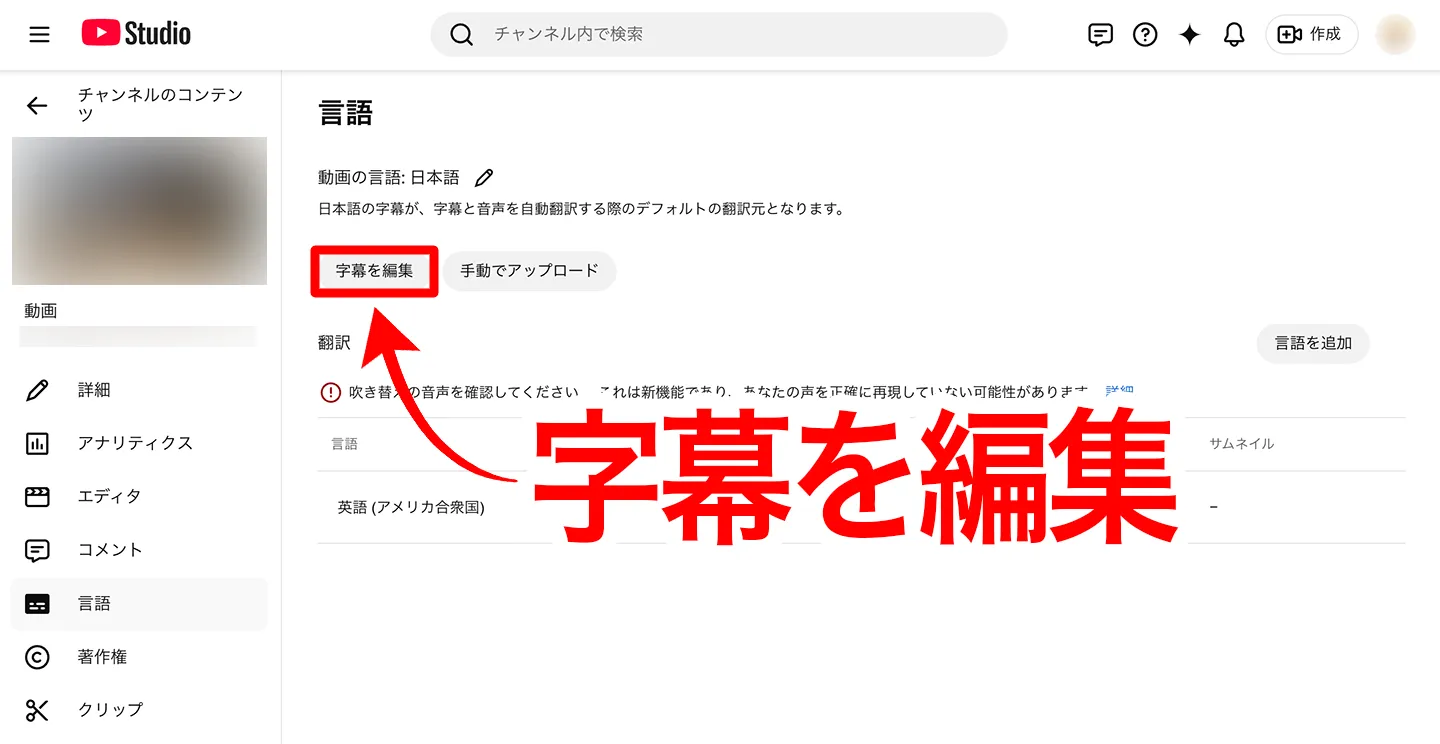
The subtitles created by YouTube's automatic captioning feature will be displayed. Do not edit them; simply click "Publish" to save them.
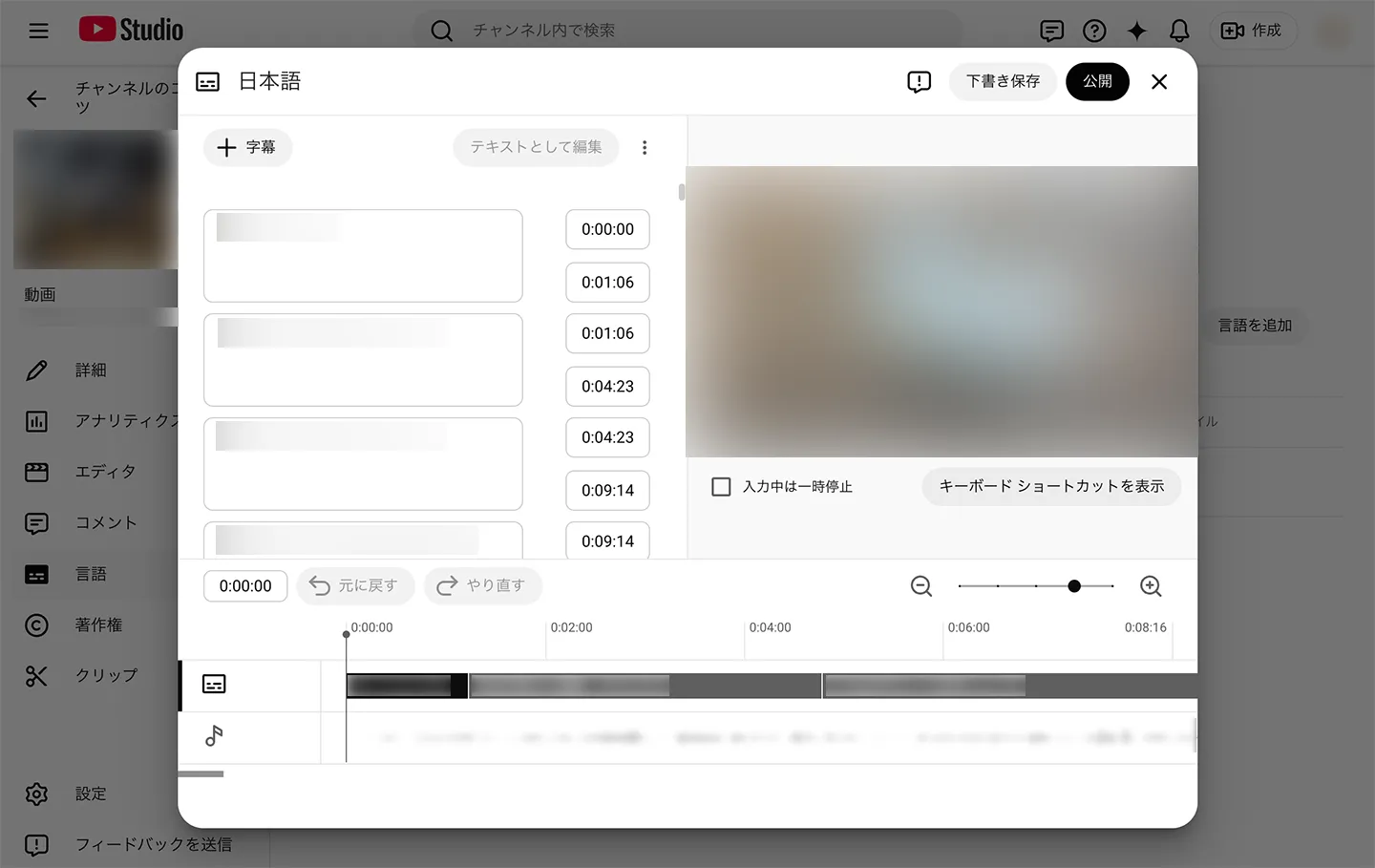
After this, if you click "Upload manually" again, you should be able to load the SRT file.
Tip 1: How to Manually Set Subtitles
On YouTube's subtitle editing screen, it's also possible to manually edit subtitles.
You can directly type in subtitle content with your keyboard, and manually adjust the display time and timing for subtitle changes.
You can also add annotations for content not spoken in the audio, so utilizing manual settings is recommended if you want to make your videos more accessible.
Tip 2: How to Add English/Foreign Language Subtitles (SRT files)
Using SRT files, you can easily add subtitles in English and other foreign languages.
To add foreign language subtitles, in the video details screen's "Language" menu, click "Add language".
Select the target language you want to add, such as English.
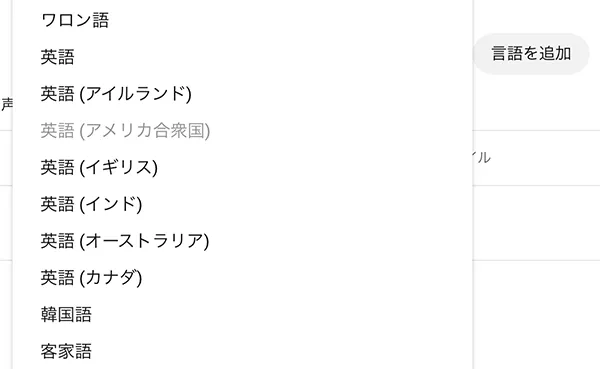
Clicking on the language name will open the title, description, and subtitle editing screen. Enter the title and description.
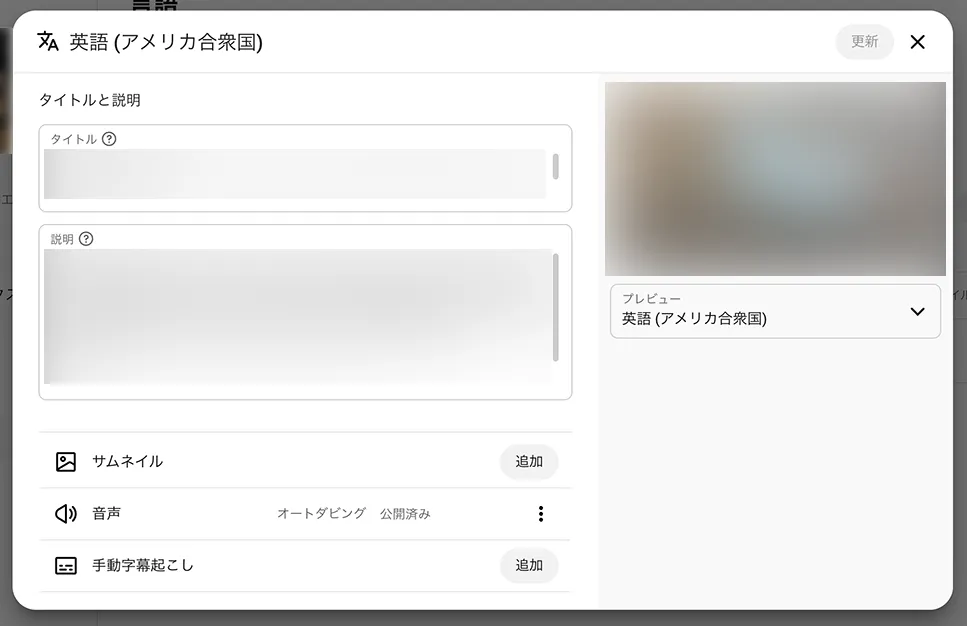
Then, click "Add" in the "Manual transcription" row.
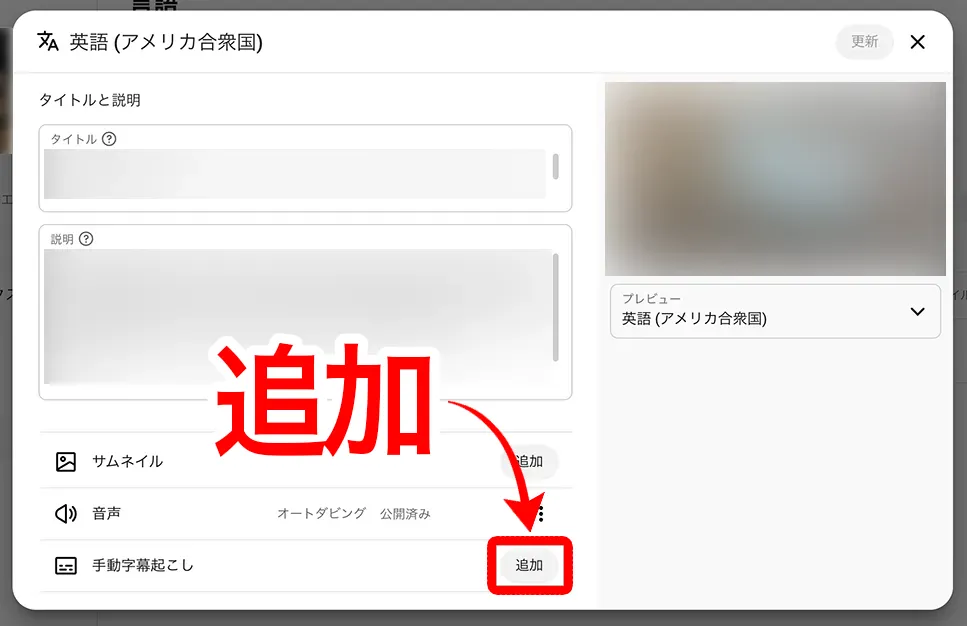
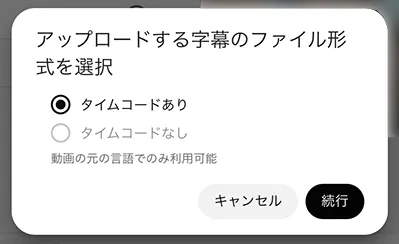
Similar to Japanese subtitles, a window will appear asking whether to include timecodes, so select "With timecodes".
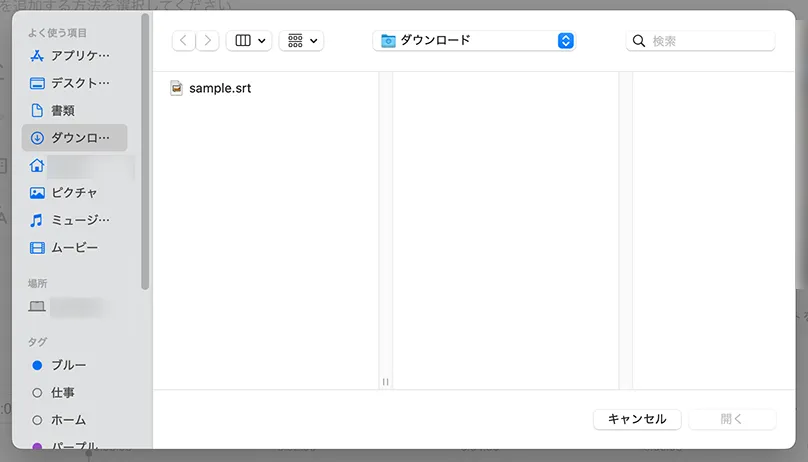
Once the file selection screen opens, select the SRT file for that language.
The subtitle editing screen will open. Review the content, and if there are no issues, click "Publish".
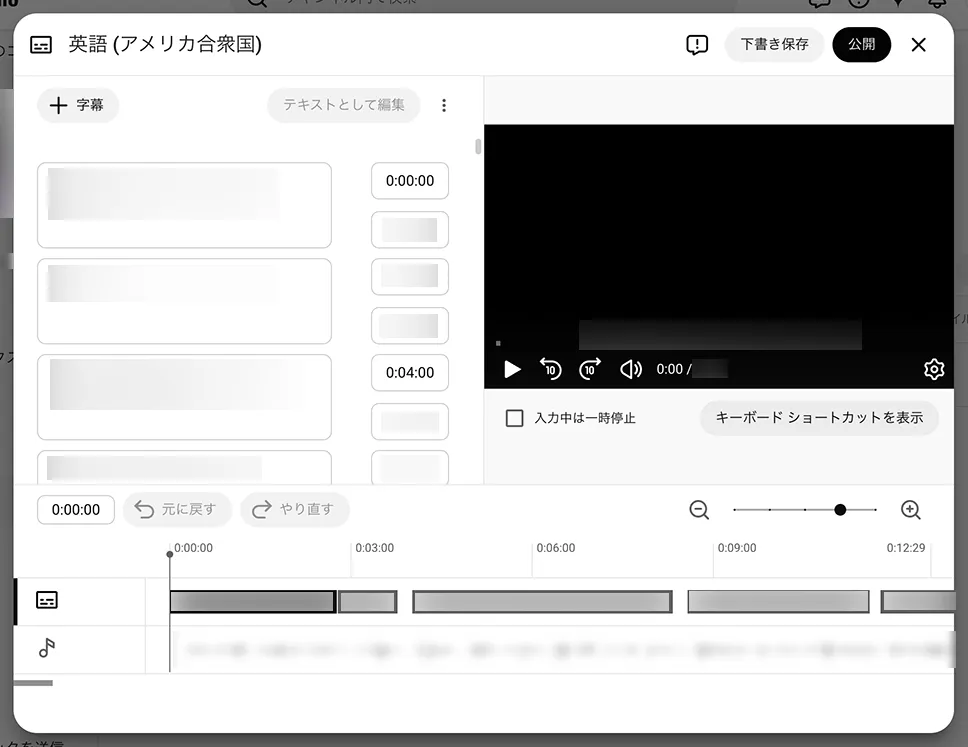
You have now successfully added subtitles from an SRT file in a language other than Japanese.
※You will need to prepare foreign language subtitle files separately.
To create foreign language subtitles, translating the Japanese SRT file using AI is a convenient method.
This article explains how to create foreign language subtitles in detail.
How to Add English Subtitles to YouTube Videos for Free | AI Translation of SRT Files Using Only a Browser
Learn how to add English and other foreign language subtitles to YouTube videos for free, using only your browser. We'll show you the process with images, from creating a Japanese SRT file with an AI transcription site to translating it with generative AI and adding it to YouTube.
Boost YouTube Views with Subtitles!
As you can see, it's easy to add subtitles to videos uploaded on YouTube.
YouTube's auto-generated captions often have errors, so if you want to add high-quality subtitles, we recommend generating them with an AI transcription service.
With Mr. Transcription, you can simply upload your video and download the subtitle file, making it easy to add captions to your YouTube content.
Why not try adding subtitles to your YouTube videos with Mr. Transcription?
■ AI transcription service "Mr. Transscription"
"Mr. Transcription" is an online transcription tool that can be used from zero initial cost and 1,000 yen per month (* free version available).
- Supports more than 20 file formats such as audio, video, and images
- Can be used from both PC and smartphone
- Supports technical terms such as medical care, IT, and long-term care
- Supports creation of subtitle files and speaker separation
- Supports transcription in approximately 100 languages including English, Chinese, Japanese, Korean, German, French, Italian, etc.
To use it, just upload the audio file from the site. Transcription text is available in seconds to tens of minutes.
You can use it for free if you transcribe it for up to 10 minutes, so please try it once.

It is "Mr. Transcription" who can easily transcribe from audio, video, and images.
Transcription allows you to transcribe for up to 10 minutes for free.
You can copy, download, search, delete, etc. the transcribed text.
You can also create subtitle files, which is ideal for transcription of interview videos.
HP: mojiokoshi3.com
Email: mojiokoshi3.com@gmail.com
Email: mojiokoshi3.com@gmail.com
Related article
Transcription for audio / video / image transcription. It is a transcription service that anyone can use for free without installation.
- What is Mr. Transcription?
- Transcript images, sounds, and videos with Mr. Transcription
- Free registration
- Rate plan
- manual
- Try other free services