文字起こし(テープ起こし)を劇的に効率化する7つのコツ
Easy Zoom Meeting Transcription: Boost Efficiency Now!
Oct. 14, 2026

Transcribing meeting minutes after a ZOOM call is tough...
When it comes to online meeting tools, ZOOM is definitely the go-to.
Are you spending too much time and effort creating meeting minutes from your ZOOM web conferences?
Actually, you can easily create meeting minutes from ZOOM conference content by using convenient transcription tools!
ZOOM itself includes a transcription feature as a tool to assist with web conferences.
However, ZOOM's standard transcription tool is primarily for assistance, so if you want to create meeting minutes more conveniently, it's recommended to use an AI tool specialized in transcription.
This article introduces recommended transcription methods that will make creating meeting minutes after a ZOOM call much easier!
Since we'll be covering both ZOOM's built-in transcription feature and transcription methods using external tools, please refer to it if you're struggling with meeting minute creation.
Can ZOOM meeting minutes be easily transcribed?
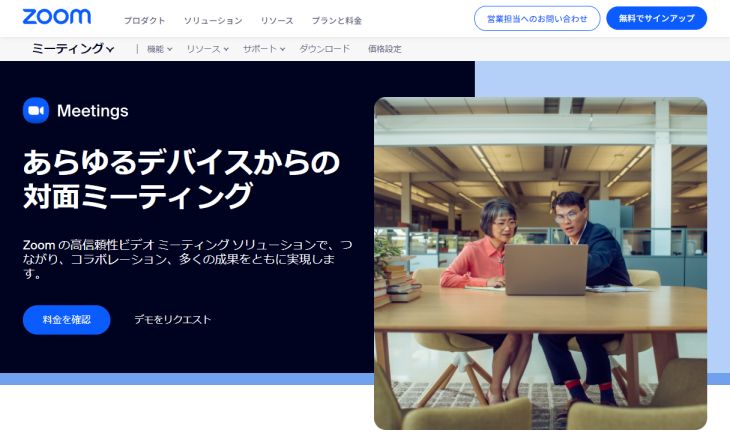
When holding a meeting, it's important to create meeting minutes.
Of course, you also need to create meeting minutes for web conferences held on ZOOM.
How can you easily transcribe ZOOM web conferences?
ZOOM has a feature for creating meeting minutes

In short, it is possible to transcribe and create meeting minutes using only ZOOM's standard features.
ZOOM has a caption generation function and a download function, which you can use to create meeting minutes.
However, since it's primarily a caption display feature, you'll need to edit it afterward to summarize statements by speaker or format it for readability.
To create meeting minutes more efficiently, we recommend using a dedicated external transcription tool.
ZOOM integration with transcription tools is recommended

To efficiently transcribe meeting minutes from ZOOM web conferences, it's recommended to transcribe the meeting content with a specialized AI tool.
The ZOOM app includes a recording function.
If you turn on recording, it will be automatically saved after the meeting ends. Then, you can simply upload it to a transcription tool like Mr. Transcription to easily transcribe it.
If you enable speaker separation, it can even automatically transcribe each speaker's dialogue!
Recommended Service for ZOOM Transcription: Mr. Transcription
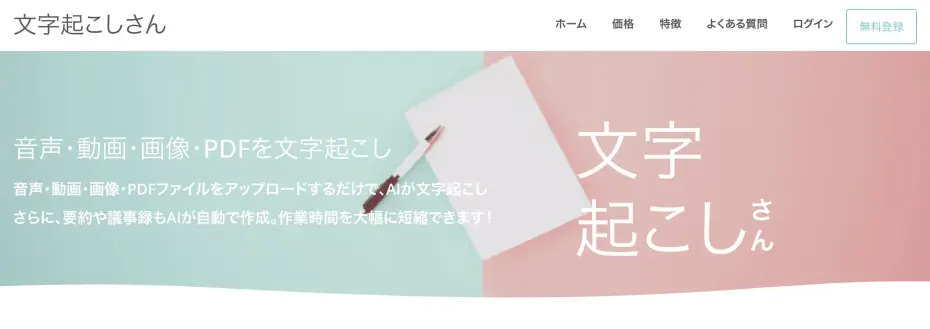
The recommended AI transcription service for transcribing meeting minutes from ZOOM web conferences is Mr. Transcription.
Mr. Transcription is a Japanese-born transcription service that uses the latest AI.
It's easy to use: just upload your ZOOM meeting audio/video file from the top page!
You can directly upload "mp4" files, the format used when recording ZOOM meetings, so there's no need for file conversion.
Furthermore, you can easily create meeting minutes from audio using the meeting minute creation feature!
The creation process is completed in just a few seconds, and the meeting minute file can be downloaded in Word format, so you can finalize your minutes immediately after the meeting.
Mr. Transcription is available for free!
You can get up to 3 minutes of free transcription per day without registration or login, and up to 10 minutes per day with an account, so you can start creating meeting minutes easily right away.
If you're looking for a solution for ZOOM transcription, why not try Mr. Transcription first?
Effortless Transcription for Microsoft Teams and Google Meet with Latest AI
This article also covers transcription for Microsoft Teams and Google Meet, widely used web conferencing software alongside ZOOM.
Please take a look.

How to Transcribe and Record Microsoft Teams Web Meetings? Easy Meeting Minutes Creation with AI Transcription
We explain three methods for transcribing and creating meeting minutes when holding web conferences on Microsoft Teams.

How to Transcribe Meetings in Google Meet? How to Use the 'Koemoji' Extension and Recommended AI Transcription Methods
We explain how to transcribe Google Meet web conferences using the "Koemoji" extension and recommend AI transcription methods.
How to Create Meeting Minutes for ZOOM with Mr. Transcription
To transcribe ZOOM web conferences conveniently and accurately, using a dedicated AI transcription tool is highly recommended!
With Mr. Transcription, you can not only transcribe but also create meeting minutes using the latest AI!
We will explain how to transcribe and create meeting minutes using the AI transcription tool Mr. Transcription.
1. Saving Meeting Content in Zoom
First, use Zoom's recording feature to save the content of your web conference.
The method is very simple: just click "Record" in the menu at the bottom of the Zoom meeting screen.

This will start recording the web conference.
While recording, "Recording..." will be displayed in the upper left corner of the screen.
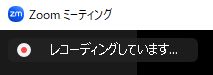
When the web conference ends, it will automatically be saved in MP4 format.
While saving, "Converting meeting recording" will be displayed like this.
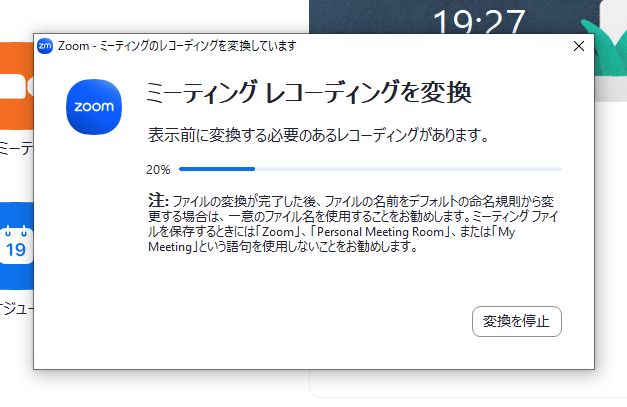
Once this display disappears, the saving is complete.
Note: Only the meeting host can save
When recording Zoom web conference content, it's important to note that this feature can only be used by the meeting host.
Be aware that you will need to ask the meeting host to save the recording, or have them transfer host privileges to the person who needs to save it.
2. Uploading MP4 Files to Mr. Transcription
After the web conference, upload the recording to the AI transcription tool Mr. Transcription for transcription.
Open the top page of Mr. Transcription from this link.
Uploading is very easy!
Simply drag and drop the MP4 file into the "Drag files here" section on the top page, or select the file using the "Select" button.
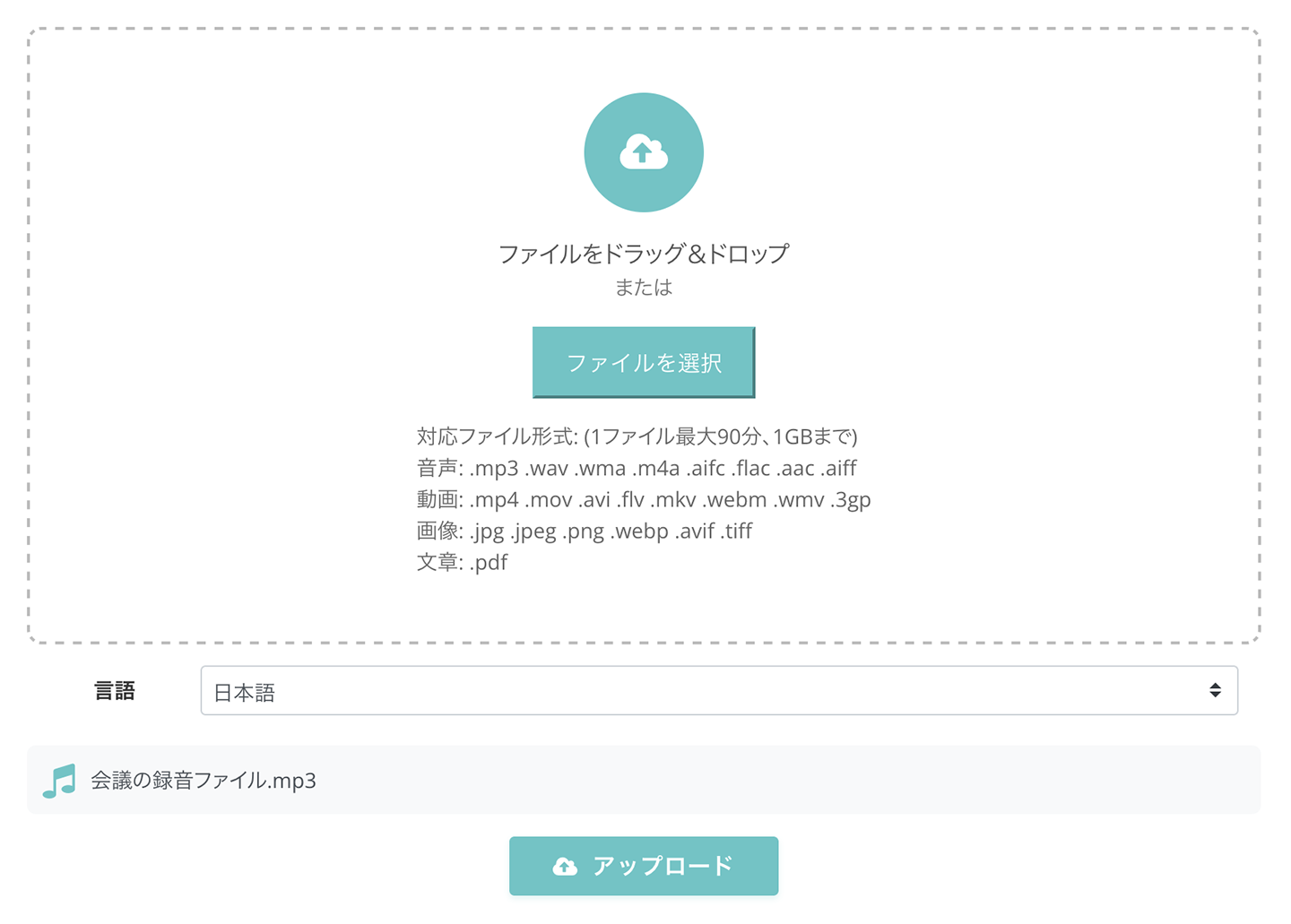
Mr. Transcription supports MP4 file uploads, so there's no need to convert the recorded file; you can upload it directly.
The speech recognition AI of Mr. Transcription is highly accurate.
Even long files can be processed in about 1 minute (shorter files in just a few seconds!), so you can check the transcription results immediately after the meeting.
3. Start Transcription
Once the upload is complete, the transcription process will start automatically.

Once processing begins, you can close your browser window.
You will receive a notification email when the processing is complete.
*If you use it for free without registering or logging in, you must keep the browser open.
4. Transcription Completed
Once the transcription is finished, you can check the results on the "History" page.
You can access the "History" page from the menu on the official website of Mr. Transcription.
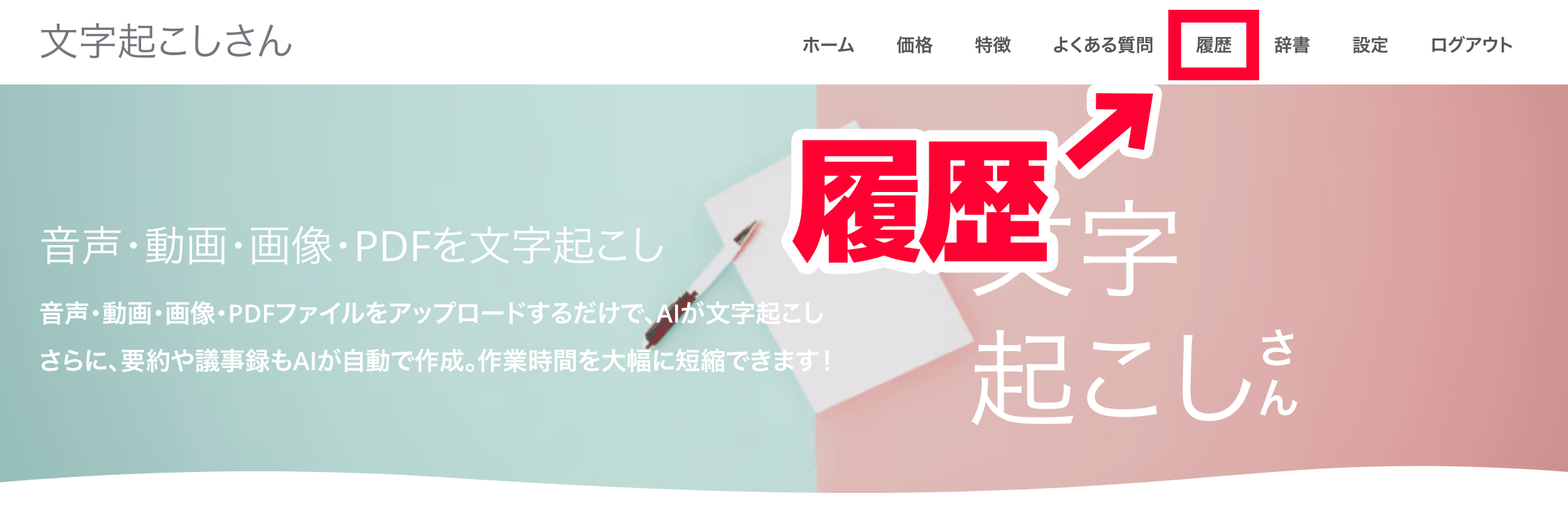
If you kept the top page open, the display on the top page will switch to show the transcription results.
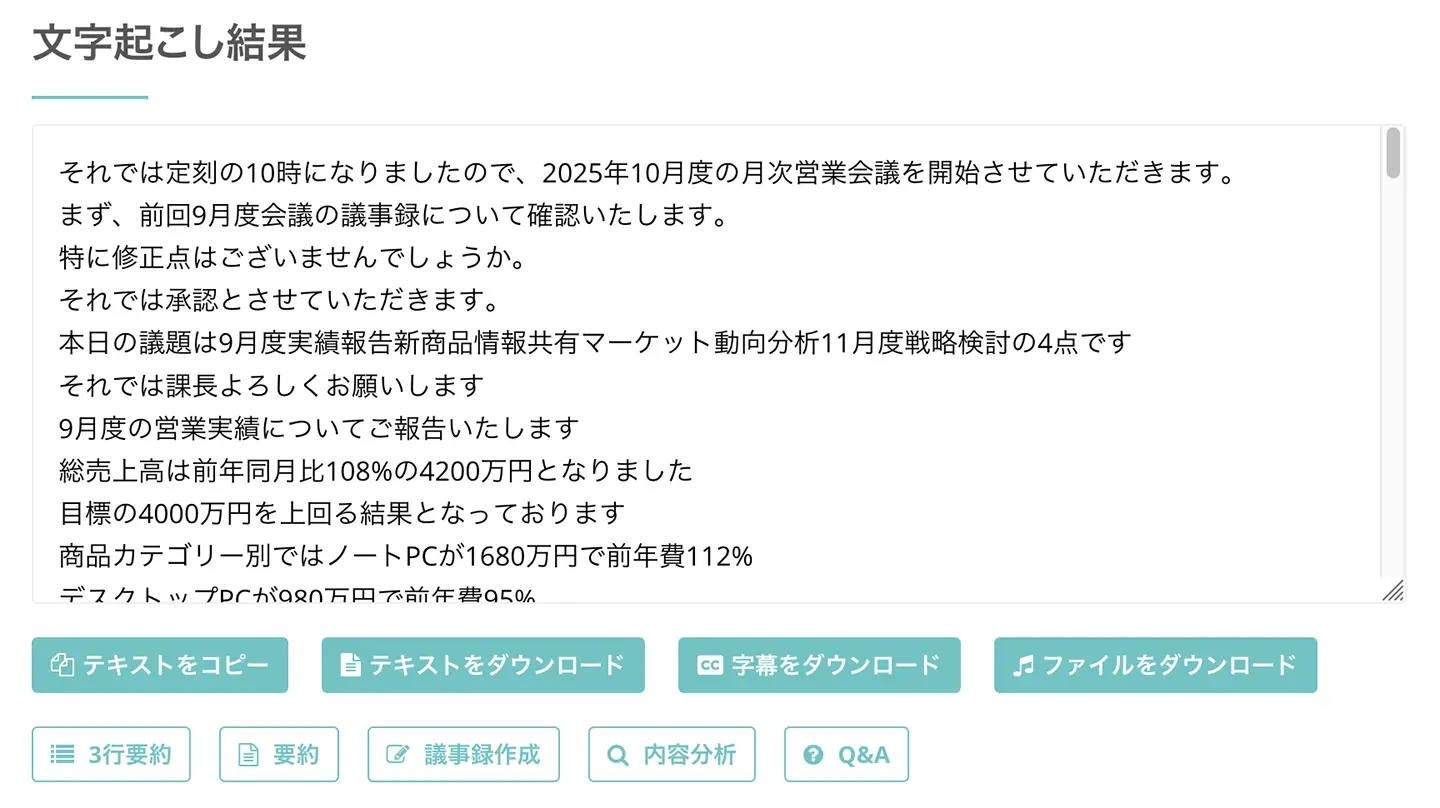
5. Creating Meeting Minutes with Mr. Transcription
Once the transcription is complete, it's time to create your meeting minutes!
Below the transcription results, you'll find buttons for "Summary" and "Create Meeting Minutes".

To create meeting minutes for your conference, click the "Create Meeting Minutes" button.
Clicking the button initiates the generation of meeting minutes using the latest AI.
In just a few seconds, your meeting minutes will be completed like this!
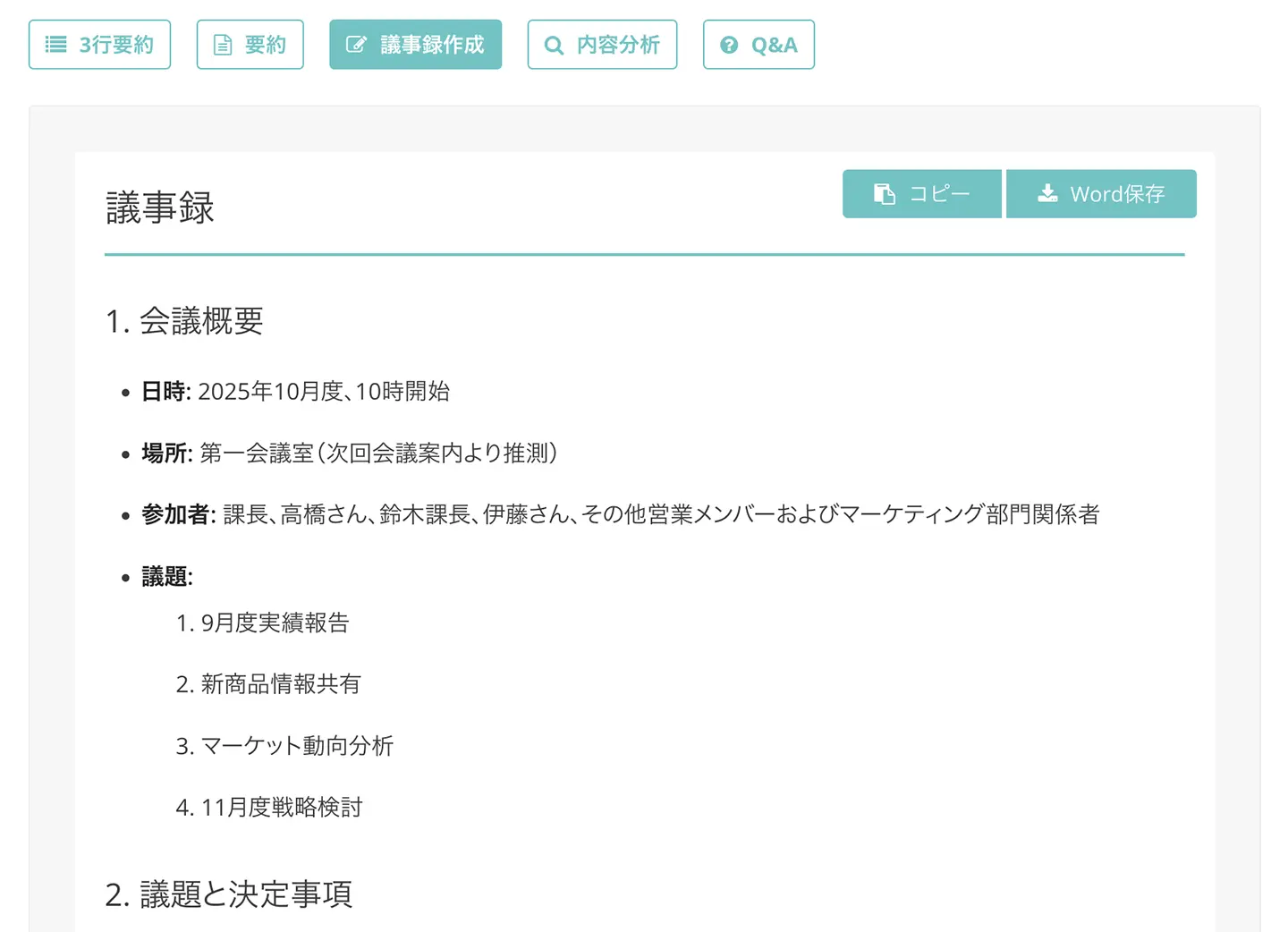
The created meeting minutes can be downloaded in Word format.
This completes the process of transcribing your ZOOM web conference and creating meeting minutes using Mr. Transcription!
As you can see, by using the dedicated tool Mr. Transcription, you can create meeting minutes much more smoothly than using ZOOM's standard features!
Mr. Transcription allows you to transcribe files up to 3 minutes for free, without needing to register or log in!
Furthermore, if you register for free, you can transcribe up to 10 minutes per day for free!
The meeting minutes creation feature is also available for free, with no additional charges.
Why not try free transcription with Mr. Transcription first?
How to Transcribe Meeting Minutes Using ZOOM's Standard Features
Next, we will explain how to simply transcribe meeting minutes using ZOOM's built-in features.
1. Set up subtitles on the ZOOM website
To transcribe subtitles using ZOOM's standard features, you first need to complete the settings in advance from the website, not the app.
Log in to the ZOOM website from here.
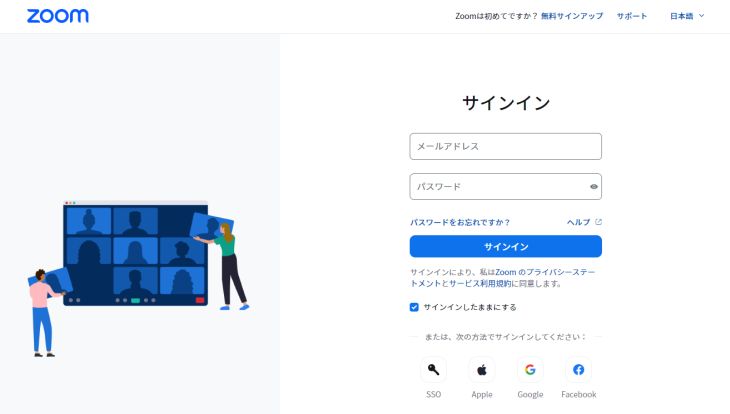
Once logged into ZOOM, open "Settings" from the menu.
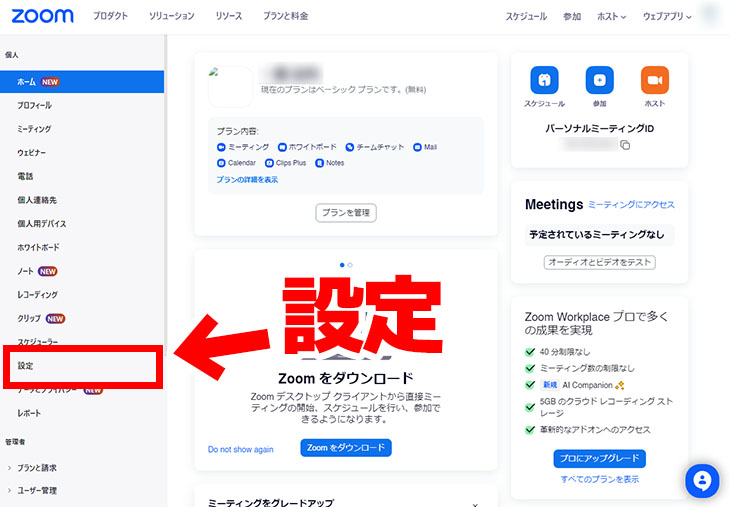
After opening Settings, click "In Meeting (Advanced)".
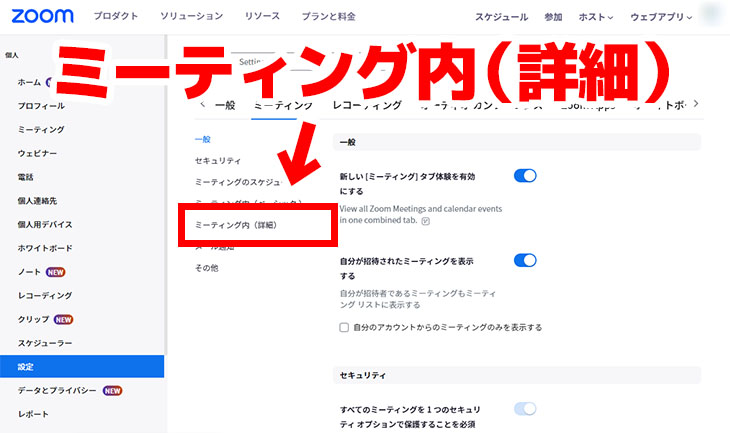
Clicking this will take you to the subtitle settings section.
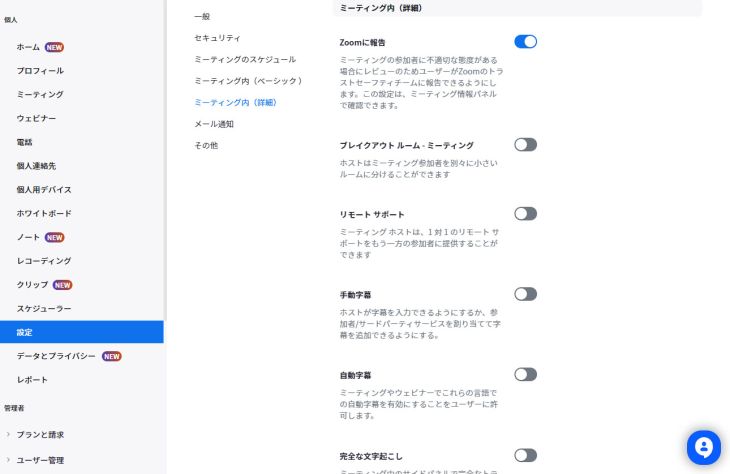
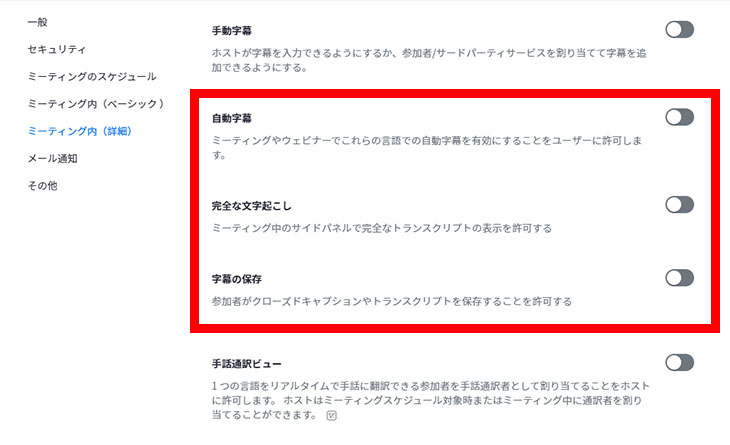
Turn on 3 features
- Automated captions
- Full transcript
- Save captions
Turn on these three features.
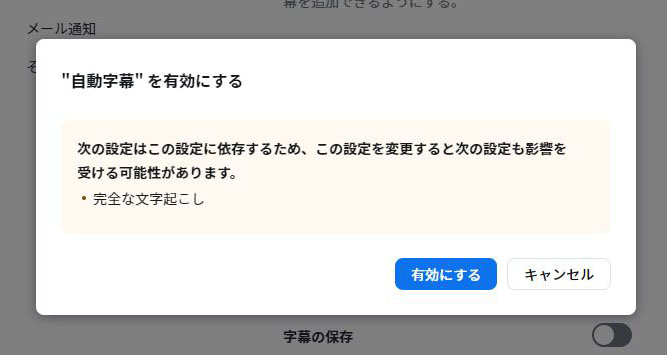
For "Automated captions" and "Full transcript", a confirmation screen will appear, so click "Enable".
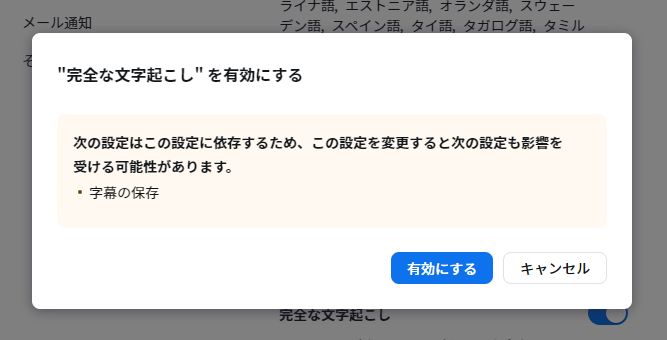
This is how it looks when "Automated captions", "Full transcript", and "Save captions" are turned on.
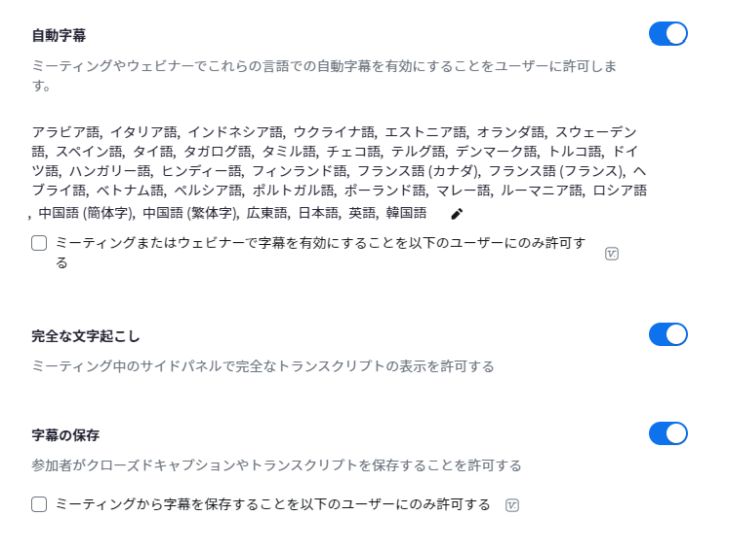
With this, the preparation to display subtitles in your ZOOM web conference is complete.
Once these settings are done, you can close the website.
2. Displaying Live Captions in ZOOM Web Meetings
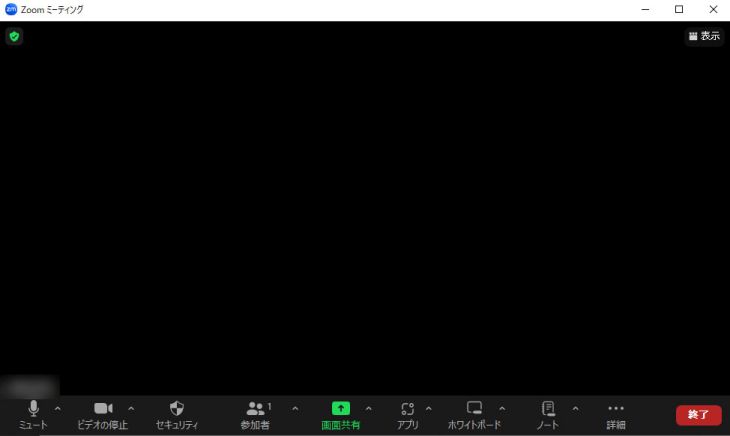
Once your ZOOM web meeting begins, you can enable live captions.
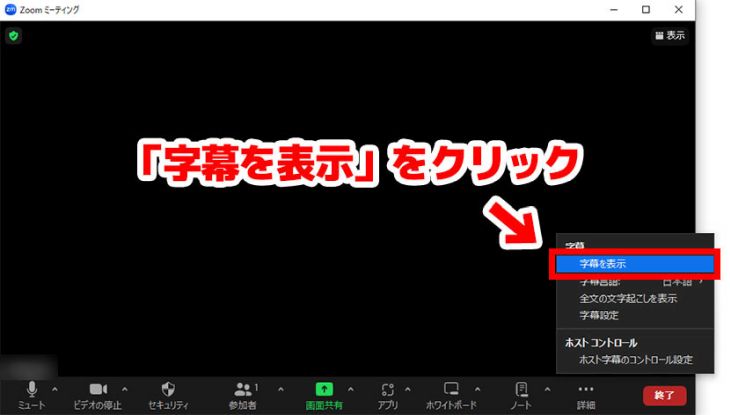
To display captions, click "Show Captions" from the menu at the bottom of the screen.
Where to Find "Show Captions"
The location of the "Show Captions" option varies depending on the window size.
When the window is maximized, the button will be visible in the menu at the bottom of the screen; simply click it.

When the window is smaller, click "More" in the menu, then click "Captions" within that submenu.
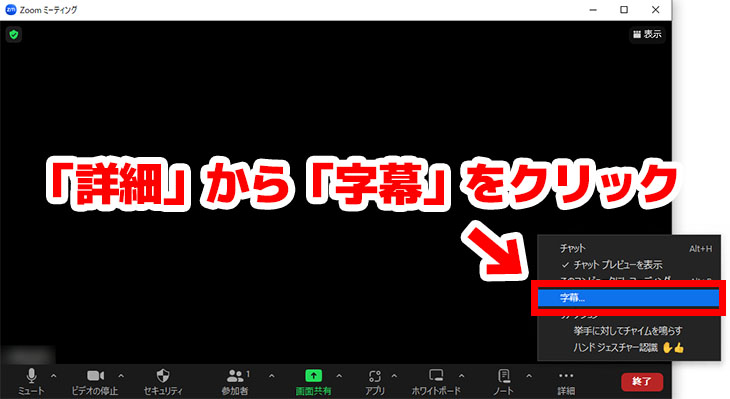
From the displayed menu, click "Show Captions" to enable them.
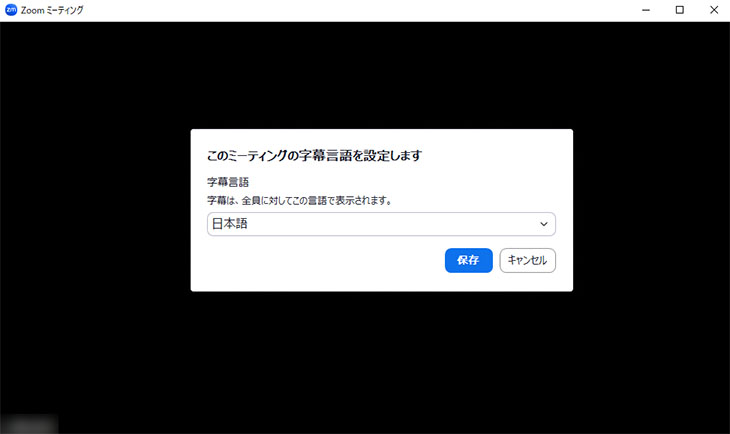
Setting Caption Language
After clicking "Show Captions," a language settings window will open. Select your desired language (e.g., Japanese) and click "Save."
Now you are ready to display captions in the ZOOM desktop app.
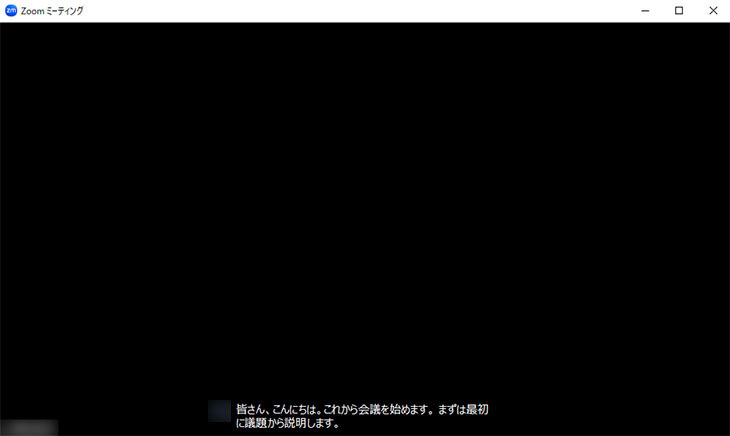
Captions Are Displayed
In the ZOOM desktop app, transcribed captions will appear at the bottom of the screen like this.
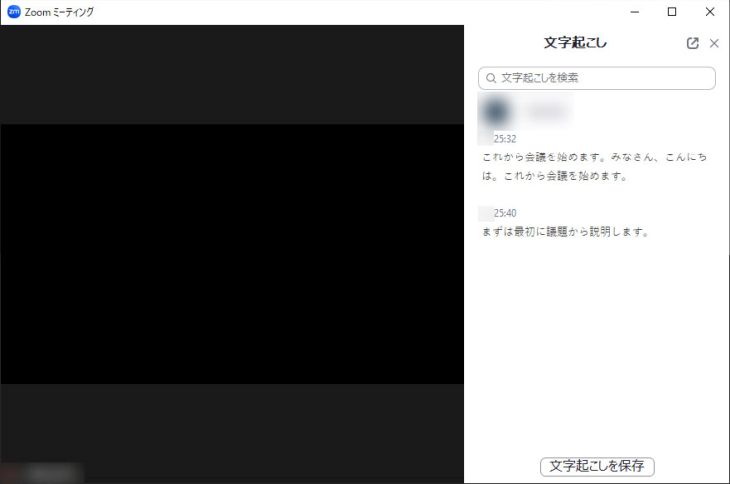
If you click "View Full Transcript" from the caption menu,
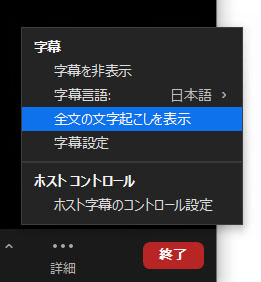
you can view and review the full transcribed content.
3. Saving the Transcribed Subtitles
To create meeting minutes, you can also save the content of the subtitles transcribed by ZOOM.
To save the transcribed subtitle content, click on "Save Transcript" button located in the subtitle list screen that opens after clicking "View Full Transcript".
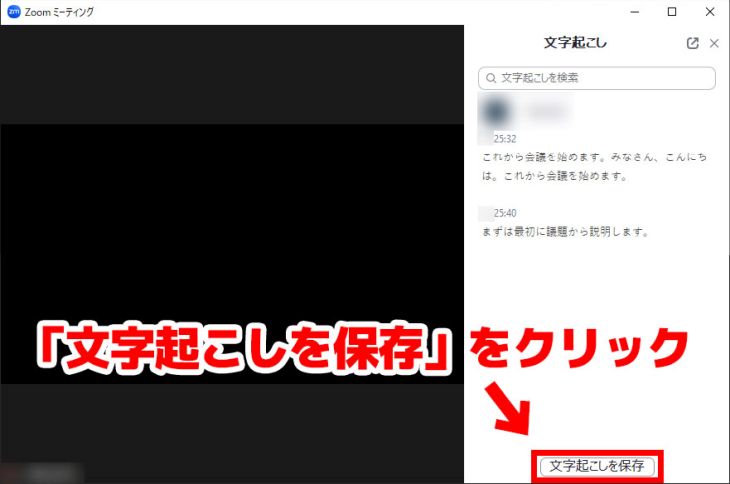
Clicking this will save the transcribed meeting content as a text file.
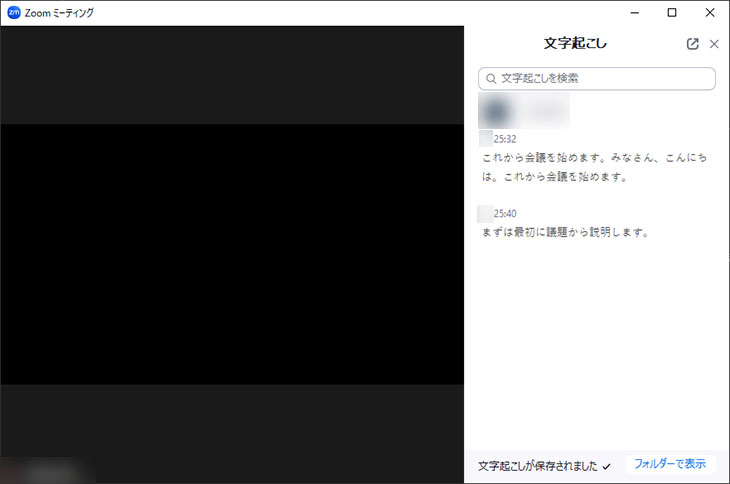
Clicking "Show in Folder" will open the save location.
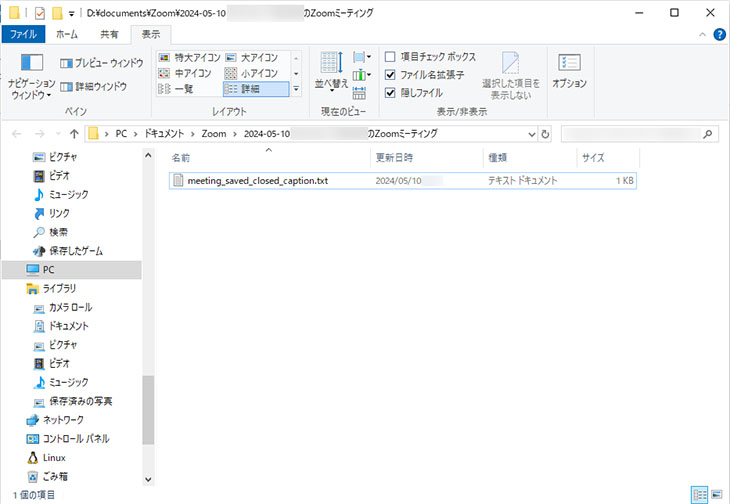
When you open the text file, the transcribed content will be saved as shown here.
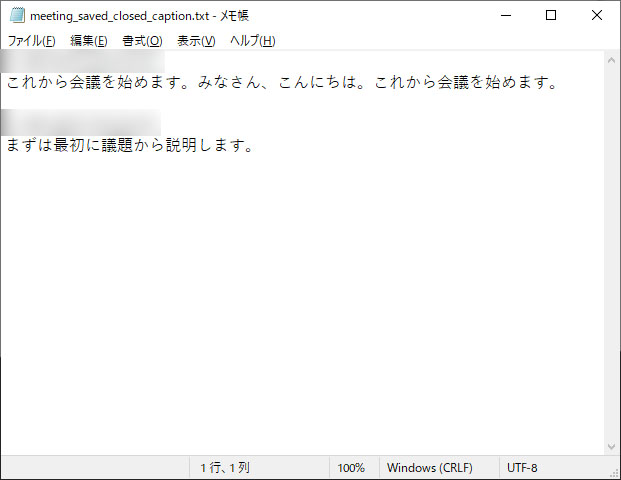
This completes the process of transcribing a web conference using ZOOM's built-in features for creating meeting minutes.
After this, you will need to edit the transcribed text file into the formal meeting minutes.
Points to Note When Transcribing with ZOOM's Built-in Features
When using ZOOM's built-in features for transcribing meeting minutes, there are important points to note.
That is, you must save the transcribed content before the web conference ends.
If you leave the meeting or the host ends it, the transcribed content will no longer be savable.
Be careful not to forget to save important content for your meeting minutes.
Special attention is needed for meetings opened by free users, as they automatically end after 40 minutes.
To prevent the mistake of forgetting to save transcribed content, it is recommended to use a dedicated transcription service.
Dedicated Tools are Recommended for ZOOM Meeting Transcription!
Web conferences are becoming increasingly common.
While transcribing ZOOM web conferences is possible with built-in features, using a dedicated tool can make it faster and smoother.
With a dedicated AI transcription tool, a high-performance, fine-tuned speech recognition engine can accurately transcribe even difficult audio, including specialized terms and foreign languages!
Why not try creating speedy and highly accurate meeting minutes using an AI transcription tool?
■ AI transcription service "Mr. Transscription"
"Mr. Transcription" is an online transcription tool that can be used from zero initial cost and 1,000 yen per month (* free version available).
- Supports more than 20 file formats such as audio, video, and images
- Can be used from both PC and smartphone
- Supports technical terms such as medical care, IT, and long-term care
- Supports creation of subtitle files and speaker separation
- Supports transcription in approximately 100 languages including English, Chinese, Japanese, Korean, German, French, Italian, etc.
To use it, just upload the audio file from the site. Transcription text is available in seconds to tens of minutes.
You can use it for free if you transcribe it for up to 10 minutes, so please try it once.

It is "Mr. Transcription" who can easily transcribe from audio, video, and images.
Transcription allows you to transcribe for up to 10 minutes for free.
You can copy, download, search, delete, etc. the transcribed text.
You can also create subtitle files, which is ideal for transcription of interview videos.
HP: mojiokoshi3.com
Email: mojiokoshi3.com@gmail.com
Email: mojiokoshi3.com@gmail.com
Related article
Transcription for audio / video / image transcription. It is a transcription service that anyone can use for free without installation.
- What is Mr. Transcription?
- Transcript images, sounds, and videos with Mr. Transcription
- Free registration
- Rate plan
- manual
- Try other free services