
Mr. Transcription FAQ: Pricing, Free Plan, Security & More
Best Free iPhone Transcription Apps 2024: Top 9 for Long Audio
Oct. 18, 2026


I want to transcribe iPhone voice memos and use them conveniently!
iPhone and iPad voice memos become even more useful tools with free transcription!
The voice memo feature on iPhone and iPad is a convenient tool for easily recording a lot of information, proving useful in meetings, lectures, and interviews.
However, transcribing those voice memos into text later used to require a lot of time and effort.
To solve this problem, this article thoroughly compares free transcription apps and services available for iOS on iPhone and iPad.
In particular, we will introduce recommended methods that can handle long audio data in detail.
By reading this article, you'll surely find the best free transcription apps for iPhone and iPad, and easy ways to convert long voice memos into text!
Especially Mr. Transcription, which can be easily used in a browser, is a recommended tool for many iPhone and iPad users, allowing free transcription of long audio.
Why not use this article as a reference to make your iPhone and iPad voice memos even more convenient?
Free iPhone Voice Memo Transcription Services Recommended
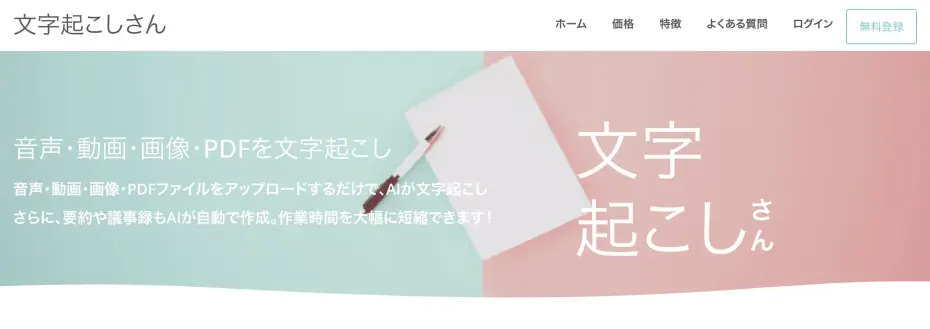
If you want to transcribe iPhone voice memos, Mr. Transcription is highly recommended!
Mr. Transcription is an AI transcription service that can be used immediately from Safari on your iPhone.
Anyone can easily convert voice memo audio into text using the latest AI.
Even long audio can be transcribed in about 1 minute, making it comfortable to convert various audio such as meetings, interviews, and classes into text.
What's more, Mr. Transcription is free!
No registration or login is required to try it out right now, so why not start using Mr. Transcription?
[Solved for Free!] Are You Struggling with iPhone Voice Memo Transcription?
![[Solved for Free!] Are You Struggling with iPhone Voice Memo Transcription?](https://storage.googleapis.com/mojiokoshi3/post/image/20250526_iphone_mojiokoshi_001.webp)
Many iPhone users regularly utilize the voice memo feature, but they often face various challenges when transcribing recorded data.
However, you can actually solve your iPhone voice memo transcription problems by using high-functional transcription apps and services available for free!
What do you do with long audio recordings from meetings, lectures, or interviews?
You often record long audio sessions with your iPhone or iPad Voice Memos, whether it's for creating meeting minutes, reviewing university lectures, or documenting important interviews.
Traditionally, transcribing valuable audio data into text required a significant amount of time and effort.
Typing every word while listening intently is a tedious task that often leads to a loss of concentration and can be very demanding.
It wasn't just a time cost; the mental burden was also substantial.
That's where transcription services that use the latest AI to convert audio to text come highly recommended.
AI transcription services allow you to transcribe audio simply by uploading it, saving you time and effort.
If you're struggling with long Voice Memos, it's highly recommended to solve the problem once and for all with the free transcription apps and services introduced in this article!
What are the features of free iPhone/iPad transcription apps/services?
There are many features in free transcription apps and services available for iPhone.
The biggest advantage is, without a doubt, that you can significantly improve the efficiency of your transcription work without incurring any costs.
The time you previously spent on transcription can now be used for other, more productive activities.
Moreover, with the rapid advancement of AI technology in recent years, even free tools can now transcribe long audio with very high accuracy.
Japanese recognition accuracy is also very high, and they can even handle technical terms and proper nouns.
Another attractive point is the emergence of user-friendly apps and services that can link with files recorded on iPhone or iPad Voice Memos and offer extensive editing functions.
iPhone/iPad Transcription Basics: How to Transcribe Voice Memos for Free

We'll explain key points you should know about transcribing Voice Memos recorded on your iPhone or iPad into text data.
In particular, understanding the difference between the standard features built into iOS and dedicated transcription apps or services is crucial.
Knowing the options available for converting Voice Memo audio data into text will also help you choose the best tool.
What is the iOS standard "Voice Memos" app?
The "Voice Memos" app, pre-installed on iPhone and iPad iOS, is a convenient tool that allows for very easy audio recording.
It's used in various situations, such as recording meeting minutes, lecture notes, or capturing ideas.
Recorded audio is typically saved in the m4a file format.
This m4a file is Apple's proprietary audio format, characterized by its ability to store high-quality audio in relatively small file sizes.
However, the standard transcription function of the "Voice Memos" app is only available for Japanese on iOS 18.4 or later and iPhone 12 or later.
To efficiently transcribe already recorded Voice Memo files, using external apps or services is common.
How smoothly Voice Memo data can be linked to a transcription tool is one of the key factors determining usability.
Why are dedicated iPhone/iPad transcription apps/services necessary?
While iPhone and iPad iOS have a voice input function via Siri, this is primarily suitable for transcribing short, real-time utterances.
For transcribing long, pre-recorded Voice Memo files later, or when seeking higher accuracy and editing features, dedicated transcription apps or services are necessary.
Dedicated tools have highly tuned speech recognition AI engines, capable of accurately converting audio to text even in noisy environments or with multiple speakers.
They often include convenient features to assist with transcription, such as automatic punctuation, speaker separation, and timestamping.
With an increasing number of high-performance transcription apps and services available for free, utilizing these can significantly reduce time and improve accuracy compared to manual transcription.
To make the most of your valuable audio data recorded with iPhone or iPad Voice Memos, dedicated AI transcription tools are indispensable!
Types of iOS-Compatible Transcription Apps/Services: Installed vs. Browser-Based
Transcription tools available for iPhone and iPad on iOS broadly fall into two categories: "installed apps" and "browser-based services."
Installed apps are downloaded directly to your iPhone or iPad from the App Store and used from there.
The advantages of installed apps include the ability to sometimes use them offline once installed (though the transcription processing itself often requires an internet connection) and their seamless integration with iPhone and iPad features.
On the other hand, disadvantages include the effort required for app installation and updates, and the consumption of storage space on your iPhone or iPad.
Browser-based services are accessed via web browsers like Safari.
A prime example of this type is Mr. Transcription.
The benefits of this type are that there's no need to install an app, so it doesn't consume iPhone or iPad storage, and it's less affected by iOS version updates.
Another convenient feature is that once you create an account, you can access it from any device.
Top 9 Free Transcription Apps & Services for iPhone/iPad [Long-Duration Support, Latest 2026]
As of 2026, iPhone and iPad users have access to a wide variety of free transcription apps and services.
Here, we've carefully selected and will introduce recommended iOS-compatible tools that support transcribing long voice memos and offer robust free plans!
- Mr. Transcription
- Texter
- Speechy Lite
- LINE WORKS AiNote
- Notta
- Rimo (formerly Rimo Voice)
- Otolio
- Otter.ai
- Google Docs
1. Mr. Transcription: Recommended Free Web App for iPhone Voice Memo Transcription
First up is Mr. Transcription, a web app that can be easily used from your iPhone or iPad browser (like Safari).
A key feature of Mr. Transcription is that it doesn't require app installation, allowing you to transcribe audio for free without worrying about your iPhone or iPad's storage.
It boasts extremely high Japanese recognition accuracy and can reliably process long voice memo files.
Naturally, it supports the m4a format recorded on iPhones and iPads.
It's also incredibly easy to use.
Simply upload files saved with the iPhone Voice Memos app to the Mr. Transcription website for effortless transcription.
For iPhone users, it's truly a powerful option for free, long-duration transcription.
Comfortably Transcribe Long Audio with Mr. Transcription's Diverse Features
The high performance of the latest AI is another attractive aspect of Mr. Transcription.
With cutting-edge speech recognition AI that transcribes quickly and accurately, you can transcribe even long audio files in just about 1 minute!
And the accuracy is outstanding.
It works well even for audio in fields with a lot of specialized terminology, such as medicine, IT, and elderly care.
Furthermore, Mr. Transcription supports over 100 languages, including English, French, German, Chinese, and Korean.
It also supports exporting subtitle files (SRT format), making it possible to create video subtitles!
Free Voice Memo Transcription with Mr. Transcription
What's more, Mr. Transcription is free to use!
When using transcription apps or services, a common concern is the accuracy of the transcription.
With Mr. Transcription, you can start using it for free right away, so there's no need to worry.
You can transcribe without needing to register or log in, so why not experience Mr. Transcription for yourself?
2. Texter: iPhone Voice Memo Transcription App
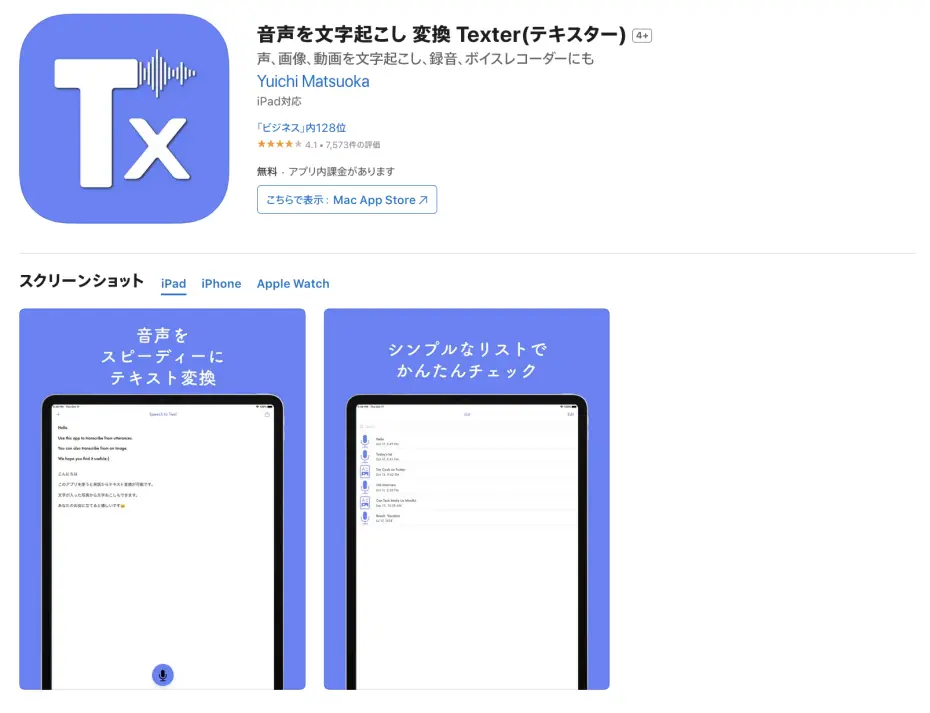
Texter is an AI-powered transcription app available for both iOS and Android.
It supports Japanese transcription, allowing for smooth text conversion directly from the app.
The free plan lets you experience up to 1 minute of transcription.
The Texter app includes features to import files from iPhone/iPad voice memos and to edit and share transcription results.
Its interface is relatively simple, designed for easy operation on an iPhone.
This app is definitely worth considering for transcribing audio recorded with the iPhone Voice Memos app.
3. Speechy Lite: Simple Real-time Transcription App
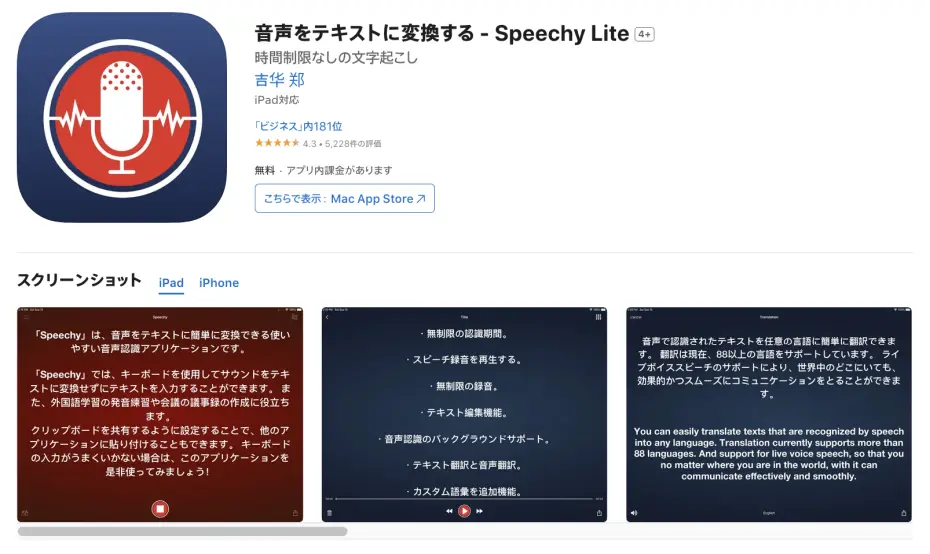
Speechy Lite is a transcription app specializing in real-time speech recognition available for iOS on iPhone and iPad.
It features a simple function that instantly converts spoken words into text and can be used for free (with ads).
However, free recording is limited to the first 10 minutes; after that, you cannot save recordings or transcriptions longer than 1 minute.
Simply speak into your iPhone's microphone, and the content will be transcribed onto the screen.
It's useful for assisting with real-time note-taking during meetings or interviews, or when you want to quickly convert ideas into text.
This app is ideal for those who prefer to speak into their iPhone to get text immediately, rather than transcribing long voice memo recordings later.
It's recommended for anyone who wants to try real-time transcription easily on their iPhone or iPad, and who doesn't need complex features but simply wants to convert audio to text.
4. LINE WORKS AiNote: Feature-rich iPhone Transcription App
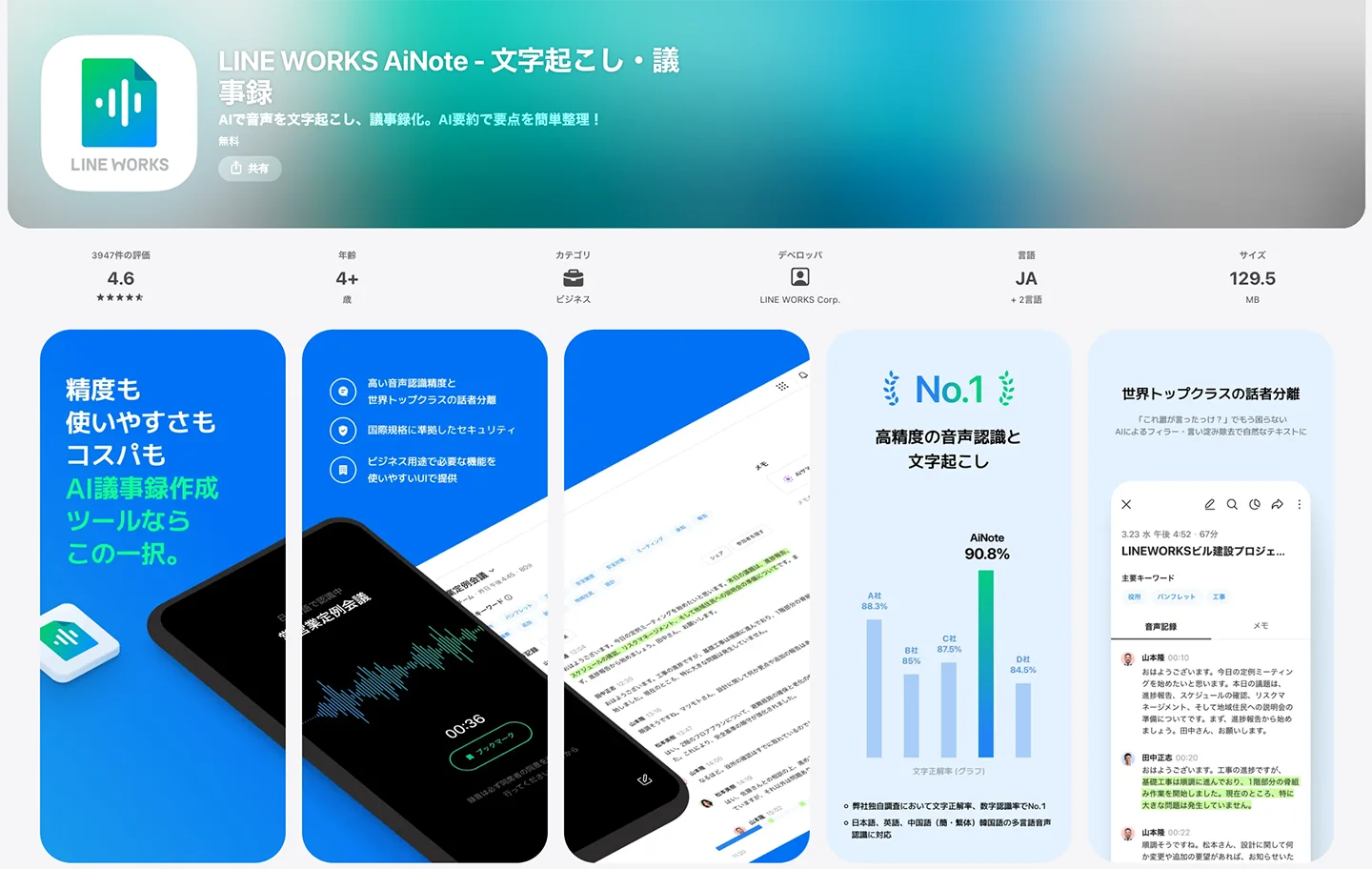
Next up is "LINE WORKS AiNote," a transcription app provided by LINE WORKS Corporation.
It is an iPhone and iPad compatible transcription app that supports Japanese text conversion.
Designed for transcribing meeting minutes, it offers a free plan as well as paid plans starting from 1,440 yen per month (for annual contracts).
Summary features and web conference recording features are available with paid plans.
5. Notta: AI Transcription Service for iPhone with Japanese Support
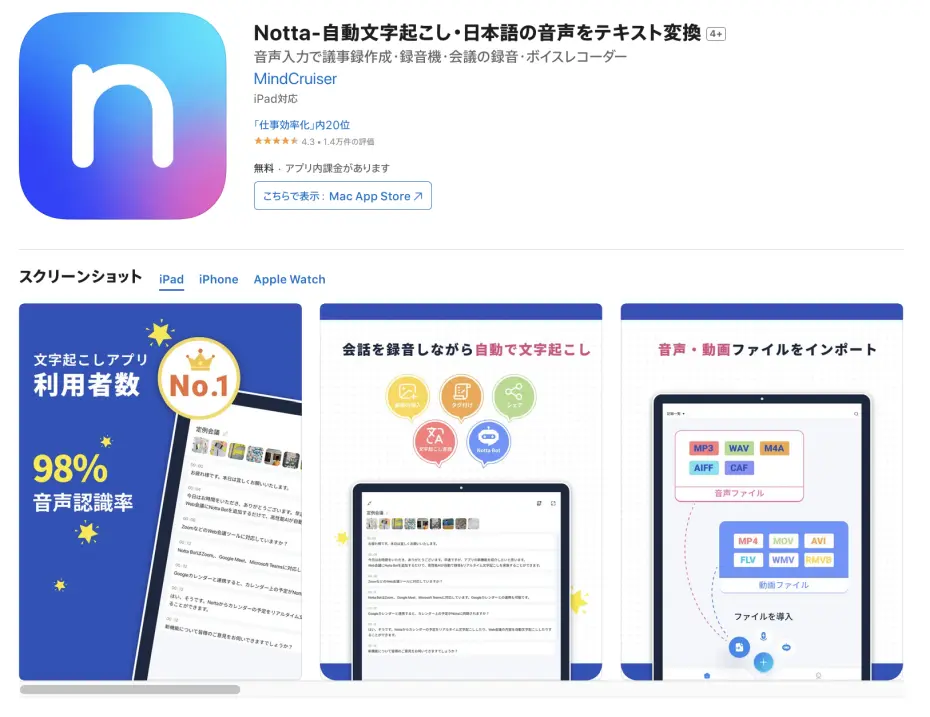
Notta is an AI-powered transcription service available as both a dedicated iOS app and a web app.
It supports real-time transcription and allows importing audio files (including m4a format) and video files recorded with iPhone's Voice Memos.
Of course, it supports Japanese.
While a free plan is available, there are limitations on the transcription duration.
If you need longer transcription times or want to try more advanced features, upgrading to a paid plan is necessary.
Notta is a recommended option if you're looking for a feature-rich transcription app for your iPhone.
6. Rimo: AI Transcription and Meeting Minutes Service Supporting Over 30 Languages
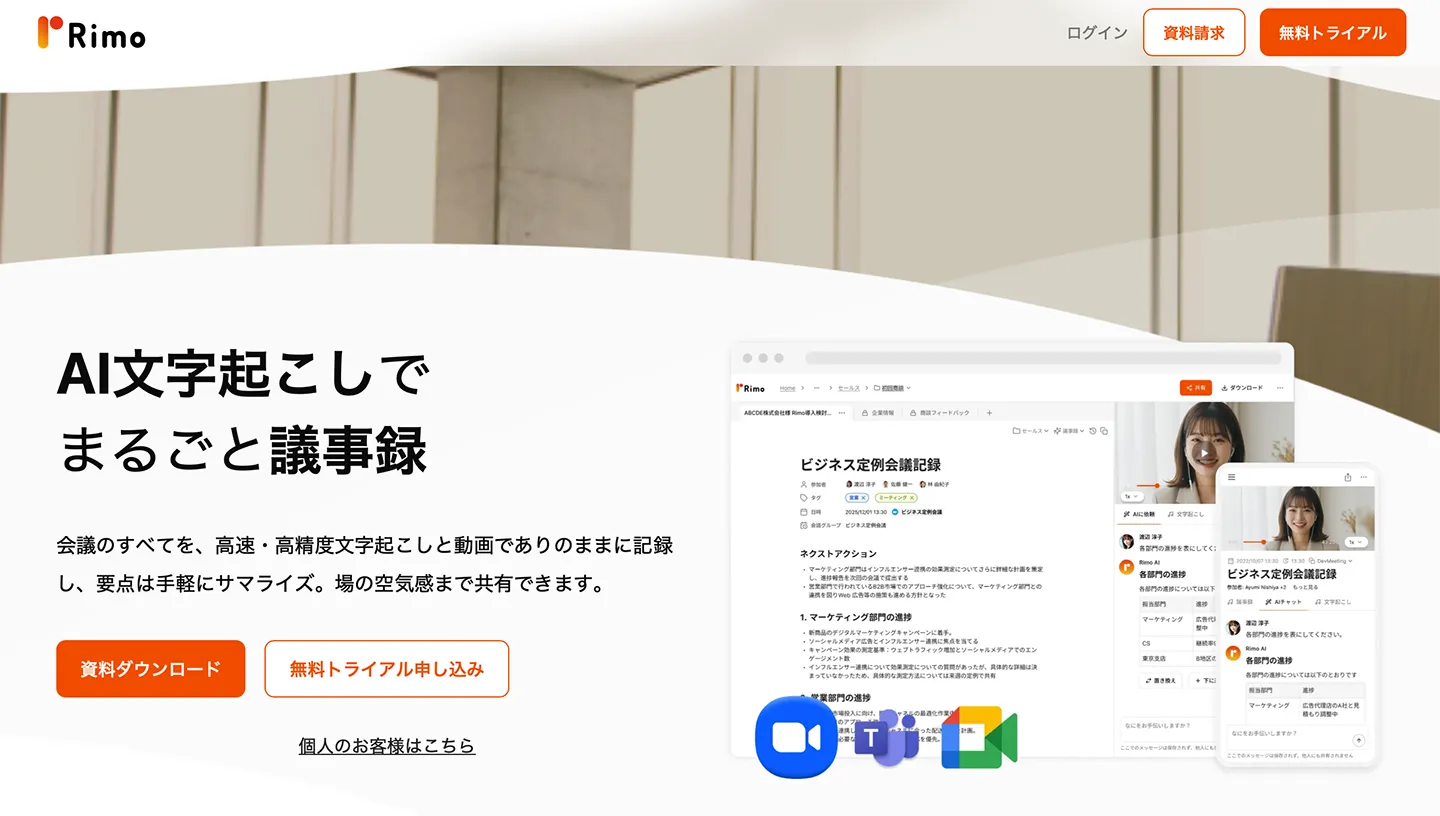
Rimo is an AI transcription and meeting minutes support service that supports over 30 languages, including Japanese.
Available as a web app via browser on iPhone/iPad, it performs highly accurate transcription simply by uploading audio files.
Audio files are compatible with the m4a format, which is common for iPhone voice memos.
Both individual and corporate plans are available, and a free trial is also offered.
The transcription results are equipped with extensive features to streamline meeting minute creation, such as speaker separation and keyword extraction.
Since this service is designed for business use, it is particularly recommended for those looking for a transcription service to create meeting minutes in Japanese.
7. Otolio: iOS-Compatible Service Specialized in Meeting Minute Creation
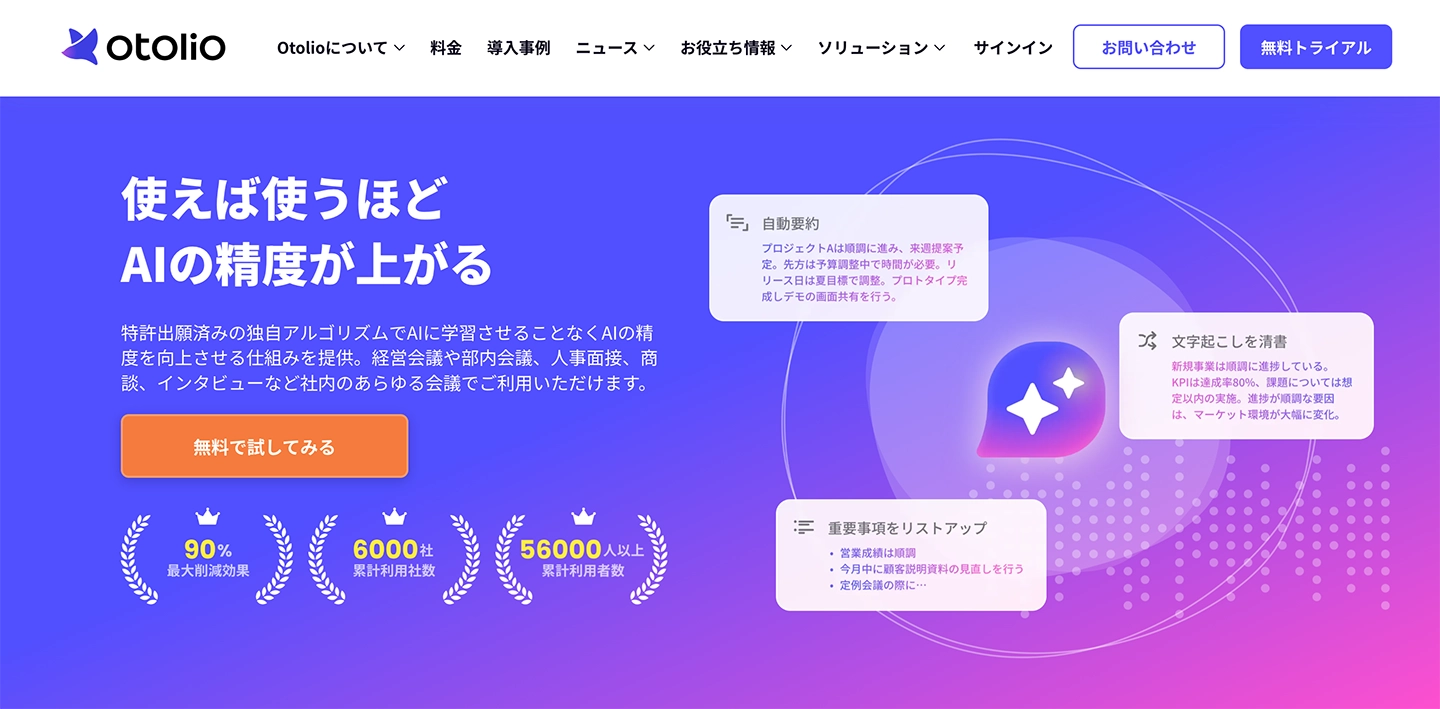
Otolio (formerly Smart Shoki) is an AI transcription service specialized in creating meeting minutes, available as an iOS app and a web app.
It supports real-time transcription of meeting audio and uploading audio files recorded with iPhone voice memos, providing high-accuracy Japanese transcription.
The iOS app allows users to record meetings, start transcriptions, and check results.
Beyond transcription, it also offers features for editing and sharing meeting minutes, and managing tasks in the cloud.
A free trial is available, allowing you to check the features and accuracy before committing to use.
This app is recommended for business users who frequently have long meetings, and iPhone/iPad users seeking advanced meeting minute creation tools.
8. Otter.ai: iOS Transcription App Strong in English
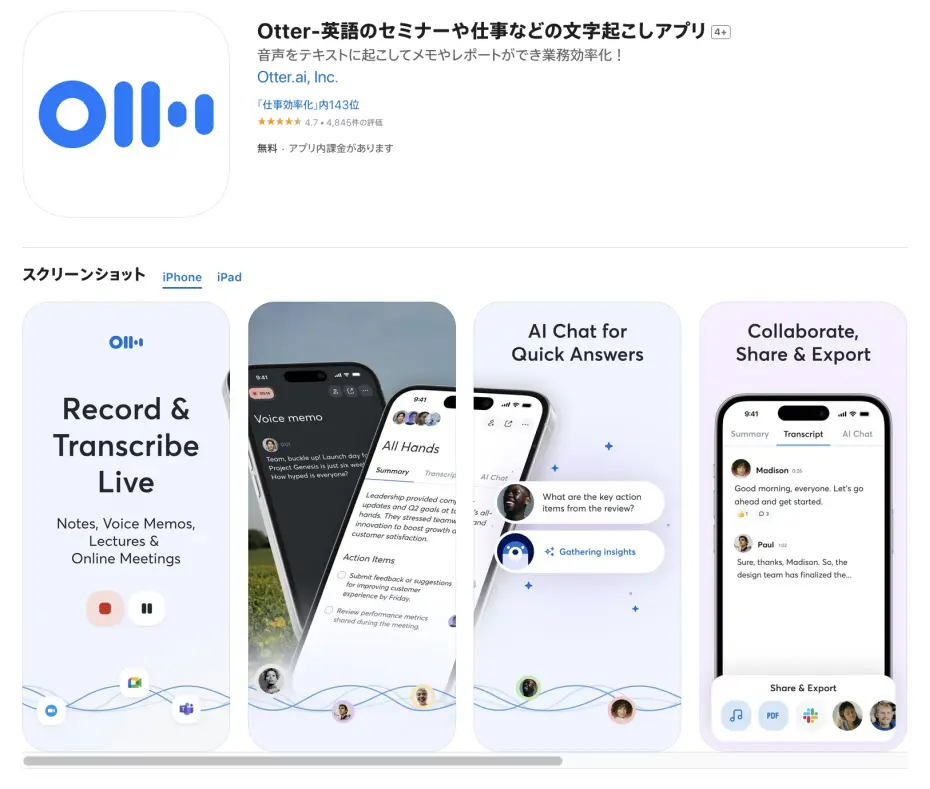
Otter.ai is an AI transcription service for iPhone and iPad that supports English, French, Spanish, Japanese, and more.
Both app and web app versions are available, with the iOS version usable on iPhone and iPad.
There is a free plan, but transcription is limited to 300 minutes per month, and audio file imports are capped at 3 cumulative files.
In addition to real-time transcription, you can also import and transcribe voice memo files from your iPhone or iPad.
It can handle long-duration transcriptions, making it suitable for transcribing English audio recorded with iOS voice memos..
This iOS app is recommended for iPhone and iPad users who frequently deal with English content.
9. Google Docs Voice Typing: Free Transcription with a Little Ingenuity
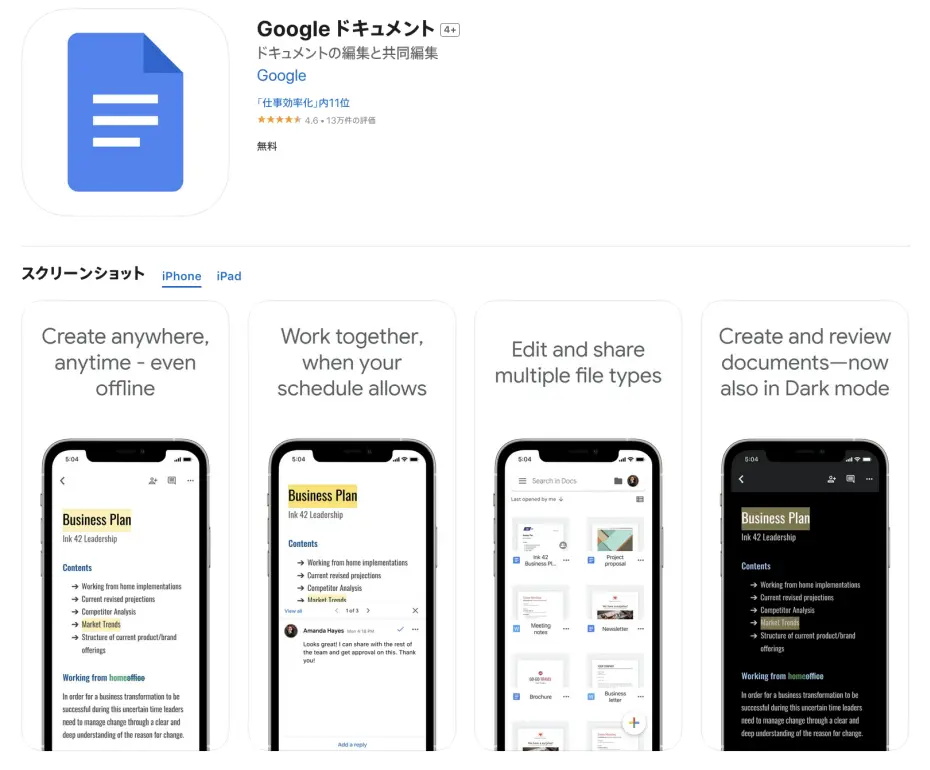
While not strictly a dedicated transcription app, the voice typing feature in Google Docs for iPhone and iPad is also useful.
Install the Google Docs app on your iPhone, open a new document, and tap the microphone icon to have what you say in real-time converted into text.
The advantage is that it's free to use.
However, since this is not its primary intended use, if you want to transcribe long voice memos, you'll need to use methods such as:
- Playing the voice memo on your iPhone while performing voice input in Google Docs on another device (like a PC or another smartphone).
- Reading the content aloud directly into the iPhone's microphone.
Also, if used for an extended period, the feature may automatically stop.
This is a useful way to use an iOS app when you need free transcription by any means necessary.
[Practical Guide] How to Transcribe iPhone/iPad Voice Memos with Mr. Transcription! (2026 Edition)
Next, we will explain the specific steps to transcribe iPhone/iPad voice memos using Mr. Transcription.
Step 1: Save and Share Audio Files from iOS Voice Memos
First, share the audio file from the Voice Memos app on your iPhone or iPad.
Open the Voice Memos app.
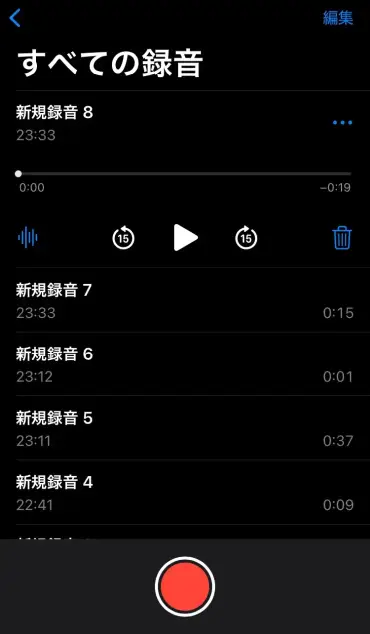
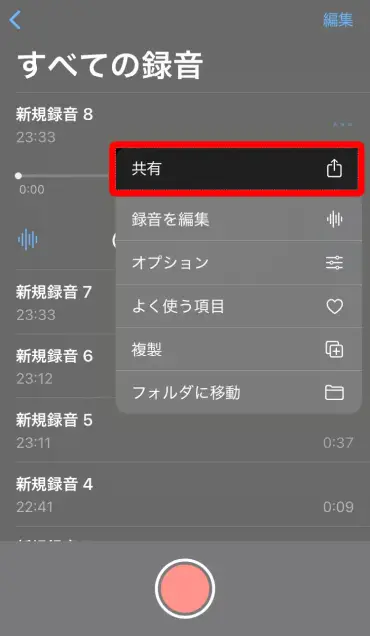
Once the Voice Memos app is open, tap the "..." on the right side of the file you want to save.
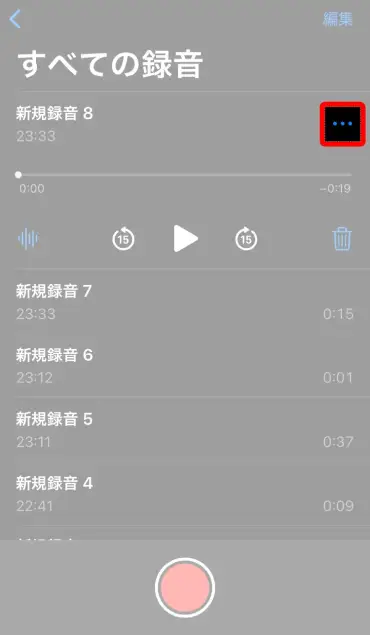
A menu of options will appear, from which you should select "Share".
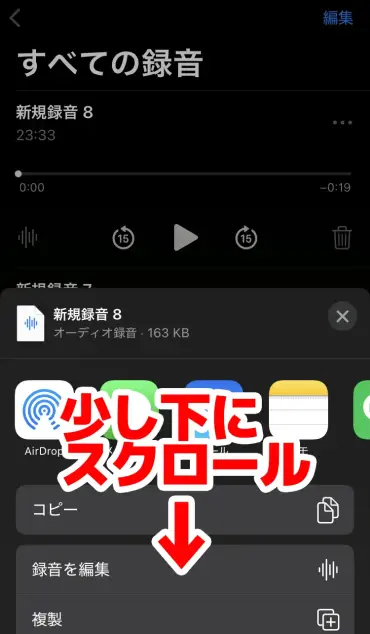
When the list of sharing options appears, scroll down a bit.
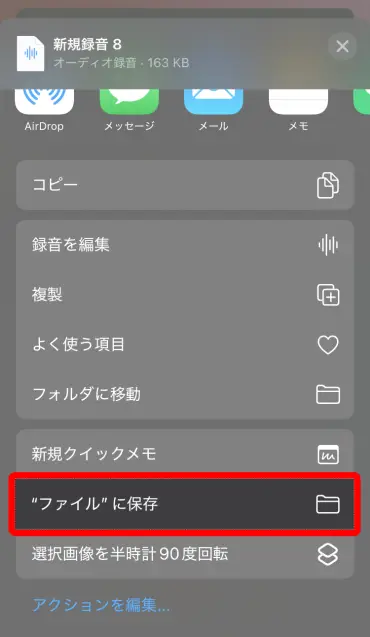
Tap on the item that says "Save to Files".
You can choose a destination folder within iCloud Drive or a folder on your iPhone under "On My iPhone."
Select a location that is easily accessible later by Mr. Transcription (e.g., the Downloads folder or a specially created folder), and tap "Save" in the upper right corner.
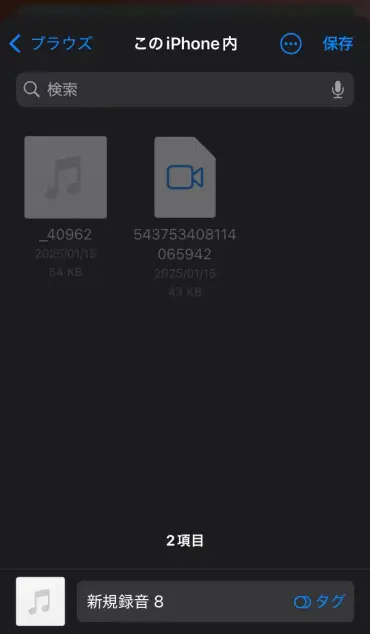
The voice memo audio file (m4a format) has now been saved to the specified location.
Step 2: Access Mr. Transcription in Safari and upload your file
Next, launch Safari, the standard web browser on your iPhone.
(Other browsers can also be used, but we'll use Safari as an example here.)
Open Mr. Transcription's homepage.
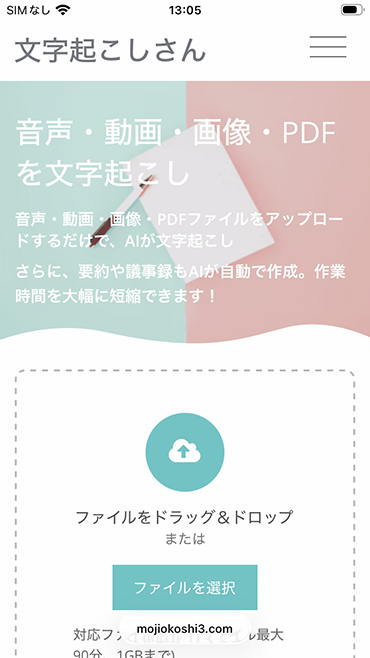
Scroll down a bit, and you'll find the file upload area.
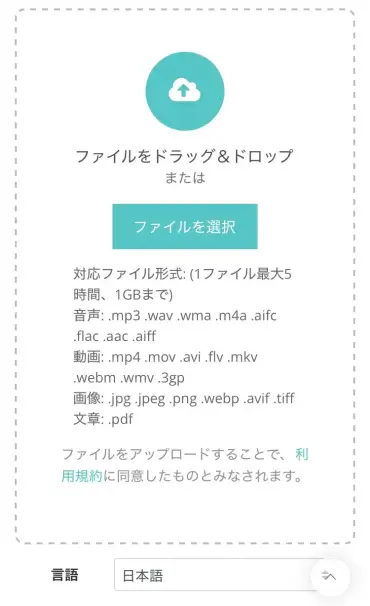
Tap "Choose File", and options for selecting a file will appear.
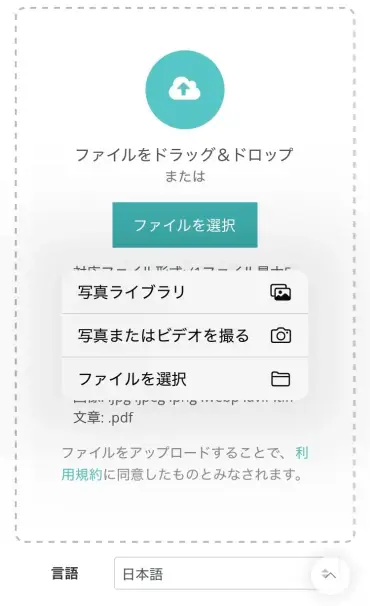
This time, we'll choose "Choose File".
Mr. Transcription can also transcribe from images and videos!

The iOS file selection screen will open. Navigate to the location where you saved your Voice Memo audio file (e.g., iCloud Drive or a folder "On My iPhone").
Select the saved m4a file.
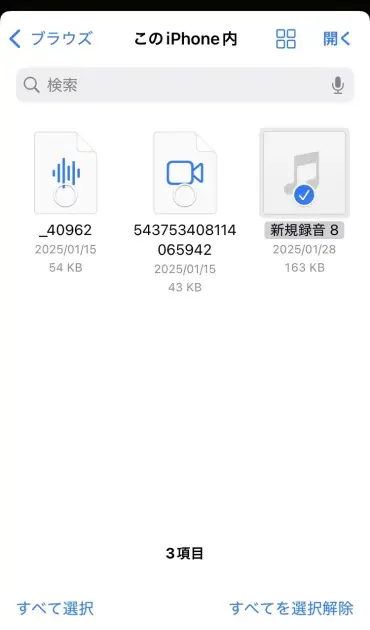
The file is now selected.
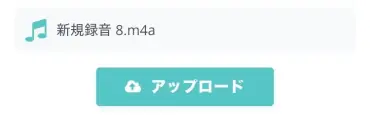
Tap the "Upload" button to start the upload.
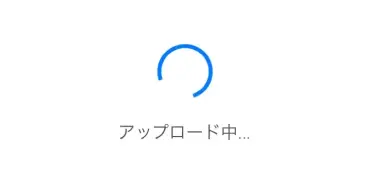
Once the upload is complete, the transcription process will automatically begin.
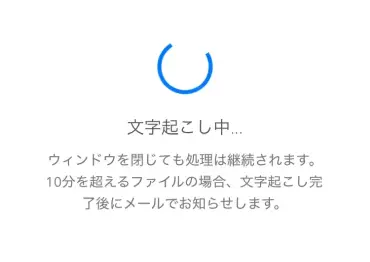
Even long audio files can be easily uploaded using this method.
Step 3: Review, Edit, and Export Transcription Results
Once the transcription process is complete, the transcribed text will appear on the screen.
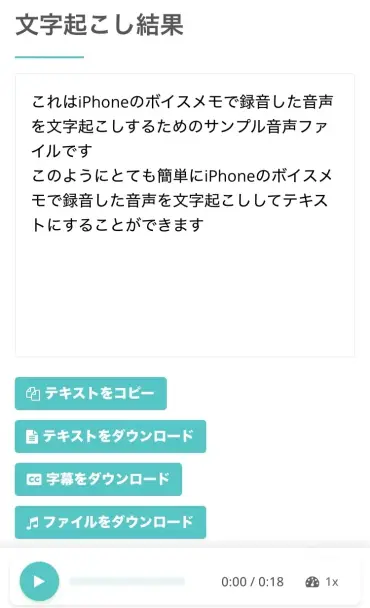
Scrolling down the screen allows you to check the transcription results in detail, section by section, like this.
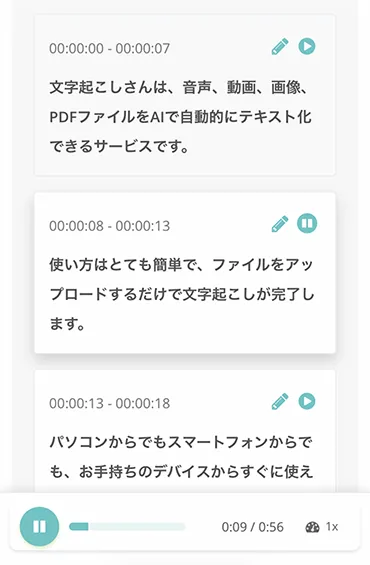
Review the displayed text on your iPhone screen to check for typos, grammatical errors, or recognition inaccuracies.
You can also edit and save the content by pressing the edit button.
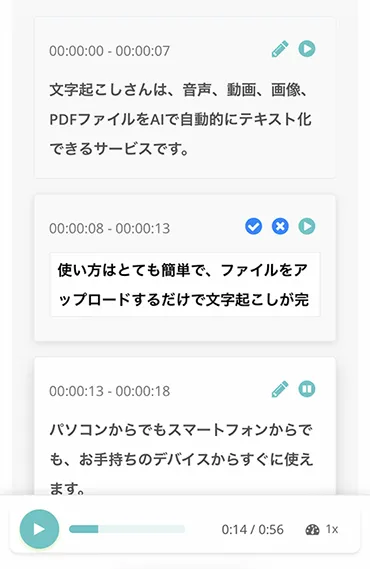
The transcription results can be downloaded as text files or subtitle files.
By registering and logging in, you can also check past transcription results from the "History" page.
This completes the process of transcribing audio files recorded with iPhone Voice Memos for free!
As you can see, converting audio files recorded with iPhone/iPad Voice Memos into text using Mr. Transcription is very easy.
Why not try using Mr. Transcription from your iPhone or iPad?
Tips for Improving iPhone Transcription Accuracy and Considerations for Long Recordings (2026 Edition)

When recording voice memos on your iPhone and transcribing them into text using a transcription app or service, a few simple adjustments can significantly improve transcription accuracy.
Additionally, there are several important points to consider when making long recordings.
This section explains tips for smoother iPhone transcription and key points to pay attention to.
Optimize Recording Environment (Reduce Noise)
The accuracy of transcription is highly dependent on the quality of the original audio data.
When recording voice memos on your iPhone, it's crucial to optimize the recording environment to capture the clearest possible audio.
First, try to minimize ambient noise as much as possible.
If sounds like air conditioner hum, keyboard clicks, or surrounding conversations are prominent, transcription apps will have difficulty accurately recognizing the speech.
Recording in a quiet room is ideal.
Additionally, it's important to maintain an appropriate distance, ensuring the speaker is neither too close nor too far from the iPhone's microphone.
Be mindful of the microphone's directionality and position your iPhone where it can clearly pick up the speaker's voice.
If possible, using an external microphone for your iPhone can result in higher quality recordings, consequently improving transcription accuracy.
These efforts make a significant difference, especially for long recordings or when processing them later with free transcription apps.
Pay Attention to iPhone Placement and Positioning
Also, if you place your iPhone directly on a table during recording, it might pick up vibration sounds.
Place it on a soft cloth like a handkerchief, or if holding it, be careful not to cover the microphone area.
Ideally, it's best to set up your iPhone on a dedicated table or stand, separate from where you're working or having a meeting.
Pay attention to where and how you place your iPhone to avoid picking up unwanted noise and vibrations.
Battery Consumption and Storage Capacity for Long Recordings
When recording long voice memos on your iPhone, be mindful of battery consumption and storage capacity.
While the Voice Memos app can continue recording even when the screen is off, it still operates in the background and consumes battery power.
Especially if you plan for several hours of recording, it's recommended to fully charge your iPhone beforehand, prepare a portable charger, or record while charging.
If the battery dies during recording, you risk losing valuable data.
Furthermore, long audio recordings can result in very large file sizes.
If your iPhone has low storage space, recording might stop midway due to insufficient capacity.
Before recording, check your available storage in iPhone "Settings" > "General" > "iPhone Storage" and clear unnecessary files or apps to ensure ample space.
Summary: For long iPhone voice memo transcription, 'Mr. Transcription' is comfortable and recommended!
In this article, we have thoroughly explained free apps and services for transcription, key points for choosing them, and how to utilize them.
Being able to easily and efficiently transcribe long-duration data for free will significantly expand how you use your iPhone.
If you want to transcribe from your iPhone or iPad right now, 'Mr. Transcription' is recommended.
All you need is your iPhone and an internet connection.
There's no need to download an app or deal with complex settings.
Why not experience the latest AI transcription service for yourself first?
■ AI transcription service "Mr. Transscription"
"Mr. Transcription" is an online transcription tool that can be used from zero initial cost and 1,000 yen per month (* free version available).
- Supports more than 20 file formats such as audio, video, and images
- Can be used from both PC and smartphone
- Supports technical terms such as medical care, IT, and long-term care
- Supports creation of subtitle files and speaker separation
- Supports transcription in approximately 100 languages including English, Chinese, Japanese, Korean, German, French, Italian, etc.
To use it, just upload the audio file from the site. Transcription text is available in seconds to tens of minutes.
You can use it for free if you transcribe it for up to 10 minutes, so please try it once.

It is "Mr. Transcription" who can easily transcribe from audio, video, and images.
Transcription allows you to transcribe for up to 10 minutes for free.
You can copy, download, search, delete, etc. the transcribed text.
You can also create subtitle files, which is ideal for transcription of interview videos.
HP: mojiokoshi3.com
Email: mojiokoshi3.com@gmail.com
Email: mojiokoshi3.com@gmail.com
Related article
Transcription for audio / video / image transcription. It is a transcription service that anyone can use for free without installation.
- What is Mr. Transcription?
- Transcript images, sounds, and videos with Mr. Transcription
- Free registration
- Rate plan
- manual
- Try other free services