Transcription Efficiency: 7 Tips to Boost Your Workflow Now!
How to Make an SRT File for Free: Video Subtitles in a Browser
Oct. 9, 2026


Making subtitles for my YouTube videos myself every time is such a hassle...
Subtitles are now essential for gaining viewers and subscribers on video sites such as YouTube.
But typing subtitles in by hand from scratch is time-consuming and tedious, isn't it?
That is where adding subtitles with an SRT file comes in handy.
With an AI transcription service, you can easily create higher-quality video subtitles than YouTube's subtitle feature, using nothing but your browser.
Another nice point is that you can try it right away, with no special software to install and no registration required.
In this article, we explain, step by step, the basics of SRT files, an easy way to create SRT subtitles with an AI transcription site, and how to use them in Adobe Premiere, DaVinci Resolve and YouTube.
Why not use this article as a guide and add high-quality subtitles to your own videos?
What is an SRT file? A simple guide to the video subtitle file format
First, let us briefly explain what kind of subtitle file an SRT file is.
What is an SRT file (SubRip Text)? Subtitle file basics

An SRT file is a file for inserting video subtitles, and it records the subtitle text together with its start and end times.
The name is short for "SubRip Text," and the file extension is ".srt."
It is saved as simple text data consisting only of characters.
The SRT file is the most common file format for displaying video subtitles.
It can be used widely, from video editing software such as Adobe Premiere and DaVinci Resolve to video sites such as YouTube.
The defining feature of SRT files is that they are simple and easy to handle.
No complicated settings are needed at all, and you can open the contents in a text editor such as Notepad and edit them easily.
There are other subtitle file formats, such as VTT and ASS files, but the SRT format is the most versatile and is easy to handle even for people creating subtitles for the first time.
What is inside an SRT file (sequence number, timecode, text)
An SRT file has a very simple and easy-to-understand structure.
Its contents consist of three elements.
First, there is a sequence number that shows the order of the subtitles.
Next comes the timecode, which shows the start time and end time at which the subtitle is displayed.
Finally, the subtitle text that is actually shown on the screen is written.
1
00:00:00,000 --> 00:00:05,000
Introduction to transcription methods2
00:00:05,000 --> 00:00:07,000
Hello, everyone.3
00:00:07,000 --> 00:00:10,000
This is Mr. Transcription, an AI transcription service.
As you can see, it is a simple structure that just lines up numbers, times and text.
You can edit and correct it easily with nothing more than a text editor.
Two ways to create an SRT file: manual entry or AI transcription

There are broadly two ways to create an SRT file.
One is to enter the timecodes and text yourself.
You can type them in a text editor such as Notepad, or use an editor made specifically for SRT files.
You have to write in the display time, to the second, for every single subtitle, so the longer the video, the more work it takes.
The other is to load your video into an AI transcription site and have the file output automatically.
Just upload the video, and the speech is converted into text and an SRT file with timecodes is created.
It saves a great deal of time compared with doing it by hand, so if you are about to create subtitles, we recommend using an AI transcription service.
[Free] How to create an SRT file with an AI transcription site: "Mr. Transcription"
I want to make an SRT file and add subtitles to my video!

From here, we explain how to create an SRT file with the AI transcription service "Mr. Transcription."
Why we recommend "Mr. Transcription" for creating SRT files
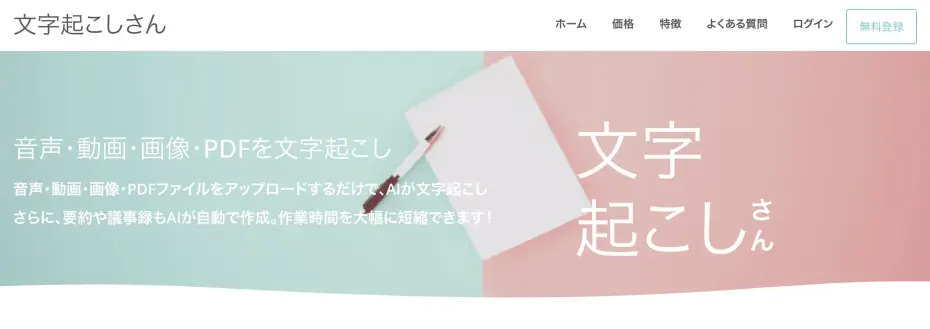
"Mr. Transcription" is a transcription service that outputs an SRT file simply by uploading a video.
It converts speech into text with the latest AI, so no difficult settings are required.
Another strength: it produces high-quality Japanese subtitles with fewer recognition errors than YouTube's automatic subtitles.
Everything runs in the browser, so there is no need to install special software.
It works in any environment, including Windows, Mac and Linux.
It also supports more than 100 languages, including Japanese, so it is a good choice when you want to add subtitles to a video in a foreign language.
It is free for up to 3 minutes a day without registration, and free for up to 10 minutes a day if you register as a free member.
Why not try making subtitles for your video for free with "Mr. Transcription" too?
How to create an SRT file with "Mr. Transcription"
With "Mr. Transcription," you can create an SRT file easily by just uploading your video.
First, prepare the video file for which you want to create subtitles.
"Mr. Transcription" supports the following video file formats.
- MP4
- MOV
- AVI
- FLV
- MKV
- WEBM
- WMV
- 3GP
As you can see, all major video file formats are supported.
Whether it is an MP4 file made for YouTube or a MOV file shot on a smartphone, you can upload it as it is and transcribe it.
Upload the video and transcribe it
Uploading a video is very easy.
First, open the top page of "Mr. Transcription".
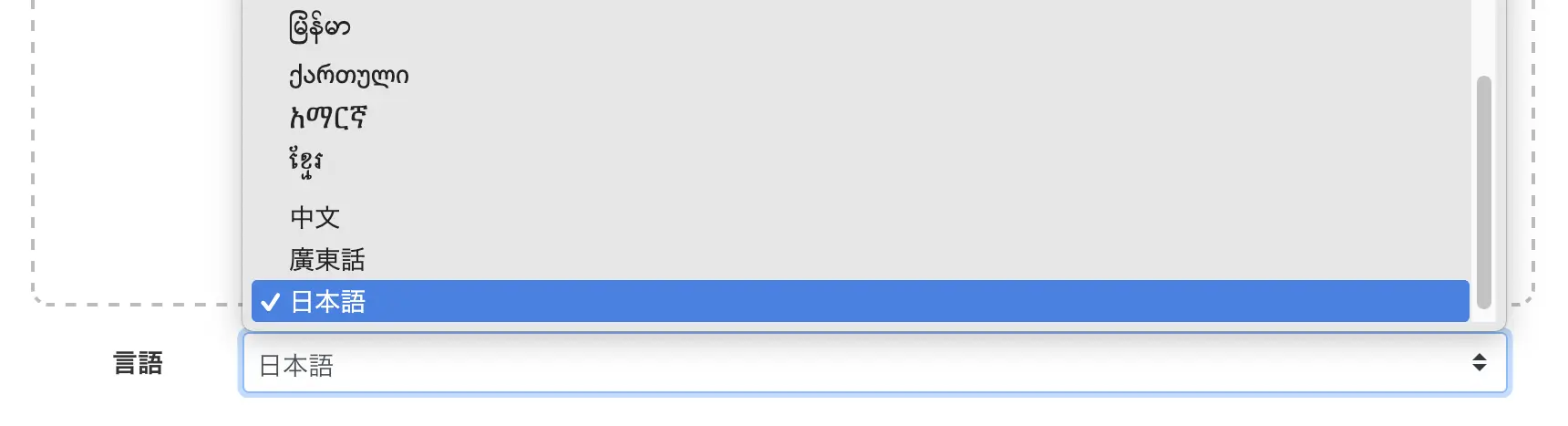
Select the language that matches the content of the video.
Drag and drop the file, or click the "Select" button to choose the file.
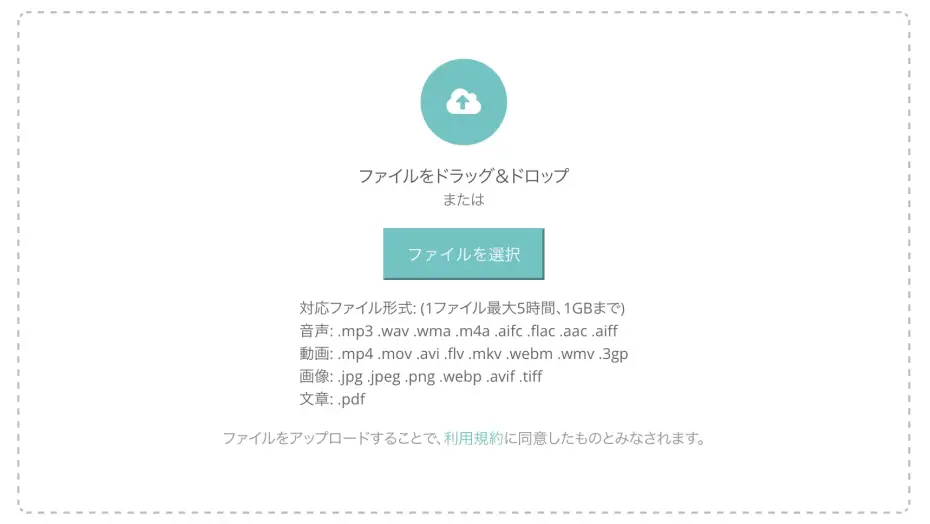
Once you select the file, uploading and transcription start automatically.

* If the file is large, it is automatically converted to an audio file before being transcribed (see here for details).
Save the SRT file with "Download subtitles"
When the transcription is complete, the screen switches and the transcription result is displayed.
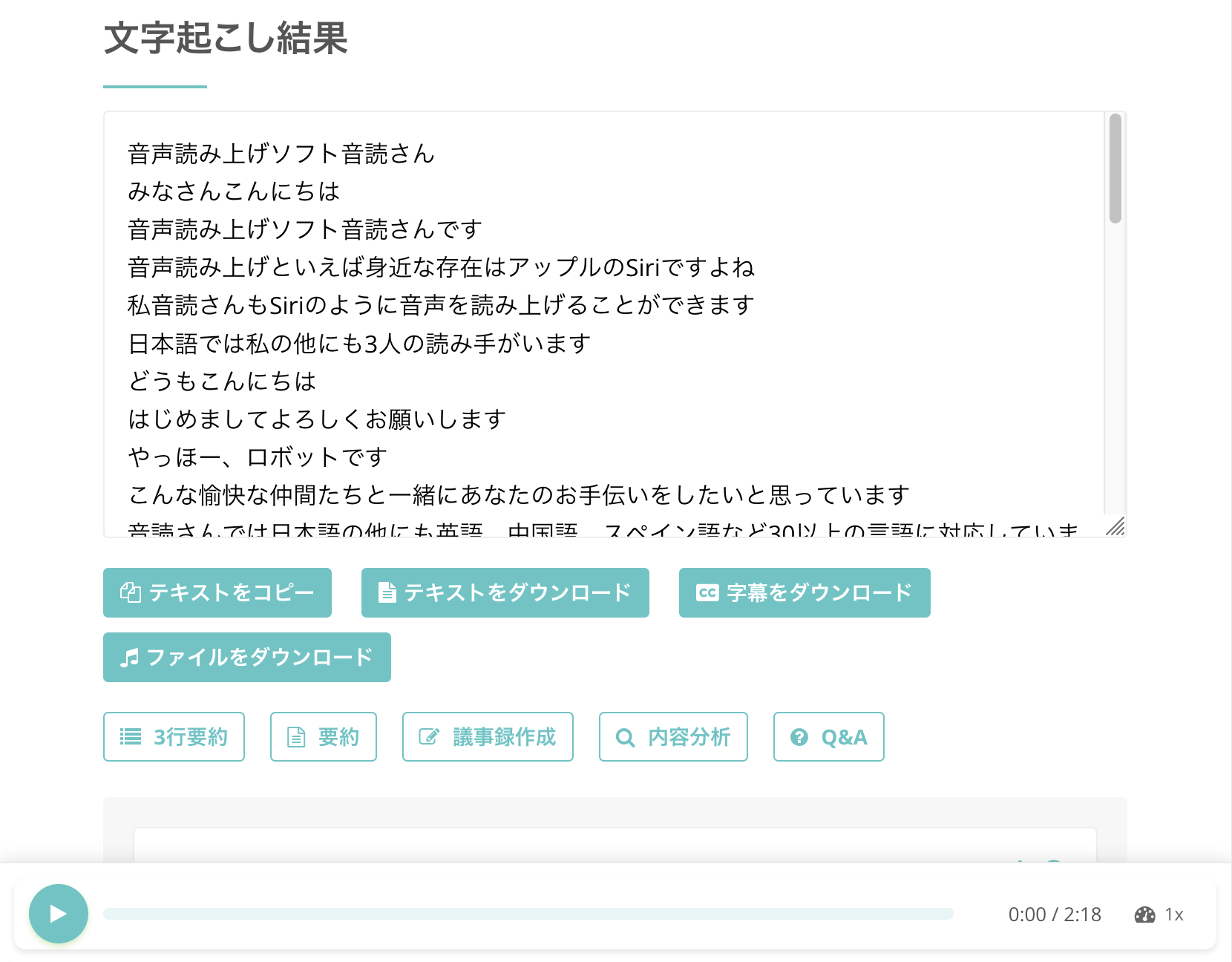
If you press the play button next to a statement, the audio of the video plays from the position of that statement.
Also, when you play the video with the player at the bottom of the screen, the displayed text switches in step with the playback position.
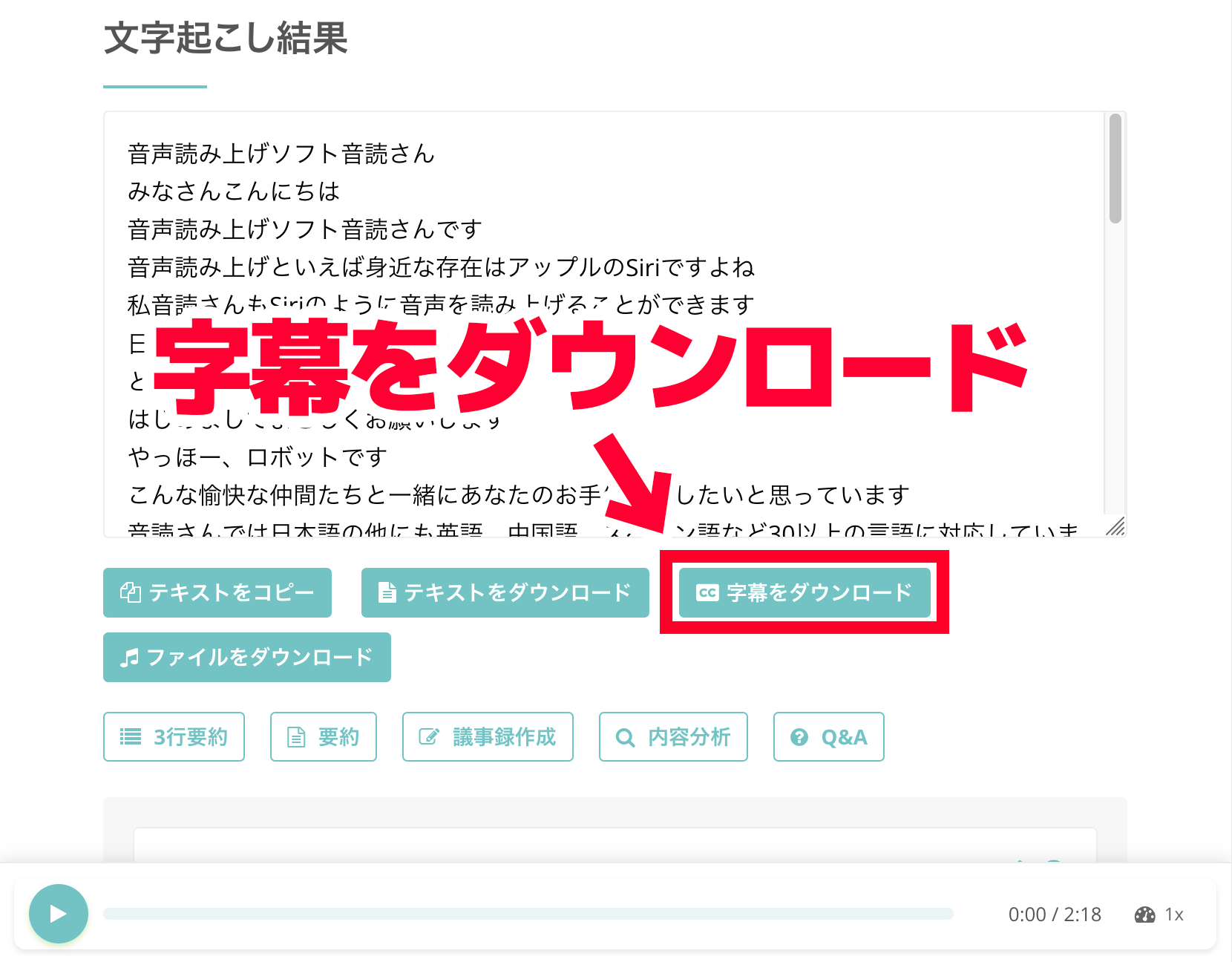
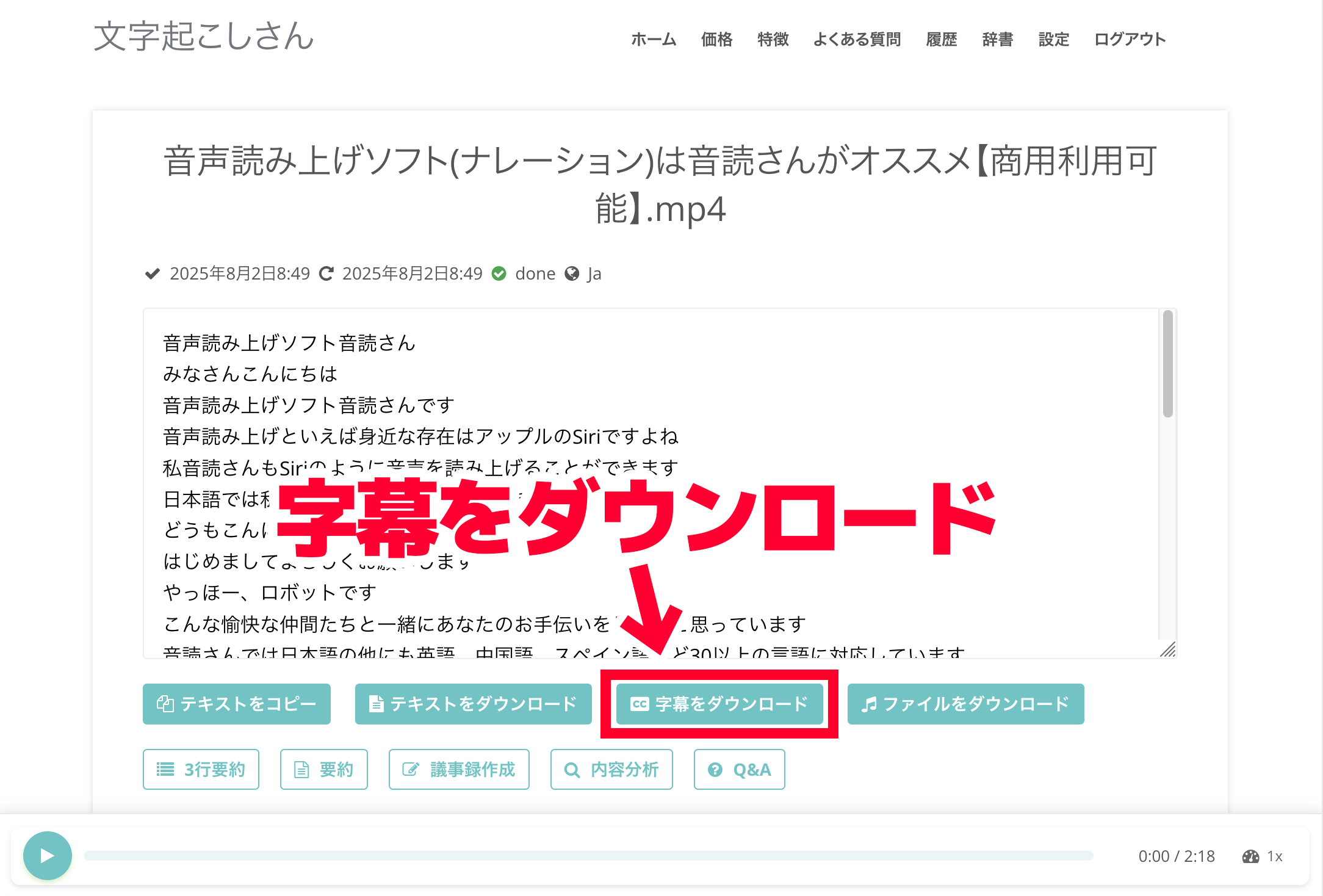
Click the "Download subtitles" button to download the SRT file.
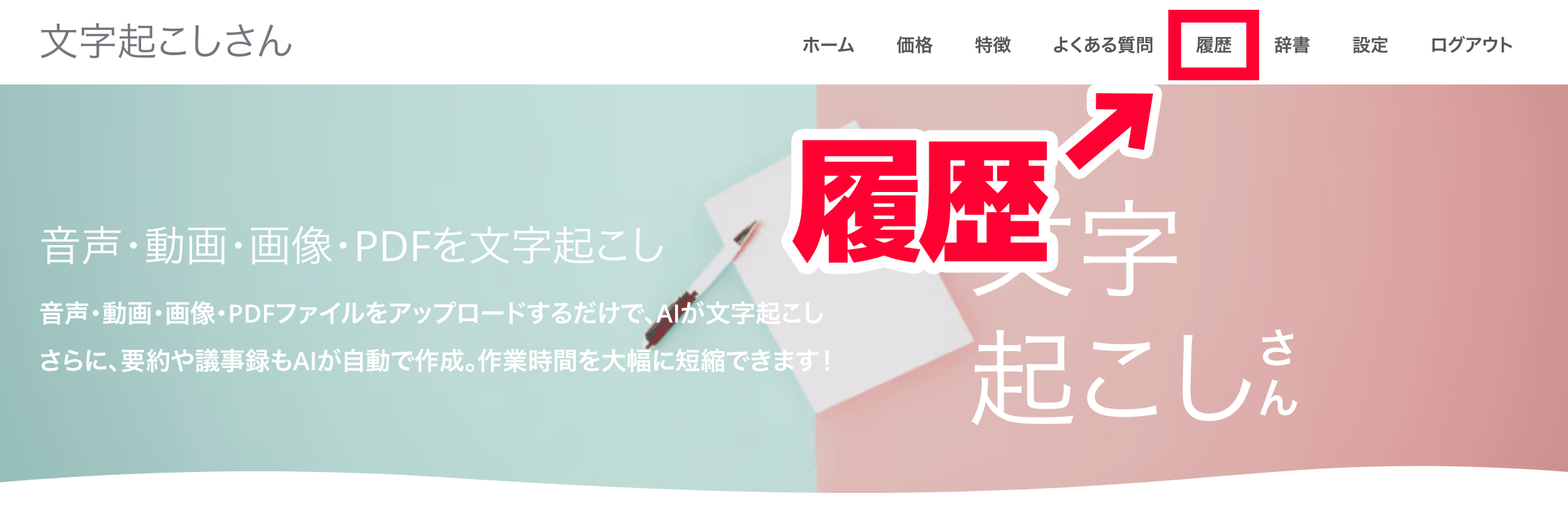
If you use "Mr. Transcription" with a registered account and are logged in, you can also download the SRT file from the history page.
To open the history page, click "History" in the menu.
A list of transcription results is displayed like this.
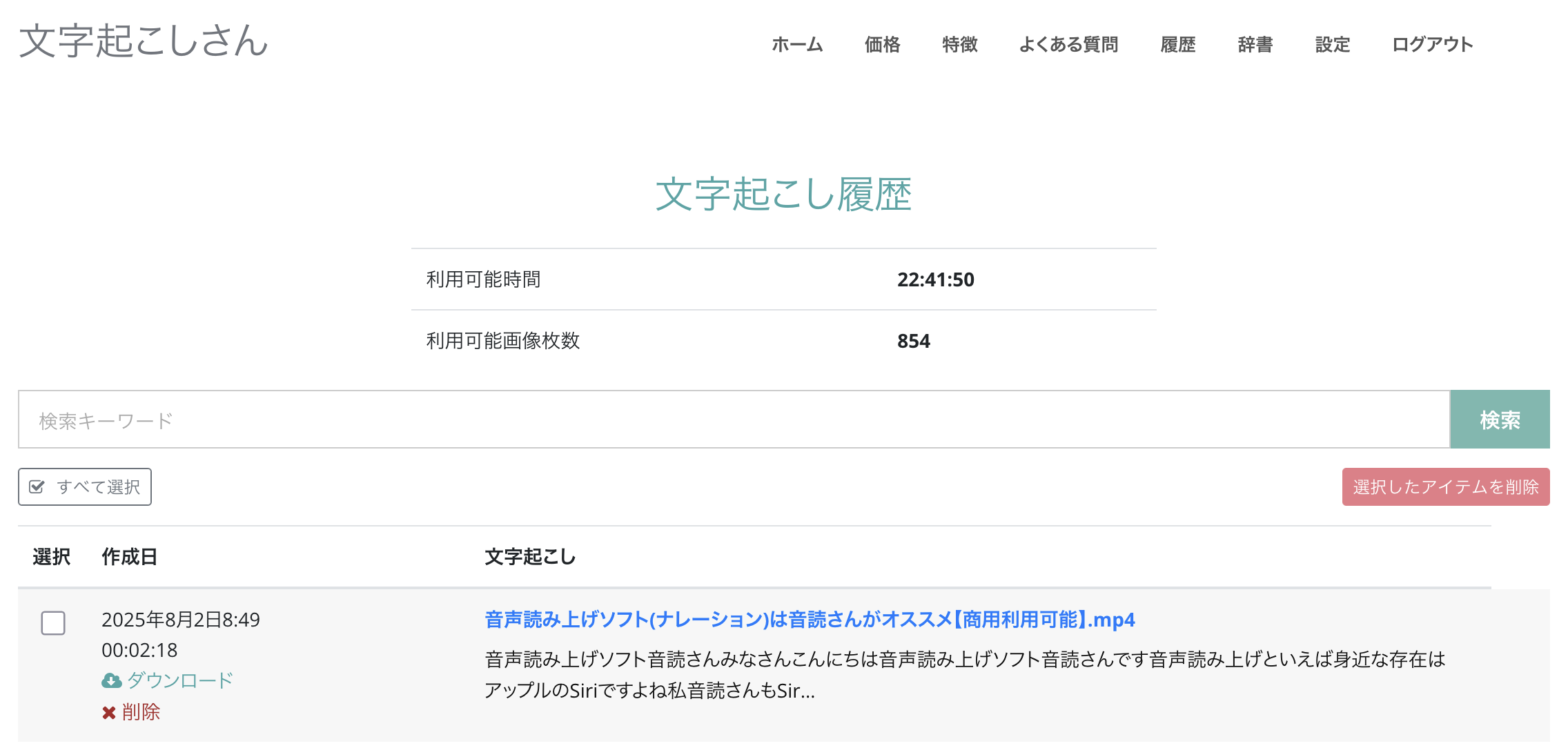
Click the area where the file name is displayed.
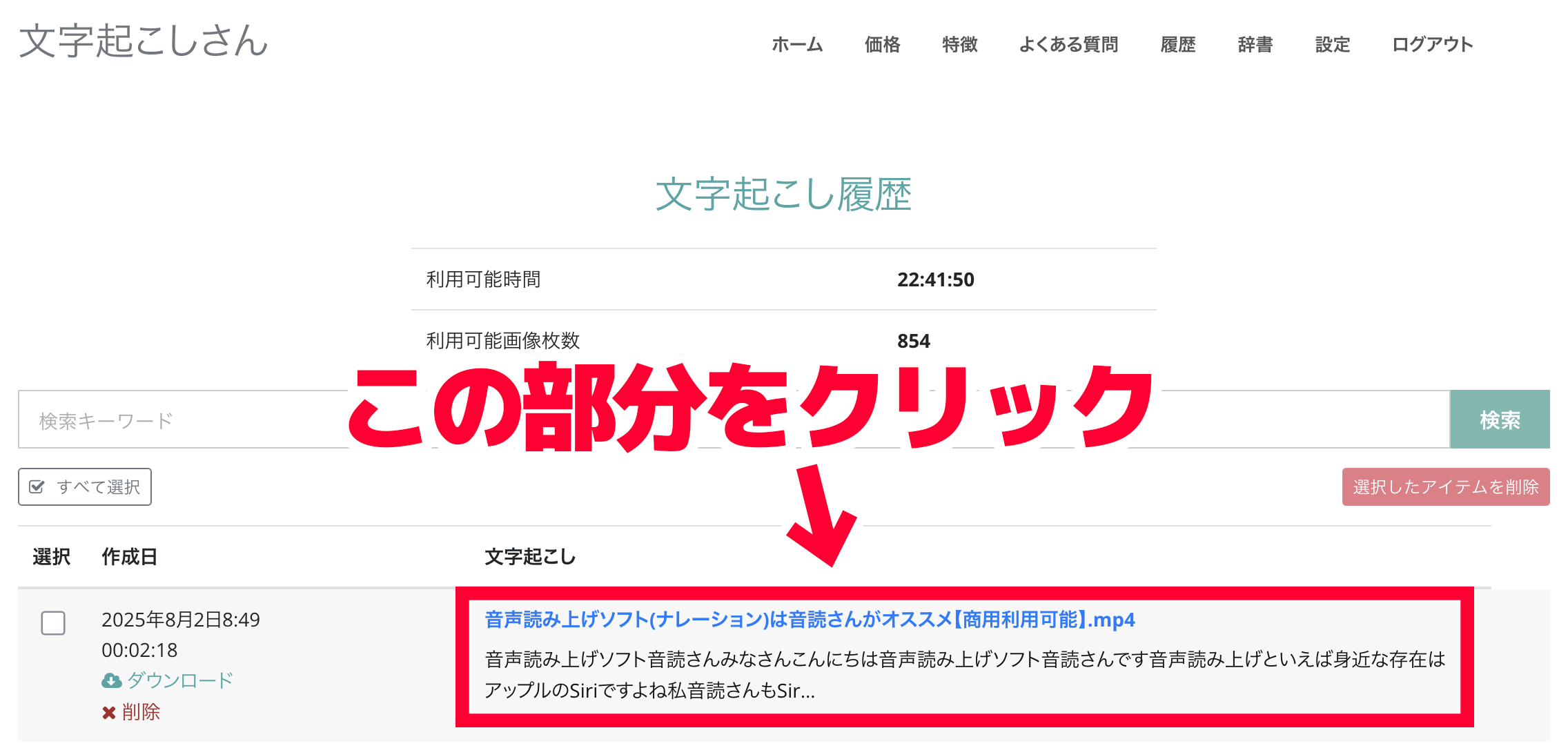
The detail page of the transcription result opens.
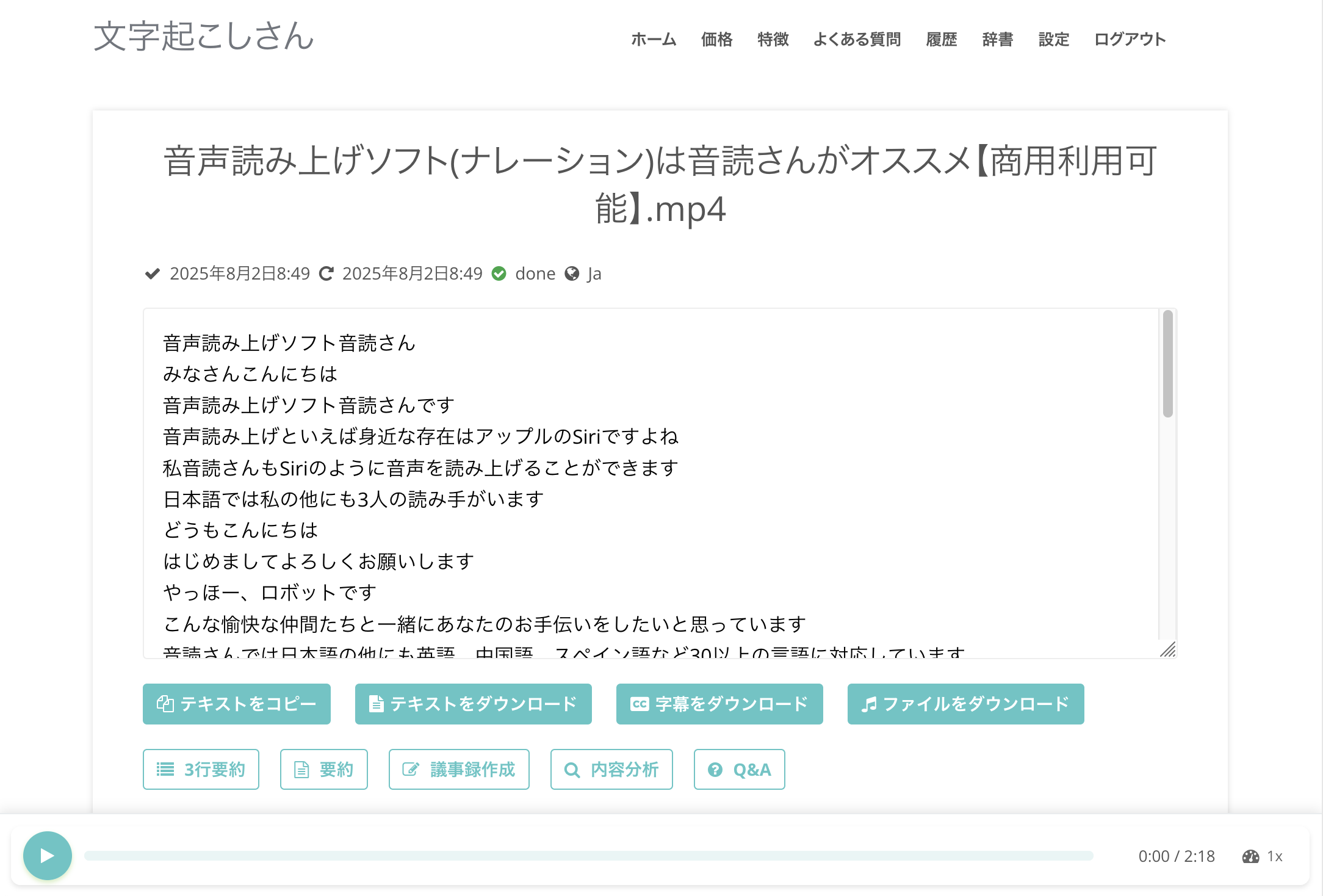
If you click "Download subtitles" on this page, you can save the SRT file.
Check the contents of the SRT file you created (Mac/Windows)
When you open the downloaded SRT file, you will see that it is already in a format you can use right away as subtitles, like this.
On a Mac
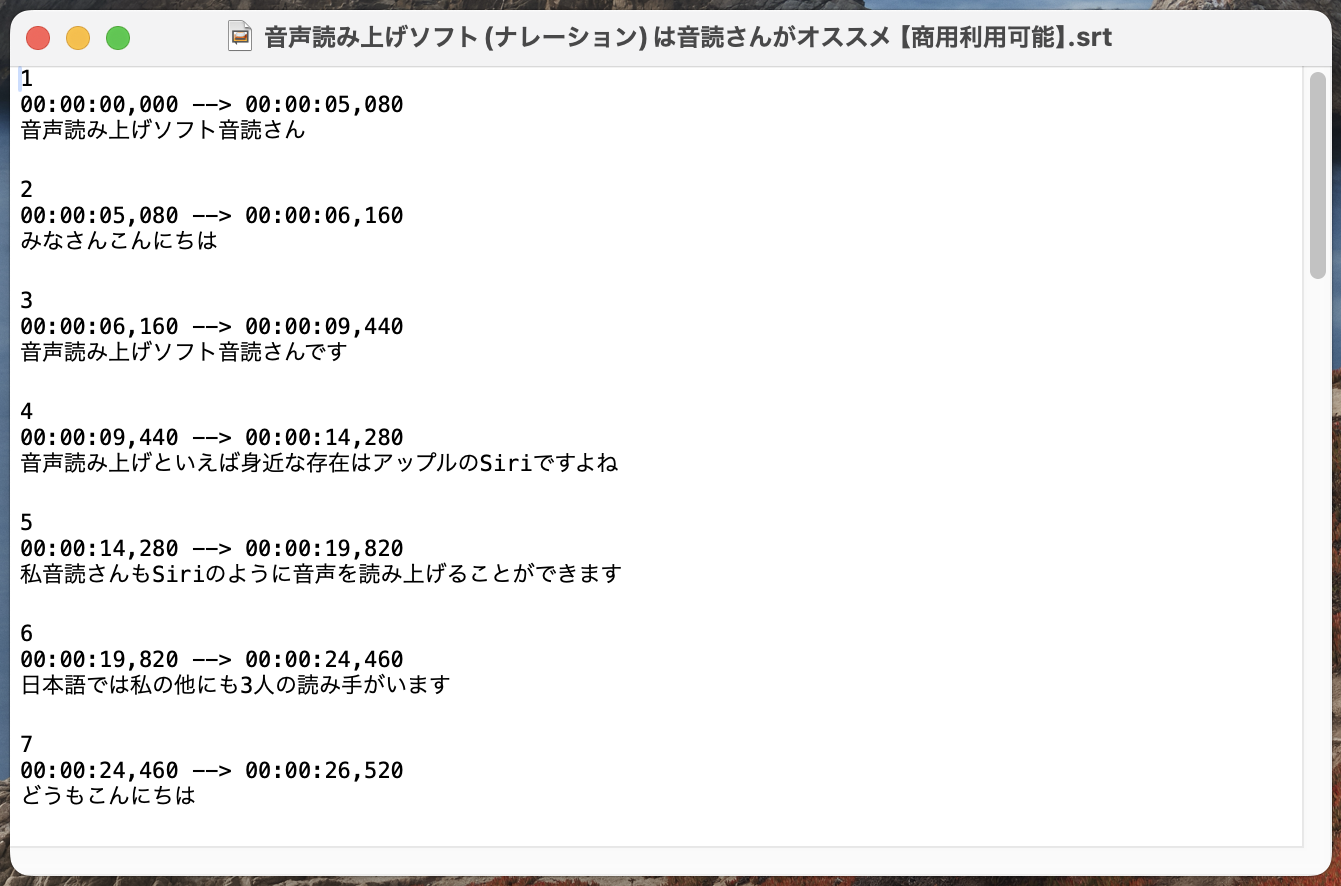
On Windows
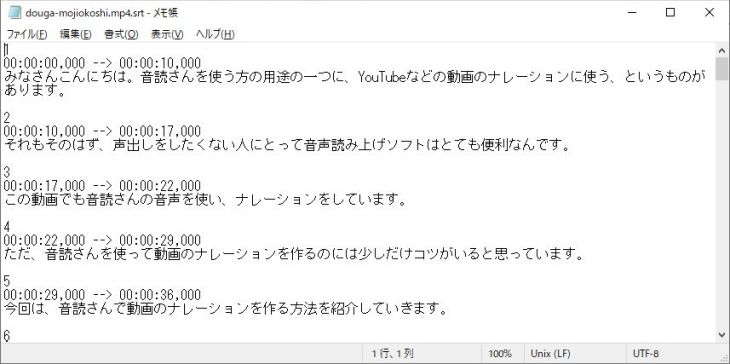
The timecodes are also set automatically, so you can use the file as subtitles as it is, with no additional editing.
It is saved under the file name "original file name.srt," so it is easy to manage even when you work with multiple videos.
As you can see, with "Mr. Transcription" you can prepare an SRT file in a simple way, using only your browser.
You can try it without registering, so why not create an SRT file with "Mr. Transcription" yourself?
Can I create an SRT file on an iPhone or smartphone too?
"Mr. Transcription" runs in the browser alone, so by accessing it from the browser on your iPhone or Android smartphone, you can create an SRT file in the same way as on a computer.
Just upload a video you shot on your smartphone on the spot and download the SRT file.
You can make subtitles for your videos even when you are out and about.
How to use an SRT file in Adobe Premiere Pro (adding subtitles)
Next, we explain how to use the SRT file created with "Mr. Transcription" in video editing software.
First, we introduce the steps for importing an SRT file into Adobe Premiere Pro and adding subtitles.
* The explanation here uses the Windows version.
Import the SRT file into Adobe Premiere
In Adobe Premiere, importing an SRT file and adding subtitles is very easy.
First, open the video project to which you want to add subtitles.
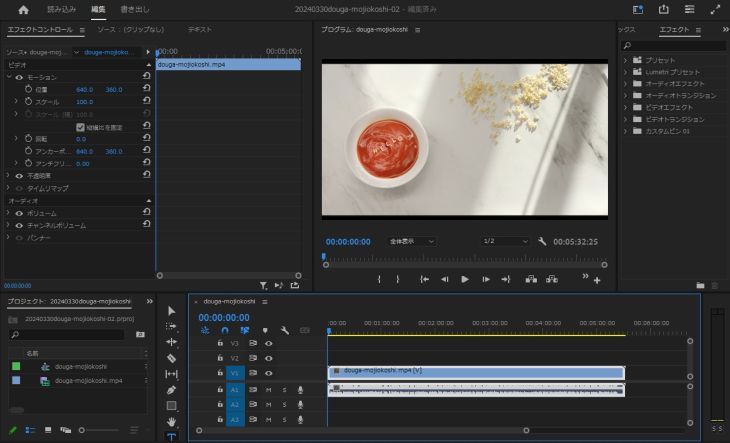
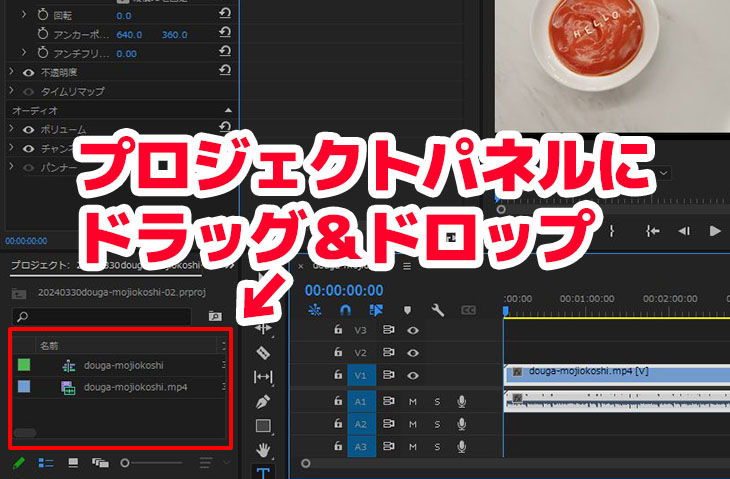
Next, import the SRT file you created earlier into the Project panel.
You can drag and drop the SRT file into the Project panel,
or select it from "Import" in the "File" menu.
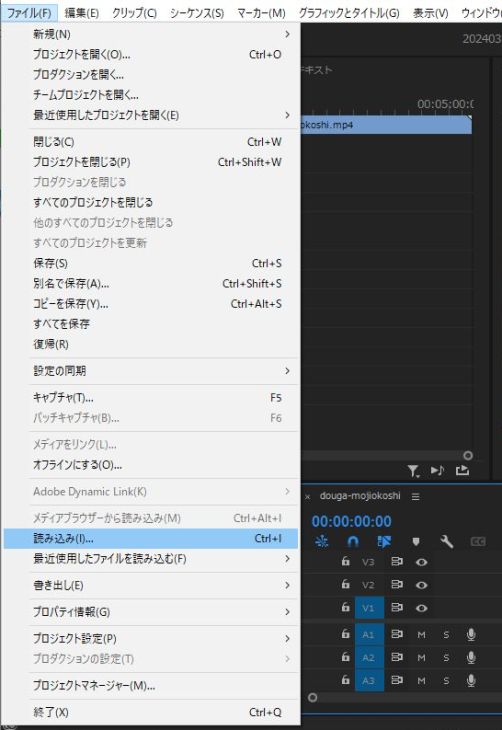
It can be imported in exactly the same way as ordinary video and audio files, so no special operation is needed at all.
When the SRT file is imported correctly, the subtitle file appears in the Project panel.
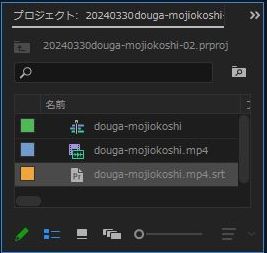
At this point, Adobe Premiere automatically recognizes the contents of the SRT file, and it is ready to be used as subtitles.
Insert the imported SRT file into the video as subtitles and adjust it
After that, all you have to do is insert the imported SRT file into the video.
Drag and drop the imported SRT file onto the timeline.
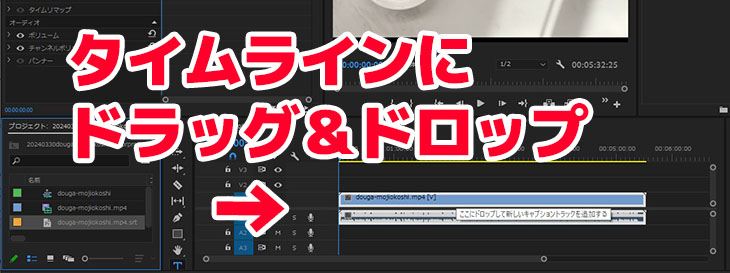
The "New Caption Track" dialog then appears, so click "OK."
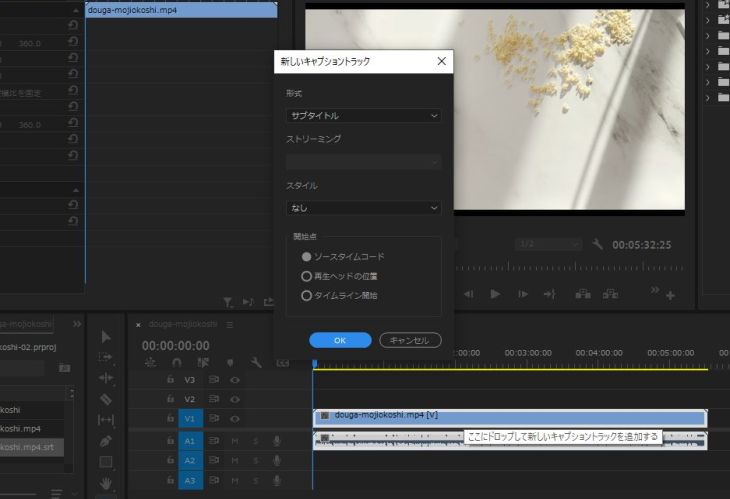
The subtitles are now added to the video automatically.
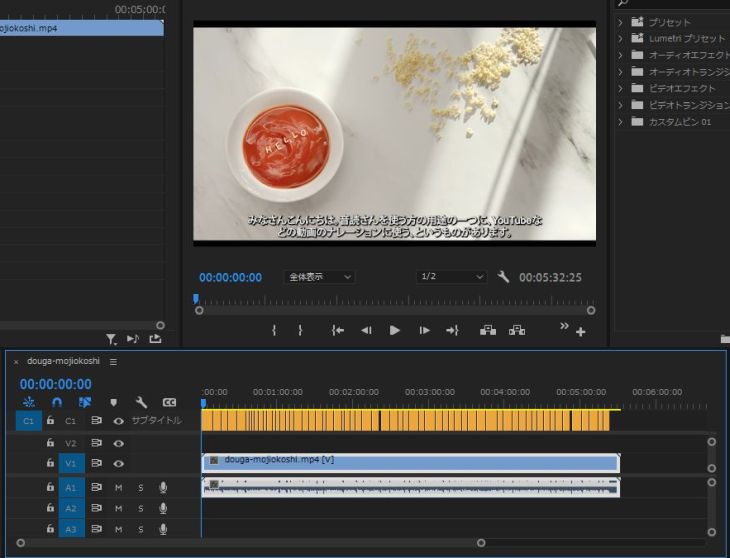
If you zoom out the timeline and check, you can see that subtitles cover the entire video, like this.
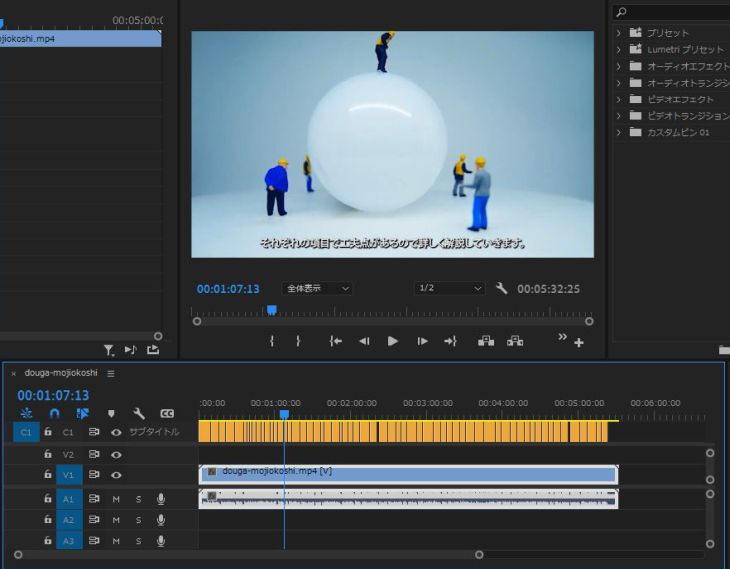
Line breaks are applied automatically when the file is imported, so you can also use the subtitles as they are.
In Adobe Premiere, you can freely customize how the subtitles look.
You can change the font, size and color, and edit the subtitles to suit the mood of your video.
You can also fine-tune the position of the subtitles and edit the text afterward.
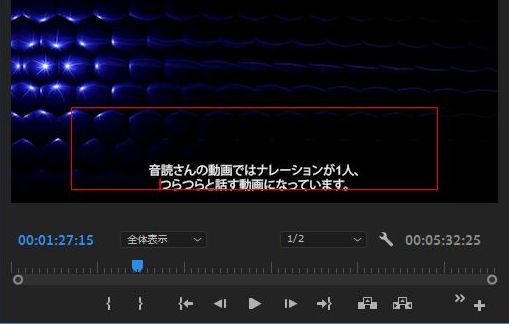
Once you have finished adjusting the subtitles imported from the SRT file, all that remains is to encode the video as usual, and you are done.
How to use an SRT file in DaVinci Resolve and create subtitles
Next, we explain how to use SRT subtitle files in DaVinci Resolve, video editing software you can use for free.
How do you insert an SRT file into DaVinci Resolve?
The basic flow for creating subtitles with DaVinci Resolve is the same as with Adobe Premiere.
First, open the project to which you want to add subtitles.
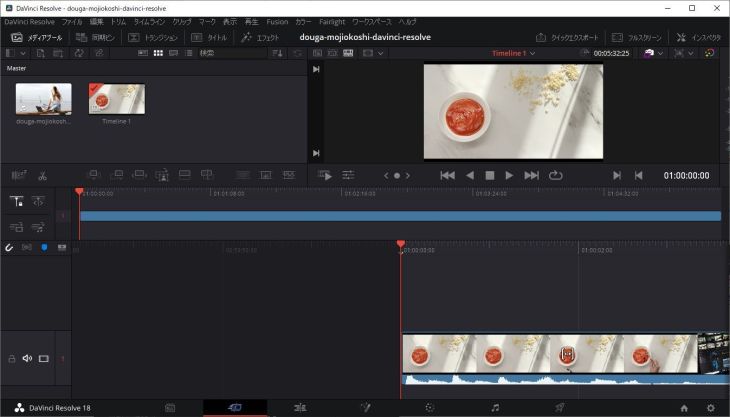
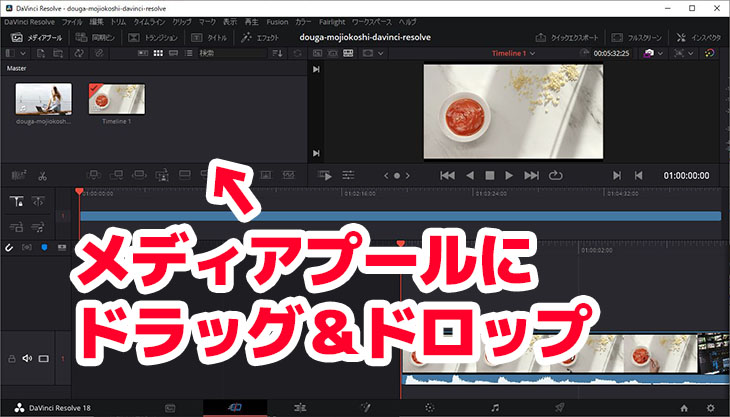
Next, add the SRT file to the Media Pool.
To add the SRT file to the Media Pool, drag and drop the file,
or select "Import" → "Subtitle" from the "File" menu.
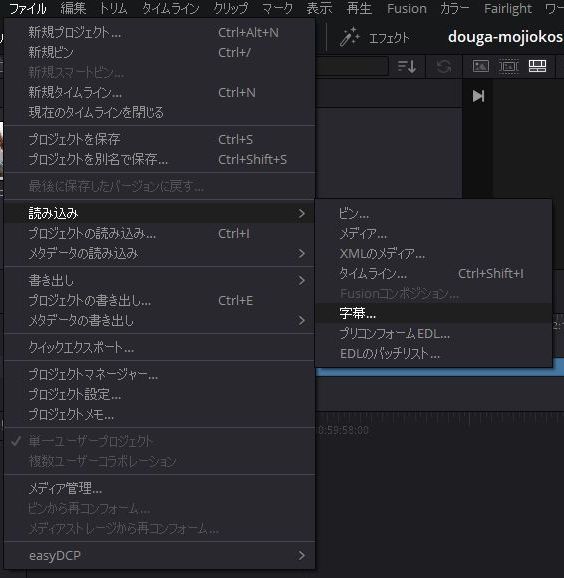
When the SRT file is imported correctly, the subtitle file appears in the Media Pool.
Next, drag and drop the SRT file onto the timeline to insert the subtitles.
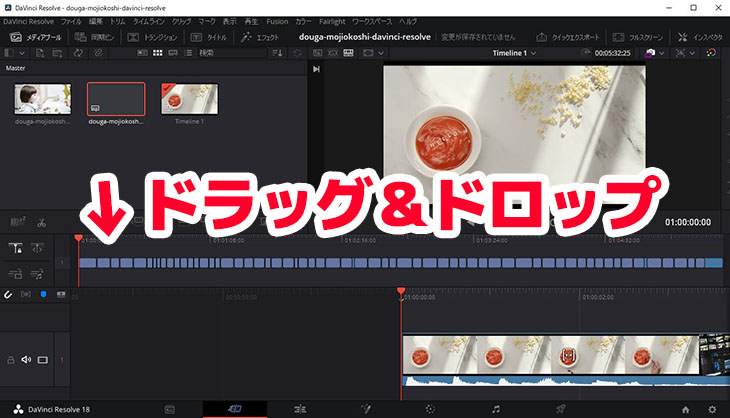
As you can see, the subtitles are now displayed over the video footage.
Subtitles may need adjusting
However, when you insert subtitles from an SRT file in DaVinci Resolve, you may need to make additional adjustments to the position and so on.
For example, in this case the left and right sides of the subtitles are cut off.
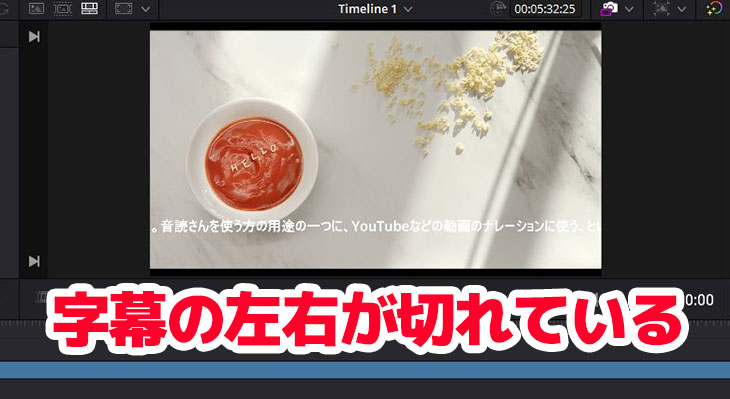
In a case like this, you need to adjust the appearance of the subtitles before encoding.
Once the subtitles are adjusted, just encode the video as usual.
We also explain how to add subtitles in Adobe Premiere and DaVinci Resolve in this article.
Please take a look.
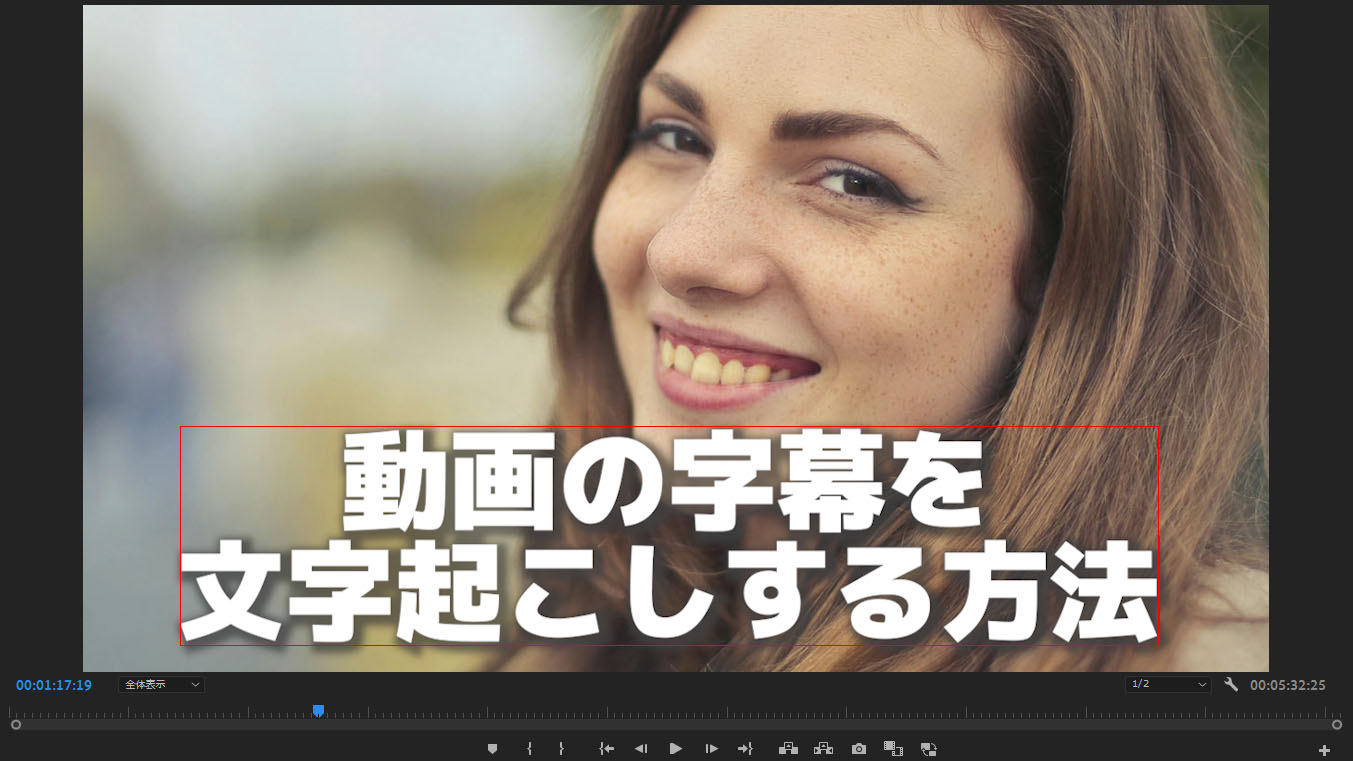
How to Transcribe a Video and Create Subtitles: Recommended Steps to Make an SRT File from MP4 for Free
Learn how to transcribe video files such as MP4 and create subtitles (SRT files). Just upload your video in the browser to create the subtitle text, then apply it in Adobe Premiere and DaVinci Resolve. Free ...
How to create subtitles for YouTube videos with an SRT file
So far, we have explained how to import SRT files into the video editing software Adobe Premiere and DaVinci Resolve.
In fact, with an SRT file you can even add subtitles to videos that have already been uploaded to YouTube!
From here, we explain how to add subtitles from an SRT file to a YouTube video.
Adding subtitles on YouTube is also very easy.
YouTube supports SRT files
YouTube's subtitle feature allows you to import external files.
If you look at the official YouTube site, you will see that it states that SRT files are supported.
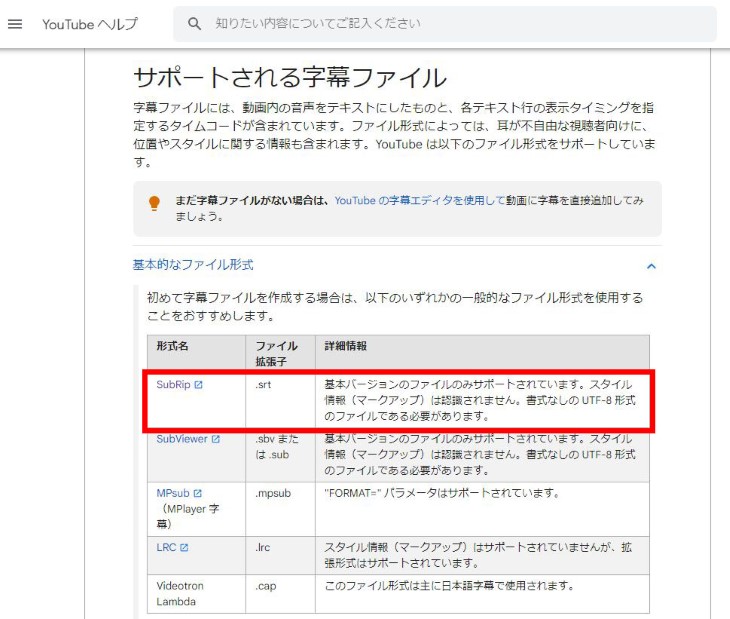
You can add subtitles to already uploaded videos later, so you can make videos that are easier to watch and increase your view count.
How to upload a Japanese SRT file to YouTube
Now, we explain the steps for adding Japanese subtitles to YouTube with an SRT file.
To upload subtitles to YouTube, first open the "Video details" screen of the video you want to add subtitles to in your browser.
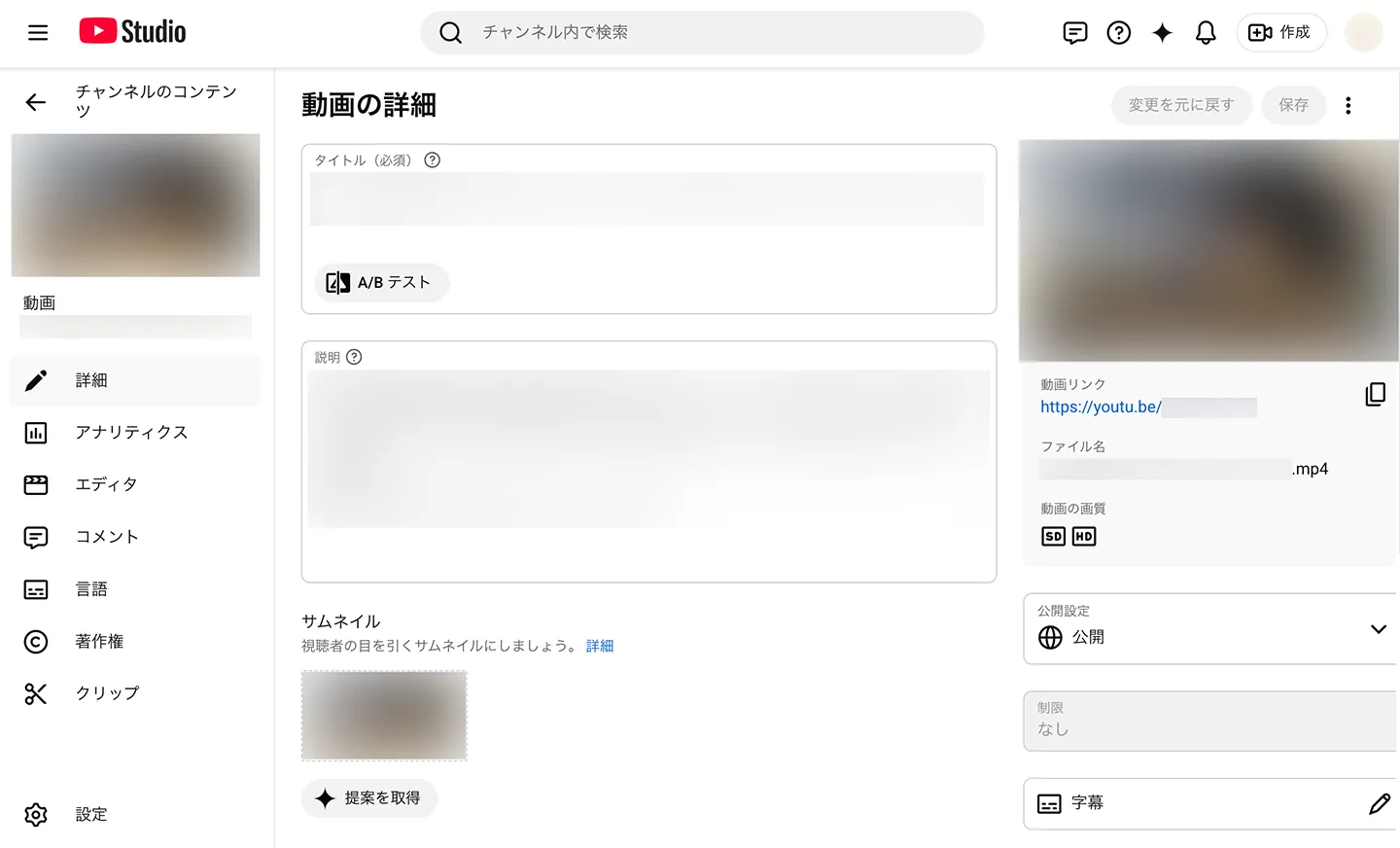
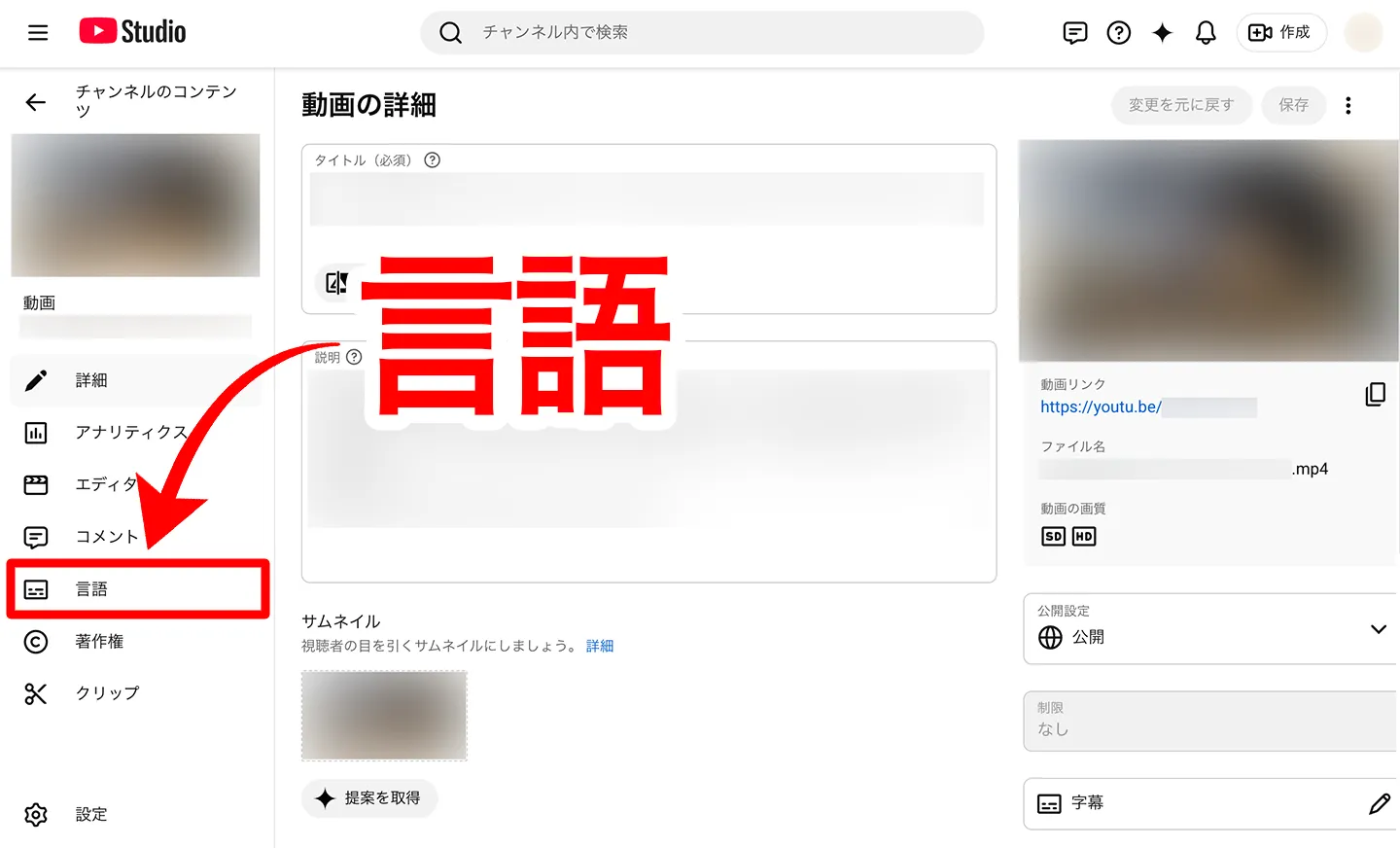
Click "Language" in the menu on the left.
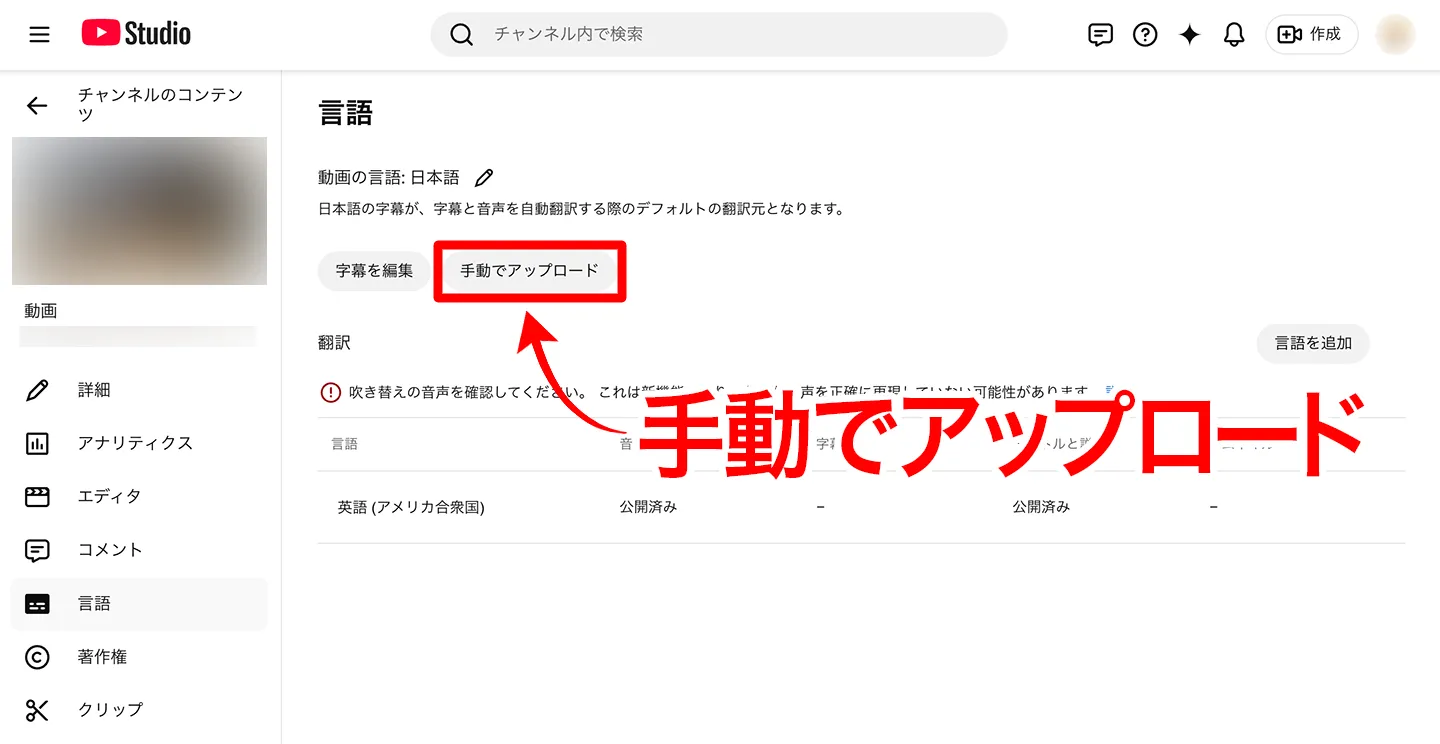
Click "Upload manually" under "Video language."
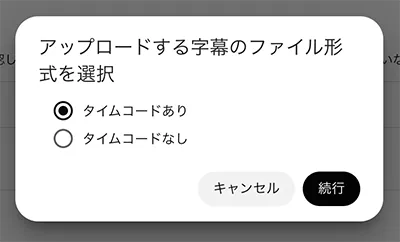
A window appears asking whether the file has timecodes, so select "With timing."
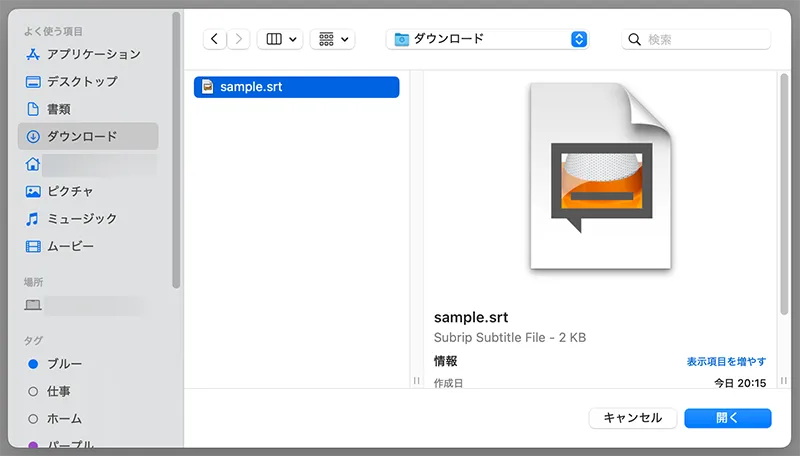
Select the SRT file.
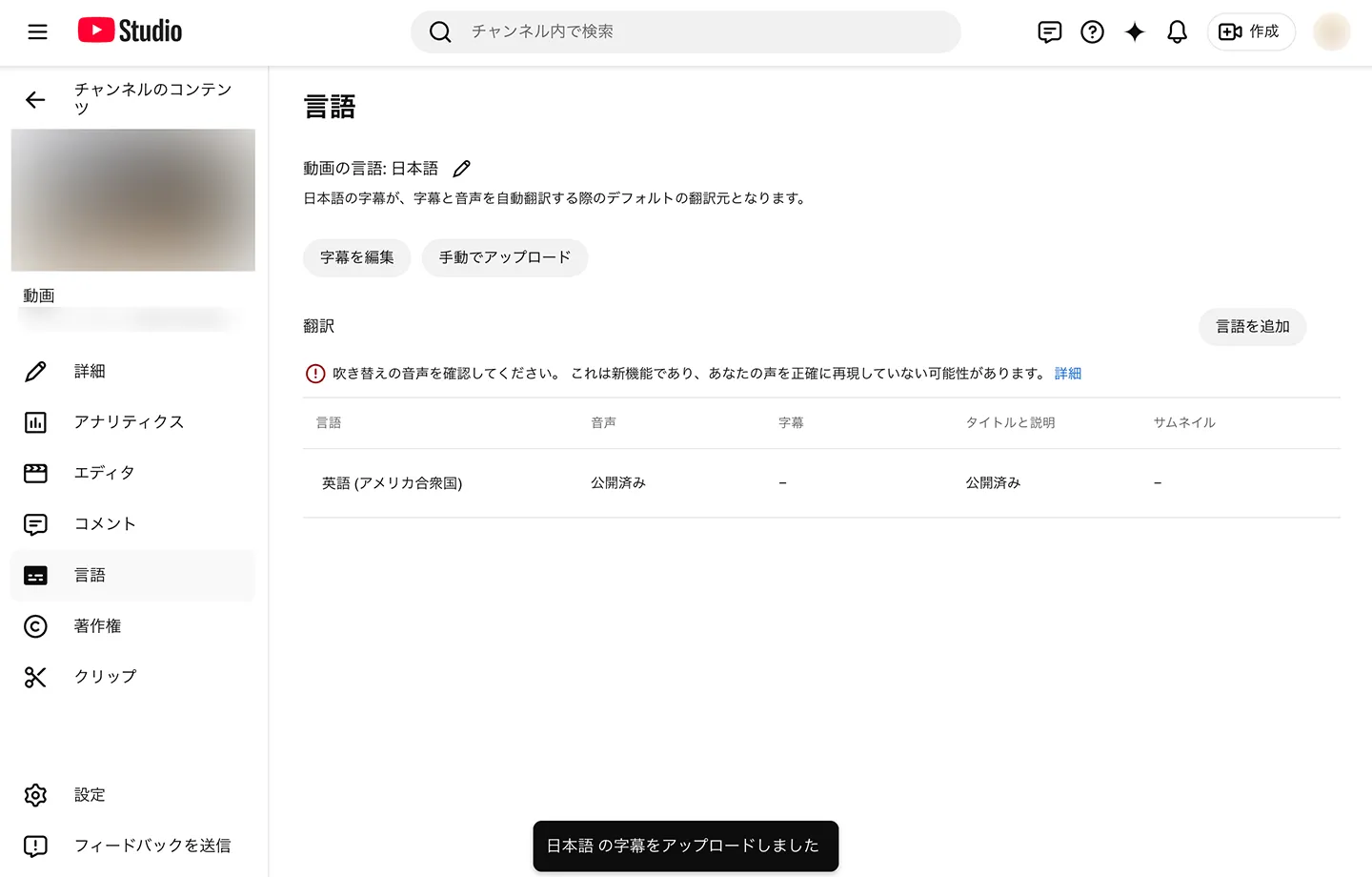
When the SRT file is imported, a message such as "Japanese subtitles uploaded" appears to show that the upload is complete.
You have now imported subtitles from the SRT file into your YouTube video.
What if the SRT file upload fails?
Depending on your environment, the file may fail to load and an error may appear even after you select "Upload manually."
In that case, saving the automatically transcribed subtitles again lets you upload the SRT file successfully.
First, click "Edit subtitles."
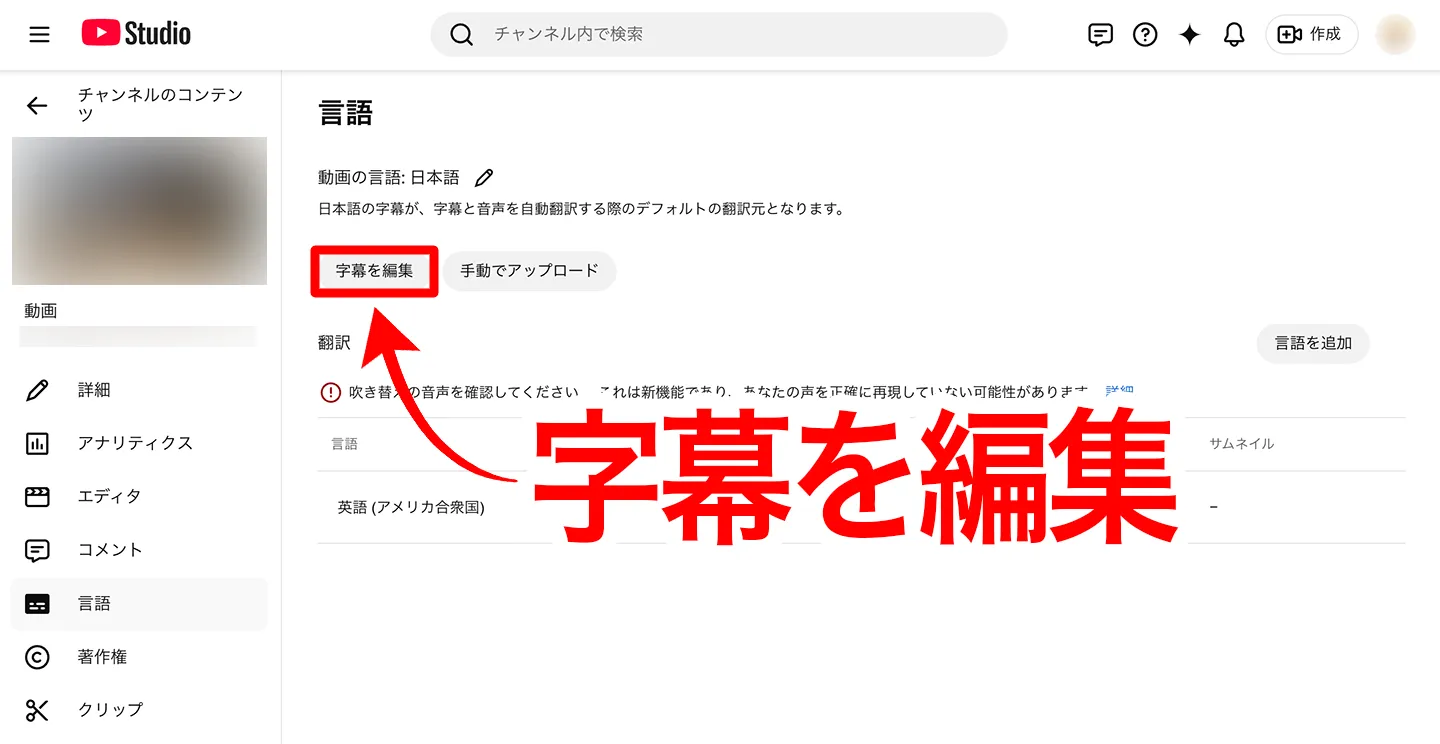
The subtitles created by YouTube's automatic subtitle feature are displayed. Without editing them, click "Publish" to save them as they are.
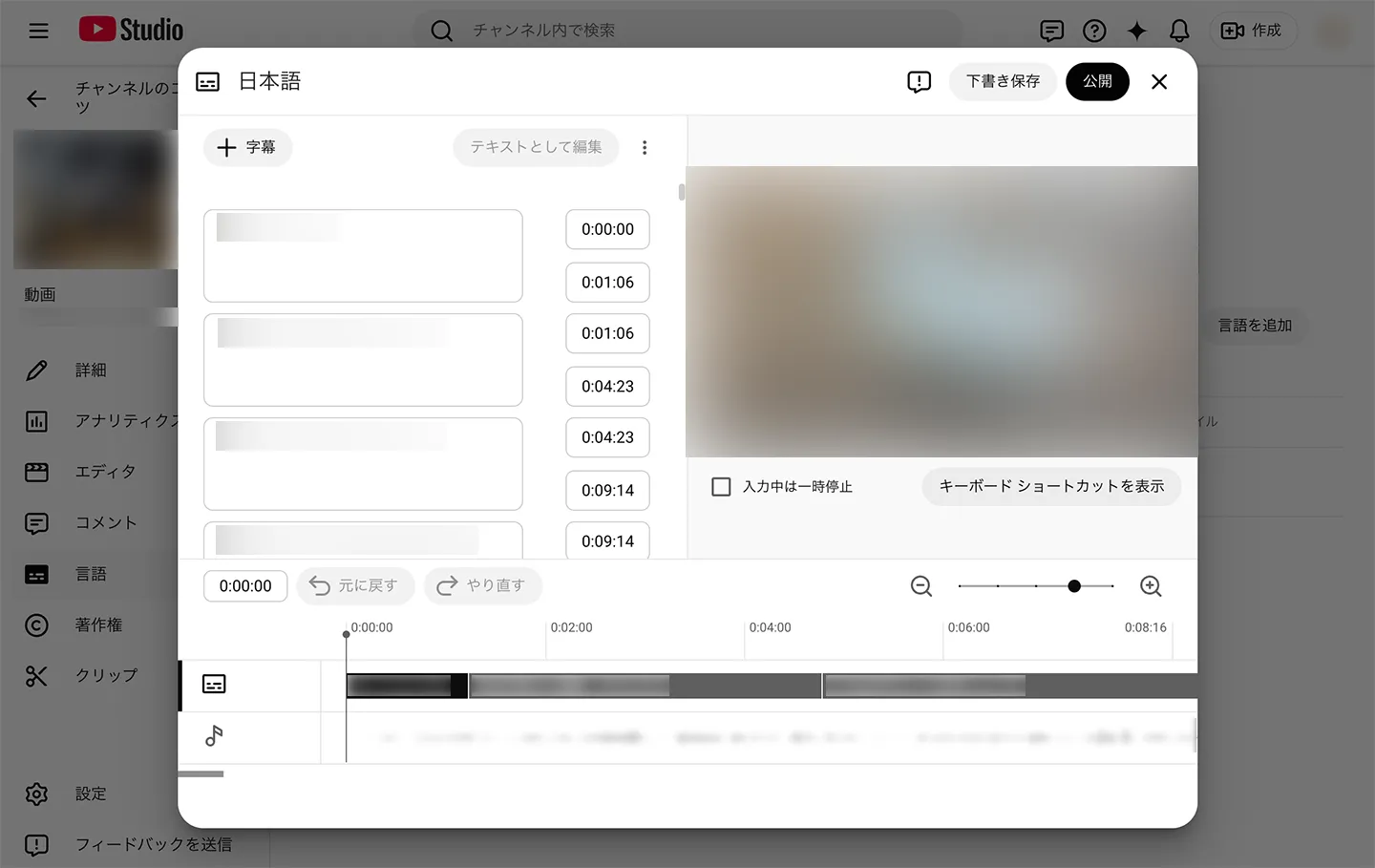
After this, if you click "Upload manually" again, you can import the subtitle file.
How to add English and other foreign-language subtitles (SRT files)
With an SRT file, you can easily add subtitles in English and other foreign languages as well.
To add foreign-language subtitles, click "Add language" on the "Language" screen and select the language you want to add, such as English.
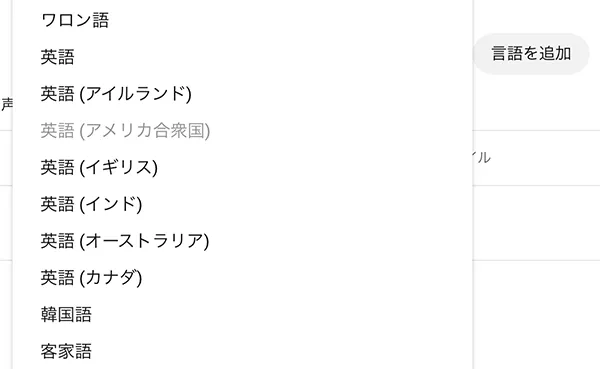
English has now been added.
* Through a standard YouTube feature, "English (United States)" may be added automatically. In that case, you can also upload the English subtitles to "English (United States)."
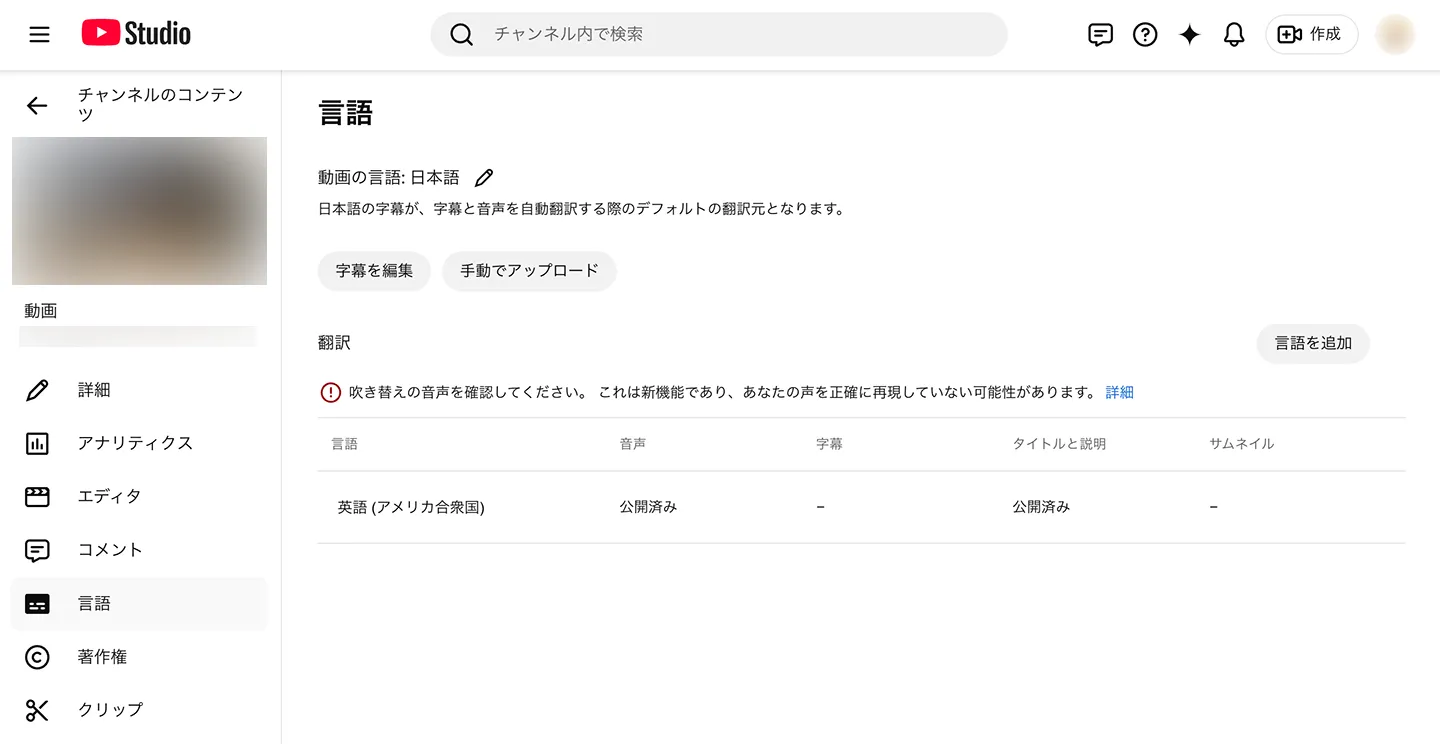
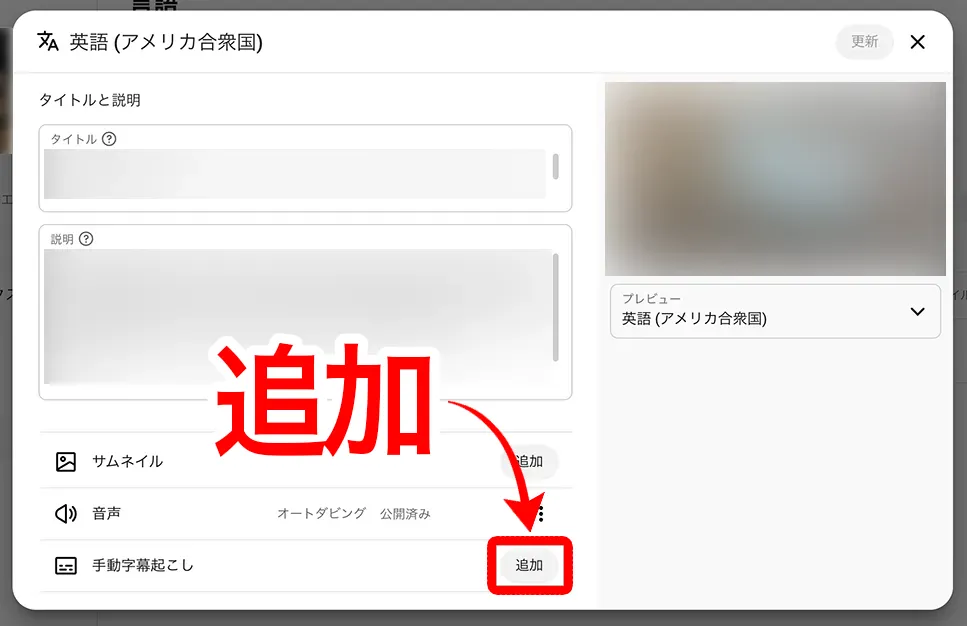
When you click the language name, the editing screen for the title, description and subtitles opens as shown here, so enter the title and description.
* The title and description automatically translated by YouTube may already be filled in.
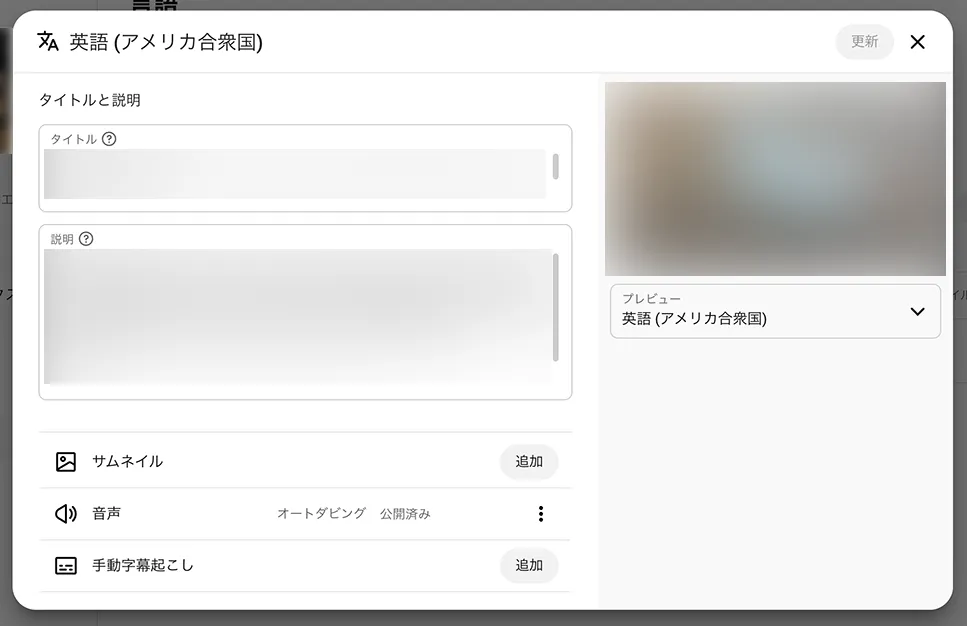
Next, click "Add" in the "Manual transcription" row.
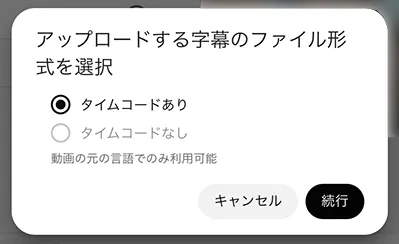
Select "With timing."
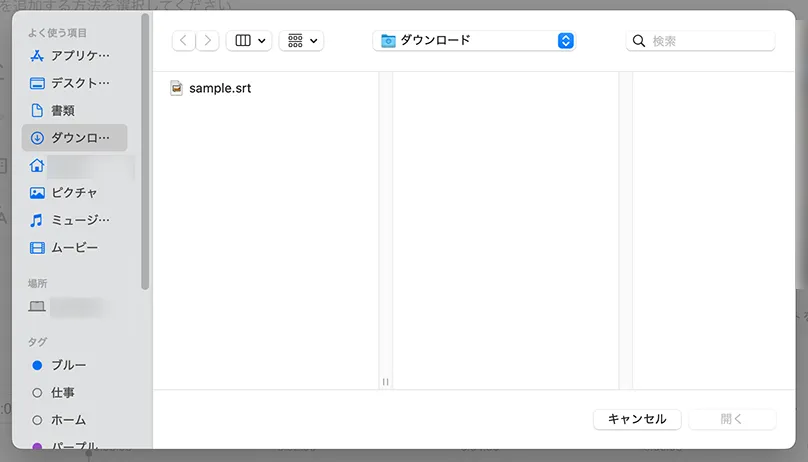
The file selection screen opens, so select the SRT file.
When the SRT file is imported, the subtitle editing screen opens.
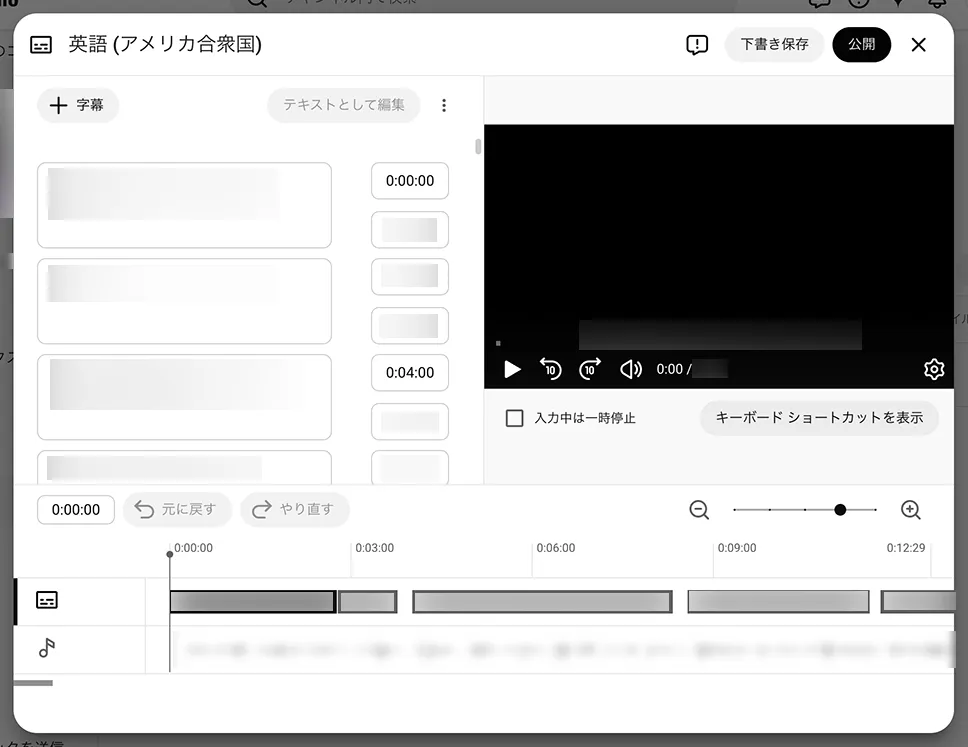
Check the contents, and if everything is fine, click "Publish."
You have now added subtitles from an SRT file in a language other than Japanese.
We also explain how to add subtitles to YouTube videos in this article, so please take a look.

[For YouTube Creators] How to Set Up Subtitles and Transcripts for Your Videos
Learn how to set up subtitles and transcripts for your own YouTube videos. Just upload your video to create an SRT file of higher quality than YouTube's auto-generated subtitles, using only your browser. How to add Japanese subtitles, language settings, uploading subtitle files ...
To add foreign-language subtitles, you need an SRT file in that language in advance.
The detailed steps for creating SRT files in English and other foreign languages with AI translation are explained in detail in this article.

[Free] How to Add English Subtitles to YouTube Videos: AI-Translate an SRT File in Your Browser
Learn how to add English and other foreign-language subtitles to YouTube videos for free, using only your browser. With images: create a Japanese SRT file on an AI transcription site, translate it with generative AI and add it to YouTube.
Why we recommend creating subtitles with an SRT file
If you want to boost views on video sites such as YouTube, we recommend creating an SRT file with "Mr. Transcription" and adding subtitles.
We explain why subtitles are essential for increasing views.
Subtitles are standard on YouTube videos. Subtitles are simply expected
Before we knew it, YouTube videos with subtitles became the norm.
Big YouTubers, VTubers and videos with huge view counts all actually have subtitles on the entire video.
In the past, it was common to add captions only to important parts instead of subtitling the entire video.
Today, however, many videos have subtitles from beginning to end.
This is because videos with subtitles are easier to understand than videos without them.
People who watch YouTube videos differ in age, gender and occupation.
The audience ranges from people who understand audio more easily to people who are good at understanding text.
Videos with subtitles can be seen by more people, so they get more YouTube views and subscribers.
Videos with more views and channel subscribers also tend to rank higher in search and suggestions, creating a virtuous cycle in which views increase even further.
In this way, subtitles are not "nice to have" but "expected."
If you are going to make YouTube videos from now on, subtitles using an AI transcription service and SRT files are indispensable.
Subtitles are also recommended for improving accessibility
Adding subtitles to YouTube videos with an SRT file is also recommended for improving accessibility.
With subtitles, people with hearing impairments and older people can also enjoy videos.
Also, when watching a video in a place where you cannot play sound, subtitles let you understand the content properly.
Because there are more opportunities to watch in places where it is hard to play sound, such as on a train or in an office, you can increase your views.
Subtitles also greatly improve understanding of the content.
Technical terms, proper nouns and other parts that are hard to catch can be checked in text, which raises viewer satisfaction as well.
Because your video can be watched in a wider range of situations, adding subtitles can increase your views all at once.
By the way, if you want to remake a video itself in another language, you can also translate the content of the video as it is.
We explain how to translate videos in this article, so please take a look.

[Free] The Definitive Guide to Translating Videos! Translate Saved Videos and YouTube with "Transcription + Generative AI"
Learn how to translate videos for free. With images: create an SRT file with an AI transcription app and translate it with Gemini or ChatGPT. Even saved videos and camera roll videos can be handled on an iPhone alone. More accurate than YouTube's automatic translation: English videos into Japanese ...
Why not add subtitles with an SRT file too?
In this article, we explained in detail how to create subtitles using SRT files.
With the AI transcription service "Mr. Transcription," you can easily create higher-quality Japanese subtitles than YouTube's subtitle feature, using only your browser.
SRT files are widely supported by Adobe Premiere, DaVinci Resolve and YouTube, so you can easily add subtitles to your own videos.
Compared with conventional manual subtitle production, you can greatly reduce the working time.
Start by actually creating an SRT file with "Mr. Transcription" and add subtitles to your video!
■ AI transcription service "Mr. Transscription"
"Mr. Transcription" is an online transcription tool that can be used from zero initial cost and 1,000 yen per month (* free version available).
- Supports more than 20 file formats such as audio, video, and images
- Can be used from both PC and smartphone
- Supports technical terms such as medical care, IT, and long-term care
- Supports creation of subtitle files and speaker separation
- Supports transcription in approximately 100 languages including English, Chinese, Japanese, Korean, German, French, Italian, etc.
To use it, just upload the audio file from the site. Transcription text is available in seconds to tens of minutes.
You can use it for free if you transcribe it for up to 10 minutes, so please try it once.

It is "Mr. Transcription" who can easily transcribe from audio, video, and images.
Transcription allows you to transcribe for up to 10 minutes for free.
You can copy, download, search, delete, etc. the transcribed text.
You can also create subtitle files, which is ideal for transcription of interview videos.
HP: mojiokoshi3.com
Email: mojiokoshi3.com@gmail.com
Email: mojiokoshi3.com@gmail.com
Related article
Transcription for audio / video / image transcription. It is a transcription service that anyone can use for free without installation.
- What is Mr. Transcription?
- Transcript images, sounds, and videos with Mr. Transcription
- Free registration
- Rate plan
- manual
- Try other free services