Report Mr. Transcription Errors: Get Free Audio & Images!
Free Video Transcription: Create Subtitles Easily in 5 Mins!
Oct. 16, 2026

I want to transcribe videos, but the process is so much work!
One of the crucial tasks in video editing is video transcription.
When adding captions or subtitles to videos, typing everything out manually every time is incredibly time-consuming.
That's why we recommend using an AI transcription service to convert video subtitles into text.
Simply upload your video in the browser, and the latest AI will transcribe the content, allowing you to easily create high-quality SRT files, superior to YouTube's automatic captions.
The exported files can be directly imported into video editing software or YouTube.
This article explains how to transcribe videos and create SRT files, introduces recommended free services, and outlines the process of adding subtitles to your videos.
If video transcription is a challenge in your video editing workflow, why not try an AI transcription service?
Recommended AI Transcription Services for Videos and Footage
There's a video transcription service highly recommended for those editing videos for work or hobbies.
That service is Mr. Transcription.
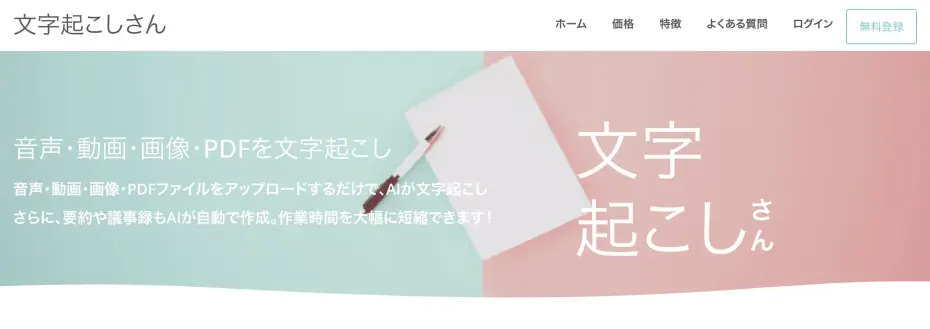
Mr. Transcription is a web service that transcribes video files using the latest AI technology.
No complicated settings are required; simply upload your video to convert its content into text.
Moreover, it features an SRT file export function, making it easy for anyone to create video subtitles.
It supports all major video formats like MP4, AVI, MOV, and WMV, so you can upload your video files directly for transcription.

Supported files and file sizes for Mr. Transcription. How to convert unsupported files to supported files.
We explain Mr. Transcription's supported files and what to do if your file is not supported.
Furthermore, since it can export in the standard SRT subtitle format, you can easily import it into video editing software like Adobe Premiere or DaVinci Resolve to add subtitles.
Pricing allows for up to 3 minutes free per day without registration, and up to 10 minutes free per day for free members.
If you're looking for a way to transcribe videos and footage, why not try Mr. Transcription for free first?
Benefits of Transcribing Videos and Footage
Videos and footage can be easily transcribed using AI transcription services.
Why Transcribe Videos and Footage?
Transcribing videos and footage allows you to convert everything spoken in the video into text.
By converting videos and footage to text, you can add subtitles and captions to your videos.
On video platforms like YouTube, videos with high view counts are often clear and easy to understand, featuring accurate subtitles and captions.
When watching explainer videos on YouTube, captions really helped me understand!

When viewers on video platforms are satisfied with the content and give it a high rating, your videos will rank higher in search results, further increasing your view count.
Attract International Viewers with Transcribed Subtitles
Additionally, transcribing videos allows you to easily add subtitles using YouTube's built-in subtitle feature, separate from the subtitles/captions you might add during video editing.
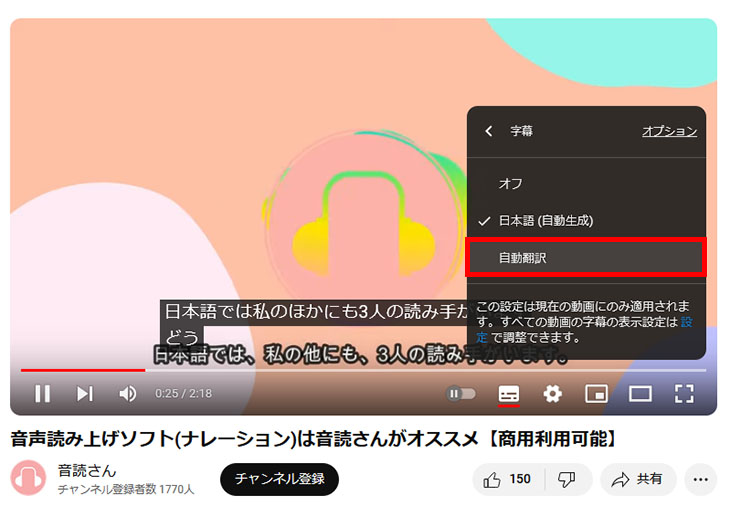
Since YouTube's subtitle feature includes an automatic translation function, your content can be viewed by audiences from around the world.
AI Transcription Services are Recommended for Video and Footage Transcription
However, manually transcribing videos and footage by typing everything yourself can be very tedious.
That's why we recommend AI transcription services that can automatically transcribe videos.
Simply upload your video file, and the content will be fully converted to text, making it easy for anyone to add subtitles or captions.
AI transcription services can export subtitle files (SRT files) that include timecodes. These can then be imported into video editing software or YouTube to instantly add subtitles to the entire video.
Adding subtitles and captions is often the most cumbersome part of video editing.
Why not free yourself from the hassle of manually typing captions every time with an AI transcription service?
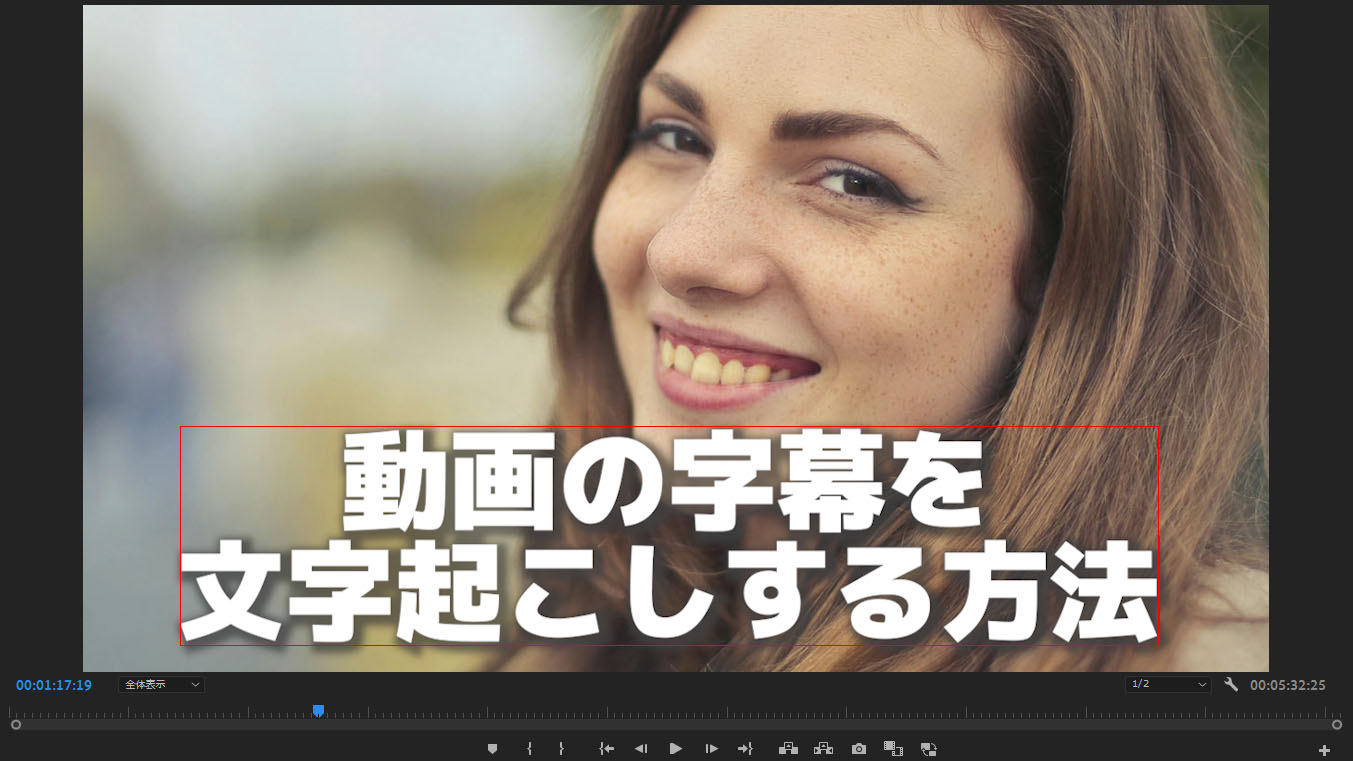
How to Transcribe Video and Create Subtitles | Recommended Free Method to Create SRT Files from MP4
Learn how to transcribe video files like MP4 and create subtitles (SRT files). This guide shows you how to upload videos in your browser to generate subtitle text and then apply it to your videos using Adobe Premiere and DaVinci Resolve. Free...
Top 4 Recommended Video Transcription Services

What are the best video transcription services?
Here are our top recommendations for AI video transcription services that support video and film content!
- Mr. Transcription
- Rimo (formerly Rimo Voice)
- Notta
- Texter
1. Mr. Transcription (Video Transcription Service)
For transcribing videos and footage, we recommend the AI transcription service 'Mr. Transcription'.
Mr. Transcription is an AI transcription service that can convert videos and footage into text using the latest AI.
No complicated settings are required; you can transcribe videos simply by uploading them through your browser.
With its high-performance, cutting-edge AI, even long videos can be transcribed in about 1 minute.
What's more, it supports over 100 languages, so you can even transcribe foreign language videos and add Japanese translated subtitles.
Mr. Transcription supports transcription for:
- MP4
- MOV
- AVI
- FLV
- MKV
- WEBM
- WMV
- 3GP
files.
Mr. Transcription's supported files and file sizes. How to make unsupported files compatible
We'll guide you through Mr. Transcription's supported files and what to do if your file is not supported.
Since it supports all major video file formats, you can easily convert them to text by simply uploading them.
It also supports file formats used by smartphone cameras, allowing you to transcribe raw footage before editing.
SRT File Subtitle Export Available
Mr. Transcription allows you to export subtitles in SRT format.
SRT files are a standard format for video subtitles, and you can export them directly, segmented into appropriate lengths and timings.
- Adobe Premiere
- DaVinci Resolve
- Final Cut Pro
All popular video editing software like these support importing SRT files, making it easy to turn your transcribed content into subtitles.
Free Transcription Service
What's more, Mr. Transcription is free to use!
Mr. Transcription offers up to 3 minutes of free transcription per day without registration.
Furthermore, free members can use it for up to 10 minutes per day.
If you're looking for a way to transcribe videos and footage, why not try Mr. Transcription first?
2. Rimo (Video Transcription Service)
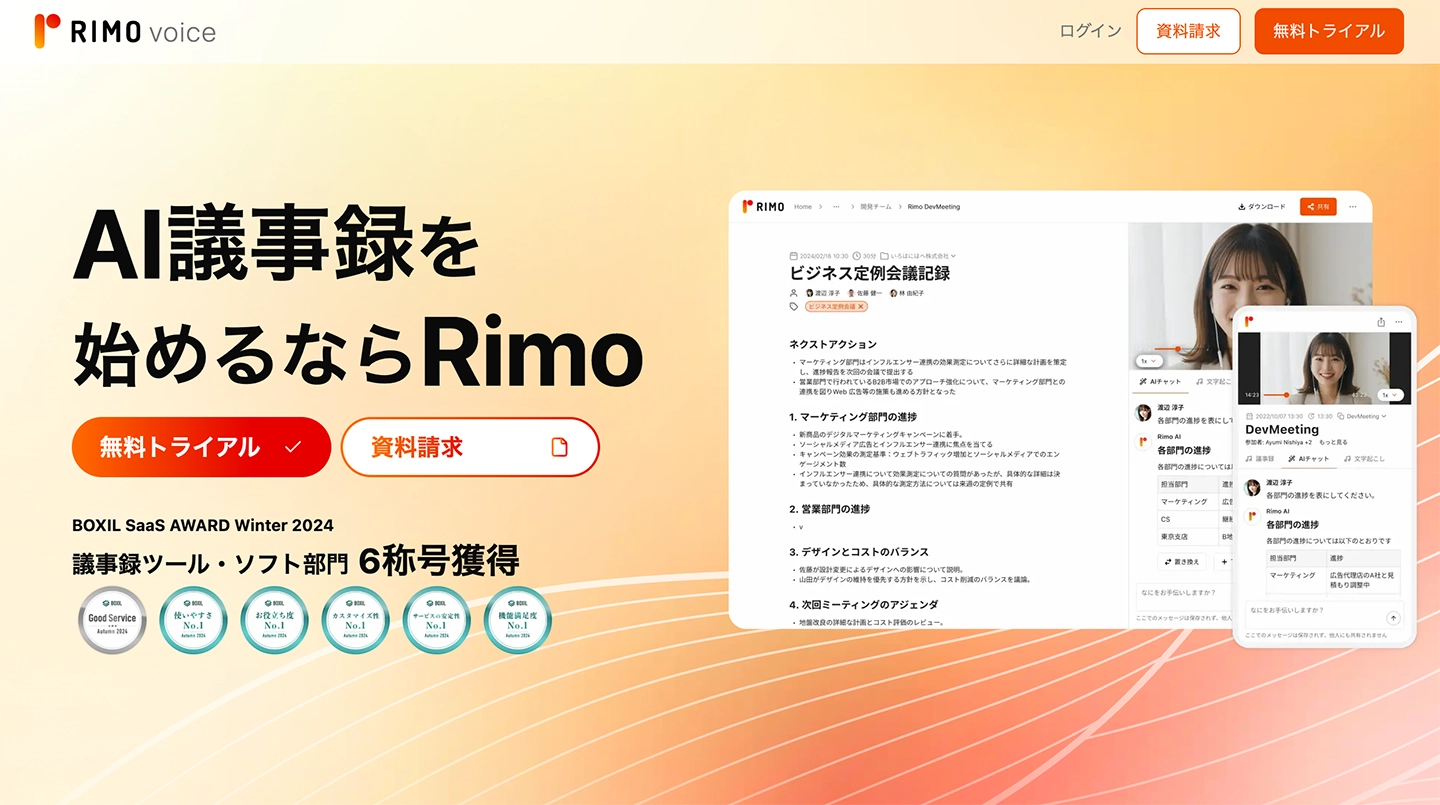
Rimo is an AI transcription service that supports transcribing MP4 video files.
This service supports over 30 languages, including Japanese, and also features a YouTube subtitle export function.
It's a convenient AI transcription service for when you want to transcribe Japanese lectures or interview videos.
What is Rimo? A thorough explanation of recommended services for AI transcription of Japanese!
Introducing Rimo (formerly Rimo Voice), an AI transcription service strong in Japanese. We also explain AI transcription services recommended for Japanese transcription, which support meeting minute creation and summarization.
3. Notta (Video Transcription Service)
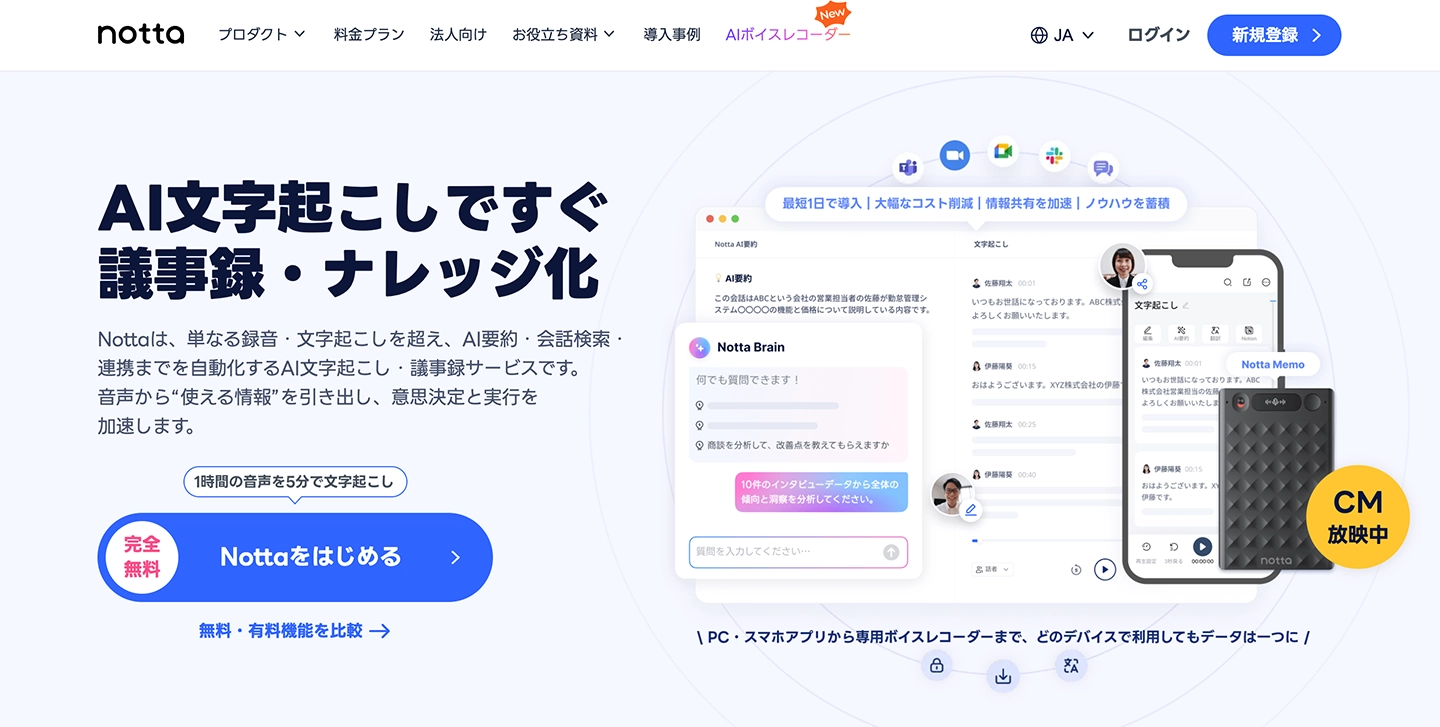
Notta is an AI transcription service that can transcribe videos and footage by importing them.
It supports video file formats such as AVI, RMVB, FLV, MP4, MOV, and WMV.
This service is recommended when you want to import and transcribe video files.
![How to use, features, and pricing of the transcription tool Notta explained [Free option available]](https://storage.googleapis.com/mojiokoshi3/post/image/notta-mojiokoshi_tmb_20260315.webp)
How to use, features, and pricing of the transcription tool Notta explained [Free option available]
We explain Notta's features, usage, and pricing plans with the latest information for 2026. We also cover free plan limitations, how to create meeting minutes, and compare it with free transcription sites that don't require registration.
4. Texter (iPhone/Android Transcription App)
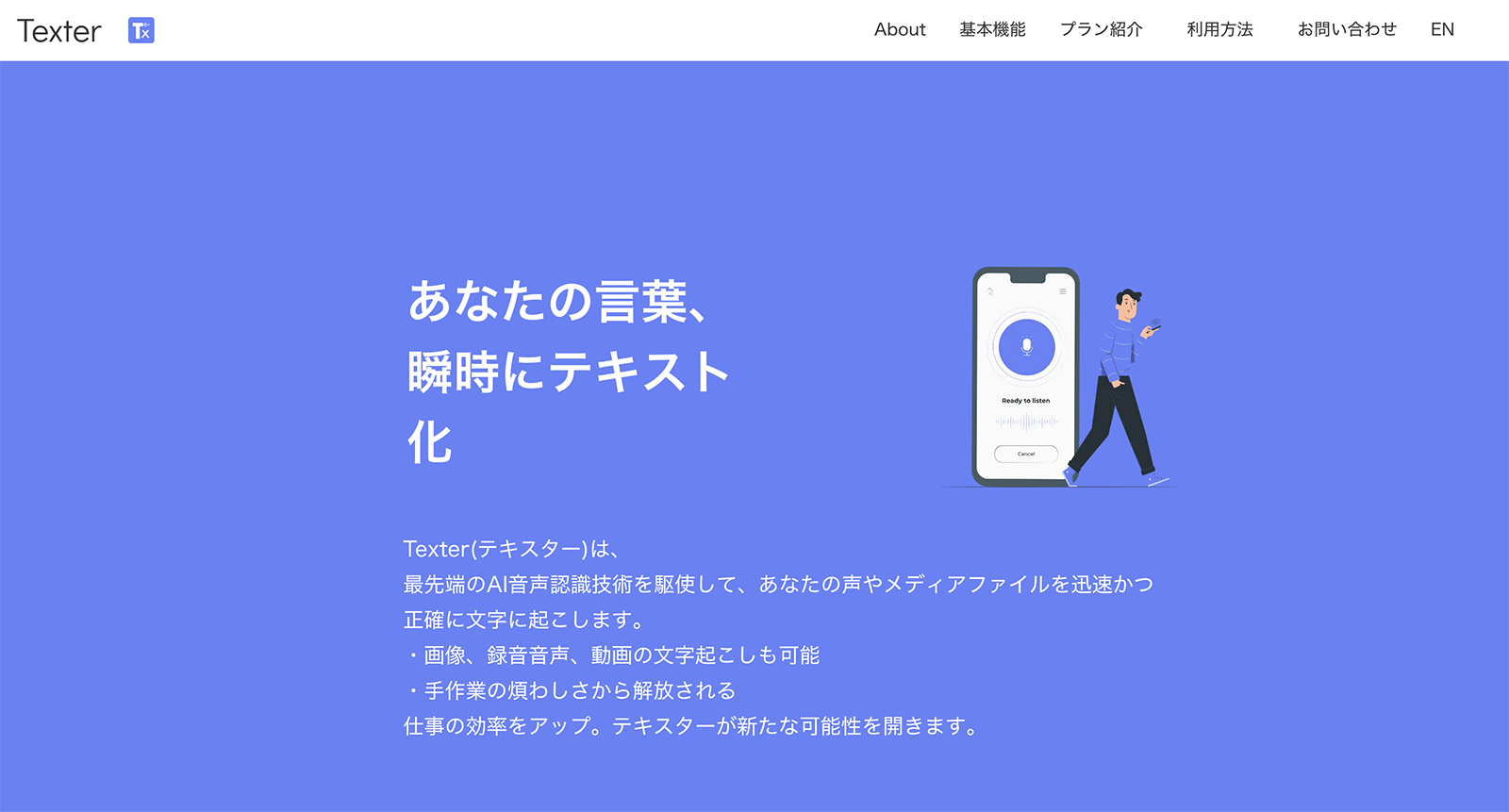
Texter is an AI transcription app available for iPhone (iOS) and Android smartphones.
It also includes a video import function.
You can load video files from your smartphone, other smartphone apps, or Google Drive, allowing you to transcribe video content entirely on your phone.
This app is recommended when you want to transcribe videos and footage using only your smartphone.
How to Transcribe Videos & Add Subtitles to Your Video Content
From here, we will explain how to transcribe video content using Mr. Transcription and create an SRT file.
1. Open Mr. Transcription
To transcribe your video, first open the Mr. Transcription top page from here.
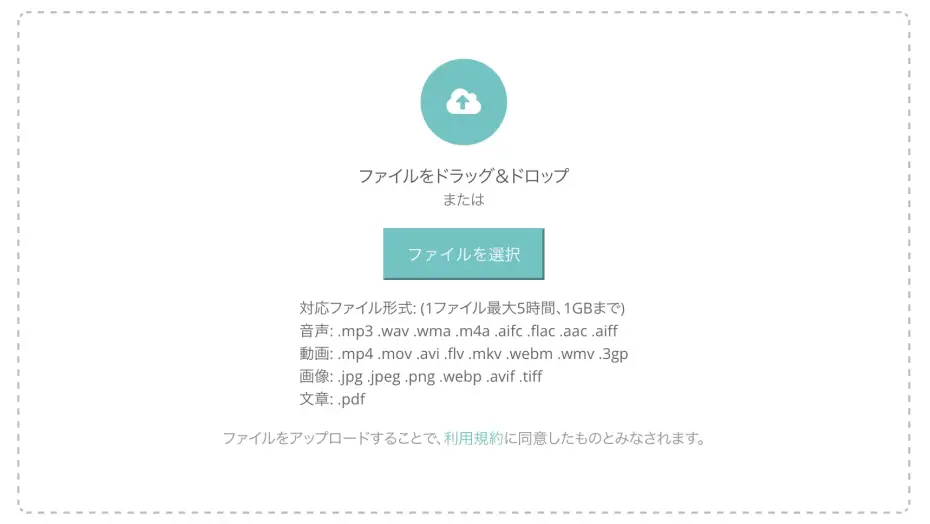
Mr. Transcription allows you to easily upload video files directly from its homepage.
Scroll down a bit, and either:
- Drag and drop your file into the area that says "Drag files here"
- Click "Select File"
Choose one of these methods to select your video file.
2. Upload the File
Pressing the "Upload" button will start the video file upload process.
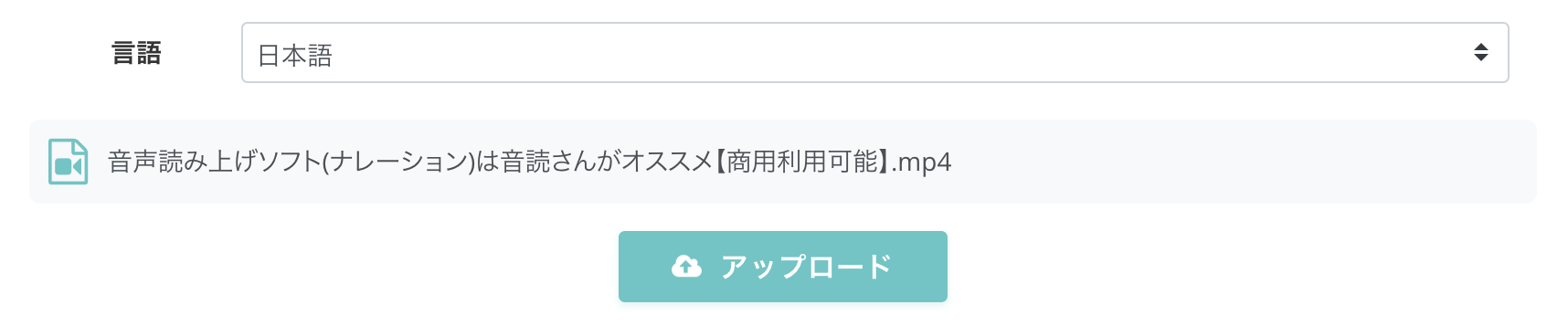
Once the upload is complete, transcription will automatically begin.

3. Transcription Complete
Once the transcription is finished, the screen will change, and the transcription results will be displayed.
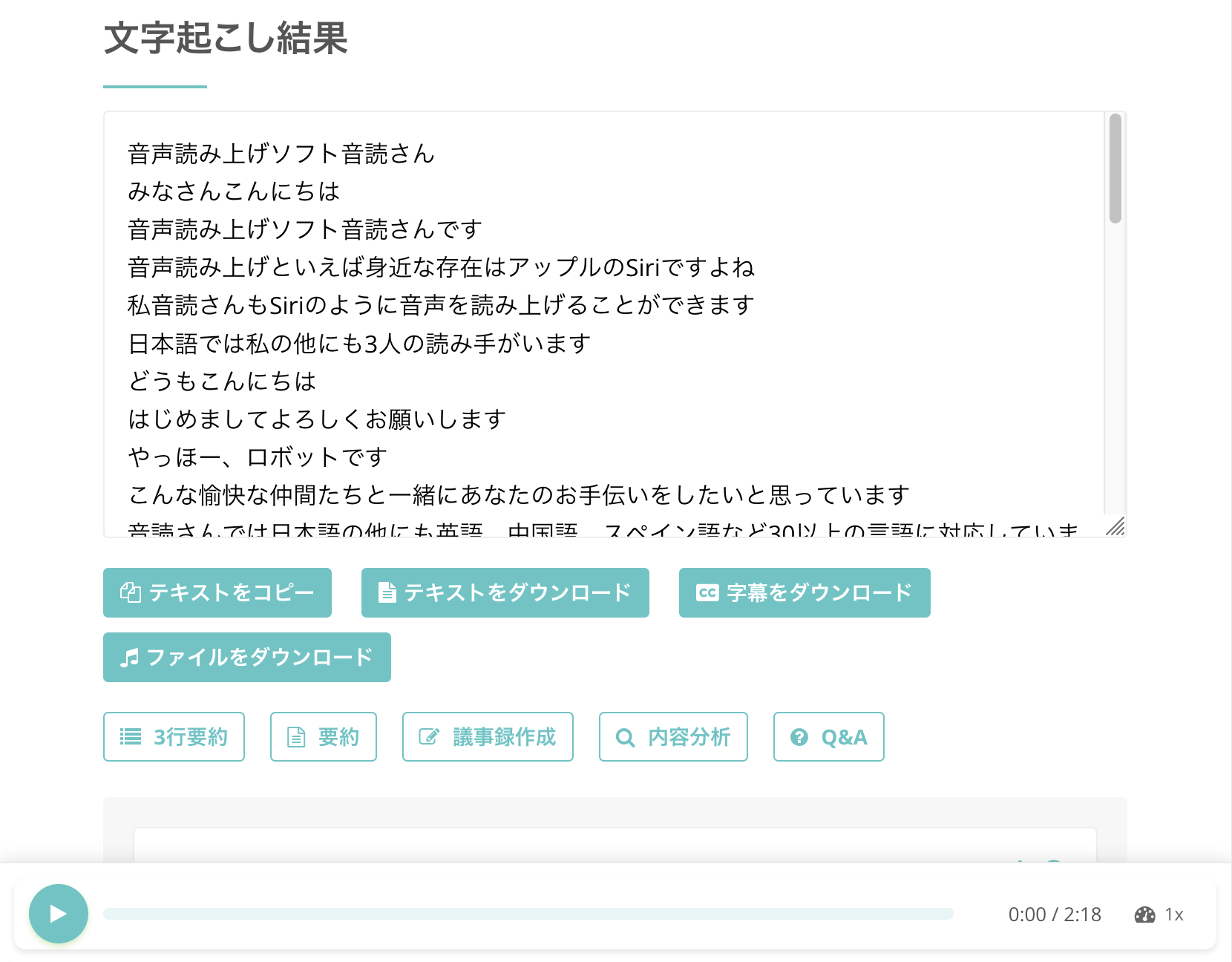
Clicking the play button next to a statement will play the video's audio from that specific point.
If you play the video using the player at the bottom of the screen, the text display will switch in sync with the playback position, allowing you to easily check any parts that were difficult to hear.
*If you close the screen, you will be notified by email.
You can also check your transcription results from "History" in the menu.
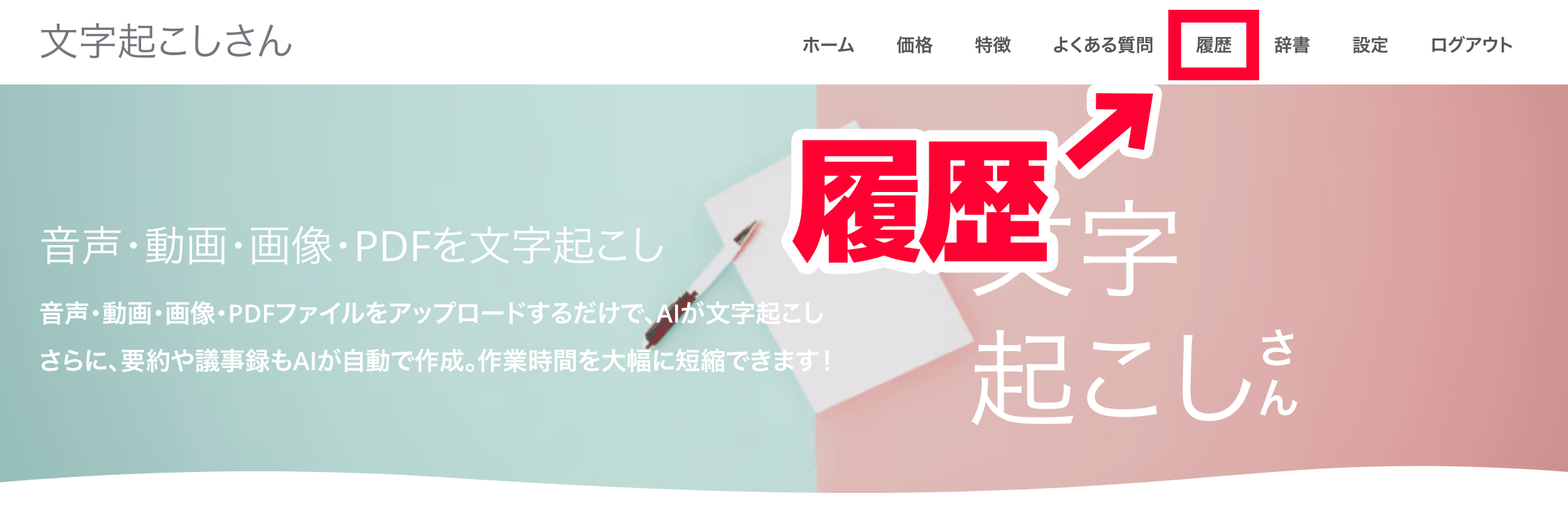
4. Download SRT File
Mr. Transcription allows you to download transcription results as an SRT subtitle file.
How to download from the top page
To download a subtitle file from the top page, click the "Download Subtitle" button.
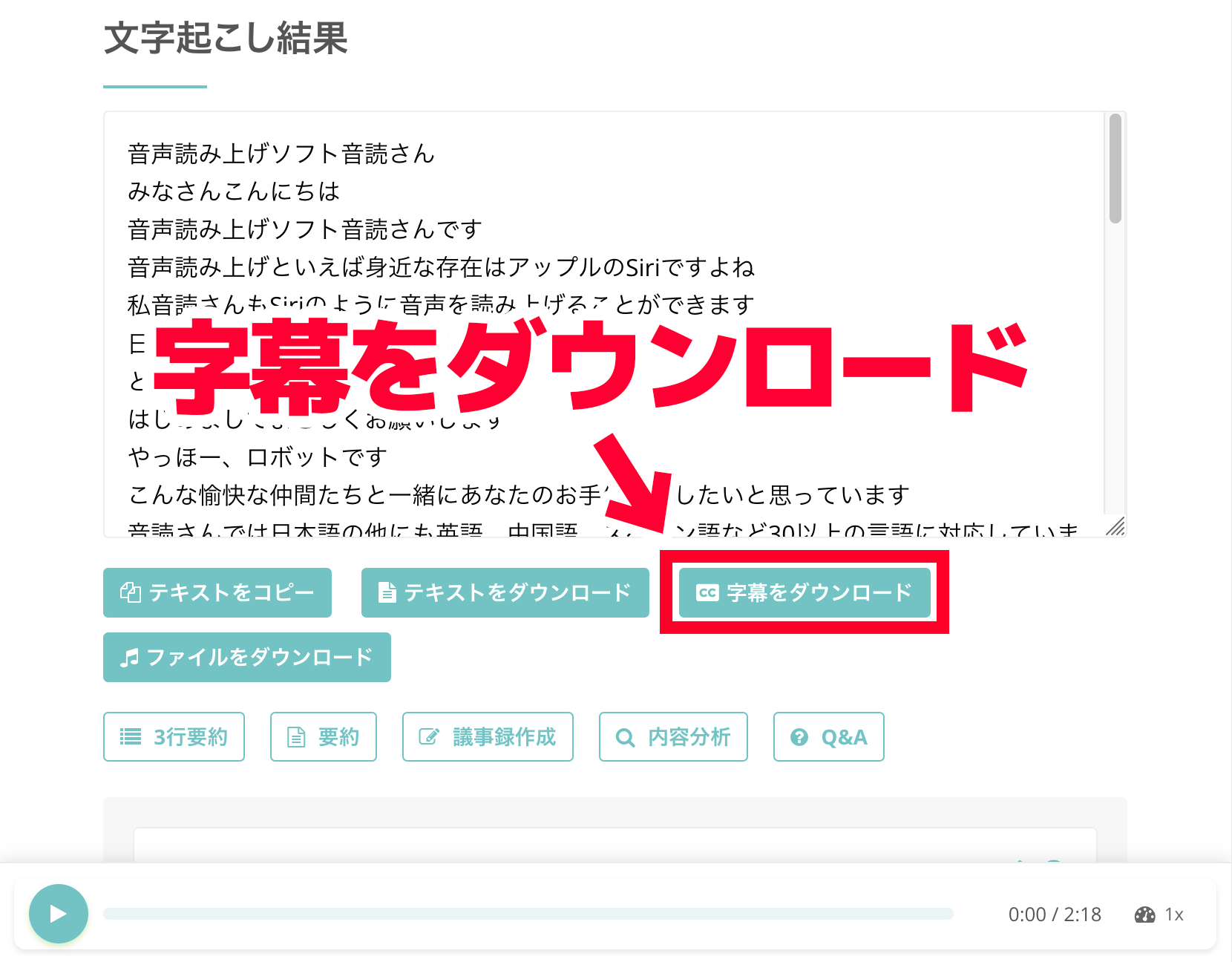
This will allow you to download the SRT file.
How to download from the history page
To download a subtitle file from the history page, click the "Download Subtitle" button on the page where you review the transcription content.
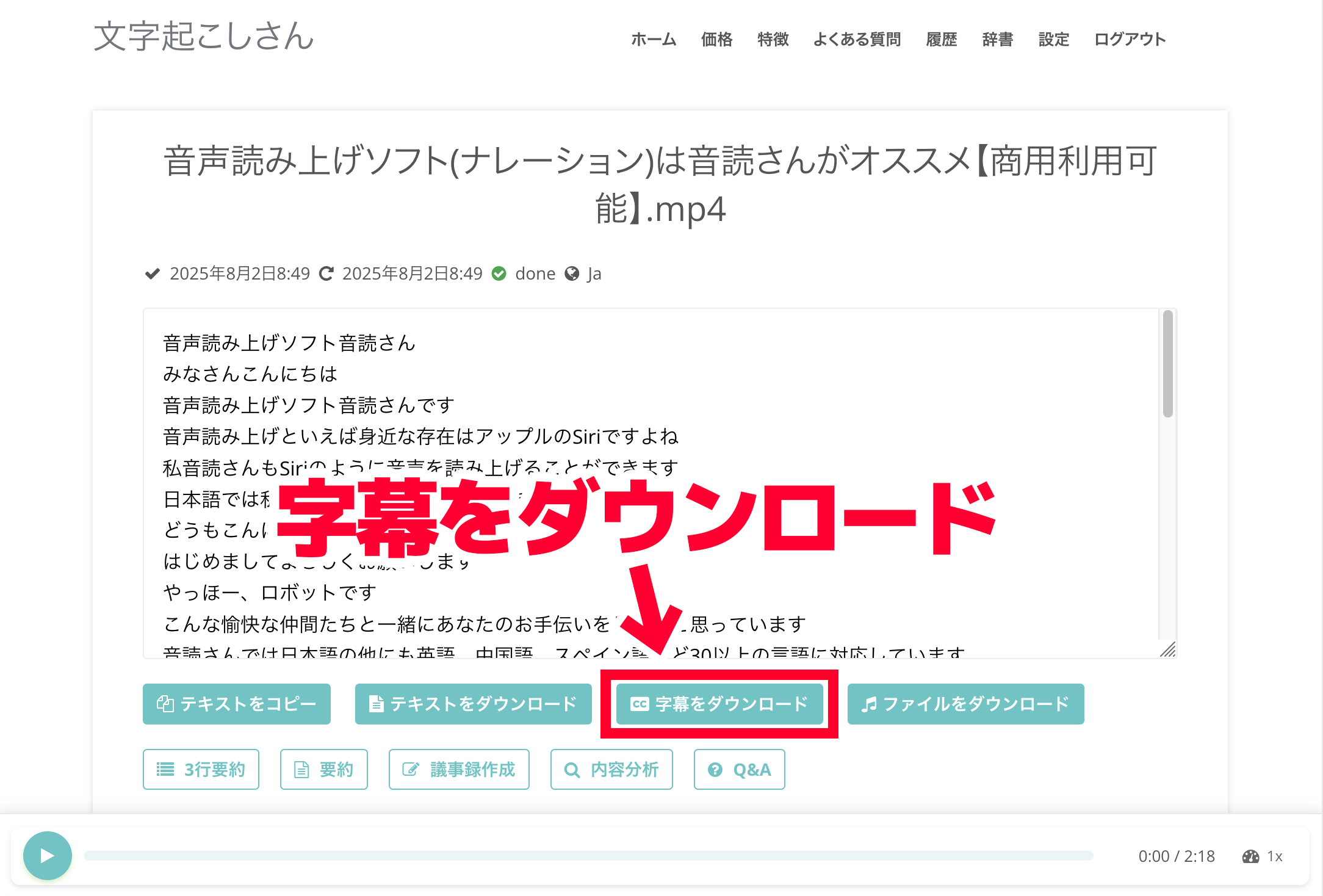
This will allow you to download the SRT file.
※Even if you edit the content on Mr. Transcription's web page, the edited content will not be reflected in the subtitle file.
If you want to edit the subtitle content, download the subtitle file and edit it directly using an application like Notepad.
If you want to learn more about SRT files, please also check out this article.
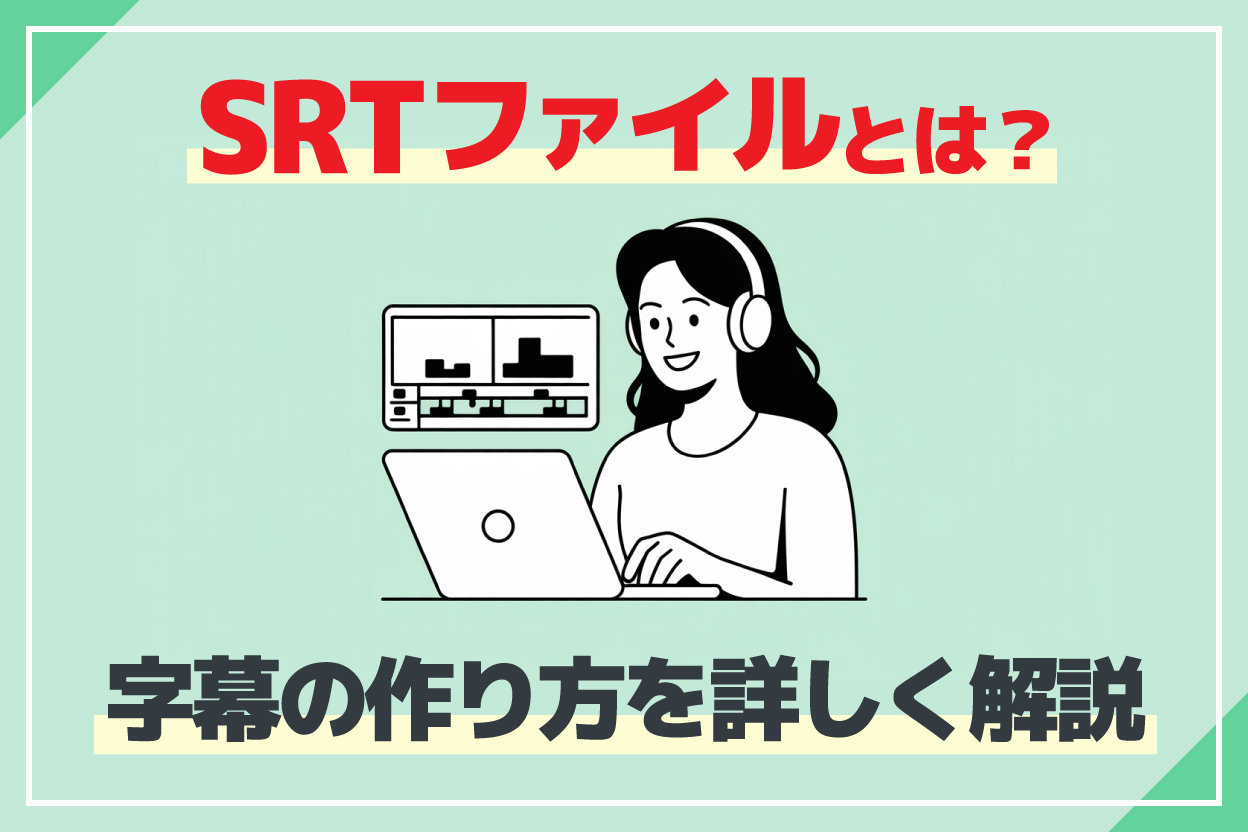
How to Create SRT Files for Free | Make Video Subtitles Only with a Browser
Learn how to create SRT files, which record subtitle text and display times. You can make them using only your browser with an AI transcription site. We also introduce how to use them with video editing software and YouTube.
This is all it takes to transcribe videos and create SRT files.
Since you can create subtitle files just by uploading your video, why not try Mr. Transcription for free?
5. Adding Subtitles to Videos
You can add subtitles to your videos by importing the downloaded SRT file into your video editing software.
For Adobe Premiere
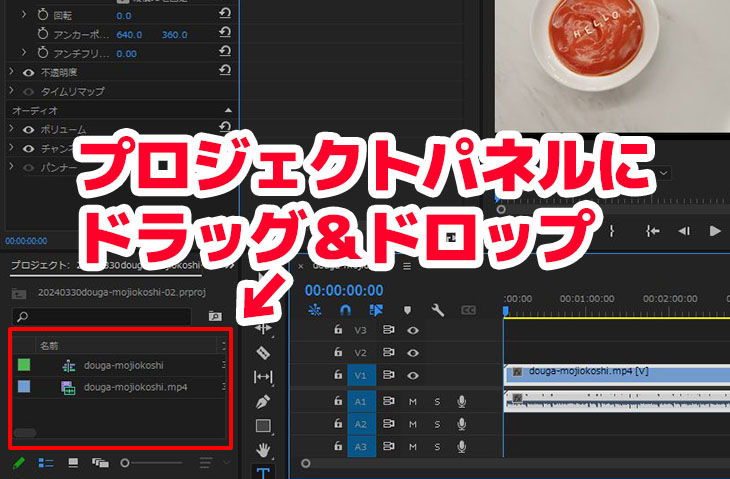
To import an SRT file into Adobe Premiere, first, import the SRT file into your project.
Simply drag and drop it into the project panel, just like you would with video or image assets.
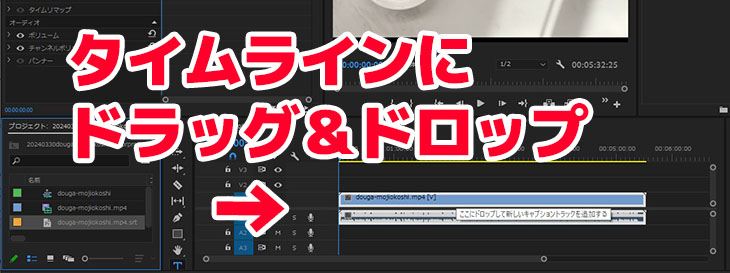
After that, you can add subtitles to your video by simply dragging and dropping the SRT file onto the timeline.
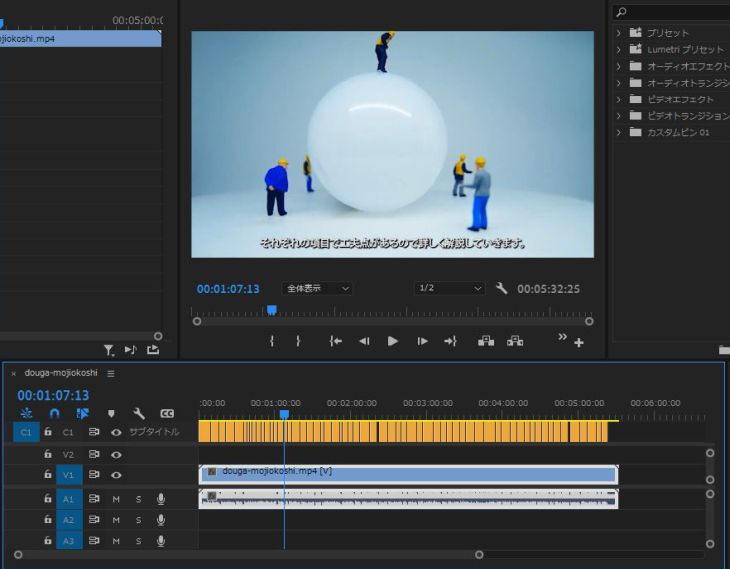
This is how you can add subtitles.
For DaVinci Resolve
In DaVinci Resolve, first, drag and drop the SRT file into the media pool to import it.
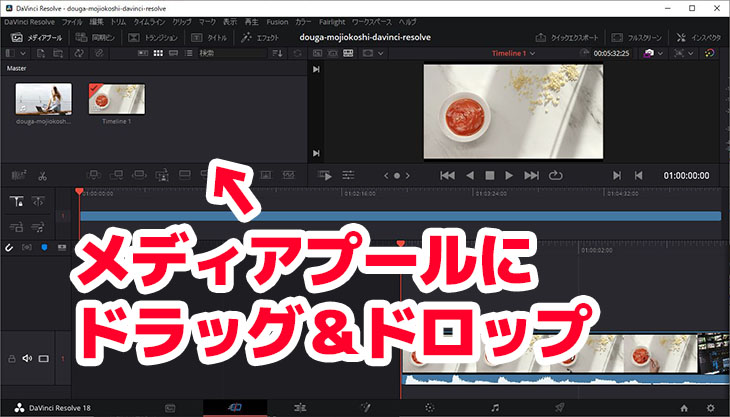
Next, drag and drop the SRT file from the media pool onto the timeline.
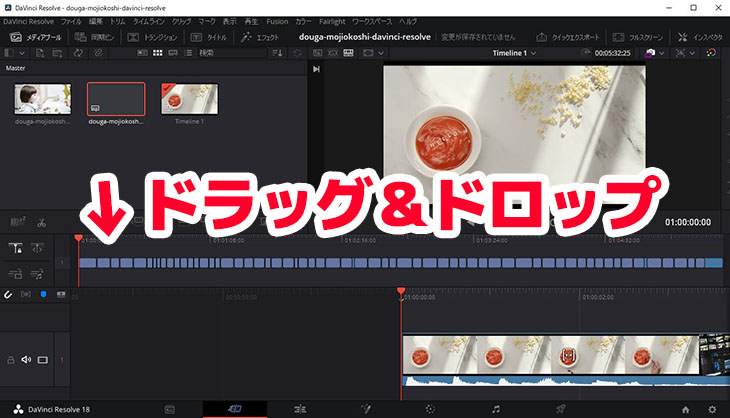
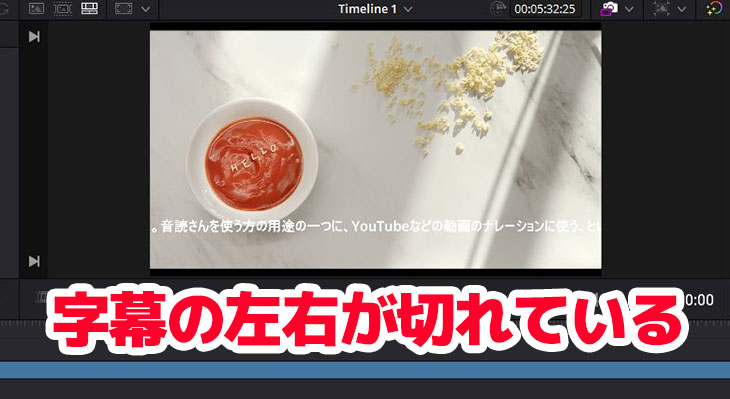
Now you have successfully added subtitles to your video being edited in DaVinci Resolve.
However, with DaVinci Resolve, you may need to adjust the subtitle width and line breaks.
Related Articles on Adding Subtitles to Video Files
If you want to know more about how to add subtitles to MP4 files or detailed steps for each video editing software, please refer to this article.
How to Transcribe Video and Create Subtitles | Recommended Free Method to Create SRT Files from MP4
Learn how to transcribe video files like MP4s and create subtitles (SRT files). This guide shows you how to generate subtitle text by simply uploading videos in your browser, and how to apply them in Adobe Premiere and DaVinci Resolve. Free...
For Adding Subtitles on YouTube
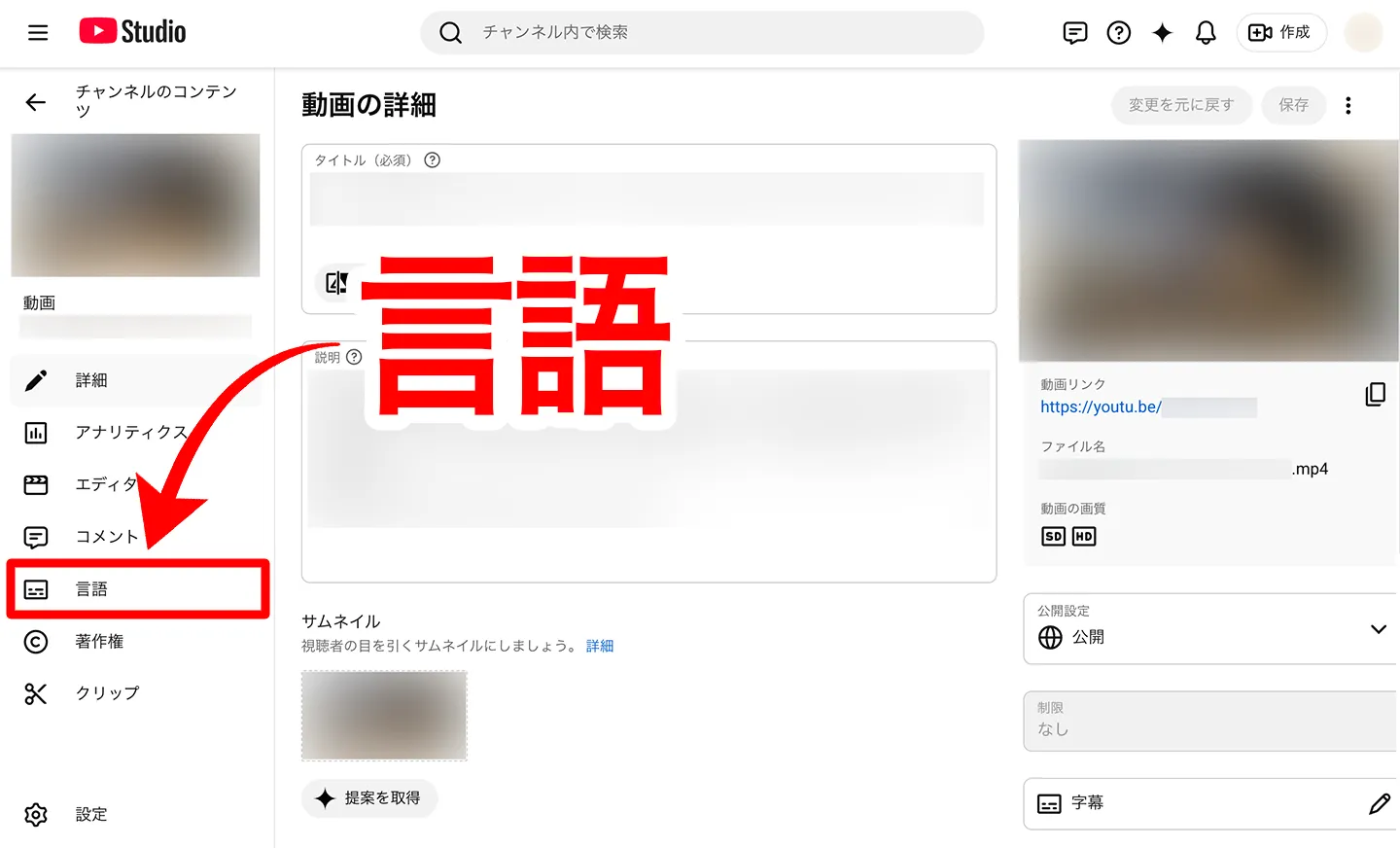
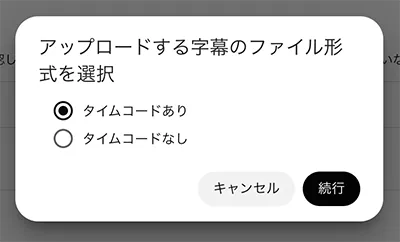
To add Japanese subtitles to a video uploaded on YouTube, first, click "Language" on the "Video details" screen of the video you want to add subtitles to.
Click "Upload file" under "Video language."
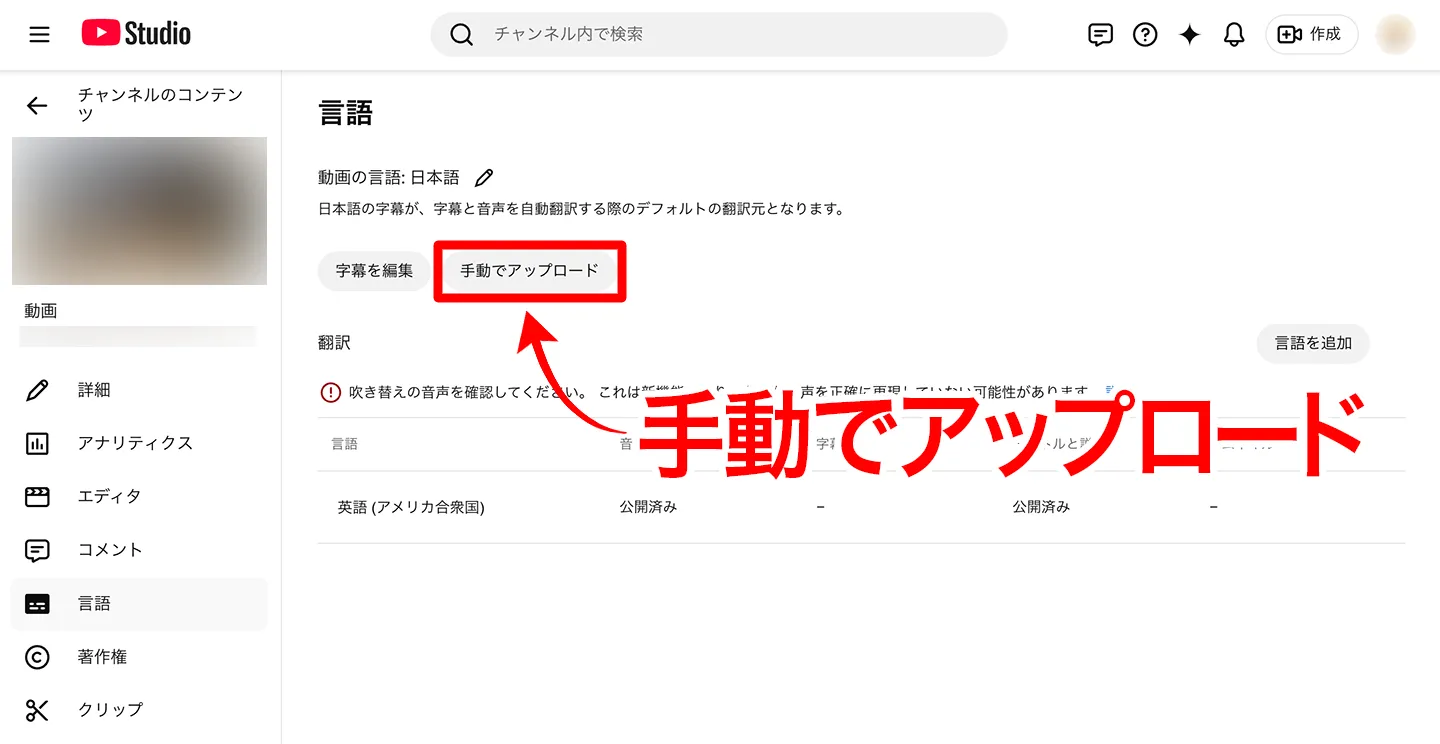
In the window that asks whether to include timing, select "With timing."
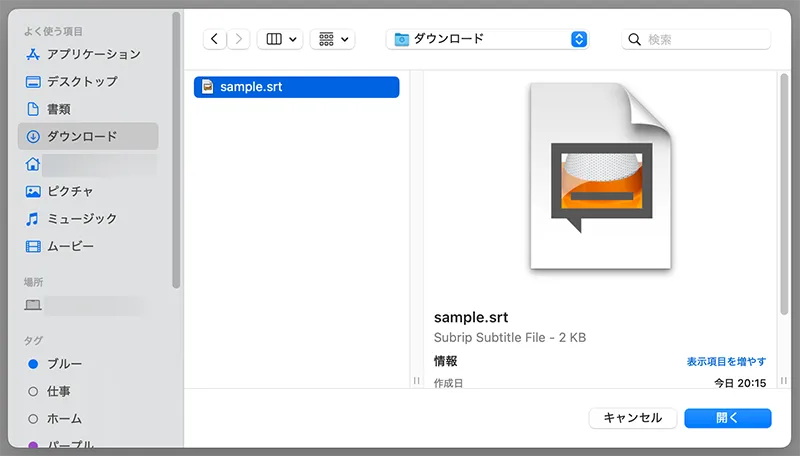
Select the SRT file.
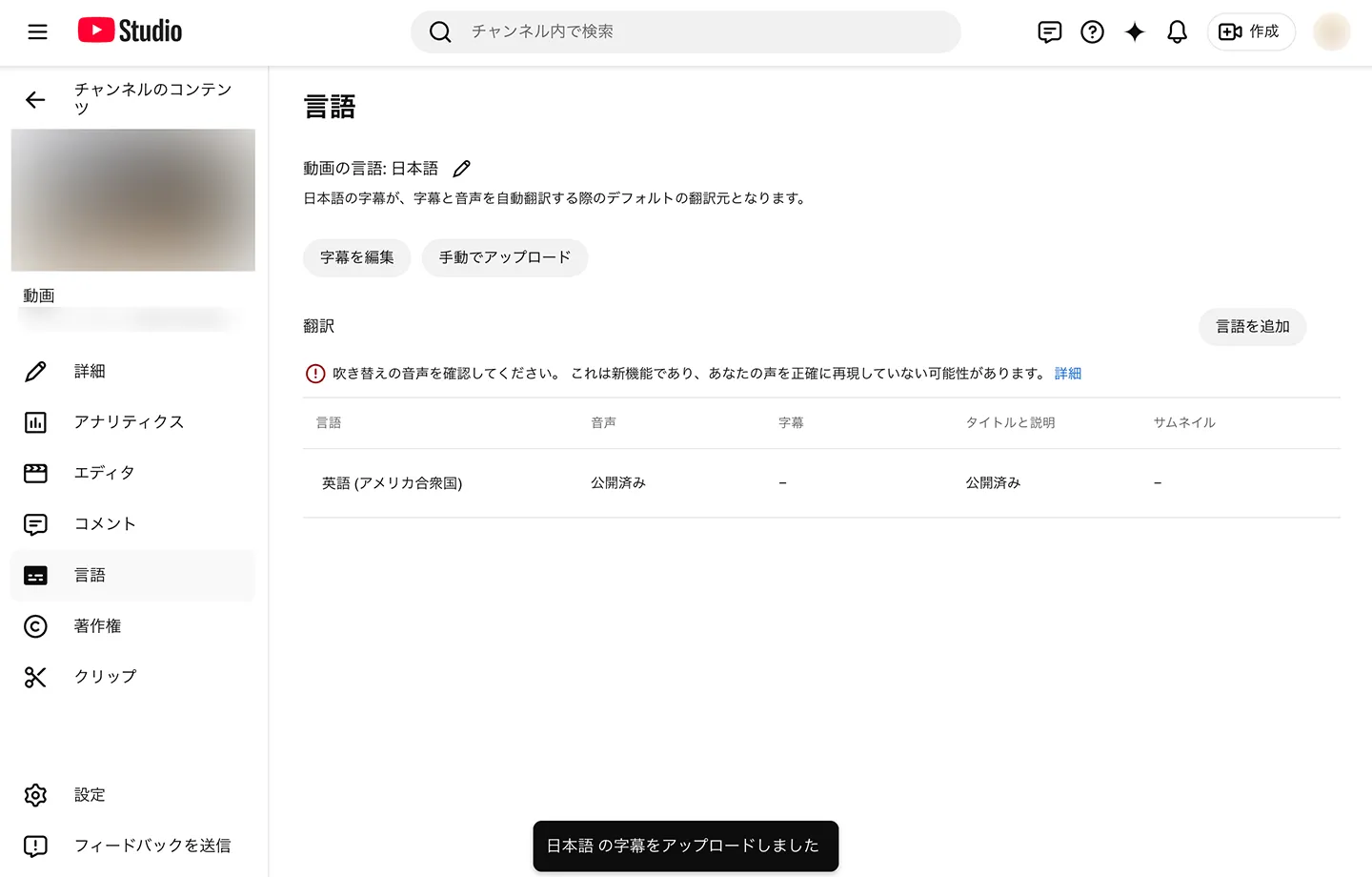
The upload is now complete.
Upon successful upload, a message like "Japanese subtitles uploaded" will appear at the bottom of the screen.
What to do if the upload fails?
If you encounter an upload error, click "Edit subtitles" to open the editing screen for the automatically generated subtitles by YouTube.
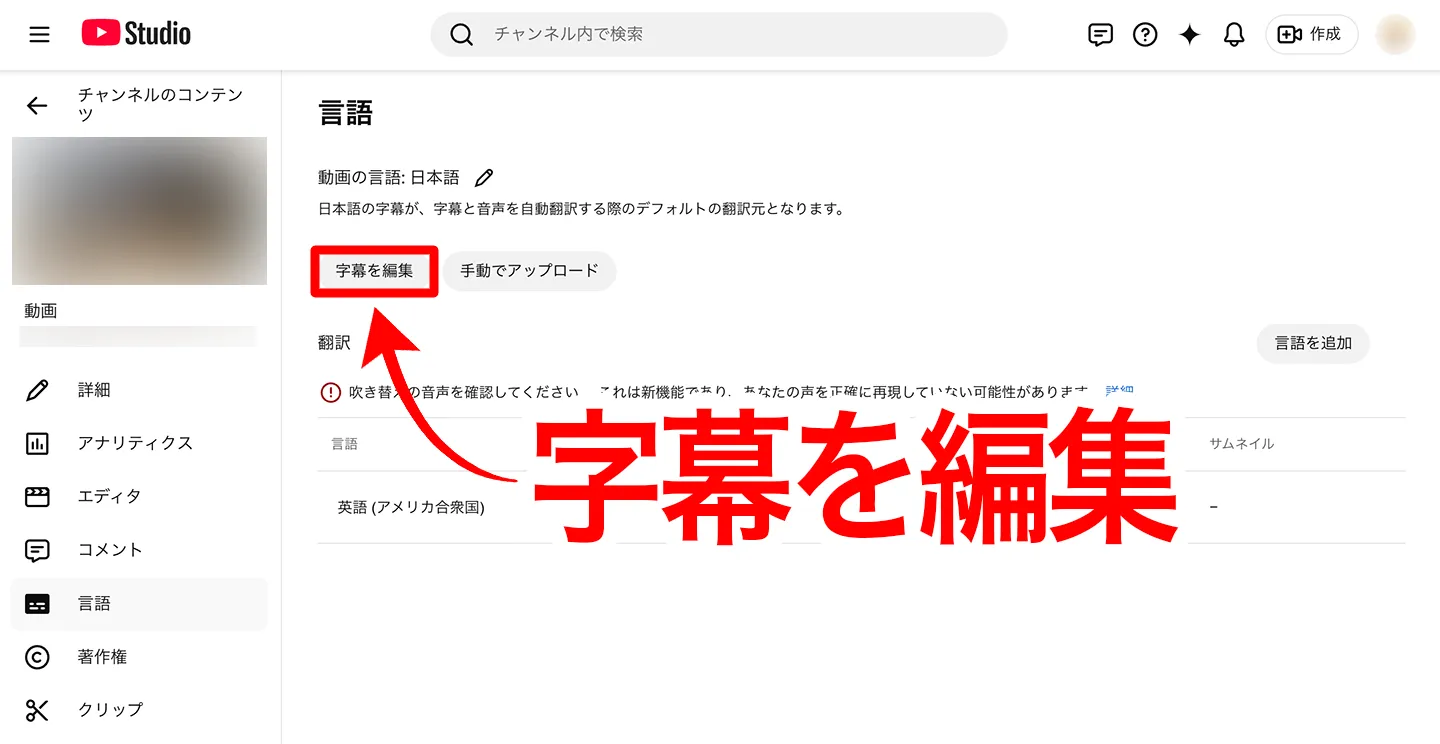
Without making any edits, simply click "Publish" to save.
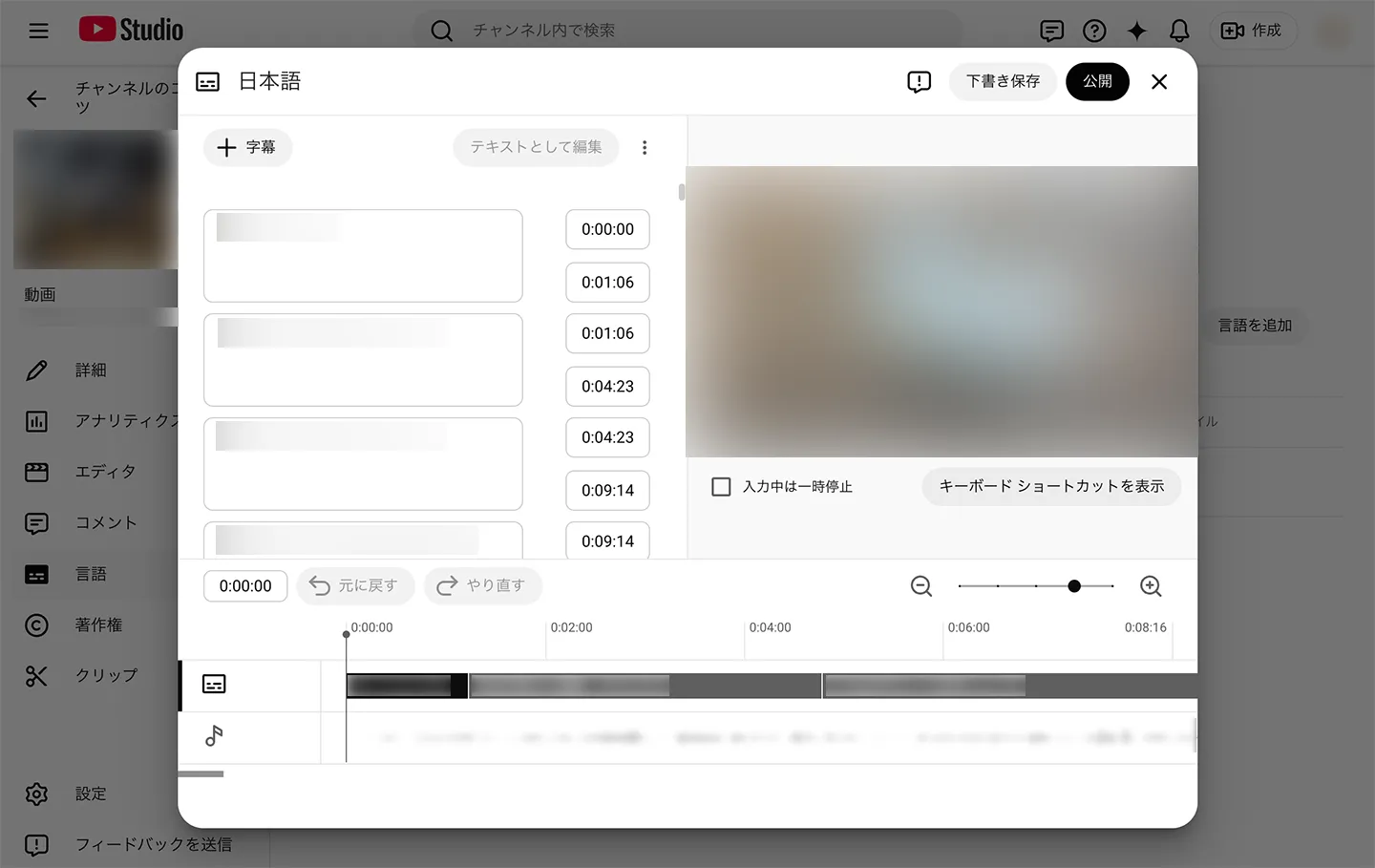
After this, you can re-upload the SRT file, and it should be successfully imported.
Easily Add Foreign Language Subtitles
You can also easily import foreign language subtitles from SRT files by adding a language on the "Language" screen.
For detailed instructions on how to create foreign language subtitles, please refer to this article.
![[Free] How to Add English Subtitles to YouTube Videos | AI Translate SRT Files with Just a Browser](https://storage.googleapis.com/mojiokoshi3/post/image/srt_file_translation_tmb.webp)
[Free] How to Add English Subtitles to YouTube Videos | AI Translate SRT Files with Just a Browser
Learn how to add English or foreign language subtitles to YouTube videos for free, using just your browser. This guide shows you how to create Japanese SRT files with an AI transcription site, translate them with generative AI, and add them to YouTube, with images.
Related Articles on Adding Subtitles to YouTube Videos
For YouTube creators, this article provides more detailed information on how to add subtitles to your uploaded videos.
![[For YouTube Creators] How to Set Up Subtitles and Transcriptions for Your Videos](https://storage.googleapis.com/mojiokoshi3/post/image/youtube-mojiokoshi_1.jpg)
[For YouTube Creators] How to Set Up Subtitles and Transcriptions for Your Videos
This guide explains how to set up subtitles and transcriptions for your own videos uploaded to YouTube. You can create high-quality SRT files, superior to YouTube's auto-generated captions, simply by uploading your video in a browser. Learn how to add Japanese subtitles, adjust language settings, upload subtitle files...
Easily Transcribe Videos and Footage with AI Transcription Services
By using AI transcription services, anyone can easily transcribe videos and footage to create subtitles.
Simply uploading your video is all it takes, eliminating the tedious task of typing out captions and subtitles.
Why not streamline your video production and editing by converting video subtitles to text with the AI transcription service Mr. Transcription?
■ AI transcription service "Mr. Transscription"
"Mr. Transcription" is an online transcription tool that can be used from zero initial cost and 1,000 yen per month (* free version available).
- Supports more than 20 file formats such as audio, video, and images
- Can be used from both PC and smartphone
- Supports technical terms such as medical care, IT, and long-term care
- Supports creation of subtitle files and speaker separation
- Supports transcription in approximately 100 languages including English, Chinese, Japanese, Korean, German, French, Italian, etc.
To use it, just upload the audio file from the site. Transcription text is available in seconds to tens of minutes.
You can use it for free if you transcribe it for up to 10 minutes, so please try it once.

It is "Mr. Transcription" who can easily transcribe from audio, video, and images.
Transcription allows you to transcribe for up to 10 minutes for free.
You can copy, download, search, delete, etc. the transcribed text.
You can also create subtitle files, which is ideal for transcription of interview videos.
HP: mojiokoshi3.com
Email: mojiokoshi3.com@gmail.com
Email: mojiokoshi3.com@gmail.com
Related article
Transcription for audio / video / image transcription. It is a transcription service that anyone can use for free without installation.
- What is Mr. Transcription?
- Transcript images, sounds, and videos with Mr. Transcription
- Free registration
- Rate plan
- manual
- Try other free services