音声文字起こしの外注相場はいくら?【安く依頼するコツも解説】
Transcribe Video & Audio: Services, Subtitles & Captions
June 8, 2025


I want to transcribe a video, but it's such a hassle!
Transcribing videos is one of the most important tasks in video editing.
When adding captions or subtitles to a video, typing everything out on the keyboard each time is very tedious.
That's why we recommend using an AI transcription service.
With an AI transcription service, you can automatically transcribe video into text just by uploading the file.
What's more, it can export as a subtitle file that can be imported into video editing software, making it easy for anyone to add captions and subtitles to their videos!
This article explains how to transcribe videos, recommends services, and outlines the process of adding subtitles to videos.
If you're struggling with transcription during video editing, why not try an AI transcription service?
Recommended AI Transcription Services for Videos and Footage
There's a video transcription service highly recommended for those who edit videos for work or hobbies.
That service is "Mojiokoshi-san".
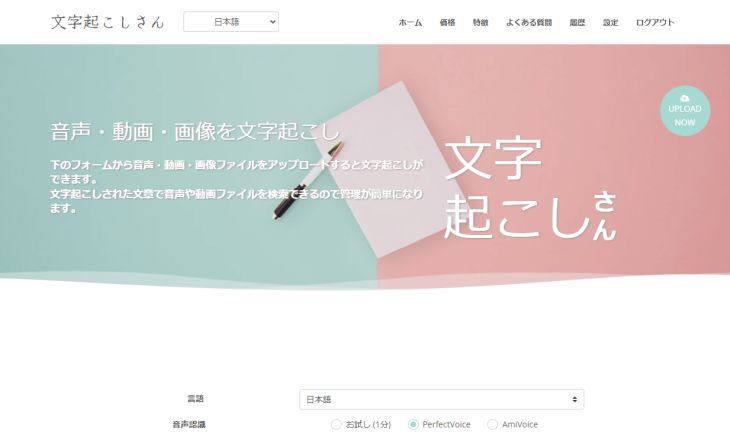
"Mojiokoshi-san" is an AI transcription service that can transcribe video files with high accuracy and speed using the latest AI.
It supports all major video formats like MP4, AVI, MOV, and WMV, so you can upload your video files directly for transcription.
Furthermore, it can export in the standard SRT subtitle file format, allowing you to easily import it into video editing software like Adobe Premiere or DaVinci Resolve to add subtitles.
"Mojiokoshi-san" allows you to transcribe files up to 1 minute for free, with no registration or login required!
If you're looking for a way to transcribe videos or footage, why not try "Mojiokoshi-san" for free first?
Benefits of Transcribing Videos and Footage
Videos and footage can be easily transcribed using an AI transcription service.
Reasons to Transcribe Videos and Footage

Transcribing videos and footage allows you to convert all spoken content within the video into text.
By converting videos and footage into text, you can add subtitles or captions to your videos.
Videos with accurate and clear subtitles or captions tend to have higher view counts on video platforms like YouTube.
When I watch explainer videos on YouTube, captions really help with understanding!

When video platform viewers are satisfied with the content and give it a high rating, it helps the video rank higher in search results, leading to even more views.
Gain International Viewers with Transcribed Subtitles
Additionally, by transcribing videos, you can easily add subtitles not only through video editing software (which adds captions directly to the video) but also using YouTube's built-in captioning feature.
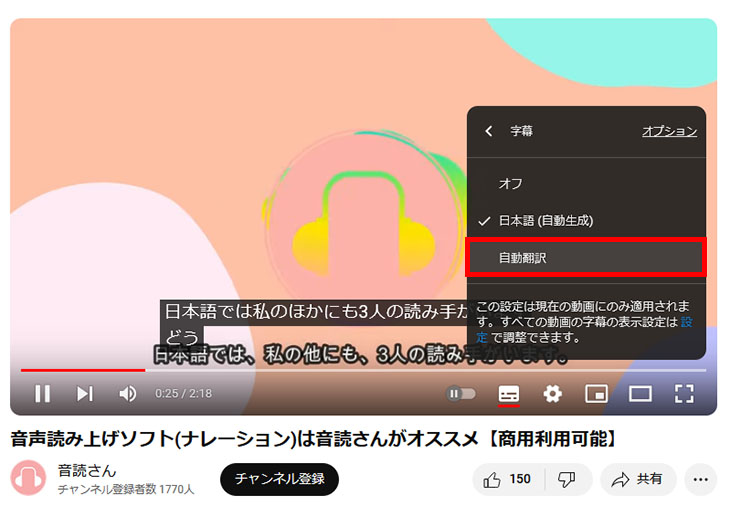
Since YouTube's captioning feature includes an automatic translation function, your content can be viewed by audiences from overseas.
AI Transcription Services are Recommended for Video Transcription

However, manually transcribing videos by typing them out yourself is very time-consuming and difficult.
That's why we recommend AI transcription services that can automatically transcribe videos.
You can convert all content to text simply by uploading the video file, making it easy for anyone to add subtitles or captions.
AI transcription services allow you to export subtitle files (SRT files) that include timecodes, so you can import them into video editing software or YouTube and add subtitles to the entire video in an instant.
The most tedious part of video editing is adding subtitles and captions.
Why not free yourself from the hassle of manually typing captions every time with an AI transcription service?
Top 5 Recommended Video Transcription Services

What are the best services for transcribing videos?
Here are our top recommendations for AI transcription services that support video content!
1. Mojiokoshi-san
'Mojiokoshi-san' is an AI transcription service highly recommended for transcribing videos and films.
'Mojiokoshi-san' is an AI transcription service that uses two types of cutting-edge AI to convert video and audio into text with high accuracy and speed.
The two AI types offer:- PerfectVoice: Ultra-fast transcription of even long videos in just 10 minutes, supports 100 languages.
- AmiVoice: Speaker diarization (transcribes each speaker separately), fast transcription at roughly the same length as the video.
These features allow for advanced editing with ease, such as:
- Transcribing foreign language videos and adding Japanese translated subtitles.
- Transcribing dialogue or interview videos, separating text by speaker.
Supports a Wide Range of Video File Formats
'Mojiokoshi-san' supports transcription for:
- MP4
- MOV
- AVI
- FLV
- MKV
- WEBM
- WMV
- 3GP
It supports all major video file formats, so you can easily convert them to text by simply uploading them.
It also supports file formats used by smartphone cameras, making it possible to transcribe raw footage before editing.
SRT File Export for Subtitles
'Mojiokoshi-san' allows you to export subtitles in SRT format.
SRT format is the de facto standard for video subtitles.
standard.
- Adobe Premiere
- DaVinci Resolve
- Final Cut Pro
Since all popular video editing software supports importing, you can easily add subtitles from your transcribed content.
Free Transcription Service
What's more, "Mojiokoshi-san" is free to use!
"Mojiokoshi-san" allows you to transcribe files up to 1 minute for free, with no registration or login required.
If you're looking for a way to transcribe videos, why not try "Mojiokoshi-san" first?
2. AI GIJIROKU
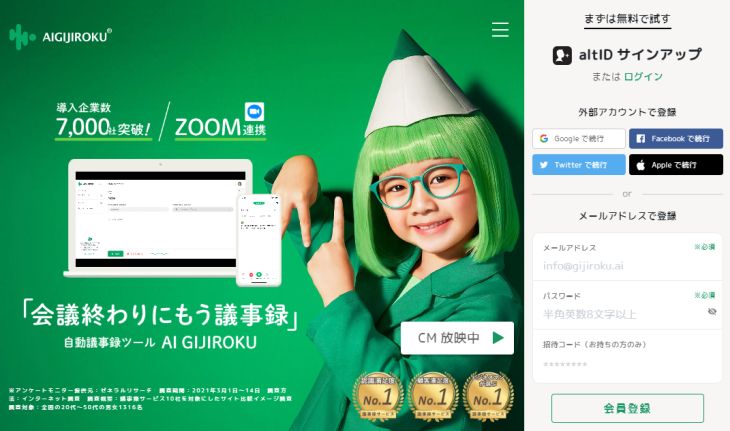
AI GIJIROKU is an AI transcription service for meeting minutes.
While its main function is real-time transcription, it also supports importing video files.
Supported video file formats include MOV, WMV, AVI, and MP4.
It's recommended if you need to transcribe both meetings and videos.
3. Rimo Voice
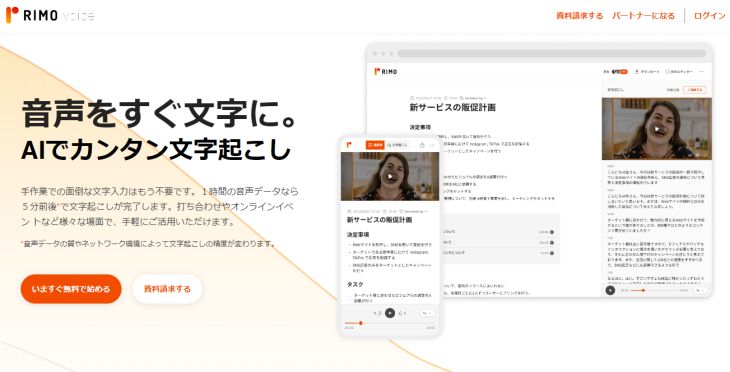
Rimo Voice is an AI transcription service that supports transcribing MP4 video files.
It specializes in Japanese transcription and includes a YouTube subtitle export feature.
This AI transcription service is convenient for transcribing Japanese lectures and interview videos.
4. Notta
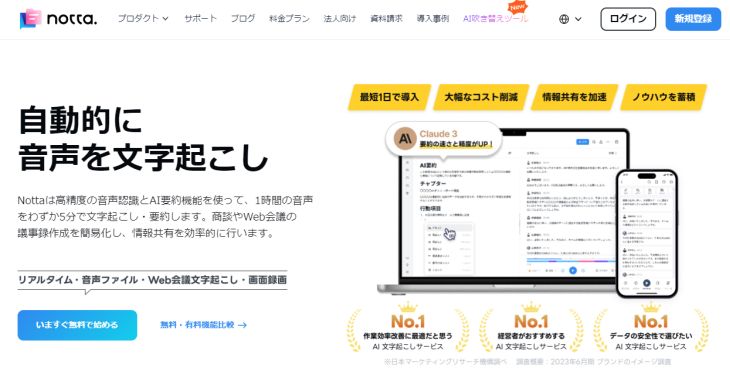
Notta is an AI transcription service that can transcribe videos by importing them.
It supports video file formats such as AVI, RMVB, FLV, MP4, MOV, and WMV.
It's recommended when you want to import video files for transcription.
5. Texter
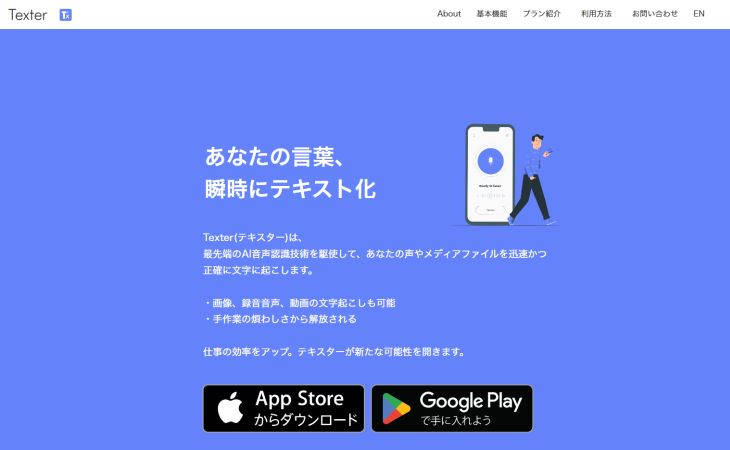
Texter is an AI transcription app available for iPhone and Android.
It also features video import functionality.
You can load video files from your phone, other mobile apps, or Google Drive, allowing you to convert video content to text entirely on your smartphone.
This app is recommended if you want to transcribe videos solely on your smartphone.
How to Transcribe Videos & Add Subtitles to Videos
Finally, we'll briefly explain how to transcribe videos using "Mojiokoshi-san."
1. Open "Mojiokoshi-san"
To transcribe videos, first open the "Mojiokoshi-san" top page from here.
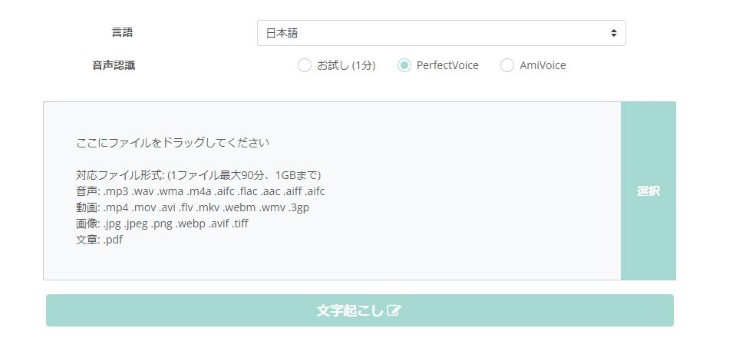
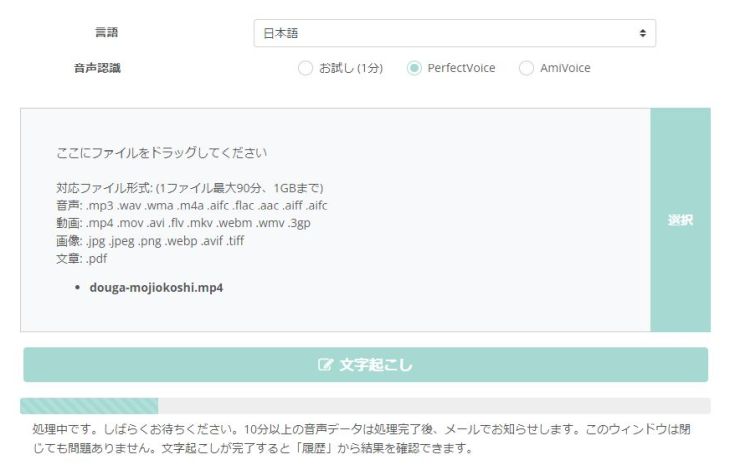
With 'Mojiokoshi-san', you can easily upload video files directly from the top page.
Scroll down slightly and either:
- Drag and drop your file into the area labeled "Drag files here"
- Click "Select" to choose your file
Use one of these methods to select your video file.
2. Upload the file
Clicking the "Transcribe" button will start the video file upload.
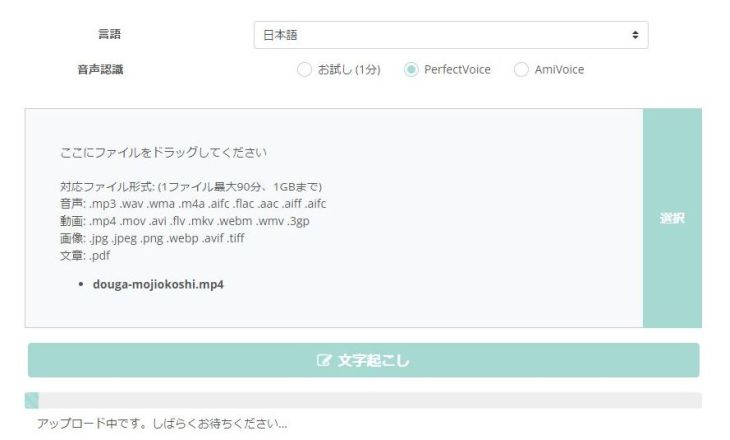
Once the upload is complete, transcription will automatically begin.
3. Transcription complete
Once transcription is complete, the screen will switch to display the transcription results.
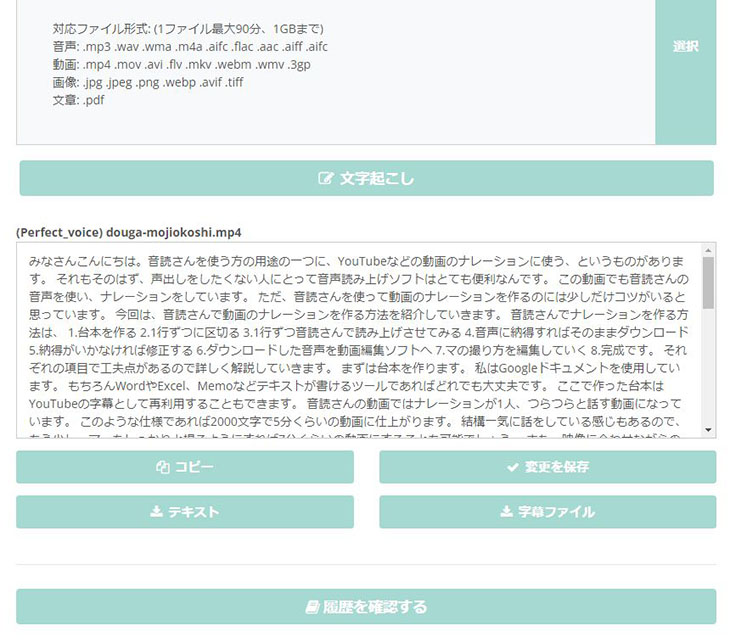
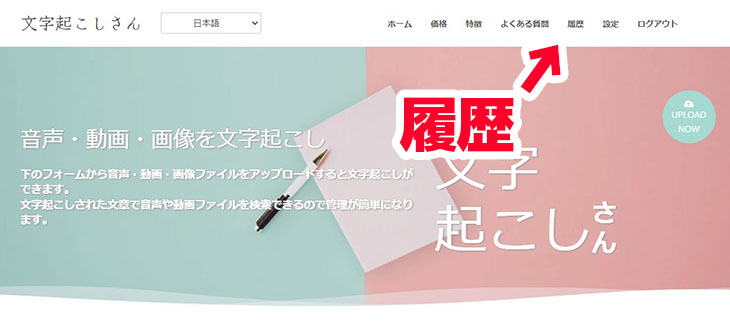
*If you close the screen, you will be notified via email.
You can also check your transcription results from the "History" menu.
4. Download subtitle file
'Mojiokoshi-san' allows you to download transcription results as an SRT subtitle file.
To download from the top page
To download the subtitle file from the top page, click the "Subtitle File" button.
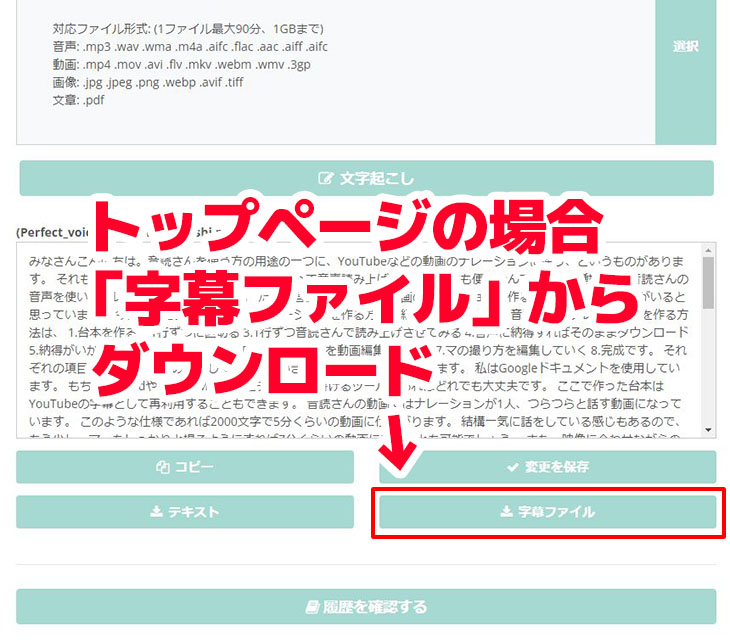
This will allow you to download the SRT file.
To download from the history page
To download the subtitle file from the history page, click the "Download" button on the page where you review the transcription content.
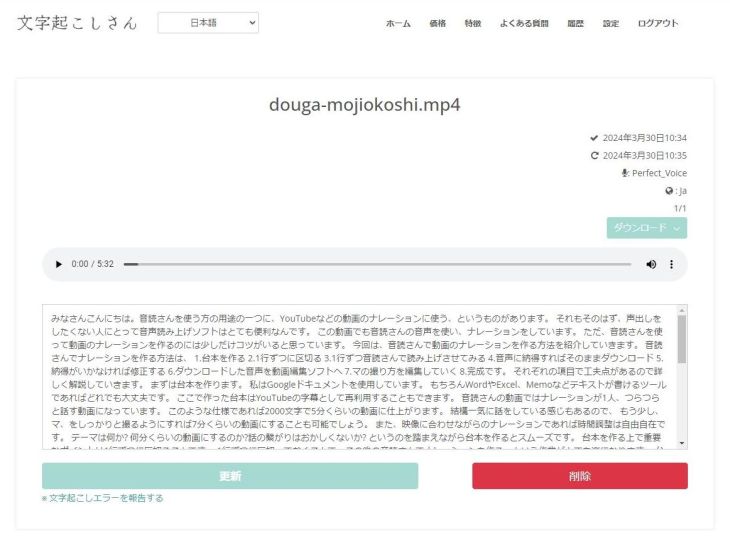
From the menu that appears after clicking the "Download" button, click "Video Subtitles".
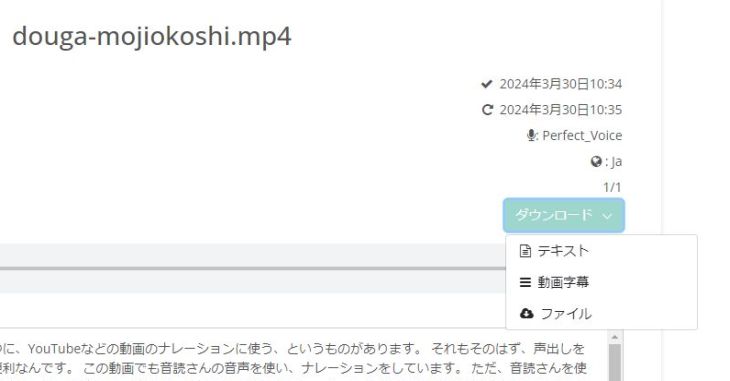
This will allow you to download the SRT file.
*Even if you edit the content on the Mojiokoshi-san webpage, the edits will not be reflected in the subtitle file.
If you wish to edit the subtitle content, please download the subtitle file and edit it directly using an application like Notepad.
5. Add subtitles to your video
You can add subtitles to your video by importing the downloaded SRT file into video editing software.
For Adobe Premiere
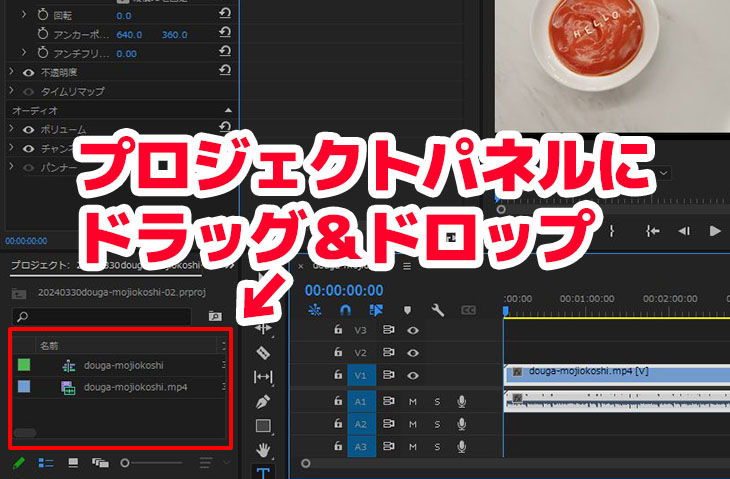
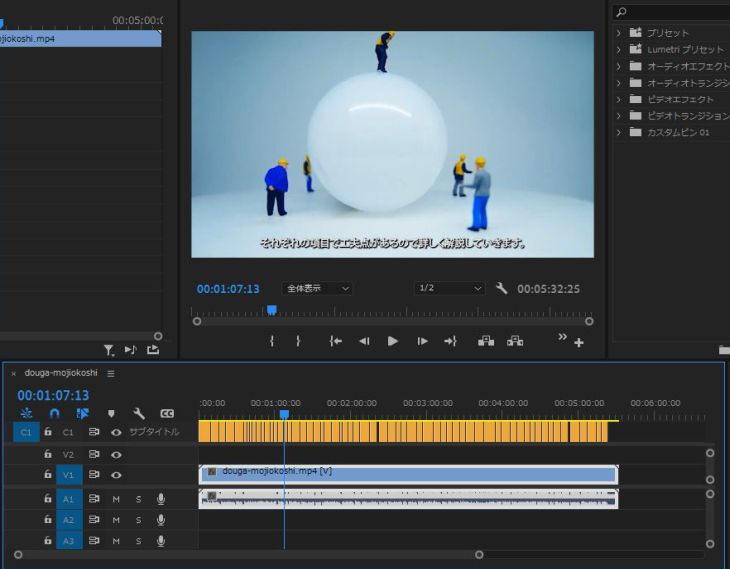
To import an SRT file into Adobe Premiere, first import the SRT file into your project.
Simply drag and drop it into the Project panel, just like you would with video or image assets.
Then, drag and drop the SRT file onto the timeline.
to add subtitles to your video.
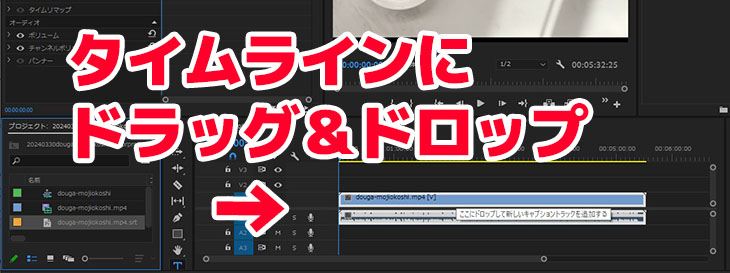
This is how the subtitles were added.
For DaVinci Resolve
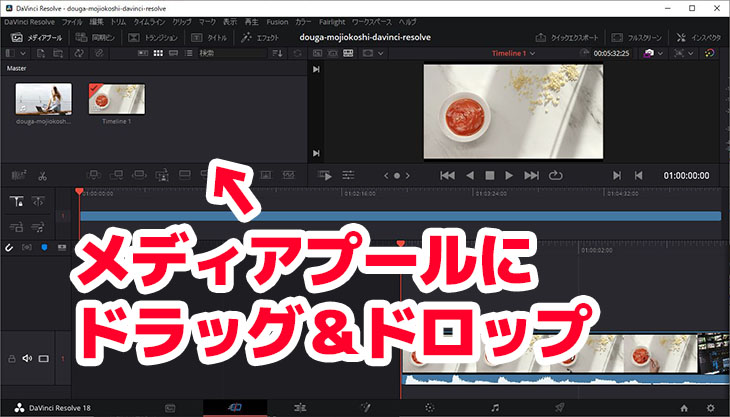
In DaVinci Resolve, first, drag and drop the SRT file into the Media Pool to import it.
Next, drag and drop the SRT file from the Media Pool to the timeline.
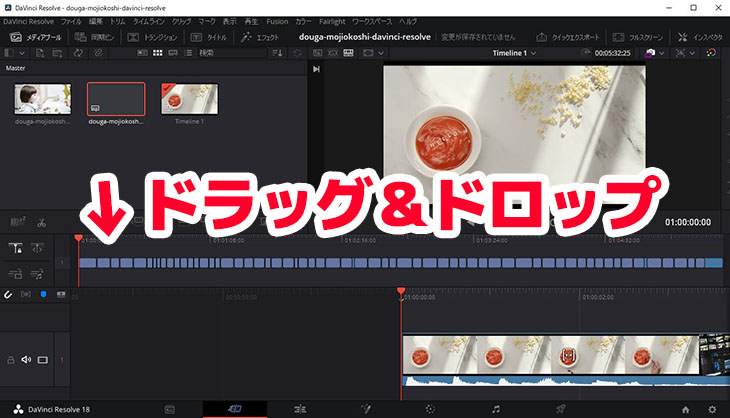
This completes adding subtitles to the video you are editing in DaVinci Resolve.
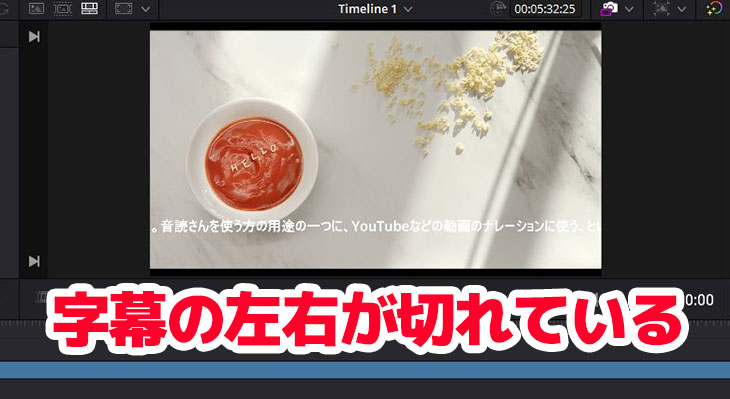
However, with DaVinci Resolve, you will need to adjust the subtitle width and line breaks.
Related Articles on How to Add Subtitles to Video Files
This article explains in more detail how to add subtitles using video editing software.
When Adding Subtitles on YouTube
To add subtitles to a video uploaded to YouTube, first, click "Subtitles" on the right side of the "Video details" screen.
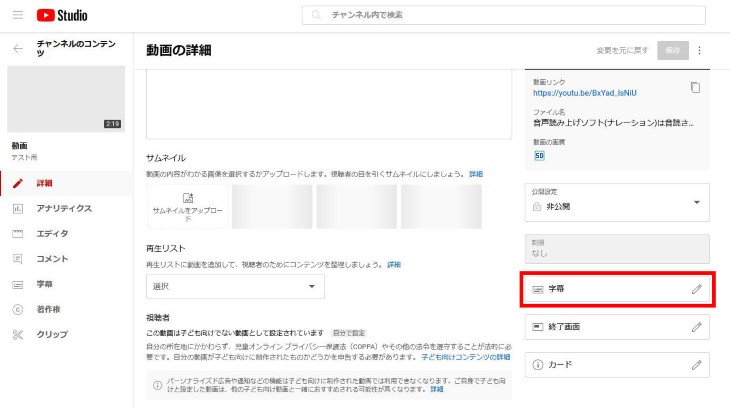
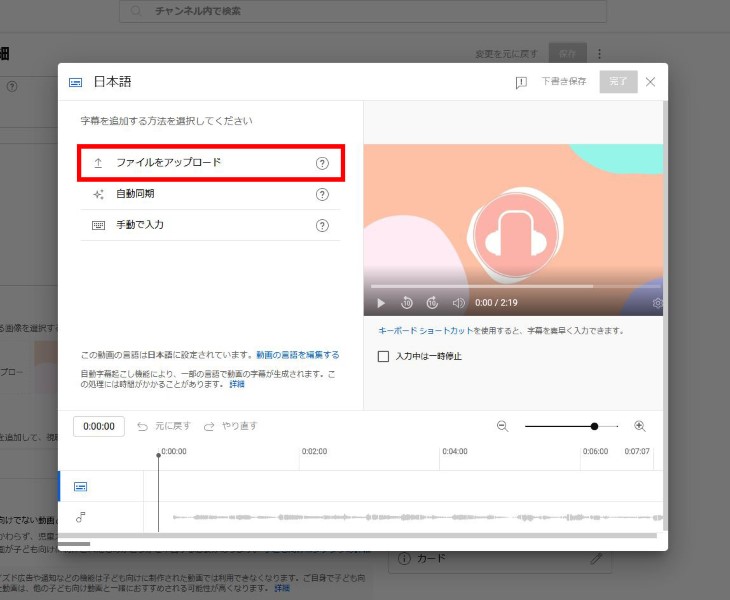
This will open the subtitle adding screen.
Click "Upload file" and upload the SRT file.
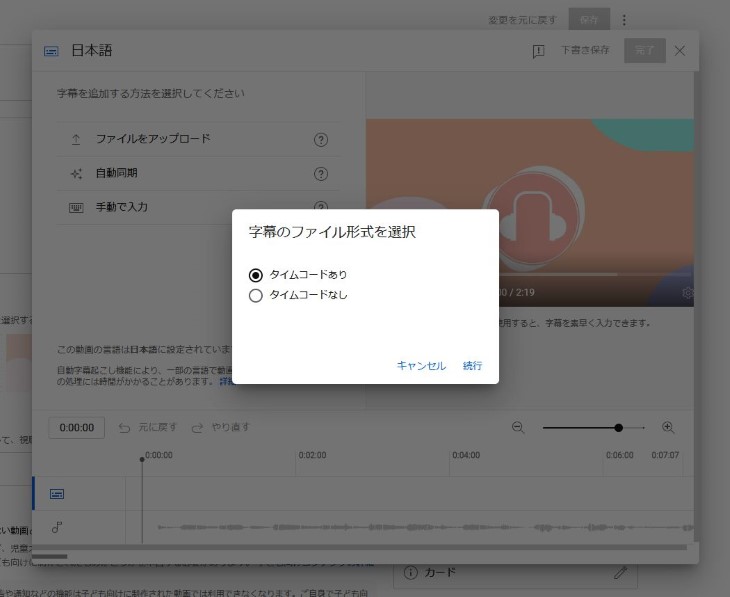
On the confirmation screen that appears, select "With timing".
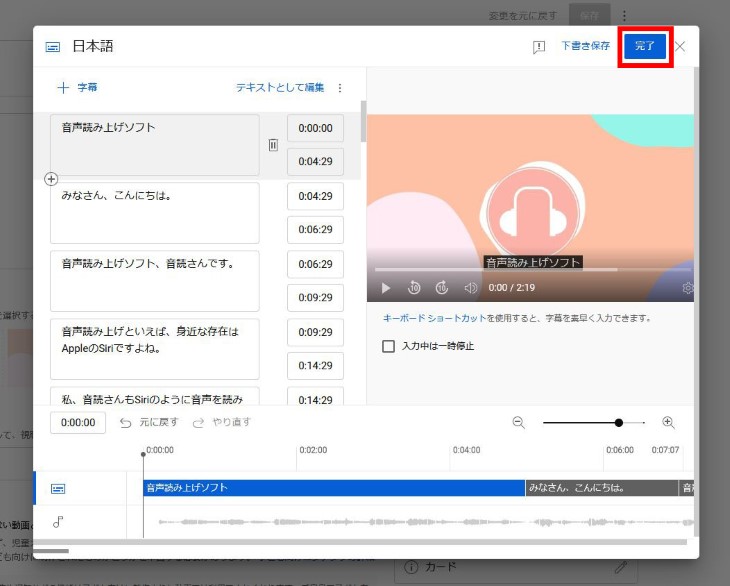
The SRT file has now been loaded.
All that's left is to click "Done" to save, and adding subtitles to your YouTube video is complete.
Related Articles on How to Add Subtitles to YouTube Videos
This article explains in more detail how to add subtitles to videos uploaded to YouTube.
Easily Transcribe Videos with AI Transcription Services
Using an AI transcription service like "Mojiokoshi-san" allows anyone to easily transcribe videos.
With an AI transcription service, you can completely automate the tedious task of typing out subtitles and captions!
Why not streamline your video production and editing with an AI transcription service?
■ AI transcription service "Mr. Transscription"
"Mr. Transcription" is an online transcription tool that can be used from zero initial cost and 1,000 yen per month (* free version available).
- Supports more than 20 file formats such as audio, video, and images
- Can be used from both PC and smartphone
- Supports technical terms such as medical care, IT, and long-term care
- Supports creation of subtitle files and speaker separation
- Supports transcription in approximately 100 languages including English, Chinese, Japanese, Korean, German, French, Italian, etc.
To use it, just upload the audio file from the site. Transcription text is available in seconds to tens of minutes.
You can use it for free if you transcribe it for up to 10 minutes, so please try it once.

It is "Mr. Transcription" who can easily transcribe from audio, video, and images.
Transcription allows you to transcribe for up to 10 minutes for free.
You can copy, download, search, delete, etc. the transcribed text.
You can also create subtitle files, which is ideal for transcription of interview videos.
HP: mojiokoshi3.com
Email: mojiokoshi3.com@gmail.com
Email: mojiokoshi3.com@gmail.com
Related article
Transcription for audio / video / image transcription. It is a transcription service that anyone can use for free without installation.
- What is Mr. Transcription?
- Transcript images, sounds, and videos with Mr. Transcription
- Free registration
- Rate plan
- manual
- Try other free services